

Tired of writing practice questions by hand? Our free AI PDF to Quiz Converter transforms any PDF document into structured quiz questions — multiple choice, true/false, short answer, and fill-in-the-blank — in seconds.
Upload a textbook chapter, lecture notes, a training manual, or any PDF document, and Taskade's AI generates a complete quiz with questions, answer options, and correct answers. Review, edit, and share with your class or team instantly.
How to Convert PDF to Quiz With Taskade
After importing your PDF file into Taskade, the AI Assistant analyzes the content and generates quiz questions based on key concepts, definitions, and facts found in the document.
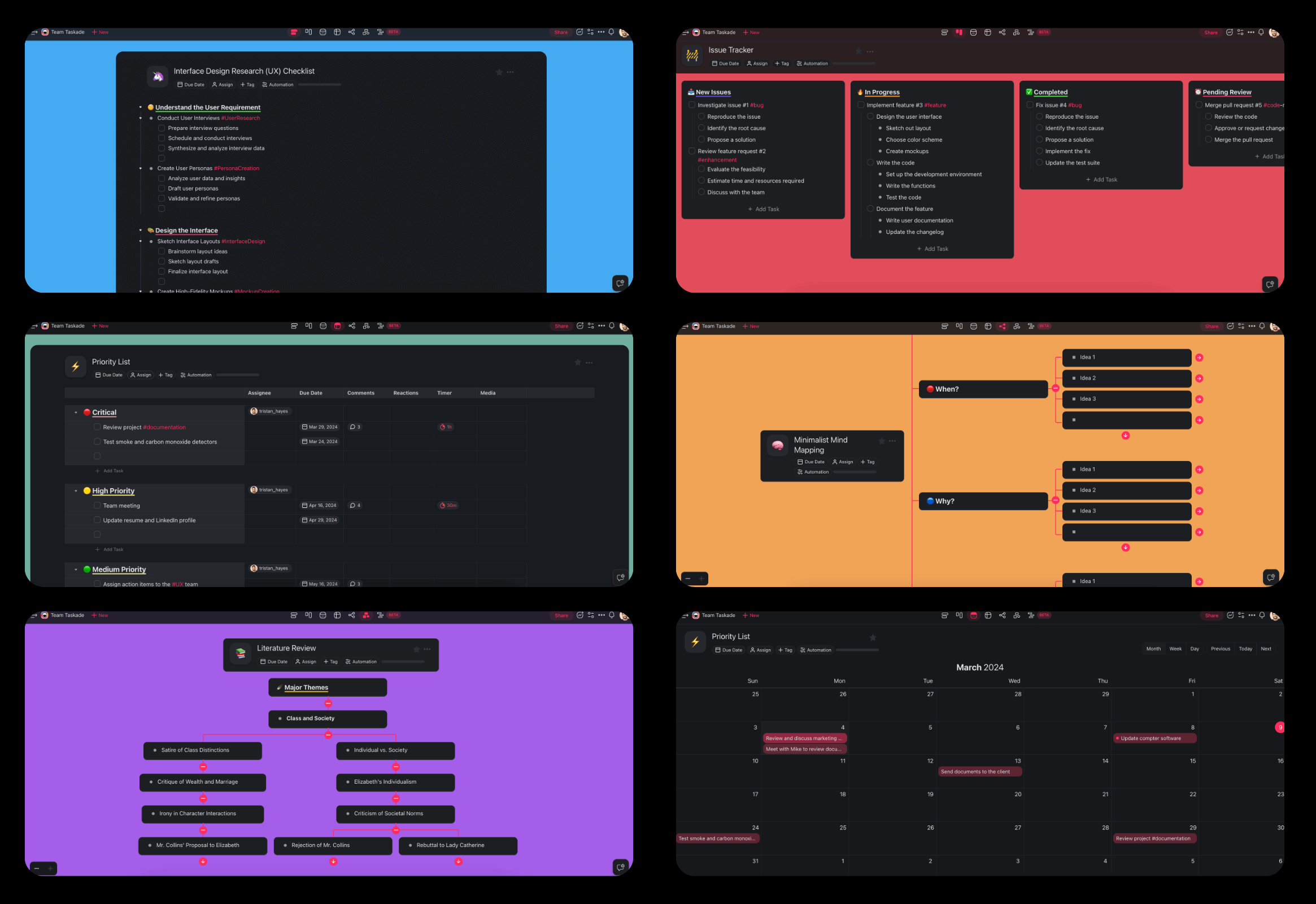
Switch between multiple project views to see your quiz in different formats — List view for linear question sets, Table view for answer key spreadsheets, or Board view for categorized question banks.
Try Taskade for free and start generating quizzes from your PDFs today.
Why Taskade for PDF to Quiz
Here's how Taskade compares to dedicated quiz makers:
| Feature | Taskade | Quizgecko | Quizlet | Kahoot |
|---|---|---|---|---|
| Free PDF to Quiz | Yes | Limited (3/mo) | No | No |
| AI Question Generation | 15+ models (OpenAI, Anthropic, Google) | 1 model | 1 model | None |
| Multiple Question Types | MC, T/F, Short Answer, Fill-in | MC, T/F | MC, T/F | MC only |
| Collaborative Editing | Real-time, role-based permissions | No | Limited | Limited |
| Multiple Output Views | views (List, Board, Table, Mind Map, and more) | List only | Cards only | Slides |
| Custom AI Agents | built-in tools | No | No | No |
| Export Options | Markdown, PDF, HTML, JSON | PDF only | PDF only | None |
PDF to Quiz for Students and Teachers
Exam Prep Quizzes — Upload your course materials and generate practice tests that mirror real exam formats. Test yourself before the actual exam.
Teacher Quiz Creation — Convert lesson plans and textbook chapters into ready-to-use classroom quizzes in minutes instead of hours.
Study Group Challenges — Share quiz sets with classmates and compete to see who scores highest. Real-time collaboration means everyone can contribute questions.
Self-Assessment — Generate quizzes from your own notes to identify knowledge gaps before exams.
Certification Prep — Convert professional certification study guides into practice tests for IT, medical, legal, and business certifications.
Backed by Y Combinator.
Use Cases for PDF to Quiz Converter
Academic Testing
Perfect for students and educators:
Converting textbook chapters into practice exams with answer keys.
Transforming lecture notes into pop quiz question banks.
Creating study quizzes from course syllabi and reading lists.
Corporate Training
Ideal for L&D teams:
Converting training manuals into employee assessment quizzes.
Transforming compliance documents into mandatory training tests.
Creating onboarding quizzes from company policy PDFs.
Professional Certification
Essential for career advancement:
Converting certification study guides into practice tests.
Transforming regulatory documents into compliance quizzes.
Creating topic-focused mini-quizzes from reference material PDFs.
Language Learning
Streamlines comprehension testing:
Converting grammar guides into fill-in-the-blank exercises.
Transforming vocabulary lists into multiple-choice quizzes.
Creating reading comprehension tests from foreign language PDFs.
Frequently Asked Questions
Can I convert a PDF to a quiz for free?
Yes. Taskade's free tier includes AI-powered PDF to quiz conversion. Upload any PDF and the AI generates quiz questions automatically. No credit card required.
What types of quiz questions does the AI generate?
The AI generates multiple question types: multiple choice, true/false, short answer, and fill-in-the-blank. It adapts the question type based on the content — definitions get true/false and multiple choice, while processes and procedures get short answer and sequencing questions.
Can I customize the difficulty level of quiz questions?
Yes. After conversion, you can edit any question. You can also use Taskade's AI commands to regenerate questions at different difficulty levels — easy for review, medium for practice, and hard for exam simulation.
How many questions does it generate per page?
The AI typically generates 3-5 questions per page of content, depending on information density. A 20-page chapter yields approximately 60-100 quiz questions. You can always generate more questions or remove ones you don't need.
Can I share quizzes with my students or team?
Yes. Share quiz sets via link or invite participants to your workspace with granular permissions (Owner to Viewer). Collaborators can take the quiz, add questions, or review answers in real time.
Does it include answer keys?
Yes. The AI generates correct answers for every question. Answer keys are included in the output and can be hidden or revealed as needed.
Can I export quizzes to other platforms?
Yes. Export your quiz as Markdown, PDF, HTML, or JSON. The structured format makes it easy to import into LMS platforms, Google Forms, or other quiz tools.
Does it work with image-heavy PDFs like science textbooks?
Yes. Taskade includes OCR processing for scanned and image-based PDFs. Text within diagrams, charts, and figures is extracted and used to generate relevant quiz questions.
How To Use This PDF to Quiz Converter
Drag and drop your PDF into the form or click to upload.
Click "Convert now" to start the AI question generation.
Wait for the converter to process your document into quiz questions.
Choose the "ViewLink" tab at the bottom to preview your quiz.
Click ··· (top-right) ➡ "Copy" and choose your workspace/folder.