





Hi Taskaders!
You can now activate your Custom AI Agents across Taskade, from the Multi-Select Toolbar for bulk actions to the individual task Add-Ons, as well as in the iOS & Android App!
TL;DR: Run AI agent commands in bulk via the Multi-Select Toolbar, individual task Add-Ons, text selection hover menu, and now on mobile (iOS and Android). Customize agents with built-in tools, train them with your knowledge, and deploy across all project views. Try it free →
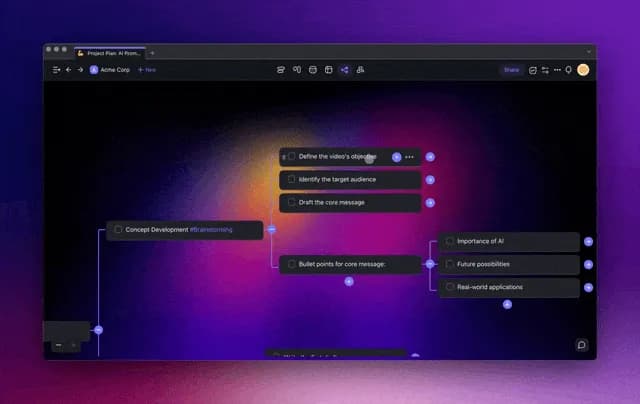
🤖 AI Agents in Multi-Select Toolbar
The new toolbar allows you to run Custom AI Agent commands across multiple task selections. Explore all the exciting new possibilities! Learn more
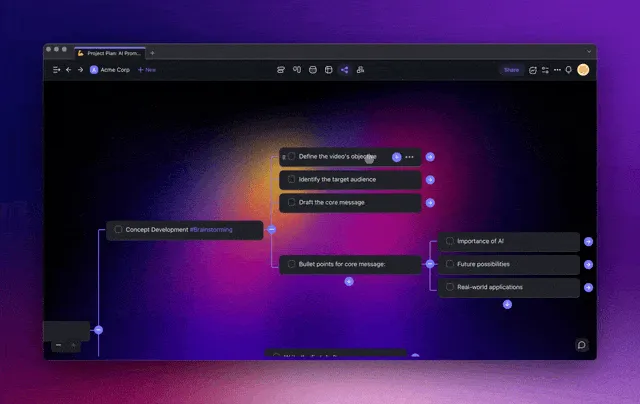
Taskade AI Agents - Bulk AI with Multi-Select
🤖 Custom AI Agents in Add-Ons
Access your AI Agents in the Add-Ons menu, as well as in the Mind Map and Org Chart Views. Select and run your AI commands on any task! Learn more
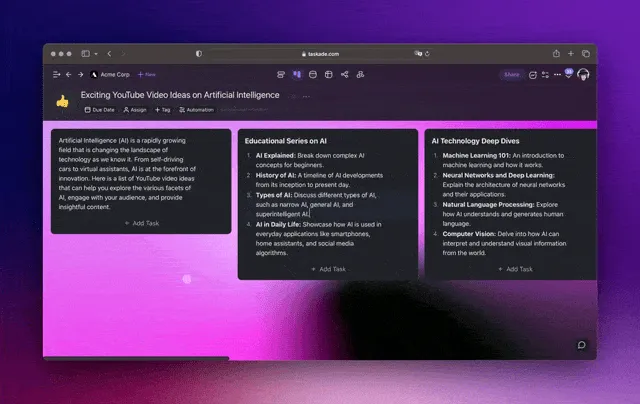
Taskade AI Agents - Single Task Command with Add-On
📱 AI Agents for iOS and Android
You can now create, train, and customize your AI Agents on our mobile apps. Chat with your AI Agent and use custom commands in any project. Learn more
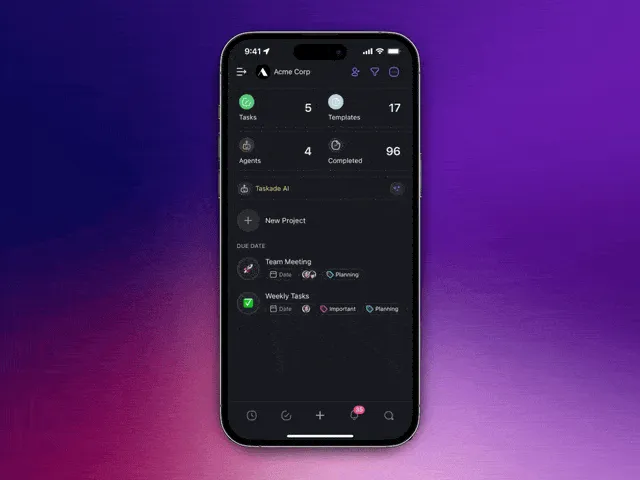
Taskade AI Agents for iOS & Android
💬 Clear AI Project Chat History
You can now delete chat history in your Project AI Chat!
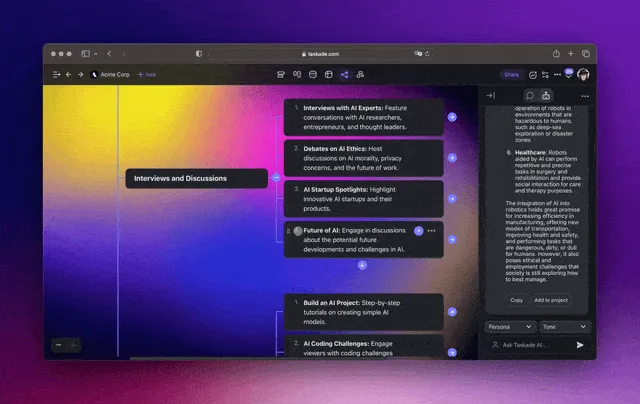
Taskade AI Chat - Clear History in Project
✍️ AI Agents in Text Selection Hover Menu
Now, you can select any task and conveniently run your AI Agent commands directly from the hover menu when making any text selection.
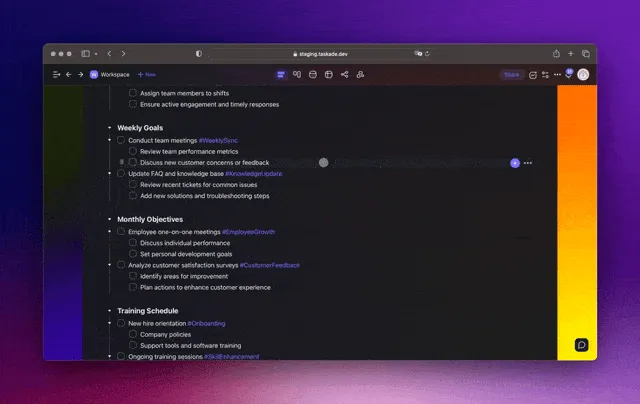
AI Agents Hover Menu
Other Improvements:
New: Taskade AI Automation is now available! In this beta release, we invite you to experience the future of workflow automation with AI. Learn more
New: Creating an Automation in Taskade is Easy:
Simply navigate to your Workspace, then click on the Automations tab. Select Add automation to start crafting your workflows!
Alternatively, go to your Project, navigate to the Title, and select the Automation button.
Please send us your Automation suggestions and feedback here!
New: Enhanced Custom AI Agents commands creation and management.
New: Enhanced Project-level AI Chat with the option to Clear chat history.
New: You can now upload more media file types in your projects and workspaces including HEIC and WebP file types.
Improved: We've fine-tuned Taskade AI and OpenAI GPT (frontier models) to fix some common issues, ensuring a smoother, more reliable experience.
Improved: Documentation for the Taskade Developer API.
Improved: Desktop apps for Mac, Windows, and Linux.
Improved: Keyboard shortcuts menu and guides.
And many more performance improvements.
Thank you for being part of our journey. Stay tuned for more exciting updates!
Have any questions? Visit our Help Center or let us know. ☺️
— Team Taskade 🐑

Frequently Asked Questions
How do I run AI Agent commands on multiple tasks at once in Taskade?
Select multiple tasks using the Multi-Select Toolbar, then choose an AI Agent command from the toolbar menu. The agent processes all selected tasks in bulk, applying the same command — such as summarize, translate, or rewrite — across every selected item in one action.
Where can I access Custom AI Agent commands in the Taskade editor?
Custom AI Agent commands are available in three places: the Add-Ons menu on any individual task, the Multi-Select Toolbar for bulk actions, and the text selection hover menu when you highlight content. This gives you quick access to agent commands in every editing context.
Can I create and train AI Agents on Taskade's mobile apps?
Yes. The iOS and Android apps support full AI Agent creation, training, and customization. You can define agent personas, add custom commands, upload knowledge, and chat with agents directly from your phone or tablet.
How do I clear AI chat history in a Taskade project?
Open the project's AI Chat panel and use the clear history option to delete previous conversations. This is useful for privacy, organization, or resetting the agent's short-term context when you want to start a fresh conversation thread.