

Stop wrestling with copy-paste when you need data from a PDF in spreadsheet form. Traditional converters produce flat CSV files riddled with broken columns and merged-cell chaos. Taskade's AI PDF to Spreadsheet Converter does something fundamentally different: it reads your PDF with 15+ frontier AI models, understands the structure of your data, and transforms it into an editable, interactive Table view inside a full AI workspace.
Upload invoices, financial reports, research datasets, or inventory lists and watch them become structured, sortable, filterable spreadsheets in seconds. No signup required, no watermarks, completely free.
How to Convert PDF to Spreadsheet With Taskade
After importing your PDF file into Taskade, our AI Assistant will automatically extract tabular data and organize it into columns and rows.
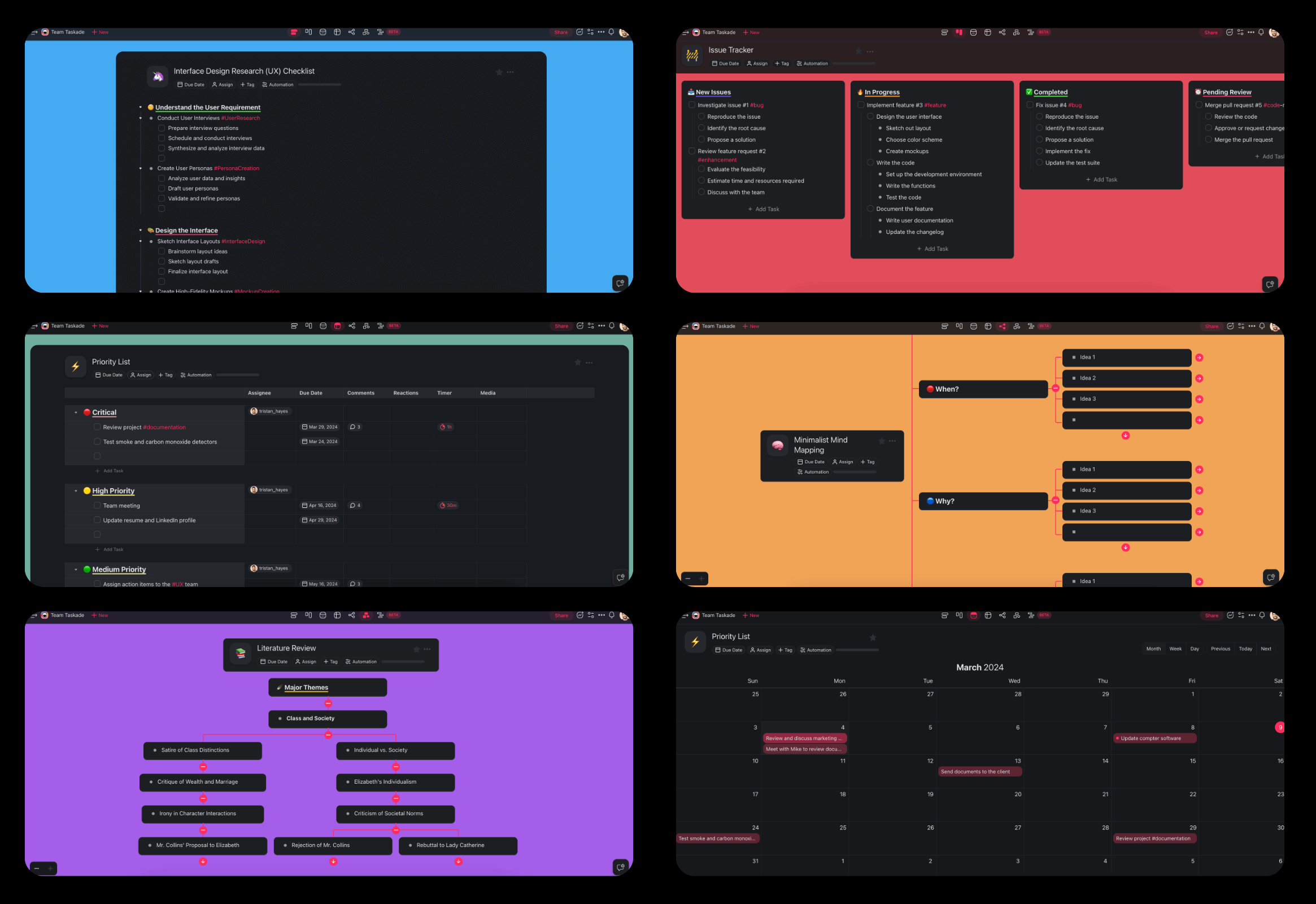
Taskade is not just a converter. It is a full AI workspace where you can create your AI-powered workforce to analyze, transform, and act on the data you extract. After conversion, switch between multiple project views to see your data as a list, board, table, mind map, doc, Gantt chart, calendar, actionsheet, or org chart.
Try Taskade for free today and start converting your PDFs to spreadsheets.
Use Cases for Converting PDF to Spreadsheet With AI
Financial Reports and Invoices
Extract financial data from PDF statements and invoices into sortable spreadsheet format.
Convert bank statements into structured tables for reconciliation and analysis.
Transform PDF invoices into spreadsheet rows for expense tracking and budgeting.
Extract quarterly earnings data from annual reports into sortable columns.
Research Data and Academic Tables
Pull structured data from research papers and academic publications.
Convert statistical tables from PDF research papers into editable spreadsheets.
Extract survey results and experimental data from PDF publications.
Transform literature review comparison tables into filterable datasets.
Inventory and Product Lists
Digitize product catalogs and inventory records locked in PDF format.
Convert PDF product catalogs into searchable, sortable inventory spreadsheets.
Transform supplier price lists from PDF into comparison tables.
Extract stock-level data from PDF warehouse reports into real-time tracking sheets.
Business Operations and HR
Streamline administrative workflows by extracting operational data from PDFs.
Convert employee rosters and schedules from PDF into editable spreadsheets.
Transform PDF compliance checklists into trackable, assignable task tables.
Extract contract terms and dates from PDF agreements into structured databases.
Real Estate and Legal
Extract structured information from contracts, property listings, and legal documents.
Convert property comparison sheets from PDF into sortable real estate tables.
Transform legal discovery documents into organized, searchable spreadsheets.
Extract clause-by-clause data from PDF contracts for side-by-side comparison.
Healthcare and Scientific Data
Pull patient data, lab results, and clinical information from PDF records.
Convert lab result PDFs into trackable patient data spreadsheets.
Transform clinical trial data from PDF publications into analysis-ready tables.
Extract medication schedules and dosage information into structured formats.
Why Taskade for PDF to Spreadsheet
Finding the right PDF to spreadsheet tool can be overwhelming. Here is how Taskade compares to the most popular alternatives:
| Feature | Taskade | Adobe Acrobat | iLovePDF | Smallpdf |
|---|---|---|---|---|
| Free PDF to Spreadsheet | Yes | No (paid only) | Limited (2/day) | Limited (2/day) |
| AI-Powered Extraction | 15+ models (OpenAI, Anthropic, Google) | Basic OCR | No AI | No AI |
| Output Formats | Multiple views (List, Board, Table, Mind Map, Docs (Beta), Gantt Chart, Calendar, Actionsheet, Org Chart) | Excel/CSV only | Excel/CSV only | Excel/CSV only |
| Real-Time Collaboration | Yes, with role-based permissions | Limited | No | No |
| Editable After Conversion | Full rich-text editing + Table view | Requires Excel | Requires Excel | Requires Excel |
| AI Follow-Up Analysis | Yes, via AI Agents with built-in tools | No | No | No |
| Custom AI Agents | Custom slash commands, persistent memory | No | No | No |
| Export Options | Markdown, PDF, HTML, JSON | PDF, Excel | Excel, CSV | Excel, CSV |
| Scanned PDF Support (OCR) | Yes | Yes (paid) | Yes (paid) | Yes (paid) |
Unlike traditional PDF to Excel converters that produce a static file, Taskade converts your PDF into a living workspace. After extraction, you can sort columns, filter rows, assign tasks to team members, set due dates on line items, and build custom AI Agents to automate follow-up analysis. You can also set up workflow automation to process incoming PDFs automatically.
Frequently Asked Questions
Can I convert a PDF to a spreadsheet for free?
Yes. Taskade offers a free tier that includes AI-powered PDF to spreadsheet conversion. Upload your PDF, click "Convert now," and receive a structured, editable spreadsheet instantly. No credit card required, no watermarks, and no file-count limits on the free plan. For teams that need higher usage, paid plans are available.
How does the AI extract table data from a PDF?
Taskade uses 15+ frontier AI models from OpenAI, Anthropic, and Google to analyze the layout and content of your PDF. The AI identifies tables, columns, headers, and data relationships, then reconstructs them as structured rows and columns in Taskade's Table view. This is far more accurate than traditional OCR-only approaches that simply scan pixel positions.
Can it handle scanned PDFs or image-based PDFs?
Yes. Taskade includes OCR (Optical Character Recognition) in its processing pipeline. When you upload a scanned PDF or image-based document, the system extracts text from the images before converting it into structured spreadsheet data. For best results, use scanned documents with at least 300 DPI resolution.
What types of PDFs work best for spreadsheet conversion?
Any PDF containing structured or semi-structured data converts well: invoices, financial statements, price lists, inventory reports, research data tables, employee rosters, product catalogs, and compliance checklists. The AI adapts its extraction strategy based on the document type it detects.
Can I edit the spreadsheet after conversion?
Absolutely. Unlike tools that export a static Excel file, Taskade converts your PDF into a fully editable project. In Table view, you can add or remove columns, sort and filter data, insert formulas, assign rows as tasks to team members, and use AI commands to analyze or transform specific data ranges.
How is this different from just exporting PDF to Excel?
Traditional PDF to Excel export dumps raw text into cells without understanding context. Taskade's AI actually comprehends your data: it recognizes headers, merges split cells, identifies data types (dates, currencies, percentages), and creates clean columns. Plus, your data lives in a collaborative workspace with multiple project views, AI agents, and automation, not a static file on your desktop.
Can I share the converted spreadsheet with my team?
Yes. Taskade is built for collaboration. Share your converted spreadsheet via a link or invite team members with permissions (Owner to Viewer). Multiple people can edit the same spreadsheet simultaneously with real-time sync.
Can I automate PDF to spreadsheet processing for multiple files?
Yes. Taskade supports workflow automation with triggers, conditions, and AI agent actions. You can set up an automation that processes new PDFs as they arrive in a workspace folder, converts them to spreadsheets, and notifies your team without manual intervention. This is especially useful for teams processing invoices, reports, or inventory updates in bulk.