

Syllabi, project timelines, event programs, and meeting agendas are full of dates that matter. But when they live inside a PDF, those dates are invisible to your calendar. Taskade's AI PDF to Calendar Converter extracts every date, deadline, and scheduled event from your PDF and places them on an interactive Calendar view where you can track, assign, and manage them.
How to Convert PDF to Calendar With Taskade
After importing your PDF file into Taskade, our AI Assistant will identify dates, deadlines, and events and organize them chronologically.
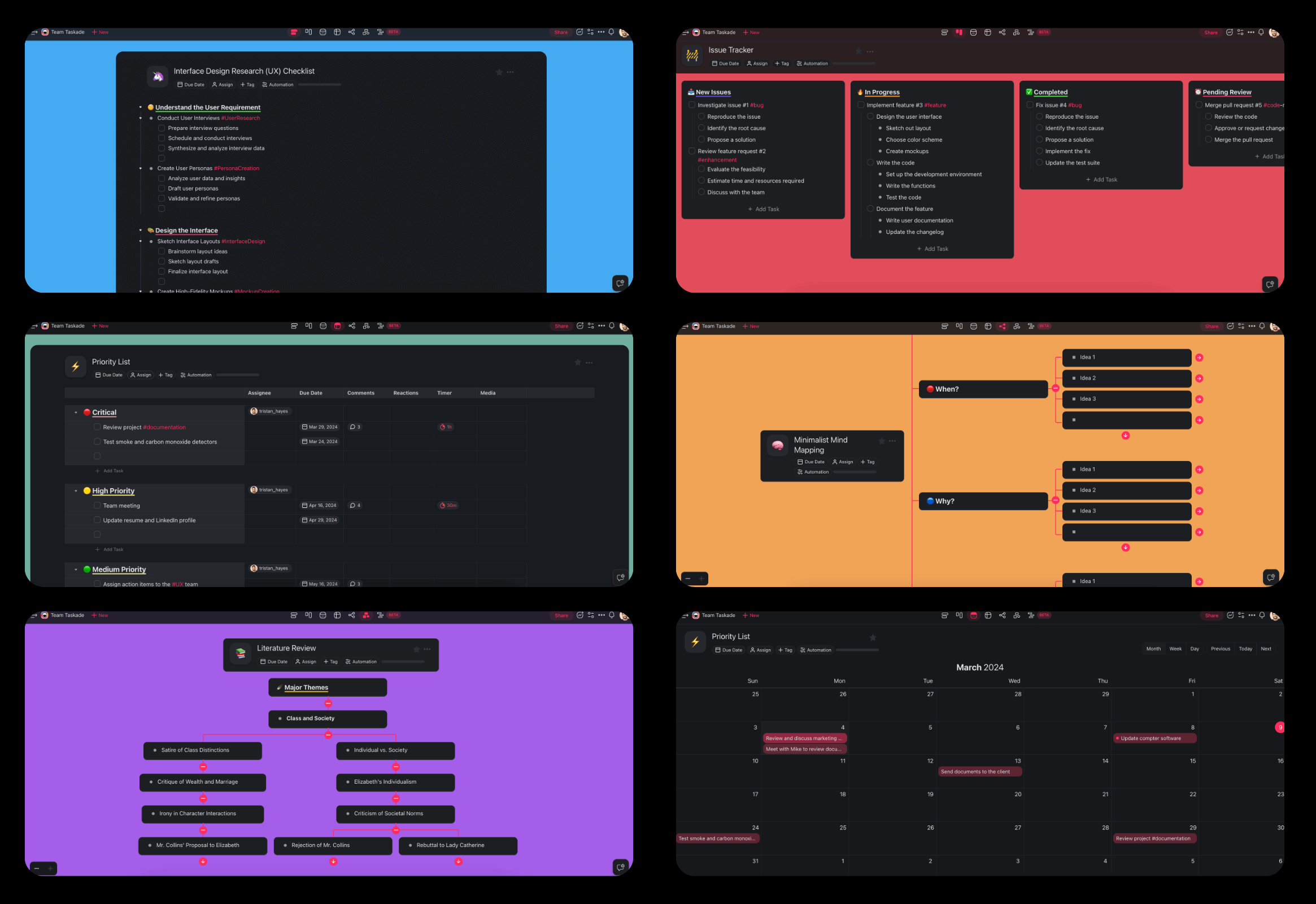
Taskade's Calendar view is one of multiple project views available after conversion. Switch between Calendar, List, Board, Table, Mind Map, Gantt Chart, and Org Chart to see your schedule from every angle.
Try Taskade for free today and start converting your PDFs to calendar events.
Use Cases for Converting PDF to Calendar With AI
Academic Syllabi and Course Schedules
Transform semester syllabi into calendar events you can track all term.
Convert PDF syllabi into a calendar with assignment due dates, exam dates, and reading schedules.
Transform academic program calendars from PDF into term-wide schedule views.
Extract lab session schedules from PDF course materials into weekly calendar blocks.
Project Timelines and Milestones
Visualize project deadlines extracted from PDF plans on an interactive calendar.
Convert PDF project charters into milestone calendars with phase deadlines.
Transform PDF Gantt charts into interactive Calendar and Timeline views.
Extract sprint dates from PDF agile plans into team-wide calendars.
Event Schedules and Agendas
Turn event programs and conference agendas into navigable calendar formats.
Convert multi-day conference agendas from PDF into session-by-session calendar views.
Transform wedding planning timelines from PDF into shared calendar schedules.
Extract trade show booth schedules from PDF programs into team assignment calendars.
Meeting Agendas and Recurring Schedules
Extract meeting cadences and agenda items from PDF organizational documents.
Convert quarterly meeting schedules from PDF into recurring calendar events.
Transform PDF board meeting calendars into shared executive scheduling views.
Extract client meeting cadences from PDF account plans into follow-up calendars.
Frequently Asked Questions
Can I convert a PDF to calendar events for free?
Yes. Taskade's free tier includes AI-powered PDF to Calendar conversion. Upload your PDF, click "Convert now," and see your dates organized on an interactive calendar instantly. No credit card required.
How does the AI detect dates in a PDF?
Taskade uses 15+ frontier AI models from OpenAI, Anthropic, and Google that understand natural language date references. The AI detects explicit dates ("March 15, 2026"), relative references ("two weeks after kickoff"), recurring patterns ("every Monday"), and deadline language ("due by end of Q2").
Can I switch between Calendar and other views?
Yes. Taskade offers multiple project views. After conversion to Calendar view, switch to Gantt for timeline visualization, Board for kanban-style status tracking, or Table for spreadsheet-like date management. All views stay synchronized.
Can I share the calendar with my team?
Yes. Share via link or invite team members with permissions (Owner to Viewer). Everyone sees the same calendar in real time and can be assigned to specific events.