





We have another exciting update for Taskade this week. Enjoy! 🎉
TL;DR: The 2020 multiselect, keyboard reorder, and project-activity-in-chat upgrades planted the roots of today's collaborative editing — now spread across multiple project views including Board, Table, and Gantt, 15+ frontier AI models, and 100+ integrations. Taskade Genesis turns prompts into living apps where every action streams into the Community Gallery.
Then → Now: Project-activity-in-chat became today's full activity feeds across Board/Table/Gantt views — see Learn Taskade: Projects.
| Dimension | 2020 (this release) | Today (2026) |
|---|---|---|
| Bulk ops | Manual multiselect format + reorder | Bulk ops + AI agents auto-organizing tasks |
| Reorder | Cmd+Shift+Arrow keyboard | Drag, keyboard, agent commands, automation move-task |
| Activity stream | Completed tasks in chat | Full activity feed + agent run logs |
| Views | List + Mind Map + Org Chart + Calendar sync | multiple project views: List, Board, Calendar, Table, Mind Map, Gantt, Org Chart |
| Intelligence | None (no AI yet) | 15+ frontier models suggest reorderings |
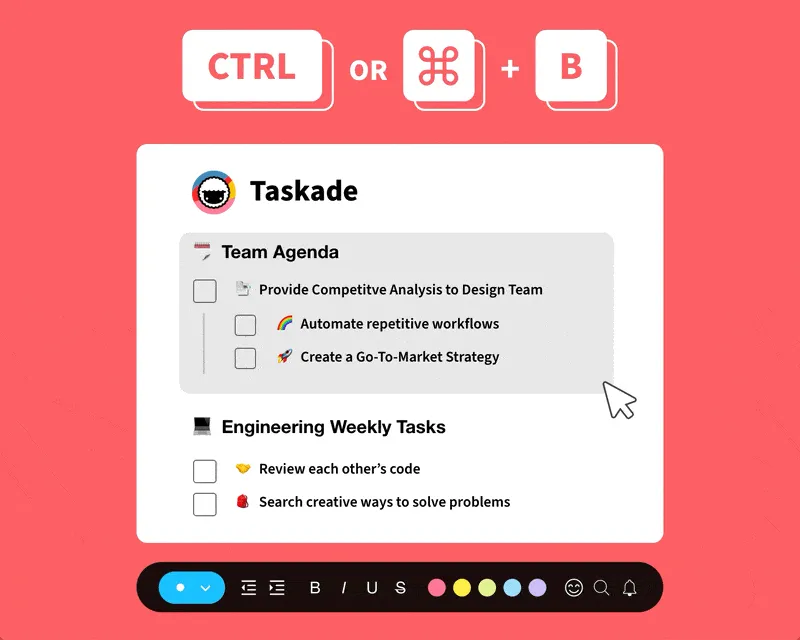
⚡️ Multiselect Tasks: Style & Format
You can now highlight, bold, italicize, underline, and complete multiple tasks. In addition, you can change the format (✅ ⏺ 📝) of multiple blocks.
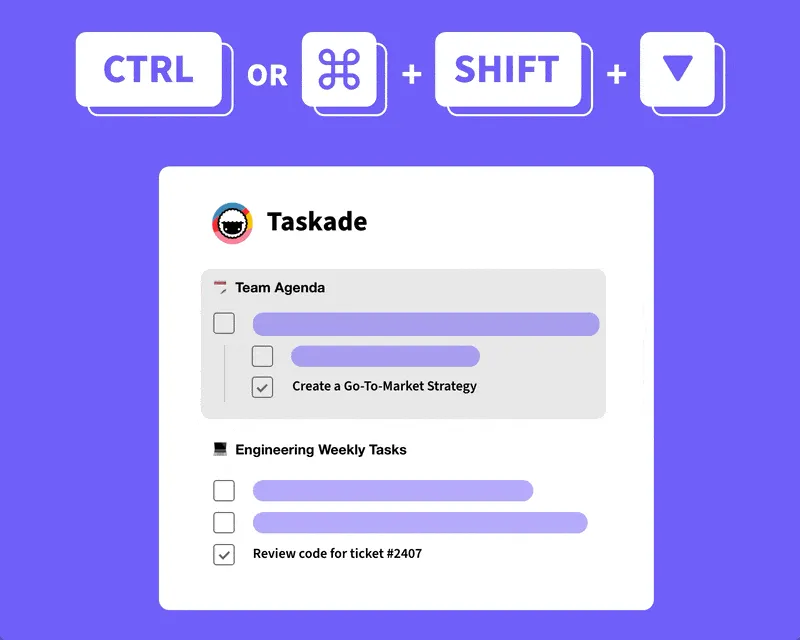
⚡️ Reorder Tasks with Keyboard Shortcuts
Press Ctrl or ⌘ + Shift + ↑ ↓ on your keyboard to reorder tasks and blocks.
⚡️ Project Activity in Chat
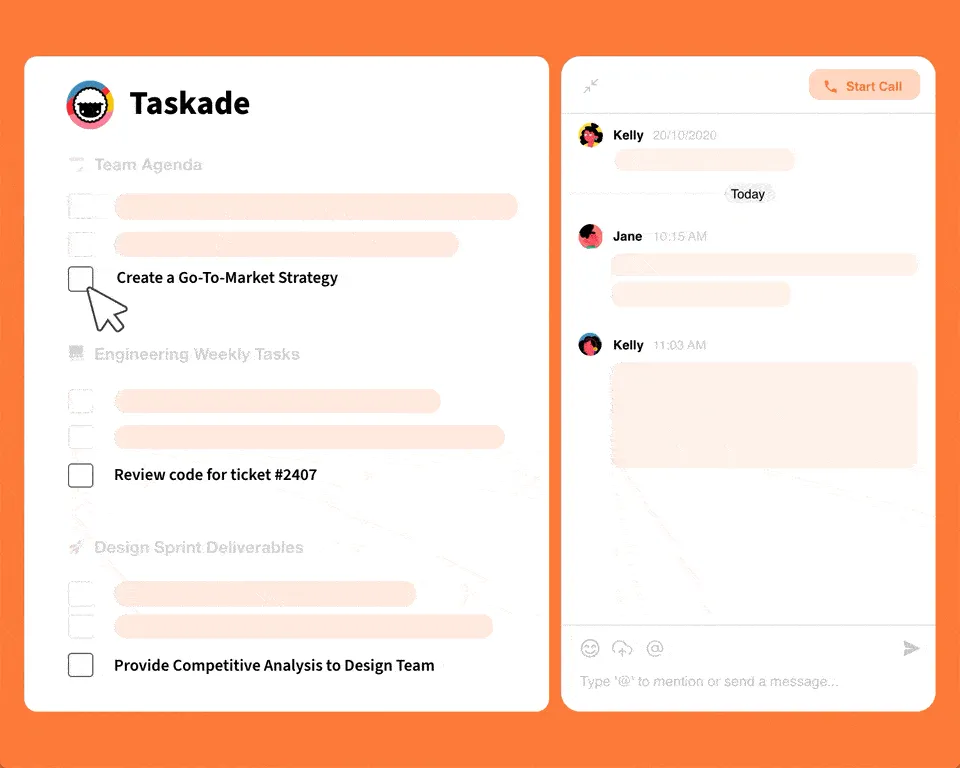
Your completed tasks will now show up in chat so you and your team can have full visibility on when a task is completed and who checked it off. Today, AI Agents and Automations add the same activity stream — see Learn Taskade: Automation.
⌨️ Reorder Without Touching the Mouse
The October 2020 release was a love letter to keyboard-first power users. The keymap below still ships in 2026, identical, across web, desktop, and mobile.
   ┌──────────────────────────────────────────────────────┐
   │  Shift + ↑ / ↓ ......... extend selection            │
   │  ⌘ / Ctrl + Shift + ↑ .. move selection up           │
   │  ⌘ / Ctrl + Shift + ↓ .. move selection down         │
   │  ⌘ / Ctrl + B / I / U .. bold / italic / underline   │
   │  ⌘ / Ctrl + Enter ..... complete checkbox            │
   │  ⌘ / Ctrl + Z ......... undo                         │
   │  ⌘ / Ctrl + Shift + Z . redo                         │
   └──────────────────────────────────────────────────────┘
Related Reading:
- Best Task Management Software and Tools
- Build Effective Remote Teams with Atomic Habits
- Multi-Select Enhancements — July 2020 prequel
- Undo, Redo, Project Changelog — safety net for bulk edits
- Learn Taskade: Keyboard Shortcuts · Multiselect
- Today, AI agents, automations, and Taskade Genesis extend bulk ops with intelligence.
Thanks again for supporting Taskade, and as always, don’t hesitate to reach out if you need help. We’re here for you! 😊
— Team Taskade 🐑
Frequently Asked Questions
Can I format multiple tasks at once in Taskade?
Yes. Multiselect lets you highlight, bold, italicize, underline, and complete multiple tasks simultaneously. You can also change the block format (task, bullet, paragraph) for multiple items at once, saving time when styling or reorganizing large project sections.
Is there a keyboard shortcut to reorder tasks in Taskade?
Yes. Press Cmd/Ctrl + Shift + Up/Down arrow keys to move selected tasks up or down in the project. This keyboard shortcut lets you reorder tasks without using the mouse, keeping you in a fast, keyboard-driven workflow.
Does Taskade show completed tasks in project chat?
Yes. When a task is completed, it automatically appears in the project chat feed with a timestamp and the name of the person who checked it off. This gives the entire team real-time visibility into task progress without checking the project directly.
Can I select multiple tasks with the keyboard in Taskade?
Yes. Hold Shift and use the Up/Down arrow keys to select multiple consecutive tasks. Once selected, you can apply formatting, reorder them, or mark them as complete — all from the keyboard for maximum efficiency.