





Hi Taskaders 👋
We have an amazing update this week focused on speed! ⚡️
TL;DR: Cmd+K Quick Search shipped in 2020 as Taskade's first cross-workspace finder. Today it's powered by multi-layer search — full-text, semantic, and file-content OCR — across multiple project views, AI agents, automations, and 100+ integrations. Taskade Genesis turns any prompt into a living app you can search instantly.
Then → Now: Cmd+K text search has grown into multi-layer search: full-text + semantic vector search + file content OCR, indexing tasks, agent runs, and community apps.
| Search | 2020 | Today (2026) |
|---|---|---|
| Scope | All projects by text | All projects + files + agent runs + community apps |
| Shortcut | Cmd/Ctrl+K quick, Cmd/Ctrl+F project | Same shortcuts + command palette |
| Matching | Basic text + @mentions + #tags | Full-text + semantic vector + file content OCR |
| Filters | Text, mention, tag | Text, mention, tag, view, actor, date, agent |
| Notifications | Simplified per-project control | Per-project + per-automation + agent alerts |
⚡️ Quick Search
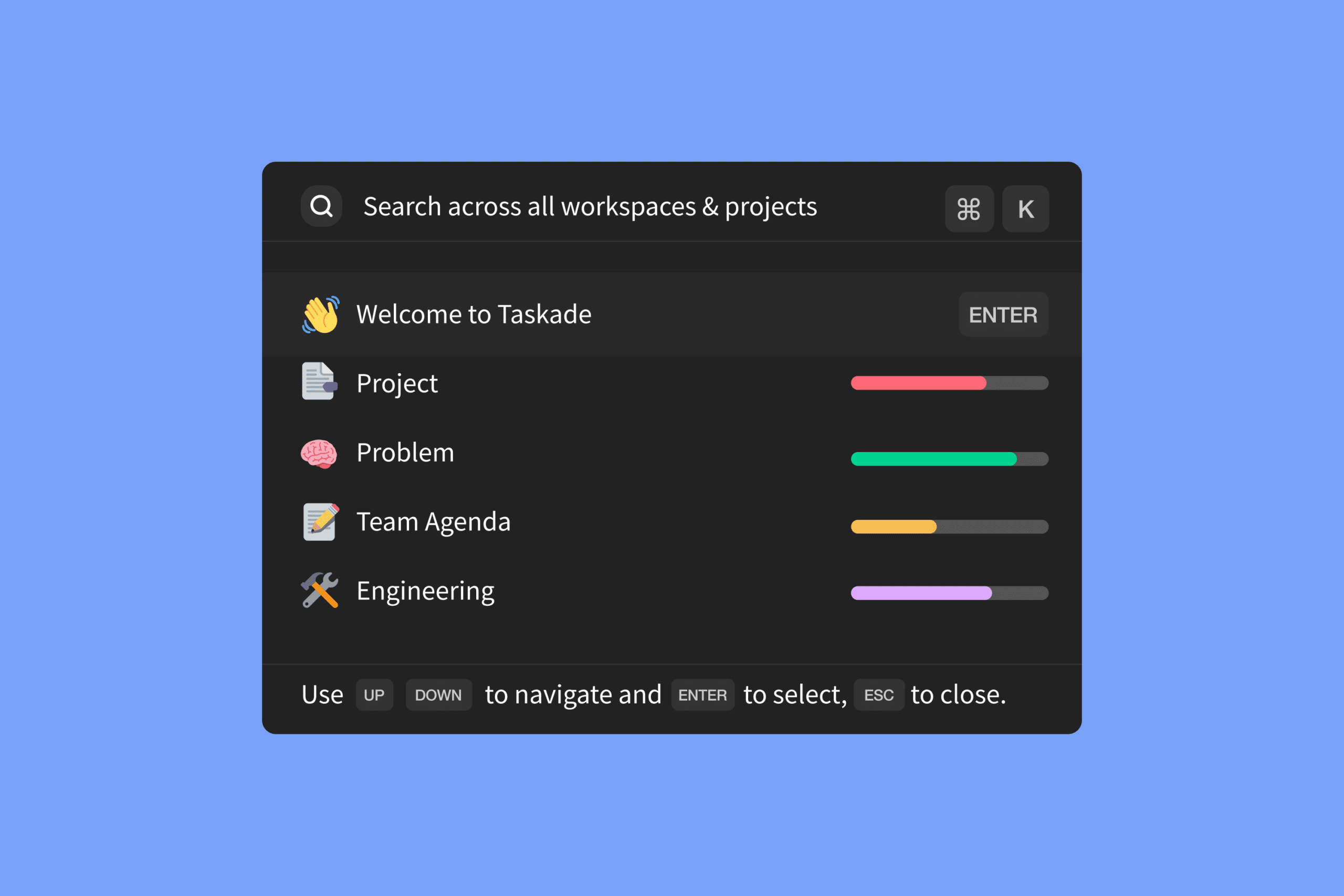
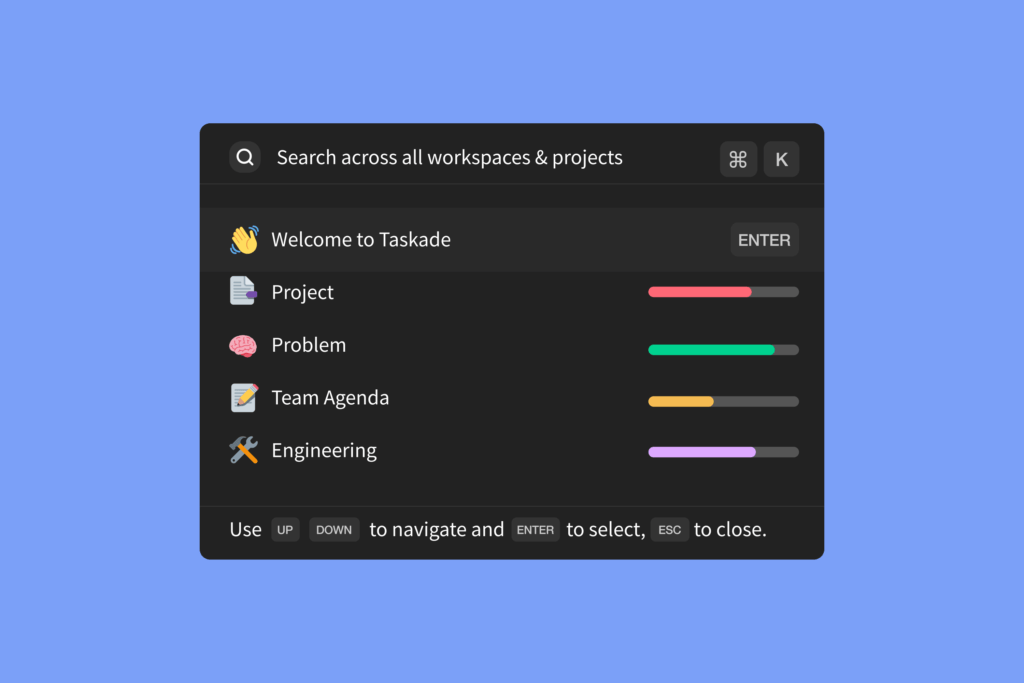
You can now ⌘ K (Mac) or CTRL K (Win) to instantly browse and jump between projects, anywhere in the Taskade web and desktop apps.
⚡️ Project Search
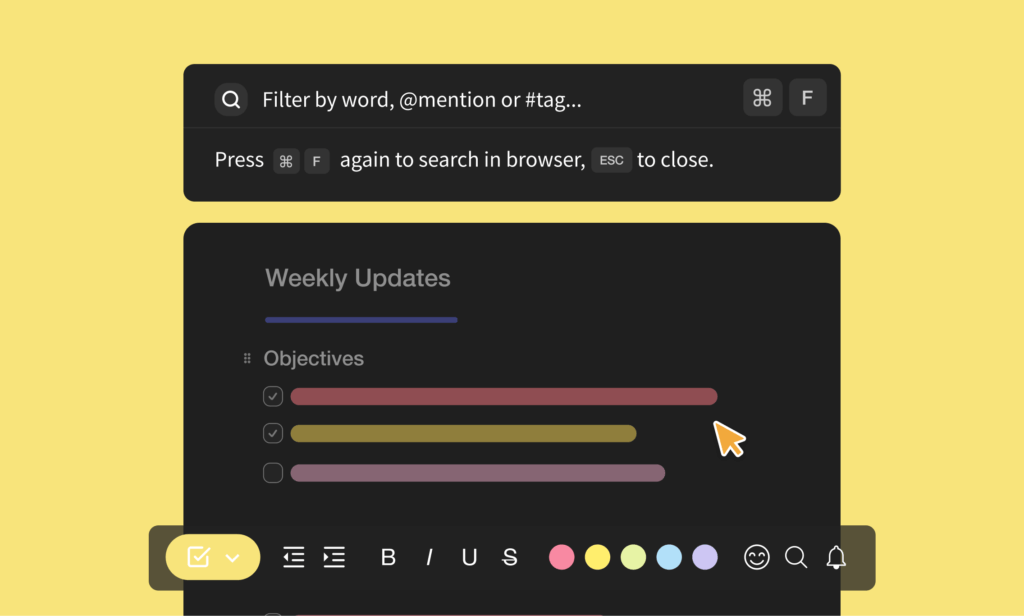
When editing a project, simply ⌘ F (Mac) or CTRL F (Win) to search and filter your project by text, @mention, and #tag.
⚡️ Notification Control
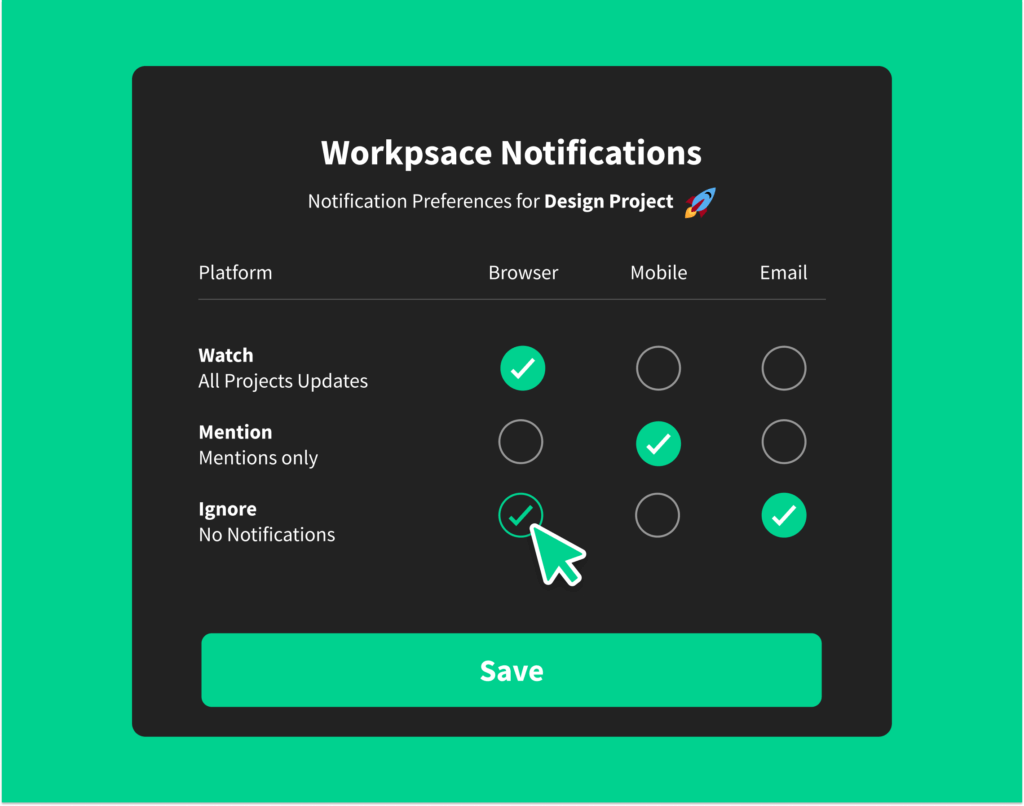
The notification control for projects and workspaces is now faster and simpler.
⌨️ The Cmd+K Keymap
Quick Search shipped with a tiny but addictive keymap. Six years later the same shortcuts are still muscle memory for power users — only the index behind them has gone semantic.
   ┌─────────────────────────────────────────────────────────┐
   │  ⌘ K   Quick Search   →  jump anywhere across workspaces│
   │  ⌘ F   Project Search →  filter inside the open project │
   │  ⌘ /   Command Palette → run any action by name         │
   │  ⌘ ⇧ F  Global Search  → full-text + semantic + OCR     │
   │  ⌘ ⇧ N  Notifications  → per-project mute / mentions    │
   └─────────────────────────────────────────────────────────┘
In 2026 the index spans agent runs, automation logs, uploaded files (OCR), and community apps — all reachable from the same Cmd+K box.
🔗 Related Reading
- Multi-Select Enhancements — bulk ops on Cmd+K results
- My Tasks, Team Agenda, Project Links — search your personal inbox
- Learn Taskade: Search · Multi-layer search architecture
- Search across Genesis apps, agents, and integrations.
We hope you are staying safe in these difficult times. Thanks again for supporting Taskade, and as always, don’t hesitate to reach out if you need help.
We’re here for you! 😊
— Team Taskade 🐑
Frequently Asked Questions
Does Taskade have a quick search shortcut?
Yes. Press Cmd+K (Mac) or Ctrl+K (Windows) to open Quick Search from anywhere in Taskade. Instantly browse and jump between projects across all workspaces without navigating through menus — the same shortcut works in both web and desktop apps.
Can I search within a single project in Taskade?
Yes. Press Cmd+F (Mac) or Ctrl+F (Windows) while editing a project to open the in-project search. Filter tasks by text content, @mentions, or #tags to quickly find specific items within large projects without scrolling.
Can I control notification settings per project in Taskade?
Yes. Taskade lets you customize notification preferences at both the project and workspace level. Choose to receive all notifications, mentions only, or turn them off entirely for specific projects — keeping important updates visible while reducing noise from less critical ones.
Does Taskade support searching across all workspaces?
Yes. The Quick Search (Cmd/Ctrl+K) and Global Search features search across all your workspaces, folders, and projects simultaneously. Find any task, note, or project by text, @mention, or #tag regardless of where it lives in your workspace hierarchy.