





Hi Taskaders 🎉
We've worked hard to make Taskade work better for you! Here's what's new:
TL;DR: November 2021 brought back full-page project backgrounds, added a sidebar jump-nav, and shipped the colon-trigger inline emoji picker — primitives that today live on as the Aurora glass UI, custom domains, and branded Taskade Genesis apps in the Community Gallery.
Then → Now: 2021's project backgrounds, sidebar, and emoji evolved into today's Aurora design system and custom branding plus the Community Gallery for showcasing your themed builds.
⚡️ Project Background
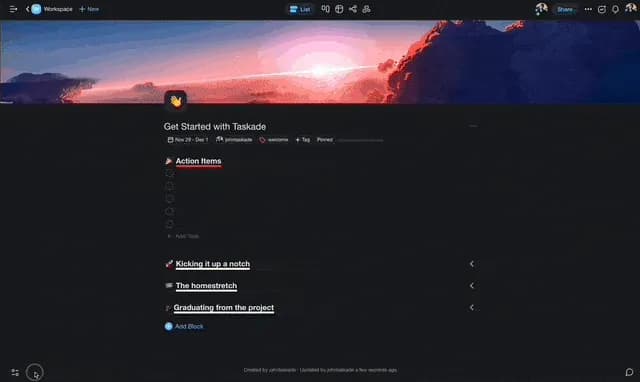
Full-page wallpapers are back! Select "Background" in the project settings menu at the bottom left corner and customize your project. Learn more.
Taskade project background
⚡️ Project Sidebar
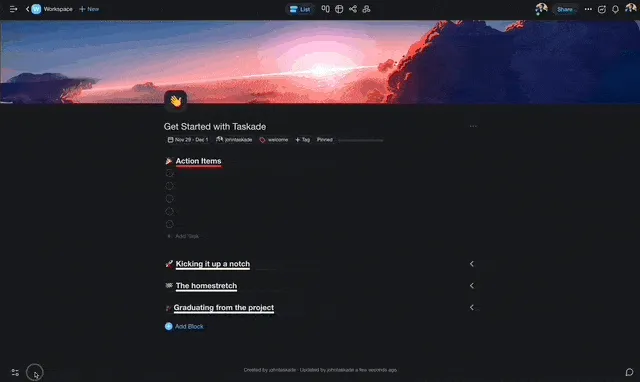
Open the Sidebar navigation to quickly jump between projects and spaces.
Taskade sidebar
⚡️ Insert Emoji
Type ":" to search and insert emojis quickly into a task. Try it out! Learn more.
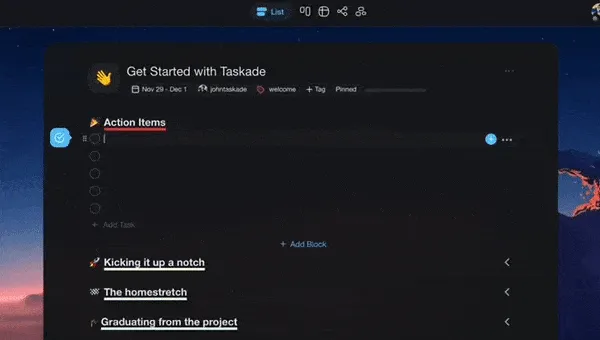
Taskade emoji keyboard
📊 Customization: 2021 H2 vs Today
| Customization | 2021 H2 | Today (2026) |
|---|---|---|
| Backgrounds | Full-page wallpapers | Wallpapers + Aurora glass UI |
| Sidebar | Project sidebar nav | Sidebar + workspace icon and color |
| Emoji | : inline picker |
Inline picker + Genesis brand voice |
| Branding | Per-project themes | Themes + branded Genesis apps on custom domains |
From wallpaper to branded app
   2021 Wunderlist-style wallpaper
   ┌────────────────────────────────────┐
   │  ░░░░░░░░░░░░░░░░░░░░░░░░░░░░░░░░  │
   │  ░░  My Project                ░░  │
   │  ░░  - [ ] task                ░░  │
   │  ░░░░░░░░░░░░░░░░░░░░░░░░░░░░░░░░  │
   └────────────────────────────────────┘
                      │
                      ▼
   2026 Genesis app on your domain
   ┌────────────────────────────────────┐
   │  https://app.yourbrand.com         │
   │  [glass nav]   [agent chat]   [⚙]  │
   │  Live dashboard · live data · live │
   └────────────────────────────────────┘
Hub & spoke
- Hubs: Taskade Genesis · Community Gallery · Templates · AI Agents
- Spokes: Learn — customize project · Learn — workspace icon · Learn — custom domains · Learn — Genesis brand voice · Learn — insert emoji shortcut
- Related: Virtual background + wallpapers · iPad & tablet update
🎉 Other Improvements
- Support for markdown list formatting in chat and comments.
- Option to change project name when copying projects.
- Improved Due Date formatting in email notifications.
- Bug fixes and performance improvements.
| Thanks again for supporting Taskade, and as always, don’t hesitate to reach out or visit our help center if you need help. We’re here for you! 😊 — Team Taskade 🐑 P.S. Want to help us improve Taskade? You can also suggest a feature. |
|---|
Frequently Asked Questions
Can I add background wallpapers to Taskade projects?
Yes. Open Project Settings (bottom-left corner), select Background, and choose a full-page wallpaper to customize your project's visual theme. Backgrounds apply across all project views and help personalize different workspaces for teams, clients, or personal use.
What is the Project Sidebar in Taskade?
The Project Sidebar is a navigation panel that lets you quickly jump between projects and spaces without returning to the workspace view. Open it from the project editor to browse your workspace hierarchy, switch projects, and access folders — all without losing your current context.
How do I insert emojis in Taskade?
Type a colon (:) followed by a keyword to search and insert emojis inline. A picker dropdown appears with matching emoji suggestions — select one to insert it directly into your task, note, or comment. This works in the project editor, chat, and comments.
Does Taskade support Markdown in chat and comments?
Yes. Taskade chat and comments support Markdown formatting including bold, italic, strikethrough, code blocks, blockquotes, and list formatting. This lets you create structured, readable messages without a formatting toolbar — similar to Discord-style Markdown.