






TL;DR: You run your whole day on AI autopilot by setting Taskade up as a personal operating system once — Projects for memory, AI agents for thinking, and scheduled automations for execution — then letting it deliver a morning briefing, inbox triage, task planning, research digests, and an end-of-day report on their own. It starts free at /create, and 150,000+ apps have been built on Taskade Genesis since launch.
Meet David. He is an IT program manager who is great at running projects and terrible at having spare hours. His morning used to start with twenty minutes of triage: skim the calendar, scan overnight email, figure out what actually matters today, then chase down three research threads before his first standup. None of it was hard. All of it was repetitive. And by the time he finished setting up his day, half of it was already gone.
David does not write code. He has no engineers. But a few weeks ago he shipped a working project dashboard to his whole department using Taskade Genesis — just by describing what he wanted in plain English. So he asked an obvious next question: if Taskade can build a dashboard from a description, can it run my day?
It can. This is the full guide to doing it.
The trick is not a clever prompt. It is setup. Run a chatbot and you get answers when you ask. Set Taskade up as a system — folders that remember, agents that think, automations that fire on a schedule — and it stops feeling like a tool you operate and starts feeling like a team that operates for you. The setup is what makes it powerful. Let's build David's autopilot day, step by step.
What does an AI autopilot day actually look like?
An AI autopilot day is five scheduled moments where Taskade does the repetitive thinking before you arrive. At 6:30am an agent assembles a morning briefing from your calendar, tasks, and overnight email. Mid-morning it triages your inbox and drafts replies. At noon it re-plans your task list by priority. In the afternoon it delivers a research digest on topics you follow. At 5:30pm it writes an end-of-day report. Each moment is a scheduled automation handing work to an AI agent — and you only ever review the output.
Here is the shape of the whole day on one diagram:
Notice what David does in this picture: nothing. He reads a briefing with coffee, glances at draft replies, and skims a report before he logs off. The work happened on its own. That is the difference between a to-do app, which stores tasks and waits, and an autopilot, which runs — and it is entirely a product of how you set Taskade up.
| A to-do app or chatbot | Taskade on autopilot | |
|---|---|---|
| Memory | Forgets between sessions | Persistent — Projects + agent memory |
| Who acts | You, on every step | AI agents with built-in tools |
| When it runs | Only when you open it | On a schedule, in the cloud |
| Your job | Drive the whole thing | Review the output |
The setup is what makes it powerful
Before the first automation fires, you set up four things. Think of them as the four parts of a personal operating system. Each one maps to something you already understand — folders, a team, a calendar, and a set of plugs in the wall.
| Part of the system | In Taskade | What it is in plain English |
|---|---|---|
| Memory | Projects | Your folders and notes — where everything lives and is remembered |
| Skills / team | AI agents | The teammates who do the thinking, each with built-in tools |
| Scheduled execution | Automations | The clockwork that fires jobs at set times, on its own |
| Connectors | Integrations | The plugs that link your calendar, email, and apps |
The whole point is that these four parts reinforce each other. Projects feed the agents context. Agents turn that context into decisions. Automations run those decisions on a schedule. And the results flow back into Projects as new memory. Taskade calls this loop Workspace DNA — Memory + Intelligence + Execution — and it is the reason the system compounds instead of resetting every time you close the tab.
Let's look at each part, because how you set it up decides how much your day runs itself.
Projects — your memory (folders and notes)
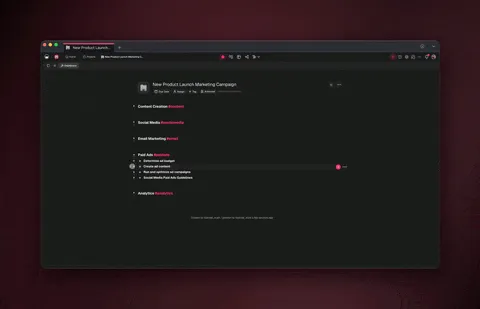
A Project is a folder for one area of your life or work. David makes a small handful: Today, Inbox, Research, and Reports. Each one holds tasks, notes, and the running history of what the system has done — so when an agent wakes up at 6:30am, it has somewhere to read from and somewhere to write to.
The thing that makes Projects more than folders is that they remember and they show themselves in multiple views — List, Board, Calendar, Table, Mind Map, Gantt, and Org Chart (Timeline lives inside Gantt). The same Today Project is a checklist in List view, a calendar in Calendar view, and a priority board in Board view. You never reformat anything; you just switch the lens. Deeper reference: Projects in Taskade Genesis.
┌─ WORKSPACE ─────────────────────────────────┐
│  David's Autopilot OS                        │
├─────────────────────────────────────────────┤
│  📁 Today          ← daily plan + briefing   │
│  📁 Inbox          ← triaged email + drafts  │
│  📁 Research       ← digests by topic        │
│  📁 Reports        ← end-of-day summaries     │
│                                              │
│  🤖 Agents (4)                               │
│     ├─ Chief of Staff   (briefing + report)  │
│     ├─ Inbox Triager    (email)              │
│     ├─ Planner          (tasks)              │
│     └─ Researcher       (digests)            │
│                                              │
│  ⚡ Automations (5 scheduled)                 │
│     06:30 · 10:00 · 12:00 · 15:00 · 17:30    │
└─────────────────────────────────────────────┘
AI agents — your team and skills
An AI agent is a teammate you hire once and brief in plain English. David's Inbox Triager knows his rules ("anything from my director is urgent; newsletters get archived; draft a reply only when a question is asked"). His Researcher knows the three topics he tracks. He never re-explains himself, because agents have persistent memory.
Every Taskade agent ships with built-in tools — web search, code execution, file analysis, custom slash commands, and persistent memory among them — and routes across frontier models from top AI labs automatically, so you never pick a model. When a job is bigger than one teammate, agents work together in orchestration mode: a researcher gathers, a writer drafts, a reviewer checks, and only the finished result lands in your Project. See AI agents and the deeper agent playbook for setup patterns.
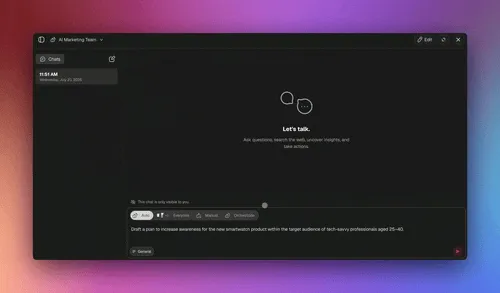
The public meta-agent that helps you set all of this up — that you talk to while building — is named Taskade EVE. EVE remembers your workspace and helps wire agents to Projects and automations. How that memory works: EVE memory.
Automations — your scheduled execution
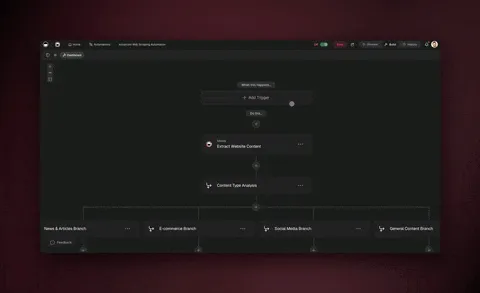
An automation is the clockwork. It fires a sequence of steps at a time you choose — daily at 6:30am, every weekday at noon, the first Monday of the month — without you touching anything. Taskade automations are reliable, durable workflows: they can branch ("if the email asks a question, draft a reply; otherwise just archive"), loop over a list, filter out noise, wait from minutes to days, and resume from the exact step that failed instead of starting the whole run over.
Two facts make this practical for a real person. First, automations run in the cloud, not on your laptop — so your morning briefing is ready even if your computer was closed all night. Second, they are recurring by design: set the cadence once and it repeats forever. Reference: scheduled automations and automation triggers.
Integrations — your connectors
An integration is a plug between Taskade and an app you already use. Taskade has 100+ bidirectional integrations — and bidirectional is the word that matters. Triggers pull events in (a new calendar event, an inbound email), and actions push data out (draft a reply in Gmail, post to Slack, create a task). Native Shopify and Stripe are included if your day touches commerce.
For David, three connectors do most of the work: Google Calendar (so the briefing knows his meetings), Gmail (so triage can read and draft), and Slack (so the daily report posts to his team channel). You connect each once and grant permission, then every agent and automation can use them.
Build it in 4 steps
You do not assemble this by hand, node by node. You describe the outcome and Taskade Genesis builds the Projects, agents, and automations for you. Here is David's path from empty workspace to running autopilot.
Step 1 — Describe the system at /create
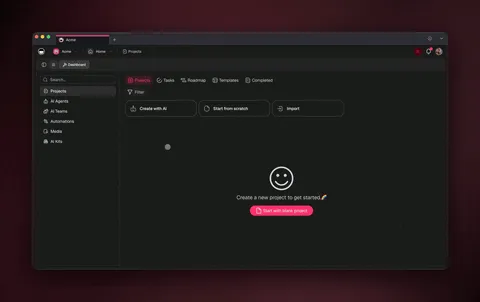
Go to /create and describe the whole thing in one breath, like you would brief an assistant on day one. David typed:
"Build me a personal productivity workspace. I want a morning briefing that pulls my calendar and overnight email, an inbox triage that drafts replies, a planner that re-prioritizes my tasks at noon, a researcher that digests three topics I follow, and an end-of-day report. Use separate AI agents for each job."
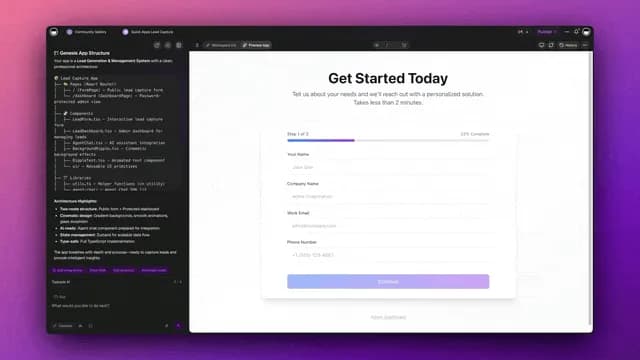
Taskade Genesis reads that and builds the Projects (Today, Inbox, Research, Reports), the agents, and a draft of each automation. You are not wiring a flowchart — you are stating the result. Background on how the builder turns plain English into a working app: the Taskade Genesis app builder and the AI workflow builder.
Step 2 — Connect your apps
Open the integrations panel and connect the apps your day touches. For an autopilot day, the high-value three are Google Calendar, Gmail, and Slack. Grant each one permission once. The more you connect, the more of your day Taskade can see and act on — but you can start with these three and add more later.
Step 3 — Brief each agent
Give each agent its rules in plain English, the same way you would onboard a new hire. David's briefs were short:
- Chief of Staff → "Each morning, read my calendar and overnight email, then write a one-screen briefing: top 3 priorities, meetings, and anything urgent."
- Inbox Triager → "Sort my inbox into urgent, reply-needed, and archive. Draft a reply only when someone asks a direct question. Match my tone: brief and warm."
- Planner → "At noon, re-sort my Today tasks by priority and deadline. Flag anything I committed to but haven't started."
- Researcher → "Each afternoon, give me a five-bullet digest on AI program management, IT automation, and my company's top competitor."
Because agents have persistent memory, you brief them once and they keep improving as you correct them.
Step 4 — Set the schedule
Tell Taskade when each job should run. David's cadence is the five-moment day from earlier:
| Time | Automation | Agent | Output lands in |
|---|---|---|---|
| 6:30am | Morning briefing | Chief of Staff | Today |
| 10:00am | Inbox triage | Inbox Triager | Inbox |
| 12:00pm | Re-plan tasks | Planner | Today |
| 3:00pm | Research digest | Researcher | Research |
| 5:30pm | End-of-day report | Chief of Staff | Reports |
Set the recurrence once ("every weekday") and it repeats forever. Because these run in the cloud, they fire whether David's laptop is open or shut. That is the whole build. From here, the day runs itself.
Five real automations for your autopilot day
Here are the five automations David runs, each explained as what it does and how to set it up in plain English. Copy them, change the topics and times, and you have a working day. None of these require a single line of code.
1. Morning briefing (6:30am)
What it does: Before David is awake, the Chief of Staff agent pulls today's calendar events, scans email that arrived overnight, checks open tasks in the Today Project, and writes a one-screen briefing: top three priorities, the meeting schedule, and anything flagged urgent. It is waiting in Today when he opens Taskade.
How to set it up: Create a scheduled automation that fires every weekday at 6:30am. Step one pulls Google Calendar events for today (a trigger pulling events in). Step two reads overnight Gmail. Step three hands both to the Chief of Staff agent with the instruction "summarize into a one-screen morning briefing." Step four posts the result to the Today Project. In plain English to EVE: "Every weekday at 6:30am, gather my calendar and overnight email and have my Chief of Staff write a morning briefing in the Today project."
2. Inbox triage with draft replies (10:00am)
What it does: Mid-morning, the Inbox Triager reads new email, sorts it into urgent / reply-needed / archive, and drafts replies directly in Gmail for anything that asked a direct question — in David's own brief-and-warm tone. He opens Gmail to find drafts already written. He edits and sends, or sends as-is.
How to set it up: Schedule it for 10:00am. The automation reads recent Gmail (trigger in), branches with a filter ("does this message ask a question?"), and for the ones that do, the agent drafts a reply and an action pushes that draft back into Gmail (action out). This is the bidirectional pattern in one automation: pull email in, push drafts out. Tell EVE: "At 10am, triage my inbox and draft replies in Gmail for anything that asks me a question, in my usual tone."
3. Noon task re-plan (12:00pm)
What it does: Halfway through the day, the Planner agent re-sorts the Today Project by priority and deadline, surfaces anything David committed to but hasn't started, and rewrites the afternoon as a clean, ordered list. The same Project shifts from a messy morning dump to a focused afternoon plan — viewable as a List, a Board, or a Calendar.
How to set it up: Schedule for noon. The automation reads the Today Project, hands the task list to the Planner agent with "re-sort by priority and deadline, flag stalled items," and writes the ordered list back. Because it operates on the Project you already keep, there is nothing to import. Tell EVE: "At noon, have my Planner re-prioritize today's tasks and flag anything I haven't started."
4. Afternoon research digest (3:00pm)
What it does: At 3:00pm the Researcher agent uses web search (one of its built-in tools) to scan the three topics David tracks, then writes a five-bullet digest per topic — what's new, why it matters, and a link. It lands in the Research Project so he has a running archive he can search later.
How to set it up: Schedule for 3:00pm. The automation triggers the Researcher agent with the standing instruction "digest these three topics in five bullets each." The agent searches the web, synthesizes, and writes to Research. For deeper or multi-source topics, you can let the Researcher hand off to a second agent in orchestration mode — one gathers, one writes. Tell EVE: "Every afternoon at 3, research my three topics and post a five-bullet digest to the Research project."
5. End-of-day report (5:30pm)
What it does: As the day winds down, the Chief of Staff agent reads what got completed in Today, what carried over, and what the day's automations produced, then writes a short end-of-day report: done, in progress, blocked, and what tomorrow's briefing should lead with. It posts to the Reports Project and, via Slack, to David's team channel — so his report writes itself and his team stays informed.
How to set it up: Schedule for 5:30pm. The automation reads Today, Inbox, and Research, hands the summary to the Chief of Staff agent, writes the report to Reports, and pushes a copy to Slack (action out). Tell EVE: "At 5:30pm, summarize what got done today into an end-of-day report, save it to Reports, and post it to my team Slack channel."
┌─ AUTOMATION BUILDER · "Morning Briefing" ───────────┐
│  Trigger   ⏰ Every weekday · 6:30am                  │
│  ─────────────────────────────────────────────────  │
│  Step 1    📅 Pull Google Calendar (today)           │
│  Step 2    📧 Read Gmail (since last night)          │
│  Step 3    📋 Read tasks from "Today" project         │
│  Step 4    🤖 Chief of Staff → write briefing         │
│  Step 5    📝 Post briefing to "Today" project        │
│  ─────────────────────────────────────────────────  │
│  On failure ↻ resume from the failed step           │
│  [ Save & schedule ]                                 │
└─────────────────────────────────────────────────────┘
One more thing worth saying plainly: these five are a starting kit, not a ceiling. Once David saw the pattern, he added a Friday "weekly review" automation and a "draft my standup update" one. Anything you do by hand at the same time every day is a candidate. For the weekly layer specifically, see the sibling guide, AI Weekly Planner, which plans your whole week from one prompt — the daily autopilot here and the weekly planner there are designed to stack.
See it live — clone a working example
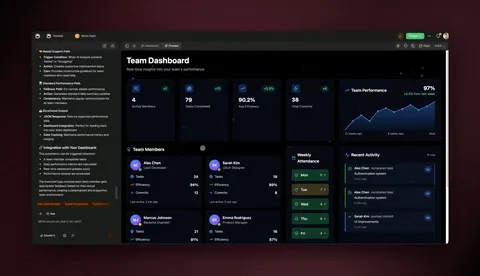
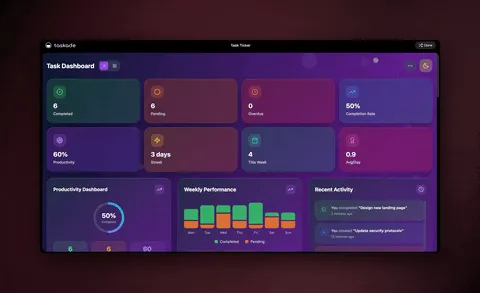
The fastest way to understand an autopilot day is to open one. Below is Cortex, a real Taskade Genesis personal-productivity app built by Team Taskade — 13 Projects, 5 AI agents, and 6 automations wired into a single workspace. It is the same shape as David's build, just further along. Preview it live, then clone it into your own workspace and swap in your calendar, email, and topics.
Clone it from the Community Gallery in about 30 seconds. You get the Projects, the agents, and the automations already wired — change the times, point the connectors at your accounts, and you have an autopilot day running without building from scratch. There are 150,000+ apps in the gallery, so if a personal-OS shape isn't quite yours, a closer one almost certainly is.
What to automate first
If five automations feels like a lot to set up on day one, don't. Start with one. Pick the moment of your day that is the most repetitive and the least creative, automate that, and add the next one only when the first is reliable. Here is a quick guide to sequencing, ranked by effort-to-payoff.
| Automate first | Why | Effort | What you get back |
|---|---|---|---|
| Morning briefing | Replaces 15–20 min of daily triage | Low | A calm, decided start before you open anything |
| Inbox triage | Email is the biggest repetitive time sink | Low | Drafts written, noise archived, only real mail left |
| End-of-day report | Self-documents your work, keeps the team informed | Low | A report that writes itself + a tidy handoff to tomorrow |
| Task re-plan | Keeps your list honest through the day | Medium | An afternoon plan that reflects what actually changed |
| Research digest | Compounds knowledge in the background | Medium | A searchable archive of what's new in your field |
A simple rule David uses: if you do it at the same time every day and it bores you, it belongs to an automation. The boring, on-schedule work is exactly what agents are good at — which frees you for the work that needs a human.
Frequently asked questions
How do I run my whole day on AI autopilot with Taskade?
Set Taskade up as a personal operating system once — Projects for memory, AI agents for thinking, and scheduled automations for execution — then connect your calendar and email and choose the times things run. After setup you get a morning briefing, inbox triage, task planning, research digests, and an end-of-day report on their own. Start free at /create.
Do I need to know how to code to set this up?
No. Taskade Genesis is built for non-technical operators. You describe what you want in plain English and it builds the Projects, agents, and automations for you — the same way an IT program manager with no engineers shipped a production dashboard. You connect your apps, set the times, and review the output.
How do AI agents fit into a daily routine?
AI agents are the team that does the thinking. Each Taskade agent has built-in tools, including web search, file analysis, and persistent memory, and routes across frontier models from top AI labs. You brief one agent for inbox triage and another for research, and they can collaborate in orchestration mode before anything reaches you.
How do scheduled automations work?
Scheduled automations are reliable, durable workflows that fire at the times you set and repeat on a recurring pattern. They branch, loop, filter, wait from minutes to days, and resume from the exact step that failed instead of restarting. See scheduled automations for setup.
Can Taskade read my email and calendar?
Yes, through 100+ bidirectional integrations. Triggers pull events in — a new calendar event or inbound email — and actions push data out, like drafting a reply or creating a task. You connect Gmail, Google Calendar, and Slack once, and your agents can read from and write to them in any automation.
What happens if my computer is off when an automation should run?
Nothing breaks. Taskade automations run in the cloud as durable workflows, not on your laptop, so they fire on schedule whether your machine is on or off. Your morning briefing is ready when you open Taskade, even if your laptop was closed all night.
How is this different from a regular to-do app or chatbot?
A to-do app stores tasks and waits. A chatbot answers when asked, then forgets. Taskade combines persistent memory, AI agents that act, and scheduled automations that run without you — a self-reinforcing loop of Memory, Intelligence, and Execution. You review the output instead of driving every step.
How much does it cost?
Taskade is free to start. On annual billing: Pro $10/month (the popular pick), Business $25/month, Max $100/month, and Enterprise $250/month. The free tier is enough to build a personal autopilot with a few agents and scheduled automations.
Can I clone a working example instead of building from scratch?
Yes. The Community Gallery has 150,000+ apps you can preview and clone in about 30 seconds. Clone a personal-productivity app like Cortex, swap in your own calendar and email, adjust the times, and you have an autopilot day running without building from zero.
What should I automate first?
Start with the most repetitive, least creative moment of your day — usually the morning briefing or inbox triage. Get one automation reliable for a week, then add the next. The boring, same-time-every-day work is exactly what agents handle best.
Ready to get your day back? Start free with Taskade Genesis — describe your ideal day, and it builds the Projects, agents, and scheduled automations that run it. Explore the automation library, meet your AI agents, or clone a working app and make it yours in a minute.
▲ ■ ● Memory, Intelligence, Execution — set Taskade up once, and it remembers your day, reasons over it, and runs the routine on schedule. That's the difference between a to-do list you maintain and a day that runs itself.