




Hey Taskaders 👋
Things may be hectic right now, but we hope you’re taking care and staying safe! We’ve continued to work on new features and product updates. Today, we’re excited to announce our new Activity Feed and Recent Projects page!
TL;DR: The 2020 Activity Feed was Taskade's first notification surface. Six years on, that idea now spans project history, AI agent activity streams, automation run logs, and 100+ integrations. Taskade Genesis turns any prompt into a living app where humans and agents share one feed.
Then → Now: What started as a bell icon is now a unified activity layer covering tasks, comments, agent runs, automation triggers, and community-shared apps — all anchored to your Workspace DNA.
| Signal | 2020 | Today (2026) |
|---|---|---|
| Source | Tasks, comments, mentions | Tasks + agents + automations + integrations |
| Feed | Bell icon notifications | Unified activity + project history + version history |
| Recent | Recently accessed projects | Recents + pinned + smart surfacing |
| Filtering | Chronological only | By project, actor, agent, type |
| Follow-up | Manual click-through | Automation triggers on activity events |
  🔔  Activity                                 [filter ▾]
  ─────────────────────────────────────────────────────
  ● @alice  completed   "Design review"     · 2m ago
  ● @bob    commented   "Looks good!"       · 5m ago
  ● 🤖 agent assigned    "Q2 launch tasks"  · 12m ago
  ● ⚡ automation ran   "New lead → Slack"  · 1h ago
  ● @carol  mentioned    you in "Sprint 4"  · 3h ago
  ─────────────────────────────────────────────────────
       click any row → jump straight to context
⚡️ Activity Feed
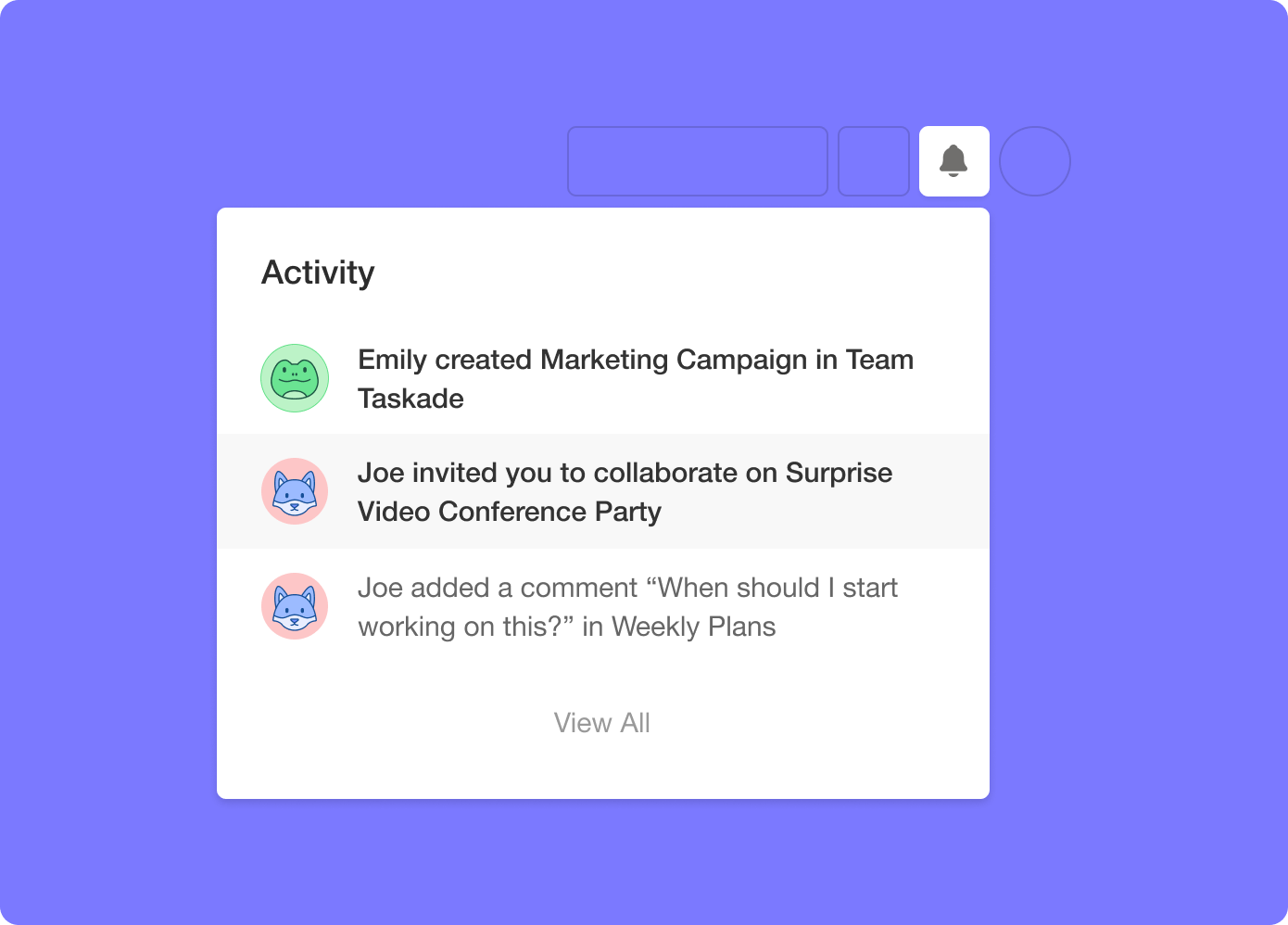
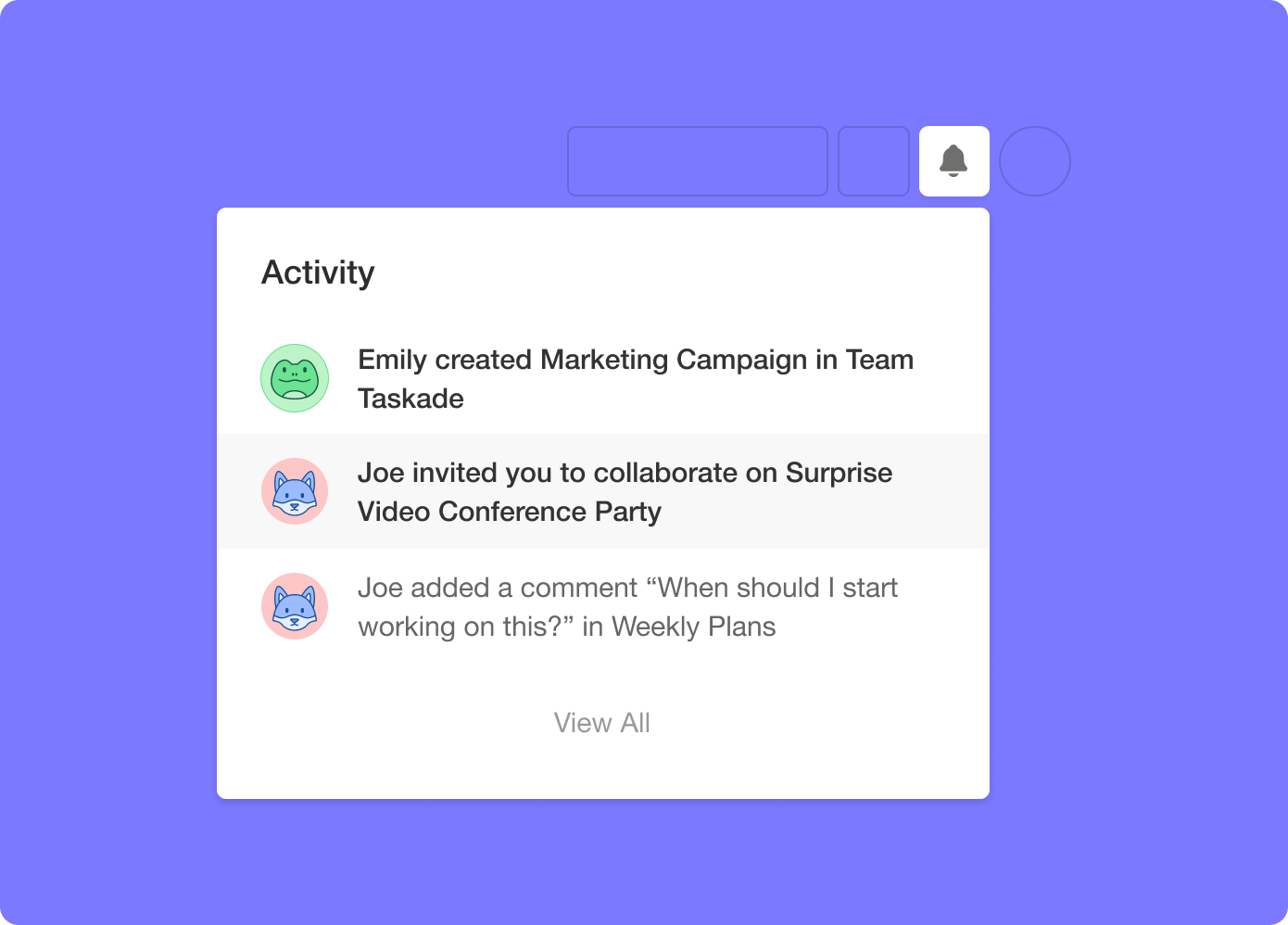
Access all of your personal and team notifications in one place. Simply click the bell icon next to your avatar and instantly navigate to projects, tasks due, and comments with a click.
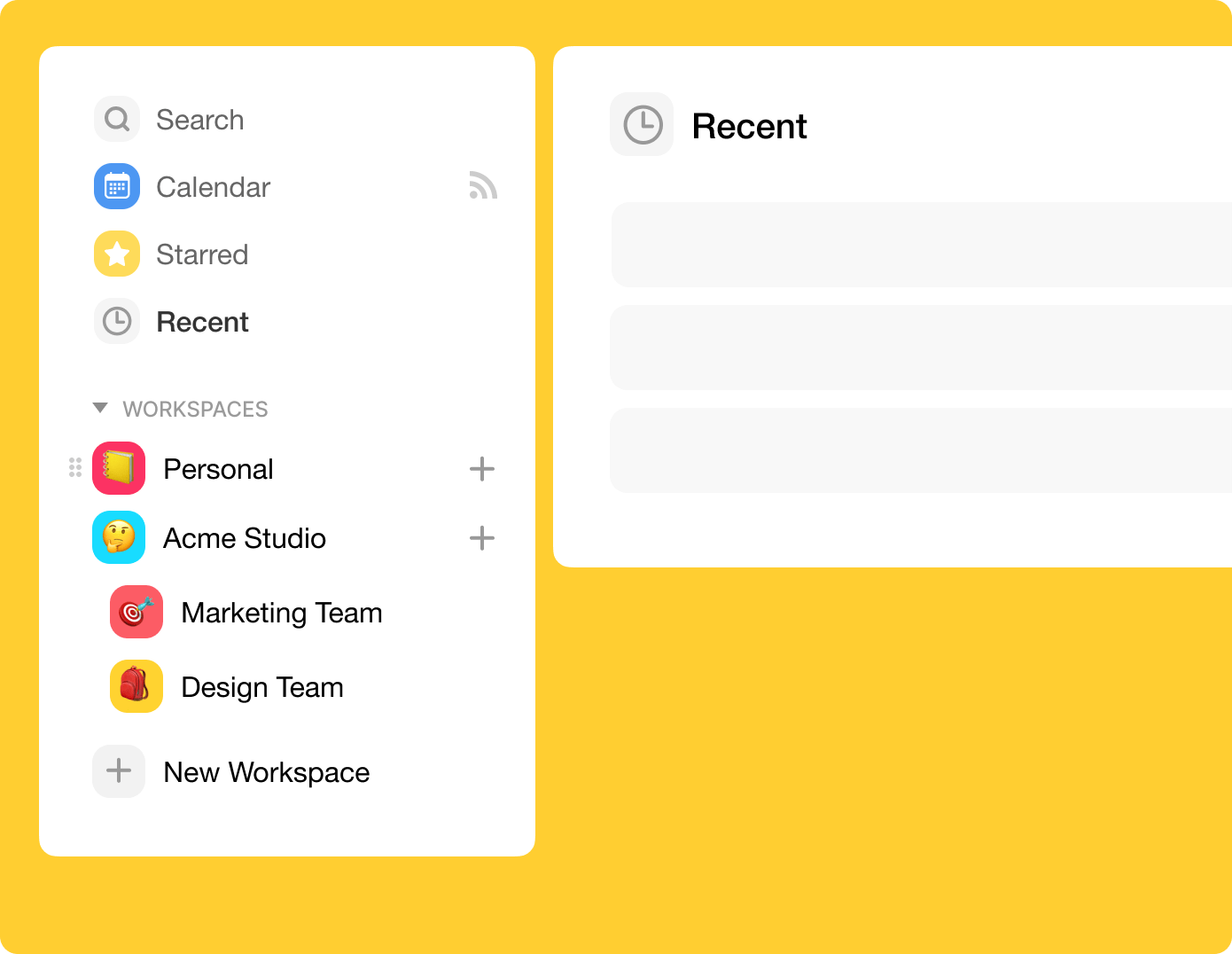
🎒 Recent Projects
You can now easily view recently accessed projects in the workspace navigation menu.
Thanks again for supporting Taskade and as always, don’t hesitate to reach out if you need anything at all. We’re here for you! 😊
— Team Taskade 🐑
Frequently Asked Questions
What is the Activity Feed in Taskade?
The Activity Feed aggregates all personal and team notifications in one place. Click the bell icon next to your avatar to see task completions, comments, mentions, and due date alerts. Click any notification to navigate directly to the relevant project, task, or comment.
How do I access recently viewed projects in Taskade?
Click Recent in the workspace navigation menu to see all your recently accessed projects. This view updates automatically as you work, making it easy to jump back to projects you were editing earlier without searching or navigating through workspace hierarchies.
Does Taskade have a notification center?
Yes. The Activity Feed serves as Taskade's notification center. It collects all updates — task completions, comments, @mentions, due date reminders, and project changes — into a single chronological feed accessible from the bell icon on any screen.
Can I navigate to a specific task from a notification in Taskade?
Yes. Click any notification in the Activity Feed to navigate directly to the specific task, comment, or project item that triggered it. Taskade deep-links notifications so you land exactly where the activity happened, saving time on manual navigation.