





TL;DR: Automate the repeatable 99% of client work — onboarding, the client portal, project tracking, status reports, hand-offs, and follow-ups — by setting up Taskade Genesis as a system. Describe what you want in plain English; it builds a live app with AI agents, reliable automations, and 100+ integrations. 150,000+ apps built so far. You keep the 1% that needs judgment.
Here is the honest truth about running an agency or a freelance practice: most of the work is not the work. The deliverable is maybe a third of your week. The rest is intake forms, kickoff emails, status updates, "just checking in" follow-ups, chasing approvals, and re-sending the same onboarding doc you have sent a hundred times. That is the 99% you can automate.
This is a full guide for David — an IT program manager who shipped a production client dashboard with zero engineers — and for everyone like him: agency owners, freelancers, consultants, and operators who manage clients and are tired of being the glue between a dozen tools.
We will not just list features. We will set up Taskade as an operating system for your client work, then build the real automations one at a time, in plain English. By the end you will have a working client portal you can clone for every new client.
What does it mean to automate 99% of client work?
Automating 99% of client work means handing the repeatable parts to a system and keeping the judgment parts for yourself. The repeatable parts are predictable: an intake always collects the same fields, a status report always summarizes the same week, a follow-up always fires on the same schedule. Those are perfect for automation. The 1% you keep is the strategy call, the creative decision, the hard client conversation — the work only you can do.
Taskade Genesis is built for exactly this. You describe the outcome — "a client portal with intake, a project tracker, weekly reports, and follow-ups" — and it builds the app, the AI agents, and the automations around it. No node-by-node wiring, no servers, no engineers.
The mindset shift is the same one David made: stop thinking "what task do I do next?" and start thinking "what outcome do I want, and who on my system owns it?"
The setup is what makes it powerful
The single biggest mistake people make is treating Taskade like a chatbot — asking it one-off questions and copying answers out. The power comes from setting it up as a system first. Spend an afternoon on the setup and the automations practically build themselves.
Think of your Taskade workspace as having four layers. Each maps to something you already do manually today.
| Layer | In Taskade | In plain English | What it replaces |
|---|---|---|---|
| Memory | Projects | Your client files and data | Spreadsheets, folders, sticky notes |
| Skills | AI agents | Your team's expertise on tap | The work you do by hand each week |
| Execution | Automations | Your scheduled, always-on workers | "I'll remember to do that" |
| Connectors | Integrations | The wires to your other tools | Manual copy-paste between apps |
These four layers form a self-reinforcing loop Taskade calls Workspace DNA — Memory feeds Intelligence, Intelligence drives Execution, and Execution writes new Memory back. That loop is why your client system gets smarter the more you use it, instead of just bigger.
Let's walk through each layer the way you would actually set it up.
Projects = your memory (the folders)
A Project is a living document and database in one. It is where a client's information lives — their intake answers, their tasks, their deliverables, their notes. Unlike a flat folder, a Project can be viewed seven different ways depending on what you need to see:
- List for a simple to-do view of a client's tasks
- Board for a kanban pipeline (Intake → In Progress → Review → Delivered)
- Calendar for deadlines and milestones
- Table for a structured client database (one row per client)
- Mind Map for scoping a project visually
- Gantt for timelines and dependencies (Timeline scrolls inside the Gantt view)
- Org Chart for mapping stakeholders on the client side
The trick from the projects guide is to keep one Project per client, or one Project per type of work, so memory stays specific. The more specific the Project, the better your agents and automations perform inside it.
┌─ WORKSPACE: David's Agency ───────────────────────────────┐
│                                                           │
│  📁 Clients                                               │
│   ├─ 🟢 Acme Co        ▸ Intake · Tracker · Deliverables  │
│   ├─ 🟡 Brightwave     ▸ Intake · Tracker · Deliverables  │
│   └─ ⚪ Northwind       ▸ Intake · Tracker · Deliverables  │
│                                                           │
│  📁 Templates                                             │
│   └─ ★ Client Portal (clone me for each new client)       │
│                                                           │
│  🤖 Agents     ⚙️ Automations     🔌 Integrations         │
└───────────────────────────────────────────────────────────┘
AI agents = your team (the skills)
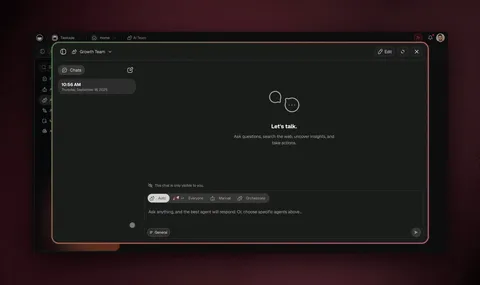
An AI agent is a teammate you describe once and reuse forever. It comes with built-in tools — web search, file analysis, running code, custom slash commands, and persistent memory — and routes across 15+ frontier models from OpenAI, Anthropic, Google, and open-weight providers, automatically.
For client work, you do not need a dozen agents. You need a few good ones:
- An Onboarding agent that reads a new intake form and drafts a kickoff plan.
- A Reporting agent that reads a week of project activity and writes a client-ready status update.
- A Triage agent that reads inbound client messages and flags what needs a reply.
And here is the part that feels like hiring: agents can work together. In orchestration mode, one agent researches, another drafts, a third reviews — a real assembly line for client deliverables.
┌─ AGENT PANEL ─────────────────────────────────────────────┐
│  🤖 Onboarding Agent          Model: auto-routed          │
│     ├ Tools: web search, file read, slash cmds (33 total) │
│     └ Memory: "Always send the welcome doc + 2 questions" │
│                                                           │
│  🤖 Reporting Agent           Status: ● ready             │
│     └ "Summarize this week into a client-facing update"   │
│                                                           │
│  🤖 Triage Agent              Status: ● ready             │
│     └ "Sort inbound client email: reply / FYI / urgent"   │
│                                                           │
│  [ + New agent ]     [ Orchestrate ▸ research→draft→review ]│
└───────────────────────────────────────────────────────────┘
Automations = your scheduled execution (the always-on workers)
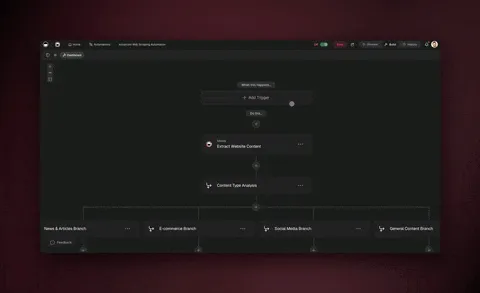
An automation is a workflow that runs without you. This is where "automate 99%" actually happens. Taskade runs automations as reliable, durable workflows — they can branch on conditions, loop over a list of clients, filter events, wait for minutes or days, and resume from the exact step that failed instead of starting over.
That last part matters more than it sounds. A follow-up sequence that waits three days for a client to reply will not silently break if one step hiccups. It picks back up where it left off.
Automations are triggered three ways:
- On a schedule — every Friday at 9am, send the weekly report.
- On an event — a new intake form is submitted, so kick off onboarding.
- On a condition — a deliverable is marked Done, so notify the client.
Integrations = your connectors (the wires)
Integrations connect Taskade to the tools you already use. Taskade has 100+ bidirectional integrations — meaning data flows both ways. Triggers pull events in (a new form submission, a paid invoice, a Slack message). Actions push data out (send an email, post a Slack update, create a calendar event).
For client work, the high-value connectors are native Stripe (a paid invoice advances the project), Shopify (for e-commerce clients), email, calendar, and chat. A paid invoice in Stripe can automatically move a client from "Onboarding" to "Active" and fire a thank-you note — no human in the loop.
Build it in 4 steps
Here is the whole setup, start to finish. David did this in an afternoon. You will too.
Step 1 — Describe your client portal in one prompt
Open Taskade Genesis and describe the outcome, not the steps. A good first prompt:
"Build a client portal for my agency. It should have a client intake form, a project tracker with a board view, a deliverables checklist, and a weekly status report. Add an onboarding agent that drafts a kickoff plan from the intake, and a reporting agent that writes the weekly update. Set up an automation that emails the client when a deliverable is marked done."
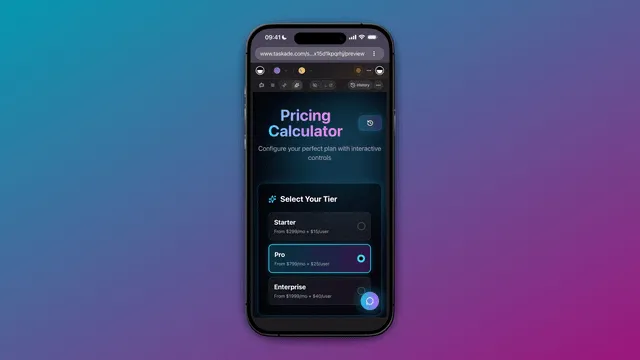
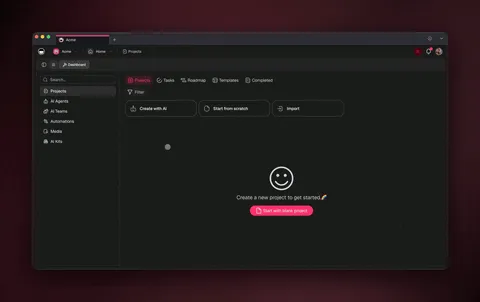
Taskade Genesis reads that and assembles the Projects (intake, tracker, deliverables), the agents (onboarding, reporting), and the automations (the deliverable notification) — then deploys a live app with a shareable URL. You are describing the destination; it builds the route.
Step 2 — Set up your Projects as the client memory
Once the app exists, organize your Projects so memory stays specific. Create one Templates Project that holds your master Client Portal, and one Project per active client. Use the Table view to keep a master client list (name, stage, start date, plan), and the Board view inside each client Project for the pipeline.
This is the same discipline that makes the AI client portal work well: the agent that writes a status report performs far better when it is pointed at one client's Project than at your entire workspace.
Step 3 — Give each agent a job and a memory
Open the agent panel and give each agent a short, plain-English instruction plus a fact to remember (persistent memory means it sticks):
- Onboarding agent: "When a new intake form comes in, read it and draft a kickoff plan with goals, scope, and three clarifying questions. Always attach our welcome doc."
- Reporting agent: "Every Friday, read this week's completed and in-progress tasks and write a friendly client-facing status update under 200 words."
- Triage agent: "Sort inbound client messages into Reply Now, FYI, or Urgent, and draft a reply for anything in Reply Now."
Because agents have persistent memory, you teach them your tone and standards once. Want two agents to collaborate on a deliverable? Turn on orchestration and let research → draft → review run as a chain.
Step 4 — Wire the automations and connect your tools
Finally, turn on the automations and connect your integrations. Connect Stripe so a paid invoice advances a client's stage. Connect email and calendar so reports and reminders go out automatically. Connect chat (Slack or similar) so your team gets pinged on key events.
Then schedule the recurring ones: weekly status report every Friday, monthly client check-in on the first, follow-up reminders three days after a proposal is sent.
That is the whole system. Now let's look at the specific automations that do the heavy lifting.
The 7 client-work automations that cover 99%
Below are the seven automations that replace almost all the manual client busywork. For each: what it does, and how to set it up in plain English. You can build them one at a time — each one alone saves hours.
1. Client onboarding intake
What it does: A new client fills out one intake form. The moment they submit, an agent reads the answers, drafts a kickoff plan, creates the client's Project from your template, and sends a personalized welcome email — all before you have opened your laptop.
How to set it up: Add a form to your portal. Create an automation with the trigger "when intake form is submitted." Add an action "run the Onboarding agent on the submission" and an action "create a new client Project from the template." Finish with "send welcome email." This mirrors the client onboarding template flow. First impressions, automated.
2. The weekly status report
What it does: Every Friday, the Reporting agent reads the week's activity in a client's Project and writes a friendly, client-facing status update — what shipped, what's in progress, what's next — then emails it to the client. This is the single biggest recurring time-saver for most agencies.
How to set it up: Create a scheduled automation that runs every Friday at 9am. Loop over your active client Projects. For each, add the action "run the Reporting agent" then "send the report by email." Because automations are durable, a client who is on a different reporting cadence can sit on a branch that fires monthly instead.
3. Project tracking and stage advancement
What it does: As work moves across the board (Intake → In Progress → Review → Delivered), the client's stage updates automatically, and key transitions notify the right people. When a deliverable hits Review, the reviewer gets pinged; when it hits Delivered, the client gets notified.
How to set it up: Add an automation with the trigger "when a task changes status." Use a filter to act only on the stages you care about. Add a conditional branch: if the new stage is "Review," notify your team; if it's "Delivered," notify the client. See the project-based apps pattern for the board setup.
4. Deliverable hand-off
What it does: When you mark a deliverable Done, the client automatically receives the file, a short summary the agent wrote, and a one-click approval button. Approvals come back into the portal so nothing lives in your inbox.
How to set it up: Trigger on "deliverable marked Done." Add "run the agent to write a 3-line summary," then "send the deliverable + summary to the client," then "create an approval task in the portal." The durable workflow waits for the approval and resumes when it arrives.
5. The follow-up sequence
What it does: After you send a proposal or a deliverable, the system waits, then nudges the client if they haven't responded — politely, on a schedule, in your voice. No more "did they see it?" anxiety, no more forgotten follow-ups.
How to set it up: Trigger on "proposal sent." Add a wait of three days. Add a branch: if the client has replied, stop; if not, send a friendly reminder. Wait again, then escalate to a personal note. This is where durable, wait-based automation shines — it can pause for days without you holding the thread.
6. Inbound client triage
What it does: Every inbound client email or message is read by the Triage agent, sorted into Reply Now / FYI / Urgent, and the agent drafts a reply for anything urgent — saved as a draft for you to approve, not sent blind.
How to set it up: Trigger on "new message in connected inbox or chat." Add "run the Triage agent." Use a branch on the agent's classification: Urgent → draft a reply and notify you; FYI → log it to the client Project; Reply Now → draft and queue. Connect this to the customer service agent pattern for tone consistency.
7. Monthly client health and billing
What it does: Once a month, an automation checks each client's activity and Stripe status, flags accounts that have gone quiet or have an unpaid invoice, and drafts a check-in for at-risk relationships. A paid invoice automatically advances the project and fires a thank-you.
How to set it up: Schedule a monthly automation. Pull Stripe status via the integration (triggers pull events in). Add a filter for "no activity in 30 days OR unpaid invoice." For matches, run an agent to draft a check-in. For new payments, advance the stage and send a thank-you. Native Stripe means billing and delivery finally live in one place.
| Automation | Trigger | What you stop doing by hand |
|---|---|---|
| Onboarding intake | Form submitted | Copying answers, writing kickoff emails |
| Weekly status report | Friday schedule | Writing the same update for every client |
| Project tracking | Task status change | Manually nudging team and client |
| Deliverable hand-off | Marked Done | Emailing files, chasing approvals |
| Follow-up sequence | Proposal sent + wait | Remembering to follow up |
| Inbound triage | New message | Sorting and triaging your inbox |
| Monthly health + billing | Monthly schedule | Spotting at-risk clients, reconciling Stripe |
See it live: clone a client portal in 30 seconds
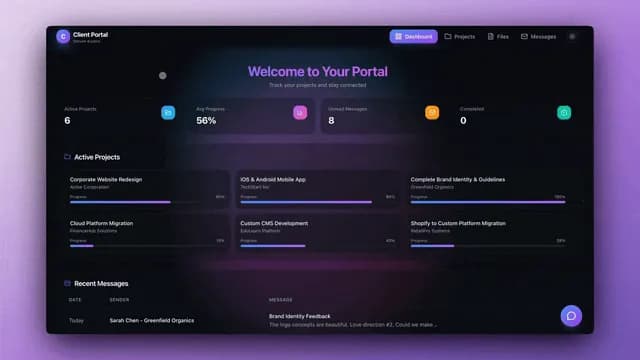
The fastest way to understand this is to open a real one. Below is a live Client Portal built entirely on Taskade Genesis — a multi-page service portal with intake, profile, and dashboard sections, running 3 projects, an AI agent, and 4 automations. It is a real, working app, not a screenshot.
Click into it, poke around, then clone it to your own workspace and start customizing. Cloning takes about 30 seconds — you get the whole structure, the agent, and the automations, ready to point at your first client. Browse more cloneable client apps in the Community Gallery.
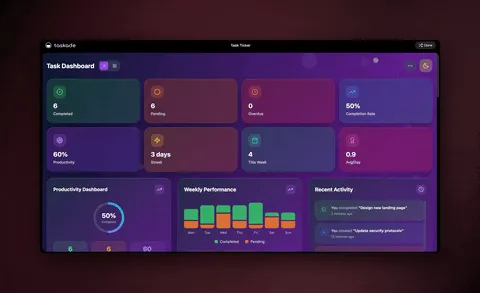
This is the reusability multiplier: build the portal once, clone it for every new client, and let persistent memory (Workspace DNA) carry your process forward each time. You can even save it as an app kit so your whole team starts from the same standard.
What to automate first
You do not have to build all seven at once. Here is the order that gives David — and you — the fastest payback. Start at the top and work down.
| Priority | Automate this | Why first | Effort | Time saved / week |
|---|---|---|---|---|
| 1 | Onboarding intake | Most repetitive, sets the first impression | Low | 2–4 hrs |
| 2 | Weekly status report | Biggest recurring time sink across all clients | Low | 3–6 hrs |
| 3 | Deliverable hand-off | Removes the inbox-and-approval shuffle | Medium | 2–3 hrs |
| 4 | Follow-up sequence | Recovers stalled proposals and approvals | Medium | 1–2 hrs |
| 5 | Inbound triage | Cuts your inbox to the messages that matter | Medium | 2–4 hrs |
| 6 | Project tracking | Keeps everyone aligned with zero nudging | Low | 1–2 hrs |
| 7 | Monthly health + billing | Protects revenue, catches at-risk accounts | High | 1–2 hrs |
The rule of thumb: automate the thing you do most often and dread most. For almost every agency and freelancer, that is the weekly report and the onboarding intake. Nail those two and you have already clawed back the better part of a day every week.
Why this beats stitching tools together
You could approximate this with a form tool, a project tracker, an email sequencer, a CRM, and a pile of integrations. But then you are the integration — the glue holding five subscriptions together. Taskade Genesis puts the client database, the AI agents, the durable automations, and the live portal in one system you built from a prompt.
| What you want | Five-tool stack | Taskade Genesis |
|---|---|---|
| Client database | Spreadsheet or CRM | Projects with multiple views |
| The thinking | You, or a chatbot you copy from | AI agents, built-in tools |
| The execution | Zapier-style wiring | Durable automations (branch, loop, wait, resume) |
| The client-facing app | Separate portal product | Published Genesis app, custom domain + sign-in |
| Keeping it in sync | Manual copy-paste | 100+ bidirectional integrations |
| Reusing it per client | Rebuild every time | Clone in 30 seconds |
Most automation tools automate tasks. Taskade automates the outcome — and hands you the app, the agents, and the memory around it. Explore the full automation library, meet the AI agents, or read the sibling guide on AI for agencies for the bigger-picture playbook.
Frequently Asked Questions
Can you really automate 99% of client work with Taskade?
Yes — the repeatable 99%. Intake, the client portal, project tracking, status reports, deliverable hand-offs, and follow-ups all run on reliable automations and AI agents. You keep the 1% that needs judgment: the strategy call and the creative decision. Taskade Genesis builds the system from one prompt, and 150,000+ apps have been built on it.
How do I build a client portal in Taskade without code?
Describe it in plain English: "Build a client portal with an intake form, a project tracker, a deliverables list, and a weekly status report." Taskade Genesis assembles the Projects, the agent, and the automations, then deploys a live app with a shareable URL, a custom domain, and built-in sign-in. See the AI client portal guide.
Which client tasks should I automate first?
Start with onboarding intake — it is the most repetitive and shapes the first impression. Then automate the weekly status report, which saves the most recurring hours. Add deliverable hand-offs and follow-up reminders next. Those four cover the bulk of manual client busywork.
Do my client automations keep running if a step fails?
Yes. Taskade runs automations as reliable, durable workflows. They wait minutes or days, branch on conditions, loop over lists, and resume from the exact step that failed — so a three-day follow-up sequence will not break if one step errors.
Can clients see each other's projects in a shared portal?
No. With built-in sign-in, each client signs in, and you match their records to that login so they open only their own space. Role-based access has role-based access from Owner to Viewer from Owner down to Viewer. Built-in sign-in works on every plan, and custom domains are available on the Business plan and above.
What can AI agents do for an agency or freelancer?
Taskade agents come with built-in tools — web search, file analysis, code, slash commands, and persistent memory. They draft kickoff plans from intake, write client-ready status reports, triage inbound email, and flag overdue deliverables. In orchestration mode, several agents research, draft, and review together.
How do integrations help automate client work?
Taskade has 100+ bidirectional integrations. Triggers pull events in (a new form, a paid Stripe invoice, a Slack message); actions push data out (send email, post an update, create a calendar event). Native Stripe and Shopify mean a paid invoice can advance a client's stage and fire a thank-you automatically.
Can I reuse one client setup for every new client?
Yes. Build the portal once, then clone it for each new client in about 30 seconds. Save it as an app kit so your team starts from the same standard. Persistent memory (Workspace DNA) means each clone remembers your process and tone.
Is Taskade better than a CRM for managing clients?
It depends on your needs. A CRM tracks contacts and deals. Taskade Genesis combines a client database, AI agents, durable automations, and a full app UI — a living portal you build from a prompt. For end-to-end onboarding, delivery, reporting, and the portal in one place, Taskade replaces several disconnected tools.
How much does Taskade cost for client work?
Taskade is free to start. On annual billing: Pro $10/month (10 users, the Popular plan), Business $25/month (the tier that unlocks custom domains and sign-in for published client apps), Max $100/month, Enterprise $250/month. Solo freelancers usually run on Pro; agencies publishing branded portals choose Business.
Ready to stop being the glue? Start free with Taskade Genesis — describe your client workflow, and watch it build the portal, the agents, and the automations. Then clone a working portal and point it at your first client today.
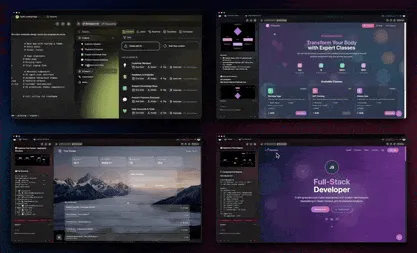
▲ ■ ● Memory, Intelligence, Execution — your Projects remember every client, your agents do the repeatable thinking, and your automations run the work while you sleep. That is how an agency of one ships like an agency of ten. Build it once on Taskade Genesis, clone it for every client, and reclaim your week.