






Hosting your first AI agent is a method: name the job it must do, pick a hosting family, then publish and wire automations before you invite real users. This page owns that walkthrough. Custom agent configuration lives in Custom AI Agents. The builder hub lives at AI Agent Builder.
TL;DR: Host your first AI agent by naming its job, choosing a no-code platform or custom stack, then publishing to a live URL with knowledge and automations attached. Taskade Genesis builds from one prompt with persistent memory, built-in tools, and 100+ integrations. Start building free ->
This guide is for the operator who wants a working agent today, not an engineer provisioning servers. If you can describe what the agent should do when someone messages it, you can host it with Taskade Genesis in about 10 minutes.
Quick answer
AI agent hosting means publishing a persistent agent that remembers context, uses tools, and runs on a URL you control. The method is three decisions: which job the agent owns, which hosting family fits, and what knowledge plus automations it needs before go-live.
Decide the job the agent must own
Write the job in plain language, such as answer product questions, qualify inbound leads, or create support tickets when it cannot resolve an issue.
Pick a hosting family
Choose custom code if you need full control over servers and models, a dev sandbox like Replit if you will maintain deploys yourself, or a no-code platform if you want memory, tools, and a shareable URL without infrastructure work.
Publish with knowledge and automations attached
Add a knowledge base, test edge cases, deploy to a live URL, then connect automations so the agent can notify your team and update records without manual follow-up.
Do this in Taskade
Taskade Genesis is the no-code path for the method above. You describe the agent, Taskade EVE assembles memory, intelligence, and execution layers, and you publish the same day. Free includes 1 agent. Move to Pro at $10/month billed annually when you need more seats.
Step 1: Open Create
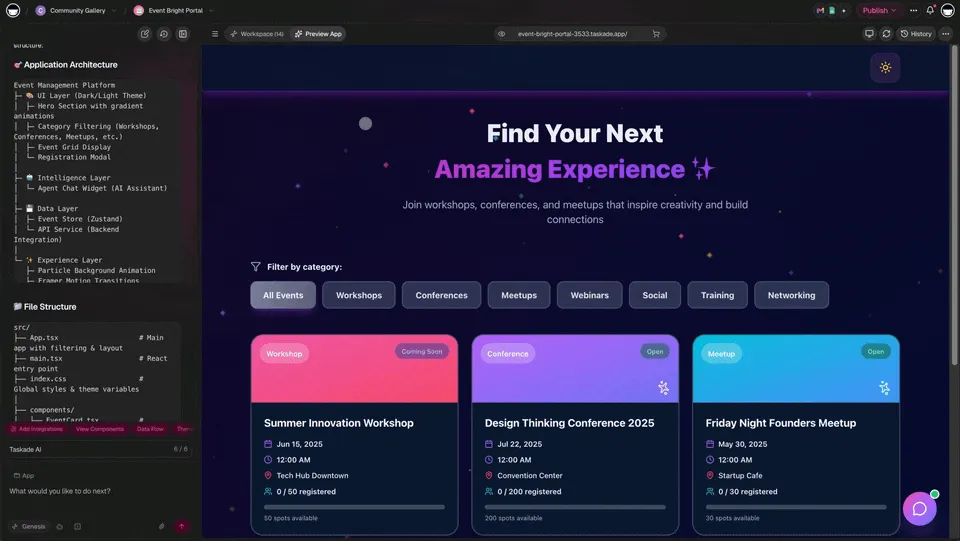
Open Create and describe your agent in plain English, or clone a live agent workspace from the Community Gallery.
Step 2: Add knowledge and configure behavior
Upload FAQs, product docs, and policies into Projects. Set personality, tool access, escalation rules, and slash commands before you share the URL.
Step 3: Test, publish, and connect automations
Run customer-style scenarios in the workspace chat, then publish via Share or Publish. Wire automations across 100+ integrations so tickets, alerts, and status updates run without manual follow-up.
Can I host an agent without creating a new account?
You can read the method on this page without signing up. To publish a live agent, you need a Taskade account. The Free plan includes 1 agent, 3 Taskade Genesis apps, and 2 workspace members. Paid plans start at Pro, $10/month billed annually.
How do I host an agent on a Free plan?
On Free you can describe the agent, add knowledge, test in the workspace, and publish to a shareable URL. Free includes 1 agent. Move to Pro when you need more seats (Pro is up to 10). Custom domains wait for Pro and above, and SSO waits for Business and above.
What is AI agent hosting and why does it matter in 2026?
AI agent hosting is deploying a persistent agent that runs continuously, remembers past interactions, and takes action on behalf of users. Unlike one-shot chatbots, hosted agents maintain state across sessions, connect to external tools, and operate without someone online at every hour.
In 2026, teams use always-on agents for customer support, lead qualification, onboarding, and internal ops. The decision is whether you build custom infrastructure or use a platform that handles deployment, memory, and scaling for you.
| Hosting Approach | Setup Time | Maintenance | Cost | Scalability |
|---|---|---|---|---|
| Custom code (Python/Node) | Days to weeks | High (servers, auth, uptime) | Variable | Manual scaling |
| Replit / Railway | Hours | Medium (deploys, env vars) | Usage-based | Limited |
| AWS Lambda + API Gateway | Days | High (IAM, cold starts) | Variable | Complex |
| Taskade Genesis | About 10 minutes | Managed | Free to Business on annual billing | Built-in |
Taskade Genesis eliminates the entire infrastructure layer. You describe your agent in plain language, and the platform handles deployment, memory, authentication, and scaling.
How does the Taskade agent architecture work?
Taskade agents run on Workspace DNA: Memory stores knowledge in Projects, Intelligence reasons with built-in tools and slash commands, and Execution fires automations across 100+ integrations. The three layers feed one another so each conversation makes the next run smarter without you rebuilding prompts from scratch.
Every Taskade agent runs on that loop through three named components: Memory, Intelligence, and Execution.
- Memory: Projects store your knowledge base, conversation history, tickets, and user data in structured databases.
- Intelligence: AI Agents reason over that memory using frontier models from top AI labs. They have built-in tools, custom slash commands, and persistent memory.
- Execution: Automations trigger workflows that branch, loop, filter, and connect to 100+ integrations across email, Slack, CRM, and more.
This is not a static chatbot. It is a living system where every interaction creates new memory, which feeds intelligence, which triggers execution.
Full walkthrough: deploy your first agent
Deploy your first agent by opening Taskade Genesis, describing the job in a prompt, adding knowledge, testing edge cases, and publishing to a shareable URL with automations wired. The sequence below takes about ten minutes for a support-style agent when you already have FAQs or product docs ready to upload.
The complete path from zero to live agent follows these stages in order.
| Step | Task | Time |
|---|---|---|
| 1 | Open Taskade Genesis | 30 sec |
| 2 | Describe your agent | 2 min |
| 3 | Watch Taskade Genesis build | 1 min |
| 4 | Add knowledge | 2 min |
| 5 | Configure behavior | 2 min |
| 6 | Test your agent | 2 min |
| 7 | Deploy | 30 sec |
| 8 | Connect automations | Optional |
| 9 | Monitor and improve | Ongoing |
| Total | Working agent | ~10 min |
Open Create and sign in
Go to Create or taskade.com and sign in. Click Create App or use the prompt bar at the top of your workspace.
If you do not have an account, the Free tier gives you access to agent building immediately.
Describe your agent in plain language
Enter a prompt that describes what you want:
Build a customer support agent for a SaaS product.
The agent should:
- Answer questions about features and pricing
- Be friendly and professional
- Create support tickets when it can't resolve an issue
- Remember previous conversations with each user
Click Generate or press Enter. Use Enhance Prompt if you want Taskade Genesis to suggest improvements to your description.
Prompt tips for better agents:
| Tip | Example |
|---|---|
| Be specific about personality | "Friendly but concise, like a senior support engineer" |
| Define boundaries | "Never share internal pricing, escalate billing questions" |
| Specify data sources | "Use our FAQ doc and product changelog as knowledge base" |
| Include edge cases | "If the user is frustrated, acknowledge their concern first" |
Watch Taskade Genesis build the layers
Taskade Genesis creates your agent with three layers aligned to Workspace DNA:
Memory (Projects): A database structure for knowledge base articles, conversation history, support tickets, and user profiles.
Intelligence (Agents): An AI agent configured with your specified personality, access to the knowledge base, ticket creation ability, and contextual memory.
Execution (Automations): Workflows for ticket creation, notification triggers, and status updates.
This entire process takes about 60 seconds. Read more about how Workspace DNA works.
Add knowledge your agent can cite
Your agent needs information to be helpful. Go to the Knowledge Base section and add:
- Product information: features, pricing, plans
- Common questions: FAQs and answers
- Troubleshooting guides: step-by-step solutions
- Policies: refunds, support hours, SLAs
You can type directly into Projects, upload documents, connect external sources, or paste from existing docs. The agent uses multi-layer search (full-text + semantic) to find relevant answers across your entire knowledge base.
Configure agent behavior and boundaries
Click on the Agent to customize its personality, capabilities, and boundaries.
Personality: Adjust tone (professional vs. casual), detail level (detailed vs. concise), and formality (formal vs. friendly).
Capabilities: Enable or disable ticket creation, knowledge base access, user memory, email sending, and custom slash commands.
Boundaries: Set limits on topics to avoid, escalation triggers, and information the agent should never share.
| Configuration | Purpose | Example |
|---|---|---|
| System prompt | Define personality and role | "You are a senior support engineer..." |
| Knowledge sources | What the agent can reference | Product docs, FAQ, changelog |
| Tool access | What actions it can take | Create tickets, send emails |
| Escalation rules | When to involve humans | Billing disputes, legal questions |
| Memory scope | What it remembers | Per-user conversation history |
Learn more about Custom AI Agents.
Test before you publish
Before deploying, test thoroughly in the workspace:
- Open the chat interface
- Ask questions your customers would ask
- Try edge cases and adversarial inputs
- Verify ticket creation works correctly
Test these scenarios:
- "What is your pricing?" (factual accuracy)
- "How do I reset my password?" (troubleshooting flow)
- "I have a bug to report" (ticket creation)
- "Can I speak to a human?" (escalation handling)
- "Your product is terrible" (emotional de-escalation)
- Off-topic questions (boundary enforcement)
Iterate until every scenario returns the correct behavior. The agent learns from your corrections through persistent memory.
Deploy to a live URL
Your agent is ready. Click Share or Publish and choose your deployment mode:
Public URL: Anyone with the link can interact. Share with customers, embed on your website, or post on social media.
Embedded widget: Add a chat bubble to every page of your site, integrate into your support section, or embed on a landing page.
Private access: Restrict to specific users using the permission system with role-based access from Owner to Viewer. Password protection is available on Taskade Genesis apps. Custom domains are Pro and above.
Connect automations
Make your agent more powerful with automated workflows:
- New ticket -> Slack notification: alert your team when tickets are created
- Unresolved conversation -> email escalation: route to humans when the agent cannot help
- Positive feedback -> thank-you email: automated follow-up for satisfied customers
- Daily summary -> team report: compile agent activity across conversations
- SLA breach -> priority alert: escalate when response time exceeds thresholds
These automations connect to 100+ integrations including Slack, email, Google Calendar, Salesforce, HubSpot, and more.
Monitor and improve over time
Your agent is live. Review conversations, tickets, and patterns so the knowledge base and behavior keep improving.
Track conversations: See what users ask. Identify gaps in your knowledge base where the agent cannot provide answers.
Review tickets: Check what the agent could not resolve. Add that information to the knowledge base so it handles similar cases next time.
Analyze patterns: Find common issues, peak usage times, and satisfaction trends. Use the Support Rating Dashboard template to track metrics.
Iterate continuously: Add knowledge, adjust behavior, expand capabilities. The more data your agent accumulates in Projects, the smarter it becomes through Workspace DNA.
Which hosting approach is right for your first agent?
Pick Taskade Genesis when you need a live URL, persistent memory, and automations without managing servers. Pick custom hosting when you must own every layer of models, latency, and proprietary integrations. Replit and Railway sit in the middle for teams that will maintain their own deploy pipeline.
Taskade Genesis fits when you want a shareable agent with memory, built-in tools, and automations the same day. Custom hosting fits when you need full control over servers, models, and proprietary integrations at enterprise scale.
| Feature | Taskade Genesis | Custom Hosting (AWS/GCP) | Replit Agent |
|---|---|---|---|
| Setup time | About 10 minutes | Days to weeks | Hours |
| Code required | None | Full stack | Some |
| Persistent memory | Built-in | Build from scratch | Manual |
| Built-in tools | Built-in tools | None (build your own) | Limited |
| Integrations | 100+ | Custom API work | Limited |
| Multi-agent collaboration | Native | Complex orchestration | Not supported |
| Custom domains | Pro and above | Yes (manual DNS) | Limited |
| Authentication | Built-in (OIDC/SSO on Business+) | Build from scratch | Basic |
| Automations | Visual builder | Code-based | Not included |
| Project views | Multiple project views | N/A | N/A |
| Pricing | Free to Business on annual billing | Variable | Usage-based |
When custom hosting makes sense: You need full control over model selection, have unique latency requirements, or are building agents that integrate deeply with proprietary systems at enterprise scale.
When Taskade Genesis is the better choice: You want a working agent today, not next month. You need persistent memory, automations, integrations, and team collaboration without managing infrastructure.
How do multi-agent teams work after the first deploy?
Multi-agent teams route each incoming message to a specialist agent that shares the same Projects memory and hands work through automations. A support agent might delegate billing questions to a billing agent and bug reports to a technical agent, then file one resolution task for the team.
After your first agent is live, you can add specialized agents that delegate to one another through shared Projects and automations.
Each agent in the team has its own persistent memory, tool access, and personality, but they share workspace context through Projects. The support agent triages incoming messages and delegates to specialized agents based on the query type.
Learn more about multi-agent workflows and how AI agents collaborate in Taskade.
What does a finished support agent look like?
A production support agent pairs a published chat surface with a ticket database, satisfaction tracking, and a dashboard your team reviews weekly. Clone a live workspace to see that shape before you customize prompts, knowledge, and automations for your product.
Clone a live support workspace to see a pre-configured agent, ticket database, and reporting dashboard you can adapt for your product.
Clone Support Rating Dashboard ->
This template includes a pre-configured agent, ticket database, satisfaction tracking, and reporting dashboard. Clone it and customize for your specific product.
More agent templates to explore:
- Customer onboarding agent: guide new users through setup
- Sales qualification agent: score and route inbound leads
- Research assistant agent: summarize documents and extract insights
What mistakes break a first agent deployment?
First deployments fail when the system prompt is too vague, the knowledge base is empty, edge cases were never tested, or users have no human escalation path. Fix those four gaps before you share the public URL, then review conversation logs weekly so the agent improves from real questions.
Most first-agent failures come from vague prompts, missing knowledge, or no escalation path. Fix those before you share the URL widely.
| Mistake | Why It Fails | Fix |
|---|---|---|
| Vague system prompt | Agent gives generic, unhelpful answers | Be specific about role, tone, and boundaries |
| No knowledge base | Agent hallucinates answers | Upload product docs, FAQs, and policies first |
| Skipping edge case testing | Agent breaks on unexpected inputs | Test adversarial and off-topic scenarios |
| No escalation path | Users get stuck in loops | Define clear human handoff triggers |
| Ignoring conversation logs | Agent never improves | Review weekly, update knowledge base |
What should you build after your first agent?
After the first agent ships, add integrations and specialized agents for sales qualification, onboarding, or research, then wire them into the same Workspace DNA loop so memory and automations compound across the team.
Once the first agent is live, expand knowledge sources, add integrations, and clone specialized agents for sales, onboarding, or research.
Expand capabilities: Add more knowledge sources, connect additional integrations, and build agent teams using multi-agent collaboration.
Create more agents: Deploy a sales qualification agent, onboarding assistant, or research helper.
Learn the architecture:
- Workspace DNA Guide: Memory + Intelligence + Execution
- AI Agents Deep Dive: customize agent behavior
- Automation Patterns: connect agents to workflows
Resources
Use the links below to move from this HowTo tutorial to the AI Agent Builder hub, Learn Taskade walkthroughs, and cloneable community workspaces. The builder page covers templates and feature overview; this post covers the first publish sequence.
Get started:
- Create Your First App: official tutorial
- Community Templates: clone and customize agent workspaces
- AI Agent Builder: create intelligent assistants
Learn more:
- What Is an Agent Hosting Platform?
- Chatbots Are Demos. Agents Are Execution.
- How Workspace DNA Works
- 10 Agentic Workflows for Startups
- What Is Agentic Engineering?
Explore Taskade AI:
- AI Agent Builder: create intelligent assistants
- AI Agent Hosting: deploy agents around the clock
- AI App Builder: build complete applications
- AI Workflow Automation: automate any process
Build with Taskade Genesis:
- Browse All Generator Templates: apps, dashboards, websites, and more
- Browse Agent Templates: AI agents for every use case
- Explore Community Apps: clone and customize
Frequently Asked Questions
How long does it take to create and deploy an AI agent with Taskade Genesis?
About 10 minutes. You describe your agent in plain language, Taskade Genesis builds the scaffolding automatically, then you add knowledge, configure behavior, test, and deploy. No coding is required. The entire process from prompt to live deployment runs through Taskade's visual interface.
Do I need coding skills to host an AI agent on Taskade?
No. Taskade Genesis is a no-code AI agent builder. You describe what you want in natural language, and the platform generates a fully functional agent with persistent memory, built-in tools, and custom slash commands. You can deploy it to a shareable public URL without writing a single line of code.
What can a Taskade AI agent do once it is deployed?
A deployed Taskade AI agent can answer questions from your knowledge base, remember conversation history with persistent memory, create tasks and support tickets, trigger automations with branching and looping logic, and run 24/7 on a shareable URL. Agents are powered by frontier models from top AI labs, and can collaborate with other agents in multi-agent workflows.
Can I connect my AI agent to automations and other workflows?
Yes. After deploying your agent, you can connect it to Taskade automations powered by a durable execution engine. Agents can trigger workflows that branch, loop, and filter across your workspace, update projects across all project views, notify team members, and coordinate with other agents automatically.
How does Taskade Genesis compare to custom agent hosting on Replit or AWS?
Custom hosting on Replit, AWS, or Railway requires writing backend code, managing servers, handling authentication, and maintaining uptime. Taskade Genesis eliminates all of that. You describe your agent in plain language, deploy to a shareable URL, and get persistent memory, built-in tools, and 100+ integrations out of the box. No infrastructure management required.
What AI models power Taskade agents?
Taskade agents are powered by frontier models from top AI labs. The platform handles model selection and routing automatically, so you get strong intelligence without managing API keys or model versions.
Can multiple AI agents collaborate in a single workspace?
Yes. Taskade supports multi-agent collaboration where agents can delegate tasks to one another, share persistent memory through Projects, and coordinate through automations. You can build entire agent teams, for example a support agent that escalates to a billing agent, which then triggers a retention agent.
How much does it cost to host an AI agent on Taskade?
Taskade offers a Free tier to get started. Paid plans start at $10/month billed annually (Pro) for up to 10 seats, and $25/month billed annually (Business). All paid plans include AI agent hosting, persistent memory, automations, and 100+ integrations.
Can I embed my AI agent on my own website?
Yes. After deploying your agent, you can share it via a public URL, embed it as a chat widget on your website, or restrict access with role-based access from Owner to Viewer. Password protection is available on Taskade Genesis apps. Custom domains are Pro and above.
What is Workspace DNA and how does it relate to AI agents?
Workspace DNA is Taskade's self-reinforcing architecture where Memory (Projects) feeds Intelligence (Agents), Intelligence triggers Execution (Automations), and Execution creates Memory. When you deploy an AI agent, it automatically gains access to your workspace's persistent memory and can trigger automations, creating a living system, not just a chatbot.