






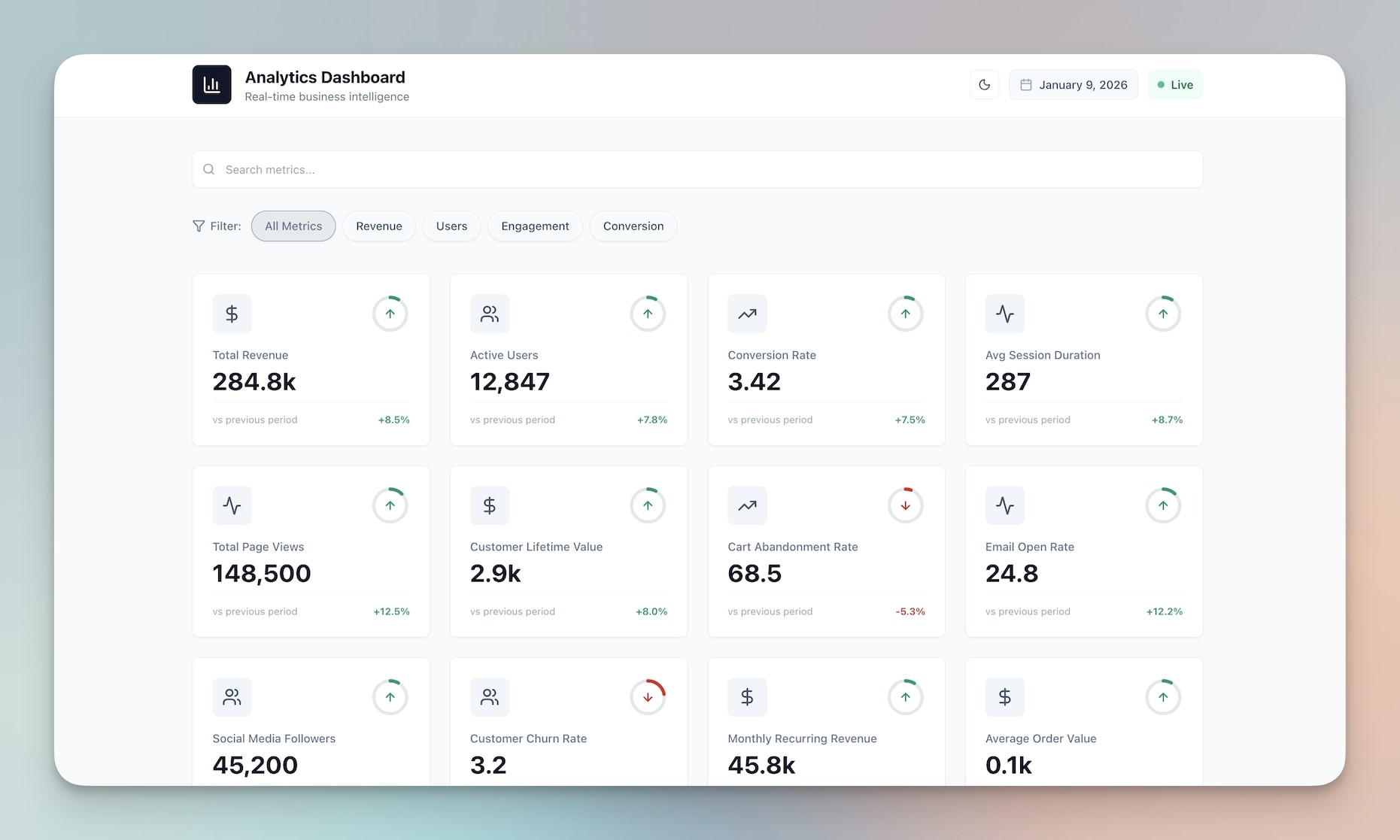
TL;DR: You can build a fully interactive pricing calculator — tiered plans, monthly/annual toggle, user-count slider, feature comparison, and call-to-action buttons — from a single text prompt in Taskade Genesis. No code, no deployment headaches, live in five minutes. This tutorial walks through every step, then shows you how to add an AI pricing advisor, connect Stripe checkout, and publish with a custom domain.
What We Are Building
A three-tier SaaS pricing calculator that visitors can interact with in real time. Here is the layout we are targeting:
┌──────────────────────────────────────────────────────────────────┐
│                    PRICING CALCULATOR                             │
│                                                                  │
│          [ Monthly ]  ●────────○  [ Annual — Save 20% ]          │
│                                                                  │
│   Users:  1 ○━━━━━━━━━━━━━━━━━━━━━━━━━━━━━━━━━━━○ 100           │
│           Current: 10 users                                      │
│                                                                  │
│  ┌──────────────┐  ┌──────────────┐  ┌──────────────┐           │
│  │   STARTER    │  │  ▸ PRO ◂     │  │  ENTERPRISE  │           │
│  │              │  │  Most Popular │  │              │           │
│  │   $9/user    │  │  $19/user    │  │   Custom     │           │
│  │   $90/mo     │  │  $190/mo     │  │              │           │
│  │              │  │              │  │   Contact Us │           │
│  │  5 GB store  │  │  50 GB store │  │  Unlimited   │           │
│  │  3 projects  │  │  Unlimited   │  │  Unlimited   │           │
│  │  Email only  │  │  Chat + Email│  │  Dedicated   │           │
│  │  ─────────── │  │  ─────────── │  │  ─────────── │           │
│  │  [Get Start] │  │  [Get Start] │  │  [Get Quote] │           │
│  └──────────────┘  └──────────────┘  └──────────────┘           │
│                                                                  │
│  ┌────────────────────────────────────────────────────────────┐  │
│  │ FEATURE COMPARISON TABLE                                   │  │
│  │ Feature        │ Starter │ Pro     │ Enterprise            │  │
│  │ Storage        │ 5 GB    │ 50 GB   │ Unlimited             │  │
│  │ Projects       │ 3       │ Unlim.  │ Unlimited             │  │
│  │ AI Agents      │ —       │ ✓       │ ✓                     │  │
│  │ Custom Domain  │ —       │ —       │ ✓                     │  │
│  │ SSO            │ —       │ —       │ ✓                     │  │
│  │ Priority Supp. │ —       │ ✓       │ ✓                     │  │
│  └────────────────────────────────────────────────────────────┘  │
│                                                                  │
│  You save $456/year on Pro with annual billing.                  │
└──────────────────────────────────────────────────────────────────┘
The slider, toggle, and per-user math all update live. No page reload. No backend. Just one prompt.
Time: ~5 minutes
Skills needed: None
Why Pricing Calculators Convert
A static pricing page lists numbers. A pricing calculator lets visitors play. That difference matters more than most teams realize.
Interactive content generates up to 2x more conversions than passive content. When a visitor can toggle between monthly and annual billing, slide a user-count bar, and watch the total recalculate in real time, they stay on the page longer and leave with a clearer picture of what they will pay. Clarity reduces friction. Reduced friction increases signups.
Here is why this works from a behavioral perspective:
Active engagement beats passive reading. Moving a slider or clicking a toggle shifts the visitor from "browsing" to "configuring." That micro-commitment increases the likelihood they will finish the action — clicking the CTA.
Personalized numbers build trust. A page that says "$19/user/month" forces the visitor to do mental math. A calculator that says "Your total: $190/mo for 10 users (save $456/year with annual billing)" removes that cognitive load and feels tailored.
Comparison tables reduce objections. When visitors can see exactly which features each tier includes, they spend less time wondering "What am I missing?" and more time deciding "Which plan fits?"
Annual discount visibility drives upgrades. Showing the savings amount — not just the percentage — in real time nudges visitors toward annual commitments. SaaS companies that display dollar savings alongside percentage discounts see higher annual-plan adoption.
Companies like HubSpot, Intercom, Slack, and Notion all use interactive pricing elements on their pricing pages — toggles, sliders, or seat-count selectors. These are not decorative. They are conversion tools.
The problem is that building one traditionally requires a frontend developer, a designer, and at least a few days of work. With Taskade Genesis, you describe what you want and it builds the calculator for you. Let's do it.
Step 1: The Prompt
Open Taskade Genesis and paste this prompt:
Build a SaaS pricing calculator with three tiers: Starter ($9/user/mo),
Pro ($19/user/mo), and Enterprise (custom pricing).CONTROLS:
- Monthly / Annual billing toggle (20% discount on annual)
- User count slider from 1 to 100
- Live price recalculation on every change
PLAN CARDS:
- Each card shows: plan name, per-user price, total monthly cost,
key feature bullets (storage, projects, support level)
- Pro card highlighted as "Most Popular"
- Enterprise card shows "Contact Us" instead of a price
FEATURE COMPARISON TABLE below the cards:
- Rows: Storage, Projects, AI Agents, Custom Domain, SSO,
Priority Support, API Access, Audit Log
- Columns: Starter, Pro, Enterprise
- Use check marks and dashes
CALLS TO ACTION:
- Starter and Pro: "Get Started" button
- Enterprise: "Get a Quote" button
SAVINGS CALLOUT:
- When annual billing is selected, show "You save $X/year on [plan]"
below the cards
DESIGN:
- Clean, modern card layout
- Responsive for mobile
- Use a blue accent color for the Pro highlight
Click Generate. Genesis will take about 60 seconds.
Tip: Click "Enhance Prompt" before generating. Genesis often suggests additions — like a tooltip explaining what "AI Agents" means, or a currency selector — that improve the final result.
Step 2: Review the Output
After generation, Genesis delivers a live, interactive pricing calculator. Here is what you should see:
The Toggle
A monthly/annual switch at the top of the page. When you click "Annual," every price on the page recalculates instantly. The per-user cost drops by 20%, the monthly totals update, and a savings callout appears below the plan cards.
The Slider
A horizontal slider from 1 to 100 users. Dragging it updates the total price on each plan card in real time. At 10 users on the Pro plan with annual billing:
Pro — $15.20/user/mo × 10 users = $152.00/mo
(billed as $1,824/year — you save $456/year)
The Plan Cards
Three cards side by side. Starter on the left, Pro in the center with a blue "Most Popular" badge, Enterprise on the right. Each card lists:
- Plan name
- Per-user price (adjusts with the toggle)
- Total monthly cost (adjusts with the slider)
- Three to four key feature bullets
- A CTA button
The Feature Comparison Table
A full-width table below the cards. Every feature row shows what is included in each tier using check marks and dashes. This is where visitors compare plans in detail without scrolling back and forth between pages.
The Savings Callout
A line of text below the cards that only appears when annual billing is active. It shows the exact dollar amount the visitor saves per year on the selected plan. This is a conversion nudge — it makes the annual discount tangible.
No database. No API. No deployment. The calculator runs entirely in the browser with live JavaScript calculations, all generated from your prompt.
Step 3: Iterate by Chatting
This is the part that separates vibe coding from traditional development. Instead of editing code, you chat with Genesis to refine the calculator. Every instruction applies instantly.
Here are six iterations you might want to make:
| What You Want | What You Type |
|---|---|
| Add a free tier | "Add a Free tier with 1 user, 1 GB storage, 1 project, email support, and a 'Sign Up Free' button" |
| Change the annual discount | "Change the annual discount to 25% and update the savings callout to reflect the new amount" |
| Add optional add-ons | "Add a section below the cards where users can check optional add-ons: Extra Storage ($5/mo), Priority Onboarding ($99 one-time), Custom Branding ($10/mo). Add-on costs should be included in the total" |
| Show total annual savings | "Show a summary line at the bottom: 'Total with add-ons: $X/mo — $X/year. You save $X compared to monthly billing.'" |
| Add a quote request form | "When someone clicks 'Get a Quote' on Enterprise, show a modal form with fields for name, email, company, estimated users, and a message. On submit, send the data to my workspace" |
| Connect to Stripe | "When someone clicks 'Get Started' on Starter or Pro, trigger an automation that creates a Stripe Checkout session for the selected plan and user count" |
Each of these is a single chat message. Genesis applies the change, you review it, and you move on. If something is not quite right, you describe the adjustment and it iterates again.
This is what makes vibe coding fundamentally different from traditional building. There is no context switching between a code editor, a terminal, and a browser. There is no "let me look up the Stripe API docs." You describe the behavior you want and the system handles the implementation.
Step 4: Enhance with AI Agents
A pricing calculator answers "How much does this cost?" An AI pricing advisor answers "Which plan is right for me?" Adding an agent turns a passive tool into a consultative experience.
Create a Pricing Advisor Agent
In your Genesis app, add a new AI agent with this prompt:
You are a Pricing Advisor for [Your Product Name].ROLE:
- Help visitors choose the right plan based on their needs
- Ask about team size, key features they need, and budget
- Recommend a specific tier with clear reasoning
- Answer questions about features, limits, and billing
KNOWLEDGE:
- Starter: Best for individuals and small teams (1-5 users).
5 GB storage, 3 projects, email support.
- Pro: Best for growing teams (5-50 users).
50 GB storage, unlimited projects, AI agents, chat + email support.
- Enterprise: Best for organizations (50+ users).
Unlimited everything, custom domain, SSO, dedicated support, API, audit log.
- Annual billing saves 20%. Payment via Stripe.
BEHAVIOR:
- Be concise and helpful
- Always recommend a specific plan (do not be vague)
- If the visitor needs Enterprise features, offer to collect their info
for a custom quote
- If they seem hesitant about price, mention the annual discount
and the ROI of the features they need
This agent is powered by 15+ AI models from 3 providers (OpenAI, Anthropic, Google), so it can handle nuanced conversations about pricing, feature comparisons, and even competitive objections.
How It Works with Workspace DNA
The Pricing Advisor agent is not a standalone chatbot — it operates within Taskade's three-layer architecture:
- Memory (Projects): The agent reads the plan data, feature lists, and pricing rules stored in your workspace. When you update a price, the agent's knowledge updates automatically.
- Intelligence (AI Agents): The agent reasons about the visitor's needs, recommends a plan, and explains why. It can compare tiers, calculate savings, and handle edge cases like "What if I start with 8 users but expect to grow to 30?"
- Execution (Automations): When the agent recommends a plan and the visitor is ready, an automation can trigger the next step — creating a Stripe Checkout session, sending a quote to Slack, or adding the lead to your CRM.
This is the difference between a calculator and a living system. The calculator does math. The living system does math, advises, and acts.
Step 5: Connect Automations
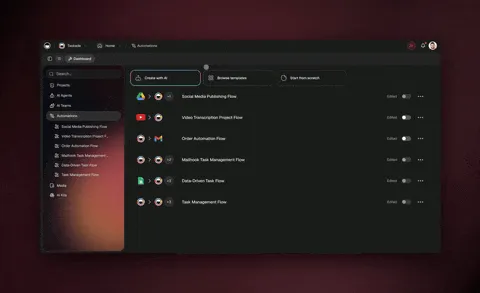
Taskade supports 100+ integrations via durable execution — meaning your automations are reliable, retryable, and production-grade. Here are the automations that turn a pricing calculator into a revenue pipeline:
| Trigger | Action | Integration |
|---|---|---|
| Visitor clicks "Get Started" on Starter or Pro | Create Stripe Checkout session with the selected plan, user count, and billing cycle | Stripe |
| Visitor submits Enterprise quote form | Send quote request to #sales channel with all form data | Slack |
| Visitor submits Enterprise quote form | Create a new lead record with plan interest, company, and user estimate | HubSpot / Salesforce CRM |
| Stripe checkout completes | Send welcome email with onboarding link | Gmail / SendGrid |
| Daily at 9 AM | Generate report of all calculator interactions, plan selections, and conversion rate | Google Sheets |
| Visitor uses the AI advisor | Log the conversation summary and recommended plan to the CRM lead record | HubSpot / Salesforce CRM |
To set these up, open the Automations tab in your Genesis app and add each trigger-action pair. Genesis walks you through the connection flow for each integration.
Example: Stripe Checkout Automation
Here is what the Stripe automation looks like in practice:
- Visitor selects Pro plan, 10 users, annual billing
- Visitor clicks "Get Started"
- Automation fires: creates a Stripe Checkout session with line item "Pro Annual — 10 users — $1,824/year"
- Visitor is redirected to Stripe's hosted checkout page
- After payment, Stripe webhook triggers the welcome email automation
The entire flow — from pricing calculator to paid customer — happens without the visitor leaving the experience.
Step 6: Publish
Your pricing calculator is ready. Here is how to make it live.
Shareable URL
Click Publish in your Genesis app. You get an instant URL like:
/share/apps/your-app-id
Share this link directly with prospects, embed it in emails, or post it on social media.
Embeddable iframe
To embed the calculator on your existing website, copy this snippet:
Html
<iframe
  class="taskade-embed"
  width="100%"
  height="800"
  scrolling="yes"
  frameborder="no"
  src="/share/apps/your-app-id"
  loading="lazy"
  title="Pricing Calculator — Taskade Genesis App"
></iframe>
Paste this into any HTML page, WordPress post, Webflow embed block, Squarespace code block, or Notion embed. The calculator renders responsively inside the frame.
Custom Domain (Business Plan and Above)
On the Business plan, you can map a custom domain to your published app. Your pricing calculator would live at something like:
https://pricing.yourcompany.com
No separate hosting. No DNS headaches beyond a single CNAME record.
Password Protection
Need to restrict access? Enable password protection on your published app. Visitors must enter a password before they can see the calculator. Useful for beta pricing, internal tools, or partner-specific pricing.
Analytics
Published Genesis apps on the Business plan include built-in analytics: page views, unique visitors, and engagement metrics. For deeper tracking, embed the calculator on a page that already runs Google Analytics, Plausible, or Mixpanel.
What a Pricing Calculator Actually Costs
Building a pricing calculator the traditional way means stitching together multiple paid services. Here is a realistic cost comparison:
┌─────────────────────────────────────────────────────────────────┐
│            DIY STACK                    TASKADE GENESIS          │
│  ───────────────────────────     ───────────────────────────    │
│  Bolt.new (generation)  $20/mo   Taskade Pro         $10/mo     │
│  Supabase (database)    $25/mo   (includes Genesis,            │
│  OpenAI API (advisor)   $20/mo    AI agents, automations,      │
│  Zapier (automations)   $20/mo    publishing, analytics,       │
│  Vercel (hosting)       $20/mo    100+ integrations)            │
│  Stripe (2.9% + 30¢)   usage    Stripe (2.9% + 30¢)  usage   │
│  ───────────────────────────     ───────────────────────────    │
│  TOTAL:  $105–165/mo              TOTAL:  $10/mo                │
│                                                                 │
│  + 10–20 hours of                 + 5–10 minutes of             │
│    development time                 chatting with Genesis        │
│                                                                 │
│  + ongoing maintenance             + iterate by chatting         │
│    (updates, bug fixes)             (no code to maintain)        │
└─────────────────────────────────────────────────────────────────┘
The DIY stack gives you more low-level control. Genesis gives you a living system that is ready to publish in minutes and costs a fraction of the alternative. For most teams that need a pricing calculator — not a custom billing engine — Genesis is the practical choice.
Real-World Example: Meeting Cost Calculator
Watch: Build a live AI app from a single prompt with Taskade Genesis.
Here is a live Genesis app you can interact with right now. This Meeting Cost Calculator lets you input the number of attendees, their average hourly rate, and the meeting duration — then shows you exactly how much that meeting costs your organization.
The same approach works for any calculator type. A pricing calculator is just one variation. Here are others you can build with a single prompt:
- ROI Calculator — show prospects the return on investment for your product
- Savings Calculator — compare cost of current workflow vs. your solution
- Service Pricing Estimator — let clients configure a custom quote for services
- Commission Calculator — help sales teams calculate their earnings per deal
- Shipping Cost Calculator — estimate delivery costs by weight, distance, and speed
Each of these follows the same Genesis workflow: describe it, generate it, iterate by chatting, publish.
5 Prompt Templates You Can Copy
1. ROI Calculator
Build an ROI calculator for [Your Product Name].INPUTS:
- Current monthly cost of the workflow being replaced (number input)
- Hours spent per week on manual tasks (slider: 1-40)
- Average hourly rate of the team (number input, default $50)
- Number of team members (slider: 1-50)
CALCULATIONS:
- Monthly manual cost = hours × rate × team members × 4.33
- Monthly savings with [Product] = manual cost - [Product price]
- Annual savings = monthly savings × 12
- ROI percentage = (annual savings / annual product cost) × 100
- Payback period in days = (annual product cost / annual savings) × 365
OUTPUT:
- Dashboard showing monthly savings, annual savings, ROI %,
and payback period
- Bar chart comparing current cost vs cost with [Product]
- "You save $X/year" callout
- CTA: "Start Your Free Trial" linking to [signup URL]
2. Savings Calculator
Build a savings comparison calculator.INPUTS:
- What the visitor currently uses (dropdown: Spreadsheets, Competitor A,
Competitor B, Manual Process, Other)
- Number of users (slider: 1-100)
- Hours spent per week on the workflow (slider: 1-40)
- Average hourly cost (number input, default $45)
CALCULATIONS:
- Current annual cost = users × hours × hourly cost × 52
- tool subscription cost (looked up from the dropdown selection)
- Cost with [Your Product] = users × [your per-user price] × 12
- Annual savings = current cost - product cost
- Time saved per week = hours × efficiency gain percentage (e.g., 60%)
OUTPUT:
- Side-by-side comparison cards: "Current" vs "With [Product]"
- Annual savings highlighted in green
- Time saved per week highlighted
- Testimonial quote from a customer who switched
- CTA: "See It in Action" linking to [demo URL]
3. Service Pricing Estimator
Build a service pricing estimator for a [web design / consulting / agency] business.INPUTS:
- Service type (dropdown: Website Redesign, New Website, Landing Page,
E-commerce Store, Custom Application)
- Number of pages (slider: 1-50)
- Features checklist: Contact Form, Blog, CMS, E-commerce, SEO,
Analytics, Custom Illustrations, Copywriting
- Timeline (radio: Standard 4-6 weeks, Rush 2-3 weeks +30%,
Priority 1-2 weeks +60%)
CALCULATIONS:
- Base price looked up from service type
- Per-page cost multiplied by page count
- Feature add-on costs summed from checklist
- Timeline multiplier applied
- Total = (base + pages + features) × timeline multiplier
OUTPUT:
- Itemized quote showing base, pages, features, timeline adjustment
- Total estimate range (low-high)
- "Request Full Proposal" button that opens a form
(name, email, company, project details)
- Note: "This is an estimate. Final pricing confirmed after
a discovery call."
4. Commission Calculator
Build a sales commission calculator.INPUTS:
- Deal size (number input)
- Commission rate tier (auto-selected based on deal size):
$0-10K = 8%, $10K-50K = 10%, $50K-100K = 12%, $100K+ = 15%
- Split percentage if co-selling (slider: 50-100%, default 100%)
- Quarterly bonus toggle (on/off): if quarterly target met,
add 2% bonus on all deals
CALCULATIONS:
- Base commission = deal size × rate
- Split-adjusted = base commission × split %
- Bonus commission = base commission × 2% (if toggle on)
- Total payout = split-adjusted + bonus
OUTPUT:
- Commission breakdown card showing deal, rate, base, split, bonus, total
- Annual projection: "At this deal size per month,
your annual commission is $X"
- Chart showing commission by deal size tier
- Motivational callout: "Close one more $50K deal to reach
the 12% tier"
5. Shipping Cost Calculator
Build a shipping cost calculator for an e-commerce store.INPUTS:
- Package weight (slider: 0.1-50 lbs)
- Dimensions: length, width, height (number inputs in inches)
- Ship from (dropdown of warehouse locations)
- Ship to (ZIP code input)
- Shipping speed (radio: Ground 5-7 days, Express 2-3 days,
Overnight 1 day)
CALCULATIONS:
- Dimensional weight = (L × W × H) / 139
- Billable weight = max(actual weight, dimensional weight)
- Base rate looked up from zone table (origin → destination)
- Speed multiplier: Ground 1x, Express 1.8x, Overnight 3.2x
- Fuel surcharge = base × 6.5%
- Total = (base × speed multiplier) + fuel surcharge
OUTPUT:
- Rate comparison table showing all three speeds side by side
- Cheapest option highlighted
- Estimated delivery date for each speed
- "Ship Now" button per speed option
- Note: "Rates are estimates. Final rate confirmed at checkout."
Copy any of these into Taskade Genesis, replace the bracketed placeholders with your own details, and click Generate.
Common Mistakes to Avoid
Building the calculator is the easy part. Making it convert takes a bit more thought. Here are six mistakes we see teams make — and how to avoid them.
1. Too Many Input Fields
If your calculator asks for ten inputs before showing a price, visitors will abandon it. Start with two or three inputs — billing cycle, user count, and plan selection. Add optional fields (add-ons, features) below the fold.
Rule of thumb: If the visitor can not see a price within 3 seconds of landing on the page, you have too many inputs above the fold.
2. No Annual Discount Visibility
Offering an annual discount but only showing it in small text at checkout is a missed opportunity. The toggle should be prominent, the discount percentage should be visible, and the savings callout should show the exact dollar amount saved per year.
What to do: Make the annual toggle the first control on the page. Show both the percentage discount and the dollar savings.
3. Hiding Enterprise Pricing Entirely
"Contact us for pricing" with no context scares away Enterprise prospects. They want a ballpark before they fill out a form. Show starting-at pricing, include a feature comparison, and make the quote form short — name, email, company, estimated users.
What to do: Show "Starting at $X/user/mo for 50+ users" on the Enterprise card, even if final pricing is custom.
4. Not Optimizing for Mobile
More than half of B2B research happens on mobile devices. A three-column pricing layout that works on desktop becomes unusable on a phone if it is not responsive. Genesis builds responsive layouts by default, but always test on a real phone.
What to do: After publishing, open your calculator on your phone. Check that the slider is easy to drag, the toggle is tappable, and the cards stack vertically.
5. Skipping the AI Advisor
A calculator answers "How much does it cost?" but not "Which plan is right for me?" Adding an AI advisor that asks two or three questions and recommends a plan reduces decision friction and increases conversion. It is a five-minute addition with Genesis.
What to do: Add a "Help Me Choose" button that opens the AI advisor chat. It costs nothing extra and converts visitors who are on the fence.
6. Forgetting Analytics and Follow-Up
A published calculator with no tracking is a black box. You will not know how many people visited, which plan they selected, or whether they clicked the CTA. Connect analytics and set up automations so every interaction flows into your CRM.
What to do: Enable built-in analytics on your published app. Set up an automation that logs every "Get Started" click to a Google Sheet or CRM record.
More Tutorials in the Build Series
This article is part of a series of step-by-step Genesis tutorials. Each one shows you how to build a specific app from a single prompt:
- How to Build a Finance Dashboard — Expense tracking, budget alerts, AI analysis
- How to Build a Simple Store Manager — Inventory, sales, profit calculations
- How to Build a QR Code Generator — Dynamic QR codes with tracking
- How to Build a Room Booking Dashboard — Availability, reservations, calendar sync
- How to Build a Support Rating Dashboard — CSAT tracking, agent performance, trends
- How to Build a Nonprofit Hub — Donor management, events, volunteer coordination
- 5 Genesis Apps You Can Build in 10 Minutes — Client portal, booking, dashboard, knowledge base, lead capture
- 20 AI App Ideas with Taskade Genesis — Inspiration for your next build
Ready to Build Your Pricing Calculator?
You have the prompt. You have the iteration playbook. You have the automation recipes and the AI advisor setup.
The only step left is opening Genesis and pasting the prompt.
- Open Taskade Genesis
- Paste the pricing calculator prompt from Step 1
- Click Generate
- Iterate with the table from Step 3
- Add the AI advisor from Step 4
- Connect automations from Step 5
- Publish and embed
No credit card required on the free plan. Pro starts at $10/month (billed annually) for unlimited Genesis apps.
Resources:
- Taskade Genesis — AI App Builder
- What is Vibe Coding? — The philosophy behind building by describing
- Best Vibe Coding Tools 2026 — How Genesis compares to Cursor, Bolt, Replit, and more
- The Ultimate Guide to Taskade Genesis — Everything you can build
- How Workspace DNA Works — Memory, Intelligence, Execution explained
Documentation:
Build with Genesis:
- Browse All Generator Templates — Apps, dashboards, websites, and more
- Browse Agent Templates — AI agents for every use case
- Explore Community Apps — Clone and customize

Frequently Asked Questions
How do I build a pricing calculator without code?
Use Taskade Genesis to describe what you want in a plain-English prompt — tier names, features, pricing logic, and CTAs. Genesis generates a fully interactive pricing calculator with toggles, sliders, and live calculations in under five minutes. No HTML, CSS, or JavaScript required.
What should a pricing calculator include?
A good pricing calculator includes clearly labeled plan tiers, a monthly/annual billing toggle with a visible discount, a user or quantity slider, a feature comparison table, and a call-to-action button for each plan. Optional extras include a savings callout, an add-on selector, and an enterprise quote form.
Can I embed a Taskade pricing calculator on my website?
Yes. Every published Genesis app gets a shareable URL and an embeddable iframe code. Copy the iframe snippet into any HTML page, WordPress post, Webflow site, or Notion embed block. The calculator loads responsively inside the frame.
How much does it cost to build a pricing calculator with Taskade?
Taskade is free to start, with Pro from $10 per month (billed annually) including unlimited Genesis app generation. Compare that to a DIY stack of Bolt + Supabase + Zapier + Vercel, which costs $105-165 per month before you write a single line of code.
Can I connect a pricing calculator to Stripe for checkout?
Yes. Use Taskade Automations to connect your calculator's Get Started button to a Stripe Checkout session. When a visitor selects a plan and clicks the CTA, an automation creates the checkout link and redirects them to Stripe's hosted payment page.
What is the difference between a pricing calculator and a static HTML pricing page?
A static pricing page shows fixed numbers. A pricing calculator lets visitors interact — toggle billing cycles, slide user counts, compare features, and see totals update in real time. Interactive pricing pages generate up to 2x more conversions than static ones because they keep visitors engaged and reduce decision friction.
How long does it take to build a pricing calculator?
With Taskade Genesis, the initial generation takes under two minutes. Adding iterations — discount logic, add-ons, Stripe checkout, AI advisor — takes another three to five minutes of chatting. Total time from prompt to published calculator is typically five to ten minutes.
Can I customize a Genesis pricing calculator after building it?
Yes. Chat with Genesis to change colors, rename tiers, adjust discount percentages, add or remove features, swap CTAs, insert add-on rows, or connect new automations. Every change is applied instantly without regenerating the entire app.
How do I track analytics on my pricing calculator?
Taskade provides built-in analytics for published Genesis apps on the Business plan and above. You can see page views, unique visitors, and engagement metrics. For deeper tracking, embed the calculator on a page that already runs Google Analytics or Plausible.
Does a pricing calculator help with SEO?
Interactive tools increase time on page and reduce bounce rate, both of which are positive engagement signals for search engines. A pricing calculator also earns backlinks because other sites link to useful tools. Adding FAQ schema — like the one on this page — gives search engines structured data that can appear as rich results.