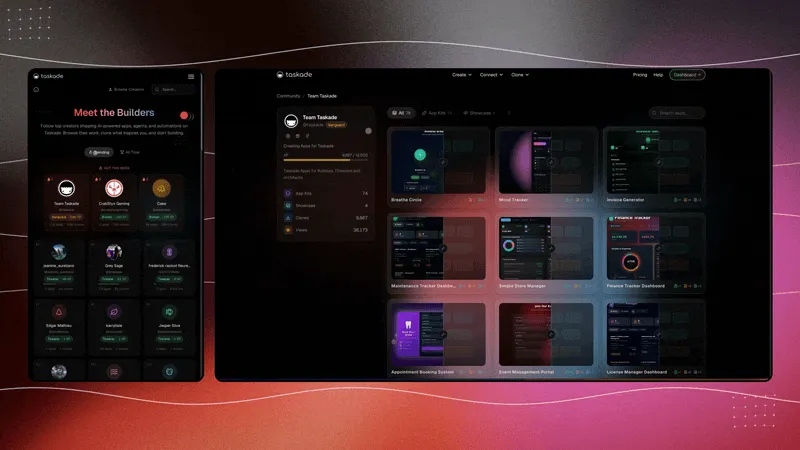




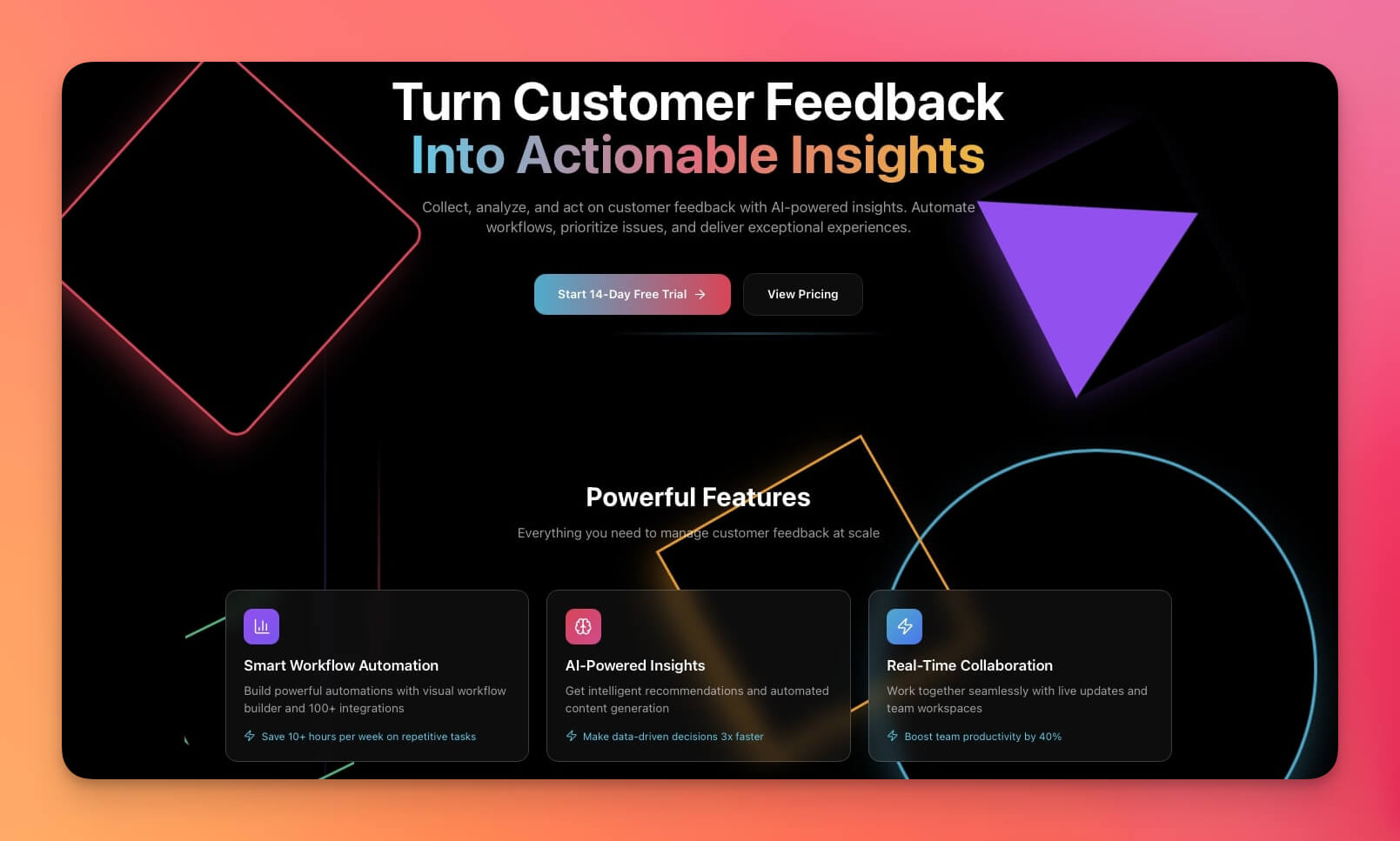
Every event starts with a page. A page that convinces strangers to block their calendar, share their email, and show up.
Most event organizers spend weeks building that page. They wire together a WordPress theme, a registration plugin, an email tool, and a payment gateway. By the time the page goes live, half the marketing window is gone.
There is a faster way. Taskade Genesis generates a complete event landing page — registration forms, speaker bios, session schedules, countdown timers, and automated attendee workflows — from a single text prompt. No code. No drag-and-drop. No plugin conflicts.
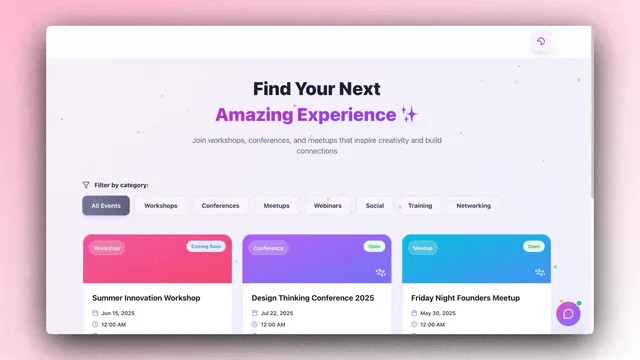
This tutorial walks through the entire process, from first prompt to published page. You will also learn how to add automations, handle hybrid events, and know when this approach is (and is not) the right fit.
TL;DR: Describe your event in plain English. Genesis builds the landing page, registration system, and attendee database in under five minutes. Iterate with follow-up prompts. Publish. Skip to the step-by-step guide.
Why Event Landing Pages Matter in 2026
The global events industry is projected to reach $1.5 trillion by 2028, according to Allied Market Research. That growth is not just happening at the enterprise level. Community meetups, workshops, product launches, webinars, and creator-led conferences are multiplying. Every one of them needs a registration page.
First impressions are made in under 50 milliseconds. Research published in Behaviour & Information Technology found that users form aesthetic judgments about a website in as little as 50 ms — before they read a single word. If your event page looks generic or buries the registration form, potential attendees bounce.
Conversion data reinforces this. Industry benchmarks show that the average landing page conversion rate hovers around 4.3%, but pages with clear value propositions and minimal friction regularly achieve 10-15%. For event pages specifically, the difference between a 4% and 12% conversion rate on 5,000 visitors is 400 registrations — enough to make or break a community event.
Event pages also serve a purpose beyond registration. They are the single source of truth for attendees. Speakers check the schedule. Sponsors verify their logo placement. Volunteers find logistics details.
The challenge has always been speed. Traditional event page workflows require weeks of design, development, and integration. By the time the page is live, you have lost the early-bird momentum that drives the majority of registrations. AI changes the equation: describe outcomes instead of assembling components, and the page exists in minutes.
Traditional vs. AI-Built Event Pages
Before diving into the build, it helps to understand what you are replacing.
The Traditional Stack
Most event organizers cobble together 3-5 tools:
| Component | Typical Tool | Monthly Cost | Setup Time |
|---|---|---|---|
| Website/page builder | WordPress + theme | $10-30/mo hosting | 2-5 days |
| Registration plugin | EventOn, The Events Calendar Pro | $79-199/year | 1-2 days |
| Email marketing | Mailchimp, ConvertKit | $20-50/mo | 1-2 days |
| Form builder | Gravity Forms, Typeform | $25-50/mo | 0.5-1 day |
| Payment processing | Stripe + WooCommerce | 2.9% + $0.30/txn | 1-2 days |
| Total | 5 tools, 5 logins | $150-500+ setup | 5-12 days |
This stack works, but every integration point is a potential failure mode. Plugin updates break layouts. Email sync delays frustrate organizers. RSVP data lives in three different databases.
Dedicated Event Platforms
Platforms like Splash, Hopin, and Eventbrite streamline the process by bundling everything:
| Platform | Starting Price | Strengths | Limitations |
|---|---|---|---|
| Eventbrite | Free (+ fees per ticket) | Marketplace discovery, ticketing | Limited customization, transaction fees |
| Splash | $99-999/mo | Beautiful design, enterprise features | Expensive, closed ecosystem |
| Hopin | Custom pricing | Virtual events, streaming | Focused on virtual, complex setup |
These platforms are purpose-built, but they come with trade-offs. Eventbrite takes a cut of every ticket. Splash's premium tiers lock out small organizers. Hopin is overbuilt for a simple in-person meetup.
The Genesis Approach
Taskade Genesis takes a fundamentally different approach. Instead of selecting features from a menu, you describe your event in natural language:
| Aspect | Genesis |
|---|---|
| Cost | Free plan available, Pro from $10/mo billed annually |
| Setup time | 5-10 minutes |
| Customization | Unlimited — iterate via prompts |
| Registration | Built-in, stored in Projects |
| Automation | Included — Automations with durable execution |
| AI agents | Built-in — answer attendee questions 24/7 |
| Data views | Multiple views (List, Board, Calendar, Table, Mind Map, Gantt, Org Chart) |
The difference is architectural. Genesis pages are not static HTML. They run on Workspace DNA — the combination of Memory (Projects that store data), Intelligence (AI Agents that reason), and Execution (Automations that act). Your event page is a living system, not a flat document.
What You Are Building
By the end of this tutorial, your event landing page will include:
- Hero section with event name, date, location, and a prominent call-to-action button
- Event schedule with time slots, session titles, speaker names, and room assignments
- Speaker/presenter bios with headshots, titles, and social links
- Registration form with custom fields (name, email, ticket type, dietary preferences, T-shirt size — whatever you need)
- Venue details with embedded map, parking instructions, and accessibility information
- Countdown timer showing days, hours, and minutes until the event
- Sponsor section with tiered logo placement (Platinum, Gold, Silver)
- FAQ section answering common attendee questions
- Attendee database stored in a Taskade Project, viewable in Table, Board, or Calendar format
- Automated workflows for confirmation emails, reminders, and post-event follow-ups
All of this from a single text prompt, with refinements through follow-up conversation.
Step-by-Step: Build an Event Landing Page with Genesis
Step 1: Write Your Event Prompt
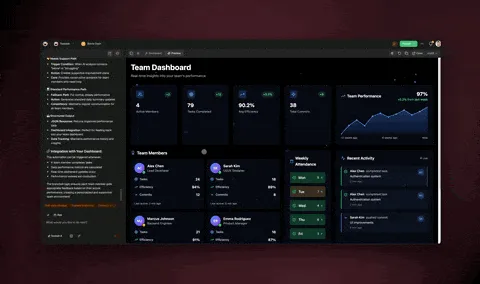
Open Taskade Genesis and describe your event in detail. The more specific your prompt, the better the output. Here is a template:
Build an event landing page for [Event Name].Event details:
- Date: [Date and time]
- Location: [Venue name, address]
- Format: [In-person / Virtual / Hybrid]
- Expected attendees: [Number]
- Ticket types: [Free / Paid tiers]
Page sections:
- Hero with countdown timer
- Event schedule with [number] sessions across [number] tracks
- Speaker bios for [number] speakers
- Registration form with fields: [list fields]
- Venue map and directions
- Sponsor logos (Platinum, Gold, Silver tiers)
- FAQ section
Design preferences:
- Color scheme: [describe or specify hex codes]
- Style: [modern, corporate, playful, minimalist]
- Brand logo: [describe or note you will upload later]
Prompt writing tips:
- Name specific sections rather than saying "a good event page." Genesis interprets explicit instructions better than vague ones.
- Include real data where possible. Placeholder text like "Speaker 1" produces generic output. "Dr. Sarah Chen, AI Ethics Researcher at Stanford" produces a page that feels ready to publish.
- Specify the number of schedule items. "A 3-track, 2-day conference with 18 sessions" gives Genesis structure to work with.
Step 2: Review the Generated Page
Genesis produces a complete landing page within seconds. Review the output for:
- Information accuracy — Are dates, times, and locations correct?
- Visual hierarchy — Does the eye flow naturally from hero to schedule to registration?
- Registration form — Are all required fields present? Are optional fields clearly marked?
- Mobile layout — Resize your browser to check responsiveness.
Do not expect perfection on the first pass. The first generation is a draft. The real power is in iteration.
Step 3: Iterate on Design and Content
Use follow-up prompts to refine. Each prompt modifies the existing page without starting from scratch. Here are example refinement prompts:
Layout adjustments:
- "Move the sponsor section above the FAQ."
- "Add a sticky navigation bar that scrolls with the page."
- "Make the registration form a two-column layout on desktop."
Visual design:
- "Change the color scheme to dark navy (#1a1a2e) with gold (#e6b800) accents."
- "Add a gradient background to the hero section."
- "Use a card-based layout for speaker bios instead of a grid."
Content additions:
- "Add a section for workshop materials with downloadable PDF links."
- "Include a dress code note in the venue details section."
- "Add early-bird pricing that expires on [date]."
Interactive elements:
- "Add a countdown timer that shows days, hours, minutes, and seconds."
- "Make the schedule filterable by track (Design, Engineering, Business)."
- "Add a toggle to switch between Day 1 and Day 2 schedules."
Three to five refinement rounds typically produce a polished page. Spend most of your refinement budget on the hero section and registration form — these are the highest-impact areas for conversion.
Step 4: Configure the Registration Database
Every registration submitted through your event page is stored in a Taskade Project. This is not a flat spreadsheet. It is a structured database with multiple views:
- Table view for sorting and filtering registrations by ticket type, registration date, or custom fields
- Board view for tracking attendee status (Registered, Confirmed, Checked In, No-Show)
- Calendar view for visualizing registration volume over time
- List view for quick scanning and bulk operations
To customize your registration database:
- Open the linked Project from your event page.
- Add custom columns for any data you need to track (company, role, session preferences).
- Set up filtered views — for example, "VIP Attendees" showing only Platinum ticket holders.
With multiple project views available (List, Board, Calendar, Table, Mind Map, Gantt, Org Chart), you can visualize attendee data in whatever format makes sense for your workflow.
Step 5: Set Up Automations
This is where the event page transforms from a static form into an operational system.
Navigate to Automations and create workflows for each stage of the attendee journey:
| Trigger | Action | Timing |
|---|---|---|
| New registration submitted | Send confirmation email with event details | Immediate |
| New registration submitted | Add calendar invite (.ics file) | Immediate |
| 7 days before event | Send reminder with venue directions and parking | Scheduled |
| 1 day before event | Send day-of reminder with schedule and check-in instructions | Scheduled |
| Registration field = "VIP" | Send VIP welcome package with exclusive session access | Conditional |
| Event date + 1 day | Send thank-you email with session recordings and feedback survey | Scheduled |
| Feedback survey completed | Add attendee to "Alumni" list for future events | Conditional |
Taskade Automations use durable execution, which means your workflows survive server restarts and network interruptions. If a reminder is scheduled for 7:00 AM on March 15th, it will fire at 7:00 AM on March 15th — even if there was a brief outage at 6:59 AM.
You can also chain automations with branching logic. For example: if an attendee selects "Vegetarian" in the dietary field, the catering coordinator receives a notification. If they select "Other (please specify)," the automation routes to a human for review.
Step 6: Publish and Share
When your page is ready:
- Publish the page to make it publicly accessible via a Taskade share link.
- Custom domain (Taskade Business, $25/mo) — point your own domain to the published page for a branded URL like
events.yourcompany.com. - Embed — copy the iframe code and embed the registration form or full page into an existing website.
- Share — distribute the link through email campaigns, social media, and partner channels.
After publishing, your page continues to consume zero additional AI credits. It runs as a standard published page. Only new generation or iteration prompts use credits.
Advanced Customization
Multi-Event Series
If you run a recurring event series (monthly meetups, quarterly workshops, annual conferences), Genesis scales with you:
- Duplicate and modify — clone your event page and update dates, speakers, and topics for the next edition. Your registration database, automations, and design carry over.
- Series landing page — create a parent page that lists all upcoming events with links to individual event pages. Attendees see the full calendar and register for multiple events.
- Shared attendee database — route registrations from all events into a single Project. Use filtered views to separate events while maintaining a unified attendee list for cross-promotion.
Sponsor Tiers and Exhibitor Management
For events with sponsors, structure your prompt to include tier logic:
Add a sponsor section with three tiers:
- Platinum: large logo, company description, link, featured placement
- Gold: medium logo, link
- Silver: small logo onlyInclude a "Become a Sponsor" button that opens a sponsorship inquiry form.
Store sponsor inquiries in a separate Project. Use Board view to track sponsorship stages: Inquiry, Proposal Sent, Negotiating, Confirmed, Paid.
Virtual and Hybrid Events
For virtual events, replace venue details with access instructions:
- "Add a virtual lobby section with a Zoom link, start time in multiple time zones, and a 'Test Your Setup' checklist."
- "Include a live chat embed for attendee networking."
- "Add a session recordings section that unlocks after each session ends."
For hybrid events, create dual-track information:
- "Show in-person venue details AND virtual access instructions side by side."
- "Add a toggle so attendees can switch between in-person and virtual schedule views."
- "Include different registration fields for in-person (dietary, T-shirt size) and virtual (time zone, platform preference) attendees."
AI Agent for Attendee Support
Attach an AI Agent to your event page so attendees can ask questions before, during, and after the event. The agent pulls answers from your event details, schedule, and FAQ:
- "What time does the keynote start?"
- "Is parking available at the venue?"
- "Can I switch from a virtual to an in-person ticket?"
The agent uses persistent memory, so it learns from each interaction and improves its responses over time. It operates 24/7 — useful when attendees are in different time zones.
Automation Deep Dive
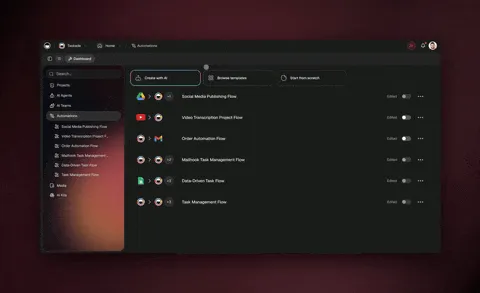
Let's expand on the automation workflows. Each of these can be built visually in Taskade's Automations interface with no code.
Pre-Event Workflows
Registration Confirmation Flow:
When a new registration arrives, the automation fires three actions simultaneously: (1) sends a branded confirmation email with event details, (2) creates a calendar entry with the event time and location, and (3) updates the attendee count on a shared dashboard.
Waitlist Management:
Set a capacity limit (say, 200 attendees) and registrations beyond that number are automatically routed to a waitlist. When a confirmed attendee cancels, the next person on the waitlist receives a notification with a 48-hour window to confirm.
During-Event Workflows
Check-In Tracking:
As attendees check in (via a form, QR code scan, or manual entry), the automation updates their status from "Confirmed" to "Checked In." A real-time dashboard shows check-in progress — useful for knowing when to start the keynote.
Session Feedback Collection:
After each session ends (based on the schedule timestamps), the automation sends a short feedback form to attendees who registered for that track. Responses are stored in the Project and summarized by the AI Agent.
Post-Event Workflows
Follow-Up Sequence:
One day after the event, send a thank-you email with session recordings. Three days later, send a feedback survey. Seven days later, send an early-bird offer for the next event. This drip sequence runs automatically through durable execution — set it once and it runs reliably.
Attendee Segmentation:
Based on survey responses and session attendance, the automation tags attendees (e.g., "Interested in AI Track," "VIP," "Speaker"). These tags feed into future event promotion.
See It Live
Here is a real event app built with Taskade Genesis. It handles registration tracking, scheduling, and automated confirmations, all generated from a single prompt:
Try adding a registration. Your submission is stored in a real Taskade Project. Explore the schedule and notice how every element is interactive, not just a static mockup.
When NOT to Build With Genesis
Honest assessment matters. Genesis is powerful, but it is not the right tool for every event. Consider a dedicated platform if:
- Your event exceeds 10,000 attendees. At scale, you need enterprise-grade load balancing, dedicated check-in infrastructure, and on-site technical support that specialized platforms like Cvent provide.
- You need PCI-compliant ticketing with refunds. If you are selling tickets at $200+ with contractual refund policies, you need a payment processor with chargeback handling, tax compliance across jurisdictions, and receipt management. Eventbrite and Tito are built for this.
- Regulatory compliance is required. Medical conferences (HIPAA), government events (FedRAMP), and events processing EU health data (GDPR Article 9) have specific compliance requirements that general-purpose platforms do not address out of the box.
- You need on-site badge printing and scanning. Physical event logistics — badge printers, NFC check-in, lead retrieval scanners — require hardware integrations that dedicated event tech provides.
- Complex multi-currency, multi-language ticketing is essential. If your event sells tickets in 5 currencies with 3 language options, purpose-built ticketing platforms handle the edge cases better.
For everything else — community meetups, team offsites, workshops, webinars, product launches, networking events, and conferences up to a few thousand attendees — Genesis delivers a better page in less time at lower cost.
Frequently Asked Questions
How do I create an event landing page without code?
Open Taskade Genesis, describe your event (name, date, venue, registration fields, schedule), and Genesis generates a complete landing page with registration form, event schedule, and speaker bios in under 5 minutes. No HTML, CSS, or JavaScript required. Every element is editable through follow-up prompts.
Can I add event registration to my landing page?
Yes. Genesis event pages include built-in registration forms with custom fields. Registrations are stored in a database (Project) and can trigger automated confirmation emails, calendar invites, and reminder sequences through Automations.
How much does it cost to build an event page with Taskade?
Taskade's free plan includes enough AI credits to build and publish event pages. Published pages run without consuming additional credits. Pro starts at $10/month (billed annually) and adds advanced automations. Business ($25/month) adds custom domains and priority support.
Can I customize the design of my event page?
Yes. Describe the style you want in your prompt — colors, layout, typography, branding — or iterate after generation. Example prompts: "Change the header to dark blue," "Add a countdown timer," "Use a card layout for speakers." Genesis updates the design in real time.
Can I track RSVPs and attendance?
Every registration is stored in a Taskade Project. You can view registrations in any of the 8 available views (List, Board, Calendar, Table, Mind Map, Gantt, Org Chart), filter by ticket type, sort by registration date, and export attendee lists for external use.
Does Taskade support virtual and hybrid event pages?
Yes. Add video conferencing links, virtual lobby sections, and streaming embeds to your event page. Hybrid events can display both in-person venue details and virtual access instructions on the same page with toggle views for each audience.
Can I build a multi-day or recurring event page?
Describe a multi-day schedule in your prompt and Genesis generates a tabbed or accordion layout for each day. For recurring events, duplicate the page and update dates, or use Automations to publish new event pages on a schedule.
How do I send automated reminders to registrants?
Use Taskade Automations to create reminder workflows. Set triggers based on event date proximity — send a confirmation immediately after registration, a reminder one week before, and a day-of reminder with venue details and access links. Automations use durable execution for reliable delivery.
Can multiple team members collaborate on the event page?
Yes. Taskade supports real-time collaboration with role-based access control: Owner to Viewer. Assign roles so designers can edit content while stakeholders can only view or leave comments.
What are the limitations of building event pages with Genesis?
Genesis is ideal for events up to a few thousand attendees. For events exceeding 10,000 attendees, events requiring PCI-compliant payment processing for paid tickets with refund policies, or events with complex regulatory compliance needs (medical conferences, government summits), a dedicated event platform like Cvent or Eventbrite may be more appropriate. See the When NOT to Build section above for a complete breakdown.
Related Reading
If you found this tutorial useful, explore more Genesis guides:
- Build AI-Powered Event Apps (Vibe Coding) — go beyond landing pages and build complete event management systems with AI agents and multi-project workflows
- 12 AI Websites You Can Build From a Single Prompt — explore other website types Genesis can generate, from SaaS pages to nonprofit sites
- AI App Ideas You Can Build With Taskade Genesis — 20 real examples of apps, dashboards, and portals generated from prompts
- Explore Taskade Genesis — try the AI app builder yourself
- AI Agents — learn how AI agents work with your event pages
- Automations — deep dive into workflow automation
- All Features — see everything Taskade offers
Start Building
Your next event deserves a page that matches its ambition. Not a template. Not a cobbled-together stack of plugins. A living system that registers attendees, sends reminders, answers questions, and grows with your event.
Open Taskade Genesis and describe your event. Five minutes from now, you will have a page that took your last event two weeks to build.