





Room scheduling is deceptively complex.
Multiple rooms, overlapping times, recurring bookings, no-shows — it is a puzzle. Most teams use a mix of Google Calendar and Slack pings that inevitably fails when someone books Conference A at 2 PM without checking the shared spreadsheet.
TL;DR: Taskade Genesis builds a complete room booking system from a single text prompt in under 15 minutes — conflict detection, automated confirmations, calendar views, and utilization reports included. No coding, no Calendly subscription, no spreadsheet chaos. 150,000+ apps built since launch. Try it free →
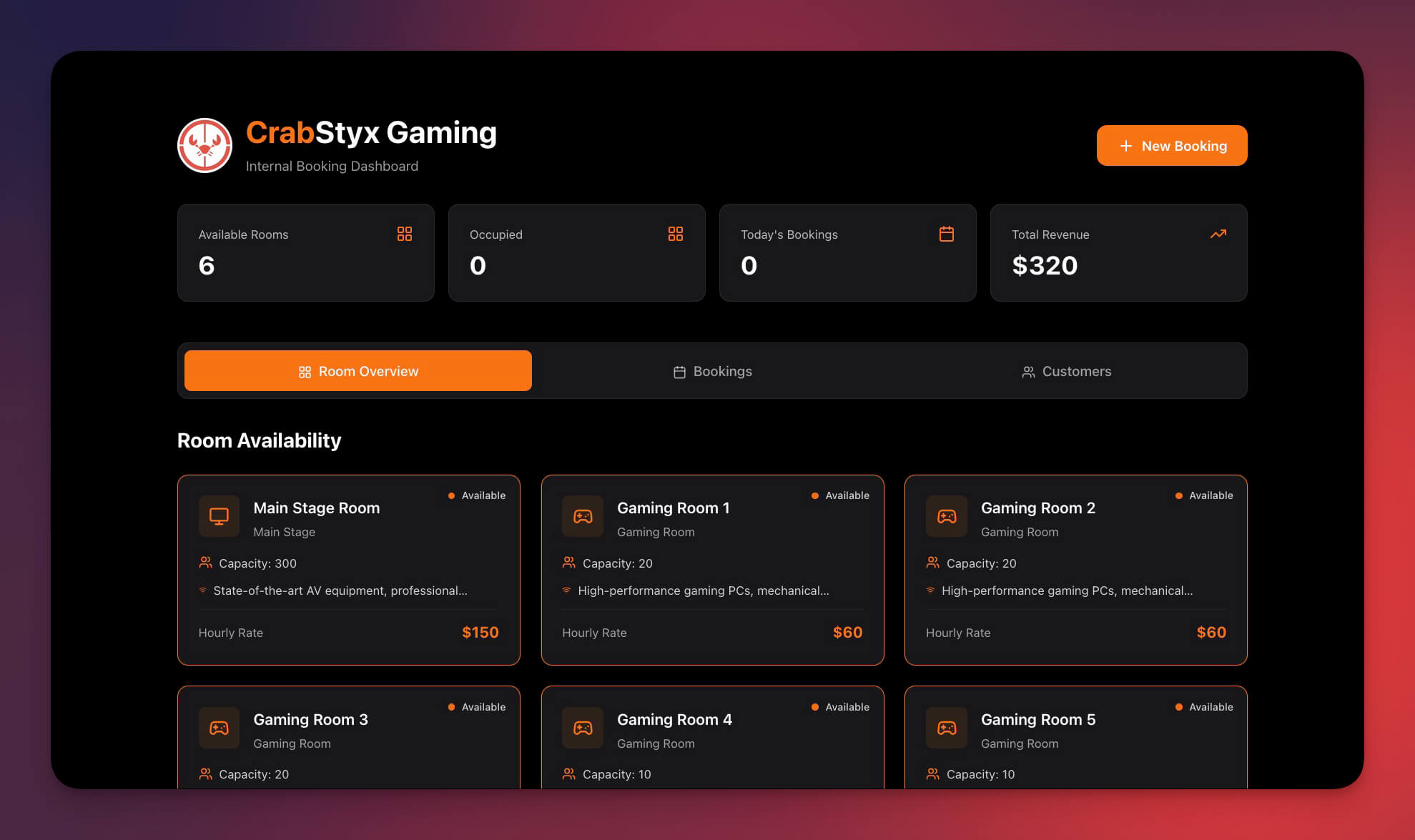
This tutorial shows how we built the Room Booking Dashboard — a complete booking system with automatic conflict detection, calendar integration, and utilization analytics.
How Room Booking Architecture Works
Before building, it helps to understand what a room booking system actually does under the hood. Every booking request flows through a validation pipeline that checks availability before confirming.
The flow handles the entire lifecycle: discovery, validation, confirmation, reminders, and post-meeting tracking. Traditional tools like shared calendars only cover the middle step.
Entity Relationships: Rooms, Bookings, and Users
A well-designed booking system separates concerns into three core entities. Here is the data model that Taskade Genesis generates from a single prompt.
This schema powers every feature — from conflict detection (querying BOOKINGS by room and date) to utilization reports (aggregating BOOKINGS by room across time periods). The ATTENDEES junction table enables multi-person bookings with individual RSVP tracking.
What We Are Building
A room booking system that:
- Shows room availability in real time
- Prevents double-booking with automatic conflict detection
- Sends confirmations and calendar invites automatically
- Handles recurring reservations (daily, weekly, custom)
- Reports on utilization by room, day, and peak hours
- Works across desktop, mobile, and tablet
Time: ~15 minutes
Skills needed: None — describe what you want in plain English
Taskade Genesis vs Calendly vs Acuity vs Skedda
Before building from scratch, you might wonder whether an off-the-shelf tool would work. Here is how the major options compare for room booking specifically.
| Feature | Taskade Genesis | Calendly | Acuity Scheduling | Skedda |
|---|---|---|---|---|
| Primary use case | Custom room booking systems | External appointment scheduling | Client appointment booking | Room and desk booking |
| Room-specific features | Full (capacity, amenities, floor, equipment) | Limited (one "resource" per event type) | Basic (resource add-on) | Full (maps, zones, rules) |
| Conflict detection | Automatic, per-room | Per-calendar only | Per-staff only | Automatic, per-space |
| AI assistance | Frontier models, AI agents | None | None | None |
| Custom workflows | 100+ integrations, branching logic | Zapier add-on required | Zapier add-on required | Limited webhook support |
| Utilization reports | Built-in dashboards | Basic analytics | Revenue reports only | Space analytics |
| Recurring bookings | Daily, weekly, custom | Yes | Yes | Yes |
| Multi-location | Unlimited workspaces | Per-team plan | Per-location | Per-venue pricing |
| Pricing | Free / $10 / $25 per month | Free / $10 / $16 per user/month | $16 / $27 / $49 per month | $7 / $15 per space/month |
| Customization | Fully custom from prompt | Template-based | Template-based | Configuration-based |
The key difference: Calendly and Acuity are designed for scheduling appointments with external people. Skedda is purpose-built for space booking but has no AI. Taskade Genesis builds a custom system tailored to your exact room setup, with AI agents that can answer booking questions and automations that handle the entire workflow.
Step 1: The Prompt
Open Taskade Genesis and paste this prompt. Modify the room names, capacities, and rules to match your space.
Build a room booking dashboard for an office with:ROOMS:
- Rooms table: name, capacity, amenities, floor, image
- Example rooms: Conference A (10 people), Huddle Space (4 people), Board Room (20 people)
BOOKINGS:
- Reservations: room, date, start time, end time, title, organizer, attendees
- Recurring booking support (daily, weekly, custom)
- Double-booking prevention with alternative suggestions
VIEWS:
- Calendar view showing all rooms color-coded
- Daily schedule per room
- My bookings view
- Available rooms filter (by capacity, amenities, floor)
FEATURES:
- Conflict detection before confirming
- Automatic confirmation emails
- Calendar invite to all attendees
- Reminder 15 minutes before meeting
- No-show tracking
- Equipment booking (projector, whiteboard markers, video conferencing)
REPORTS:
- Room utilization by day/week
- Most popular rooms
- Peak hours
- Department usage breakdown
Genesis analyzes the prompt and generates the complete system — database schema, booking logic, calendar views, and automation workflows. The process takes about 60 seconds.
Learn more about writing effective prompts →
Step 2: Generated Schema
Genesis produces three interconnected tables that power the entire booking system.
Rooms Table
| Field | Type | Purpose | Example |
|---|---|---|---|
| name | Text | Room identifier | Conference A |
| capacity | Number | Max occupancy | 10 |
| amenities | Multi-select | Available equipment | Whiteboard, TV, Phone, Video |
| floor | Number | Building floor | 2 |
| image | File | Room photo | conference-a.jpg |
| status | Select | Current state | Available, Maintenance, Reserved |
| hourly_rate | Number | Internal cost tracking | $25/hr |
Bookings Table
| Field | Type | Purpose | Example |
|---|---|---|---|
| room | Relation to Rooms | Which room | Conference A |
| date | Date | Booking date | 2026-01-15 |
| start_time | Time | Start | 2:00 PM |
| end_time | Time | End | 3:00 PM |
| title | Text | Meeting name | Q1 Planning |
| organizer | User | Who booked | jane@company.com |
| attendees | Multi-user | Participants | 5 people |
| status | Select | State | Confirmed, Canceled, Completed |
| recurring | Select | Pattern | None, Daily, Weekly, Custom |
| equipment | Multi-select | Extra needs | Projector, Video Conference |
Equipment Table
| Field | Type | Purpose | Example |
|---|---|---|---|
| name | Text | Equipment name | Portable Projector |
| quantity | Number | Available units | 3 |
| location | Text | Storage location | IT Closet, Floor 2 |
| status | Select | Availability | Available, In Use, Maintenance |
Conflict Detection Logic
Before creating a booking, the system runs this validation sequence:
- Query all bookings for the same room and date
- Check for time overlap between requested slot and existing bookings
- If conflict exists, block with message and suggest the nearest available slot
- If recurring, validate all future occurrences
- If clear, create booking and trigger confirmation automation
This logic prevents the most common booking failure: two people reserving the same room for overlapping times without realizing it.
Step 3: Setting Up Rooms
We added three rooms to start. You can add as many as your space requires — the system scales to any number of rooms across multiple floors or buildings.
| Name | Capacity | Amenities | Floor | Hourly Rate |
|---|---|---|---|---|
| Conference A | 10 | TV, Whiteboard, Phone, Video | 2 | $25 |
| Huddle Space | 4 | Whiteboard | 2 | $10 |
| Board Room | 20 | TV, Video, Whiteboard, Catering | 3 | $50 |
Each room shows its availability status immediately. Green means open, yellow means partially booked, red means fully reserved for the day.
To add rooms in bulk, use the table view and paste from a spreadsheet. Taskade supports multiple project views — List, Board, Calendar, Table, Mind Map, Gantt, and Org Chart — so you can visualize your rooms however makes sense for your team.
Step 4: Testing Bookings
Successful Booking
- Room: Conference A
- Date: January 15, 2026
- Time: 2:00 PM - 3:00 PM
- Result: Confirmed — confirmation email sent to organizer and all attendees
Conflict Test
- Room: Conference A
- Date: January 15, 2026
- Time: 2:30 PM - 4:00 PM
- Result: Blocked — "Conflict with existing booking (2:00 PM - 3:00 PM). Nearest available slot: 3:00 PM - 4:30 PM."
The system caught the overlap instantly and suggested an alternative. This is the core value of a dedicated booking system versus a shared calendar where conflicts only surface when someone notices.
Recurring Booking Test
- Room: Huddle Space
- Date: Every Monday, January - March 2026
- Time: 9:00 AM - 9:30 AM
- Result: 11 of 12 occurrences confirmed. Week 7 flagged — Board Room available as alternative.
Step 5: Automations
Taskade Automations handle everything that happens after a booking is created. Here are the three workflows the system generates automatically.
Booking Confirmation
TRIGGER: New booking created
ACTIONS:
  Send confirmation email to organizer
  Send calendar invite to all attendees
  Update room calendar view
  Reserve requested equipment
  Notify front desk (if visitor attendees)
Meeting Reminder
TRIGGER: 15 minutes before meeting start
ACTIONS:
  Send push notification to organizer
  Send reminder to all attendees
  Display room status on door display (if integrated)
No-Show Detection
TRIGGER: Meeting end time passed
CONDITIONS: Status still "Confirmed" (no check-in recorded)
ACTIONS:
  Mark as "No-Show"
  Log utilization data
  Send follow-up to organizer
  Release room for walk-in booking
All automations connect to 100+ integrations — Google Calendar, Microsoft Outlook, Slack, Microsoft Teams, email services, and more. You can add custom automation steps using the workflow builder.
Step 6: Calendar View and Visualization
The dashboard provides multiple ways to see room availability.
Calendar View Features
- All rooms displayed in one calendar with color-coding
- Click to book any available slot directly from the calendar
- Filter by capacity, amenities, floor, or department
- My bookings highlighted with a distinct color
- Drag-and-drop to reschedule bookings instantly
- Week/day/month toggle for different planning horizons
View Options Across Multiple Project Views
| View | Best For | Booking Use Case |
|---|---|---|
| List | Quick scanning | See today's bookings as a simple list |
| Board | Status tracking | Columns for Pending, Confirmed, Completed, No-Show |
| Calendar | Time-based planning | Visual room availability by hour |
| Table | Bulk management | Sort, filter, and edit bookings in spreadsheet format |
| Mind Map | Room relationships | Visualize rooms by floor, building, or amenity type |
| Gantt | Timeline view | See booking duration and overlaps across rooms |
| Org Chart | Hierarchy | Map rooms to departments or buildings |
Switch between views anytime without losing data. An outline created in List view renders instantly as a Mind Map or Gantt chart.
Admin vs User Perspectives
A room booking system serves two audiences with different needs. The role-based access system (Owner through Viewer) controls what each person sees and can do.
Admin View
Admins (Owner or Editor roles) manage the system:
| Capability | Description |
|---|---|
| Room management | Add, edit, or deactivate rooms |
| Booking approval | Approve or reject bookings for premium rooms |
| Utilization reports | View usage data across all rooms and departments |
| System settings | Configure booking rules, time limits, and blackout dates |
| User management | Assign booking permissions to team members |
| Equipment inventory | Track and assign shared equipment |
| Cost reporting | See internal cost allocation by department |
User View
Regular users (Checker or Viewer roles) book rooms:
| Capability | Description |
|---|---|
| Find available rooms | Search by date, time, capacity, and amenities |
| Create bookings | Reserve rooms with automatic conflict checking |
| Manage own bookings | Edit, cancel, or reschedule personal reservations |
| View calendar | See room availability without seeing other people's details |
| Receive notifications | Get confirmations, reminders, and schedule changes |
| Request equipment | Add projector, video setup, or catering to a booking |
This separation keeps the interface clean for casual users while giving admins full control. Learn more about permission levels in the RBAC guide.
Calendar Integration
Most teams already use Google Calendar or Microsoft Outlook. The booking dashboard syncs with both so reservations appear alongside personal events.
How Calendar Sync Works
| Integration | What Syncs | Direction |
|---|---|---|
| Google Calendar | Bookings appear as events, room availability reflected | Two-way |
| Microsoft Outlook | Calendar invites sent to all attendees | One-way (push) |
| Slack | Booking confirmations and reminders posted to channels | One-way (push) |
| Microsoft Teams | Meeting links auto-attached to bookings | One-way (push) |
| Email (SMTP) | Confirmation and reminder emails | One-way (push) |
Setup Steps
- Open your booking dashboard in Taskade
- Navigate to Automations
- Select the Google Calendar or Outlook integration from the integrations library
- Authenticate with your workspace account
- Map room bookings to calendar events
Once connected, creating a booking in Taskade automatically creates a calendar event for all attendees. Canceling or rescheduling updates the calendar event in real time.
Scaling to Multiple Offices
A single-office booking system is straightforward. Scaling to multiple locations requires a few structural changes.
Multi-Location Architecture
| Approach | Best For | Implementation |
|---|---|---|
| Single workspace, location field | 2-5 offices with shared admin | Add a "Location" field to Rooms table, create filtered views per office |
| Separate workspaces | Independent offices with different policies | One Taskade workspace per location, each with its own booking system |
| Nested structure | Enterprise with regional admins | Parent workspace with child workspaces per region, linked via automations |
Scaling Checklist
- Add location/building field to Rooms table
- Create filtered calendar views per office
- Set up location-specific booking rules (quiet hours, blackout dates)
- Assign regional admins using role-based access
- Configure location-specific integrations (different Slack channels per office)
- Build cross-location utilization reports for facilities planning
- Enable AI agents to answer "which room is available at the Chicago office at 3 PM?"
For organizations managing 50+ rooms across multiple cities, the AI agent becomes essential. Users ask natural-language questions like "find me a 10-person room with video on Floor 3 tomorrow afternoon" and the agent checks availability, suggests options, and creates the booking.
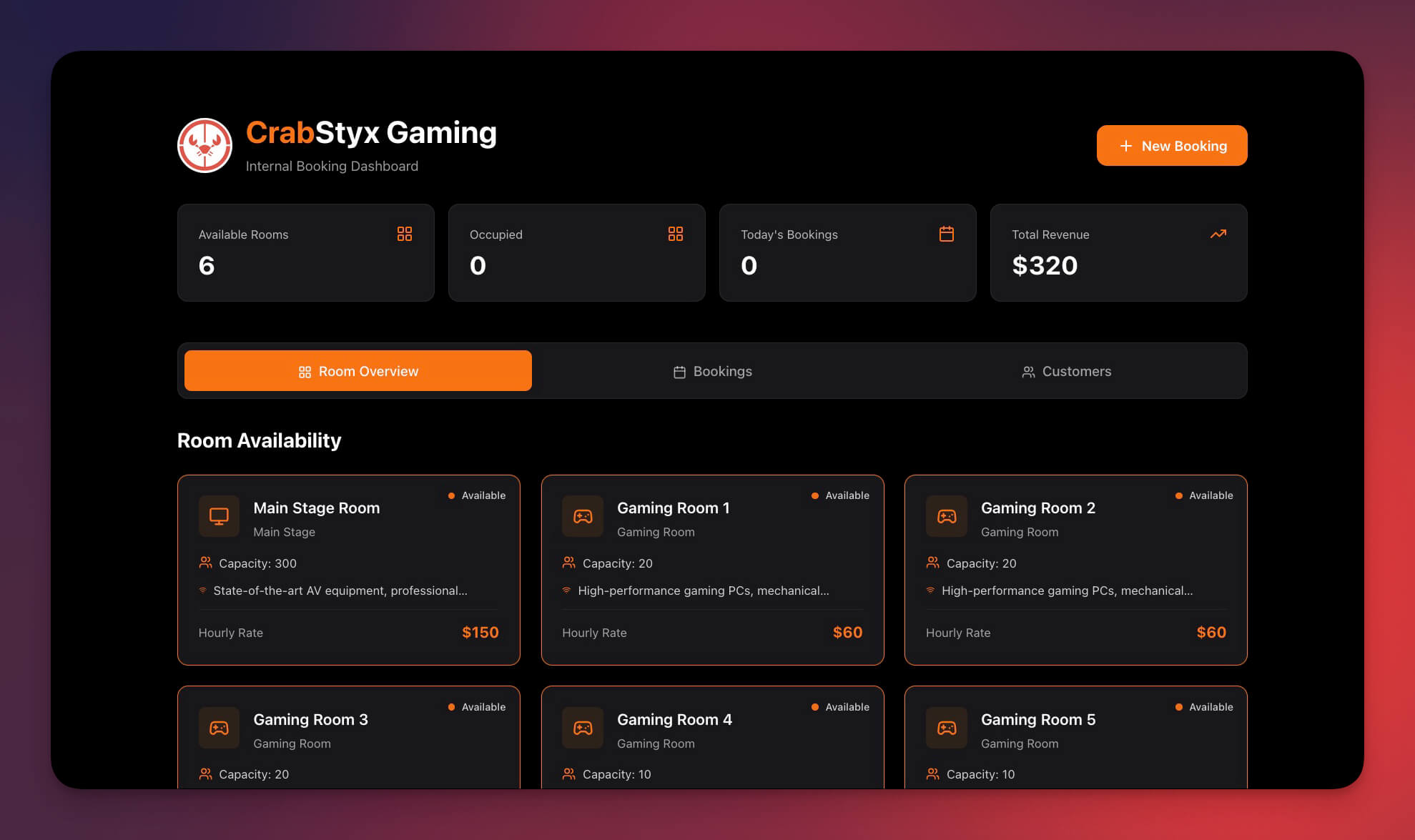
The Final Dashboard
After 15 minutes of setup:
- Complete booking system with real-time conflict prevention
- Calendar visualization across all rooms with color-coding
- Automatic confirmations and calendar invites via 100+ integrations
- Utilization reporting for facilities optimization
- Multi-user support with role-based access from Owner through Viewer
- Shareable link for company-wide access on any device
- Recurring booking support with per-occurrence conflict checking
Clone Room Booking Dashboard →
Customization Ideas
Extend your booking system for more complex use cases:
| Extension | What It Adds | Complexity |
|---|---|---|
| Equipment booking | Projectors, whiteboards, laptops as bookable resources | Low |
| Visitor management | Guest registration tied to room bookings | Medium |
| Catering requests | Food and beverage orders attached to meetings | Medium |
| Approval workflow | Manager approval required for premium rooms | Low |
| Cost tracking | Charge departments for room usage | Medium |
| Parking reservations | Tie parking spots to building visits | Medium |
| Desk hoteling | Combine room booking with hot desk reservations | High |
| Digital signage | Room status displayed on door tablets | High |
Each extension starts with a prompt modification. Describe the additional feature in your Genesis prompt and the system generates the schema, views, and automations to support it.
Build Your Own Room Booking System
- Open Taskade Genesis and describe your room booking needs
- Customize the prompt for your specific rooms, rules, and integrations
- Add your rooms with capacity, amenities, and floor information
- Configure automations for confirmations, reminders, and calendar sync
- Set up role-based access for admins and regular users
- Share the dashboard link with your team
- Review utilization reports weekly to optimize space allocation
Learn more: Create Your First App →
Resources
Clone the template:
Related templates:
Documentation:
More tutorials:
- How We Built the Finance Dashboard
- How to Build a Support Rating Dashboard
- How to Build a Nonprofit Hub
- What is Vibe Coding?
- Build Your First AI App: 12 Beginner Examples
Explore Taskade AI:
- AI App Builder — Build complete applications from a single prompt
- AI Forms Generator — Create booking forms instantly
- AI Dashboard Builder — Generate analytics dashboards
- AI Workflow Automation — Automate any business process
Build with Genesis:
- Browse All Generator Templates — Apps, dashboards, websites, and more
- Browse Agent Templates — AI agents for every use case
- Explore Community Apps — Clone and customize
- Explore Templates — Ready-to-use templates
Explore the Vibe Apps series:
- Vibe Booking Apps — Build an AI appointment system in minutes

Frequently Asked Questions
How do I build a room booking system without coding?
Open Taskade Genesis and describe your room booking needs in a text prompt including rooms, capacity, booking rules, and automations. Genesis builds the complete system in about 15 minutes with room databases, booking conflict detection, automatic confirmations, reminders, and utilization reports. No coding required. Over 150,000 apps have been built with Genesis since launch.
Does the Taskade room booking dashboard prevent double bookings?
Yes. The system includes automatic conflict detection. Before creating any booking, it queries existing reservations for the same room and date, checks for time overlaps, and blocks the booking with a clear conflict message if there is an overlap. This works for both one-time and recurring reservations.
What automations does the room booking system include?
The system includes booking confirmation emails sent to organizers and attendees, calendar invites, 15-minute meeting reminders, and no-show detection that tracks whether meetings were completed. All automations connect to 100+ integrations including Google Calendar, Outlook, Slack, and email services.
Can I see room utilization reports in the Taskade booking dashboard?
Yes. The dashboard includes utilization reports showing room usage by day and week, most popular rooms, and peak booking hours. This data helps optimize space allocation and identify underused rooms. The calendar view shows all rooms color-coded with drag-and-drop rescheduling.
How does Taskade compare to Calendly or Skedda for room booking?
Calendly focuses on external appointment scheduling at $10-16 per user per month and lacks room-specific features like capacity management and amenity filtering. Skedda is purpose-built for room booking at $7-15 per space per month but has no AI assistance. Taskade Genesis builds a custom room booking system from a single prompt, free to start, with Pro from $10 per month billed annually, with AI agents, 100+ integrations, and multiple project views.
Can I integrate the room booking dashboard with Google Calendar?
Yes. Taskade connects to 100+ integrations including Google Calendar, Microsoft Outlook, Slack, and email services. When a booking is created, the system automatically sends calendar invites to all attendees and syncs availability data so external calendars reflect room reservations in real time.
What is the difference between admin and user views in the booking dashboard?
Admins see all rooms, all bookings, utilization reports, approval queues, and system settings. Regular users see available rooms filtered by capacity and amenities, their own bookings, and a simplified booking form. Role-based access from Owner through Viewer controls who can manage rooms versus who can only book them.
Can the room booking system handle recurring meetings?
Yes. The system supports daily, weekly, and custom recurring booking patterns. Conflict detection runs against all future occurrences before confirming. If a conflict exists on one date in a recurring series, the system flags that specific occurrence while confirming the rest.
How do I scale a room booking dashboard to multiple offices?
Add a location field to the Rooms table and create filtered views per office. Each location gets its own calendar view, utilization reports, and booking rules. Taskade supports unlimited workspaces, so you can run separate booking systems per building or consolidate everything into one multi-location dashboard.
Is the Taskade room booking dashboard mobile-friendly?
Yes. Taskade apps work on desktop, iOS, Android, and all major browsers. Users can check room availability, create bookings, and receive confirmations from any device. Push notifications alert users to booking confirmations, reminders, and schedule changes.