
Definition: Universal Views in Taskade are the different layouts you can apply to the same project data. One project can appear as a list, a kanban board, a table, a mind map, a document, a calendar, a Gantt chart, an actionsheet, or an org chart. Every view reads and writes the same data, so a change in one view shows in all of them.
TL;DR: Taskade has multiple project views over one shared dataset. List, Board, Table, and Mind Map are toolbar tabs. Docs (Beta), Gantt Chart, Calendar, Actionsheet, and Org Chart sit under More Views. Gantt Chart, Actionsheet, and Org Chart need a paid plan. Timeline is part of Gantt Chart. Build a project free.
Universal Views let every teammate work in the format that fits how they think, while the data stays consistent for the whole team.
Why do universal views matter in 2026?
Work rarely fits one shape. A manager needs a schedule, an engineer needs a board, and an analyst needs a table. When each shape lives in a different tool, the copies drift apart. A universal view is a lens, not a copy, so the deadline, the status, and the data cannot disagree. Switching lenses costs one click, and nothing is exported or re-entered.
The Universal Views
List View: Traditional hierarchical task organization perfect for detailed project planning, task breakdown, and execution tracking
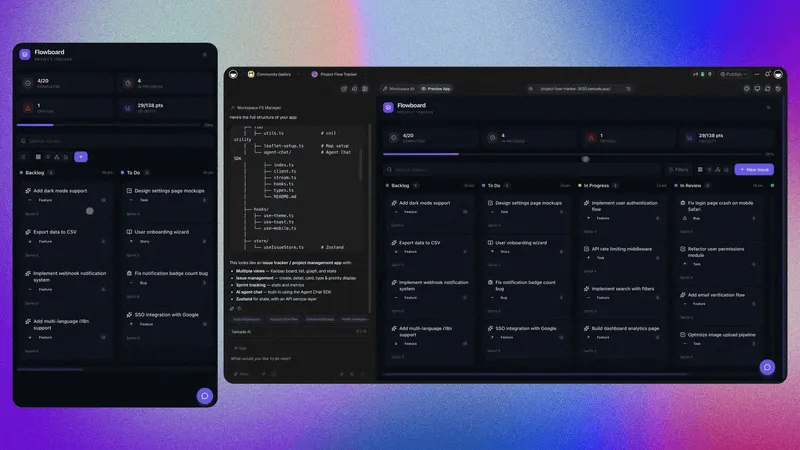
Board View: Kanban-style visual workflow management ideal for status tracking, process optimization, and team coordination
Calendar View: Time-based project perspective for deadline management, scheduling, and resource planning
Table View: Spreadsheet-like data management perfect for analysis, reporting, and bulk project operations
Mind Map View: Radial brainstorming interface perfect for ideation, concept mapping, and creative project planning
Docs View (Beta): Document-style layout for long-form writing, notes, and structured pages built on the same project data
Actionsheet View: Streamlined sheet layout for reviewing tasks and taking quick actions one item at a time
Gantt View: Dependency and timeline visualization for project schedules, critical path analysis, and milestone tracking — includes a built-in scrolling timeline component for date-based planning
Org Chart View: Hierarchical structure visualization ideal for team organization, reporting relationships, and process flows
Which universal view fits which question?
| Question | Best view | Plan |
|---|---|---|
| What do I do next? | List | Free |
| Where does each item stand? | Board | Free |
| What does the data look like side by side? | Table | Free |
| How do these ideas connect? | Mind Map | Free |
| What is due, and when? | Calendar | Free |
| What depends on what, and in what order? | Gantt Chart | Paid |
| How is the team structured? | Org Chart | Paid |
| What is the quick-action pass? | Actionsheet | Paid |
Universal View Benefits
Seamless Switching: Change perspectives instantly without losing data or context, adapting to current project needs
Team Flexibility: Different team members can work in their preferred view while collaborating on the same project
Workflow Optimization: Choose the optimal view for each project phase - planning, execution, review, or presentation
Data Consistency: All views share the same underlying data structure, so every view shows the same tasks
Context Preservation: Maintain project context, relationships, and metadata across all view transformations
A worked example
A studio plans a product launch in a project. The producer lives in the List. Designers drag cards across the Board. The account lead checks the Calendar for client dates, and the lead planner opens the Gantt Chart to see which tasks block others. When a designer moves a card to "Done", the Calendar, List, and Gantt Chart all update at once. Nobody holds a status meeting to reconcile versions.
Common mistakes with universal views
- Treating Timeline as its own view. Timeline is part of the Gantt Chart view.
- Building a separate project for each audience. Use one project and let each person pick a view.
- Forgetting the plan gate. Gantt Chart, Actionsheet, and Org Chart need a paid plan, and the other views work on Free.
- Choosing Docs for structured data. Use Table or Board for fields and status. Use Docs for long-form writing.
Getting Started: Open any project and use the view tabs at the top, then open More Views for the rest. See the step-by-step project views guide in Learn Taskade, or the deeper wiki page on Project Views.
What You Would Build in Taskade
An operations lead describes a job-tracking dashboard to Taskade Genesis. The result is a live app backed by a real project, so the crew uses the Board, the office uses the Calendar, and the manager uses the Gantt Chart. Describe yours and build it free →
Related Concepts
- Project Views
- Table View
- Gantt Chart
- Mind Mapping
- Project Templates
- Project Collaboration
- Project Organization
Frequently Asked Questions About Universal Views
What are universal views in Taskade?
Universal views are layouts that display the same project data in different ways, such as a list, board, table, mind map, calendar, or Gantt chart.
Do universal views duplicate my data?
No. Each view is a lens on one project record, so an edit in one view appears in every other view.
Which views are on the toolbar?
List, Board, Table, and Mind Map are tabs. Docs (Beta), Gantt Chart, Calendar, Actionsheet, and Org Chart are under More Views.
Are all views available on the Free plan?
No. Gantt Chart, Actionsheet, and Org Chart need a paid plan. The other views work on Free.
Is there a separate Timeline view?
No. Timeline is part of the Gantt Chart view.
Can teammates use different views at the same time?
Yes. Each person can pick a view, and all of them see the same live data.
Where can I learn each view step by step?
Start with the project views guide, then read the Board view and Gantt view guides.