


Taskadetaskade
PricingLoginSign up for free →Sign up for free →
Loved by 1M+ users·Hosting 100K+ apps·Deploying 500K+ AI agents·Running 1M+ automations·Backed by Y Combinator
TaskadeAboutPressPricingFeaturesIntegrationsChangelogContact us
GalleryReviewsHelp CenterDocsFAQ
VibeVibe AppsVibe AgentsVibe CodingVibe Workflows
Vibe MarketingVibe DashboardsVibe CRMVibe AutomationVibe PaymentsVibe DesignVibe SEOVibe Tracking
Community
FeaturedQuick AppsTools
DashboardsWebsitesWorkflowsProjectsFormsCreators
DownloadsAndroidiOSMac
WindowsChromeFirefoxEdge
Compare
vs Cursorvs Boltvs Lovable
vs V0vs Windsurfvs Replitvs Emergentvs Devinvs Claude Codevs ChatGPTvs Claudevs Perplexityvs GitHub Copilotvs Figma AIvs Notionvs ClickUpvs Asanavs Mondayvs Trellovs Jiravs Linearvs Todoistvs Evernotevs Obsidianvs Airtablevs Basecampvs Mirovs Slackvs Bubblevs Retoolvs Webflowvs Framervs Softrvs Glidevs FlutterFlowvs Base44vs Adalovs Durablevs Gammavs Squarespacevs WordPressvs UI Bakeryvs Zapiervs Makevs n8nvs Jaspervs Copy.aivs Writervs Rytrvs Manusvs Crewvs Lindyvs Relevance AIvs Wrikevs Smartsheetvs Monday Magicvs Codavs TickTickvs Any.dovs Thingsvs OmniFocusvs MeisterTaskvs Teamworkvs Workfrontvs Bitrix24vs Process Streetvs Toggl Planvs Motionvs Momentumvs Habiticavs Zenkitvs Google Docsvs Google Keepvs Google Tasksvs Microsoft Teamsvs Dropbox Papervs Quipvs Roam Researchvs Logseqvs Memvs WorkFlowyvs Dynalistvs XMindvs Whimsicalvs Zoomvs Remember The Milkvs Wunderlist
Genesis AIApp BuilderVibe CodingAgent Builder
Dashboard BuilderCRM BuilderWebsite BuilderForm BuilderWorkflow AutomationWorkflow BuilderBusiness-in-a-BoxAI for MarketingAI for Developers
AI Agents
FeaturedProject ManagementProductivity
MarketingTranslatorContentWorkflowResearchPersonalSalesSocial MediaTo-Do ListCRMTask AutomationCoachingCreativityTask ManagementBrandingFinanceLearning and DevelopmentBusinessCommunity ManagementMeetingsAnalyticsDigital AdvertisingContent CurationKnowledge ManagementProduct DevelopmentPublic RelationsProgrammingHuman ResourcesE-CommerceEducationLegalEmailSEODeveloperVideo ProductionDesignFlowchartDataPromptNonprofitAssistantsTeamsCustomer ServiceTrainingTravel PlanningAll Categories
Automations
FeaturedBusiness-in-a-BoxInvestor Operations
Education & LearningHealthcare & ClinicsStripeSalesContentMarketingEmailCustomer SupportHubSpotProject ManagementAgentic WorkflowsBooking & SchedulingCalendarReportsSlackWebsiteFormTaskWeb ScrapingWeb SearchChatGPTText to ActionYoutubeLinkedInTwitterGitHubDiscordMicrosoft TeamsWebflowRSS & Content FeedsGoogle WorkspaceManufacturing & OperationsAI Agent TeamsAll Categories
Wiki
GenesisAI AgentsAutomation
ProjectsLiving DNAPlatformIntegrationsProductivityMethodsProject ManagementAgileScrumAI ConceptsCommunityTerminologyFeatures
Templates
FeaturedChatGPTTable
PersonalProject ManagementSalesFlowchartTask ManagementEngineeringEducationDesignTo-Do ListMarketingMind MapGantt ChartOrganizationalPlanningMeetingsTeam ManagementStrategyGamingProductionProduct ManagementStartupRemote WorkY CombinatorRoadmapCustomer ServiceLegalEmailBudgetsContentConsultingE-CommerceStandard Operating Procedure (SOP)Human ResourcesProgrammingMaintenanceCoachingSocial MediaHow-TosResearchMusicTrip PlanningAll Categories
Generators
AI AppAI WebsiteAI Dashboard
AI FormAI AgentClient PortalAI WorkspaceAI ProductivityAI To-Do ListAI WorkflowsAI EducationAI Mind MapsAI FlowchartAI Scrum Project ManagementAI Agile Project ManagementAI MarketingAI Project ManagementAI Social Media ManagementAI BloggingAI Agency WorkflowsAI ContentAI Software DevelopmentAI MeetingAI PersonasAI OutlineAI SalesAI ProgrammingAI DesignAI FreelancingAI ResumeAI Human ResourceAI SOPAI E-CommerceAI EmailAI Public RelationsAI InfluencersAI Content CreatorsAI Customer ServiceAI BusinessAI PromptsAI Tool BuilderAI SEOAI Gantt ChartAI CalendarsAI BoardAI TableAI ResearchAI LegalAI ProposalAI Video ProductionAI Health and WellnessAI WritingAI PublishingAI NonprofitAI DataAI Event PlanningAI Game DevelopmentAI Project Management AgentAI Productivity AgentAI Marketing AgentAI Personal AgentAI Business and Work AgentAI Education and Learning AgentAI Task Management AgentAI Customer Relations AgentAI Programming AgentAI SchemaAll Categories
Converters
AI Featured ConvertersAI PDF ConvertersAI CSV Converters
AI Markdown ConvertersAI Prompt to App ConvertersAI Data to Dashboard ConvertersAI Workflow to App ConvertersAI Idea to App ConvertersAI Flowcharts ConvertersAI Mind Map ConvertersAI Text ConvertersAI Youtube ConvertersAI Knowledge ConvertersAI Spreadsheet ConvertersAI Email ConvertersAI Web Page ConvertersAI Video ConvertersAI Coding ConvertersAI Task ConvertersAI Kanban Board ConvertersAI Notes ConvertersAI Education ConvertersAI Language TranslatorsAI Business → Backend App ConvertersAI File → App ConvertersAI SOP → Workflow App ConvertersAI Portal → App ConvertersAI Form → App ConvertersAI Schedule → Booking App ConvertersAI Metrics → Dashboard ConvertersAI Game → Playable App ConvertersAI Catalog → Directory App ConvertersAI Creative → Studio App ConvertersAI Agent → Agent App ConvertersAI Audio ConvertersAI DOCX ConvertersAI EPUB ConvertersAI Image ConvertersAI Resume & Career ConvertersAI Presentation ConvertersAll Categories
Prompts
Blog WritingBrandingPersonal Finance
Human ResourcesPublic RelationsTeam CollaborationProduct ManagementSupportAgencyReal EstateMarketingCodingResearchSalesAdvertisingSocial MediaCopywritingContentProject ManagementWebsite CreationDesignStrategyE-commerceEngineeringSEOEducationEmail MarketingUX/UIProductivityInfluencer MarketingAnalyticsEntrepreneurshipLegalAll Categories
Blog
How to Generate Creative Ideas: Idea Stacking, Visual Thinking & Storytelling Frameworks (2026)History of Apple: Steve Jobs' 50-Year Vision, From a Garage to a $3.7 Trillion AI Powerhouse (2026)Why One-Person Companies Are the Future of Work: AI Agents, Solo Founders, and the $1B Prediction (2026)Build Your Own AI CRM vs Paying Salesforce $300/Seat (2026)
The Great SaaS Unbundling: How AI Agents Break Per-Seat Pricing (2026)Garry Tan SaaS Prediction Scorecard: 3 Months Later (2026)History of Obsidian: From a Dynalist Side Project to the Second Brain Movement and the AI Knowledge OS Era (2026)State of Vibe Coding 2026: Market Size, Adoption & TrendsWhat is NVIDIA? Complete History: Jensen Huang, CUDA, GPUs, AI Revolution, Vera Rubin & More (2026)The SaaSpocalypse Explained: $285 Billion Wiped, AI Agents Rising (2026)AI-Native vs AI-Bolted-On: Why Software Architecture Decides Who Wins (2026)History of Mermaid.js: Diagrams as Code, From a Lost Visio File to 85K GitHub Stars (2026)The Complete History of Computing: From Binary to AI Agents — How We Got Here (2026)The BFF Experiment: From Noise to Life in the Age of AI Agents (2026)What Are AI Claws? Persistent Autonomous Agents Explained (2026)They Generate Code. We Generate Runtime — The Taskade Genesis Manifesto (2026)What Is Intelligence? From Neurons to AI Agents — A Complete Guide (2026)What Is Artificial Life? How Intelligence Emerges from Code (2026)What Is Grokking in AI? When Models Suddenly Learn to Generalize (2026)
AIAutomationProductivityProject ManagementRemote WorkStartupsKnowledge ManagementCollaborative WorkUpdates
Changelog
Agent Media Commands & Workflow Indicators (Mar 23, 2026)Salesforce Connector & App Page Redesign (Mar 20, 2026)Community Profiles, Content Sync & App Previews (Mar 19, 2026)
Task Sync Connector & Mobile Agent Chat (Mar 18, 2026)Project Management Connectors & Dark Mode Diagrams (Mar 17, 2026)3 New Connectors & Password Security (Mar 16, 2026)Mobile Agent Panel, Dark Mode Theming & White-Label 404 Pages (Mar 13, 2026)
Wiki
GenesisAI AgentsAutomation
ProjectsLiving DNAPlatformIntegrationsProductivityMethodsProject ManagementAgileScrumAI ConceptsCommunityTerminologyFeatures
© 2026 Taskade.
PrivacyTermsSecurity
Made withTaskade AIforBuilders
Blog›Productivity›How to Create a To-Do List in…

How to Create a To-Do List in Excel

Love it or hate it, Excel is still an impressive piece of code. For over 30 years, spreadsheets have been the go-to tool for all kinds of projects, from not-so-...

September 13, 2022·Updated August 3, 2025·11 min read·Dawid Bednarski·Productivity·#productivity-tips
On this page (13)
🤔 What Is a To-Do List in Excel?🏗 How to Create an Excel To-Do List (Step-by-Step)Step 1: Create a Blank Excel WorkbookStep 2: Organize Your List into ColumnsStep 3: Enable Data ValidationStep 4: Add Checkboxes to Your Tasks👎 Disadvantages of Using Excel For Managing Your To-Do ListsExcel Is Not a To-Do List AppYou Don't Get Any Dedicated To-Do ToolsCollaboration Is Not Exactly “Smooth”🐑 Taskade—An AI-Powered Alternative to Creating To-Do Lists in Excel👋 Parting WordsFrequently Asked Questions About Creating a To-Do List

Love it or hate it, Excel is still an impressive piece of code. For over 30 years, spreadsheets have been the go-to tool for all kinds of projects, from not-so-exciting accounting & budgeting to AutoShape art or… flight simulators. But in today’s article, you’ll learn something different. Here’s how to create an Excel to-do list, complete with checkboxes, task sorting, and more.

🤔 What Is a To-Do List in Excel?

We bet that creating an Excel to-do list wasn’t one of the “typical” use cases for the app Charles Simonyi—the brain behind Microsoft Excel—envisioned back in 1987.

But Excel’s columns, rows, and cells turn out to be a solid match for to-dos. Even if they’re not the most straightforward to set up. To make a to-do list in Excel you’ll need a few things:

  • ☑️ Form Controls to insert checkboxes into a sheet.

  • 🗂 Data Filtering to organize and filter tasks by their status.

  • 🔠 Data Validation to define data entry rules for cells.

  • 🎨 Conditional Formatting to change the appearance of cells.

All the components are here. All you need to do is figure out how to hack those features together (Dr. Frankenstein would approve). The good news is we’ve done the heavy lifting for you.

🏗 How to Create an Excel To-Do List (Step-by-Step)

Step 1: Create a Blank Excel Workbook

Ok, this is an easy one. Your to-do needs a comfy space where it can grow long and lush. Here’s how to create a new Excel workbook with an empty sheet inside it:

  1. Open Excel and select Blank Workbook from the list

    • You can also use the ⌨️ ⌘/Ctrl + N shortcut.
  2. Right-click the default Sheet1 at the bottom if you want to Rename your spreadsheet.
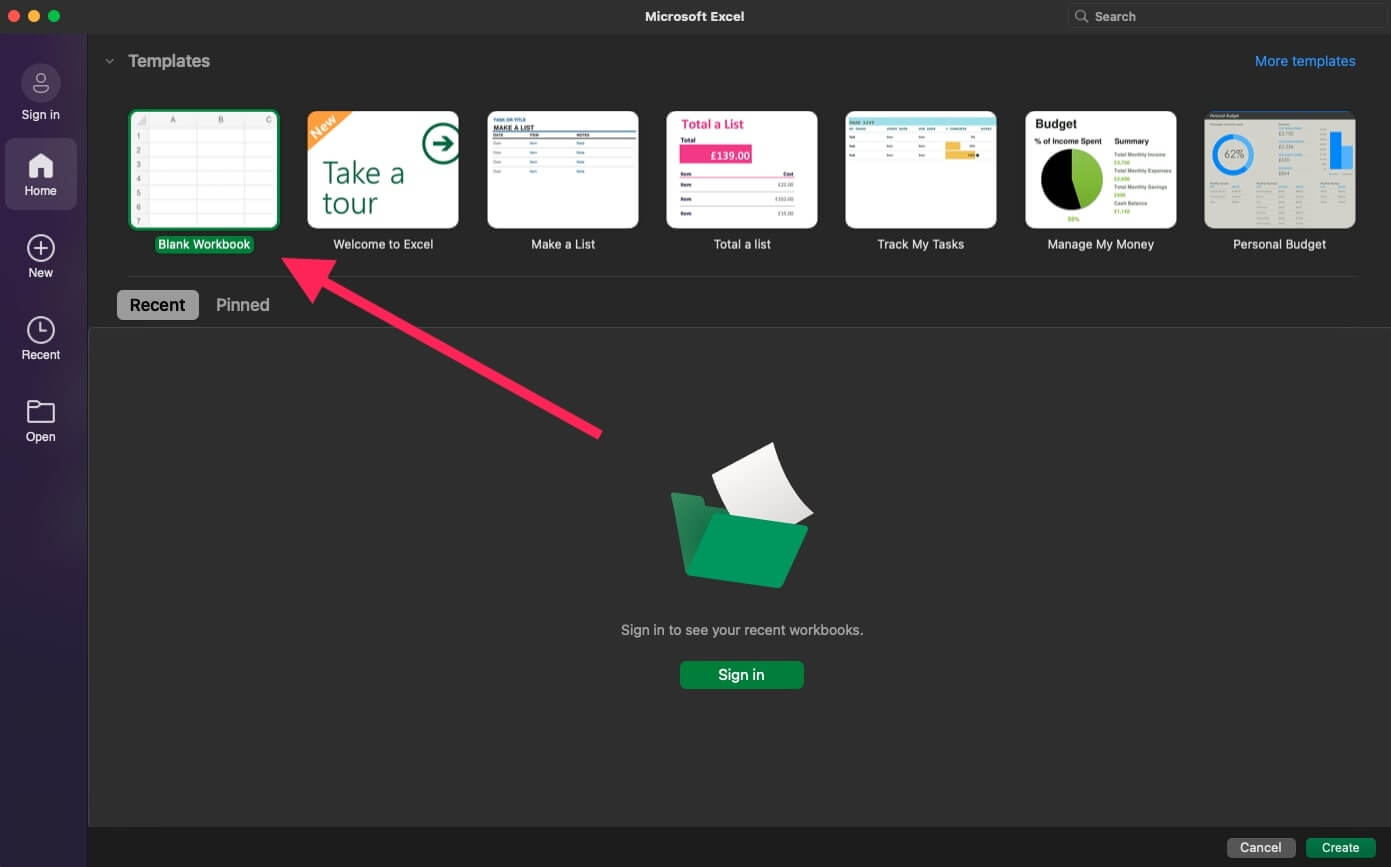
Microsoft Excel Home view.

💡 Excel To-Do Tip #1: At this stage, you should also enable the Developer Tab that will let you add checkboxes to tasks later on. To do that, go to File ➡ Options (Excel ➡ Preferences if you're using a Mac) ➡ Ribbon & Toolbar, and check Developer under Main Tabs.

Step 2: Organize Your List into Columns

It’s time to organize your blank sheet with labeled columns headers. Adding task parameters is a great way to add context to to-dos. It'll also let you sort tasks down the road.

You can format your to-do list manually or use the Format as Table option in the Home tab. But first, let’s add a few column headers to those freshly columns. Start with these:

  1. ☀️ Date Added

  2. 🔠 Description

  3. 🗓 Due Date

  4. ⏰ Time

  5. 🚥 Status

  6. 🚩 Task Priority

  7. 🗂 Category

  8. 📝 Comments/Notes

With that out of the way, let's add a touch of color. Select the rows and columns of your soon-to-be to-do, click Format as Table in the Home tab, and choose one of the available styles.
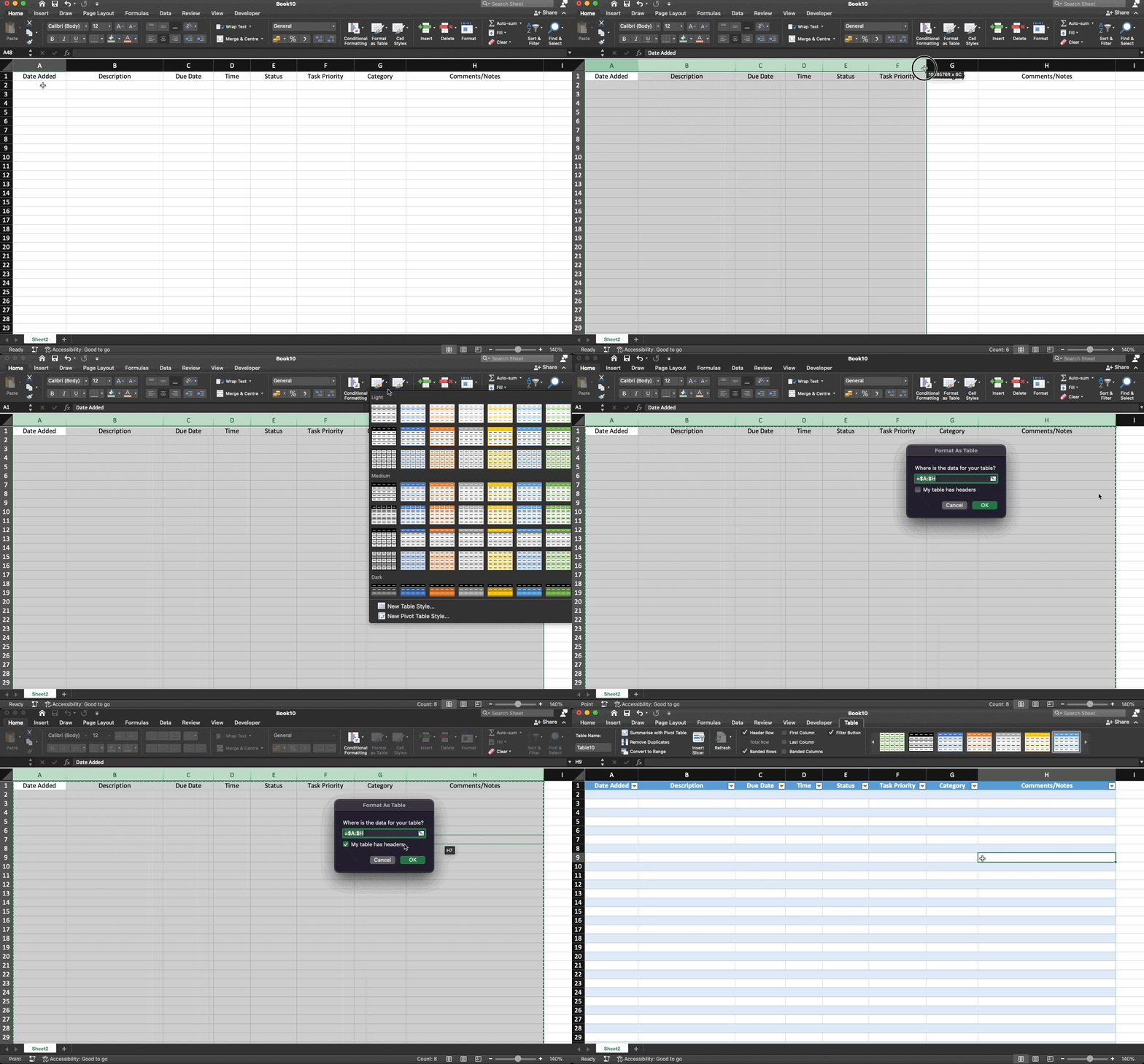
Applying the Format as Table option in an Excel spreadsheet.

Experiment and add your own parameters but keep things low-key. After all, you don’t want to scroll through dozens of columns to complete a task, especially using a mobile version of Excel.

Trust us, it's not fun.

💡 Excel To-Do Tip #2: You can apply conditional formatting to cells so their color changes depending on how important a task is. Try assigning each task a priority on a scale of 1-3 and select one of the available Conditional Formatting options from the drop-down menu.
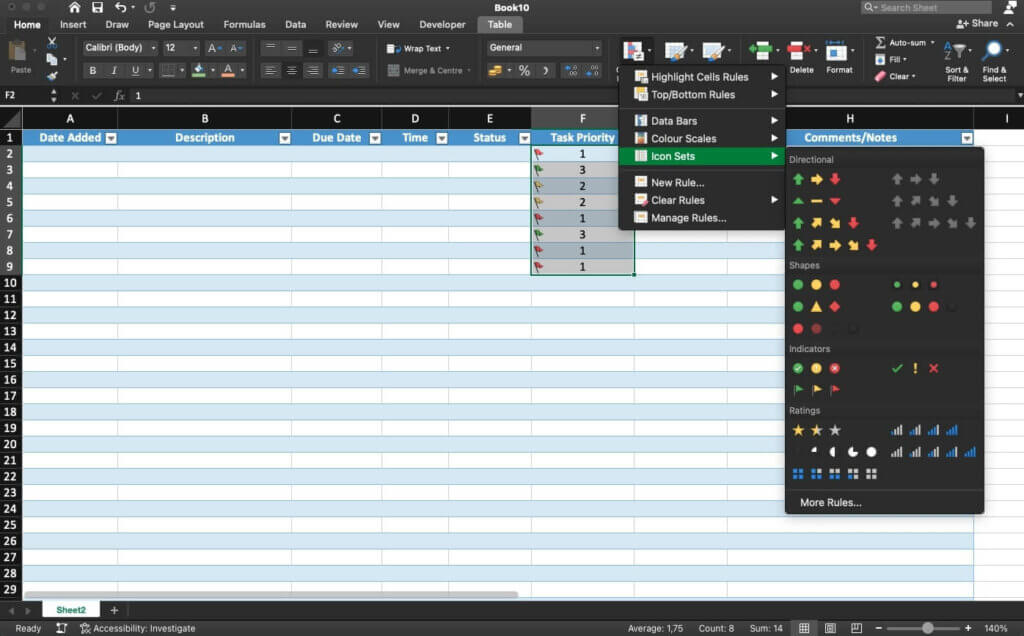
Microsoft Excel Conditional Formatting drop-down menu.

Step 3: Enable Data Validation

Data validation lets you define the type of data you can enter into a cell.

Limiting your choices may seem counterintuitive. But it's actually much easier to fill in details like task status using simple drop-down lists. Follow the steps below to enable data validation:

  • Select all cells in the Status column

  • Go to the Data tab ➡ right-click Data Validation.

  • Under Allow, choose List from the drop-down menu.

  • Choose the Source and click Ok to confirm.
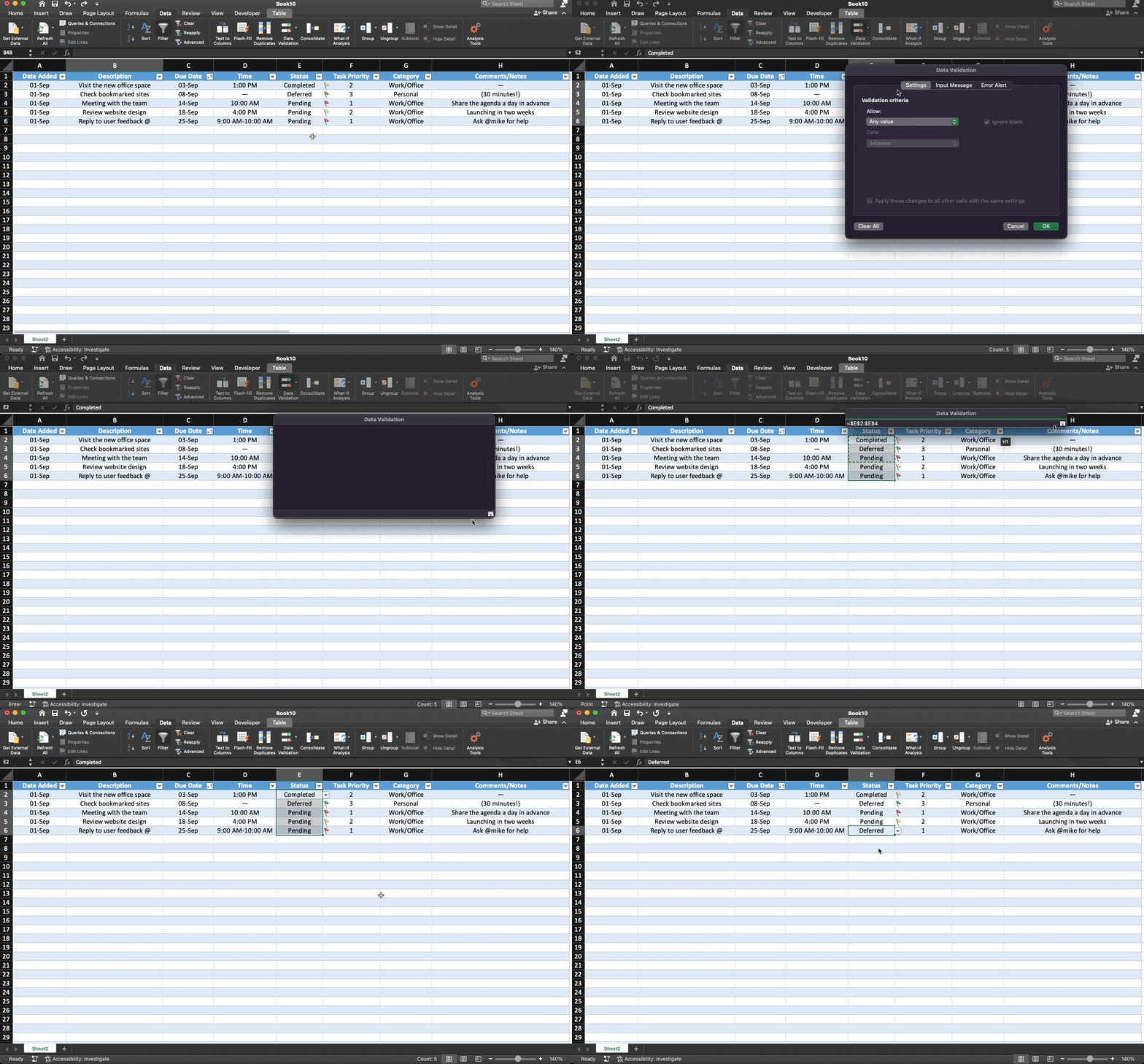
Enabling Data Validation for selected cells in an Excel spreadsheet.

💡 Excel To-Do Tip #3: Try enabling data validation for other columns in the sheet. For example, the Task Category can include options like “Work” and “Personal.”

Step 4: Add Checkboxes to Your Tasks

What good is a to-do list if you can’t “check” ( or “tick”) completed tasks? We’ve already enabled the Developer tab in the previous steps so you can now add checkboxes to the spreadsheet.

  • Go to the Developer tab ➡ click ☑️ Checkbox.

  • Select the cell where you want to add the checkbox.

  • Resize the checkbox and place it in the center of a cell.

  • Drag the fill handle to duplicate the checkbox across all tasks.

And that’s it! 🥳
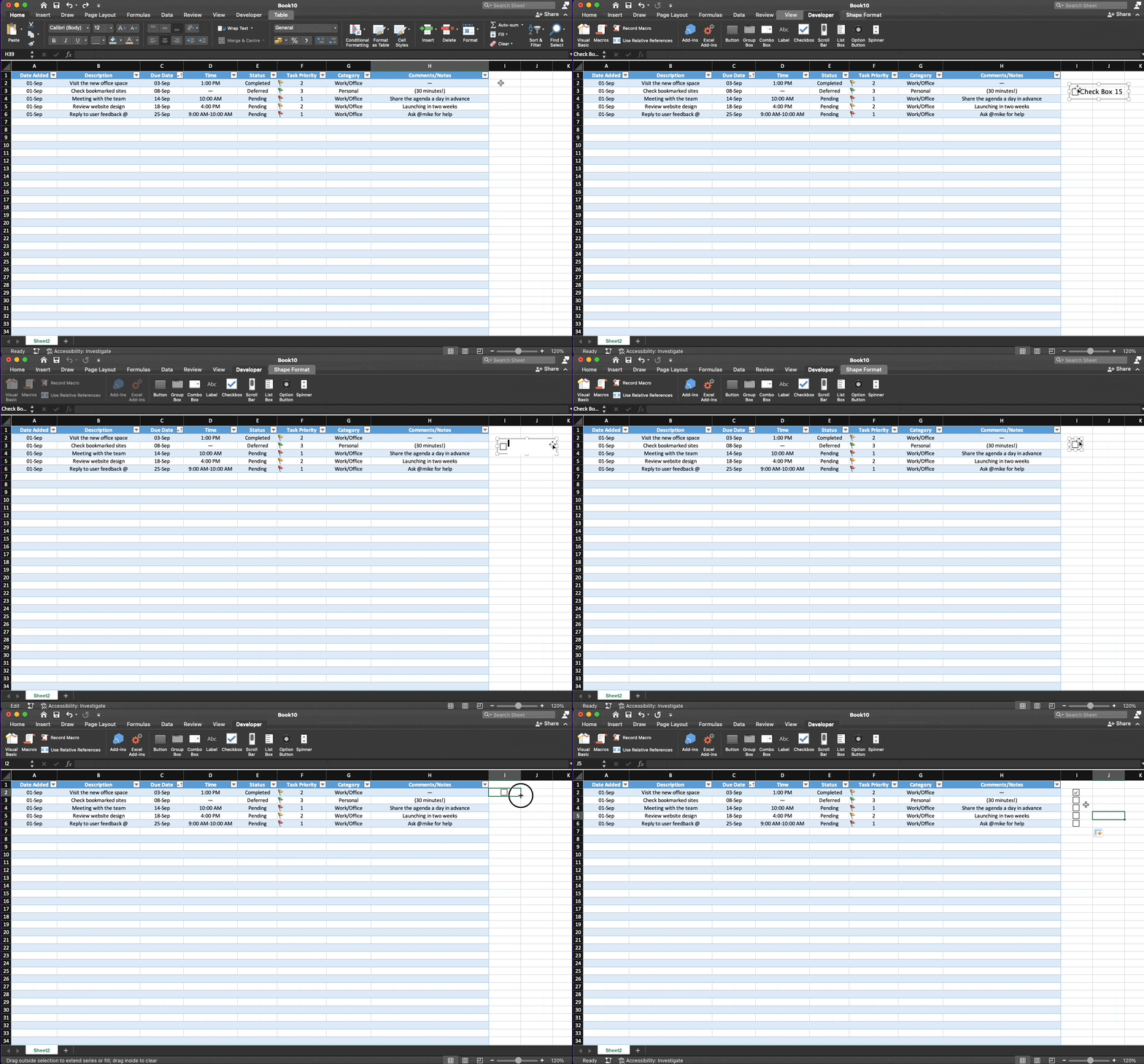
Inserting a checkbox into an Excel spreadsheet.

👎 Disadvantages of Using Excel For Managing Your To-Do Lists

Excel Is Not a To-Do List App

Let’s make one thing clear.

It’s not that an Excel spreadsheet CAN’T act as an over-engineered to-do list. Quite the contrary. Excel is a powerful tool, but getting it to work requires a great deal of “figuring it out.”

Need a simple progress bar to check your progress?
Sorry, there’s none. Sure, you can insert a chart and come up with a witty formula to make it somewhat interactive. But the best online to-do apps let you track progress out of the box.

If you want to adapt an Excel spreadsheet to a task that’s not data entry, you need to hack together different features to get the results you’re after. And that’s not really "user-friendly."

Of course, all that hacking and tinkering comes with a price.

Let's say you've put together a few formulas and macros to power your to-do list. They seem to work just fine, so you get on with your work and forget all about them.

But the moment you start scaling your list, things get messy. The spreadsheet becomes laggy and unresponsive, formulas stop working, and you need to waste time figuring out what's wrong. If you’ve ever used Excel, that scenario probably sounds all too familiar.

The bottom line is that Excel is NOT a to-do list app. It wasn't designed to be one and doesn't even have the basic functionality that'd make tracking tasks easier. And speaking of features...

You Don't Get Any Dedicated To-Do Tools

Let’s start with reminders.

Excel spreadsheets don't offer a straightforward way to set reminders out of the box. You can hack this functionality using Data Validation and other methods. But, as is the case with workarounds, it takes time and effort you should spend on getting work done.

Oh, and unless you’re an Excel pro, we wouldn’t put too much trust in those reminders anyway.

If you want to track tasks with multiple dependencies, you’re in for a ride. Unless you want to cram cells full of text, there’s no simple way to add sub-tasks to your to-do lists. Sorry not sorry.
It's hard to imagine a to-do list that doesn't use checkboxes or a variation of those.

Adding them to a spreadsheet? It's possible, but you probably know by now that that's a rather unintuitive process. That's unless you love copying, pasting, and resizing. We don't.

Of course, Excel is completely devoid of any advanced to-do features like drag & drop navigation, cross-linking, or a dedicated mobile app that’d let you easily—we can’t emphasize that enough—check tasks on the go. And it's unlikely that things will change anytime soon.

Collaboration Is Not Exactly “Smooth”

Collaborative task management has proved its worth during the work-from-home experiment. And it’s still gaining traction as more teams are adopting a fully distributed or hybrid model.

While Excel does offer some collaborative features, they’re pretty limited.

You can’t assign tasks or tell what other people are working on in a straightforward way. There’s also no master view that’d make it easy to track team performance in a high-level overview.

A formula stopped working? Your teammate messed up conditional formatting?

It’s one thing when you make a mistake and your local spreadsheet crashes. But locking 10, 20, or 30 people out of a spreadsheet so you can fix a formula is a massive productivity killer.
And let’s not forget about Excel’s technical limitations. And there are quite a few

For once, Excel isn’t just one app that works across all devices. There are different apps for the web, desktop, and mobile, and not all of them support co-authoring. If you use a version that doesn’t, everybody else in the sheet will get locked out until you’re done with editing.

But hey, we're not here to create problems but to find the right solutions. 🥳

🐑 Taskade—An AI-Powered Alternative to Creating To-Do Lists in Excel

Creating a reliable checklist or to-do list for work and personal errands doesn’t have to be hard.

Taskade lets you plan, organize, and keep track of your to-dos with the power of AI. You don’t have to “hack” anything or create intricate formulas to stay on top of every task. With Taskade, everything works out of the box so you (and your team) can start getting work done in seconds.
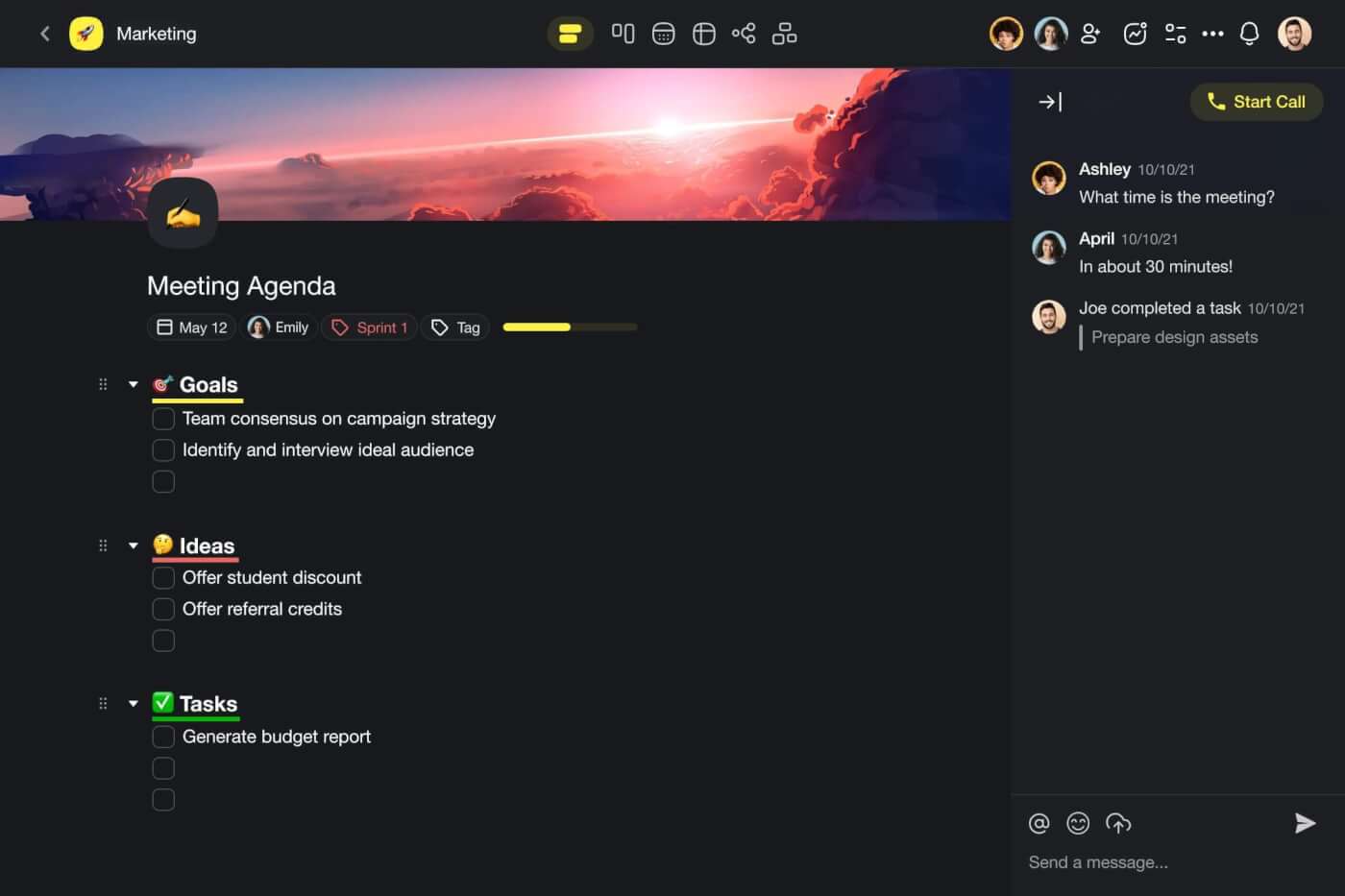
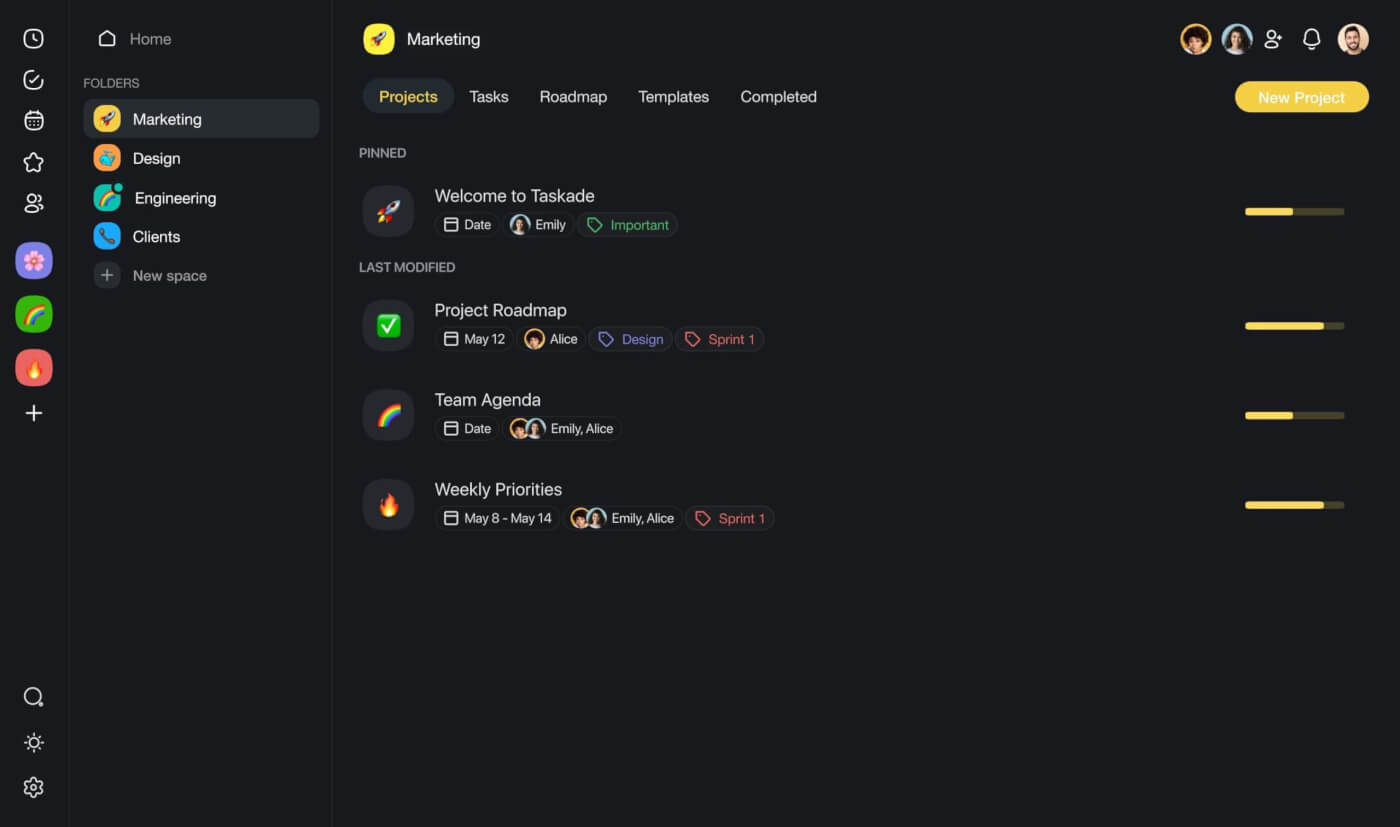
Taskade project interface.

A list of projects in Taskade.

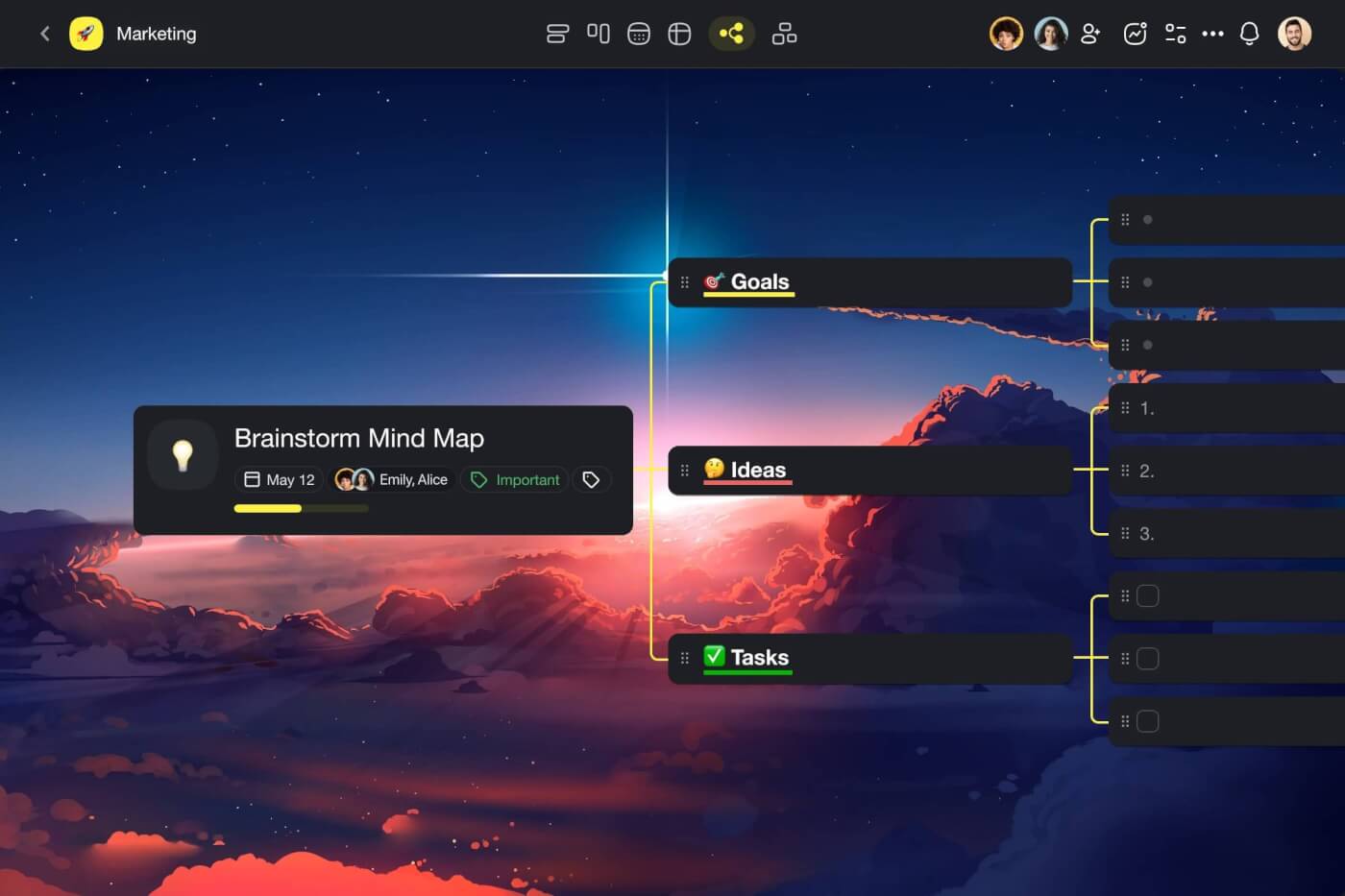
A mind map in Taskade.

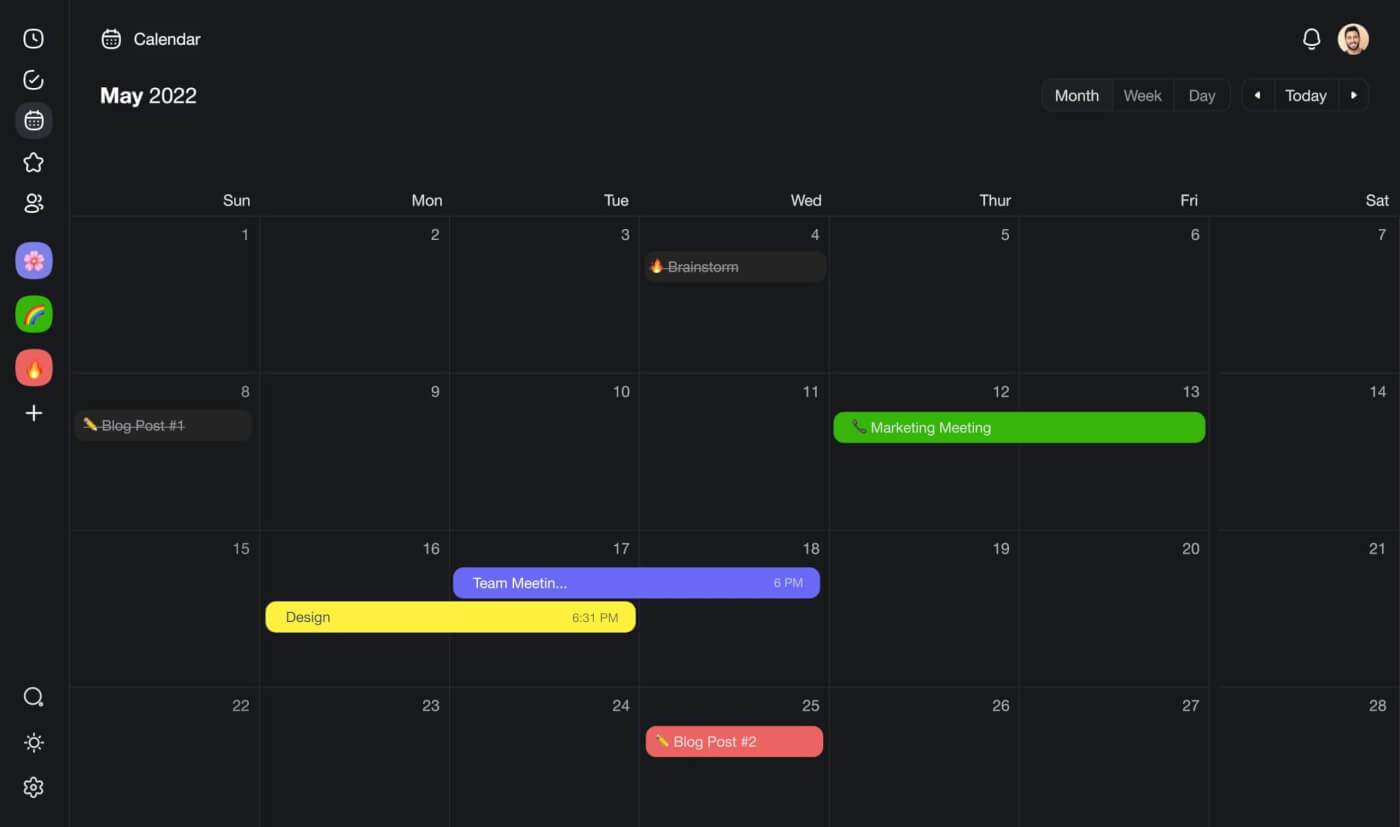
Taskade Calendar.

Taskade gives you all the features you need to keep your tasks on track — subtasks, reminders, recurring tasks, and even collaborative spaces for team discussions. But what sets Taskade apart from other to-do apps, is Taskade AI, a powerful assistant and productivity sidekick.

🔄 Task Generator: Starting a new project and feeling a bit lost? Give Taskade's AI Generator the gist of what you're aiming for, and it'll generate a to-do list template for you in seconds.

💬 AI Chat: Tired of starting at your to-do lists? Try Taskade's AI Chat. It'll help point out what's urgent, tidy up your list, and give some clarity on those tricky tasks.

🤖 AI Agents: Drowning in routine tasks? Let Taskade's AI Agents take some of the load. The agents will sort out the mundane stuff, so you can get back to the tasks that really matter.

✏️ AI Assistant: Juggling tasks, notes, and ideas can get messy. That's where Taskade's AI Assistant comes in. Whether you're brainstorming, writing, or organizing, it's got your back.

Taskade AI task generator.

So, are you ready to supercharge your task management workflow?

Sign up for a free Taskade account and explore the app for yourself. Our free tier includes a ton of options so you can get started quickly without silly limitations.

👋 Parting Words

Can you create a project task list in Excel? Sure.

Should you? That’s a question you must answer yourself.

If you like to tinker with formulas and macros or spend hours setting things out, you’ll enjoy the process. But if you just want to get work done, you should use a dedicated to-do tool instead.

✋ Before you go… Check these articles next to learn more about the power of lists!

  1. History of the To-Do List and How to Get Yours Organized

  2. The Power of Checklists in Distributed Teams

  3. A Case For Hierarchical Thinking: Solve Complex Problems The Easy Way

Frequently Asked Questions About Creating a To-Do List

How to use Excel to make a list?

To use Excel to make a list, start by following the steps outlined in this article. Begin by opening a new spreadsheet and entering your list items in a single column, one item per cell. Format your list by applying cell borders, adjusting column width, and using bold or colored text for headings. Consider using the "Data Validation" feature to create drop-down lists and employing filters to easily sort and manage your information.

How to create a simple task tracker in Excel?

To create a simple task tracker in Excel, follow the steps from this article. Start by creating columns for essential task details such as "Task Name," "Due Date," "Priority," and "Status." Enter your tasks as rows under these columns. You may also apply conditional formatting to highlight high-priority tasks or overdue items and add a status drop-down menu with the "Data Validation" feature.

How do I create a list of employees in Excel?

To create a list of employees in Excel, first set up columns for "Employee ID," "Name," "Department," "Position," and "Contact Information." Enter each employee's information as a row under these columns. Use Excel's table feature to make the list easier to manage and update. This will help you keep your employee information organized and accessible.

taskade ai banner 768x198 1

0%

On this page

🤔 What Is a To-Do List in Excel?🏗 How to Create an Excel To-Do List (Step-by-Step)Step 1: Create a Blank Excel WorkbookStep 2: Organize Your List into ColumnsStep 3: Enable Data ValidationStep 4: Add Checkboxes to Your Tasks👎 Disadvantages of Using Excel For Managing Your To-Do ListsExcel Is Not a To-Do List AppYou Don't Get Any Dedicated To-Do ToolsCollaboration Is Not Exactly “Smooth”🐑 Taskade—An AI-Powered Alternative to Creating To-Do Lists in Excel👋 Parting WordsFrequently Asked Questions About Creating a To-Do List

Related Articles

/static_images/How to Generate Creative Ideas: Idea Stacking, Visual Thinking & Storytelling Frameworks
March 30, 2026Productivity

How to Generate Creative Ideas: Idea Stacking, Visual Thinking & Storytelling Frameworks (2026)

Creativity isn't talent — it's recombination. Learn Idea Stacking, Scorsese's visual literacy, Nolan's narrative archite...

/static_images/History of Obsidian note-taking app — from Dynalist to second brain movement to AI knowledge OS
March 24, 2026AI

History of Obsidian: From a Dynalist Side Project to the Second Brain Movement and the AI Knowledge OS Era (2026)

The complete history of Obsidian from Dynalist side project to 6M+ users, the second brain movement, Bases, and the Clau...

/static_images/AI event landing page built with Taskade Genesis
March 7, 2026Productivity

Build an AI Event Landing Page in Minutes

Step-by-step tutorial: build an event landing page with registration, scheduling, and attendee management — from a singl...

/static_images/AI utility app — color palette extractor built with Taskade Genesis
March 3, 2026Productivity

Vibe Utility Apps: 10 AI Converters & Dev Tools You Can Clone

10 AI-powered utility apps — QR generators, color extractors, translators, code tools, and more — ready to clone or buil...

/static_images/AI expense tracking and finance dashboard built with Taskade Genesis
February 28, 2026Productivity

Vibe Finance Apps: 10 AI Invoice Generators, Expense Trackers & Dashboards

10 AI-powered finance tools — invoice generators, expense trackers, budget dashboards, and ROI calculators — ready to cl...

/static_images/Invoice Generator app with payment tracking dashboard showing paid, pending, and overdue invoices
February 28, 2026Productivity

3 Finance Apps You Can Clone Today — Invoice, Meeting Costs & Licenses

Track payments, calculate meeting costs, manage licenses — three complete finance apps you can clone in minutes. AI-powe...

View All Articles
How to Create a To-Do List in Excel | Taskade Blog