
Distraction-Free Writing Starts With Taskade (Updated for 2024)
Although word-processing has come a long way since WordStar days, many contemporary writers—George R. R. Martin included—still use legacy software for a frictio...
On this page (15)
Although word-processing has come a long way since WordStar days, many contemporary writers—George R. R. Martin included—still use legacy software for a frictionless, distraction-free writing experience.
If you're looking for a minimalist creative environment but don't feel like going (way) back in time, we have something just for you.
In this mini-guide, we’ll show you how you can use Taskade to conduct research, organize reading notes, outline documents, and—wait for it—turn out drafts like a pro.
🔍 Research, Research, Research
Do you want to write about stuff that’s way outside your field of expertise? Don’t worry. All you need to do is buy a crystal ball, read some tea leaves and you’re off to a good start. 🔮
Just kidding.
As an inspiring writer, a lion’s share of your work will be to read, read some more, and take darn good notes. But hey, don’t take our word for it.
Here’s what Robert J. Sawyer, an award-winning sci-fi author has to say on the subject:
“The heart and soul of good writing is research; you should write not what you know but what you can find out about.”(1)
The good news is Taskade can make your detective work much easier.
Create a Place for Your Research Notes
Taking good notes starts with what we like to call a “cookie jar” page. Well, you can probably call yours a table of contents (TOC), but a cookie jar sounds way cooler. Don’t you think?
Funny names aside, a cookie jar is a Taskade Project where you’ll store and organize your research materials like book excerpts, article clippings, web pages, and documents.
For instance, here’s a reference page with resources we captured for a blog article on productivity and time management. 👇
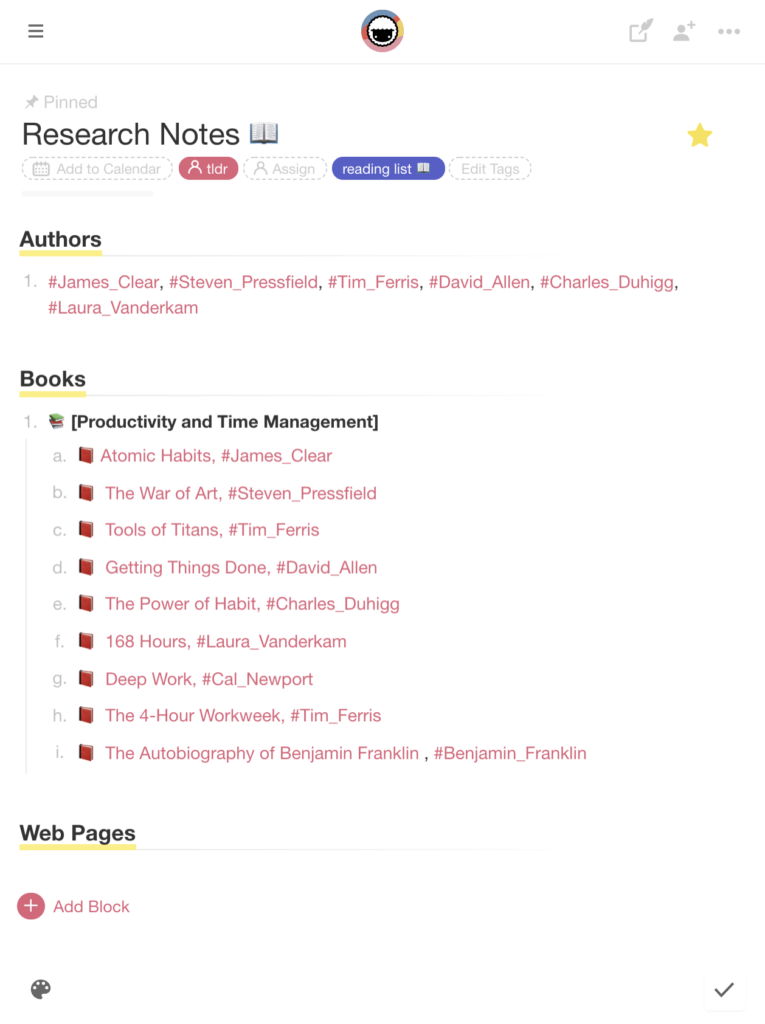
You can use this template to create a similar page in your Taskade Workspace. 👇
Hunt for Inspiration
Once you’ve created your own cookie... ehm, table of contents, it’s time to populate it with quotes, dates, facts, and bits of inspiration for your next writing project.
First, head over to the Downloads page, and grab our Web Clipper ✂️ browser extension. It’s an awesome tool that’ll save you the hassle of manually copying and pasting notes into Taskade.
Whenever you come across an interesting web page, article, or piece of news, you can add it to a Project by bookmarking the complete URL or clipping highlighted parts of the text.
Like so. 👇
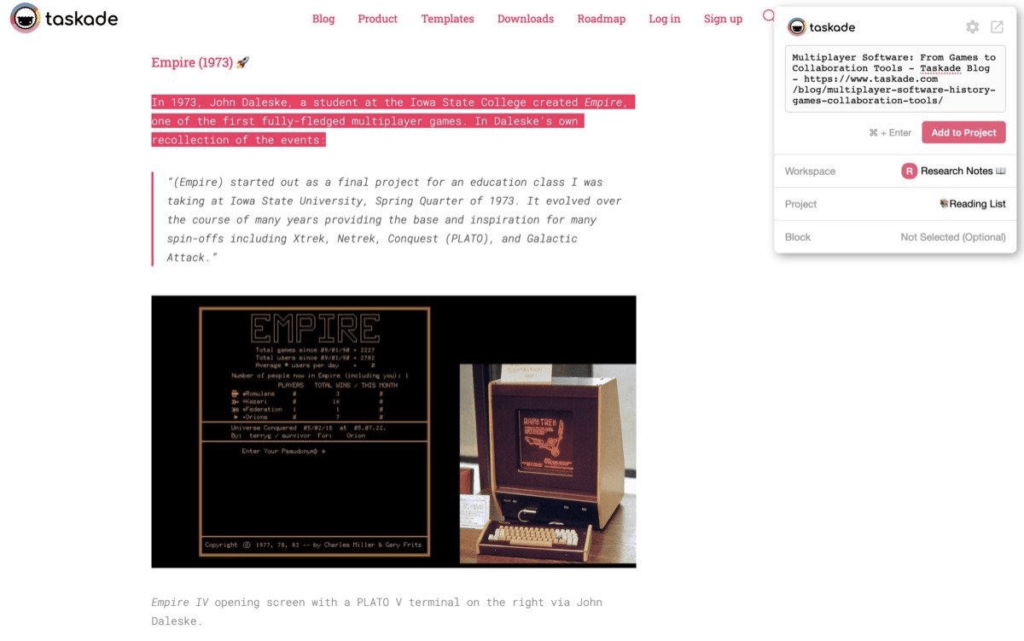
Just make sure to always append clippings to a specific Project or content block so you don’t have to rummage through Workspaces to find them!
Connect the Dots
Noticed how some entries on our cookie jar page are marked with a different color? That’s because each one is essentially a hyperlink that leads to a different part of our Workspace.
Like this little note on Ben Franklin’s Autobiography. 👇
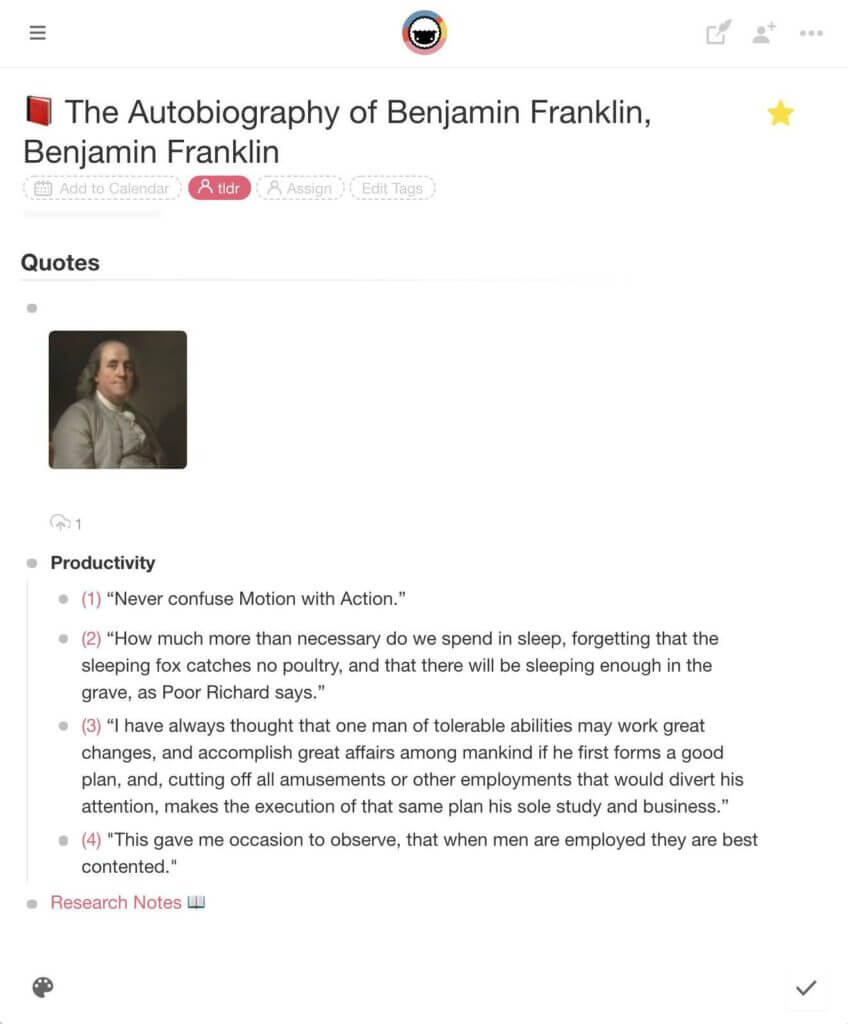
To create a similar connection between your notes, type @ + Project name anywhere in your table of contents (or any other note) and pick the page you want to link to.
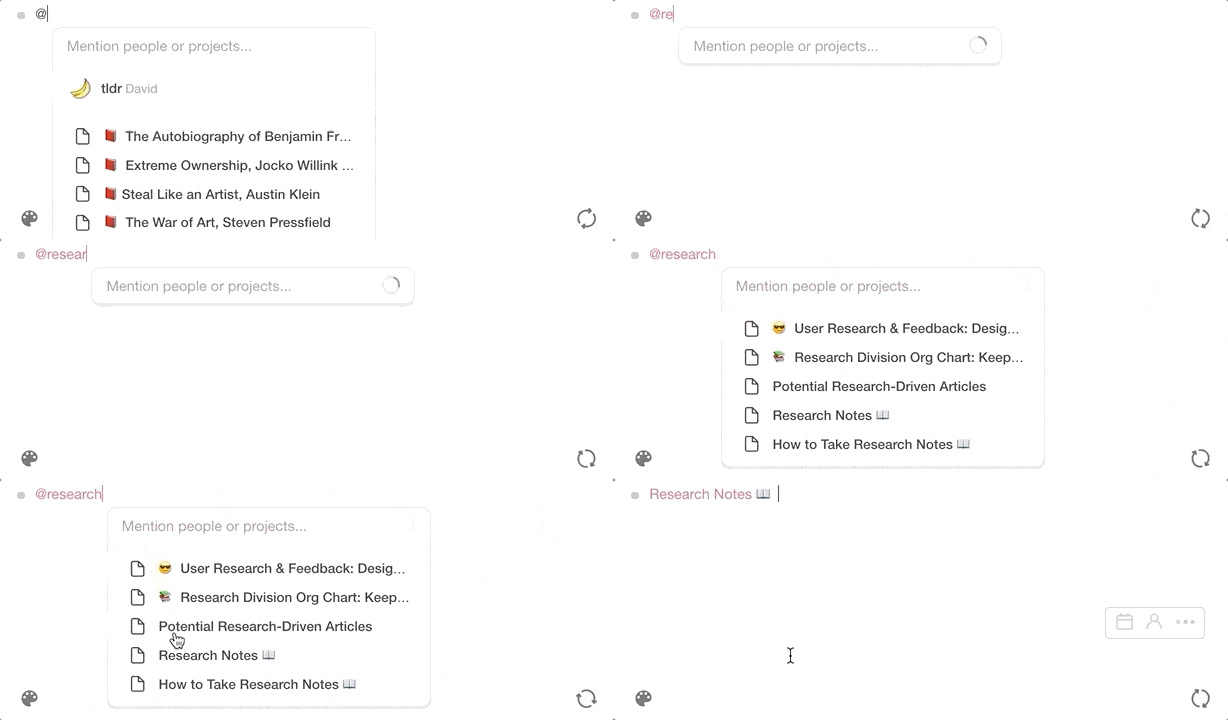
And that’s it!
🌳 Outline All Things
“Words create sentences; sentences create paragraphs; sometimes paragraphs quicken and begin to breathe.”
Stephen King, On Writing: A Memoir of the Craft
Sounds simple, doesn’t it? That is until you sit down in front of the computer and come to grips with the dreaded blinking cursor.

“What am I supposed to write?”, “where do I start?”, “how do I structure my arguments?” Well, let’s just say you’re not the first writer to ask those questions.
It doesn’t matter if you’re writing a business letter or the next sci-fi epic. Every draft has to start somewhere, and the best place to do so is a solid outline.
Outlining documents in Taskade is easy:
1. Start by creating a new Project and select one of the content blocks inside it. From there, choose the heading type (H1, H2) and put the first Parent node in place.
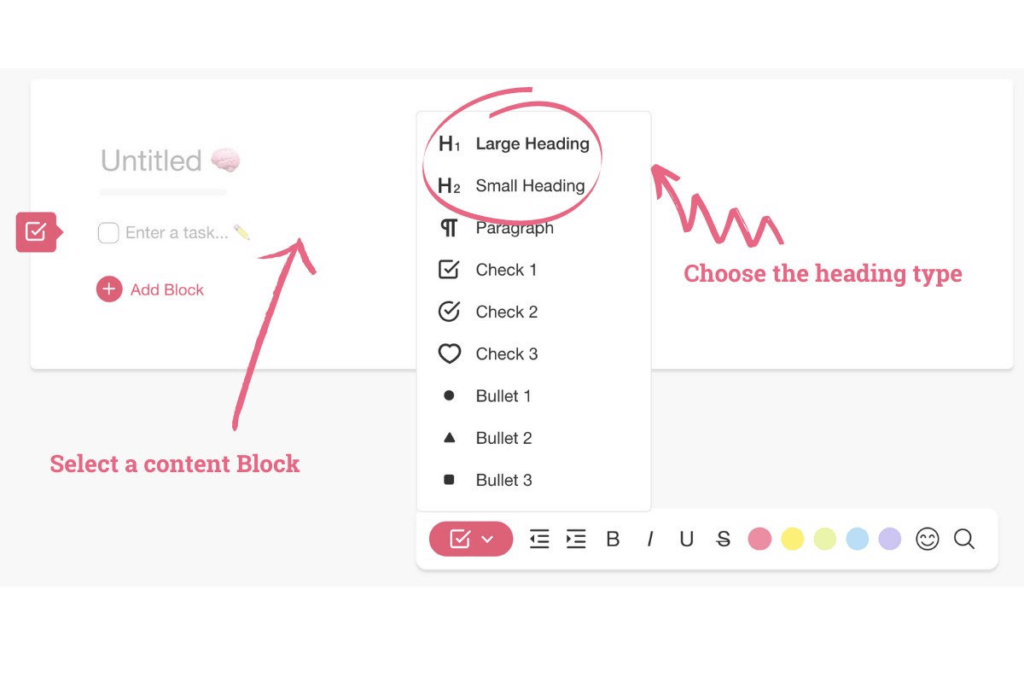
💡 Outlining Tip: Haven’t heard about Parent/Child nodes before? Drop by our Help Center or read “Past, Present, and Future of Outlining Software” to learn more.
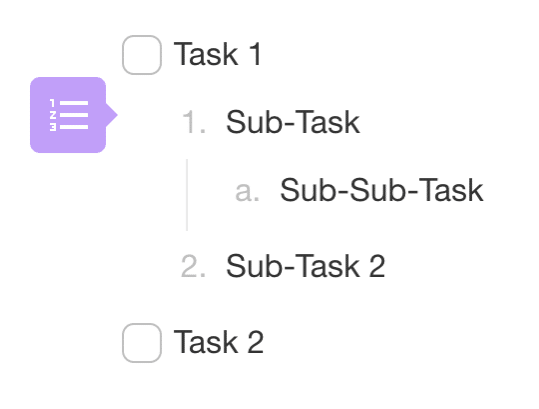
2. Add a few more elements underneath your Parent element and indent them with the ⌨️ Tab key. Each indented block (Child) is now a branch of the newly created tree structure.
Here’s an outline fragment for our “Zettelkasten” article. Notice the branches connecting individual elements of the hierarchical tree structure:
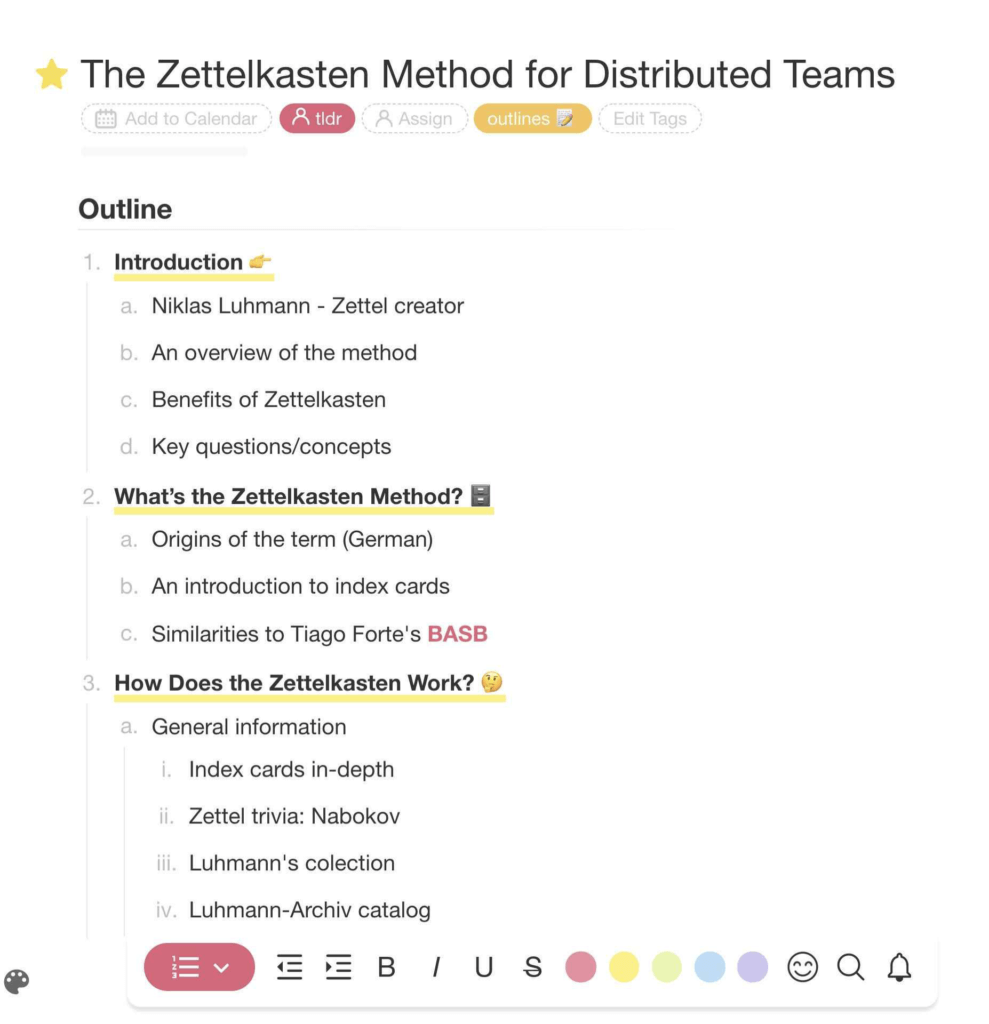
image 77
💡 If you want to learn more about Niklas Luhmann’s system for storing and organizing knowledge, be sure to read “The Zettelkasten Method for Distributed Teams” when you’re done here.
3. You can quickly outdent selected nodes with ⌨️ Shift + Tab or by selecting the Unindent option from the drop-down menu.
4. If you need some breathing room to think or just want to enjoy some white space (who doesn’t love that), Fold/Unfold parts of your outline to move them out of the way.
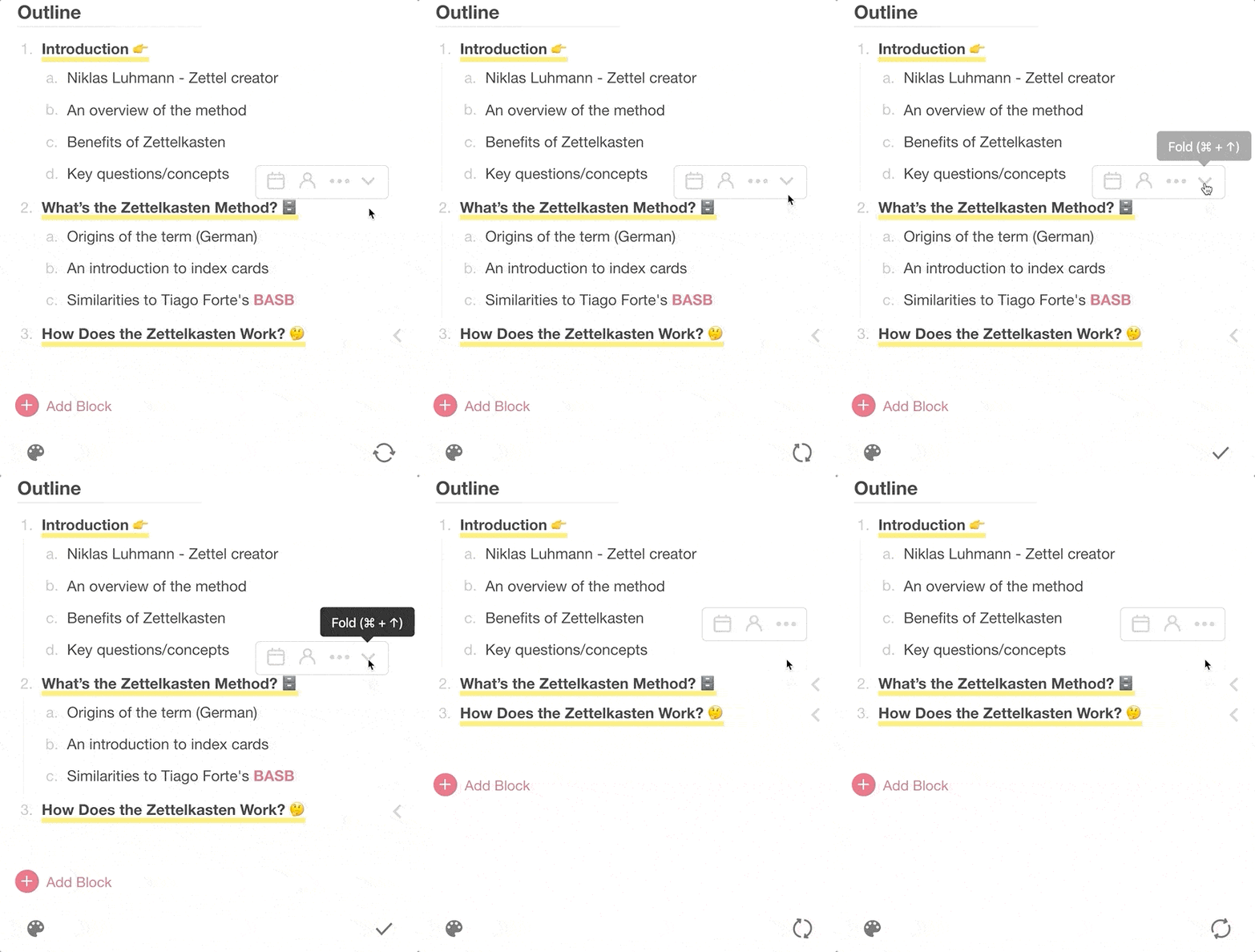
Outlining documents is a great way to organize thoughts and give your writing shape and direction. But there are a handful of other benefits you should keep in mind:
See what we did there?
🧘♂️ Embrace Distraction-Free Writing
Taskade can do many things. But there’s one area in which it does exceptionally well: It doesn’t get in your way when you want to focus on writing and nothing else.
The editor is clean and easy to navigate. You get all the tools and options you need to build up the writing flow and none of the features you don’t.
Text Formatting
The distraction-free writing experience in Taskade breaks down into three ingredients—Content Blocks which hold lists, tasks, and text, the Style Menu at the bottom of the page, and the drop-down Format Sidebar.
While the Style Menu gives you full control over text formatting, the Format Sidebar lets you quickly change the type of individual content blocks, e.g. from a bullet list to a headline.
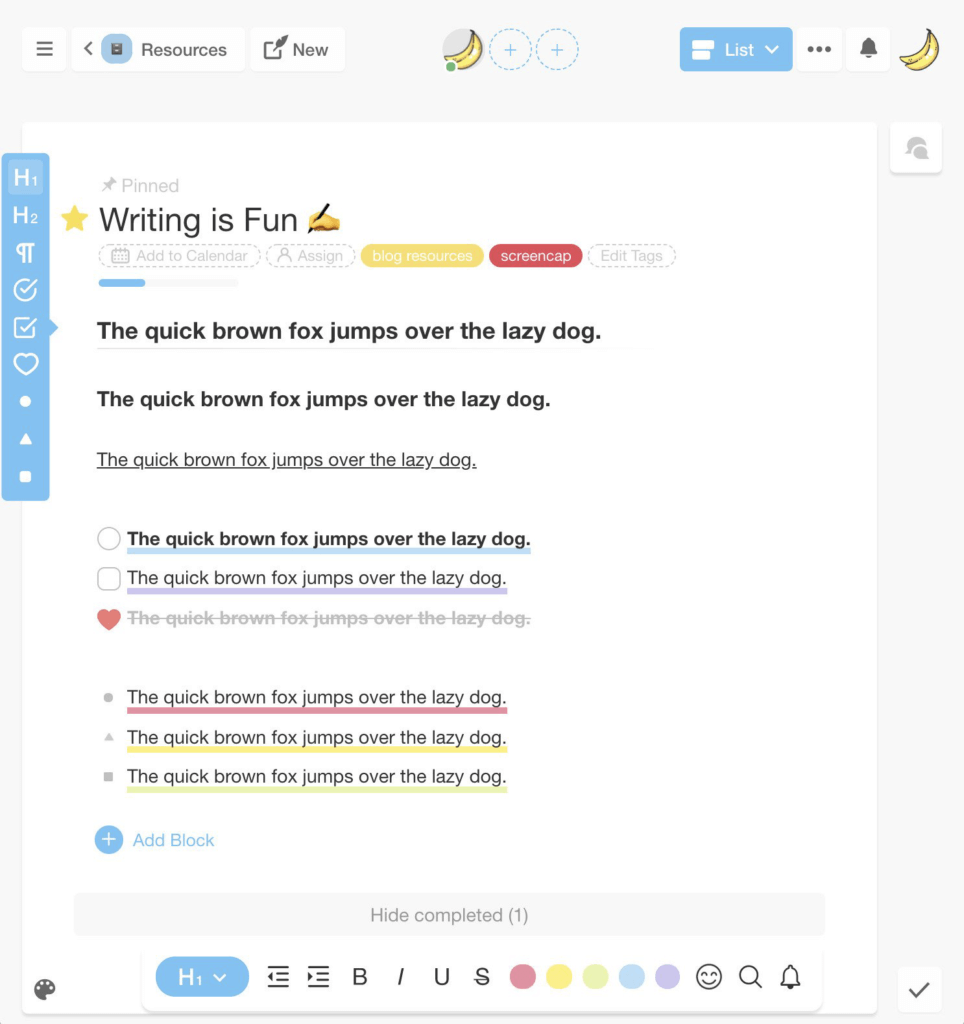
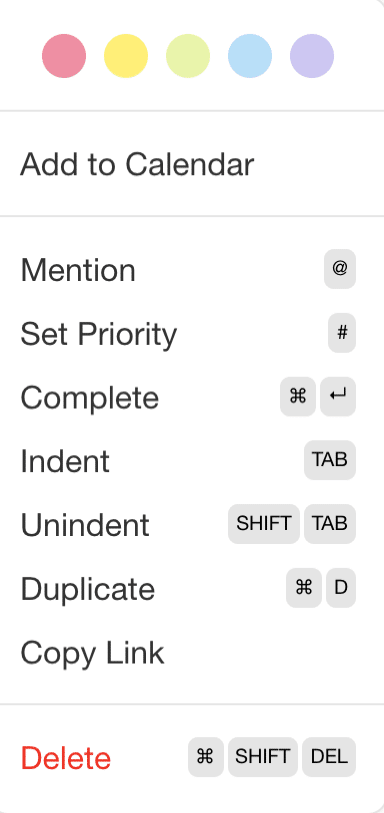
In addition to these two components, there’s also a drop-down assistant that combines formatting tweaks, keyboard shortcuts, and a handful of extra features like Duplicate and Mention.
Keyboard Shortcuts
To speed up the writing process and save you the trouble of fiddling with the mouse, Taskade comes with a handful of keyboard shortcuts.
Text Formatting
Ctrl / ⌘ + B ➡ bold
Ctrl / ⌘ + I ➡ italics
Ctrl / ⌘ + U ➡ underline
Ctrl / ⌘ + E ➡ highlight
Ctrl / ⌘ + Z ➡ undo
Ctrl / ⌘ + Shift + Z = redo
Ctrl / ⌘ + Enter = complete task/strikethrough
Navigation
Ctrl / ⌘ + F ➡ search
Enter ➡ line break / new task
Tab ➡ indent task/move right
Shift + Tab ➡ outdent / move left
Ctrl / ⌘ + Up ➡ collapse (fold)
Ctrl / ⌘ + Down ➡ expand (unfold)
While some shortcuts are specific to Taskade, you’ll find many others that are used universally across other word processors and productivity software.
You can find more key combinations in our Help Center.
Templates
Want to know how to (quickly) write a New York Times Best Seller recipe? Well, nobody has a template for that. The good news is, we have one for pretty much everything else.
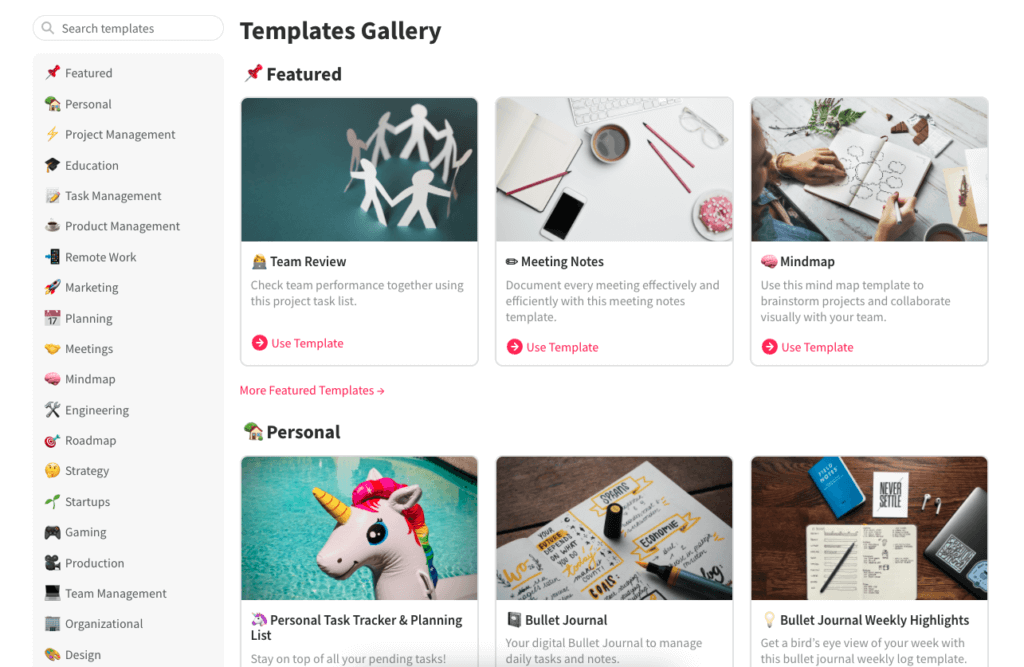
Taskade comes loaded with a hefty catalog of free templates you can use to kick off all kinds of writing projects. And we’re adding new ones every single day.
Here’s a small sample. 👇
If you can’t find a template for your project, you can customize the existing ones or create a new one for scratch. Simply open up empty Project and click Create a Template to start.
🧠 Collaborative Writing
Working on drafts doesn’t have to be a lonely undertaking. Quite the contrary, it’s often the case that some of the best pieces are penned not by one but two or more writers working together.
That’s what happened when Terry Pratchett and Neil Gaiman set out to write Good Omens:
“[...] even if I couldn’t see how it all ended yet, and we wrote it together and that was Good Omens. It was done by two guys who didn’t have anything to lose by having fun. We didn’t do it for the money. But, as it turned out, we got a lot of money.”
Terry Pratchett on Neil Gaiman via BBC(2)
Here’s how you can get into collaborative writing with Taskade.
1. Invitations and User Roles
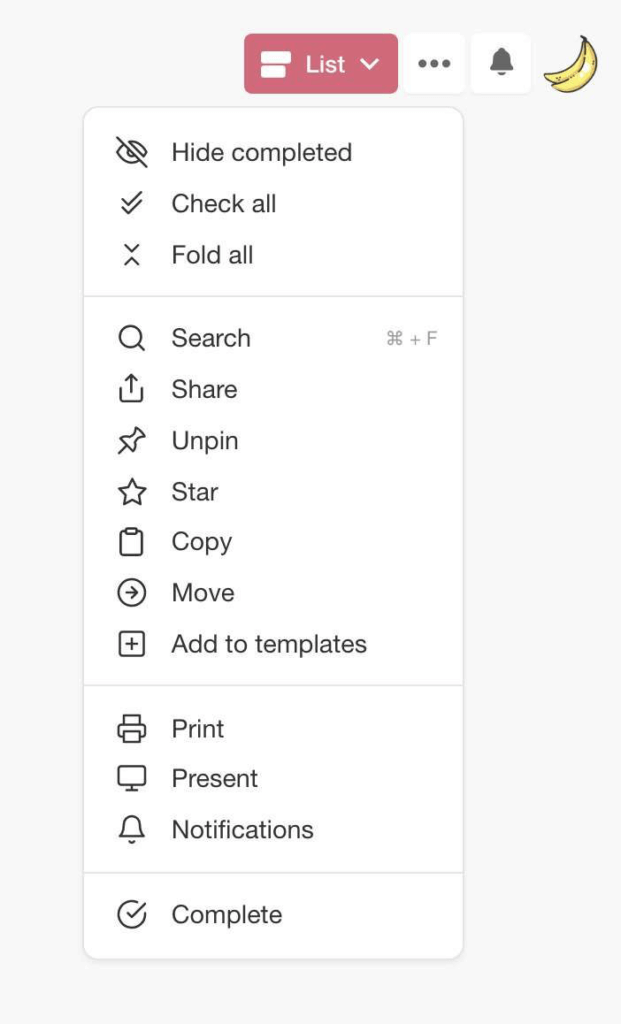
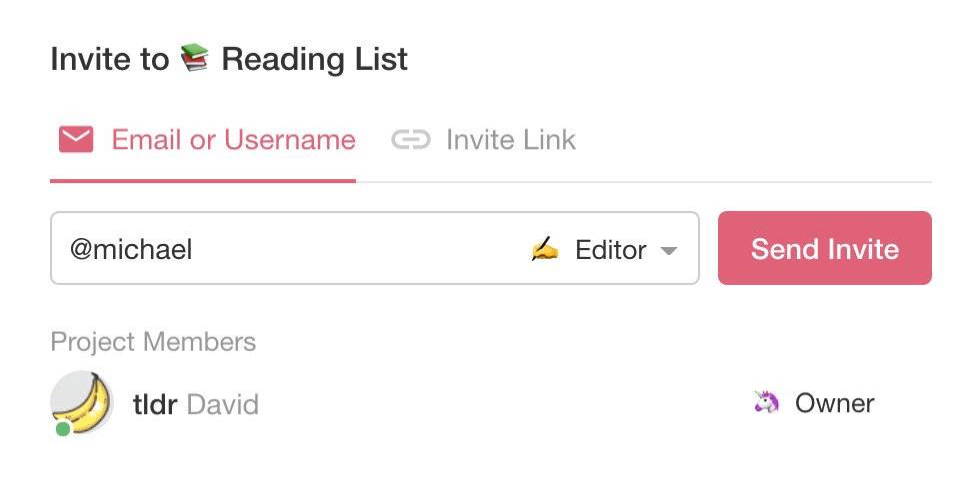
By default, the documents you create in personal Workspaces are only visible to you. To collaborate with other Taskaders, open the drop-down menu, and click Share.
You can also invite collaborators directly into a Project or Workspace and specify the level of access (user roles/permissions) before they join in—Admin👩💻, Editor ✍️, or Viewer 🤓.
If you’re in charge of distributing the work among collaborators, make sure to use the @mention identifier and let others know which part of the draft they should work on next.
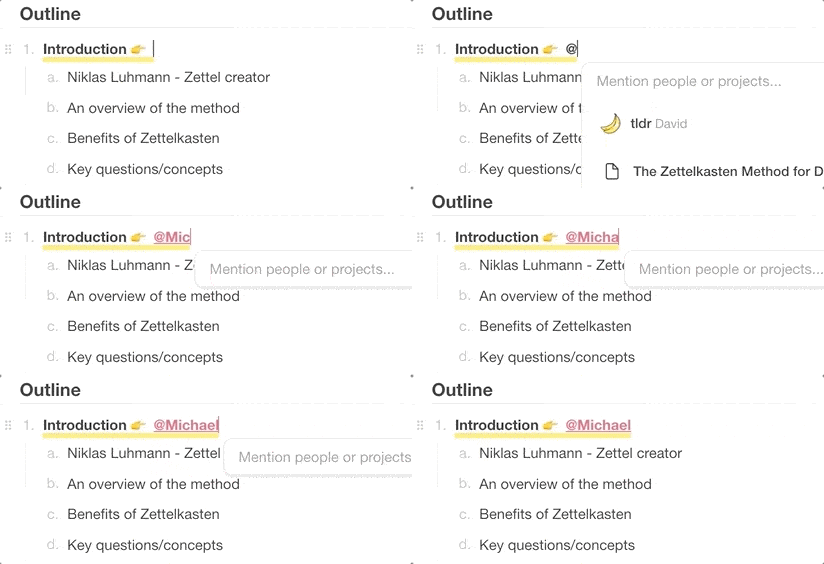
image1 2
2. Planning and Scheduling
“Someone once asked Somerset Maugham if he wrote on a schedule or only when struck by inspiration. "I write only when inspiration strikes," he replied. "Fortunately it strikes every morning at nine o'clock sharp.”
Steven Pressfield, The War of Art
Keeping an eye on those deadlines?
Good.
Taskade lets you track writing milestones in several ways. You can either mark an entire Project as a Calendar entry or add Due Dates for individual content blocks.
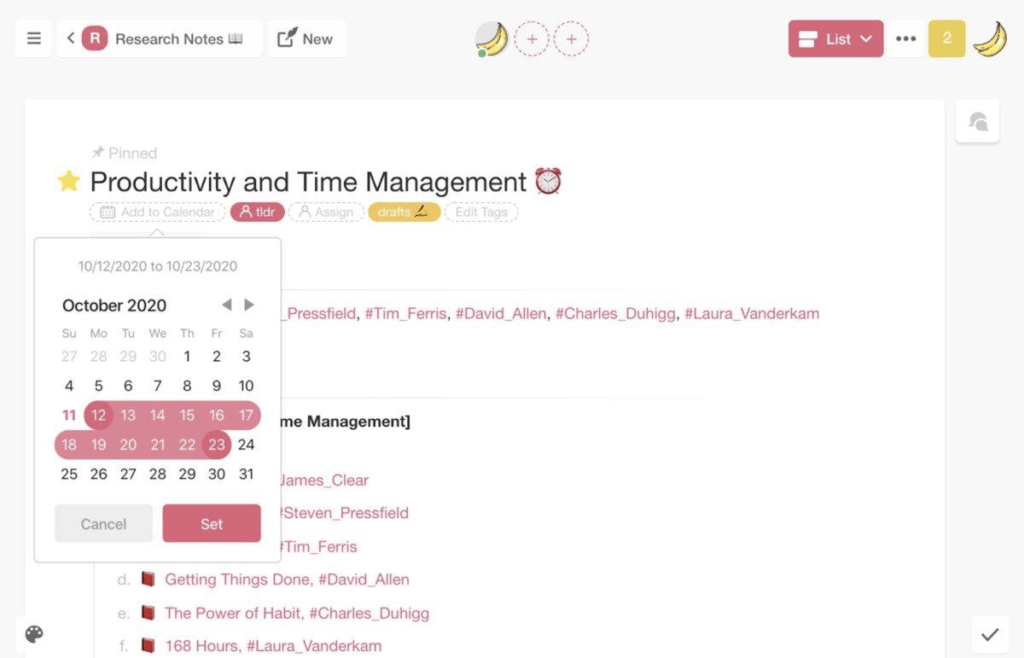
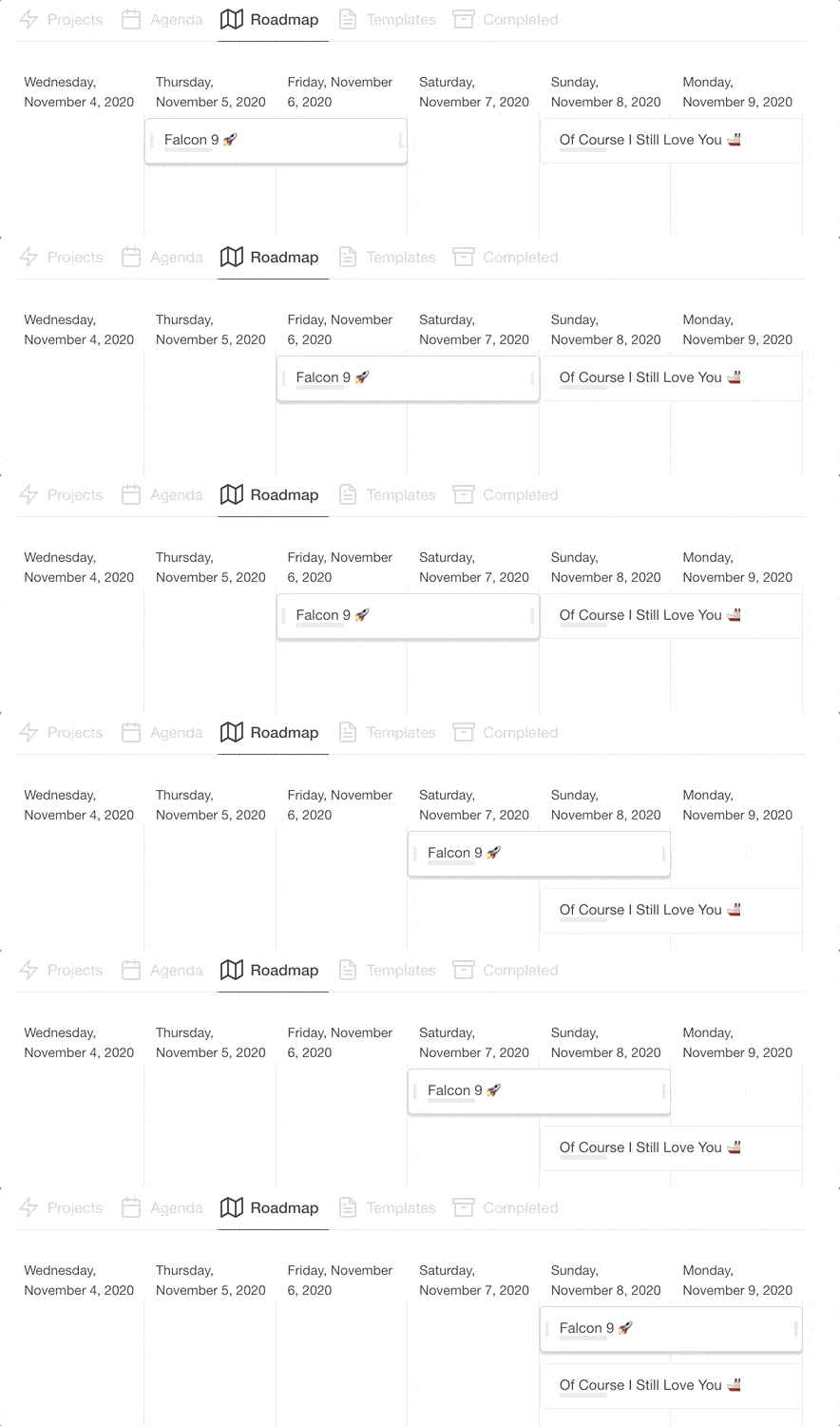
All Projects added to the calendar will sync with the Roadmap which displays scheduled events on an interactive timeline. Like this one:
Finally, you can use Taskade to create editorial calendars using Kanban workflow. To make one, simply start a new Project and select Board view from the drop-down menu.
💡 You can use this template to create a similar calendar in Taskade.
3. Asking for Feedback
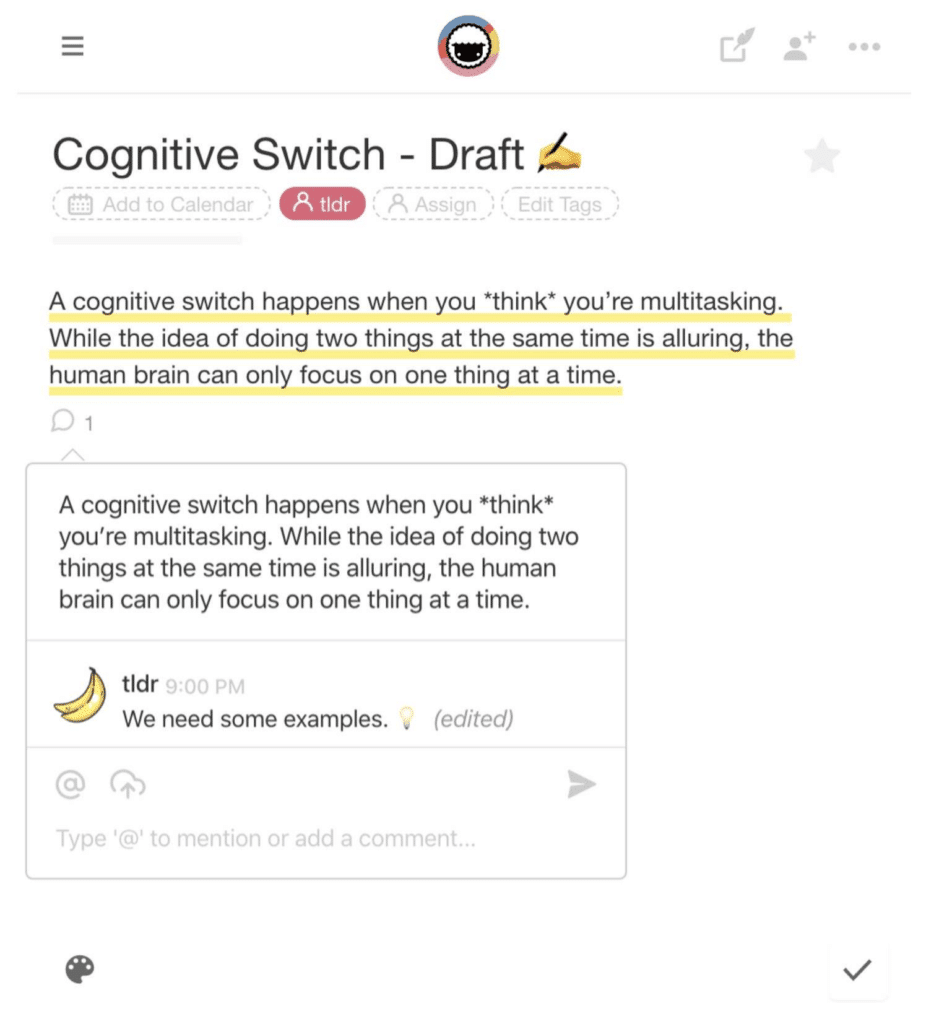
In addition to real-time, multiplayer writing and editing, Taskade lets you and your fellow writers exchange feedback via chat, video, calls, and in-text comments.
To add a comment, select a content block, and choose Add Comments from the context menu.
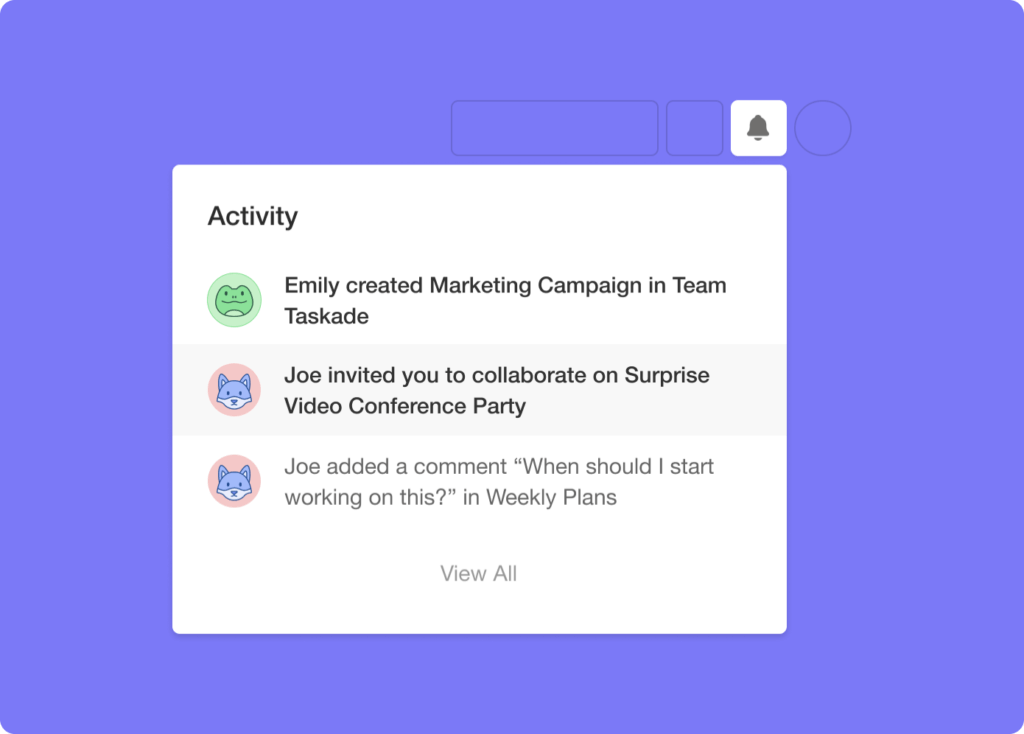
Every time somebody leaves feedback on your draft, you’ll see a notification in the Activity Feed. You can access it under the bell icon in the top-right corner of the screen.
And that’s it!
🐑 Conclusion
Creating awesome content in Taskade is easy: 1) Do your research, 2) create an outline, 3) find companions (optional), 4) dive into the next distraction-free writing session.
We hope this collection of tips will help you unleash your creative potential and put you on track to hundreds of incredible stories (even if it’s just for the drawer).
And if you happen to run out of ideas… check our other stories for inspiration:
Happy writing! 👋
Sign up and write smarter with Taskade AI 🤖
🤖 Custom AI Agents: Streamline your writing tasks like research and editing with custom AI agents, each with unique skills and knowledge.
🪄 AI Generator: Don't spend valuable time setting things up. Unleash your creativity with AI-generated document and project outlines.
✏️ AI Assistant: Support your writing with an AI companion that aids in planning, composing, and revising your work, one paragraph at a time.
🗂️ AI Prompt Templates Library: Access a wide range of AI prompt templates designed to kickstart your creativity for any project.
💬 AI Chat: Get quick motivation, brainstorm ideas, or discuss your writing goals with an AI chat partner, ready to assist you.
📄 Media Q&A: Use AI to review your past drafts, analyze your progress, and offer recommendations for future topics.
And much more...
