

Drop an .xlsx workbook in and walk away with a clean, comma-separated CSV — plus a live table you can filter, share, and automate instead of a file buried in your Downloads folder. Formulas resolve to values, merged cells unwrap into real rows, and multi-sheet workbooks come through readable. No install, no signup wall, no row cap.
TL;DR: Most Excel to CSV tools hand you one flat download and a broken encoding. Taskade converts your workbook into a structured, editable table you can export as CSV, view 7 ways, share with role-based permissions, and hand straight to an AI agent. Convert yours free →
What Is an Excel to CSV Converter?
An Excel to CSV converter strips a spreadsheet down to plain comma-separated text so any other system can read it — a database importer, a billing platform, a Python script, a CRM. The .xlsx format carries formulas, formatting, charts, and multiple sheets; CSV carries only values. Taskade does that flattening for you, then keeps the result editable so you can repair a column, clean stray rows, or push the same data onward to JSON, a database, a structured table, or back to Excel.
Structured Data, Not Just a Download: What You Get vs a Plain CSV Tool
A one-click web converter ends the moment the file downloads. Taskade turns the same upload into working data you can inspect before committing it anywhere else.
| What you get | Typical Excel to CSV tool | Taskade |
|---|---|---|
| The CSV file | Instant download, no preview | Preview and edit first, then export CSV |
| Column types | Everything becomes text | Real field types in Table view |
| Multi-sheet workbooks | First sheet only, or one file per sheet | Each sheet imported and kept side by side |
| Bad rows | Silently exported | Spotted and fixed before export |
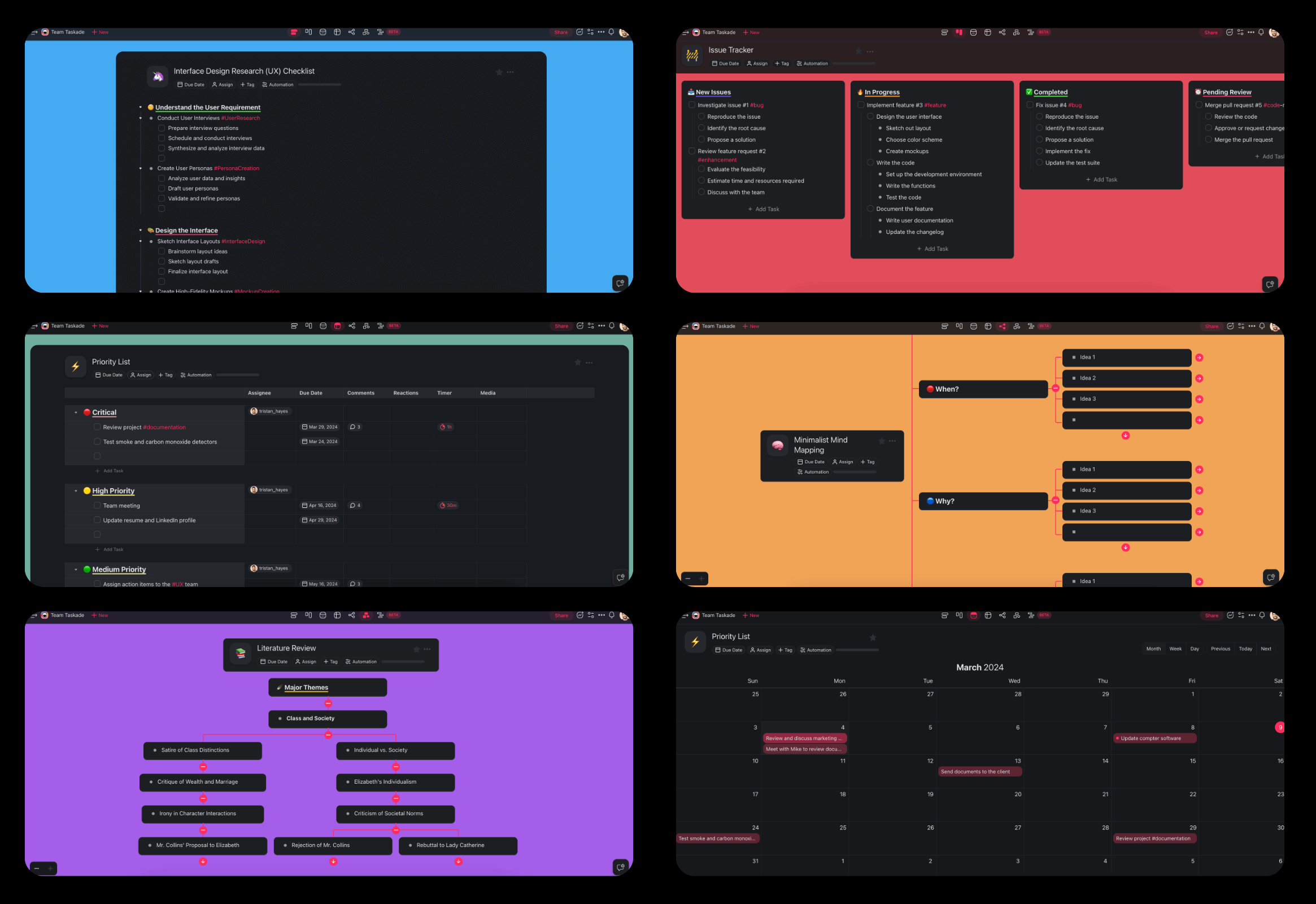
| Ways to read the data | A flat grid | 9 project views — List, Board, Table, Mind Map, Docs (Beta), Gantt Chart, Calendar, Actionsheet, Org Chart |
| Sharing | Re-send the file per person | One live link, permissions from Owner to Viewer |
| What happens next | Nothing | Feed AI agents, automations, and 100+ integrations |
| Cost | Free with ads, or a row cap | Free plan with no row cap or watermark |
How to Convert Excel to CSV
Open your Taskade workspace and click "➕ New project", then choose "Import" ➡ "Convert Spreadsheet with AI".
Drag your .xlsx or .xls workbook into the pop-up (or click to select it) ➡ "➕ Create Project".
Review the imported table. Rename headers, delete the empty rows Excel loves to append, and set the column types you want.
Ask the AI to normalize anything messy — split a "Name" column into first and last, standardize dates to ISO, or strip currency symbols from a numbers column.
Click "···" ➡ "Export", then choose CSV to download the flattened file — or skip the download and keep working in Taskade, since the table is already the live version of your data.
Fix the Things That Usually Break in an Excel to CSV Export
CSV cannot store a formula, a merged cell, or a number format. That is where most exports quietly corrupt data — and what a reviewable import protects you from.
| Common breakage | Why it happens | What to do here |
|---|---|---|
Formulas export as #REF! or blanks |
CSV stores values, not logic | Values resolve on import, so you see the number first |
| Leading zeros vanish from ZIP or SKU codes | Excel treats them as numbers | Set the column to text in Table view |
| Dates flip between US and EU order | Regional formatting is lost | Ask the AI to rewrite the column to one ISO format |
| Commas inside a cell split into new columns | Unquoted delimiters | Values keep their own fields, so the export quotes them |
Build Your Whole Data Stack From One Workbook
The same upload can become far more than a CSV. Pick whatever the downstream job needs:
Excel to Database — turn the workbook into a queryable store instead of a flat file.
Spreadsheet to App — publish it as a working app with forms and a shareable URL.
CSV to Dashboard and CSV to Charts — live metrics instead of static pivot tables.
Spreadsheet to Dashboard and CSV to Visual Dashboard — the reporting layer stakeholders ask for.
CSV to CRM — turn a contacts sheet into a pipeline with owners, stages, and reminders.
CSV to Project and CSV to Task List — turn a plan tab into assignable work.
CSV to API — expose the rows to another service without writing a backend.
Data to Insights and Data to KPI Dashboard — let the AI read the numbers and report what changed.
PDF Table Extractor — pull tables out of PDFs when your source is not a spreadsheet yet.
Frequently Asked Questions
Is the Excel to CSV converter free?
Yes. Converting Excel to CSV works on the Taskade free plan with no credit card, no watermark, and no row cap — upload the workbook, review the table, export the CSV. New accounts also get a one-time grant of 6,000 AI credits (1,000 on email verification, 5,000 on your first build) for the cleanup steps. Paid plans start at $10/month total, billed annually, and cover up to 10 members on one flat price.
How do I convert an Excel file to CSV?
Open your workspace, click "➕ New project", choose "Import" ➡ "Convert Spreadsheet with AI", and drop in your .xlsx file. Taskade reads the sheet into an editable table where you can fix headers and column types. Then click "···" ➡ "Export" and pick CSV. The whole path takes under a minute, and you can re-export any time.
Does it handle multi-sheet Excel workbooks?
Yes. Most browser converters export only the first tab, or dump one loose file per sheet with no way to compare them. Taskade brings each sheet in as its own structured table inside the same project, so you can check them against each other, merge the columns you need, and export the sheet — or the merged result — you want.
What happens to my formulas, dates, and leading zeros?
Formulas resolve to their computed values, because CSV cannot store logic. Since you see the table before exporting, you can catch the classic corruptions: set ZIP, SKU, or phone columns to text so leading zeros survive, and ask the AI to rewrite a date column into one ISO format instead of mixed US and EU ordering.
Which delimiter and encoding does the exported CSV use?
Exports are UTF-8 comma-separated, with values quoted when they contain commas, quotes, or line breaks — the format almost every importer expects. Accented names, CJK characters, and emoji survive the round trip instead of turning into mojibake. If a downstream tool needs semicolons or tabs, switch the field separator once the file lands there.
Can I share the converted data with my team?
Yes. Share one live link and teammates open the same table in real time — no emailing v3_final.csv around. Granular permissions from Owner through Viewer decide who edits and who only reads, and you can embed the table as a public page. Edits sync automatically instead of forking into separate copies.
Which AI models power the conversion?
Taskade routes your file through 15+ frontier models from OpenAI, Anthropic, Google, and open-weight providers, and you can pick the one that fits the job. That is what makes the cleanup possible: recognizing a date column, splitting a full-name field, inferring which row is really the header, or flagging duplicates before export.
Can I automate Excel to CSV conversion?
Yes. With workflow automations, every new workbook that lands in a folder can be converted, cleaned, and exported on a schedule, then routed through 100+ integrations, including Google Sheets. AI agents use built-in tools to validate each import and post a summary of what changed.