# Zoom In/Out on All Views
> Zoom In / Out in Taskade You can zoom in and zoom out on all project views on desktop and in a web browser. (➕) To make everything larger:Windows and Linux: P...
- Source: https://www.taskade.com/learn/projects/zoom-views
- Section: Projects
- Updated: 2026-09-02
- Index of all pages: https://www.taskade.com/learn/llms.txt
> **TL;DR:** Zoom in and out of Mind Map, Org Chart, and Gantt [views](https://www.taskade.com/learn/projects/project-views) with `Cmd/Ctrl + +` and `Cmd/Ctrl + -`. Useful for navigating dense projects on smaller screens, on desktop or in a web browser. Zoom state is per-user, so your teammates keep their own view.
## Overview
You can zoom in and zoom out on all [project views](https://www.taskade.com/learn/projects/project-views) on desktop and in a web browser. Adjusting the zoom level helps you see more content at once or focus on fine details, depending on your screen size and preference.
```mermaid
flowchart TD
A[Open a project view] --> B[Zoom in
focus on details]
A --> C["Zoom out
bird's-eye view"]
A --> D[Reset zoom
default level]
style A fill:#0d1b2a,color:#7dd3fc,stroke:#38bdf8,stroke-width:1.5px
style B fill:#2a1225,color:#ff8fa3,stroke:#ff2d60,stroke-width:2px
style C fill:#0d1a0e,color:#86efac,stroke:#22c55e,stroke-width:1.5px
style D fill:#1a140a,color:#ffb74d,stroke:#e65100,stroke-width:1.5px
```
---
## Zoom In / Out
- (➕) To make everything larger:
- **Windows and Linux**: Press **Ctrl** and **+**
- **Mac**: Press **⌘** and **+**
- **Chrome OS**: Press **Ctrl** and **+**
- (➖) To make everything smaller:
- **Windows and Linux**: Press **Ctrl** and **-**
- **Mac**: Press **⌘** and **-**
- **Chrome OS**: Press **Ctrl** and **-**
To reset zoom to the default level, press ⌨️ **Ctrl + 0** (Windows/Linux/Chrome OS) or ⌨️ **⌘ + 0** (Mac).
---
## Enter Full-Screen Mode
- **Windows and Linux**: Press ⌨️ **F11**.
- **Mac**: Press ⌨️ **⌘** + **Ctrl** + **F**.
- **Chrome OS**: Press the

**full-screen key (F4)**.
Full-screen mode hides the browser toolbar and gives you more vertical space for your projects.
---
## Mind Map / Org Chart View
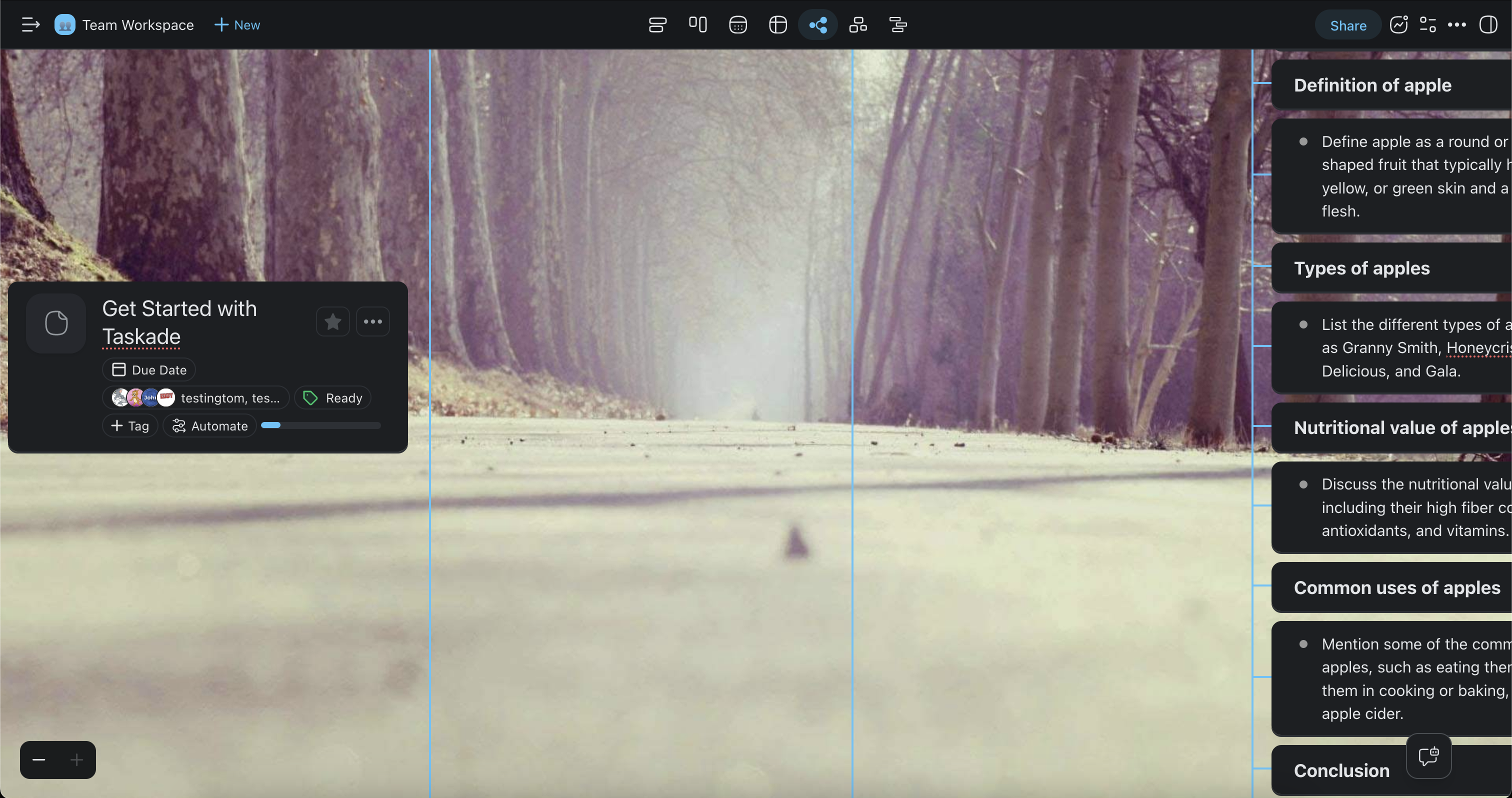
To zoom in or zoom out in the [Mind Map](https://www.taskade.com/learn/projects/mindmap-view) and [Org Chart](https://www.taskade.com/learn/projects/orgchart-view) views:
1. (method #1) Click **➕** or **➖** in the bottom-left corner of your project.
2. (method #2) Press **⌘** / **Ctrl** and **➕** or **➖** (see the previous section).
---
## Tips
- Use zoom out to get a bird's-eye view of large mind maps or org charts with many nodes.
- Combine full-screen mode with zoom adjustments during presentations or screen-sharing sessions.
- Zoom settings are saved per browser tab, so each project can have its own zoom level.
- On mobile devices, use the standard pinch-to-zoom gesture to adjust the view.
---
### Related guides
- [Project Views](https://www.taskade.com/learn/projects/project-views)
- [Mind Map View](https://www.taskade.com/learn/projects/mindmap-view)
- [Org Chart View](https://www.taskade.com/learn/projects/orgchart-view)
- [Keyboard Shortcuts](https://www.taskade.com/learn/projects/keyboard-shortcuts)