# Change Workspace Color & Icon
> Every workspace you create can be customized to better match your brand or personal preference. Currently, Taskade lets you change the accent color a...
- Source: https://www.taskade.com/learn/projects/workspace-icon
- Section: Projects
- Updated: 2026-09-02
- Index of all pages: https://www.taskade.com/learn/llms.txt
> **TL;DR:** Customize a [workspace](https://www.taskade.com/learn/projects/create-workspace) with a unique icon or emoji. The sidebar then shows it clearly. Workspace icons also appear in breadcrumbs, the workspace switcher, and shared links. Choose an emoji, or upload your own image. Add a cover image for a full visual identity.
## Overview
Every [workspace](https://www.taskade.com/learn/projects/create-workspace) you create can be customized to better match your brand or personal preference. Taskade lets you change the accent color and workspace icon so you can visually distinguish between workspaces at a glance. These settings apply to all [folders](https://www.taskade.com/learn/projects/team-folders) and [projects](https://www.taskade.com/learn/projects/create-project) nested inside the workspace.
```mermaid
graph LR
A[Click arrow
by workspace name] --> B[Pick accent color
or paste hex]
A --> C[Click camera
for emoji or upload]
B --> D[Click Update
shows everywhere]
C --> D
style A fill:#0d1b2a,color:#7dd3fc,stroke:#38bdf8,stroke-width:1.5px
style B fill:#2a1225,color:#ff8fa3,stroke:#ff2d60,stroke-width:2px
style C fill:#0d1a0e,color:#86efac,stroke:#22c55e,stroke-width:1.5px
style D fill:#1a140a,color:#ffb74d,stroke:#e65100,stroke-width:1.5px
```
---
## Change Workspace Color
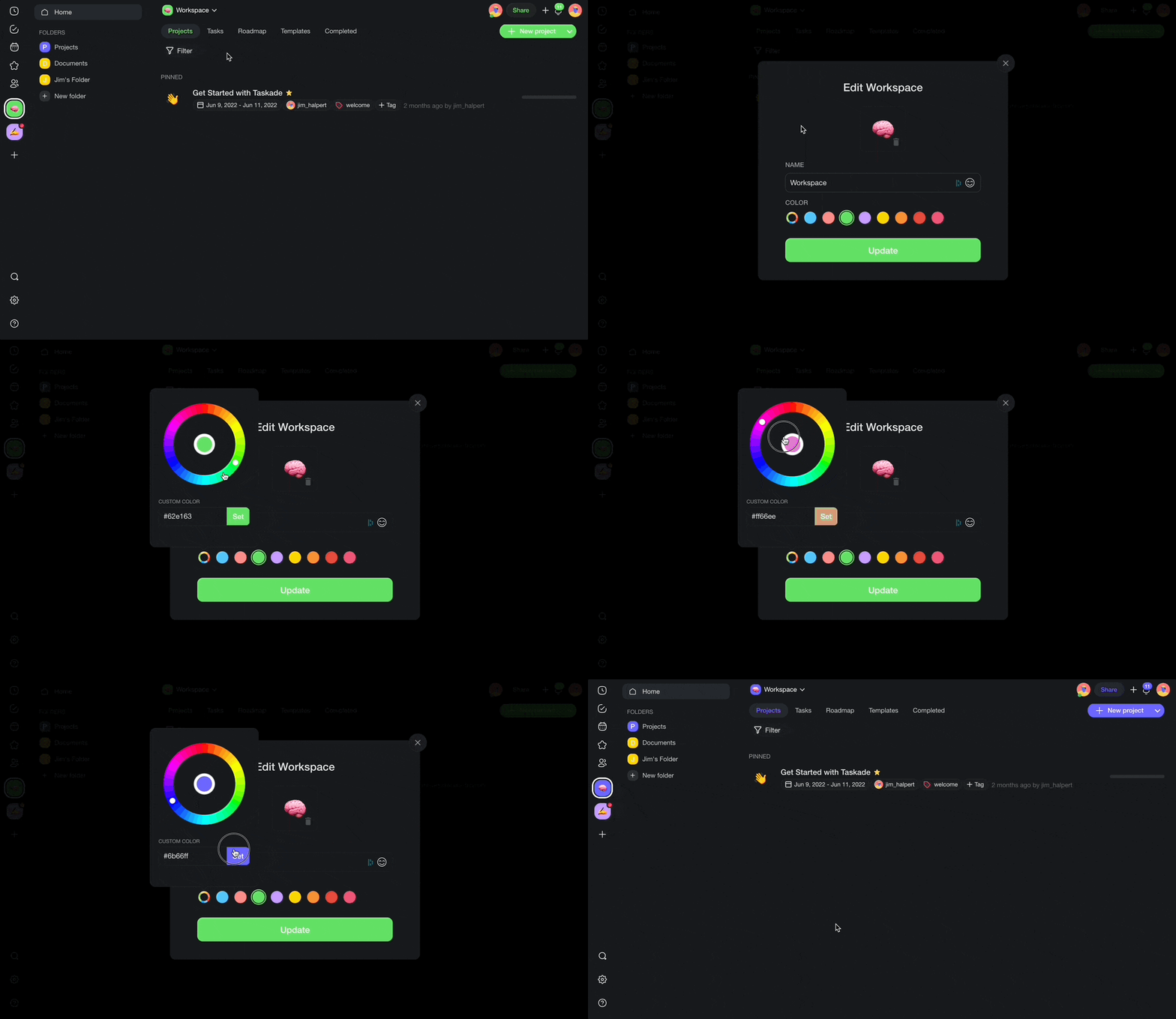
1. **Click ▽** next to the name of your workspace.
2. Pick one of the available accent colors.
3. Use the **color wheel** for more options.
4. Paste custom **Hex color codes** for exact brand matching.
5. Click **Update** to save the changes.
> 💡 **Note**: The color theme is inherited from a parent workspace/folder. Choosing a different color will change the color of links, tabs, and navigation elements.
---
## Set Workspace Icon
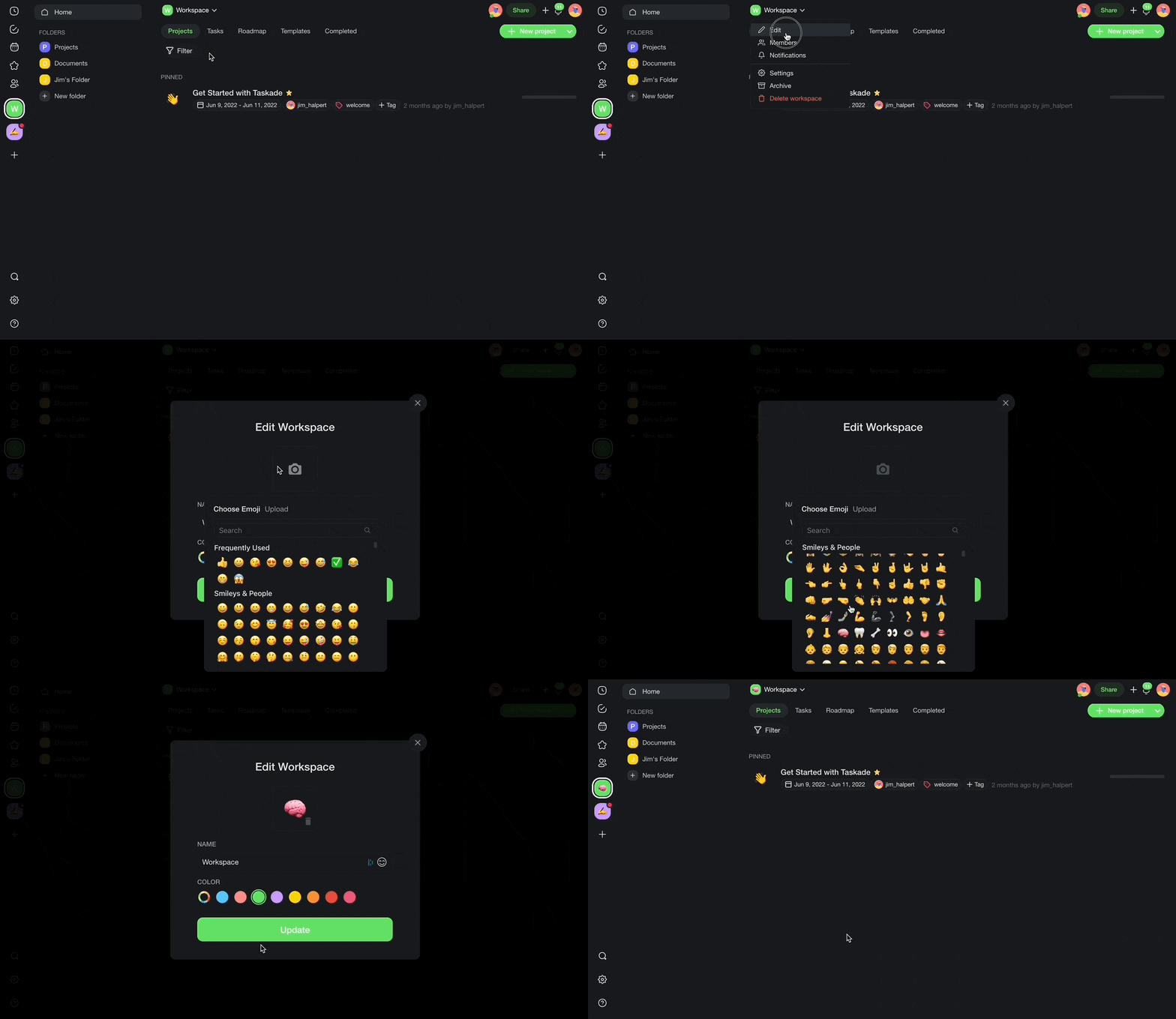
1. **Click ▽** next to the name of your workspace.
2. Click the 📷 **camera icon:**
- (method 1): Choose one of the **available emojis**.
- (method 2): **Upload a custom icon** for your workspace.
3. Click **Update** to save the changes.
> 💡 **Note**: An [upgraded workspace](https://www.taskade.com/learn/account/upgrade-premium) is required to upload a custom icon image.
---
## Tips
- Use a distinct color for each workspace, for example blue for engineering or green for marketing, so you can identify them instantly in the sidebar.
- Custom Hex codes are useful for matching your company's exact brand palette.
- Workspace icons appear in the sidebar navigation and in shared invite links. They give collaborators a quick visual cue.
- You can also set individual project favicons. Visit [Create a Project](https://www.taskade.com/learn/projects/create-project) for details on changing project icons.
- Changes to workspace color and icon apply immediately and are visible to all workspace members.
---
### Related guides
- [Create a Workspace](https://www.taskade.com/learn/projects/create-workspace)
- [Create a Team (Folder)](https://www.taskade.com/learn/projects/team-folders)
- [User Roles & Permissions](https://www.taskade.com/learn/projects/permissions)
- [Desktop Settings](https://www.taskade.com/learn/account/desktop-settings)