# Version History
> What Is Version History? Version History tracks changes and edits in a project and lets you restore project snapshots with a single click. On top of text edit...
- Source: https://www.taskade.com/learn/projects/version-history
- Section: Projects
- Updated: 2026-09-02
- Index of all pages: https://www.taskade.com/learn/llms.txt
> **TL;DR:** Version History is a time-travel log of every change to a project. Open it, pick a snapshot, and restore it in one click. Every plan keeps history, and paid plans keep it for much longer. Pair it with the [Activity Feed](https://www.taskade.com/learn/projects/activity-feed) to see who changed what before a bulk edit.
## Overview
Version History tracks changes and edits in a project and lets you restore project snapshots with a single click. On top of text edits, Version History includes edits to #tags and @mentions as well as any actions and edits made by your [AI agents](https://www.taskade.com/learn/agents/custom-agents). This means you can safely experiment with your projects knowing that any previous state can be recovered.
> **💡 Note:** Every plan records Version History. The Free plan keeps the last week of snapshots. [Paid plans](https://www.taskade.com/learn/account/upgrade-premium) keep months or years of them, so upgrade if you need to reach further back.
```mermaid
flowchart LR
A[Edit project
or AI agent change] --> B[Snapshot saved
automatically]
B --> C[Browse
Version History]
C --> D[Restore a
past snapshot]
style A fill:#0d1b2a,color:#7dd3fc,stroke:#38bdf8,stroke-width:1.5px
style B fill:#2a1225,color:#ff8fa3,stroke:#ff2d60,stroke-width:2px
style C fill:#0d1a0e,color:#86efac,stroke:#22c55e,stroke-width:1.5px
style D fill:#1a140a,color:#ffb74d,stroke:#e65100,stroke-width:1.5px
```
---
## How to Restore a Version
1. Open a **Project** you want to restore.
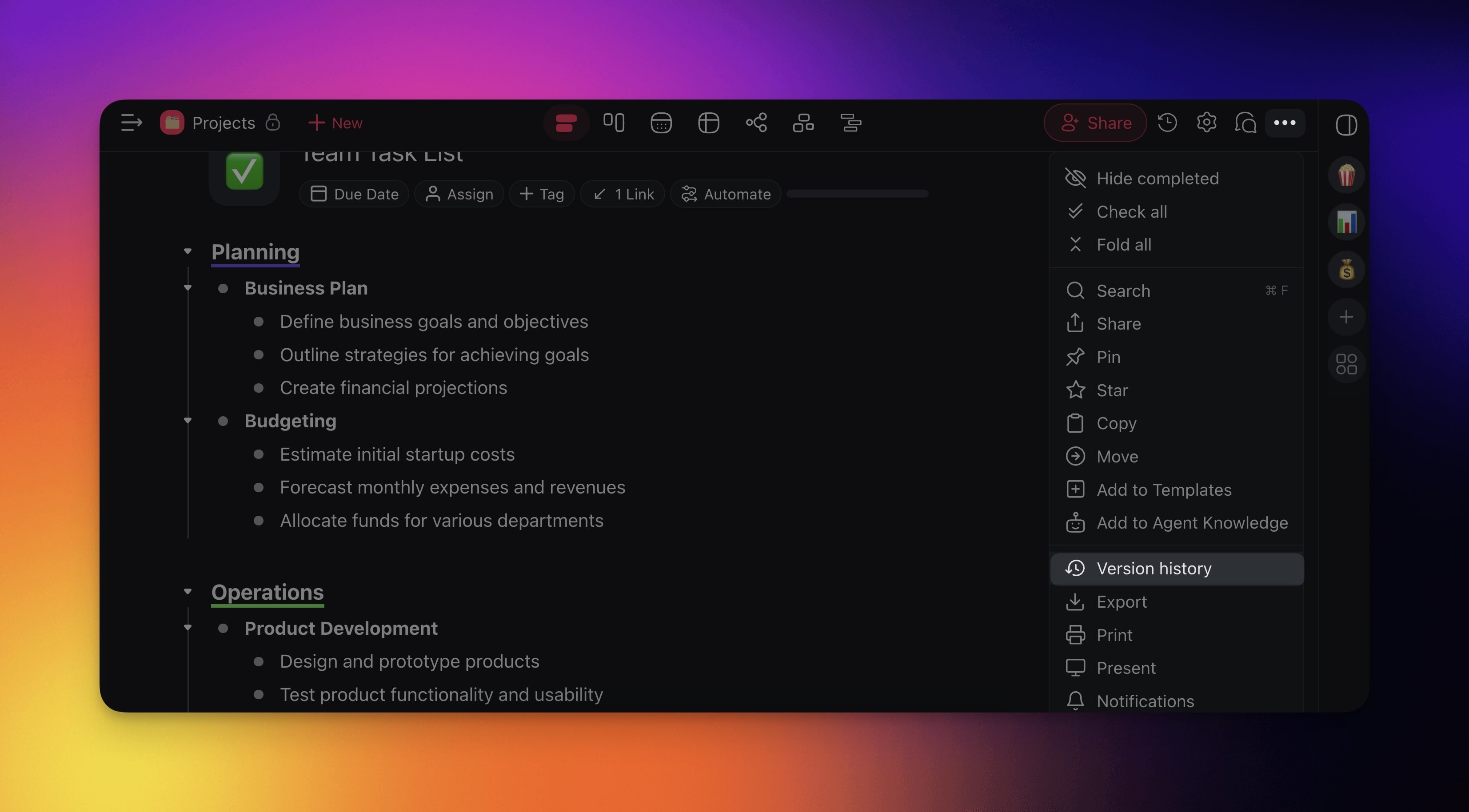
2. Click ··· at the top right-hand corner of the project.
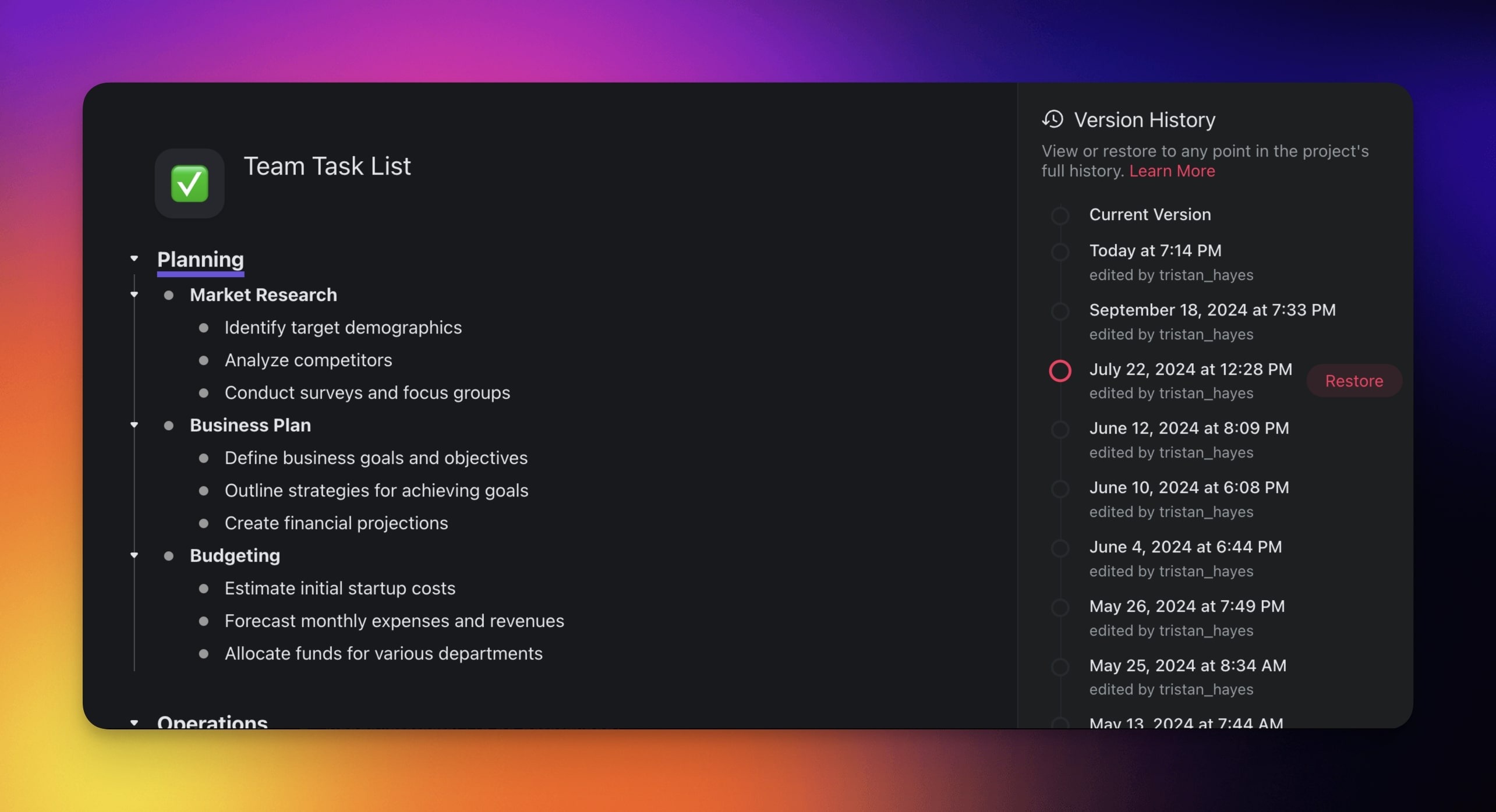
3. Choose ↺ **Version History** and pick one of the available snapshots.
4. Click **Restore**.
> **💡 Note:** Visit [Project History](https://www.taskade.com/learn/projects/manage-tasks) to track Project changes in real-time!
---
## AI Agent History
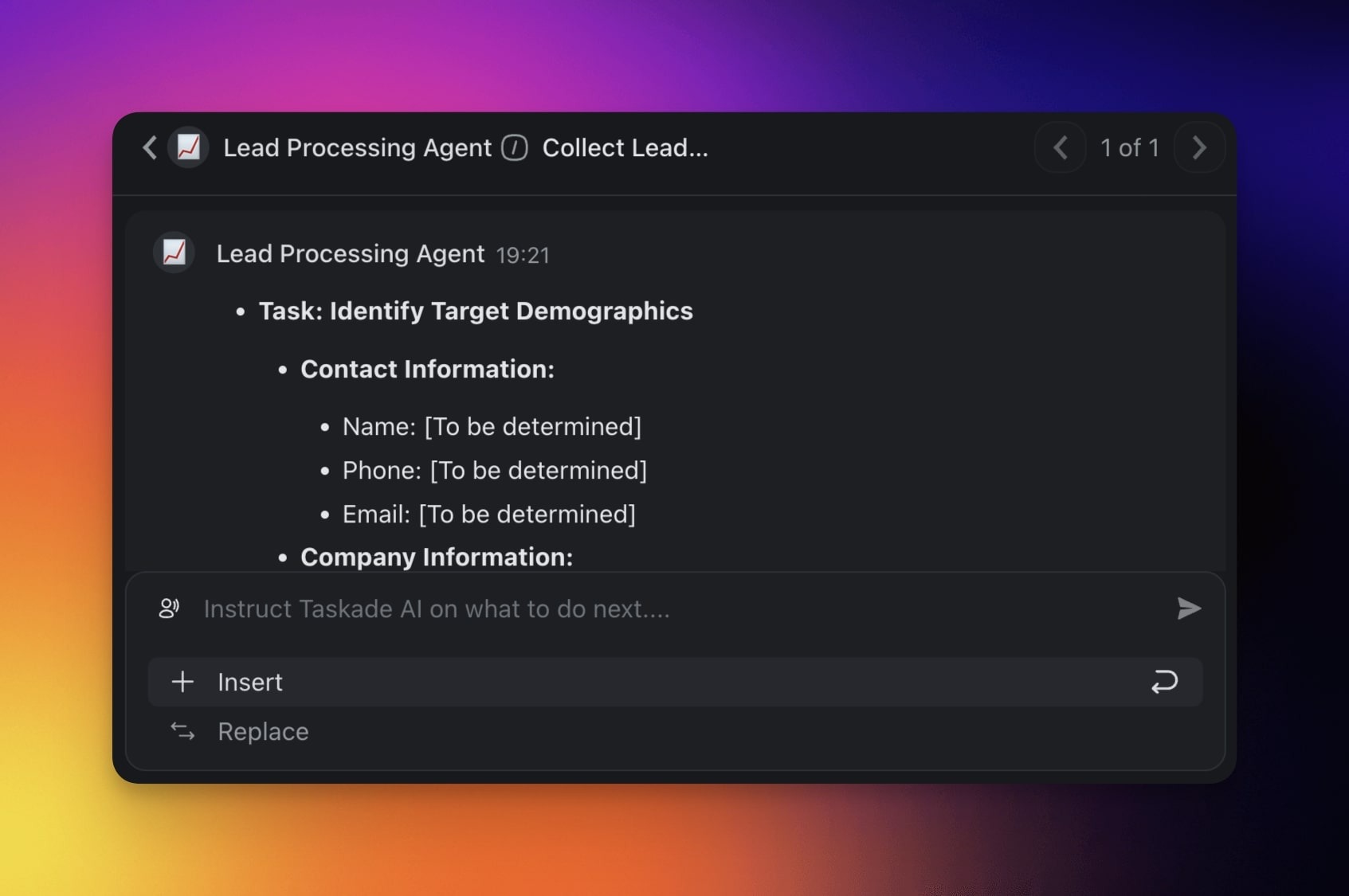
Version history also tracks any edits made by your custom AI agents. Every time an agent modifies tasks, adds content, or reorganizes your project, a new snapshot is created automatically.
> **💡 Note**: History of [chats with AI agents](https://www.taskade.com/learn/agents/agent-chat) is tracked separately.
---
## Tips
- Use Version History as an undo safety net when running bulk operations like sorting or reformatting tasks.
- Each snapshot includes a timestamp and the name of the user (or agent) who made the change, so you can trace edits back to their source.
- Restoring a version does not delete newer snapshots. You can always switch back to a more recent version if needed.
- Combine Version History with [Project Comments](https://www.taskade.com/learn/projects/project-comments) to document why a particular change was made.
- How far back you can travel depends on your plan. Free keeps the last week. [Paid plans](https://www.taskade.com/learn/account/upgrade-premium) extend the window, and the top plans keep years of snapshots. Older snapshots reappear as soon as you upgrade.
---
### Related guides
- [Real-Time Collaboration](https://www.taskade.com/learn/projects/collaboration)
- [AI Agents](https://www.taskade.com/learn/agents/custom-agents)
- [Project History](https://www.taskade.com/learn/projects/manage-tasks)
- [User Roles & Permissions](https://www.taskade.com/learn/projects/permissions)