# Workspace / Team Tags
> Tags make it super easy to organize projects inside a workspace or team. You can create unlimited color-coded tags to group projects and filter works...
- Source: https://www.taskade.com/learn/projects/tags
- Section: Projects
- Updated: 2026-09-02
- Index of all pages: https://www.taskade.com/learn/llms.txt
> **TL;DR:** Tags are color-coded labels for whole projects. Give a project one or more tags to group related work across folders, then filter the sidebar and search by tag to find it fast. For labels on single tasks inside a project, use [hashtags](https://www.taskade.com/learn/projects/hashtags) instead.
How a tag travels from creation to a filtered view.
```mermaid
flowchart LR
A[Create
color tag] --> B[Apply tag
to projects]
B --> C[Click Filter
by tag]
C --> D[See matching
projects]
style A fill:#0d1b2a,color:#7dd3fc,stroke:#38bdf8,stroke-width:1.5px
style B fill:#2a1225,color:#ff8fa3,stroke:#ff2d60,stroke-width:2px
style C fill:#1a140a,color:#ffb74d,stroke:#e65100,stroke-width:1.5px
style D fill:#0d1a0e,color:#86efac,stroke:#22c55e,stroke-width:1.5px
```
## Overview
Tags make it super easy to **organize** projects inside a [workspace](https://www.taskade.com/learn/projects/create-workspace) or [team](https://www.taskade.com/learn/projects/team-folders). You can create unlimited **color-coded tags** to group projects and **filter** workspaces. Tags work across multiple [project views](https://www.taskade.com/learn/projects/project-views): List, Board, Calendar, and more.
---
### Create a New Tag
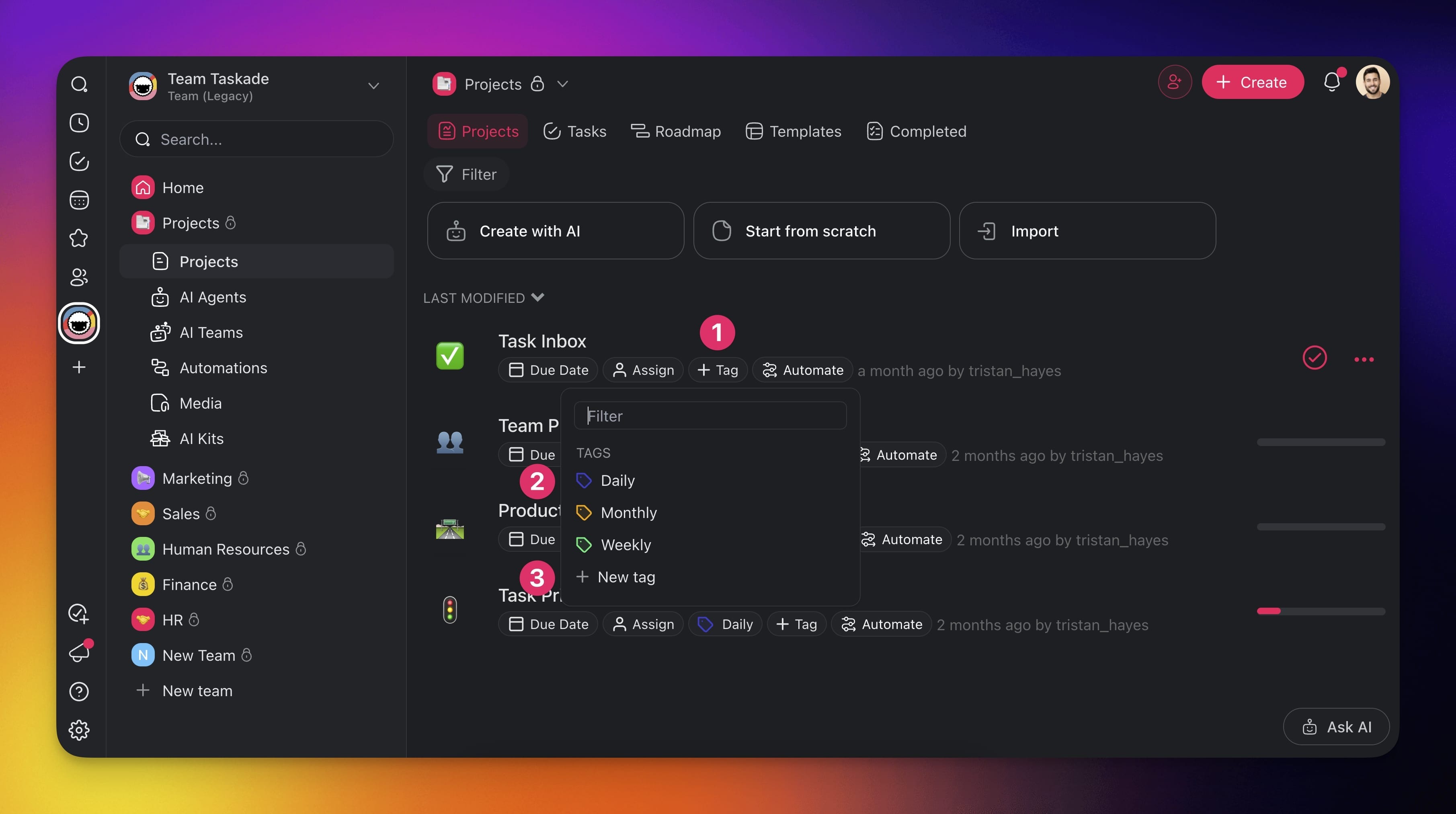
- Open your workspace or team and click ➕ **Tag** (1).
- Choose one of the existing #tags (2) or click ➕ **New tag** (3) to add your own.
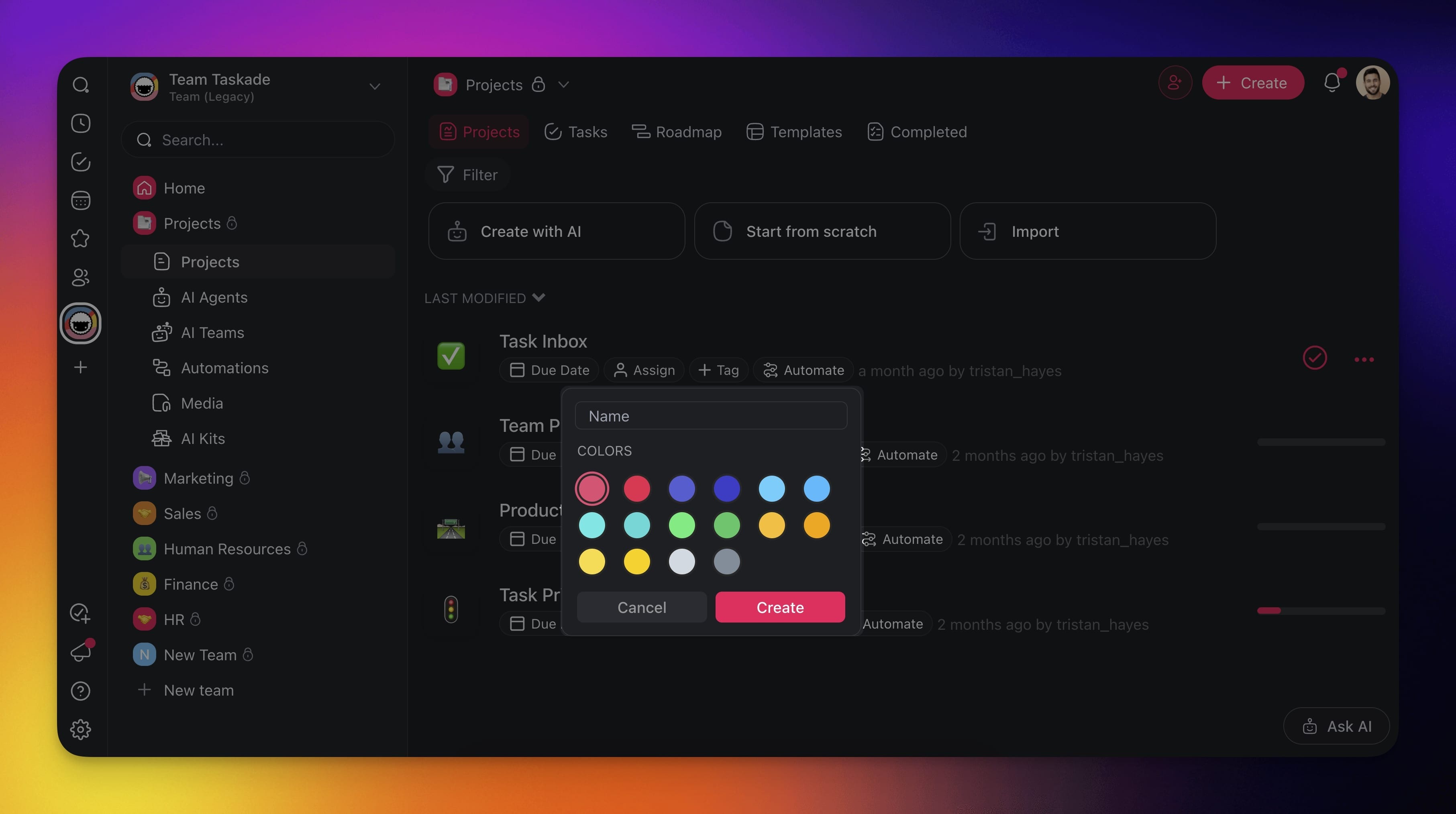
- Name your #tag, choose a color, and click **Create**.
---
### Filter a Workspace / Team
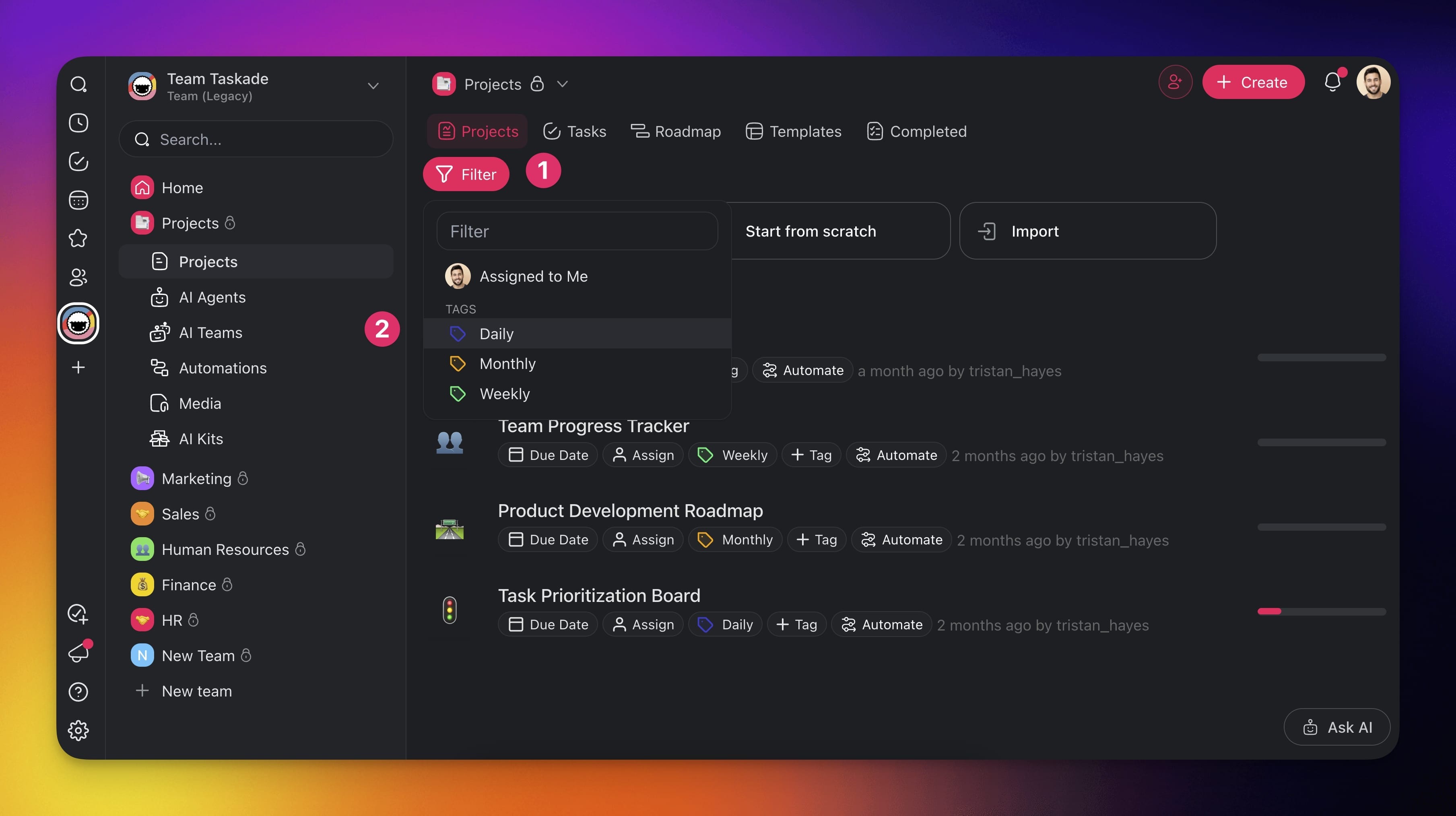
- Go to a workspace or team.
- Click **Filter** above the list of projects.
- Select any of the tags to filter
> **💡 Note:** You can also filter by clicking tags below Project titles.
---
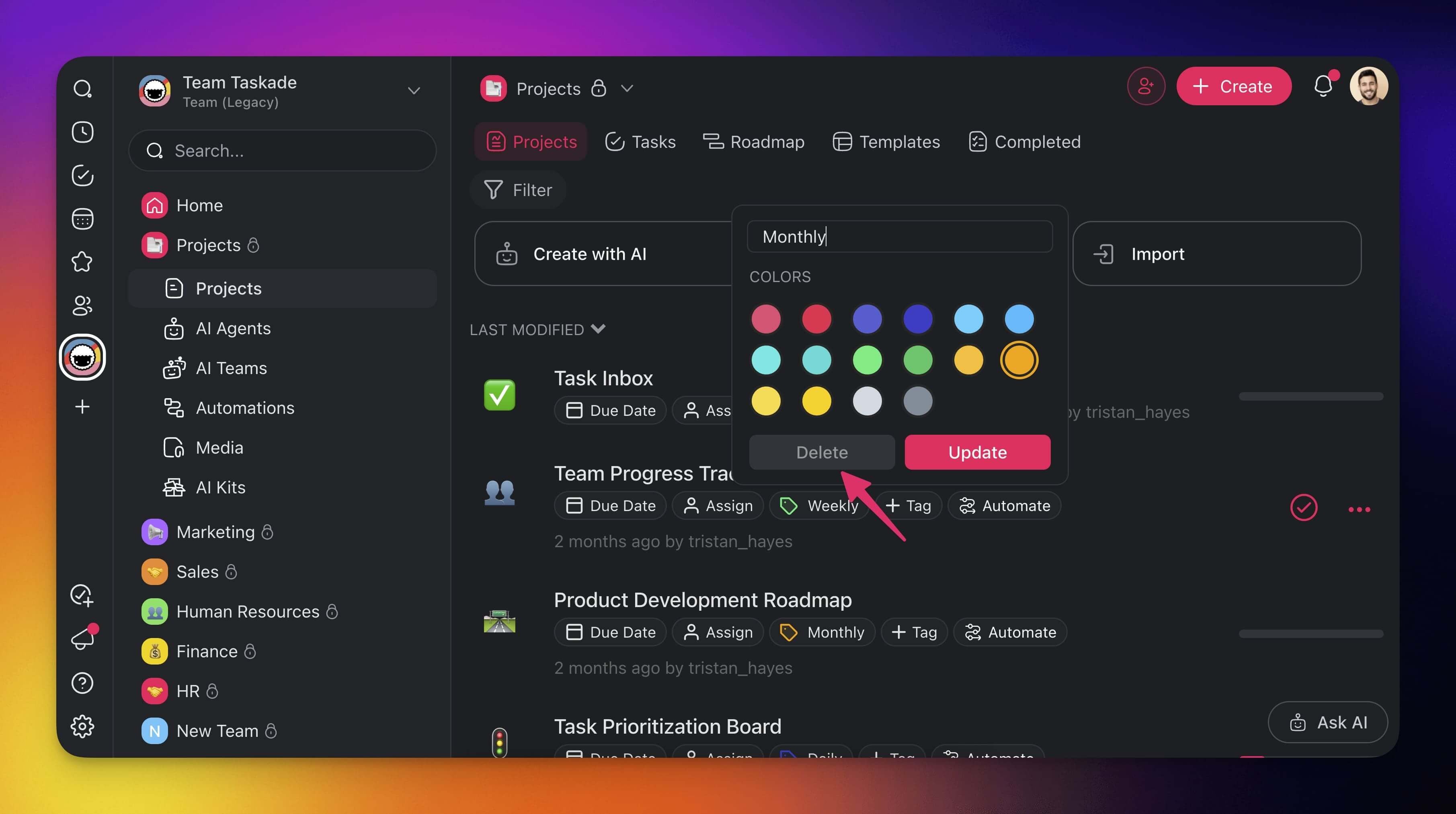
### Edit or Delete a Tag
- Open your workspace or team and click ➕ **Tag**.
- Click the 🖊️ **pen** icon next to a tag.
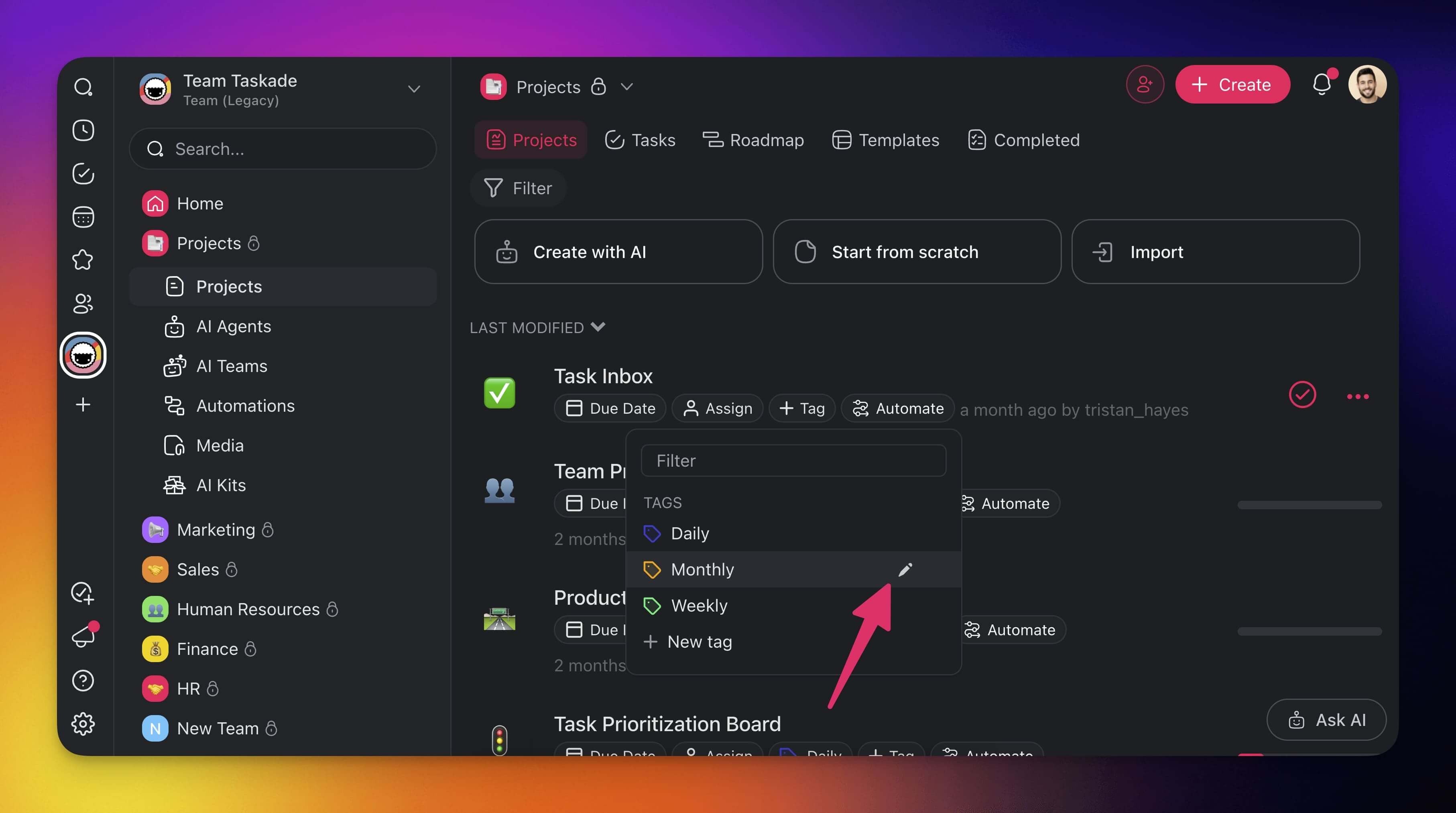
- Change the name, update colors, or **Delete** the tag.
---
## Tips
- Use **consistent naming conventions** for tags across your workspace. For example, add a category prefix such as `design-`, `dev-`, or `marketing-`.
- Assign **distinct colors** to high-priority or frequently used tags so they stand out at a glance in List and Board views.
- Combine tags with [Folders](https://www.taskade.com/learn/projects/team-folders) for a two-level organization system: folders for broad categories, tags for cross-cutting labels.
- Tags are workspace-scoped, so every project inside a workspace or team shares the same tag set.
- Apply multiple tags to a single project for intersection filtering. For example, filter by both `urgent` and `design` to find high-priority design work.
- Use tags alongside [Custom Fields](https://www.taskade.com/learn/projects/custom-fields) and [Due Dates](https://www.taskade.com/learn/projects/due-dates) for richer project metadata and more precise filtering.
---
## Related
- [Folders & Organization](https://www.taskade.com/learn/projects/team-folders)
- [Project Views](https://www.taskade.com/learn/projects/project-views)
- [Custom Fields](https://www.taskade.com/learn/projects/custom-fields)
- [Manage Tasks & Multi-Select Toolbar](https://www.taskade.com/learn/projects/manage-tasks)
---
### Related guides
- [Custom Fields](https://www.taskade.com/learn/projects/custom-fields)
- [Search](https://www.taskade.com/learn/projects/search)
- [My Tasks](https://www.taskade.com/learn/projects/my-tasks)
- [Manage Tasks](https://www.taskade.com/learn/projects/manage-tasks)