# Share a Project / Add Collaborators
> Projects serve as databases for Taskade Genesis apps and can also function as traditional collaborative workspaces for tasks, documents, and other content. S...
- Source: https://www.taskade.com/learn/projects/share-project
- Section: Projects
- Updated: 2026-09-02
- Index of all pages: https://www.taskade.com/learn/llms.txt
> **TL;DR:** Share a project with specific people (by email), anyone with the link, or the public, each with a [role](https://www.taskade.com/learn/projects/permissions) that runs from Owner down to Viewer. Optional password gate, custom domain, and embed iframe give you full control over who sees what.
Pick the share path that matches who needs access and how much they can do.
```mermaid
flowchart LR
A[Your project] --> B{Share method}
B --> C[Invite by email
or link with role]
B --> D[Public share to web
optional password]
B --> E[Embed on a website]
C --> F[Collaborators
with set access]
D --> F
E --> F
style A fill:#0d1b2a,color:#7dd3fc,stroke:#38bdf8,stroke-width:1.5px
style B fill:#2a1225,color:#ff8fa3,stroke:#ff2d60,stroke-width:2px
style C fill:#0d1a0e,color:#86efac,stroke:#22c55e,stroke-width:1.5px
style D fill:#0d1a0e,color:#86efac,stroke:#22c55e,stroke-width:1.5px
style E fill:#0d1a0e,color:#86efac,stroke:#22c55e,stroke-width:1.5px
style F fill:#1a140a,color:#ffb74d,stroke:#e65100,stroke-width:1.5px
```
## Overview
Projects serve as databases for [Taskade Genesis apps](https://www.taskade.com/learn/projects/databases) and can also function as traditional collaborative workspaces for tasks, documents, and other content. Share them to collaborate with team members or give others access to your data.
---
## When to Share a Project
Share individual projects when you need collaboration on specific data or content, rather than the entire app workspace. Here are a few scenarios:
- You want team members to collaborate on specific database records.
- Others need to add or edit data in your Taskade Genesis app's database.
- You work with traditional Taskade content (tasks, documents, mind maps).
- You need granular access control for different datasets.
- Team members only need access to specific information.
---
## Invite Collaborators
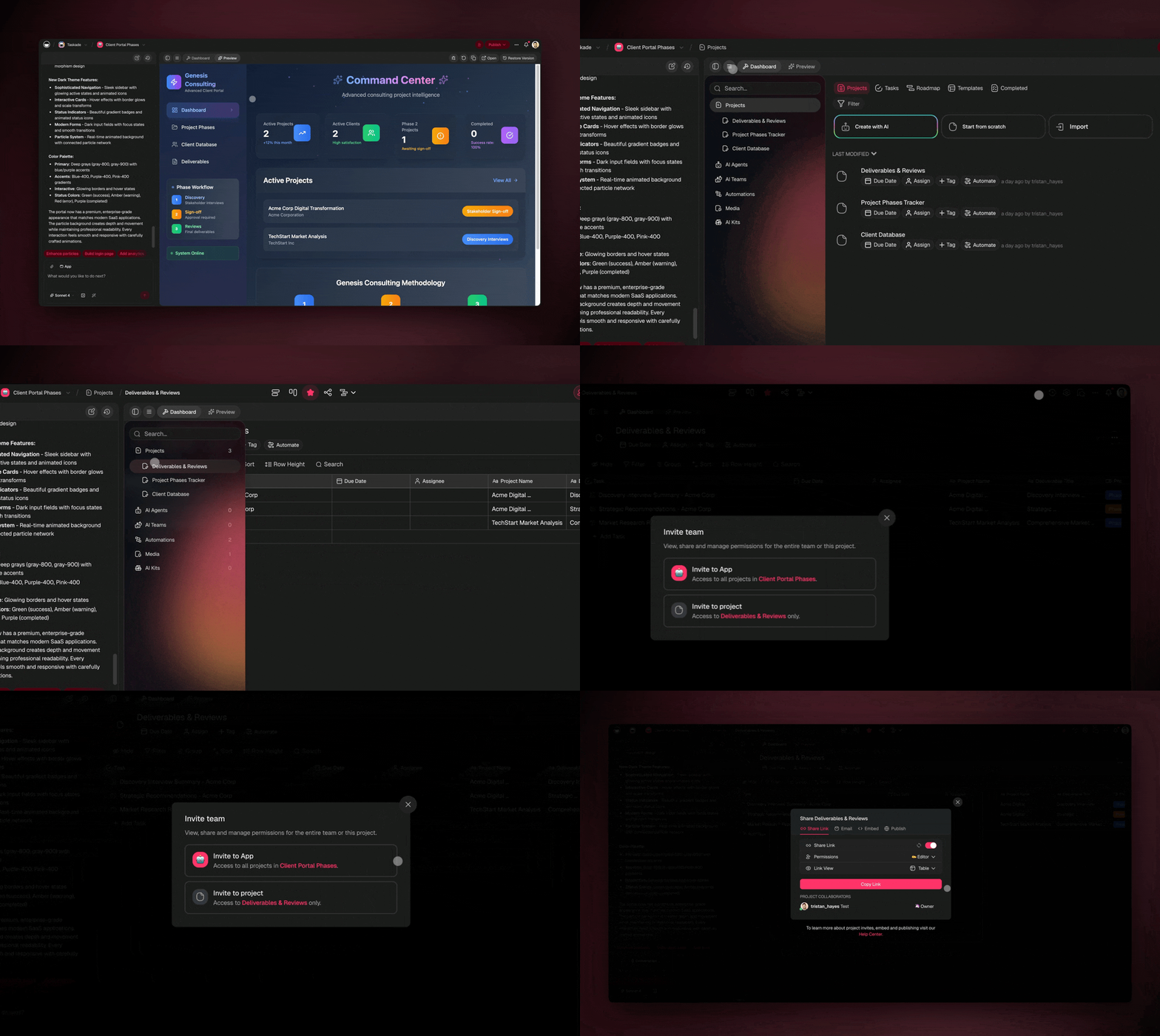
You can invite an unlimited number of users to a project by **email** or with a **copied invite link**. Follow these steps to get started:
- Open your **Taskade Genesis app** space.
- **Click** ☰ to see the contents of the app → **choose** a **project** in the **left sidebar**.
- Click the 👤 **Share** button in the top right-hand corner.
- Copy the invite link and share it via email, text, or any other way
- Alternatively, enter an **email address**.
- You can also specify [the level of access](https://www.taskade.com/learn/account/workspaces) and select the [default view](https://www.taskade.com/learn/projects/project-views).
---
## Share with Google Contacts
You can quickly share Taskade projects with your Google contacts.
- **Connect Google Contacts to Taskade:**
1. Click your **profile picture** (top-right corner).
- Select ⚙️ **Settings** from the drop-down list.
- Move to the **Connections** tab at the top. This is the account-level Connections page, not the Connections area inside an app.
- Click **Connect** in the **Google Contacts** tile.
- Follow the instructions and click **Allow** in the last step.
- **Invite your Google contacts to projects**:
- Click the **Share** button in the top-right corner of a project.
- Select **Invite to project** and go to the ✉️ **Email** tab.
- Type an email or choose it from the list.
- Choose source:
- **Google Domain:** all email contacts in a business domain.
- **Google Contacts:** Google contacts in your personal Google contacts.
---
## Embed a Project
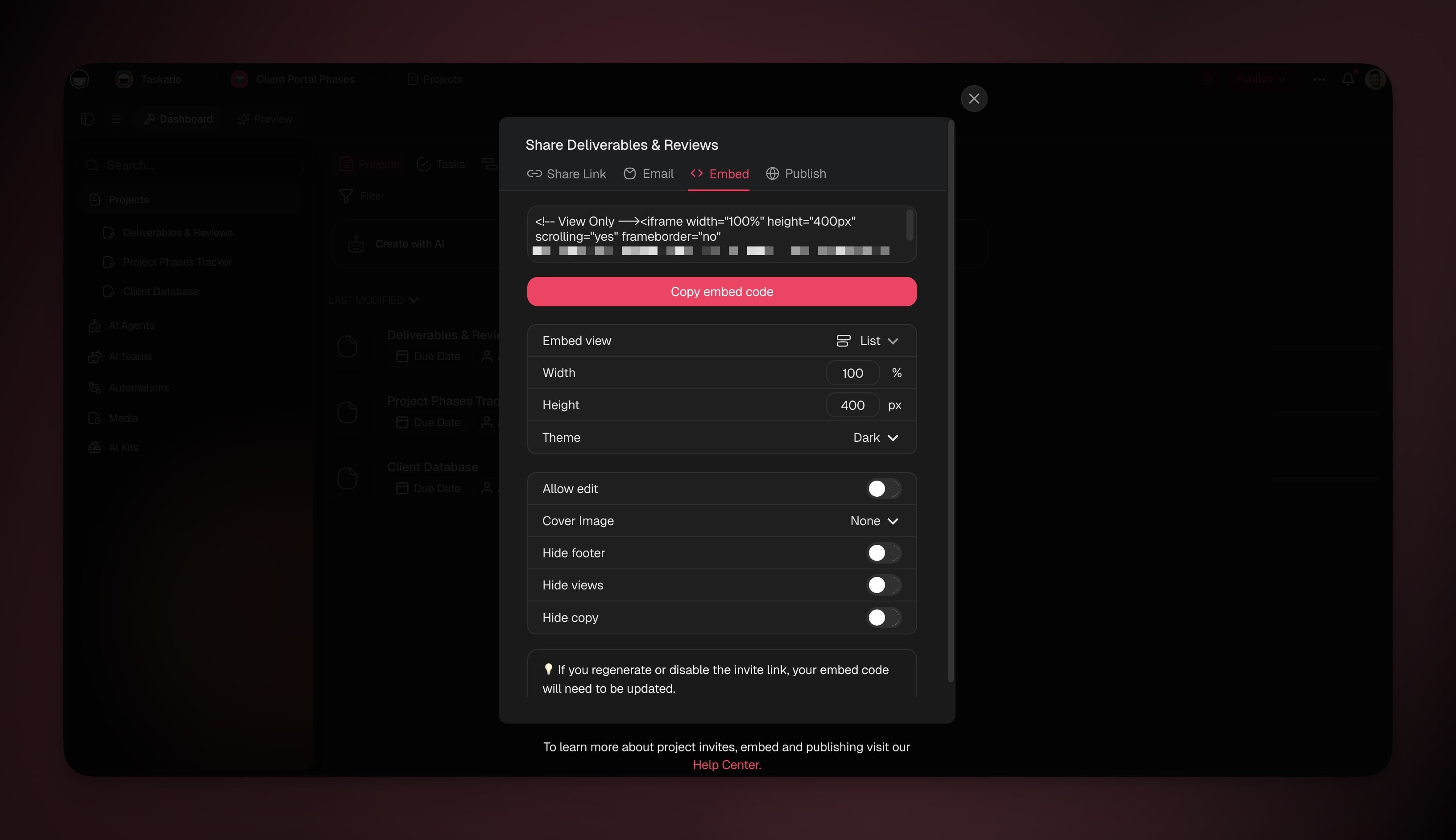
To show your project without an invitation, embed it on your website or blog with the ➕ **Embed** feature.
1. Click the **Share** button again and select **Invite to Project**.
2. Open the **< > Embed** tab and click **Copy**.
3. Add the **custom HTML code** to your website or blog.
> **💡Note**: The new embed menu lets you decide if the project will be embedded in light or [dark mode](https://www.taskade.com/learn/account/desktop-settings#dark-mode). You can also set the width/height and hide branding.
---
## Regenerate Link
You can revoke access to a link you shared. Regenerate the link to cut off the old one and create a new link to the project. To regenerate a link:
1. Click the **Share** button (see the first section) and select **Invite to Project**.
2. Click **Regenerate Link** in the 🔗 **Invite Link** tab.
> **💡 Note**: Regenerated links cannot be restored.
---
## Publish a Project
Use a Public link when you want to share the project with users without access to comments and chat. Only the people with the link will be able to access the project.
1. Click the **Share** button (see the first section) in the top-right corner of a project.
2. Select **Invite to project** and select the **Public** tab.
3. Enable the **Share to web** toggle.
4. (optional) Toggle [Require password](https://www.taskade.com/learn/projects/password-share) to protect the project.
5. Click **Copy link** and share it with other people.
---
## Share a Project on Mobile
1. Open a Project and click the **three dots** ( ··· ) in the top right-hand corner.
2. Select 📤 **Share** and choose an [Editor or Viewer link](https://www.taskade.com/learn/projects/share-project).
- Alternatively, tap your profile picture in the top right-hand corner.
- Select 👤 **Invite people** and enter an email/Taskade username.
---
## If I send both links, which wins?
- ✅ If the user has an account:
- The **First link** received will be the respective permission for the user.
- Eg: If they open the project with a **Viewer link**, they are now a viewer.
- Opening an **Editor link** will **not** change their editing privileges.
- ❌ If the user does not have an account:
- Opening the **Editor link** will give the guest permission to **edit** the project.
- Opening the **Viewer link** will allow guests to only **view** the project.
---
> **📚 Learn More**
>
>
>
> - [Taskade Genesis FAQ](https://www.taskade.com/learn/genesis/faq): Common questions about Taskade Genesis apps, pricing, and features
---
---
## Frequently Asked Questions
**How do I share a project with someone?**
Open the project, click the **Share** button in the top-right corner, then select **Invite to project**. From there you can copy an invite link and send it any way you like, or enter an email address directly. You can invite an unlimited number of people to a single project.
**What is the difference between view-only and edit access?**
A Viewer link lets people open and read the project without making changes, while an Editor link lets them add and edit content. Each person you invite gets a [role](https://www.taskade.com/learn/projects/permissions) from Owner down to Viewer, so you control exactly what they can do once inside. Pick the level of access when you send the invite.
**Do people need a Taskade account to view a public link?**
No. When you turn on **Share to web** and send a public link, anyone with the link can open the project without signing up. If you share an Editor or Viewer link instead, a guest without an account still gets the matching permission the moment they open the link. People with an account keep whichever role they opened first.
**Can I password-protect a shared project?**
Yes. When you enable **Share to web** on the Public tab, toggle on **Require password** and set a passcode. Visitors then enter the password before they can reach the project, which is ideal for client portals and private proposal reviews. See [Share with Password](https://www.taskade.com/learn/projects/password-share) for the full walkthrough.
**How do I revoke access to a project I already shared?**
Open the **Share** menu, go to the **Invite Link** tab, and click **Regenerate Link**. This creates a fresh link and instantly disables the old one, so anyone holding the previous link loses access. Regenerated links cannot be restored, so save the new one before you share it.
**Can I embed a project on my own website?**
Yes. Open the **Share** menu, choose **Invite to Project**, then open the **Embed** tab and copy the custom HTML code. Paste it into your website or blog to display the project in place. You can set light or [dark mode](https://www.taskade.com/learn/account/desktop-settings#dark-mode), adjust the width and height, and hide branding.
**Can I share a project from my phone?**
Yes. Open the project, tap the three dots in the top-right corner, then select **Share** and choose an Editor or Viewer link. You can also tap your profile picture, select **Invite people**, and enter an email or Taskade username to invite someone directly.
### Related guides
- [User Roles & Permissions](https://www.taskade.com/learn/projects/permissions)
- [Password Share](https://www.taskade.com/learn/projects/password-share)
- [Publishing](https://www.taskade.com/learn/projects/publishing)
- [Share a Template](https://www.taskade.com/learn/projects/share-template)