# Quick Add Shortcut (Tasks, Notes)
> What Is Quick Add Shortcut? The Quick Add shortcut lets you add tasks and notes to projects in seconds.💡 Note: Quick Add is also part of our desktop apps and...
- Source: https://www.taskade.com/learn/projects/quick-add
- Section: Projects
- Updated: 2026-09-02
- Index of all pages: https://www.taskade.com/learn/llms.txt
> **TL;DR:** Quick Add is a global keyboard shortcut (`Cmd/Ctrl + Shift + T` by default) that pops up a capture box anywhere on your desktop, even outside the browser. Type a task, hit enter, and it lands in your default inbox project so a thought never gets lost. See [Default Shortcuts](https://www.taskade.com/learn/projects/default-shortcuts) to remap it.
How a thought travels from your keyboard to the right project:
```mermaid
flowchart LR
A[Press shortcut] --> B[Type task
or note]
B --> C[Pick project
and location]
C --> D[Add to Project]
style A fill:#0d1b2a,color:#7dd3fc,stroke:#38bdf8,stroke-width:1.5px
style B fill:#2a1225,color:#ff8fa3,stroke:#ff2d60,stroke-width:2px
style C fill:#1a140a,color:#ffb74d,stroke:#e65100,stroke-width:1.5px
style D fill:#0d1a0e,color:#86efac,stroke:#22c55e,stroke-width:1.5px
```
## Overview
The Quick Add shortcut lets you add tasks and notes to any project in seconds without navigating away from your current view. It is one of the fastest ways to capture ideas, to-dos, and notes as they come to mind.
> **💡 Note**: Quick Add is also part of our desktop apps and browser extensions. Visit [Quick Add Widget](https://www.taskade.com/learn/connect/quick-widget) and [Web Browser Extension](https://www.taskade.com/learn/connect) to learn more.
---
## Use the Quick Add Shortcut
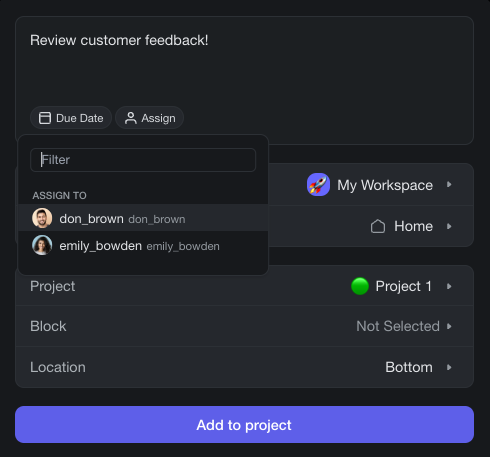
1. Press ⌨️ **⌘ + K** (Mac) or ⌨️ **Ctrl + K** (Windows).
2. Select ➕ **Quick Add** under **Actions**.
3. Enter a task, thought, or idea.
4. Select a **Workspace**, **Folder**, and target **Project**.
5. Pick a **Block** and **Location** and click **Add to Project**.
6. (optional) **Assign** a project member to the task.
> **💡 Note**: The Quick Add widget supports Markdown syntax. Visit [Markdown Support](https://www.taskade.com/learn/projects/markdown-support) to learn how to use it in Taskade.
---
## When to Use Quick Add
- **During meetings:** Capture action items instantly without switching tabs or projects.
- **While browsing:** Use the [browser extension](https://www.taskade.com/learn/connect) to add tasks from any webpage.
- **Cross-project capture:** Send a task to a different project than the one you are currently viewing.
- **Inbox-zero workflow:** Dump all incoming thoughts into a single project and organize them later.
---
## Tips
- You can also open Quick Add from the **⚡ lightning bolt** icon in the top navigation bar.
- Quick Add respects the block type of the target location, so tasks land as checkboxes, bullets, or numbered items depending on the project format.
- Combine Quick Add with [Reminders](https://www.taskade.com/learn/projects/reminders) to schedule a due date right after adding the task.
- Visit [Keyboard Shortcuts](https://www.taskade.com/learn/projects/keyboard-shortcuts) for a full list of shortcuts available in Taskade.
---
### Related guides
- [Quick Add Widget](https://www.taskade.com/learn/connect/quick-widget)
- [Web Browser Extension](https://www.taskade.com/learn/connect)
- [Keyboard Shortcuts](https://www.taskade.com/learn/projects/keyboard-shortcuts)
- [Slash Commands](https://www.taskade.com/learn/projects/slash-commands)