# Move a Project
> How to Move a Project Any Project inside a Workspace or Folder can be moved to another Workspace/Folder. Here's how you can quickly move your Project to a dif...
- Source: https://www.taskade.com/learn/projects/moving
- Section: Projects
- Updated: 2026-09-02
- Index of all pages: https://www.taskade.com/learn/llms.txt
> **TL;DR:** Move projects between workspaces or folders. Links, assignees, and automations stay intact. Owners and Maintainers can move a project, and Editors can only [duplicate](https://www.taskade.com/learn/projects/copy-move) it. All members keep access, unless the destination folder has stricter permissions. To undo a move, move the project back to its original location.
How a move travels from one workspace to another while everything stays intact.
```mermaid
flowchart LR
A[Project in
source workspace] --> B[Drag or use
Move menu]
B --> C[Pick destination
workspace or folder]
C --> D[Tasks comments
and permissions kept]
D --> E[Project lives in
new location]
style A fill:#0d1b2a,color:#7dd3fc,stroke:#38bdf8,stroke-width:1.5px
style B fill:#2a1225,color:#ff8fa3,stroke:#ff2d60,stroke-width:2px
style C fill:#2a1225,color:#ff8fa3,stroke:#ff2d60,stroke-width:2px
style D fill:#0d1a0e,color:#86efac,stroke:#22c55e,stroke-width:1.5px
style E fill:#1a140a,color:#ffb74d,stroke:#e65100,stroke-width:1.5px
```
## Overview
Any [Project](https://www.taskade.com/learn/projects/create-project) inside a [Workspace](https://www.taskade.com/learn/projects/create-workspace) or [Folder](https://www.taskade.com/learn/projects/team-folders) can be moved to another Workspace or Folder. Moving a project transfers it along with all of its tasks, sub-tasks, comments, attachments, and formatting. Collaborators who already have access to the project will retain their [permissions](https://www.taskade.com/learn/projects/permissions) after the move. This makes it easy to reorganize your workspace as projects evolve or teams shift focus.
---
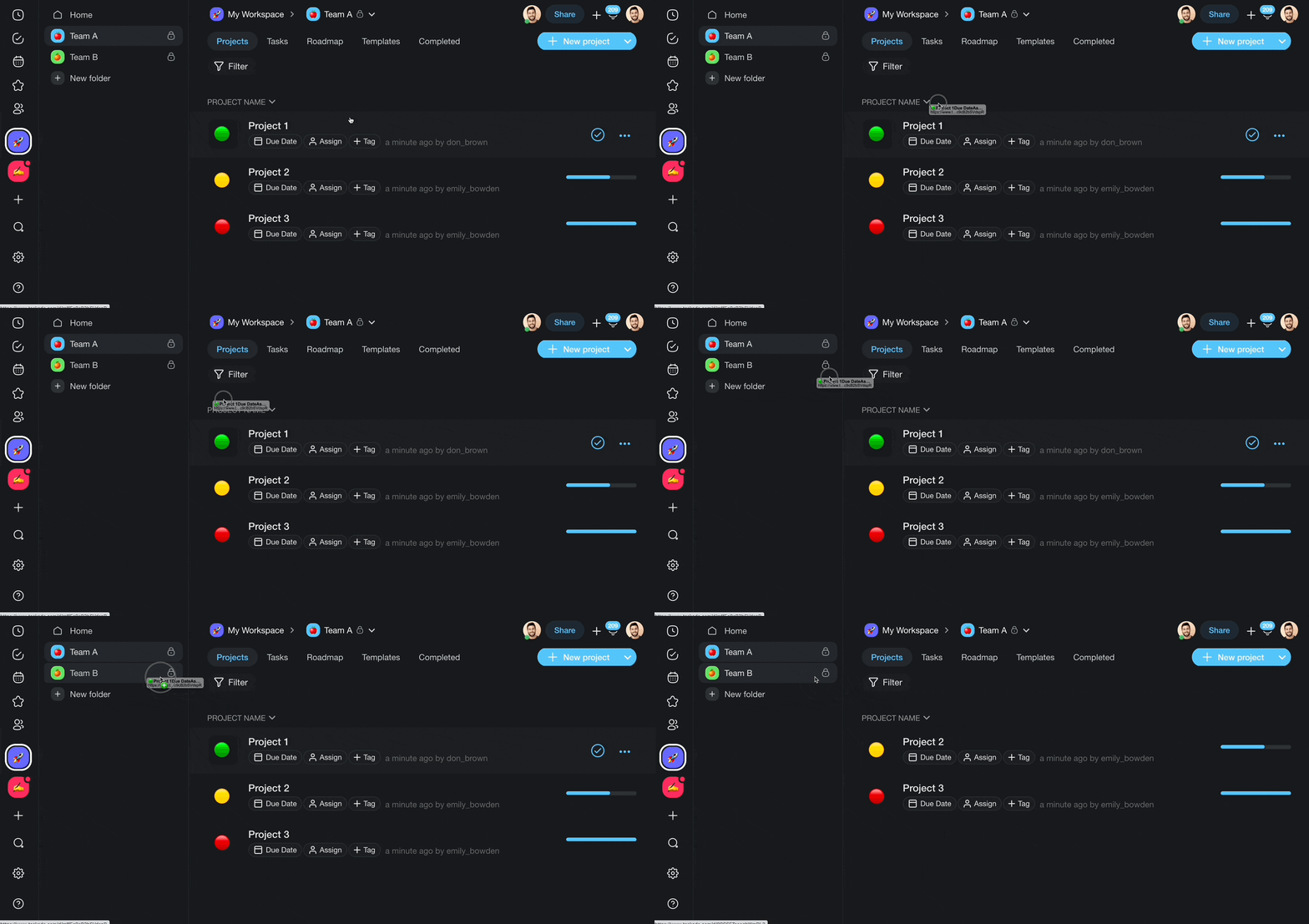
## Drag-and-Drop
1. Open your workspace.
2. Left-click and hold the project you want to move.
3. Drop the project into any of the folders in the sidebar.
---
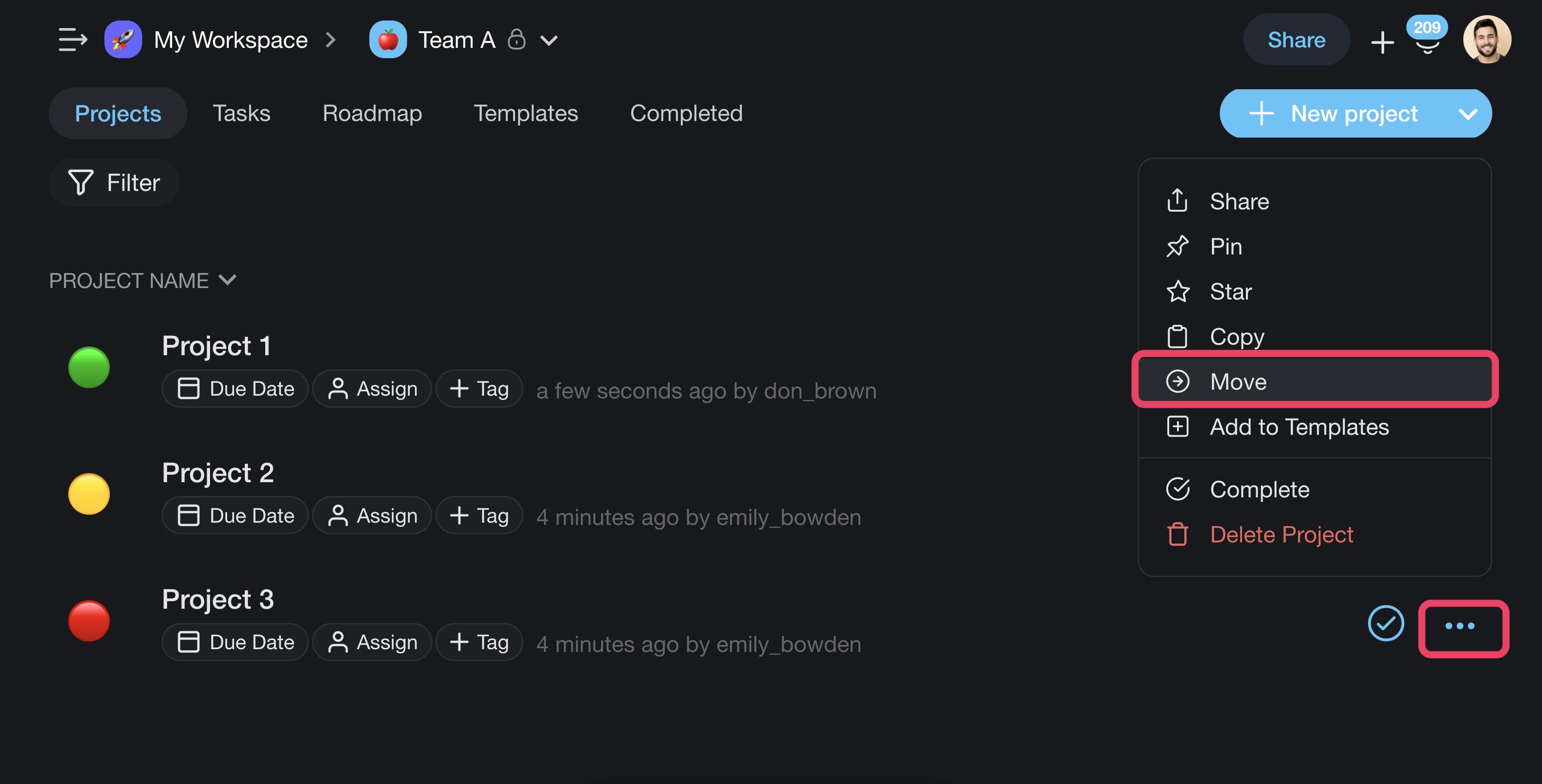
## (···) Three Dots Menu
1. Go to a workspace or folder.
2. Click **···** next to the project you want to move.
3. Choose **Move** from the drop-down list.
4. Select the target workspace/folder.
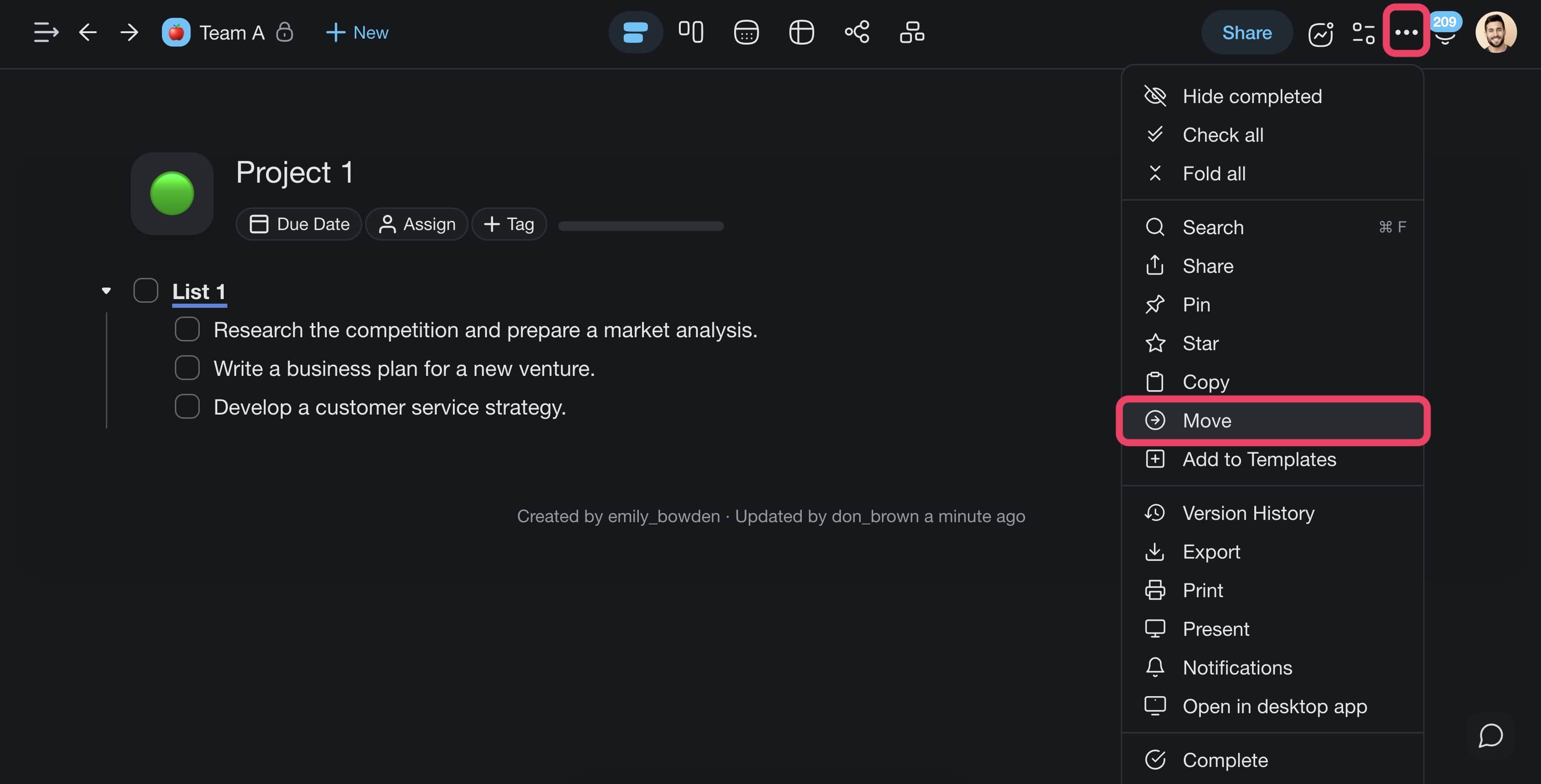
> **💡 Note:** The "Move" button is also accessible from the ··· menu inside projects.
---
## Tips
- You can move multiple projects at once by selecting them with ⌨️ **Shift + Click** before dragging.
- Moving a project to a shared workspace automatically gives workspace members access based on their [workspace-level roles](https://www.taskade.com/learn/projects/permissions).
- If you need a copy of the project in the original location, use [Copy / Duplicate](https://www.taskade.com/learn/projects/copy-move) instead of Move.
- Projects can also be moved between workspaces you own and workspaces where you have Owner or Editor access.
- After moving, the project URL updates automatically. Any shared links will redirect to the new location.
- On mobile, tap and hold a project in the sidebar to access the Move option.
- To undo a move, move the project back to its original workspace or folder.
---
### Related guides
- [Copy / Duplicate / Move a Project](https://www.taskade.com/learn/projects/copy-move)
- [Create a Workspace](https://www.taskade.com/learn/projects/create-workspace)
- [Create a Team (Folder)](https://www.taskade.com/learn/projects/team-folders)
- [User Roles & Permissions](https://www.taskade.com/learn/projects/permissions)