# Markdown Support
> What Is Markdown? Markdown is a "lightweight" markup language that uses tags and other symbols, such as "*" or "#" characters, to determine how tex...
- Source: https://www.taskade.com/learn/projects/markdown-support
- Section: Projects
- Updated: 2026-11-09
- Index of all pages: https://www.taskade.com/learn/llms.txt
> **TL;DR:** Taskade supports full markdown syntax, headings, lists, links, code blocks, tables, images, and checklists, plus GFM extensions. Paste markdown from anywhere and Taskade converts it instantly with the [project editor](https://www.taskade.com/learn/projects/editing-formatting). Export any project back to markdown for versioning in Git or publishing to a static site.
Here is how markdown travels through Taskade, from paste to formatted project to export.
```mermaid
flowchart LR
A[Markdown text
or md file] --> B[Taskade parses
the syntax]
B --> C[Formatted project
tasks and headings]
C --> D[Export back
to markdown]
style A fill:#0d1b2a,color:#7dd3fc,stroke:#38bdf8,stroke-width:1.5px
style B fill:#2a1225,color:#ff8fa3,stroke:#ff2d60,stroke-width:2px
style C fill:#0d1a0e,color:#86efac,stroke:#22c55e,stroke-width:1.5px
style D fill:#1a140a,color:#ffb74d,stroke:#e65100,stroke-width:1.5px
```
## What Is Markdown?
Markdown is a "lightweight" markup language. It uses tags and symbols, such as "*" or "#", to control how an app displays text.
---
## Markdown in Taskade
Taskade supports Markdown in several places:
- [Project editor](https://www.taskade.com/learn/projects/editing-formatting) to format tasks, checklists, and paragraphs.
- [Import](https://www.taskade.com/learn/import/markdown)/[export](https://www.taskade.com/learn/connect/web-clipper) to turn Markdown (.md) docs into projects and vice versa.
- [AI Project Studio](https://www.taskade.com/learn/agents/project-studio) to add context to generated projects.
- [AI Agents](https://www.taskade.com/learn/agents/knowledge) to fine-tune agents using custom knowledge.
- [Chat and comments](https://www.taskade.com/learn/projects/chat) to communicate with your team.
- [Quick Add widget](https://www.taskade.com/learn/connect/quick-widget) to instantly add notes and tasks to projects.
---
### Supported Syntax
Here are the Markdown syntax elements we currently support:
| 🛠️ Feature | 📤 Output | 🔤 Syntax |
| --- | --- | --- |
| Bold | | **bold** |
| Italic | | _italic_ |
| Underline | | Double underline __test__ |
| Block quote | | > block quote |
| Strikethrough | | ~~hi~~ |
| Inline code | | ```inline code``` |
| Code block | | ```codeblock``` |
| Workspace links | | check out this space
"workspace link" |
| Project links | | visit this project "project link" |
---
### Projects in Markdown
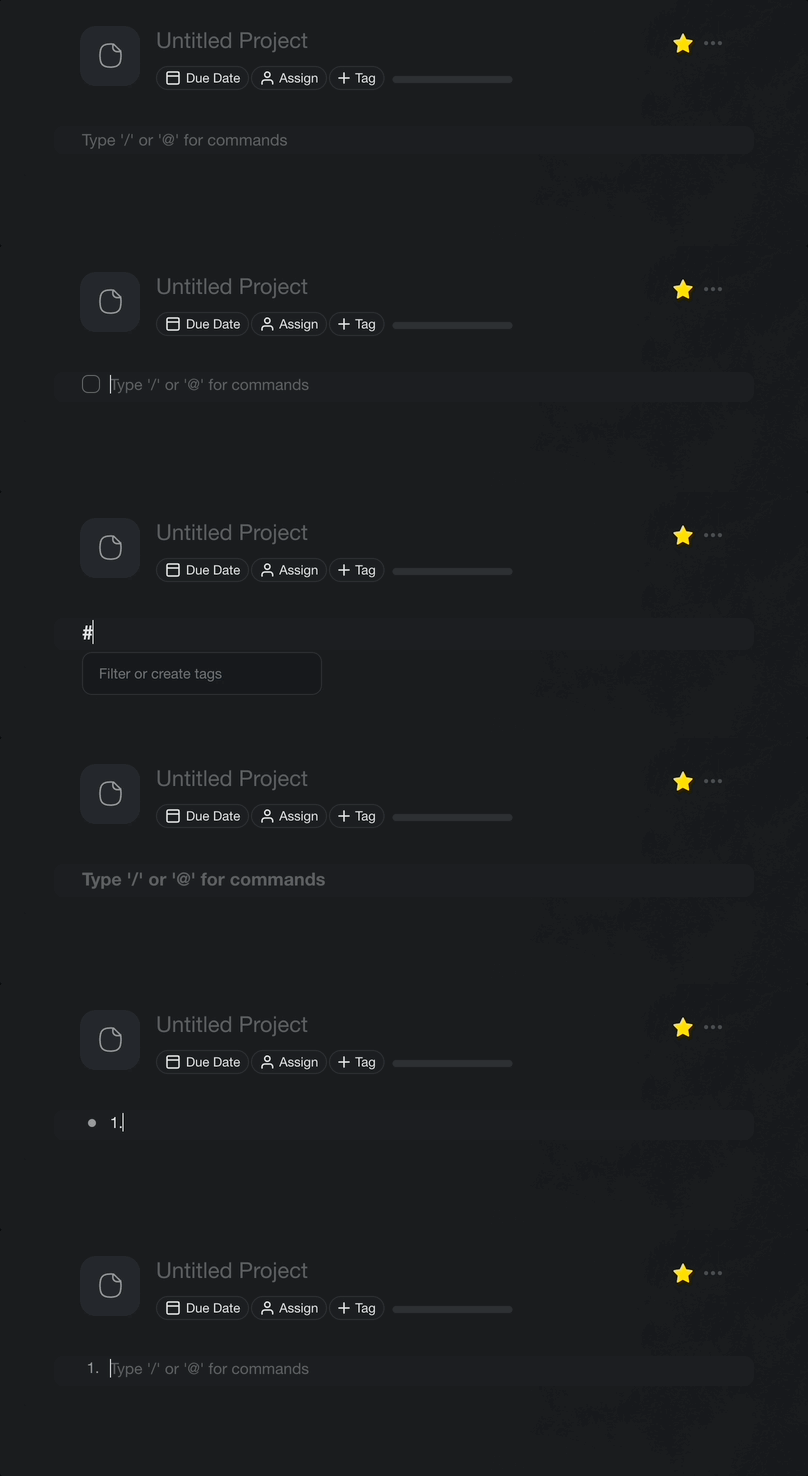
Add these characters followed by a space at the beginning of a task to format it:
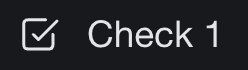
- **[]** to convert a node into **Check 1**
- **# **to convert a node into **H1**

- **##** to convert a node into **H2**

- **-** to convert a node into **Bullet 1**
- **1.,2.,3. **to convert a node into **Numbered List**
---
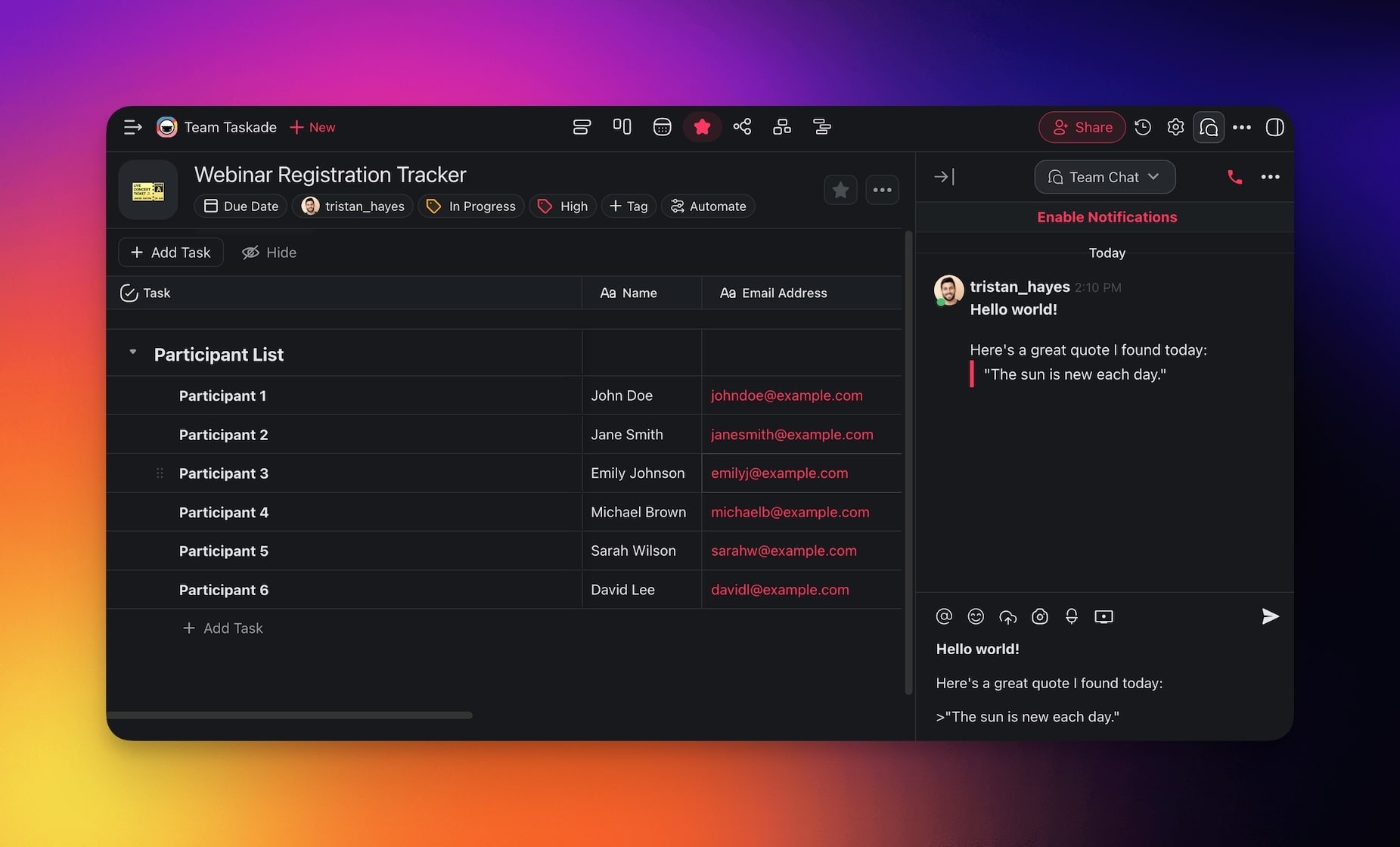
### Markdown in Chats
- Start a conversation in the [project chat box](https://www.taskade.com/learn/projects/chat-guide).
- "Wrap" your message in Markdown syntax.
- Taskade will display your text accordingly.
---
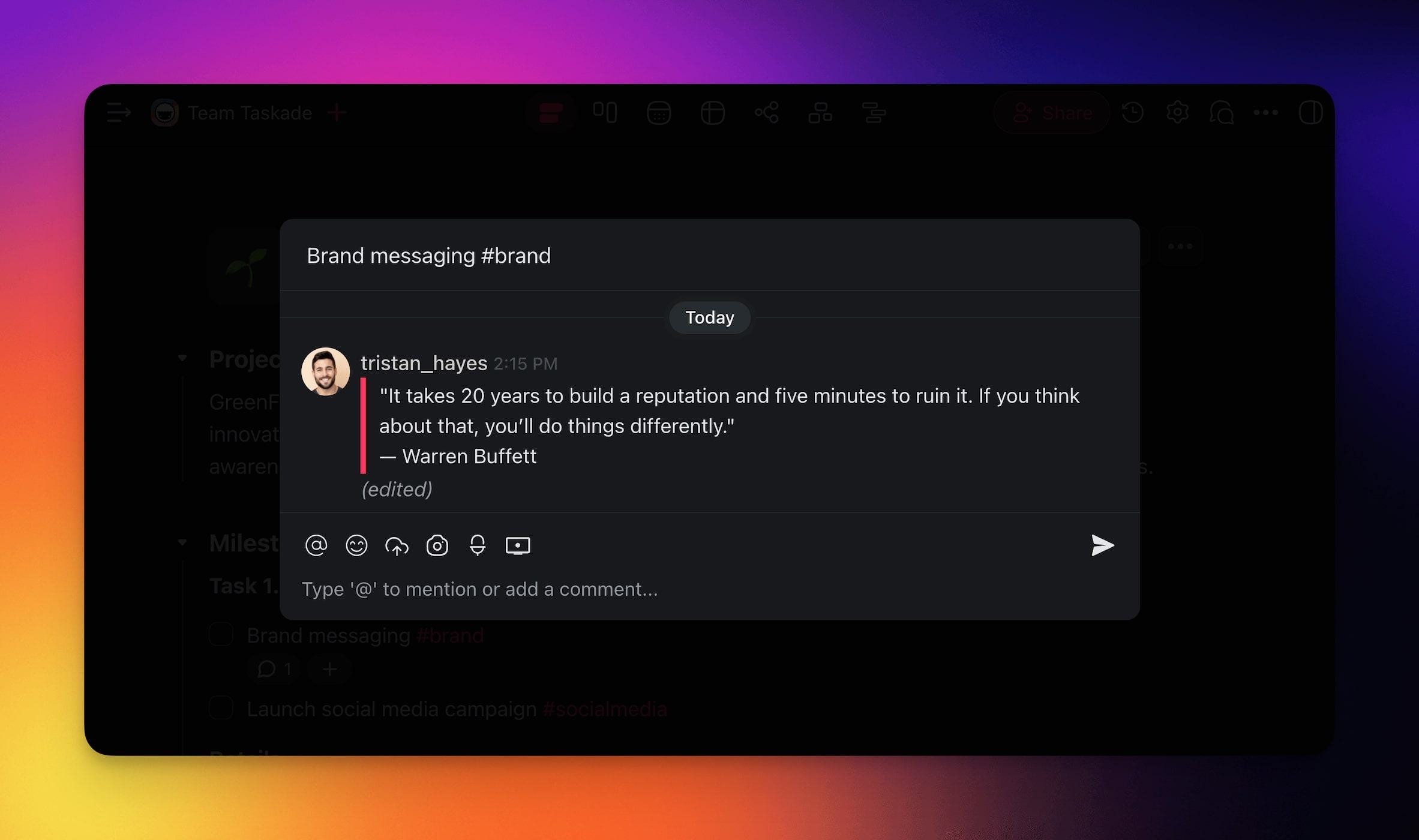
### Markdown in Comments
- Choose a task/sub-task you want to comment on.
- Click the ➕ plus icon to open the Add-ons Menu.
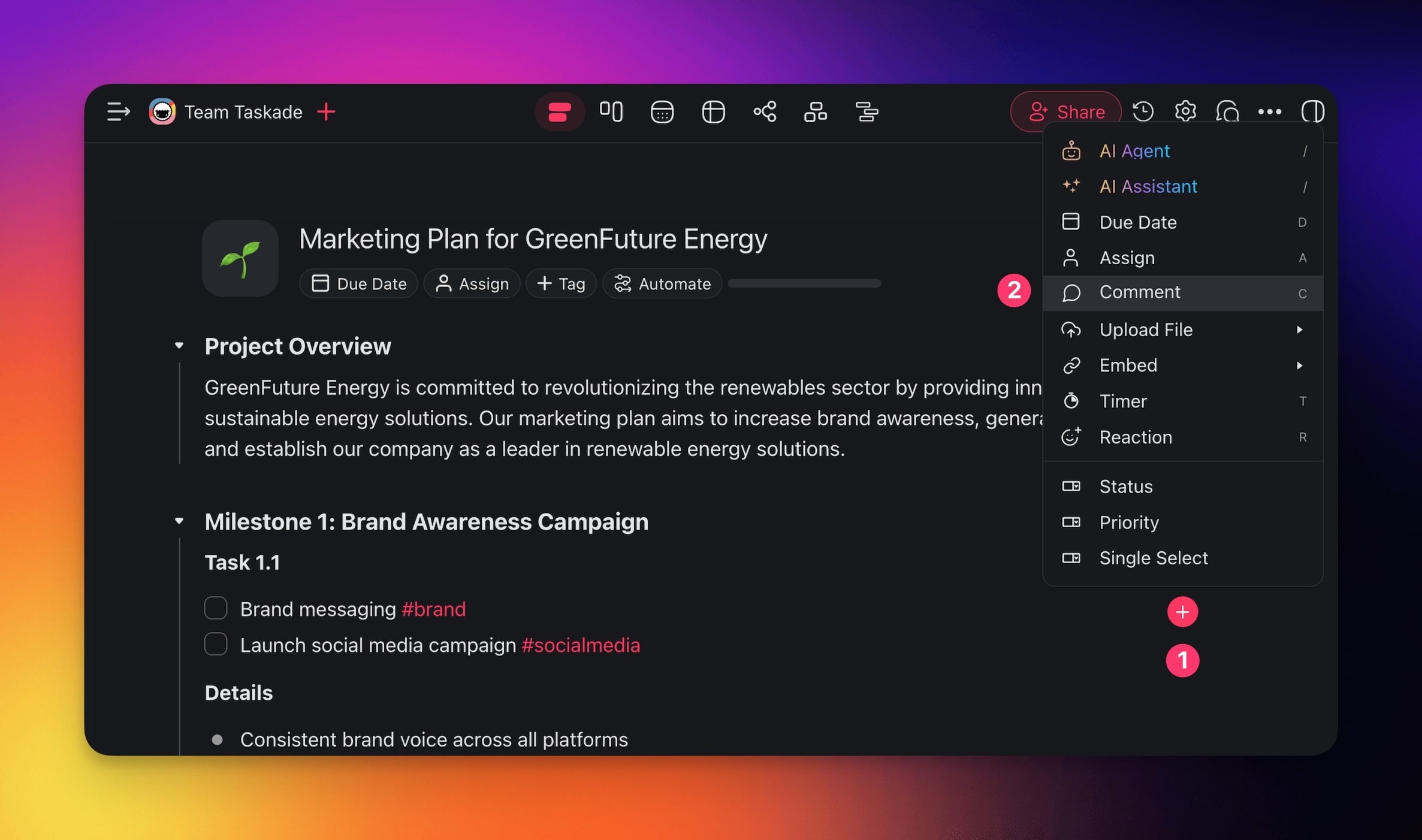
- Select 💬 Comments or press C.
- Type your comment and click to send it.
---
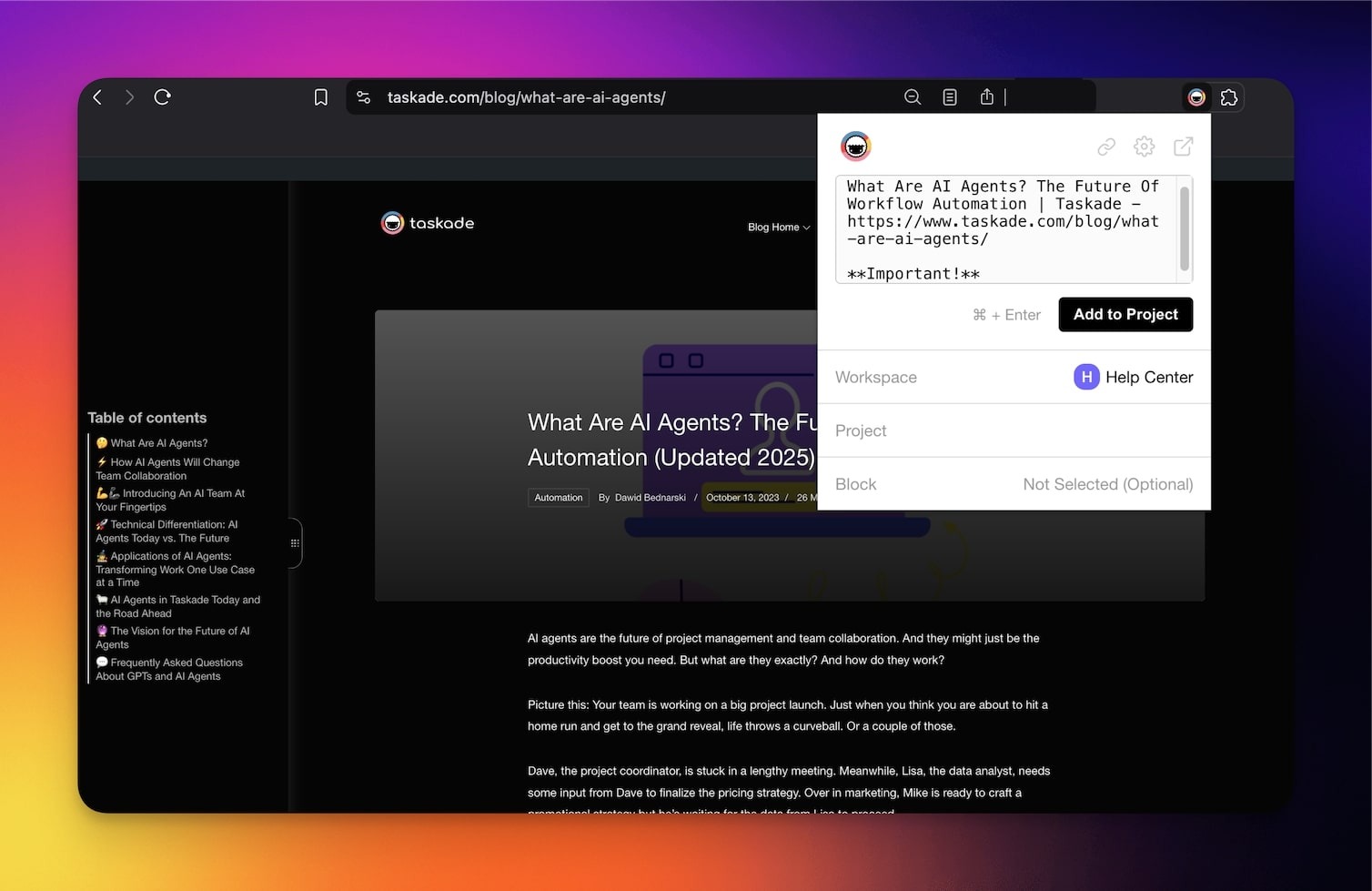
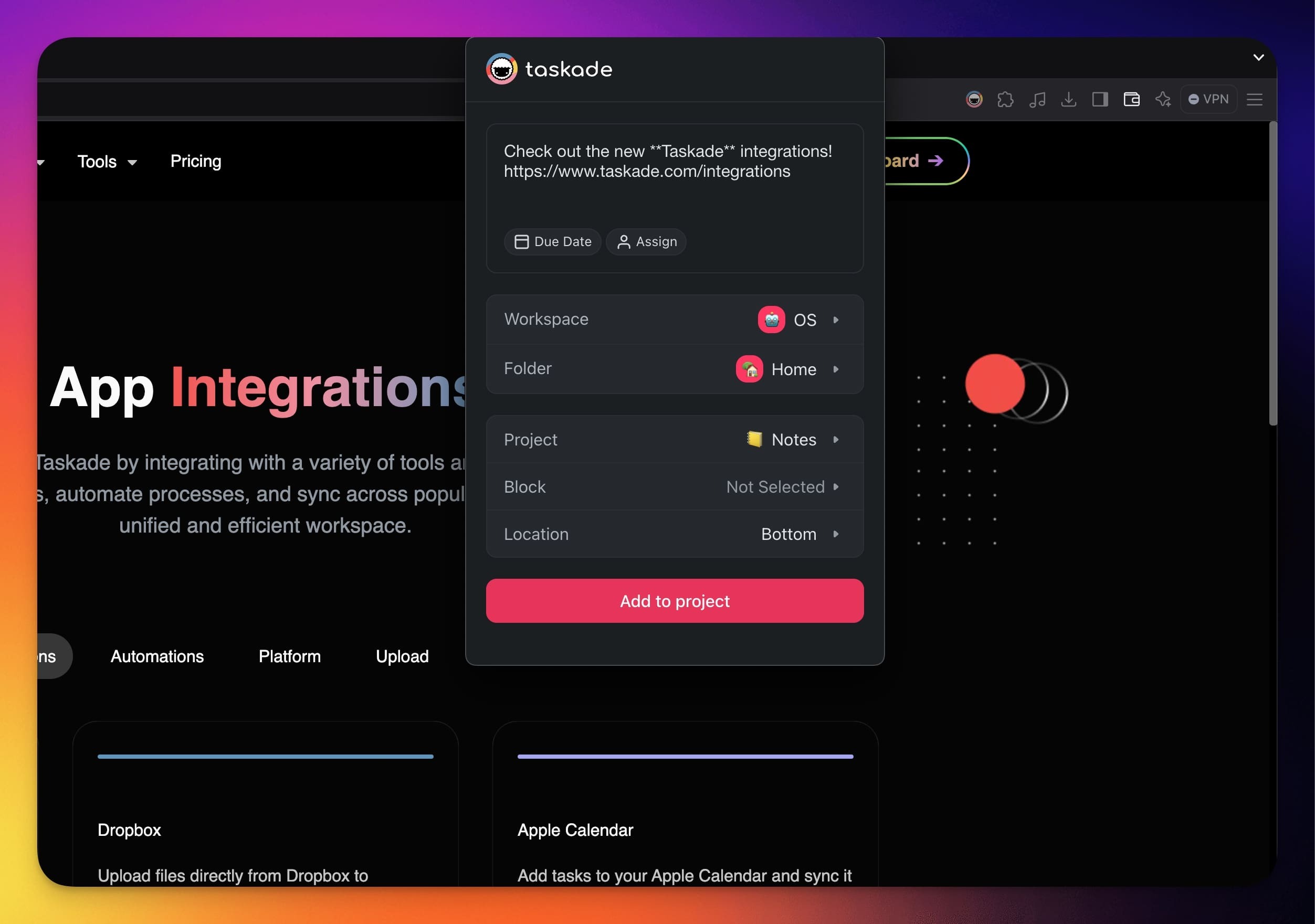
### Markdown in Browser Widgets
- **Right-click** the [Taskade Extension](https://www.taskade.com/learn/connect/extension-settings) in your web browser.
- Add content using the widget options.
- Choose the project where you want to add the content.
- "Wrap" your message in Markdown syntax.
---
### Markdown in Quick Add
- Open the [Taskade Quick Add Widget](https://www.taskade.com/learn/connect/quick-widget).
- Add content using the widget options.
- Choose the project where you want to add the content.
- "Wrap" your message in Markdown syntax.
---
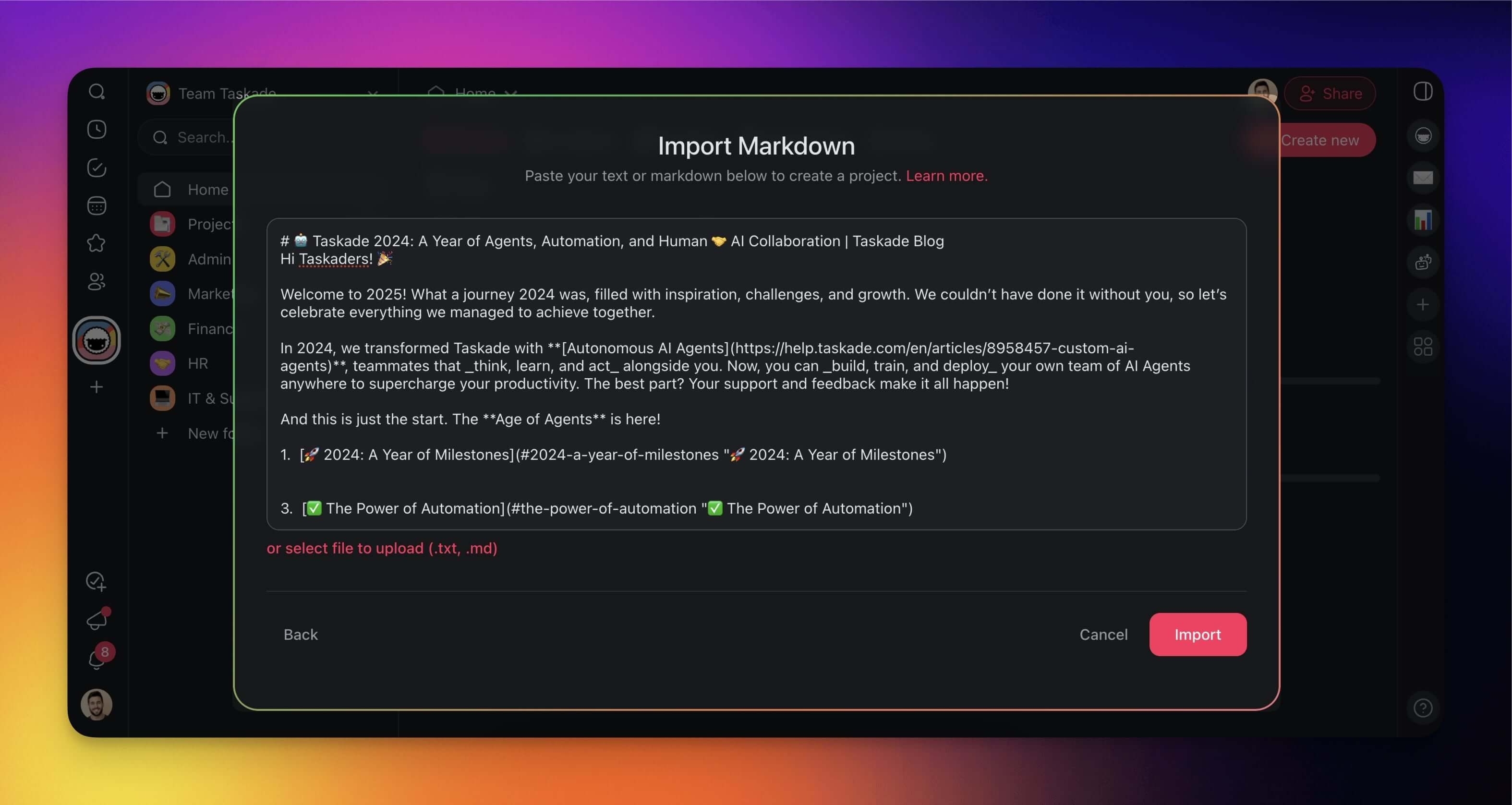
### Import Markdown
There are several ways to import your Markdown documents into Taskade.
> **💡 Note**: Visit Agent [Convert to Taskade](https://www.taskade.com/learn/import/convert) to learn more.
- (method 1): Visit **/create** to start instantly (see the first section)
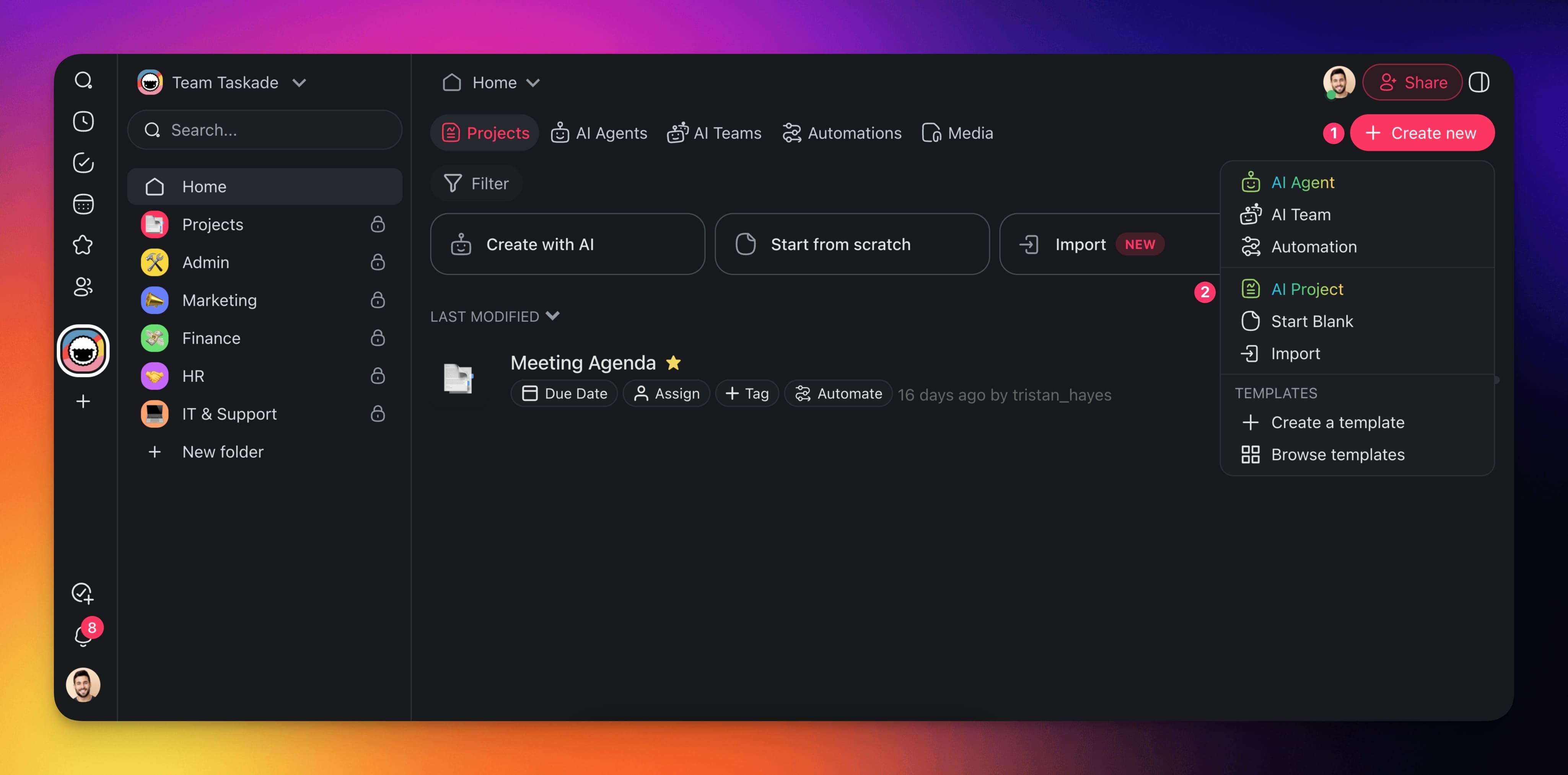
- (method 2): Click ➕ **Create new** in your workspace / folder (top-right corner).
- Choose **Import** from the drop-down list.
- Click **Paste Text & Markdown** and **paste** the **contents of your document.**
---
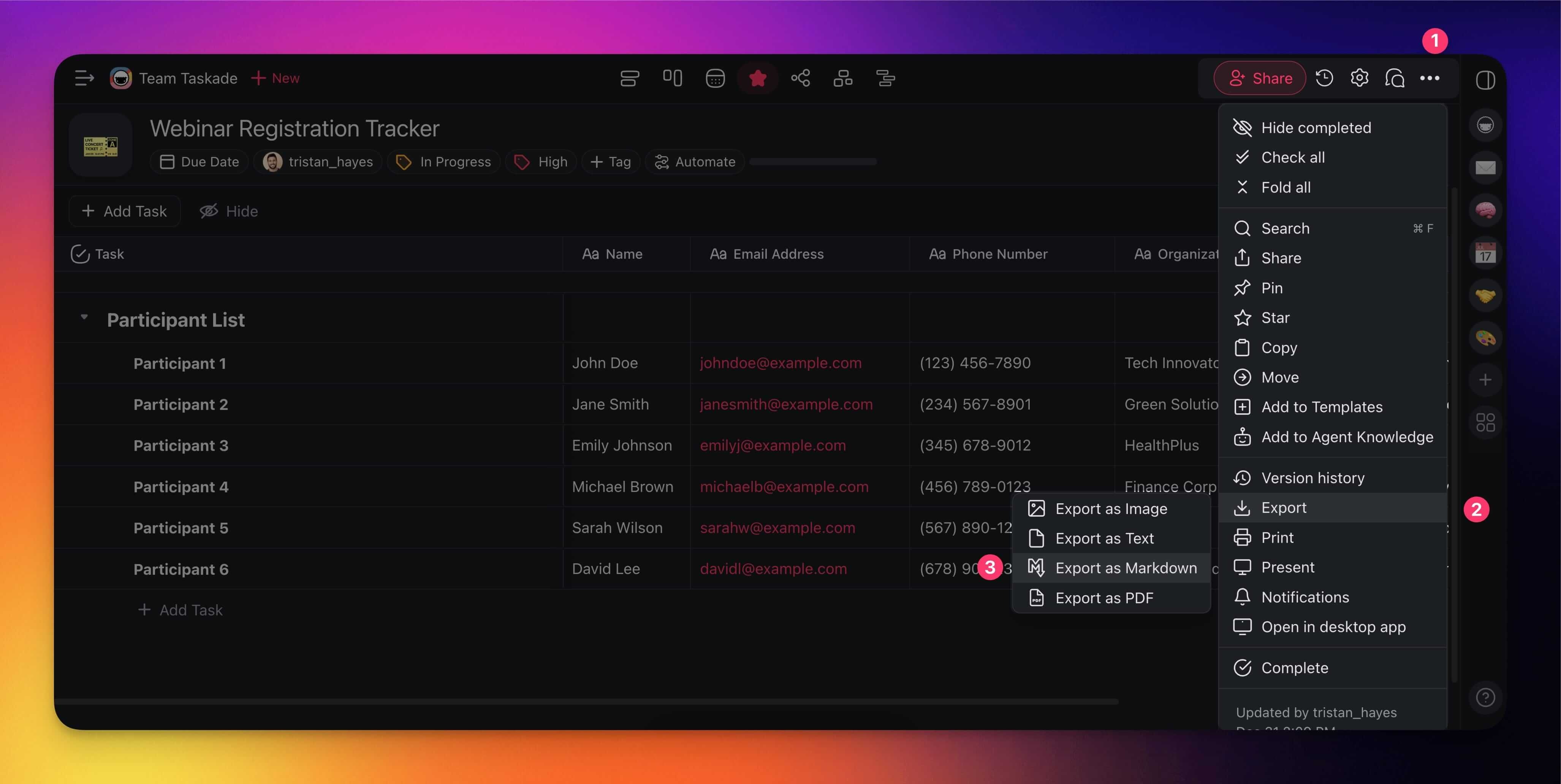
### Export Markdown
1. **Click the three dots ···** at the top right-hand corner of your project.
2. Select 📤 **Export** and choose ⌨️ **Markdown**.
---
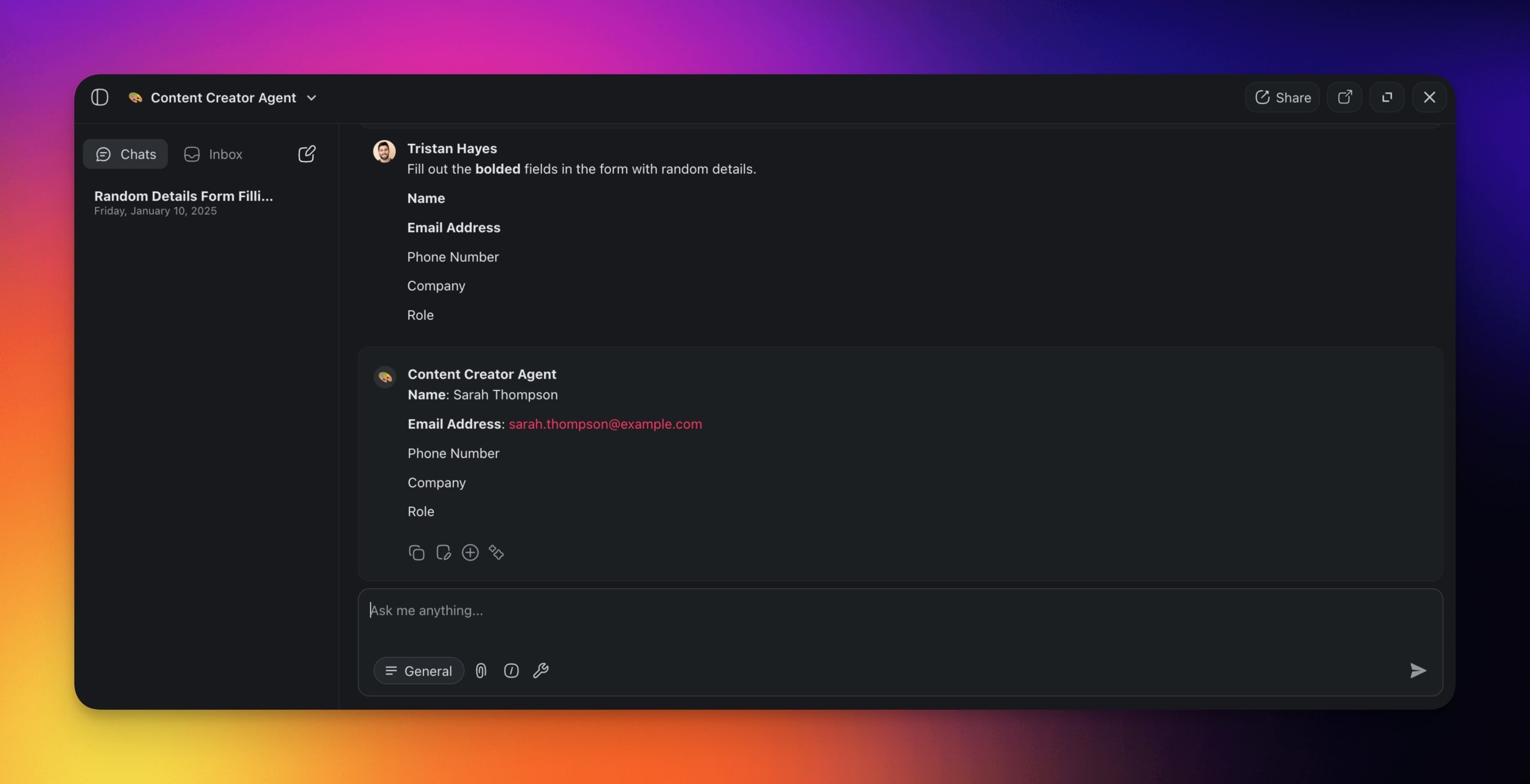
### Markdown in Agent Chat
Use Markdown syntax to structure your prompts in conversations with agents.
> **💡 Vist**: Visit [AI Agent Chat](https://www.taskade.com/learn/agents/agent-chat) to learn more.
| **bold** | _italic_ | > block quote | - unordered list |
| --- | --- | --- | --- |
| ~~strikethrough~~ | 'inline code' | ```codeblock``` | 1. ordered list |
Here are a few examples you can try yourself:
#### Emphasis
Emphasize important instructions or key points.
```
"Fill out the form. Fields marked with **bold** are mandatory."
```
```
**Name:** **Email Address: **Contact Number:Date of Birth:Address:
```
#### Code
Ask Taskade AI to analyze code blocks.
```
Analyze the following code block for errors or improvements.```def calculate_area(radius): return 3.14 * radius * radius```
```
#### Lists
Use ordered and unordered lists to organize items or define sequences of steps.
```
1. Download the installer from the official website.2. Open the installer and accept the license agreement.3. Choose the installation directory.
```
#### Block Quote
Use for emphasizing important reminders or quotes.
```
>Success is not final, failure is not fatal: It is the courage to continue that counts. — Winston S. Churchill
```
---
### Markdown in AI Project Studio
Use .md files as context for new projects generated with AI Project Studio.
- Click ➕ **Create new** in the top-right corner of your workspace/folder.
- Choose **AI Project** from the drop-down menu.
- Describe the project/content you want to generate.
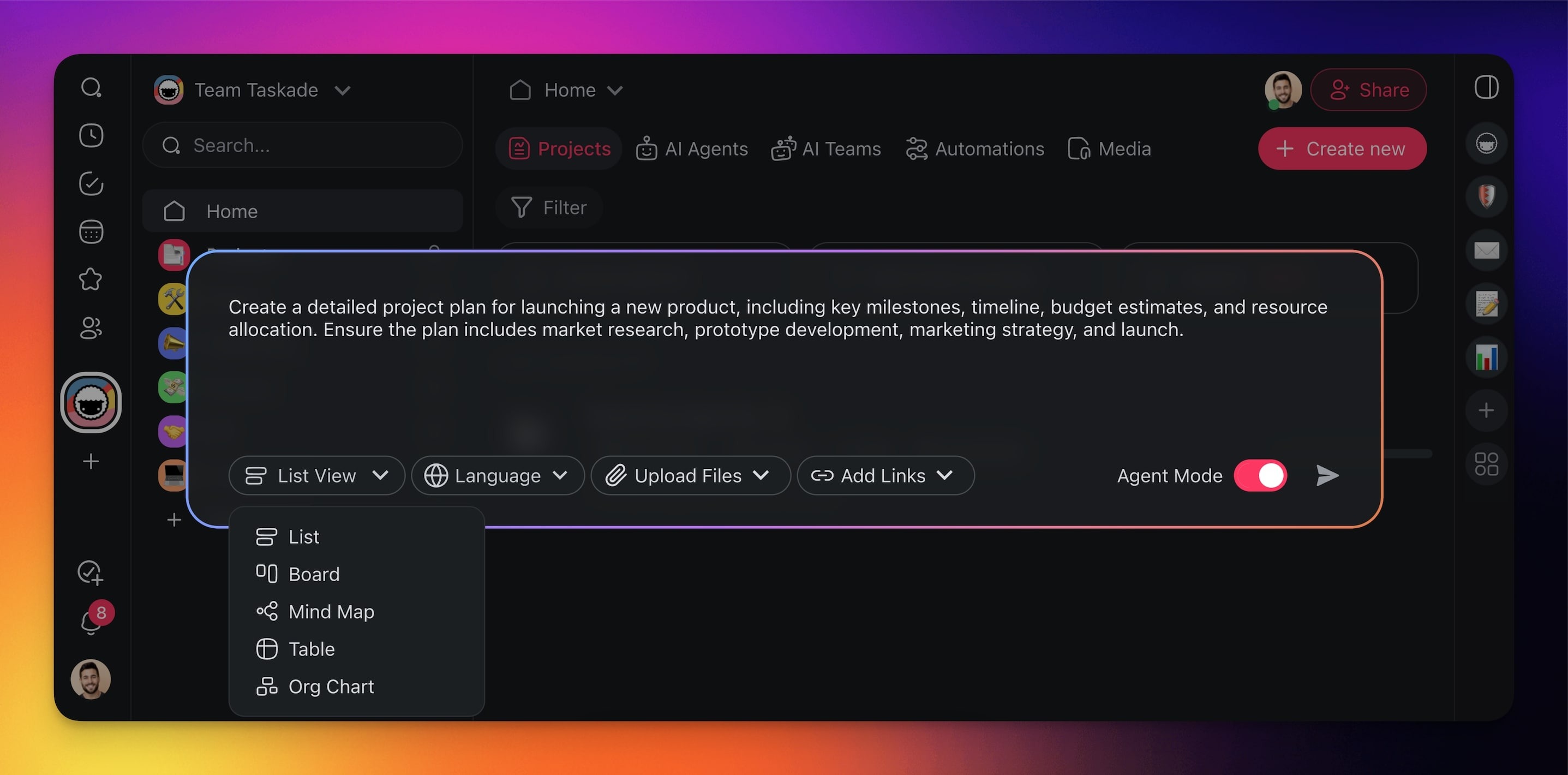
- Click the third drop-down from the left and choose **📎 Upload Files**.
- Upload your .md files as context for the generator.
---
### Create Markdown Sources
You can instantly create Markdown documents in the [AI Project Studio](https://www.taskade.com/learn/agents/project-studio) and use them as sources in the project generator. New .md files will also be added to the [Media Files.](https://www.taskade.com/learn/agents/media-tab)
[Taskade Markdown Support overview video](https://www.youtube.com/embed/BtInKeqfWKY?rel=0)
- Go to your workspace/folder.
- Click **➕ Create new** ➡ **AI Project**.
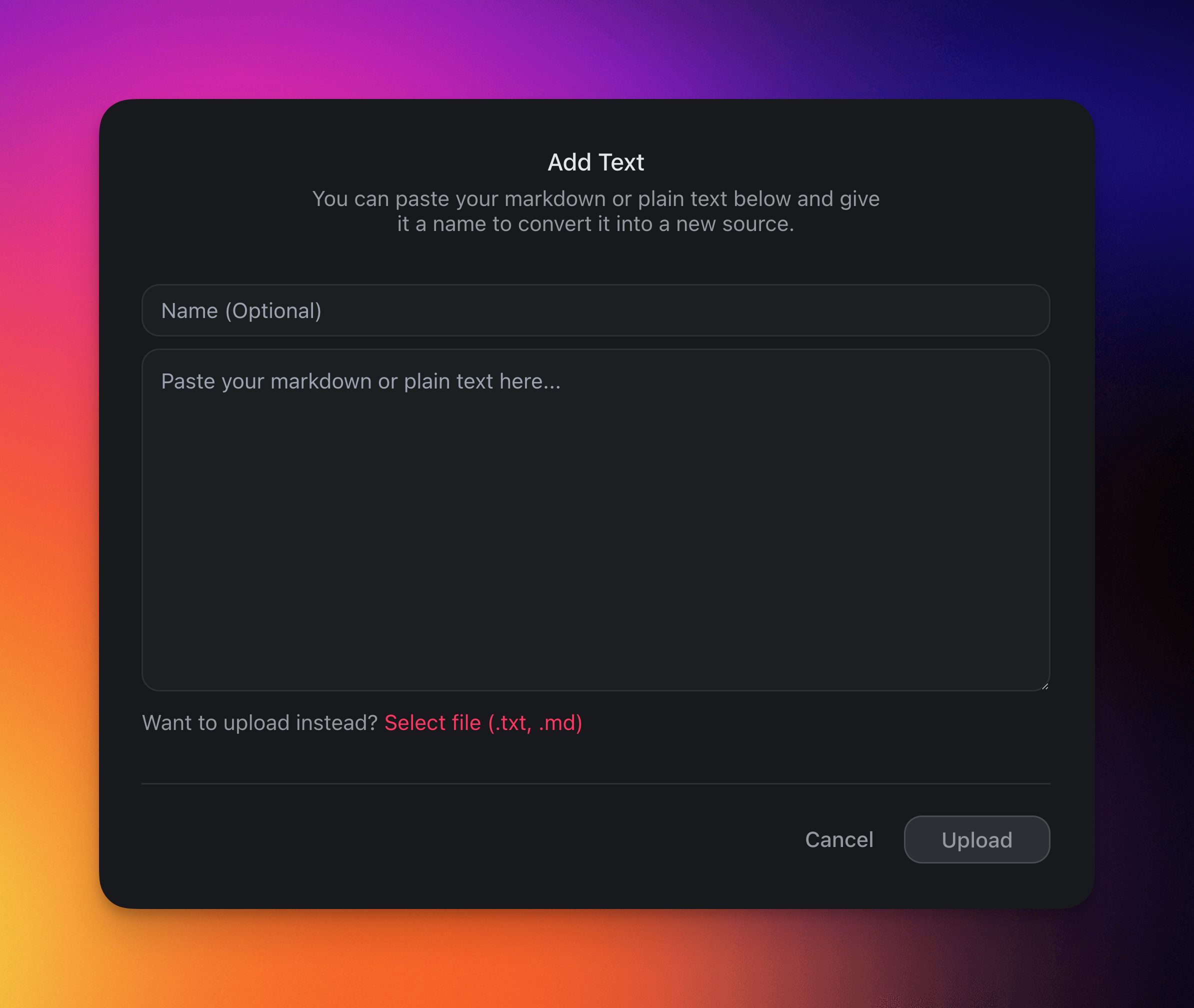
- Choose ➕ **Add source** ➡ **Paste text**.
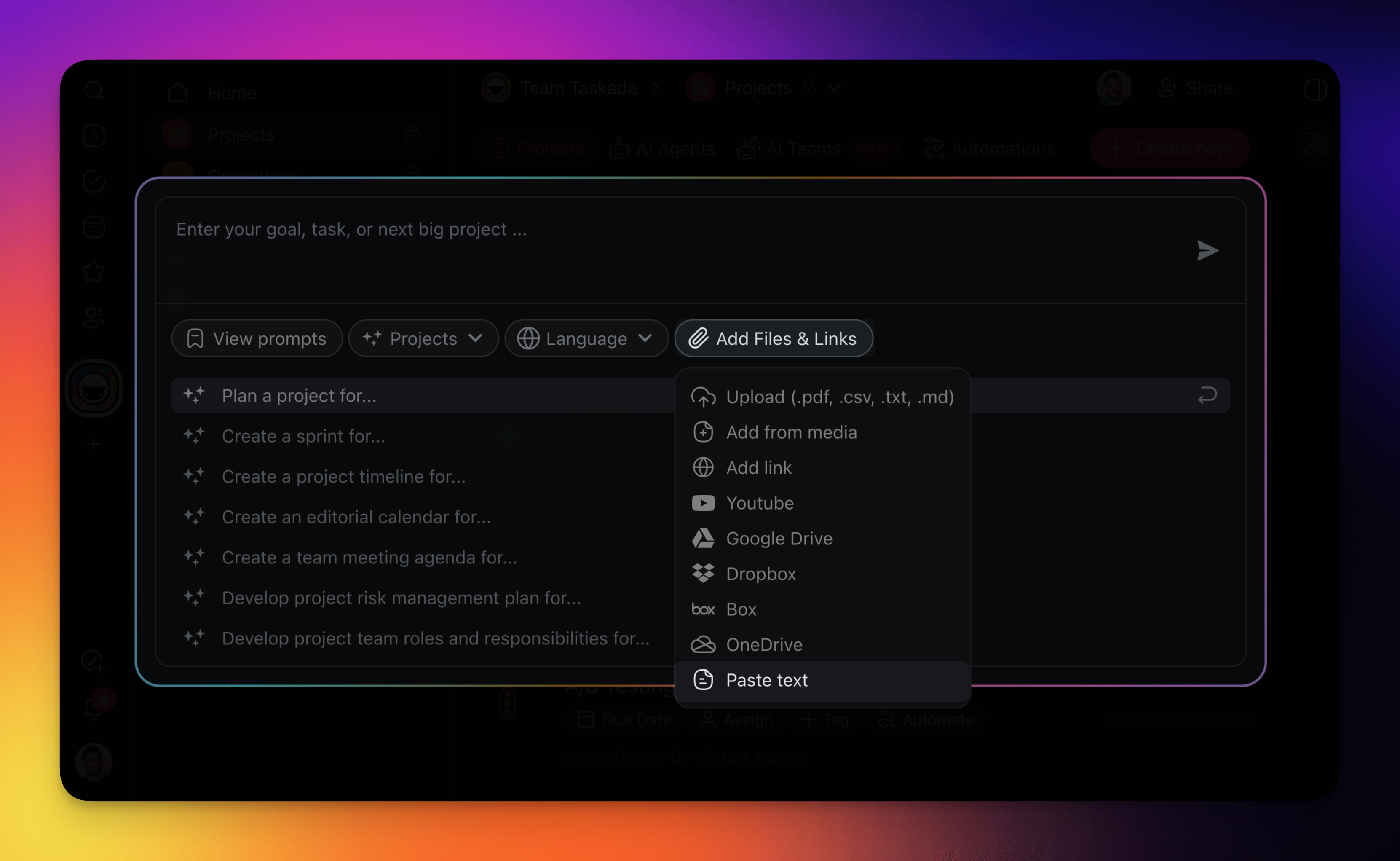
- **Paste a text** in the **Markdown format** to add it as a source.
---
### Markdown in Agent Knowledge
Create new markdown resources in your AI Agent's knowledge tab.
> **💡 Note**: Visit Agent[Knowledge & Data](https://www.taskade.com/learn/agents/knowledge) to learn more.
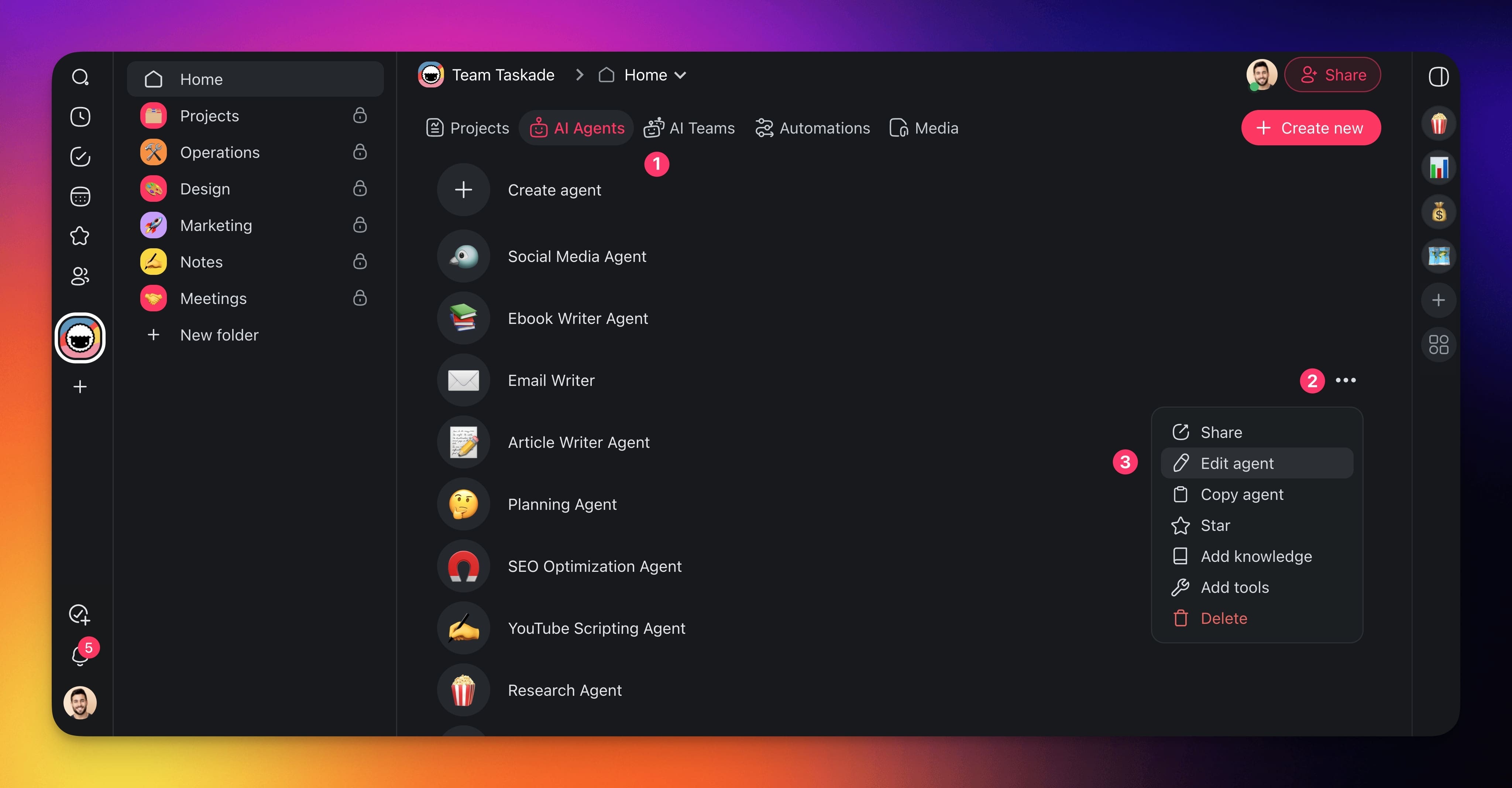
- Go to the **Agents** tab in your workspace or folder.
- Click the **three dots ···** next to an agent and **select** ✏️ **Edit agent** from the list.
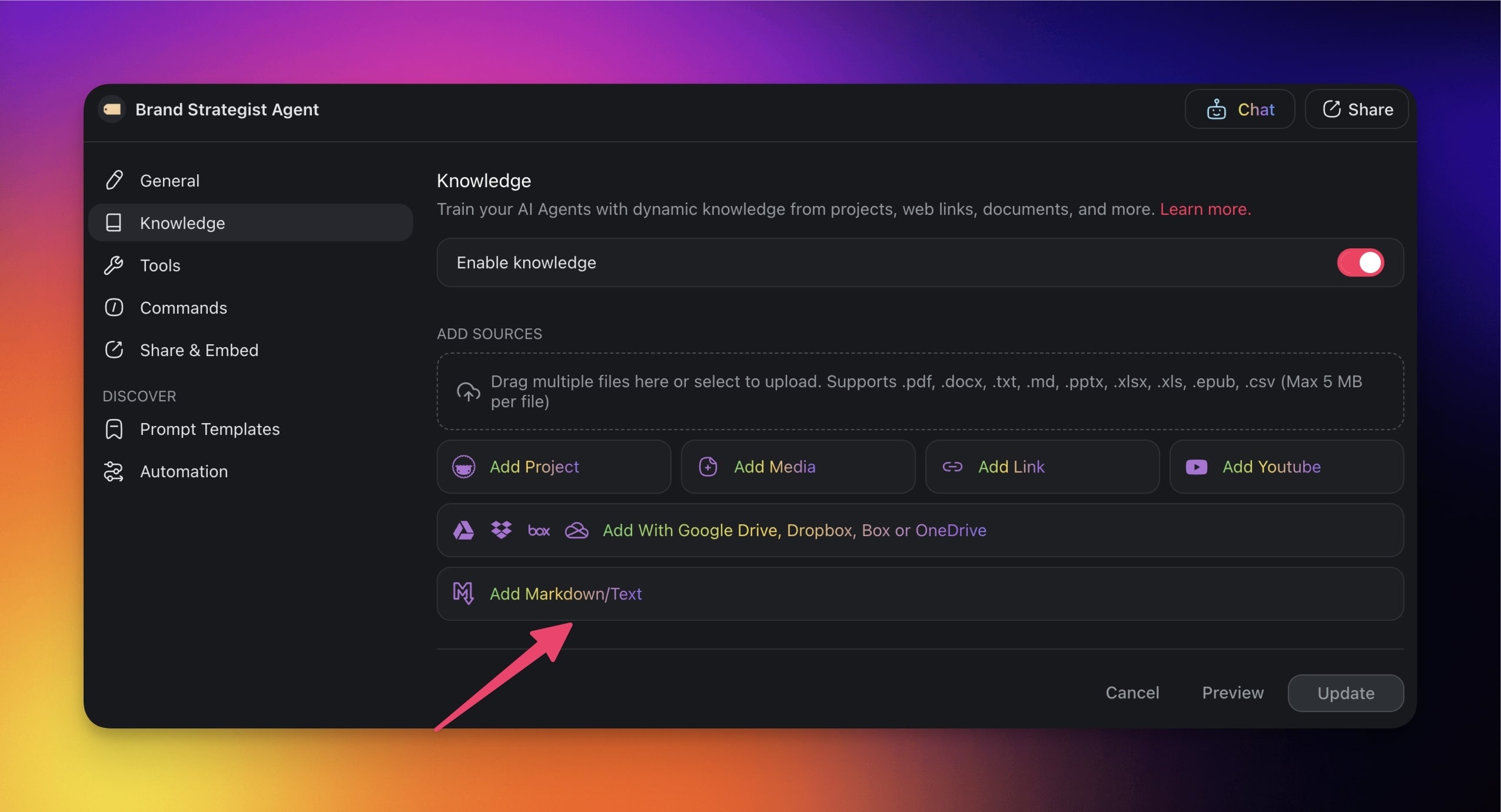
- In the **Knowledge** tab, open **Sources**. Under **Custom Text**, choose **Write Markdown** or **Paste Text**.
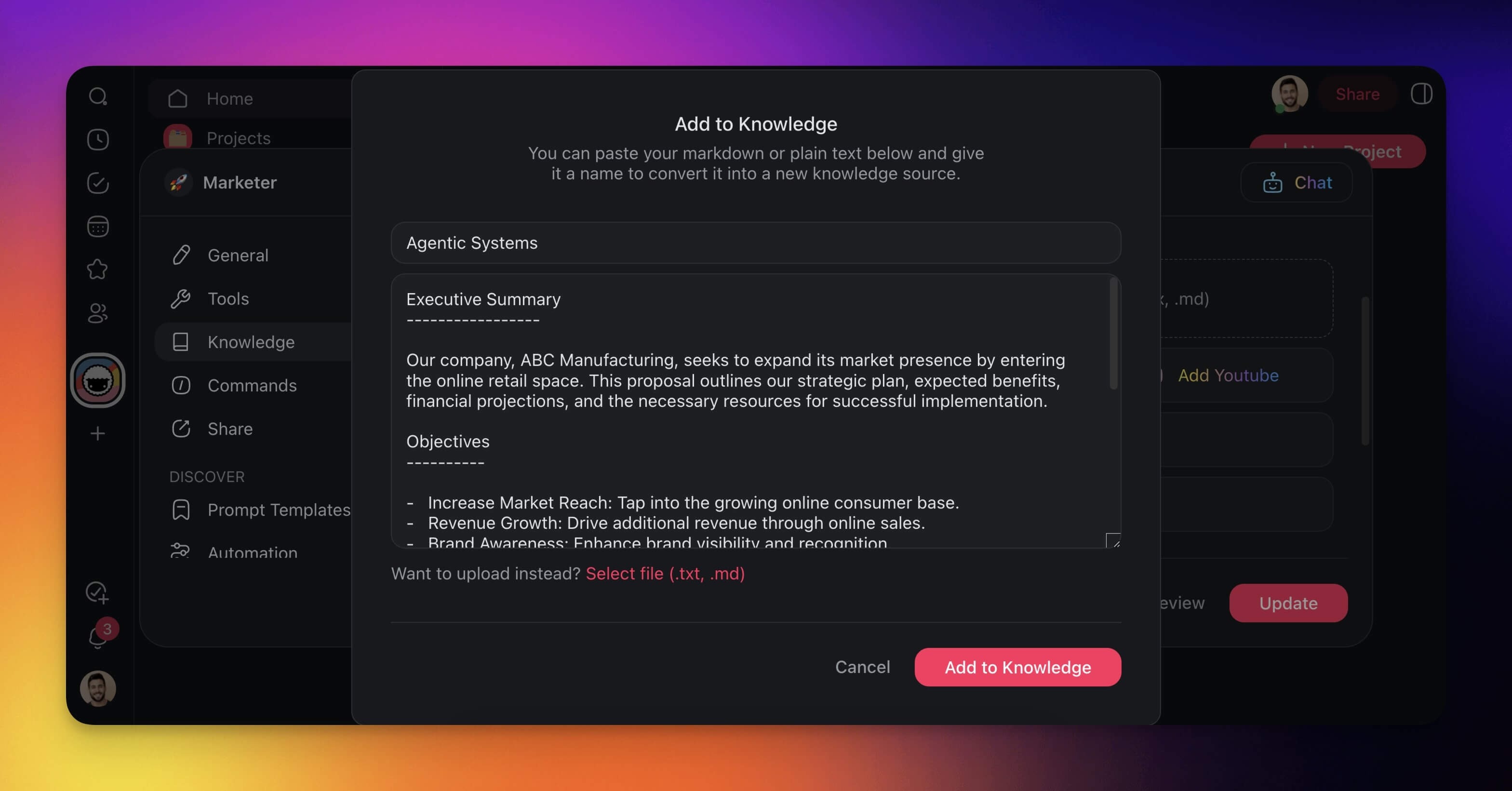
- **Paste markdown** or **plain text** into the pop-up window.
- Click **Add to Knowledge** to add the text to agent knowledge.
---
## Frequently Asked Questions
**Where can I use Markdown inside Taskade?**
You can use Markdown in the [project editor](https://www.taskade.com/learn/projects/editing-formatting), import and export, [AI Project Studio](https://www.taskade.com/learn/agents/project-studio), [AI agent knowledge](https://www.taskade.com/learn/agents/knowledge), chat and comments, and the [Quick Add widget](https://www.taskade.com/learn/connect/quick-widget). Taskade parses the syntax instantly wherever you type.
**How do I turn a task into a heading or checklist?**
Type a Markdown character followed by a space at the start of a task. Use # for H1, ## for H2, [] for a checkbox, - for a bullet, and 1. for a numbered list. Taskade converts the node as soon as you press space.
**Can I import an existing .md file into a project?**
Yes. Visit [/create](https://www.taskade.com/create) to start instantly, or click Create new in your workspace, choose Import, then Paste Text and Markdown and paste your document. See [Import Markdown](https://www.taskade.com/learn/import/markdown) for the full walk-through.
**How do I export a project back to Markdown?**
Click the three dots at the top right of your project, select Export, and choose Markdown. The export gives you a clean .md file you can version in Git or publish to a static site.
**Can I use Markdown when chatting with an AI agent?**
Yes. Wrap your prompts in Markdown to structure instructions with bold, lists, code blocks, and block quotes. Taskade provides frontier AI models from top AI labs, including OpenAI GPT and open-weight models such as DeepSeek and Qwen. See [AI Agent Chat](https://www.taskade.com/learn/agents/agent-chat) to learn more.
**Which Taskade plan includes Markdown support?**
Markdown formatting, import, and export work on every plan, including Free. Paid plans add more AI usage, members, and advanced features for teams that want to build with Taskade Genesis. See [Taskade pricing](https://www.taskade.com/pricing) for the full plan matrix.
**Does Taskade support GitHub Flavored Markdown extensions?**
Yes. Beyond standard Markdown, Taskade supports tables, strikethrough, inline and block code, block quotes, images, and checklists. Paste GFM content from anywhere and Taskade converts it into a formatted project.
---
### Related guides
- [Formatting](https://www.taskade.com/learn/projects/formatting)
- [Editing & Formatting](https://www.taskade.com/learn/projects/editing-formatting)
- [Slash Commands](https://www.taskade.com/learn/projects/slash-commands)
- [Outlining 101](https://www.taskade.com/learn/projects/outlining-101)