# Hide Completed
> Do you prefer to display your completed tasks like a badge of honor? Or would you rather move them out of the way? Taskade lets you hide completed ta...
- Source: https://www.taskade.com/learn/projects/hide-completed
- Section: Projects
- Updated: 2026-09-02
- Index of all pages: https://www.taskade.com/learn/llms.txt
> **TL;DR:** Hide completed tasks to keep long projects focused on what's still in progress. The toggle lives in every view's filter menu, and your preference is saved per view, per project. Great for recurring weekly plans and agile boards. See [Project Views](https://www.taskade.com/learn/projects/project-views) for how each view keeps its own filters.
Here is how the toggle reshapes what you see.
```mermaid
flowchart LR
A[All tasks
active and done] --> B[Toggle
Hide completed]
B --> C[View shows
active tasks only]
C --> D[Preference saved
per view per project]
style A fill:#0d1b2a,color:#7dd3fc,stroke:#38bdf8,stroke-width:1.5px
style B fill:#2a1225,color:#ff8fa3,stroke:#ff2d60,stroke-width:2px
style C fill:#0d1a0e,color:#86efac,stroke:#22c55e,stroke-width:1.5px
style D fill:#1a140a,color:#ffb74d,stroke:#e65100,stroke-width:1.5px
```
## Overview
Some people keep completed tasks on screen as a badge of honor. Others prefer them out of the way. Taskade lets you hide completed tasks and focus on the open work. This feature works in every [project view](https://www.taskade.com/learn/projects/project-views) that shows checkboxes.
> **💡 Note:** To check off items, click the **checkbox** to the left of a task. You can also use the ⌨️ **⌘** + **Enter** (Mac) or ⌨️ **Ctrl** + **Enter** (PC) [keyboard shortcuts](https://www.taskade.com/learn/projects/keyboard-shortcuts).
---
## Hide Completed Tasks
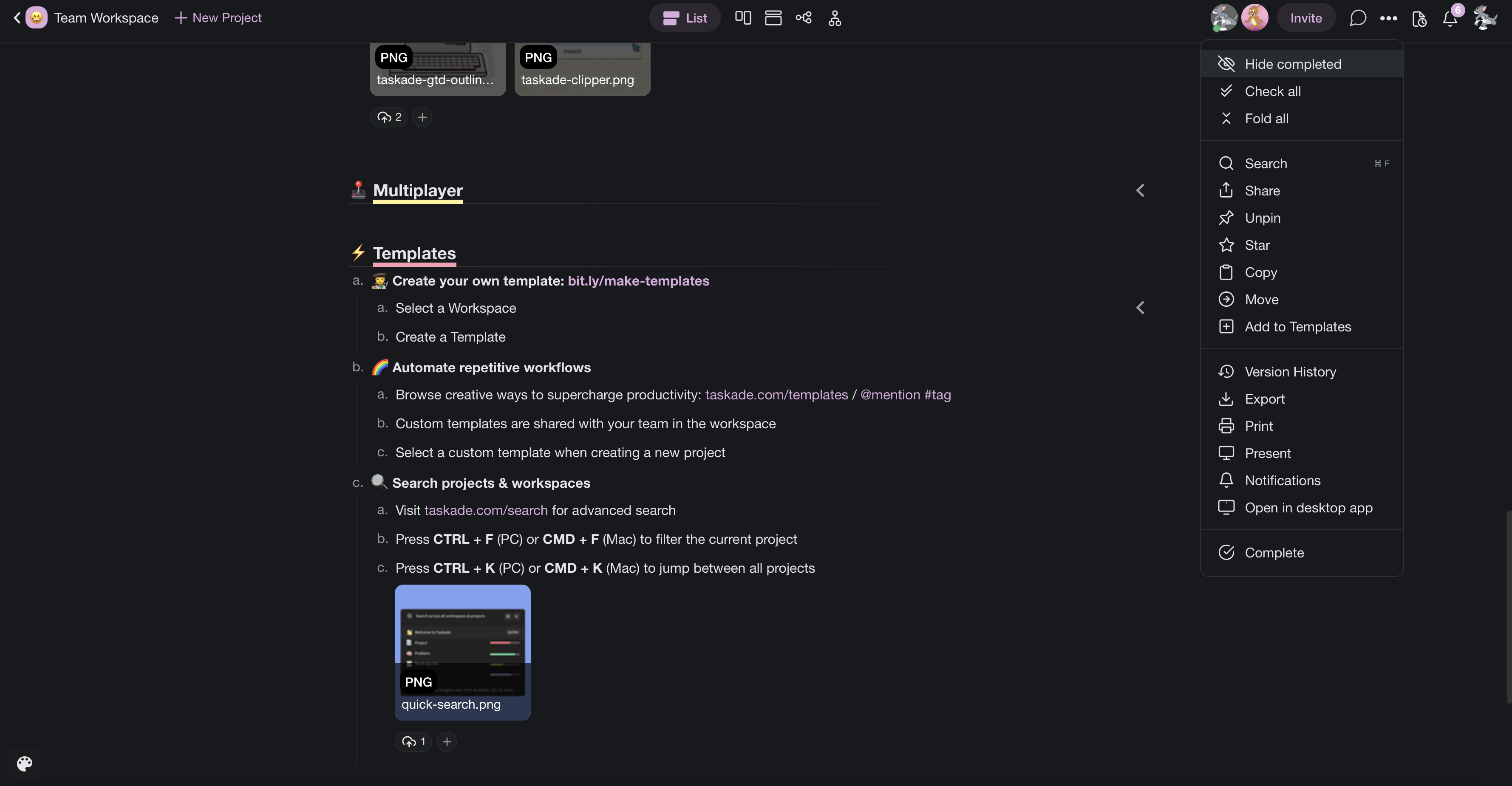
1. Click the **three dots (ellipsis)** ··· in the top-right corner of your project.
2. Select **Hide completed** from the drop-down list.

3. Click **Show completed** to reverse the action.

> **💡 Note:** As you check off items, the progress bar at the top of your project will fill up. Only checkboxes count toward the total project progress.
---
## Edit Workspace Menu
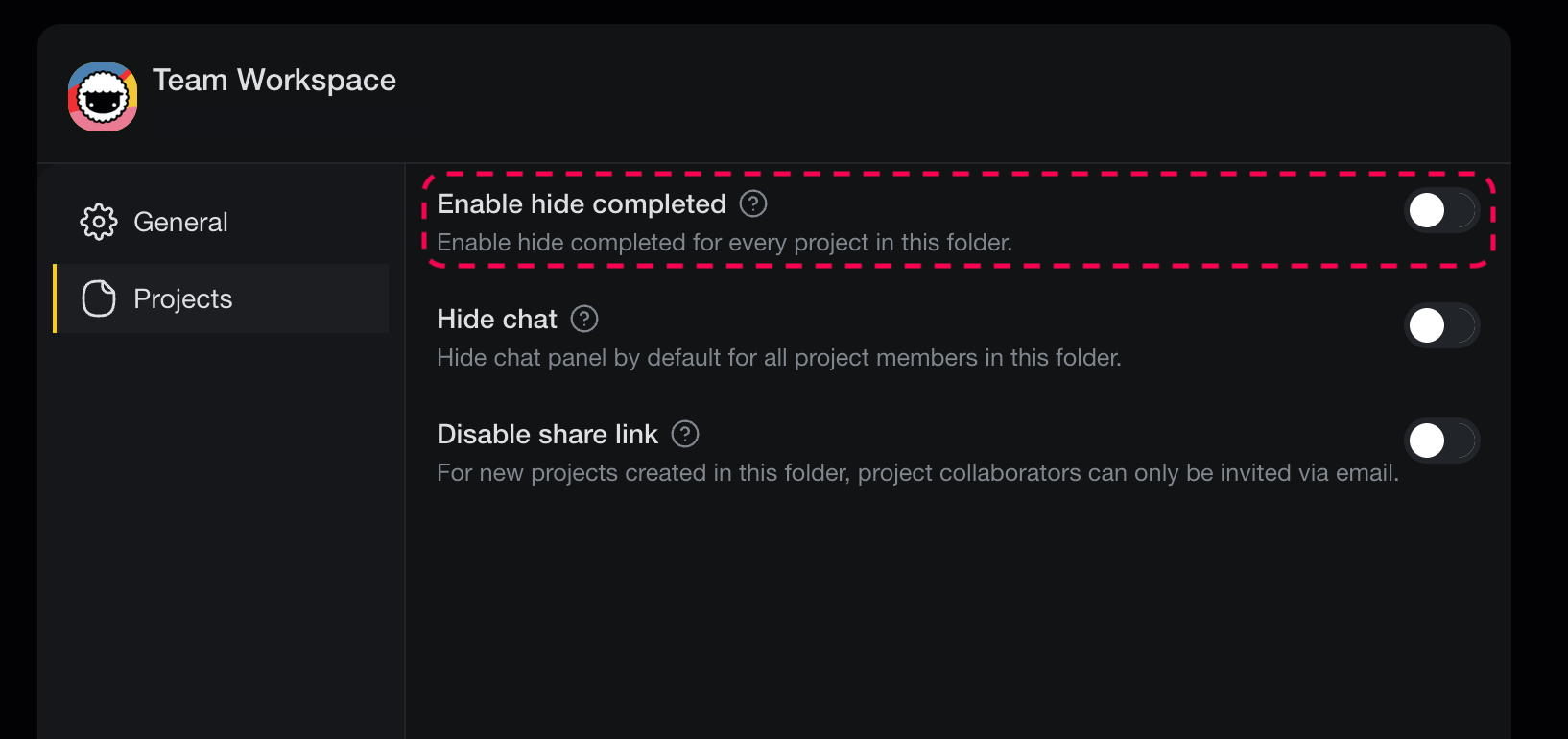
To hide completed tasks in every project in a workspace or folder, use the **Edit Workspace** menu. Here is how it works:
1. Open your workspace and click ▼ next to its name.
2. Click the ✏️ **Edit** button at the top of the list.
3. Use the first slider to **enable** or **disable** completed tasks.
> 💡 **Note**: Project preferences are designed only to set the initial state but can be modified inside individual projects.
---
## Tips
- Hiding completed tasks is especially useful in long projects where finished items push active tasks out of view.
- The workspace-level setting is great for teams that always want a clean starting view for every new project.
- To remove finished work permanently instead of a hide, see [Complete / Delete a Project](https://www.taskade.com/learn/projects/delete-project).
- Use [My Tasks](https://www.taskade.com/learn/projects/my-tasks) for a cross-project view of everything still assigned to you.
---
### Related guides
- [Complete / Delete a Project](https://www.taskade.com/learn/projects/delete-project)
- [Keyboard Shortcuts](https://www.taskade.com/learn/projects/keyboard-shortcuts)
- [My Tasks](https://www.taskade.com/learn/projects/my-tasks)
- [Project Views](https://www.taskade.com/learn/projects/project-views)