# Create, Edit, & Manage Due Dates
> Add Due Dates to Tasks Select the task you want to schedule. Click the ➕ button next to a task to open the Add-ons Menu. You can also use the ⌨️ Ctrl/Cmd + / sh...
- Source: https://www.taskade.com/learn/projects/due-dates
- Section: Projects
- Updated: 2026-08-26
- Index of all pages: https://www.taskade.com/learn/llms.txt
> **TL;DR:** Set a due date on any task to see it on the [Calendar](https://www.taskade.com/learn/projects/calendar-view) and [Gantt](https://www.taskade.com/learn/projects/gantt-view) views. Add start dates for ranges, enable [recurring tasks](https://www.taskade.com/learn/projects/recurring-tasks) for daily or weekly cadences, and pair with [reminders](https://www.taskade.com/learn/projects/reminders) for push notifications. Type plain-English phrases like "next Monday" to schedule from the keyboard.
Here is how a due date flows from a single task into your schedule.
```mermaid
flowchart LR
A[Task] --> B[Set due date
or range]
B --> C[Shows on
Calendar and Gantt]
B --> D[Sends reminder
when due]
style A fill:#0d1b2a,color:#7dd3fc,stroke:#38bdf8,stroke-width:1.5px
style B fill:#2a1225,color:#ff8fa3,stroke:#ff2d60,stroke-width:2px
style C fill:#0d1a0e,color:#86efac,stroke:#22c55e,stroke-width:1.5px
style D fill:#1a140a,color:#ffb74d,stroke:#e65100,stroke-width:1.5px
```
## Overview
Put a deadline on any task and it lands on your Calendar and Gantt views automatically. Add start dates for multi-day ranges. Type plain-English phrases like "next Monday" to schedule from the keyboard. Pair a due date with a reminder so nothing slips.
## Add Due Dates to Tasks
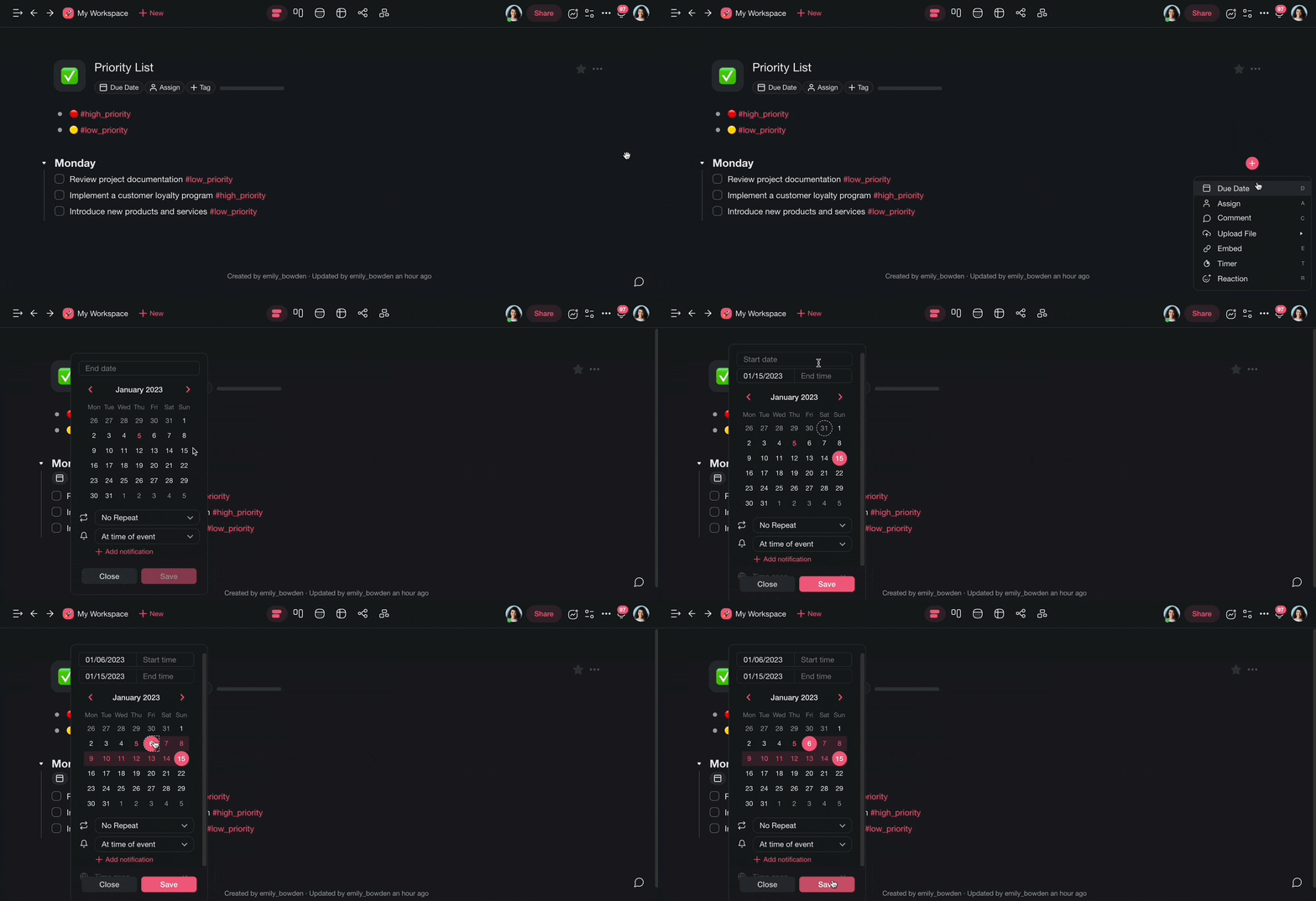
1. Select the task you want to schedule.
2. Click the ➕ button next to a task to open the [Add-ons Menu.](https://www.taskade.com/learn/projects/task-addons)
- You can also use the **⌨️ Ctrl/Cmd + /** shortcut.
3. Choose a start date, an end date, and a time.
- To select a **single date**, click on the date once.
- To select a **range,** click the "Start date" field and select an earlier date.
4. (optional) Enter a due time. If you set no time, the reminder defaults to midnight.
5. If you have [notifications enabled](https://www.taskade.com/learn/projects/manage-tasks), you will receive an alert when a task is due!
> **💡 Note:** Visit [Recurring Tasks](https://www.taskade.com/learn/projects/recurring-tasks) to learn more.
> **💡 Note:** Tasks with due dates appear in the [Calendar](https://www.taskade.com/learn/projects/taskade-calendar).
---
## Edit a Due Date
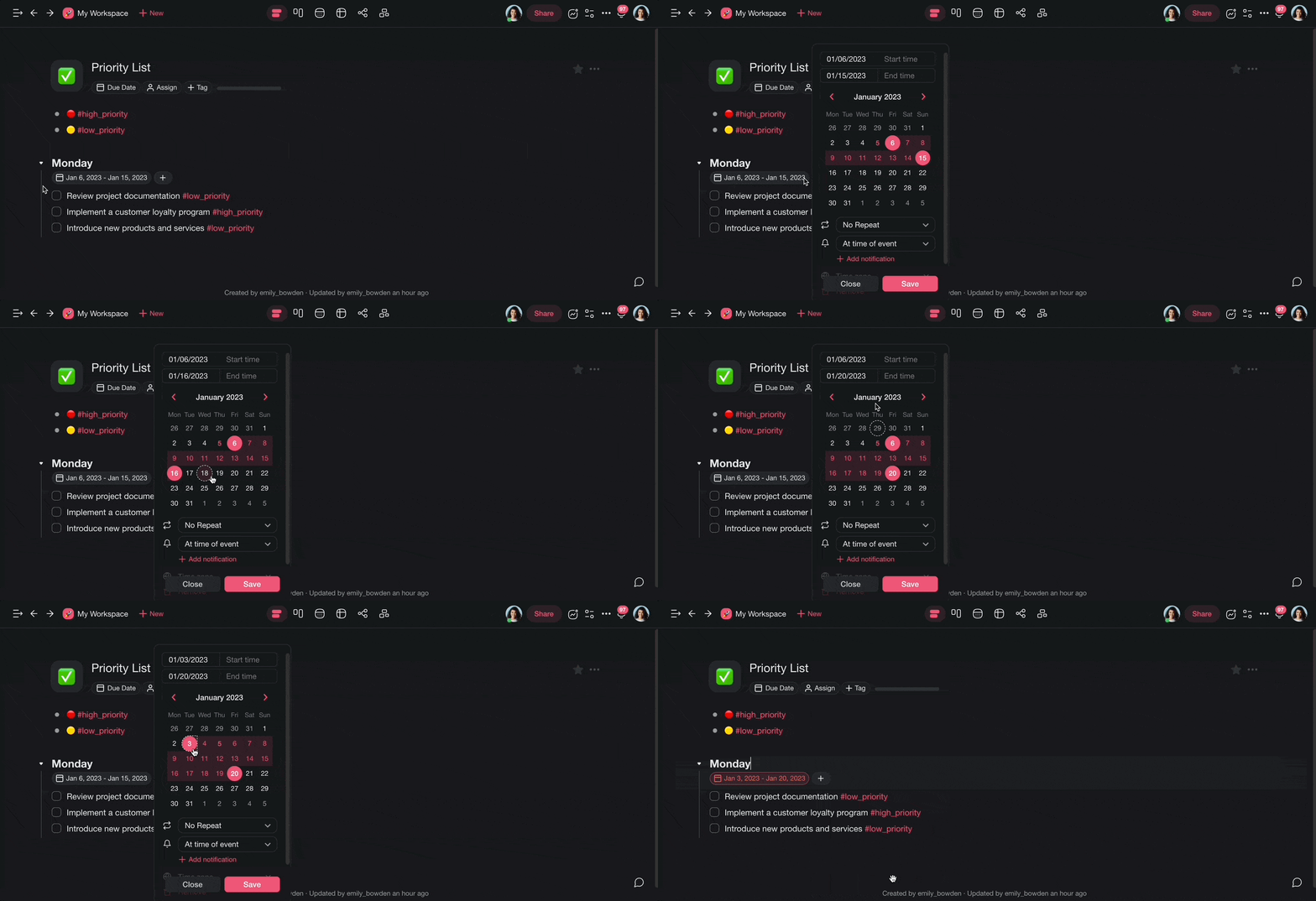
To change a due date, click the date box below a task. Then:
1. Choose a new day to edit the **End date** field.
2. Click the **Start date** field and choose a new day to edit the start date.
3. Click **Save** to confirm.
---
## Remove a Due Date
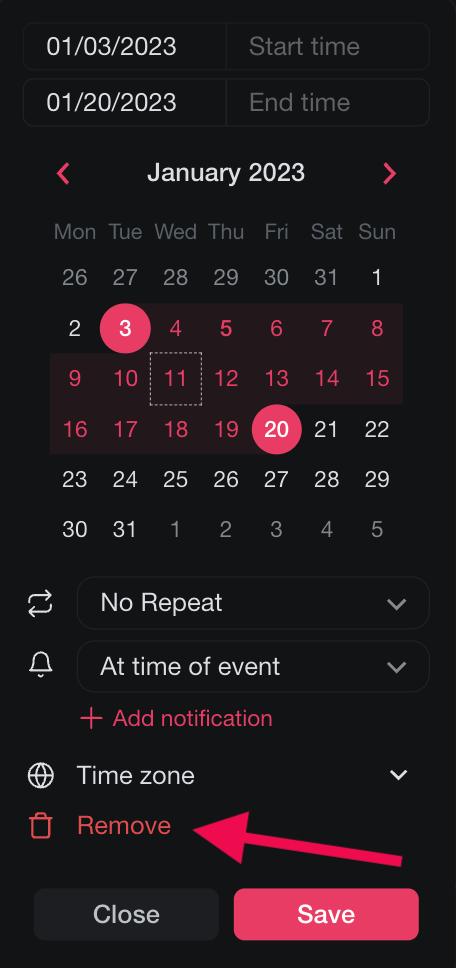
To delete a due date, click the date box below a task and select 🗑 **Remove**.
---
## Add Due Dates to Projects
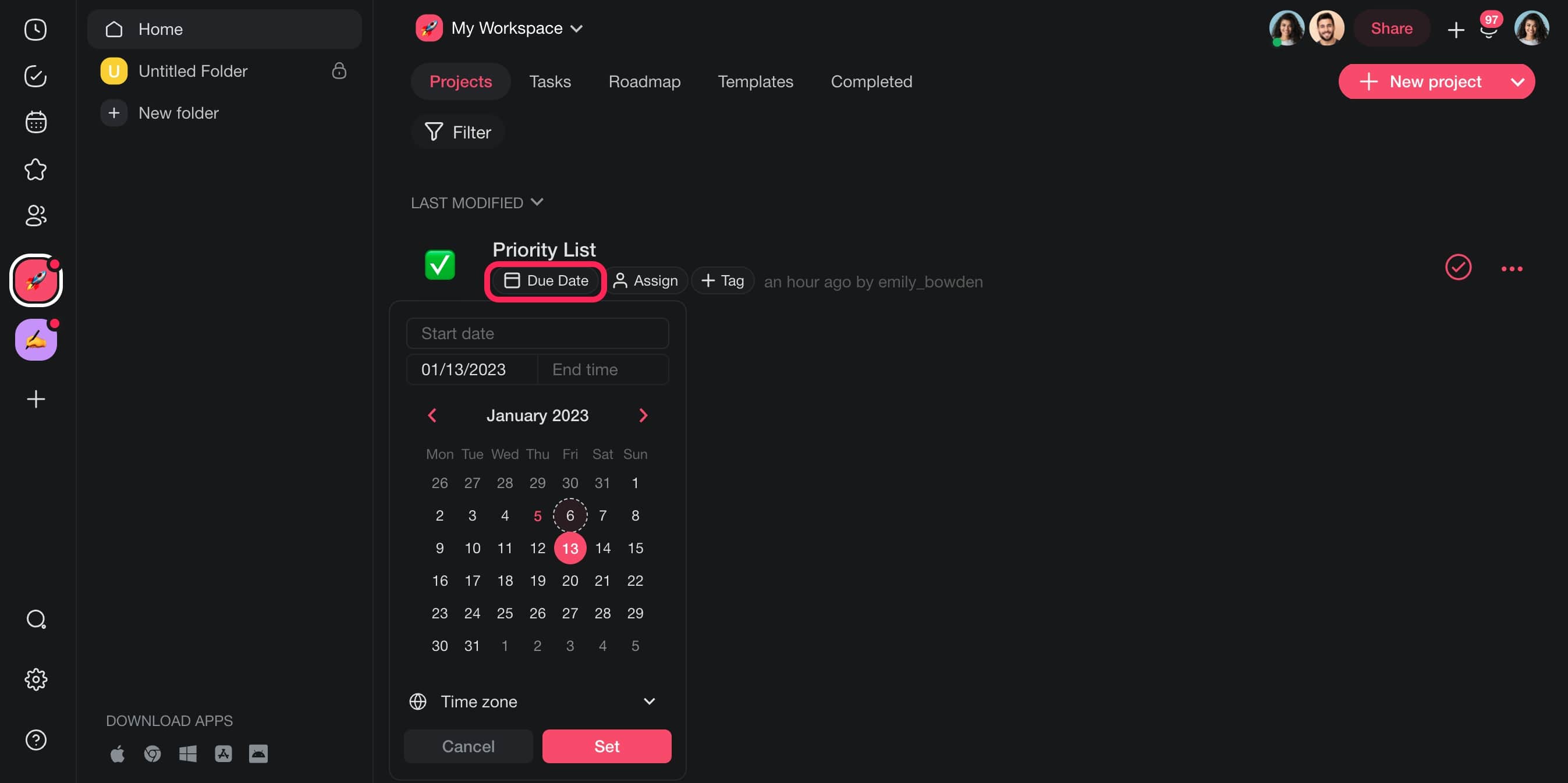
Add a date or date range to your projects to track schedules and deadlines. The project date range appears on the [Calendar](https://www.taskade.com/learn/projects/taskade-calendar). Here is how:
1. Navigate to a **workspace**, **folder**, or **project.**
2. Click 🗓️ **Due Date** below a project title.
- To select a **single date**, click on the date once.
- To select a **range**, click on the start date you want.
3. (optional) Pick a **time zone** for your project.
4. Click **Set** to save changes.
---
## Natural Language Due Dates
With [natural language](https://www.taskade.com/learn/projects/due-dates#how-taskade-reads-your-dates) you can add dates to tasks from the keyboard. Follow these steps to use it in a project:
1. Add a task or sub-task to a project.
2. Press **/** to open a [Slash Command Menu](https://www.taskade.com/learn/projects/slash-commands).
3. Type a due date and time with an expression from the table.
| today/tomorrow | May 1st | May 1st 5 pm |
| --- | --- | --- |
| yesterday | 1st May | May 1st 2023 at 5 pm |
| next week | 1st May 2023 | 5 pm May 1st |
| last/next Monday | May 4th 2023 | 1st May 2023 5 pm |

---
## How Taskade Reads Your Dates
Taskade uses Natural Language Processing (NLP), so you can add dates to tasks fast. When you create a new task or sub-task, you can define its due date with everyday speech. For example: "attend a team meeting **tomorrow**."
> 💡 **Note:** Visit [Create, Edit, & Manage Due Dates](https://www.taskade.com/learn/projects/due-dates) to learn more.
---
## Schedule Tasks
Follow these steps to schedule tasks with natural language:
1. Add a task or sub-task to a project.
2. Press **/** to open the slash command pop-up.
3. Type the date and time with an expression from the table.
4. Open the [Calendar](https://www.taskade.com/learn/projects/taskade-calendar) and check that the task is there.

---
## Due Dates Set by the API or an AI Assistant
Due dates do not have to be typed by hand. Connect [Google Calendar](https://www.taskade.com/learn/connect/google-calendar) to your workspace first. A due date set through the Taskade API then lands on that calendar, the same as a hand-typed due date. A due date set by an AI assistant over MCP works the same way.
Two things to know before you rely on it:
- The workspace must be on a **paid plan or an active trial**. Google Calendar sync is not part of the free plan.
- A due date set by an **automation action** stays inside Taskade. That one does not push to Google Calendar.
---
## Date / Time Examples
| today / tomorrow | May 1st | May 1st 5 pm |
| --- | --- | --- |
| yesterday | 1st May | May 1st 2023 at 5 pm |
| next week | 1st May 2023 | 5 pm May 1st |
| last / next Monday | May 4th 2023 | 1st May 2023 5 pm |
---
---
### Related guides
- [Calendar View](https://www.taskade.com/learn/projects/calendar-view)
- [Gantt View](https://www.taskade.com/learn/projects/gantt-view)
- [Recurring Tasks](https://www.taskade.com/learn/projects/recurring-tasks)
- [Reminders](https://www.taskade.com/learn/projects/reminders)
- [Google Calendar Sync](https://www.taskade.com/learn/connect/calendar-sync)