# Complete / Delete a Project
> Whenever you finish a project, you can either complete, archive or delete it.
- Source: https://www.taskade.com/learn/projects/delete-project
- Section: Projects
- Updated: 2026-09-02
- Index of all pages: https://www.taskade.com/learn/llms.txt
> **TL;DR:** Deleting a project is permanent, and a deleted project cannot be restored. If you might need it later, archive it instead: an archived project stays searchable, can be restored at any time, and only disappears when you choose Delete forever. See [Version History](https://www.taskade.com/learn/projects/version-history) for undo inside a live project.
Pick the action that matches your need for the project later.
```mermaid
flowchart LR
A[Finished
project] --> B{Need it
later}
B -->|Maybe| C[Complete or
Archive]
B -->|No| D[Delete]
C --> E[Recoverable
and searchable]
D --> F[Removed
permanently]
style A fill:#0d1b2a,color:#7dd3fc,stroke:#38bdf8,stroke-width:1.5px
style B fill:#2a1225,color:#ff8fa3,stroke:#ff2d60,stroke-width:2px
style C fill:#0d1a0e,color:#86efac,stroke:#22c55e,stroke-width:1.5px
style D fill:#1a140a,color:#ffb74d,stroke:#e65100,stroke-width:1.5px
style E fill:#0d1a0e,color:#86efac,stroke:#22c55e,stroke-width:1.5px
style F fill:#1a140a,color:#ffb74d,stroke:#e65100,stroke-width:1.5px
```
## Overview
When you finish a project, you can **complete**, **archive**, or **delete** it. A completed project moves out of your active view and stays recoverable. A deleted project is removed permanently. Choose the action that matches your need for the project later.
---
### Complete a Project
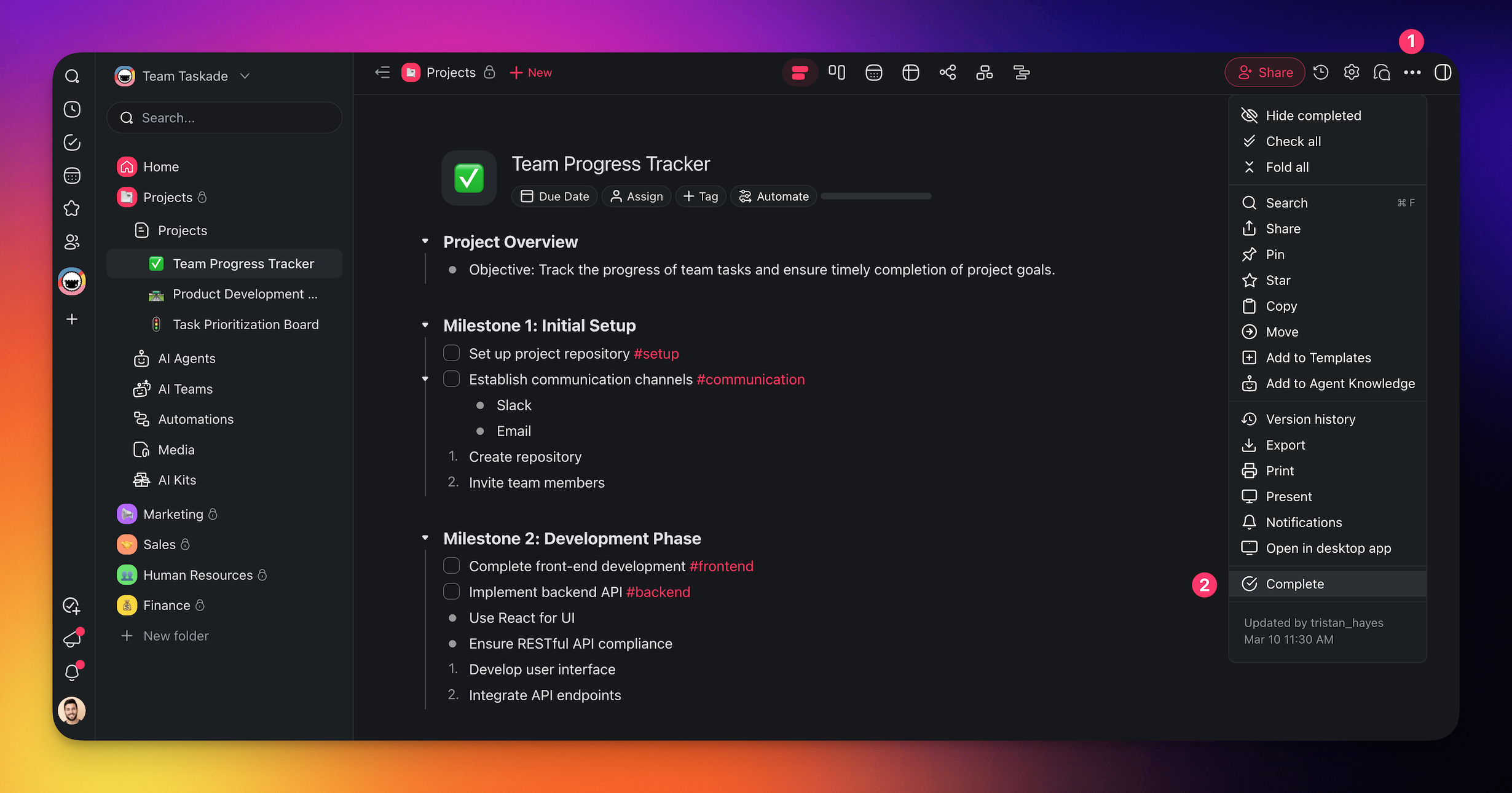
1. Click ••• in the top-right corner of a project.
2. Choose **Complete** from the drop-down menu.

---
### Complete From the Workspace
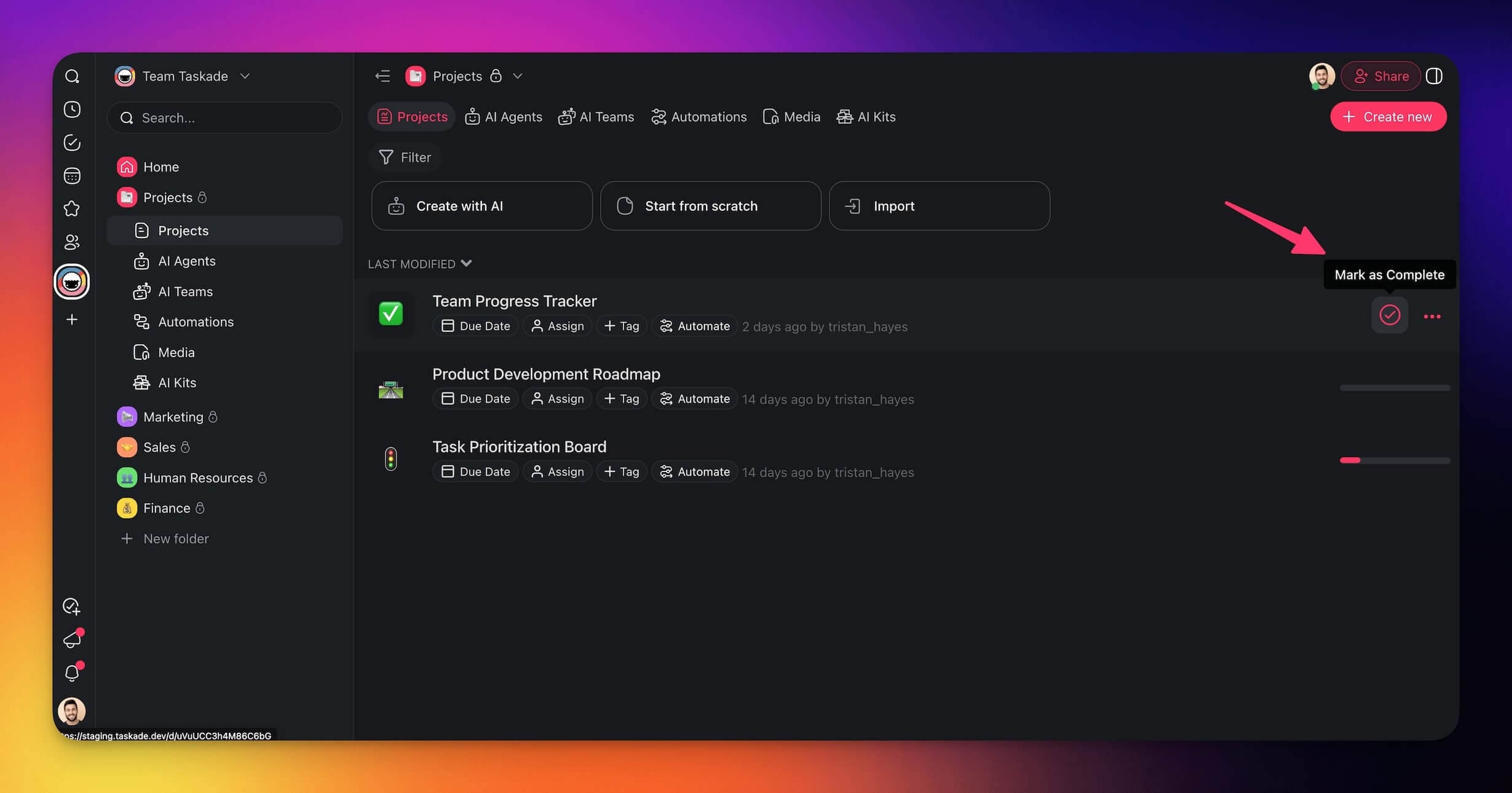
1. Go to a workspace/folder.
2. Hover the mouse cursor over the project you want to complete.
3. Click the **check mark circle**

on the right.
---
### Restore a Project
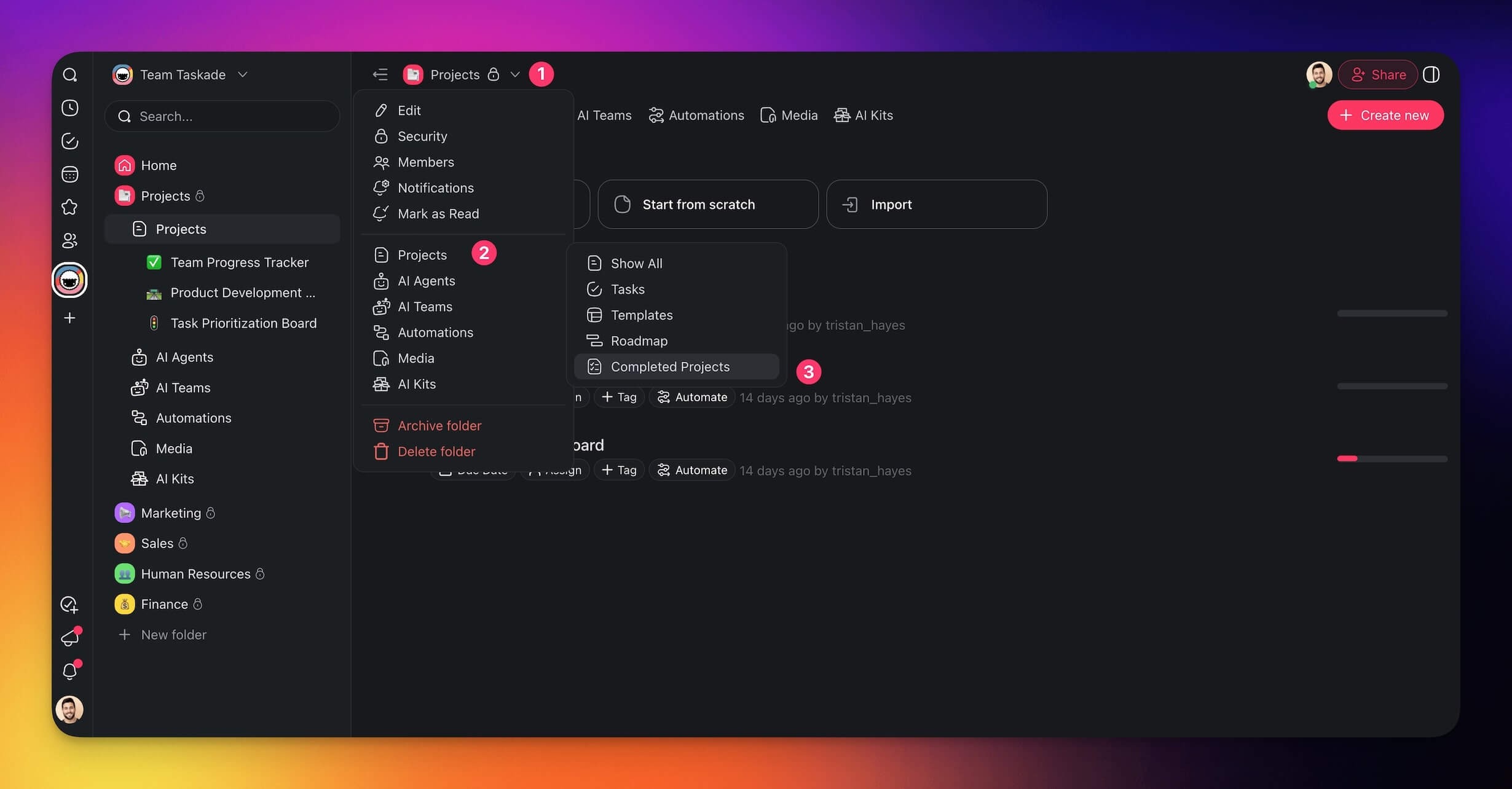
1. Click **˅** next to the name of your workspace/folder.
2. Choose 📄 **Projects** → **Completed Projects** from the list.
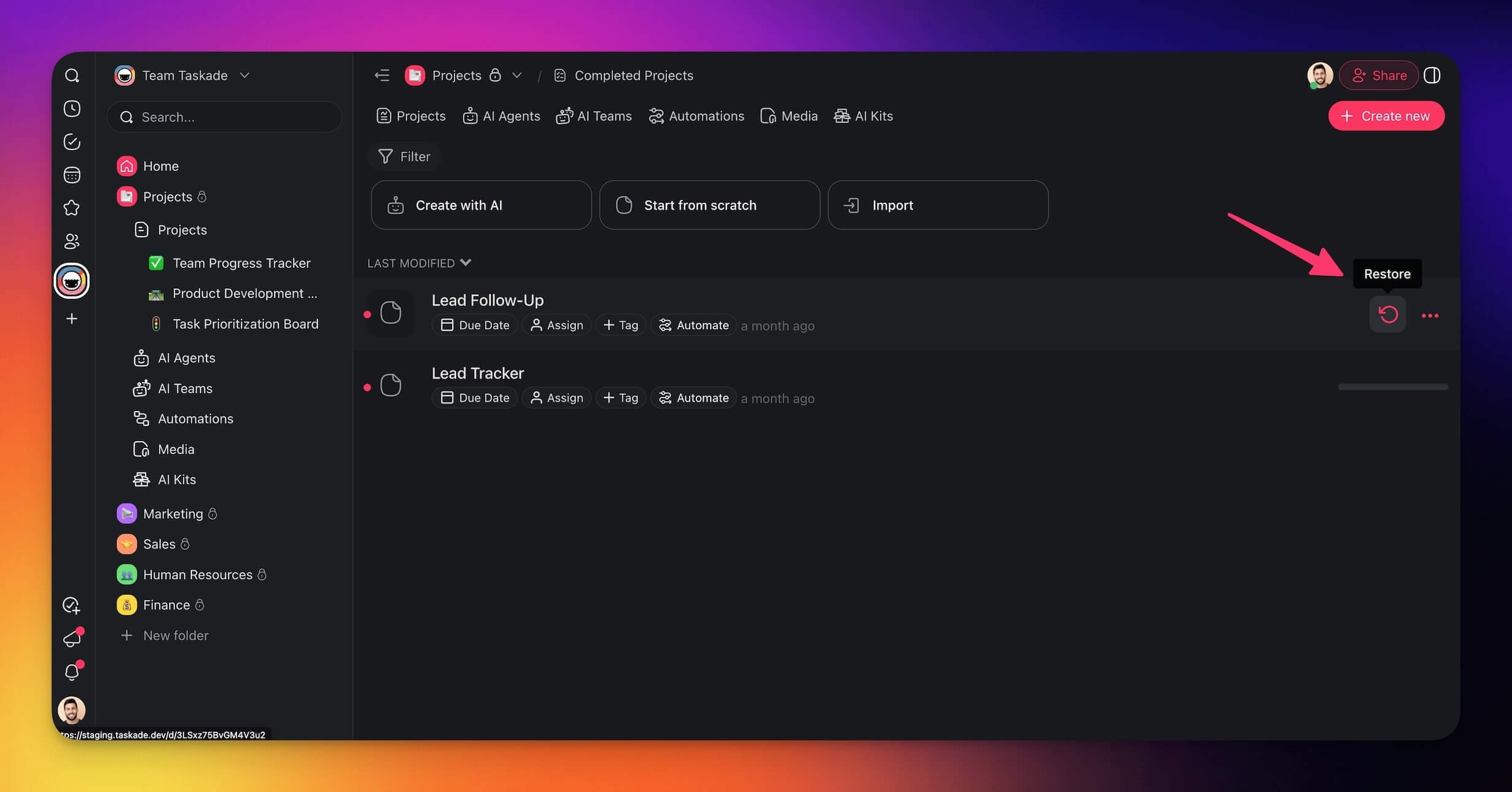
3. Hover the mouse cursor over a project and **click**

on the right.
---
### Delete a Project
If you no longer need a project, you can delete it permanently.
> ⚠️ **Note**: Deleted projects cannot be restored!
1. **Navigate** to your **workspace** or **Completed Projects** (see the previous section).
2. Hover the mouse cursor over a project.
3. Click ••• next to the project title.
4. Select

from the drop-down list.
---
## Tips
- If you need the content later, complete the project instead of a deletion.
- Use [Hide Completed](https://www.taskade.com/learn/projects/hide-completed) to keep your workspace tidy without removing finished projects.
- Before a deletion, export the project content for your records. To recover a recent state first, visit [Version History](https://www.taskade.com/learn/projects/version-history).
- Only workspace [Owners and Editors](https://www.taskade.com/learn/projects/permissions) can delete projects.
- For large workspaces, completing projects keeps them searchable in Completed Projects while keeping your active view clean.
---
### Related guides
- [Hide Completed Tasks](https://www.taskade.com/learn/projects/hide-completed)
- [Version History](https://www.taskade.com/learn/projects/version-history)
- [Move a Project](https://www.taskade.com/learn/projects/moving)
- [User Roles & Permissions](https://www.taskade.com/learn/projects/permissions)