# Create a Workspace
> What Is a Workspace? A Workspace is a collection of folders, projects, and templates. Think of it as a centralized hub when you can organize, plan, manage, an...
- Source: https://www.taskade.com/learn/projects/create-workspace
- Section: Projects
- Updated: 2026-08-26
- Index of all pages: https://www.taskade.com/learn/llms.txt
> **TL;DR:** A workspace is the top level of the [hierarchy](https://www.taskade.com/learn/projects/hierarchy-structure): Workspace → Folder → Project → Block → Task. Each workspace has its own members, billing, agents, automations, and shared templates. Free plan includes one workspace. Paid plans allow unlimited workspaces.
How a workspace organizes everything inside it:
```mermaid
flowchart TD
A[Workspace] --> B[Folders]
A --> C[Members and
Permissions]
A --> D[Agents and
Automations]
B --> E[Projects and
Templates]
style A fill:#2a1225,color:#ff8fa3,stroke:#ff2d60,stroke-width:2px
style B fill:#0d1b2a,color:#7dd3fc,stroke:#38bdf8,stroke-width:1.5px
style C fill:#0d1b2a,color:#7dd3fc,stroke:#38bdf8,stroke-width:1.5px
style D fill:#0d1b2a,color:#7dd3fc,stroke:#38bdf8,stroke-width:1.5px
style E fill:#0d1a0e,color:#86efac,stroke:#22c55e,stroke-width:1.5px
```
## Overview
A Workspace is a collection of [folders](https://www.taskade.com/learn/projects/team-folders), [projects](https://www.taskade.com/learn/projects/create-project), and [templates](https://www.taskade.com/learn/projects/use-templates). Think of it as a centralized hub where you can organize, plan, manage, and collaborate with others. You can create separate workspaces for different teams, clients, or areas of your life.
Your sidebar after you set up a few workspaces:
```
Workspaces
├─ + New workspace
├─ Acme Ops (you + 4 people)
├─ Client Work
└─ Personal
├─ Home renovation
└─ Reading list
```
---
## Create a New Workspace
1. Visit your [Taskade](https://taskade.com) dashboard and click the ➕ **plus icon** on the left.
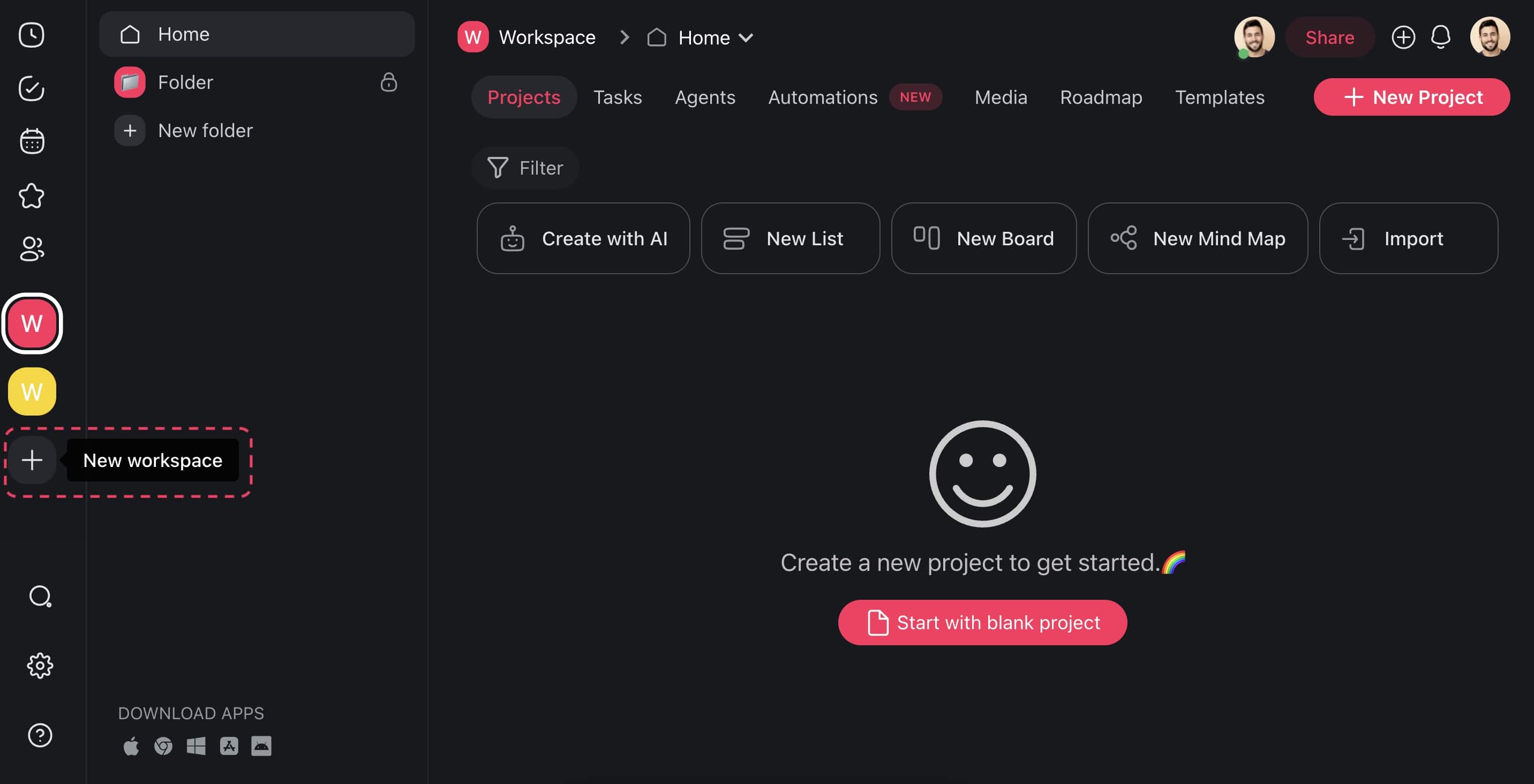
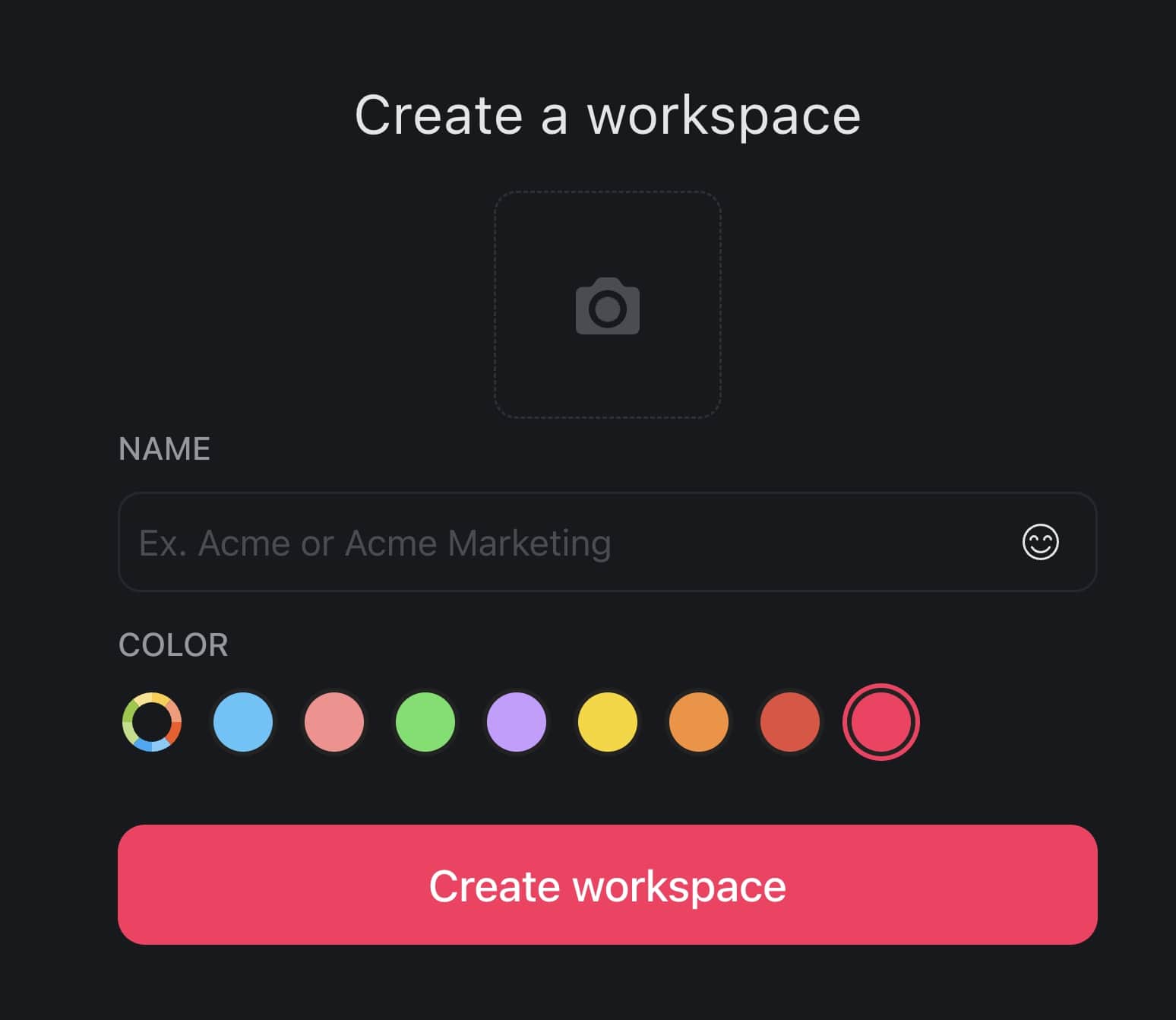
2. Enter the name of your workspace and choose a color palette.
3. You can also choose a logo from one of the available emojis or upload your own.
4. Taskade prompts you to invite new members to the workspace.
> **💡 Note**: An [upgraded workspace](https://www.taskade.com/learn/account/upgrade-premium) is required to set a workspace logo.
---
## Share a Workspace
You can share your workspace with other people via email or username, or by using a link. Those who join will have access to the projects and templates in that workspace.
> **💡 Note**: A shared workspace does not give access to all folders inside it. [Share each folder manually](https://www.taskade.com/learn/projects/team-folders).
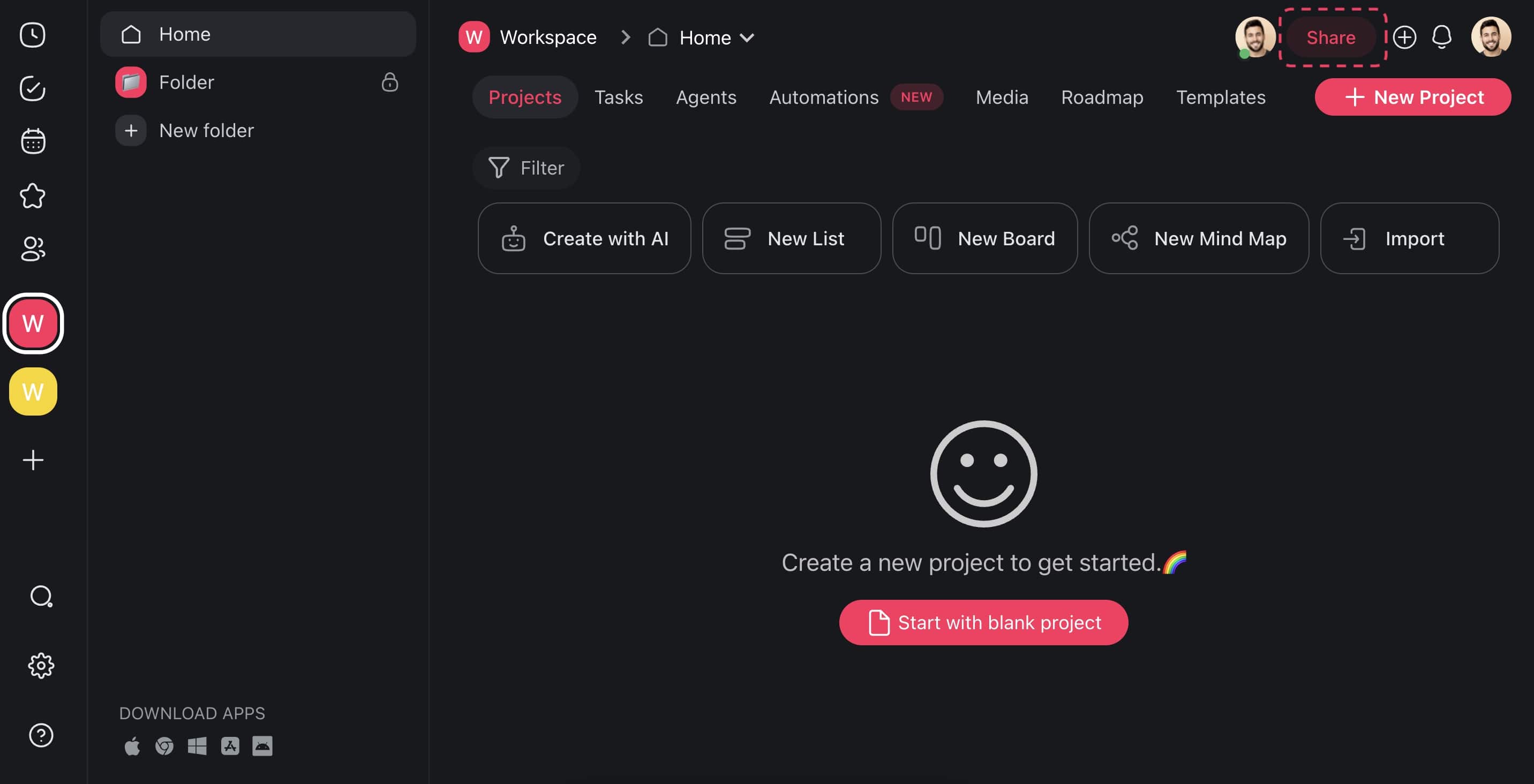
1. Open your Workspace and click the **Share** button in the top right-hand corner.
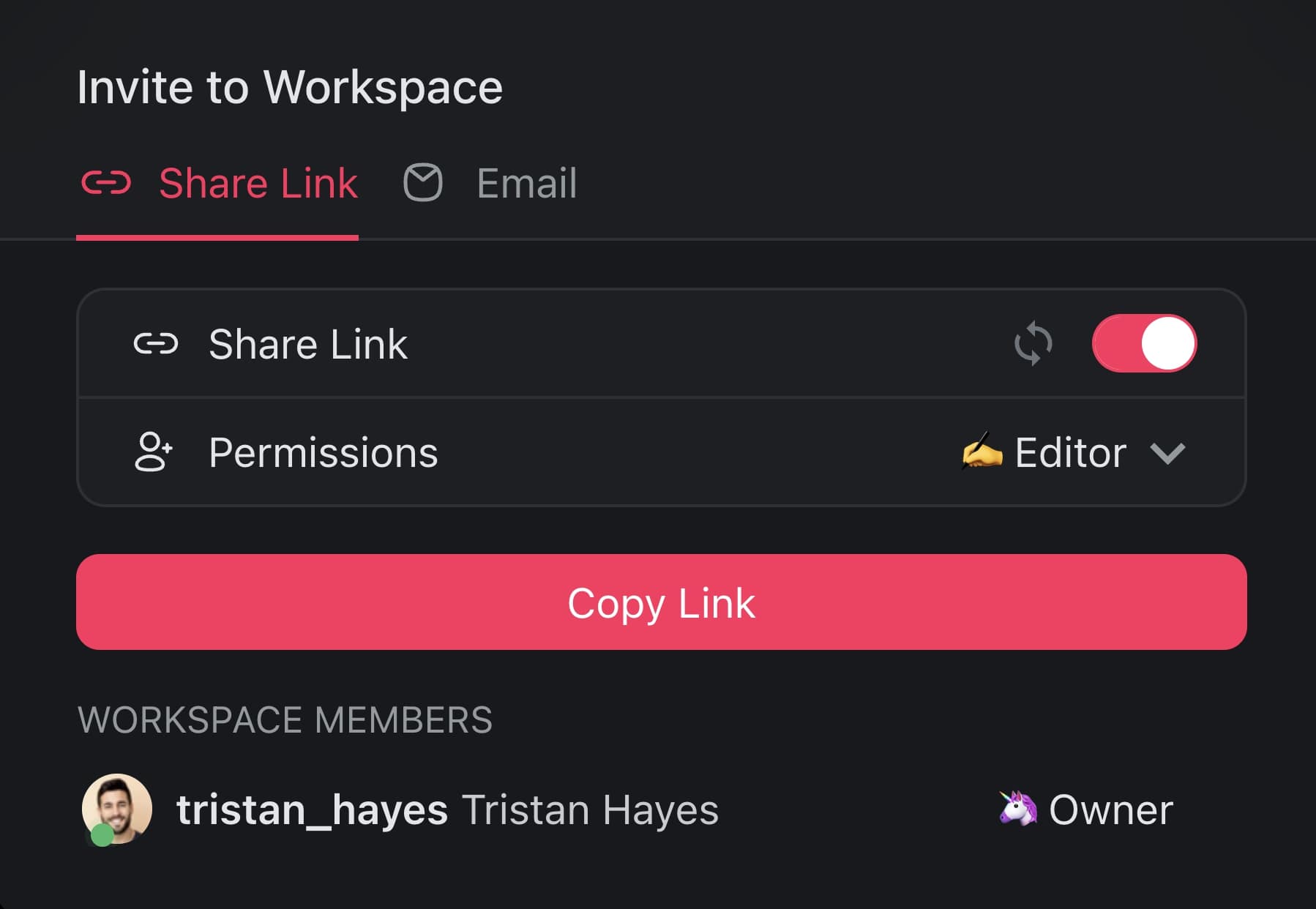
2. Copy the invite link and share it via email, text, or any other way.
3. You can specify [the level of access](https://www.taskade.com/learn/account/workspaces) for users who join with the link.
4. Alternatively, enter an **email** or **Taskade username** and click **Send Invite** to finish.
---
## Tips
- Use [workspace colors and icons](https://www.taskade.com/learn/projects/workspace-icon) to visually distinguish between workspaces in the sidebar.
- Create folders inside a workspace to organize projects by department, client, or project phase.
- Set [user roles and permissions](https://www.taskade.com/learn/projects/permissions) at the workspace level to control what members can do across all projects.
- You can be a member of multiple workspaces simultaneously. Switch between them using the sidebar.
---
### Related guides
- [Create a Team (Folder)](https://www.taskade.com/learn/projects/team-folders)
- [Create a Project](https://www.taskade.com/learn/projects/create-project)
- [Change Workspace Color & Icon](https://www.taskade.com/learn/projects/workspace-icon)
- [User Roles & Permissions](https://www.taskade.com/learn/projects/permissions)