# Activity Feed
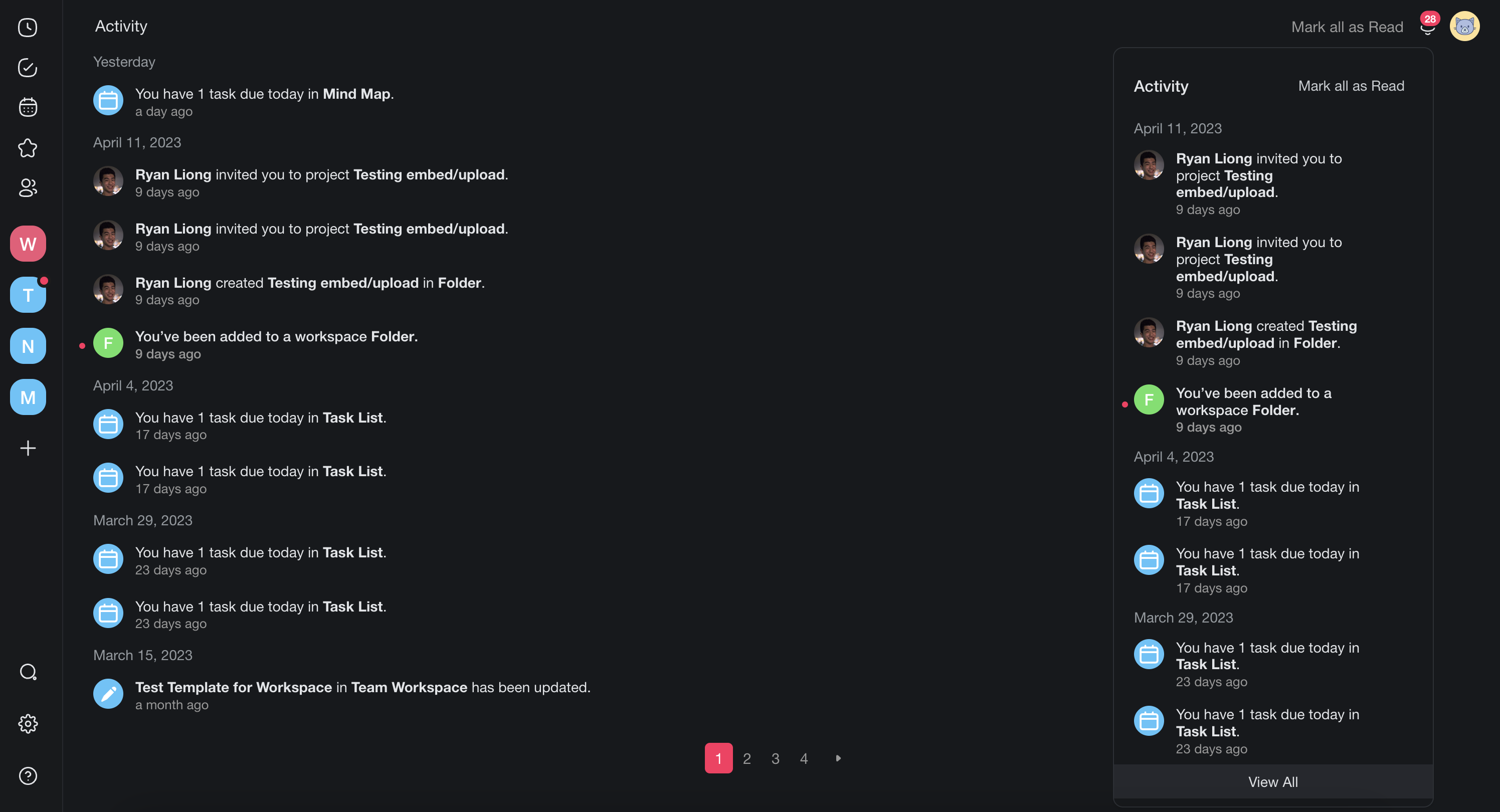
> What Is the Activity Feed? The Activity Feed lets you view all personal and team notifications in one place. To access the Activity Feed: (method 1): Click th...
- Source: https://www.taskade.com/learn/projects/activity-feed
- Section: Projects
- Updated: 2026-10-08
- Index of all pages: https://www.taskade.com/learn/llms.txt
> **TL;DR:** The Activity Feed collects edits, comments, assignments, and automation alerts across your workspaces. It also shows Taskade EVE app builds, publishes, live custom domains, and a daily summary for each app or folder. Open it from the bell, and pair it with [Version History](https://www.taskade.com/learn/projects/version-history) to see who changed what.
Here is how a teammate action becomes something you can act on:
```mermaid
flowchart LR
A[Teammate makes
a change] --> B[Activity Feed
captures it]
B --> C[Bell badge
and grouped item]
C --> D[Click to jump to
the project and task]
style A fill:#0d1b2a,color:#7dd3fc,stroke:#38bdf8,stroke-width:1.5px
style B fill:#2a1225,color:#ff8fa3,stroke:#ff2d60,stroke-width:2px
style C fill:#0d1a0e,color:#86efac,stroke:#22c55e,stroke-width:1.5px
style D fill:#1a140a,color:#ffb74d,stroke:#e65100,stroke-width:1.5px
```
## Overview
The **Activity Feed** is your central notification hub. It shows all recent changes across your workspaces, including edits, comments, due dates, and membership updates, so you can stay on top of what your team is working on.
---
## How to Access the Activity Feed
- **Method 1**: Click the 🔔 **bell icon** at the top of the screen, next to your profile picture. Then click **View All** to open the full Activity page.
- **Method 2**: Visit [taskade.com/activity](https://taskade.com/activity) directly.
---
## What Activity Includes
The feed tracks these types of changes:
| Activity Type | Example |
| --- | --- |
| ✏️ Project edits | A teammate modified a task title or description |
| 💬 Comments | A new [comment](https://www.taskade.com/learn/projects/project-comments) was added to a task |
| 🗓️ Due dates | A [due date](https://www.taskade.com/learn/projects/due-dates) was set or changed |
| 👥 Membership | A new [member joined](https://www.taskade.com/learn/account/invite-members) the workspace |
| ✅ Completions | A task was marked as complete |
| ⚙️ Automation alerts | An [automation](https://www.taskade.com/learn/automation/automations-execution) failed, was turned off, or reached its usage limit |
| 🧬 App builds | Taskade EVE finished building a Taskade Genesis app |
| 🚀 Publishes | You published or republished an app |
| 🌐 Domains | Your [custom domain](https://www.taskade.com/learn/genesis/custom-domains) went live for an app |
| 📊 Daily summary | One row a day for each app or folder that had activity |
## Read the Daily Summary
Taskade adds one summary row each day for each app or folder in your workspace that had activity the day before. The row counts automation runs, new agents, new agent teams, and new files. For example: "On Oct 1 in Client Portal: 42 automation runs, 2 new agents, 5 new files."
- Only the owners of that app or folder get the summary. Other members do not.
- An app or folder with no activity that day gets no row.
- Click the row to open the app or folder.
The publish row and the daily summary appear only in the bell and on the Activity page. They do not send an email or a push notification.
> **💡 Note**: The Activity Feed is a record of changes, not a chat log. For live messaging, use [Project Chat](https://www.taskade.com/learn/projects/chat) instead.
---
## Scope the Feed to One Workspace
If you belong to more than one workspace, the Activity Feed shows a workspace rail down the left side on a wide screen, and a row of workspace chips on a phone.
1. Open the Activity Feed.
2. Click a workspace in the rail, or tap its chip.
3. Read only the activity from that workspace and its folders.
4. Click **All** to go back to everything.
Taskade keeps the choice in the page address, so the scope survives a reload and the browser back button. Copy the address to send a teammate the same filtered view. Taskade applies the filter before it counts results, so the totals and the page numbers stay correct while you are scoped.
## Managing Notifications
- Click **Mark all as read** to reset the notification bell badge.
- Notifications are grouped by project for easier scanning.
- Scope the feed to one workspace first when the list gets long, then mark what you have read.
---
## Tips
- Check the Activity Feed at the start of your day to see what changed overnight.
- Use it alongside [Automations](https://www.taskade.com/learn/automation/automations-execution): automate follow-ups based on activity patterns.
- Combine with [Due Dates](https://www.taskade.com/learn/projects/due-dates) to ensure nothing falls through the cracks.
- Click any item in the feed to jump directly to the project and task where the change occurred.
---
## Related
- [Project Comments](https://www.taskade.com/learn/projects/project-comments)
- [Due Dates & Reminders](https://www.taskade.com/learn/projects/due-dates)
- [Invite Members](https://www.taskade.com/learn/account/invite-members)
- [Assign Tasks](https://www.taskade.com/learn/projects/assign-task)
- [Workspace Settings](https://www.taskade.com/learn/account/workspaces)
- [Chat](https://www.taskade.com/learn/projects/chat)
- [Tags](https://www.taskade.com/learn/projects/tags)
---
### Related guides
- [Version History](https://www.taskade.com/learn/projects/version-history)
- [User Roles & Permissions](https://www.taskade.com/learn/projects/permissions)
- [Project Comments](https://www.taskade.com/learn/projects/project-comments)
- [Real-Time Collaboration](https://www.taskade.com/learn/projects/collaboration)