# Actionsheet View
> The Actionsheet view is a classic spreadsheet companion to the Table view in Taskade. It allows you to manage tasks in a streamlined format organized into customizable ...
- Source: https://www.taskade.com/learn/projects/actionsheet-view
- Section: Projects
- Updated: 2026-11-09
- Index of all pages: https://www.taskade.com/learn/llms.txt
> **TL;DR:** Actionsheet is the classic, minimal spreadsheet companion to the full [Table view](https://www.taskade.com/learn/projects/table-view), faster to scan, fewer columns, great for simple CRMs and task lists. Find it under **More views** in the project toolbar, on a paid plan. It reads the same project data as every other view, so switching between Actionsheet and List, Board, or Calendar never duplicates work.
Here is how your tasks become a streamlined spreadsheet in the Actionsheet view.
```mermaid
flowchart LR
A[Project tasks] --> B[Actionsheet view]
B --> C[Custom columns
presets and fields]
B --> D[Add-Ons
assignee due date]
C --> E[Shared across
every other view]
D --> E
style A fill:#0d1b2a,color:#7dd3fc,stroke:#38bdf8,stroke-width:1.5px
style B fill:#2a1225,color:#ff8fa3,stroke:#ff2d60,stroke-width:2px
style C fill:#0d1a0e,color:#86efac,stroke:#22c55e,stroke-width:1.5px
style D fill:#0d1a0e,color:#86efac,stroke:#22c55e,stroke-width:1.5px
style E fill:#1a140a,color:#ffb74d,stroke:#e65100,stroke-width:1.5px
```
## Overview
Run a lightweight client list, lead tracker, or task queue in a fast spreadsheet grid. Actionsheet is the streamlined companion to the full [Table view](https://www.taskade.com/learn/projects/table-view): fewer columns, quicker to scan, and it reads the same project data as every other view.
Reach for Actionsheet when you want to:
- Track a simple client or lead list with a status, owner, and next step
- Assign rows to teammates and watch progress fill in as work moves
- Keep a personal task queue you can scan in a single screen
- Log costs, quantities, or hours in number and currency fields
- (optional) Browse our free [task management templates](https://www.taskade.com/templates/task-management) for more ideas
> 💡 **Note**: Taskade mobile now supports all project views, so you can switch layouts on the go. Visit [Project Views](https://www.taskade.com/learn/projects/project-views) to learn more about other workflows in Taskade.
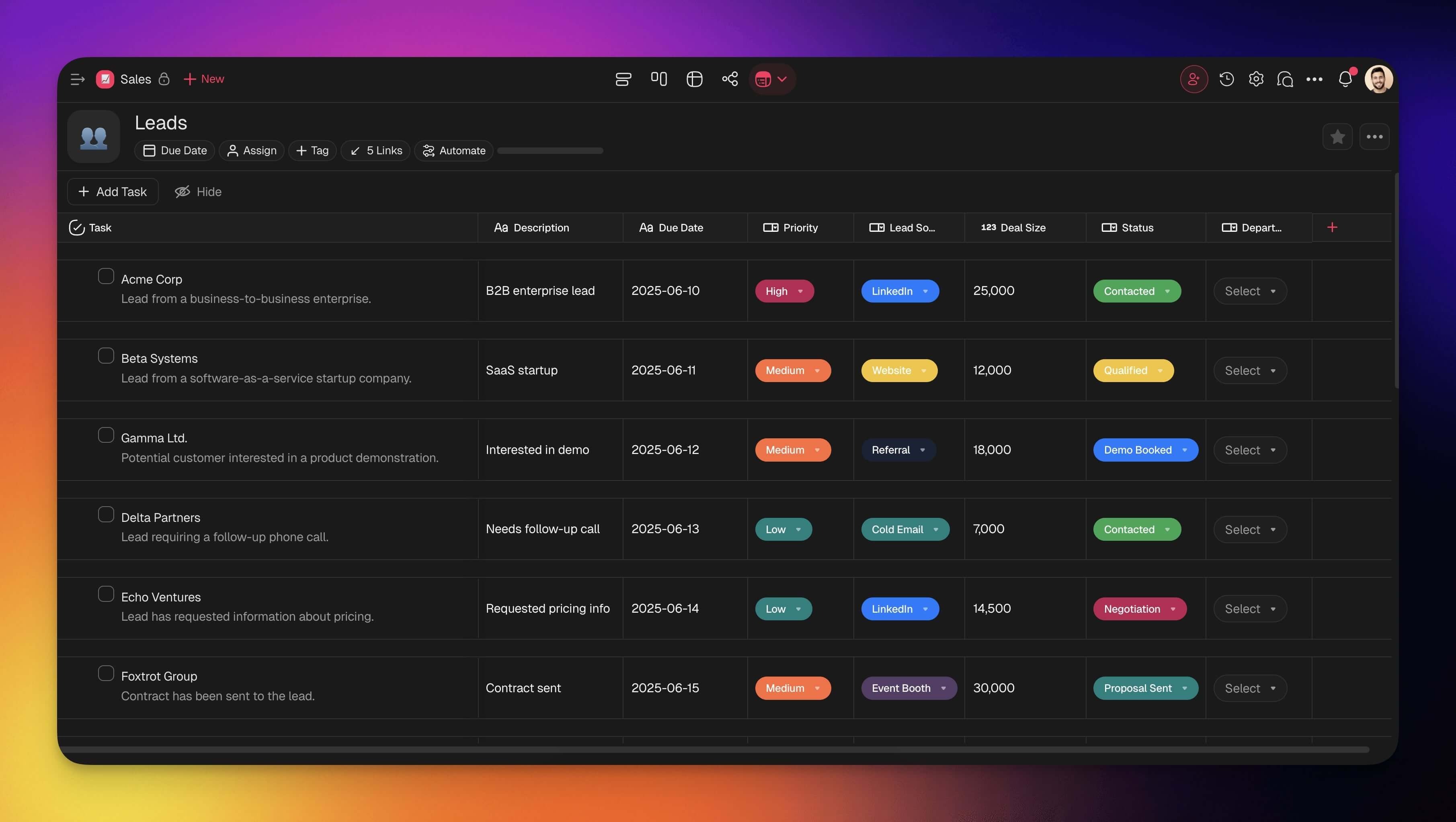
---
## Manage Actionsheet Columns
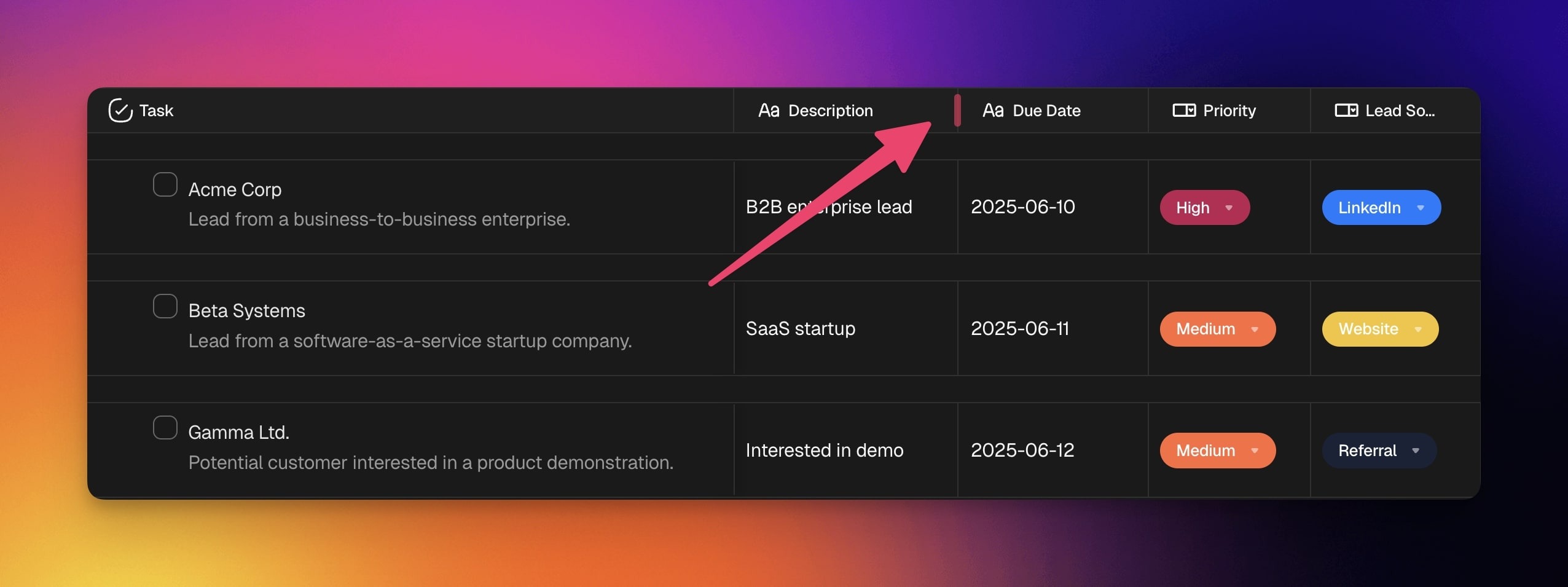
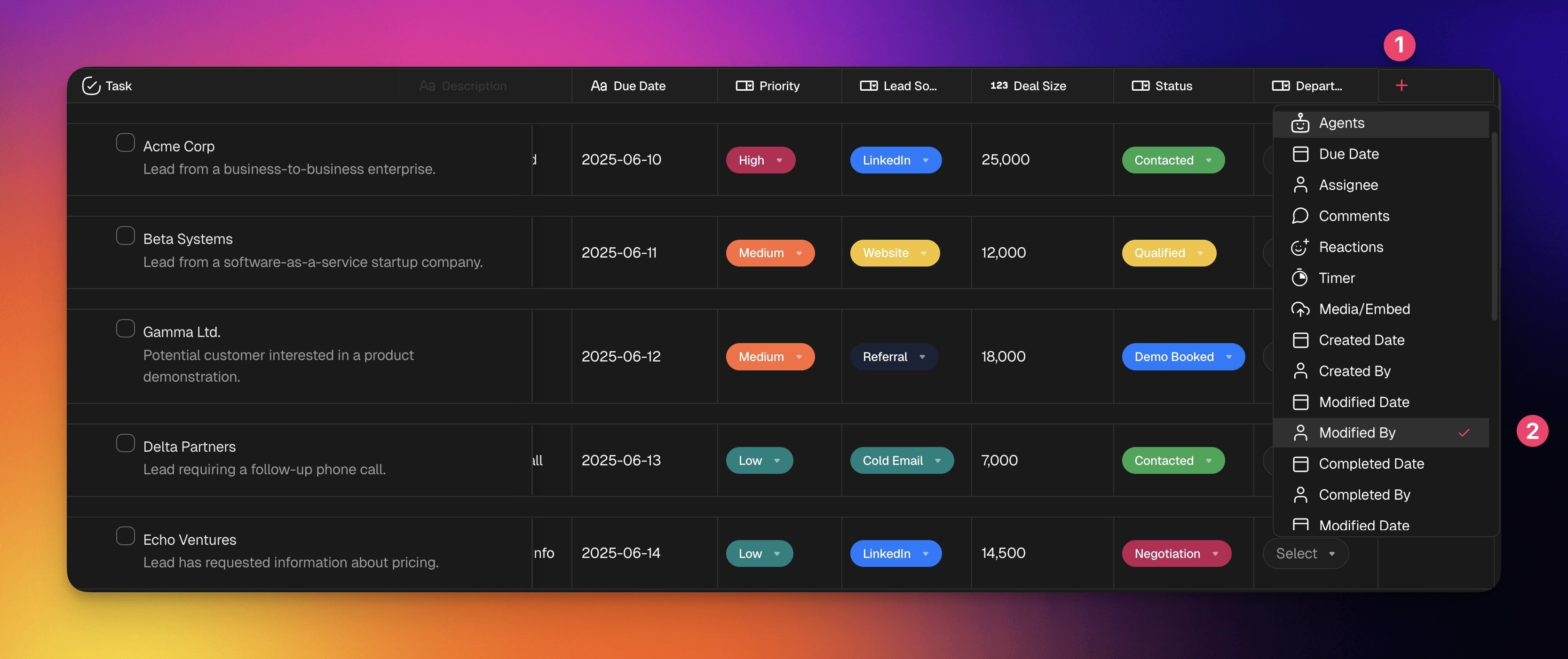
- Resize: **Click and hold** a **column divider** and drag it to the left or right.
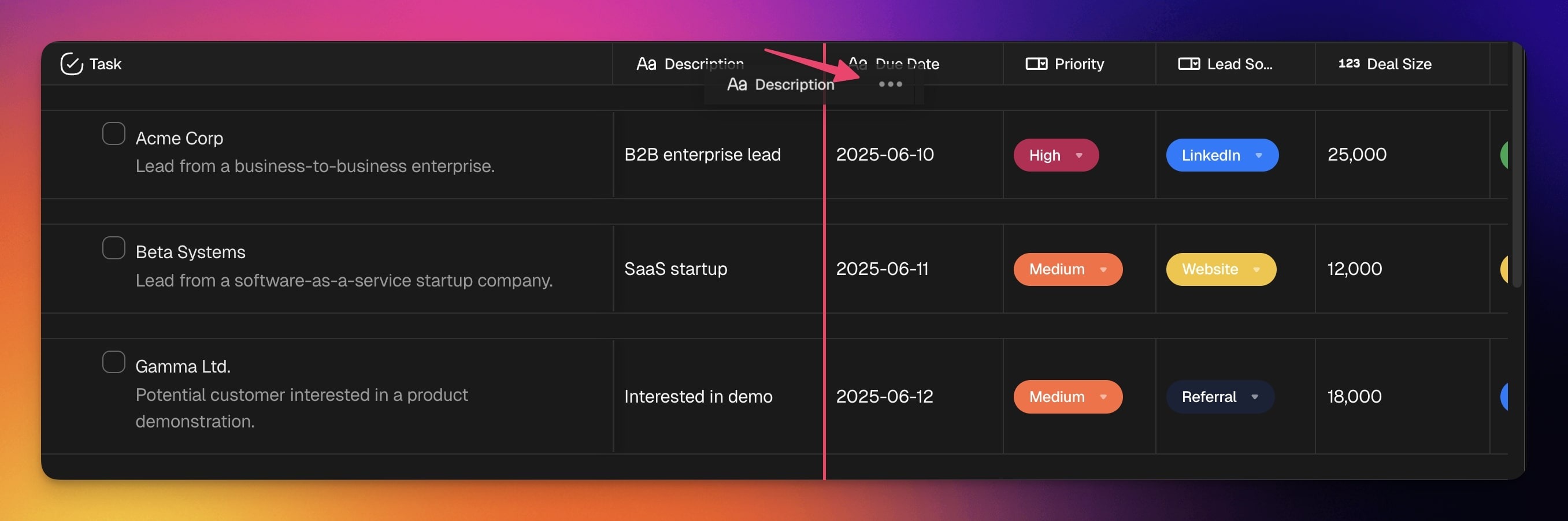
- Reorder: **Click and hold** a **column header** and drag it to the left or right.
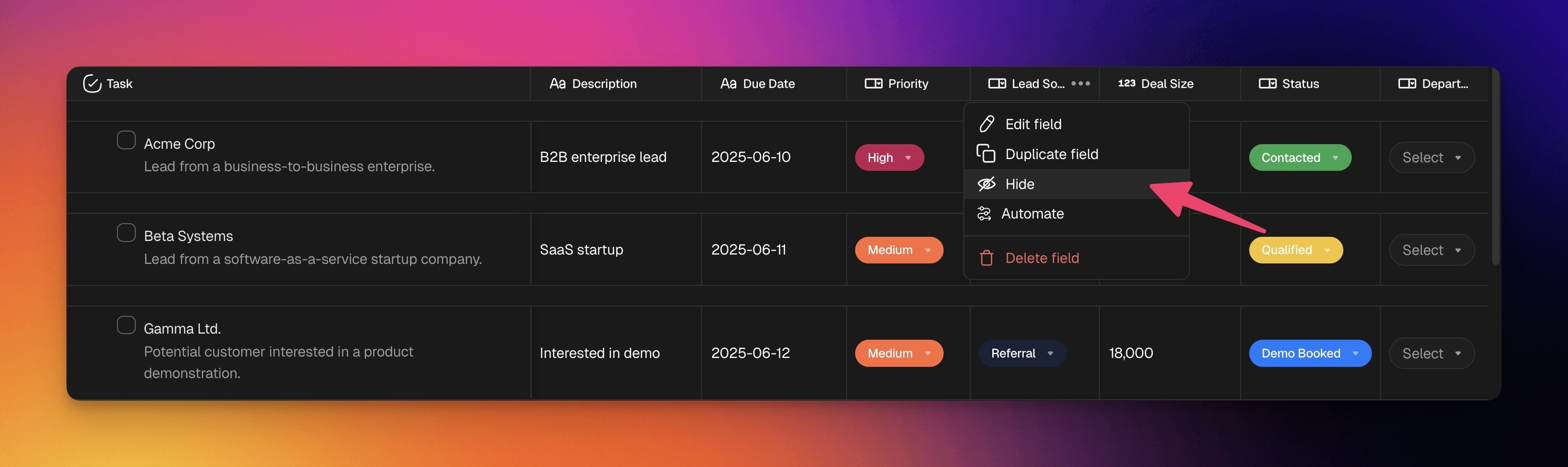
- Hide: **Click ··· **next to a **column header** ➡ **Hide column**.
- Show **: Click the ➕ button **at the end of the actionsheet to add columns again.
- Scroll to the right to see the **➕ button**, if needed.
---
### Add Custom Fields
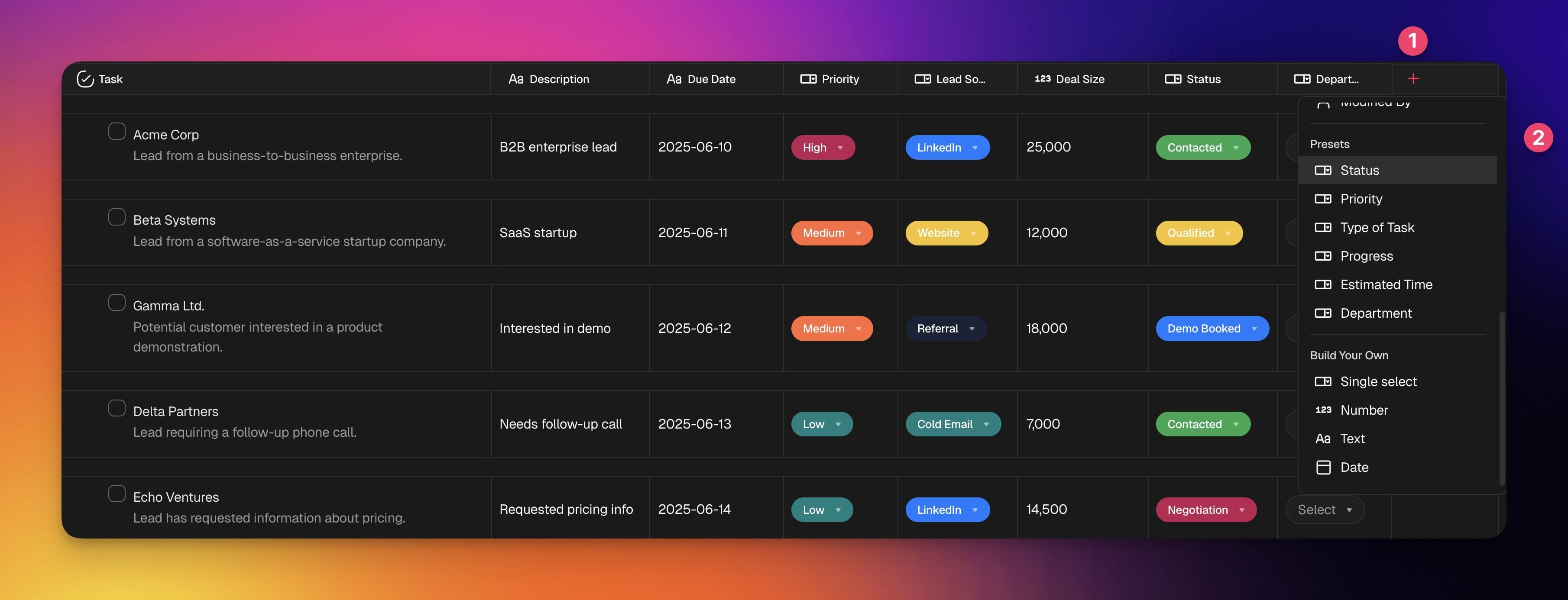
1. **Click** the **➕ button** next to the last column (scroll right if needed).
- (method #1) Choose one of the available presets.
- (method #2) Choose **Single select** to add a custom field.
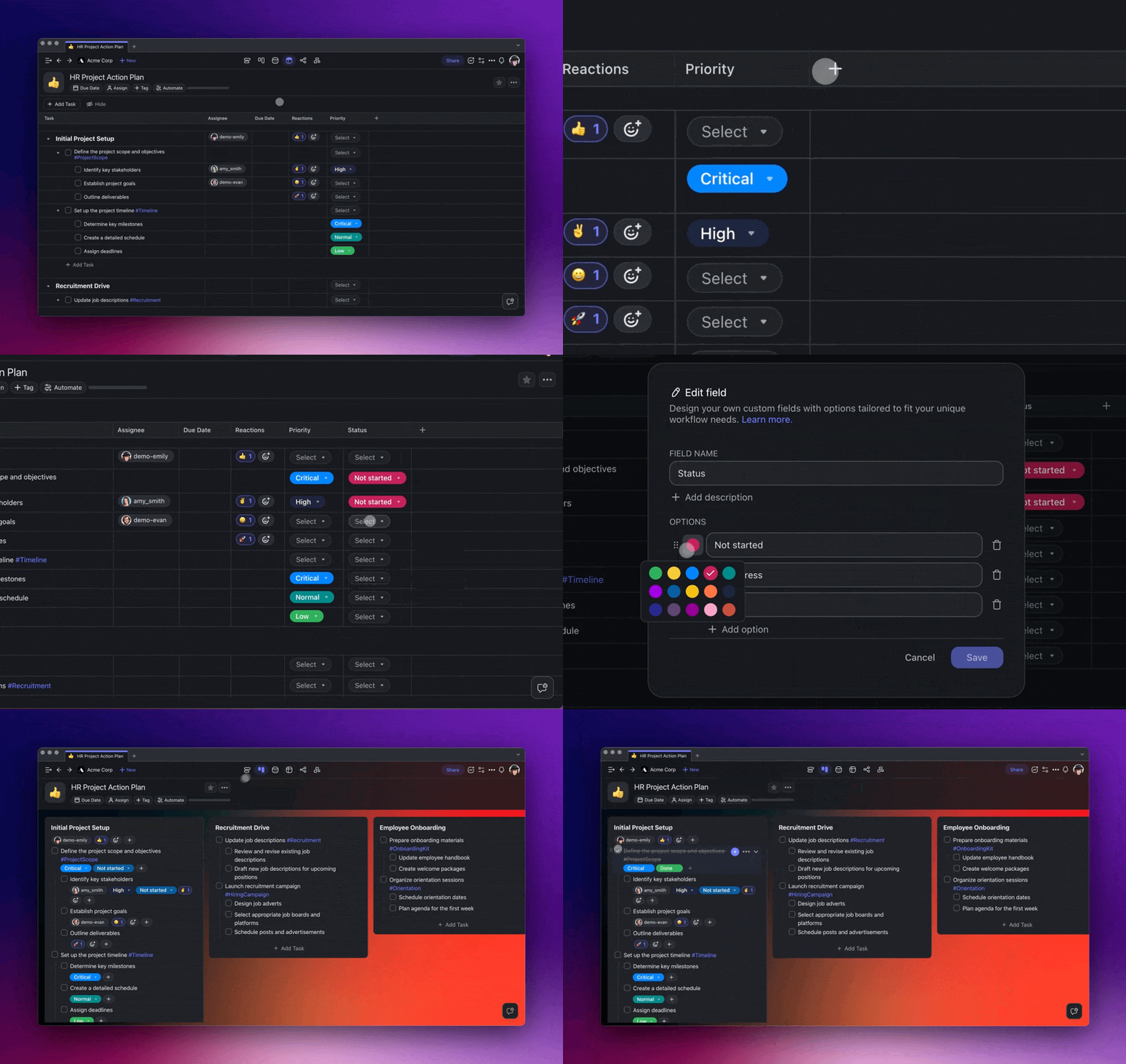
> **💡 Note**: The custom fields you add in the Actionsheet view will be visible in other views. You can also add them at any time using [Add-Ons](https://www.taskade.com/wiki/taskade/add-ons).
---
### Use Presets
Presets give you ready-made field types that organize your work. You can customize each preset to match your project.
> 💡 **Note**: Actionsheet presets work [across views](https://www.taskade.com/learn/projects/project-views), including Lists and Boards.
| ⚙️ Preset | 🔤 Description |
| --- | --- |
| Status | Tracks the progress of tasks. |
| Priority | Indicates the importance or urgency. |
| Type of Task | Categorizes tasks by their nature. |
| Progress | Shows the current progress of a task. |
| Estimated Time | Indicates the estimated task duration. |
| Department | Organizes tasks by team/department. |
---
### Edit Columns & Fields
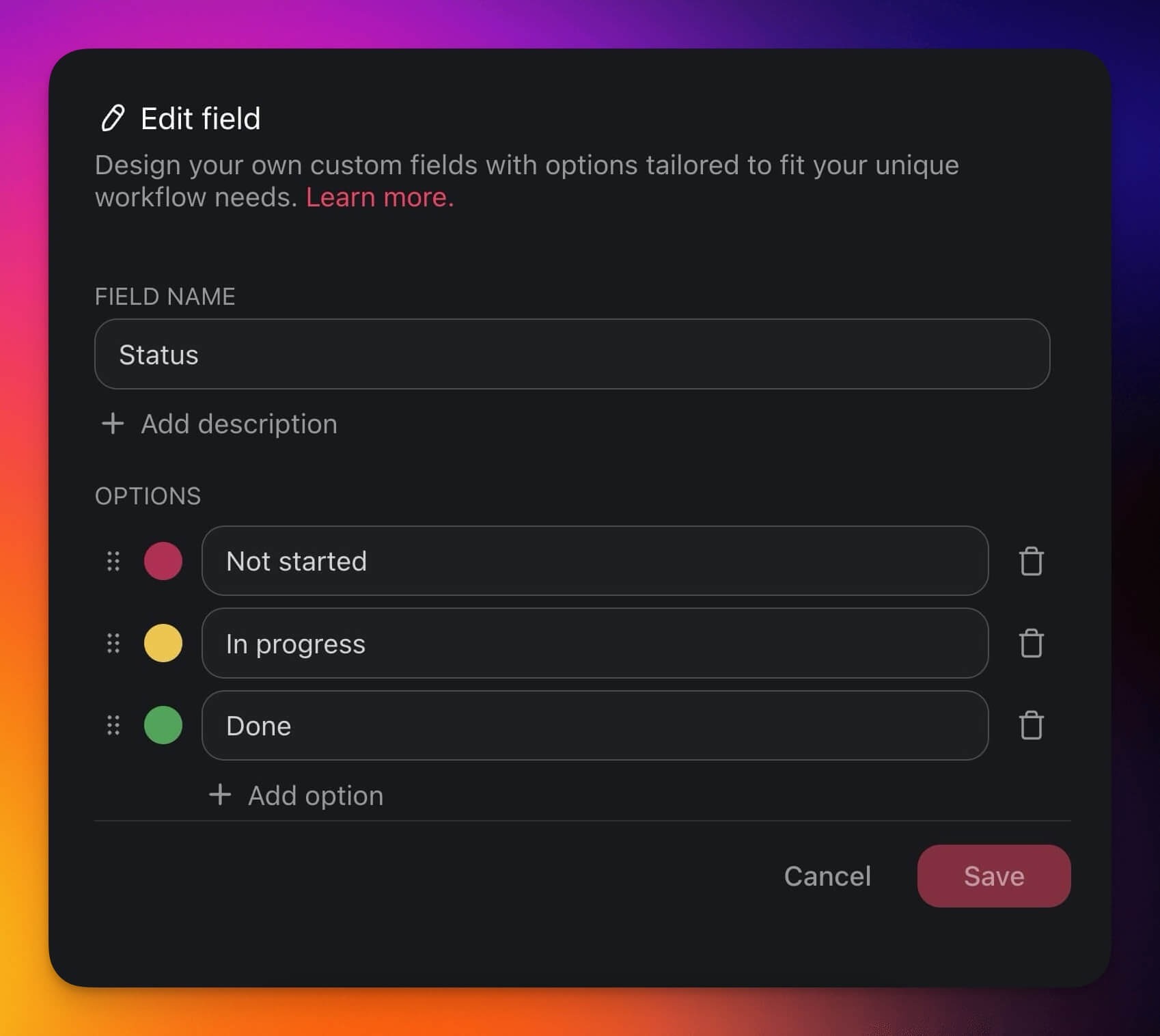
1. Click the ··· three dots next to a field name.
2. Choose ✏️ **Edit Field** from the list.
3. Edit the field name and available options.

---
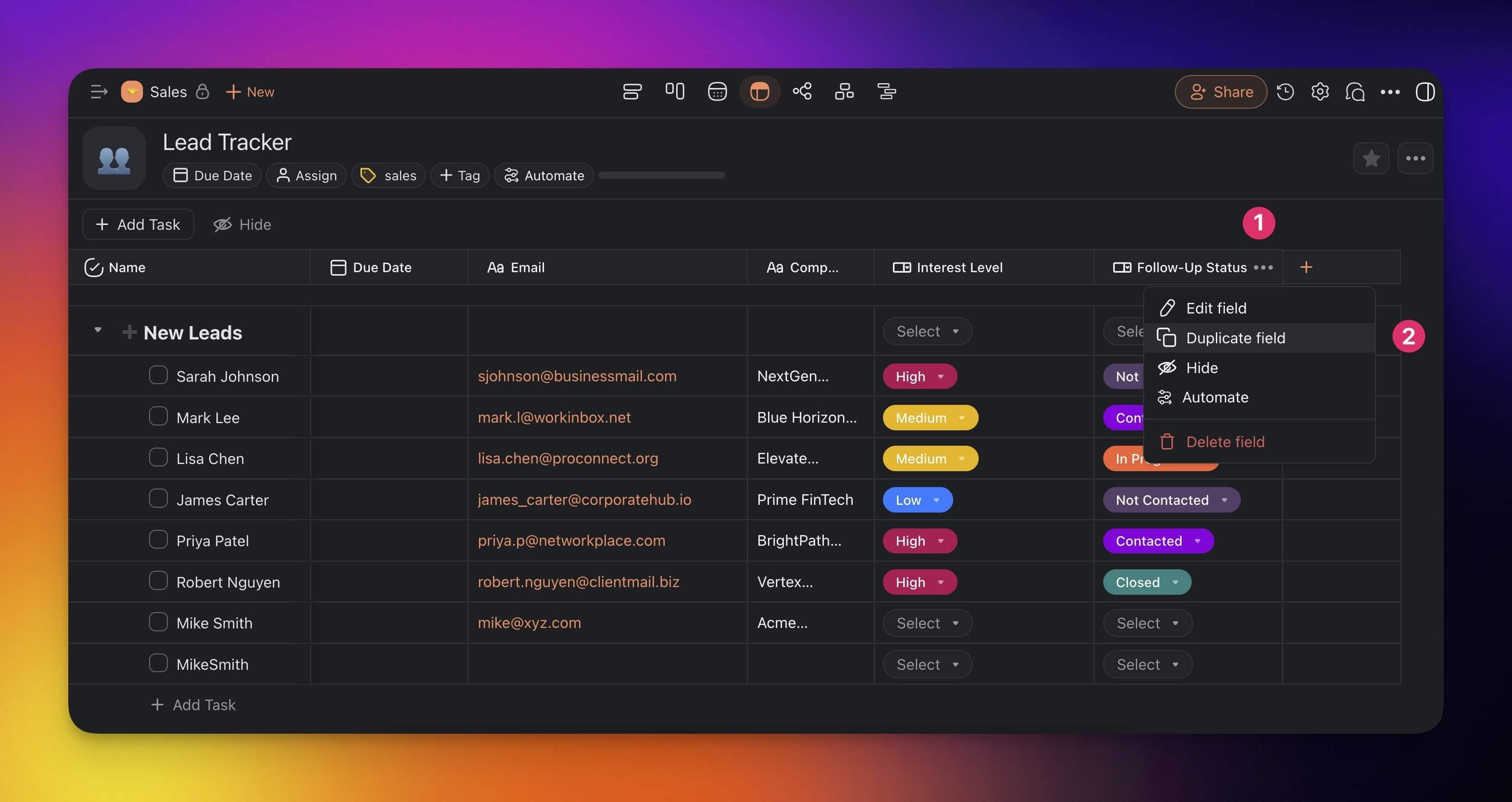
### Duplicate Custom Fields
You can quickly duplicate a column with custom fields and adjust as needed.
- **Click** the ··**· three dots** next to a field name.
- Choose **Duplicate field** from the drop-down list.
---
## Build Your Own Fields
Customize your Table view experience by creating fields tailored to your needs.
### Add a Single Select Field
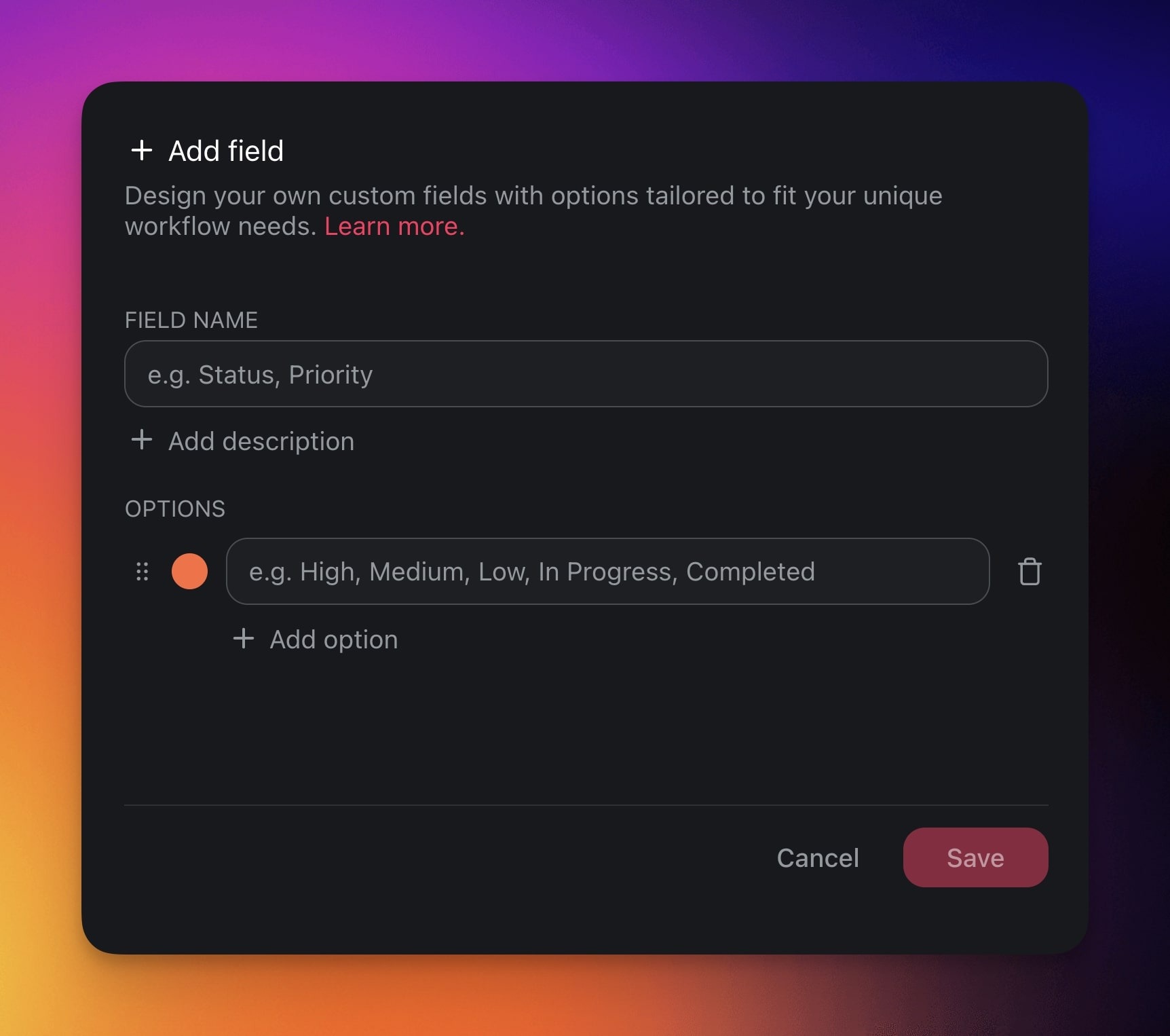
The **Single select** option lets you create custom fields.
1. **Click** the **➕ button** next to the last column (scroll right if needed).
2. Choose **Single select** from the drop-down list.
Not sure where to start? Here are a few ideas:
| ⚙️ Preset | 🔤 Description |
| --- | --- |
| Project Phase | Mark the phase of the project. |
| Milestone | Signify project checkpoints. |
| Client | Associate tasks with specific clients. |
| Location | Specifies the location for tasks. |
| Cost | Lists the budget or actual cost. |
---
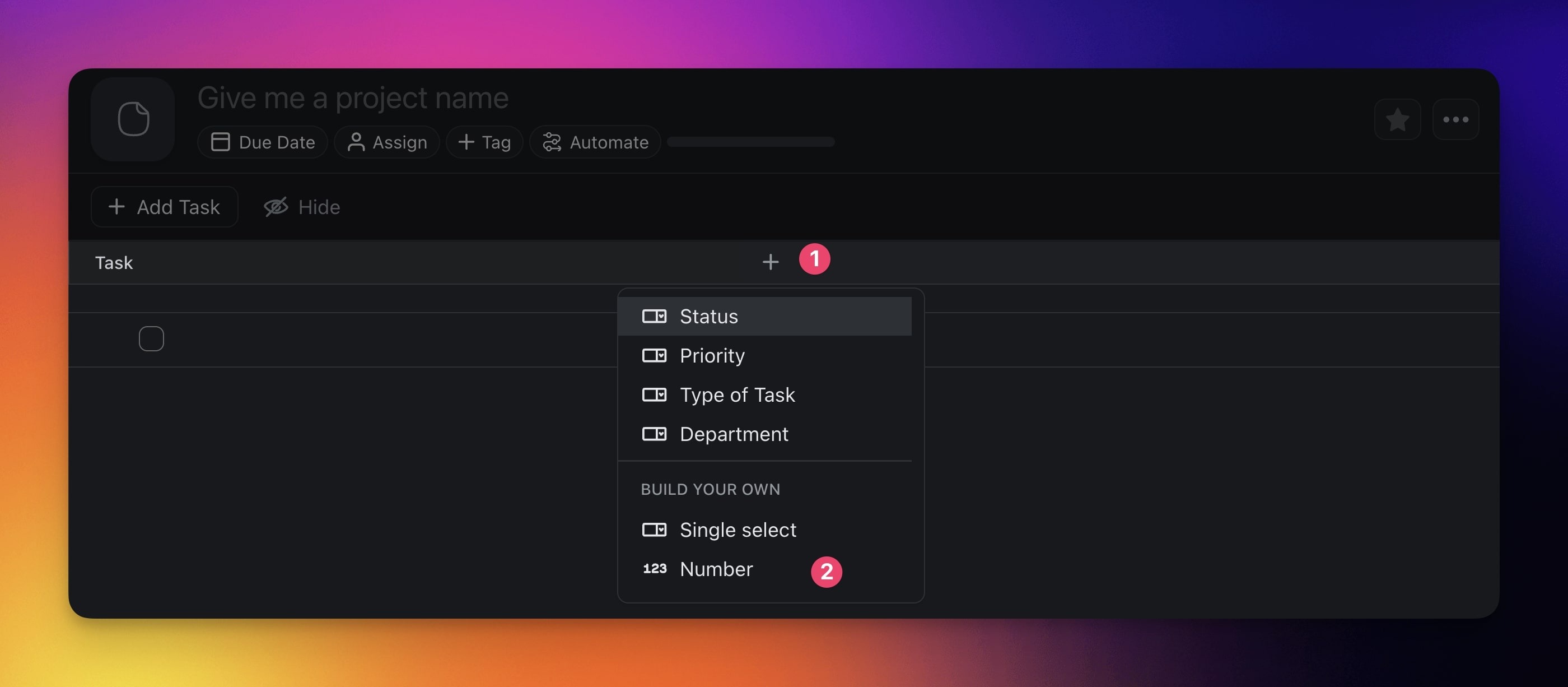
### Add a Number Field
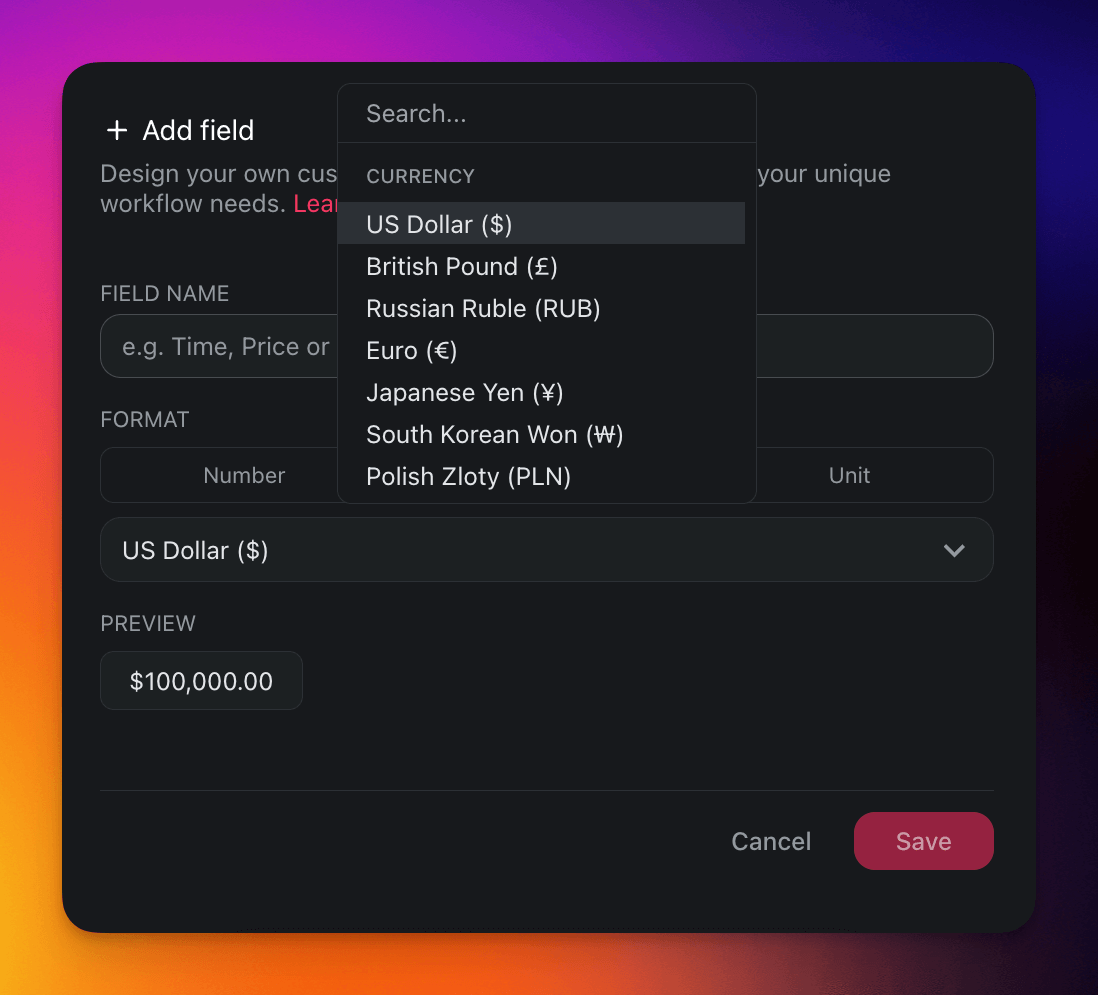
The **Number** option lets you handle custom data in three formats.
1. **Click** the **➕ button** next to the last column (scroll right if needed).
2. Choose **Number** from the drop-down list.
| 🔢 Number | 💵 Currency | ⚛️ Unit |
| --- | --- | --- |
| Add and work with plain numbers, perfect for quantifications, numerical records, or data analysis. | Add currency values, perfect for financial tracking, budgeting, and cost-related projects. | Represent your data in percentages, perfect for tracking completion rates and performance metrics. |
---
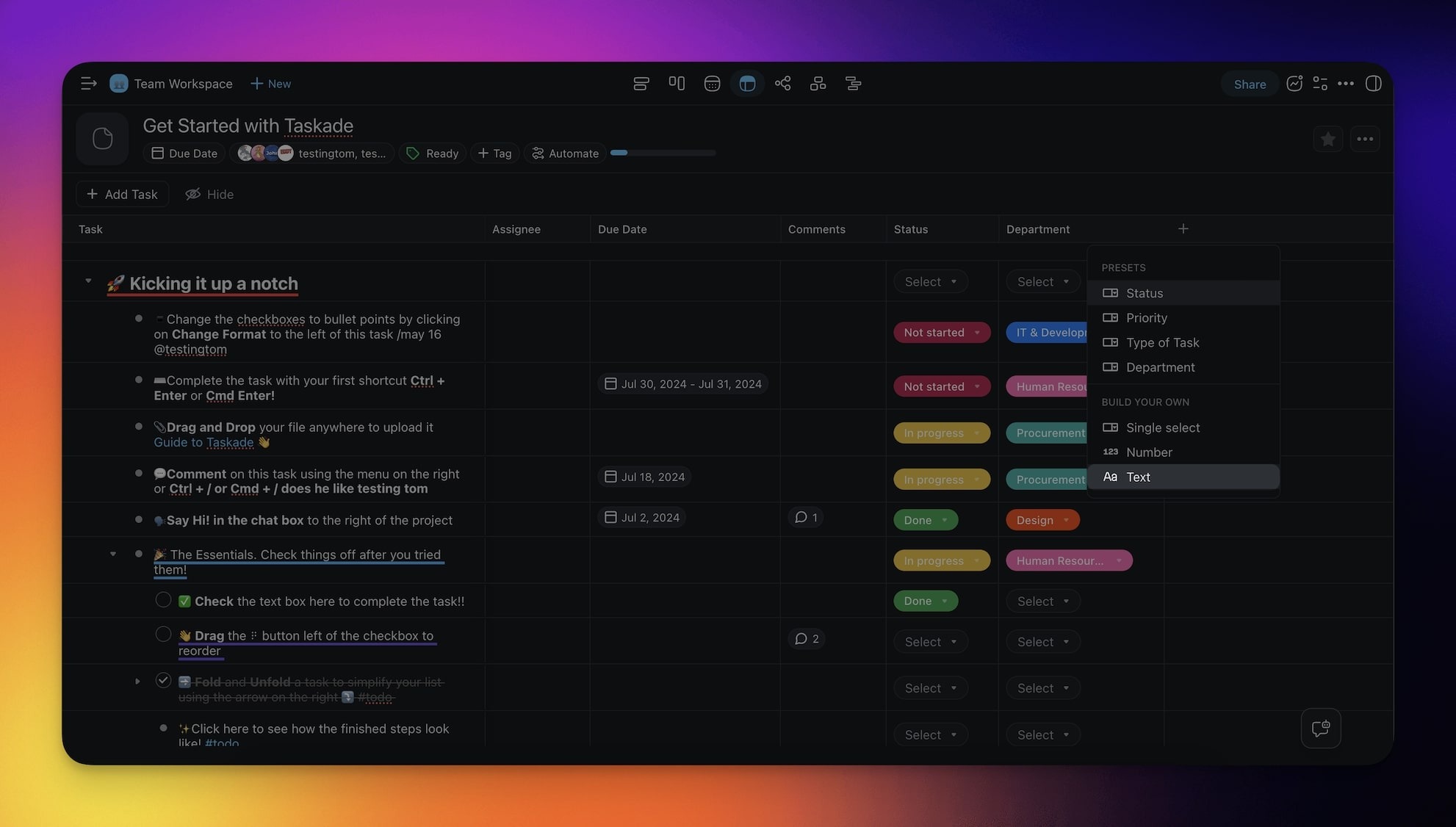
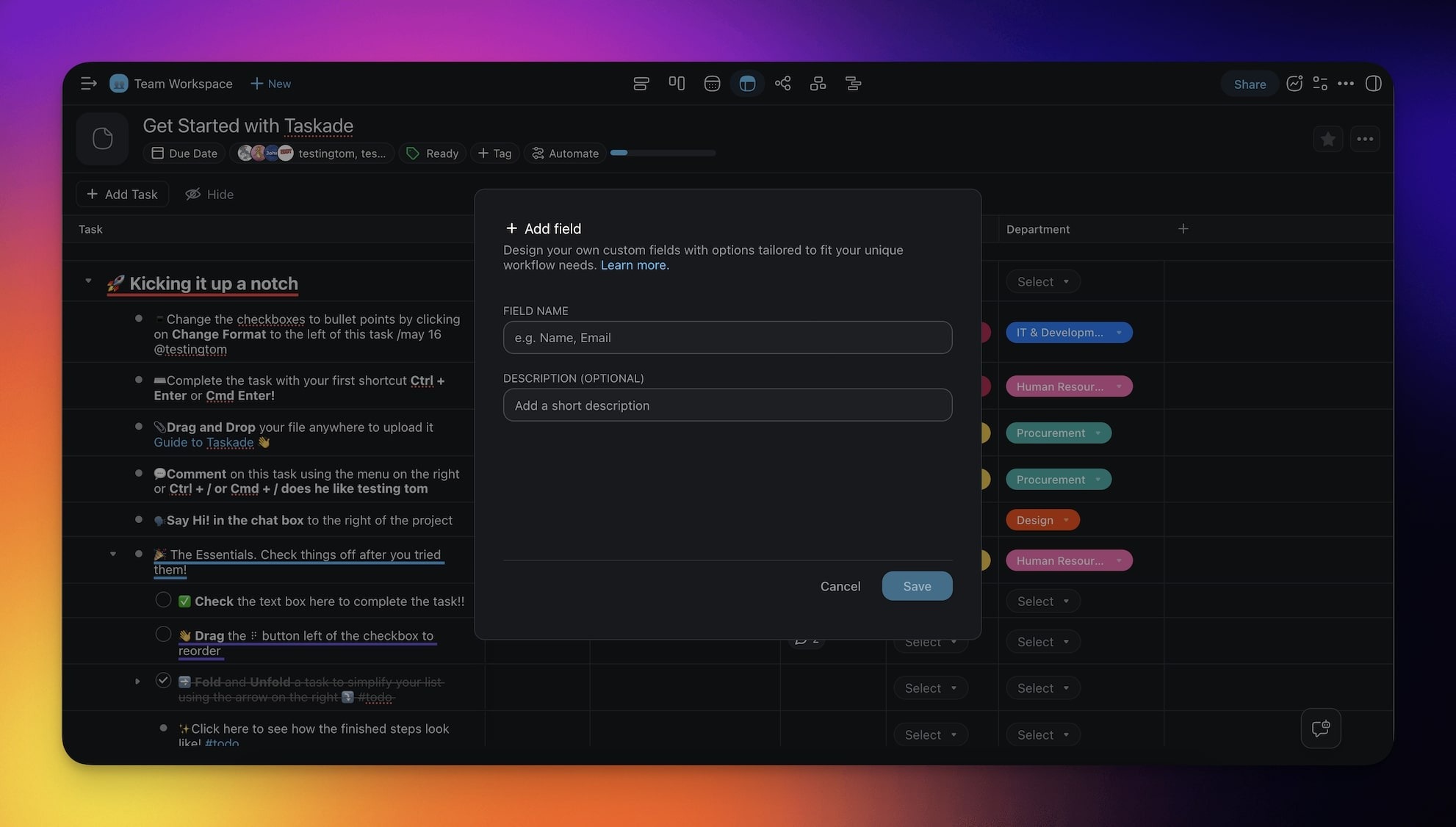
### Add a Text Field
The **Text** option lets you write short text within each row.
1. **Click** the **➕ button** next to the last column (scroll right if needed).
2. Choose **Text** from the drop-down list.
---
## Use Table View Add-Ons
Add-ons are specialized tools that make your tables smarter. You can enable or disable the add-ons at any time based on your workflow needs.
---
### Enable Add-Ons
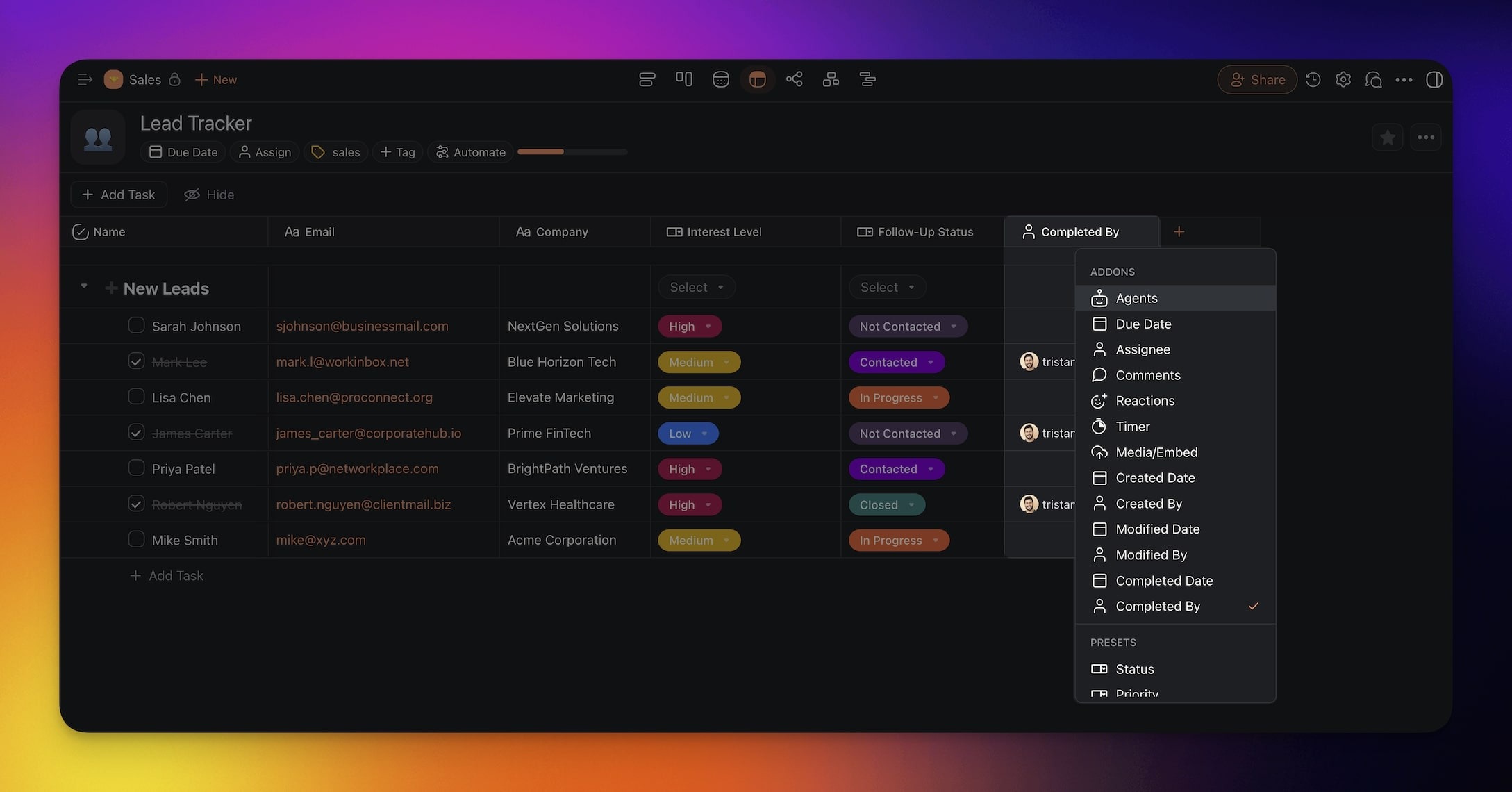
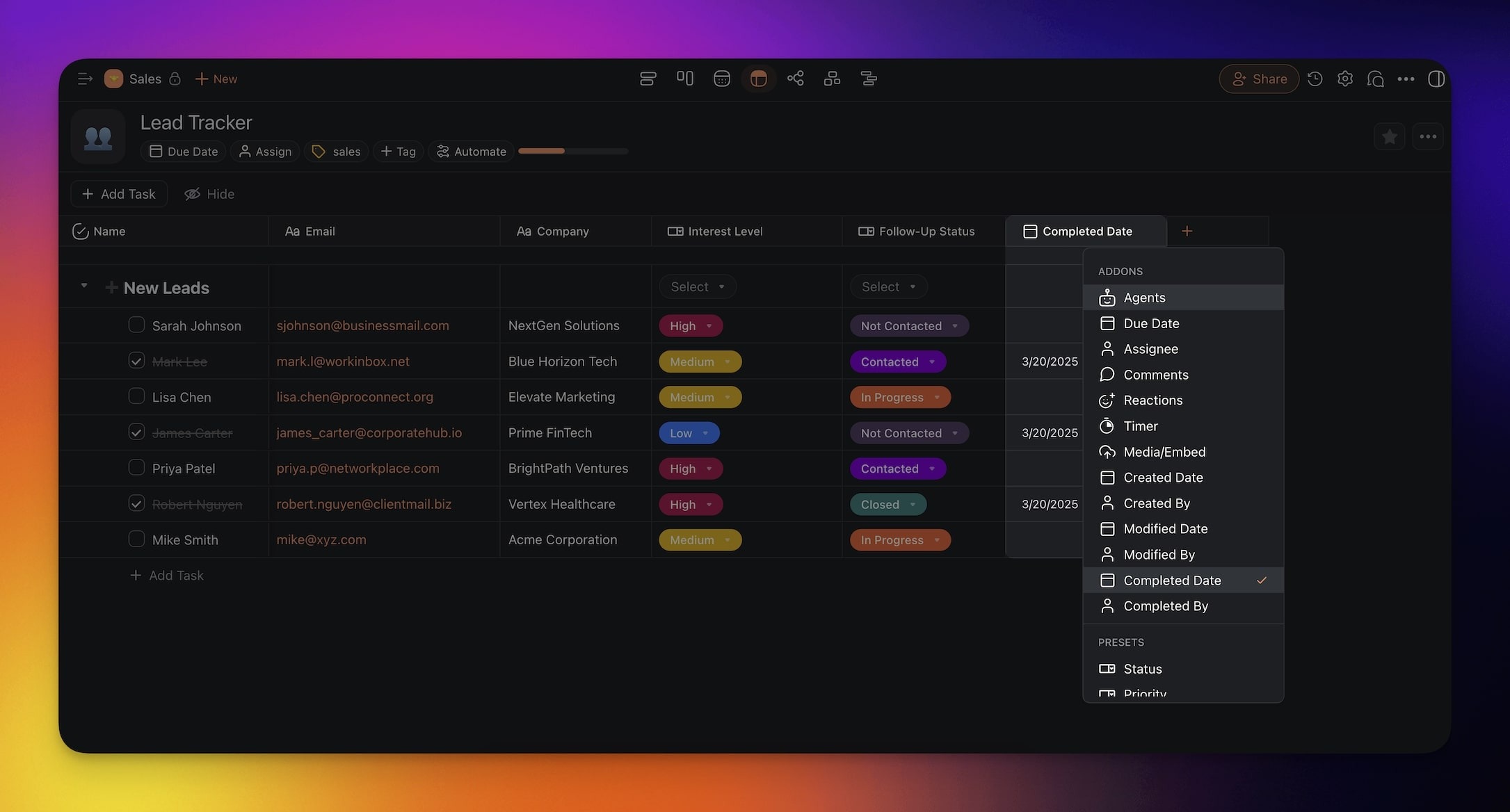
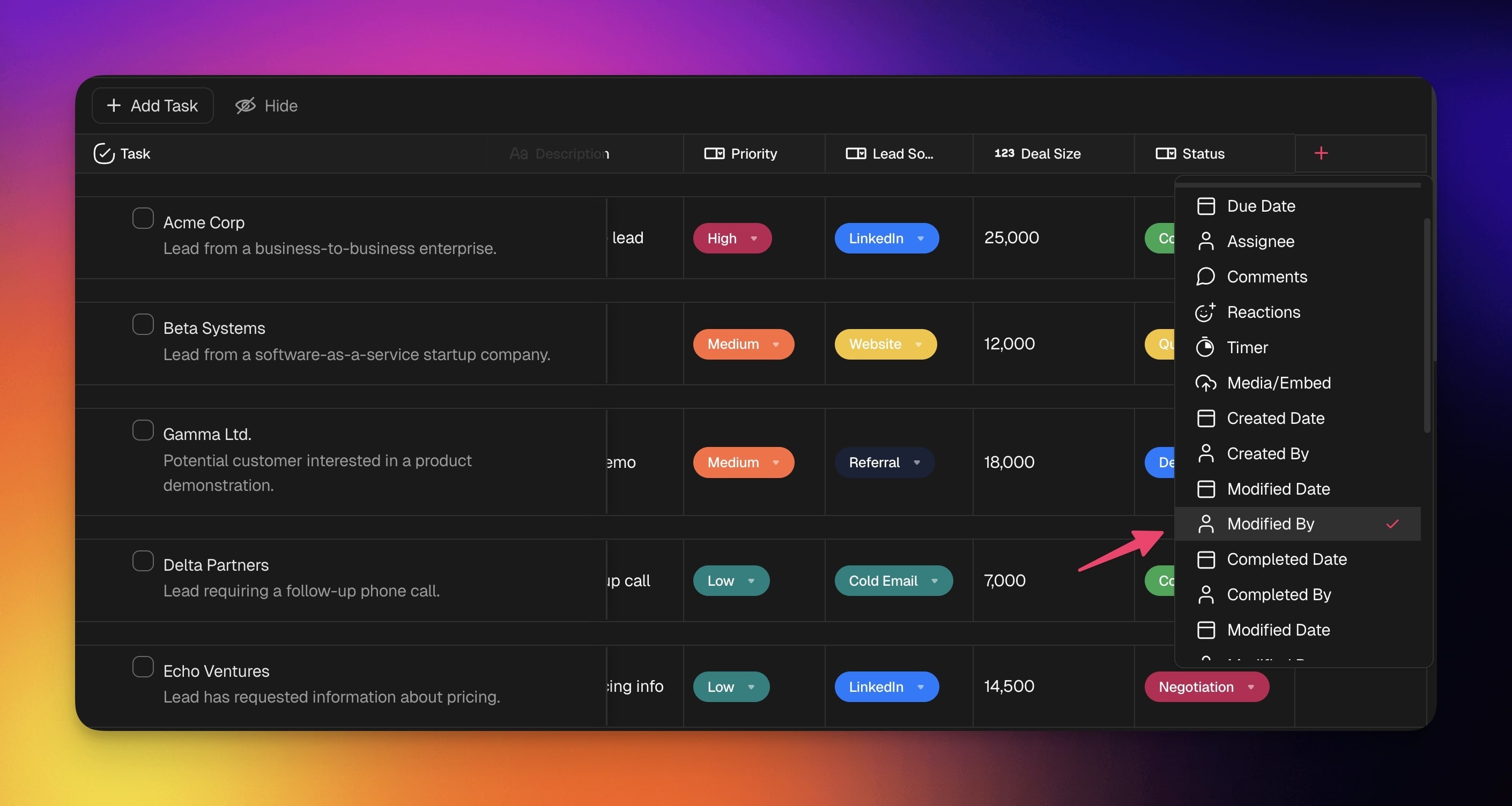
1. Click the ➕ button at the end of the table (scroll right if needed).
2. Select an Add-On from the dropdown menu.
3. The new column will appear in the table.
---
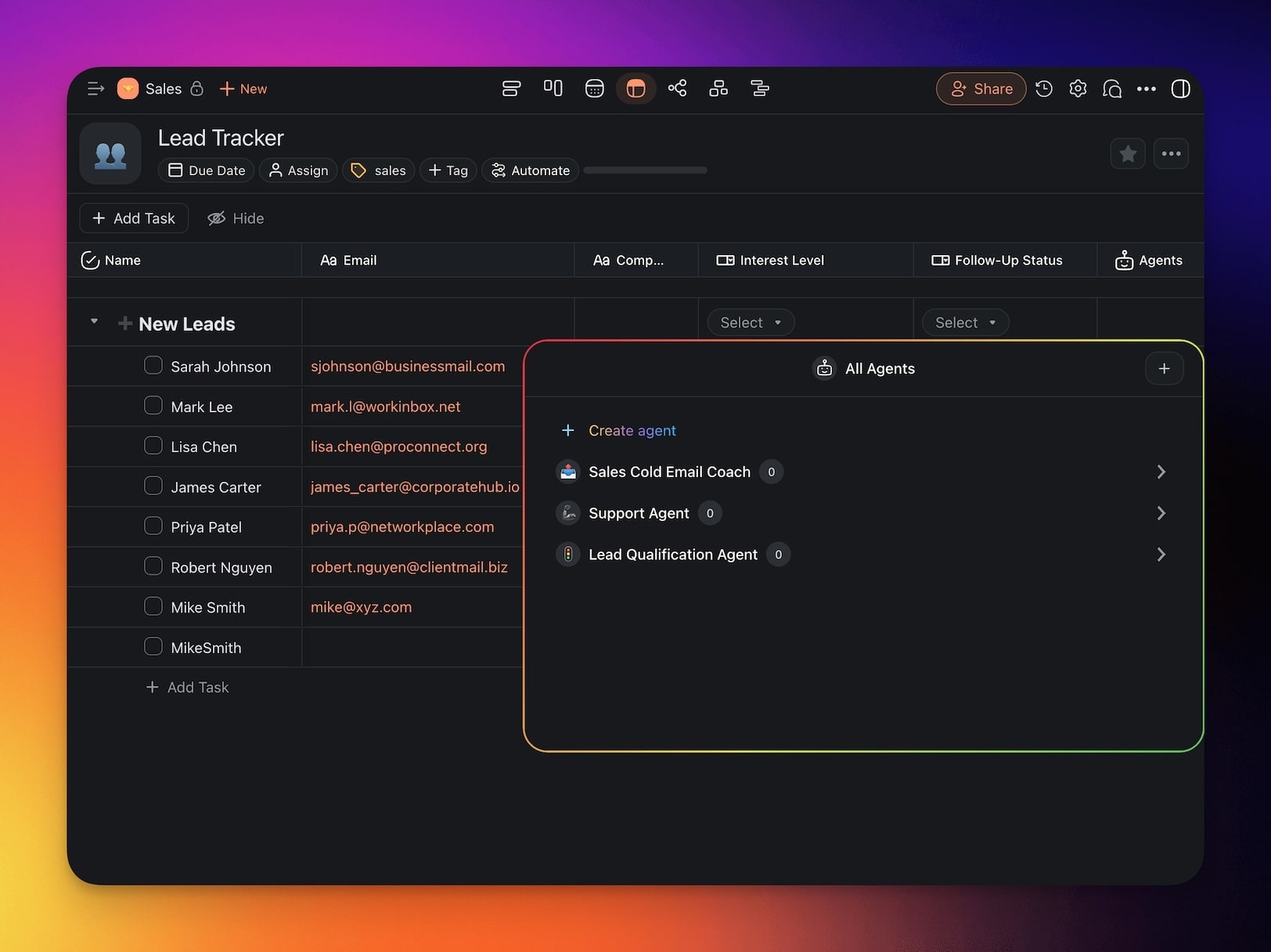
### Agents
Assign tasks to one of your [Custom AI Agents](https://www.taskade.com/learn/agents/custom-agents).
---
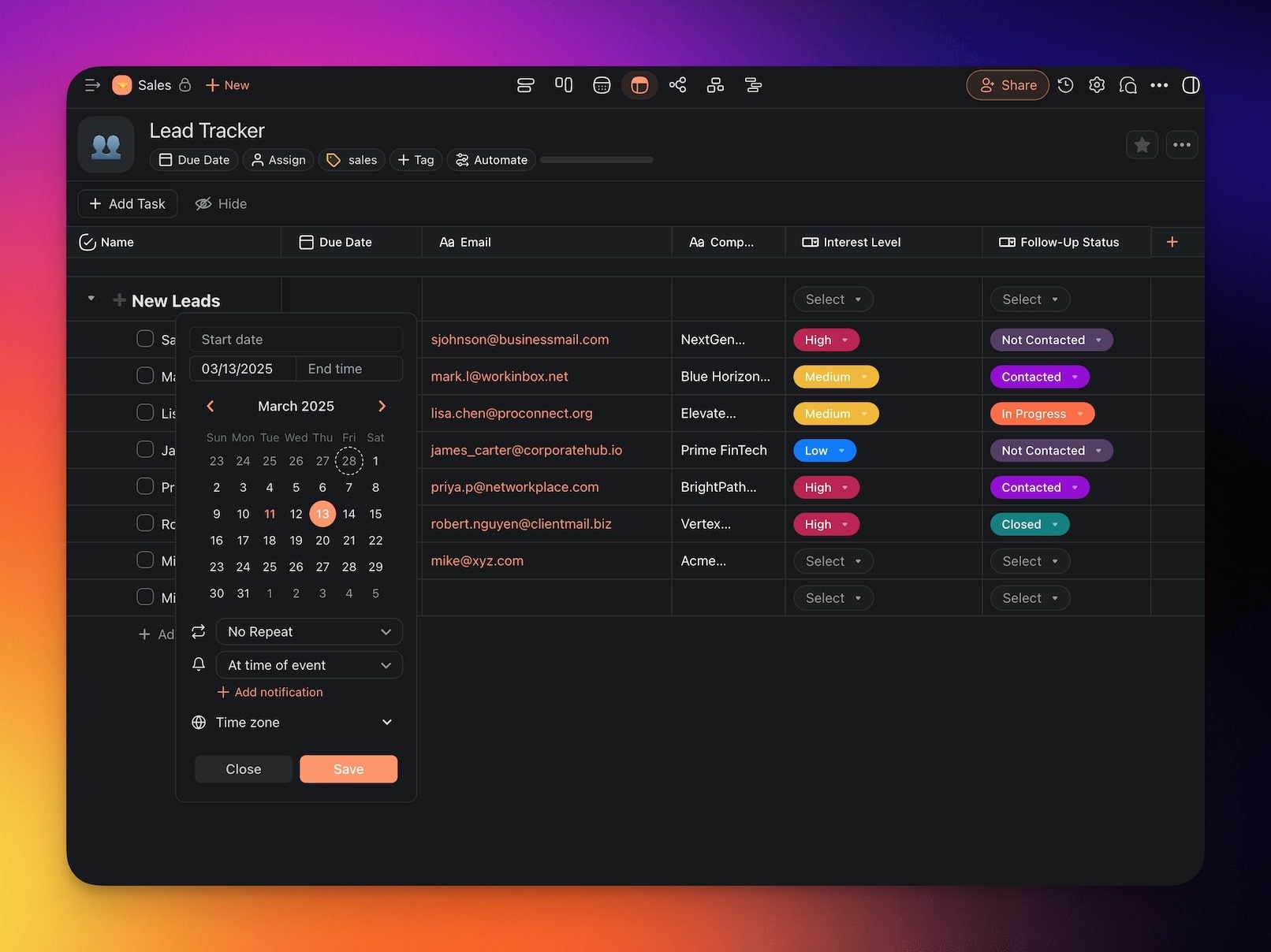
### Due Date
Set deadlines for tasks so that work finishes on time.
---
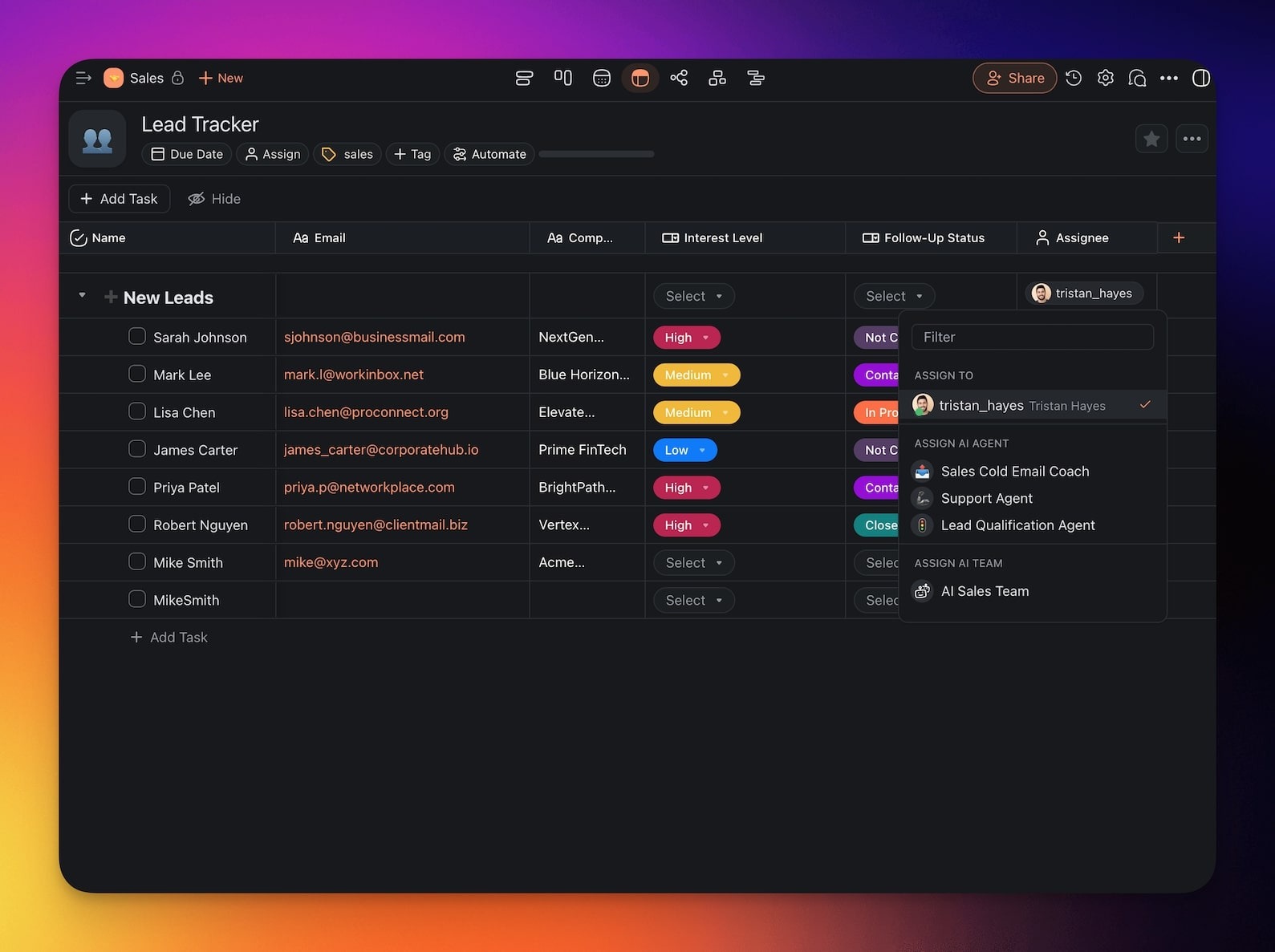
### Assignee
Assign individual users to tasks.
---
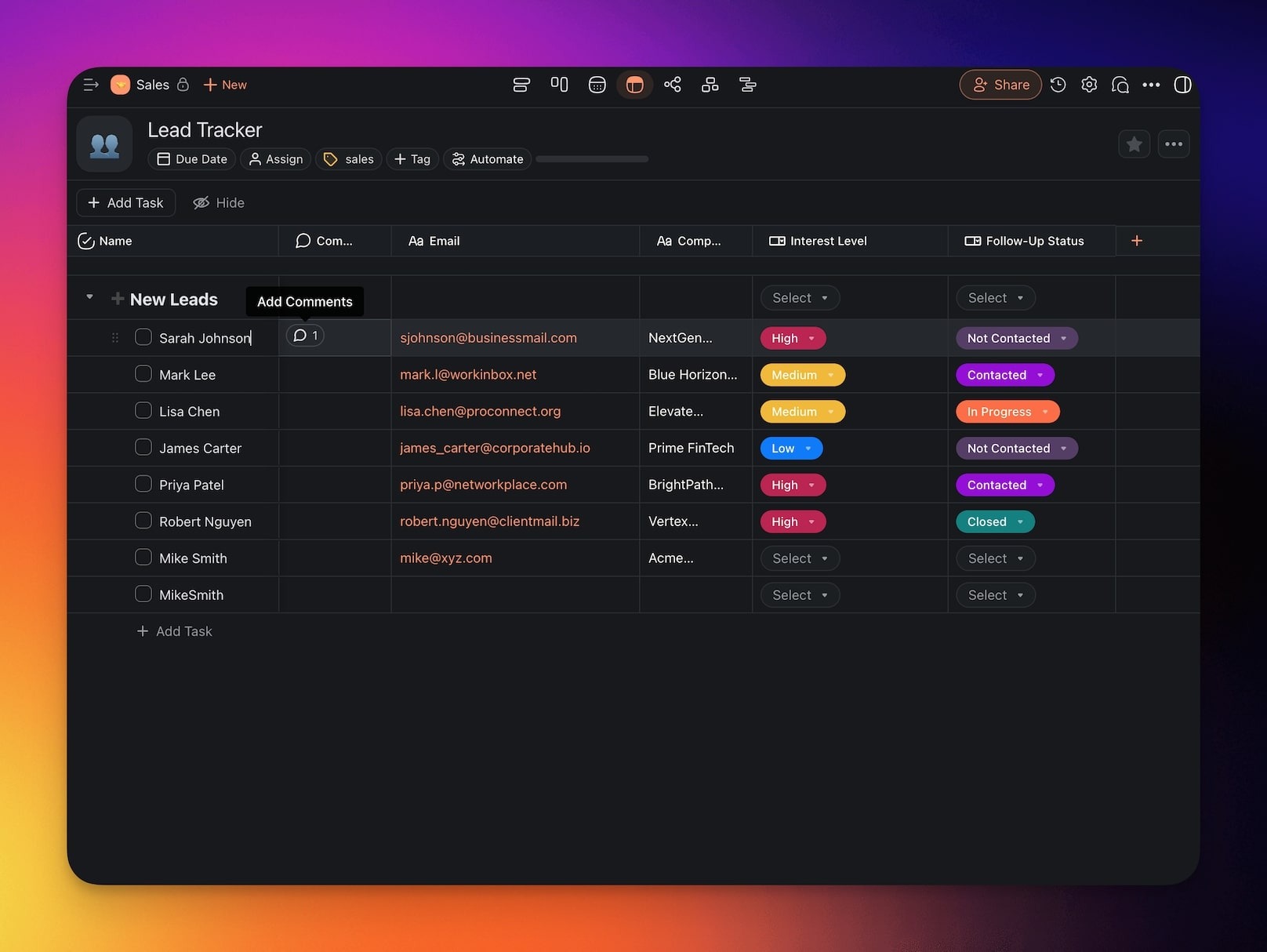
### Comments
Add notes and discussions directly inside table rows.
---
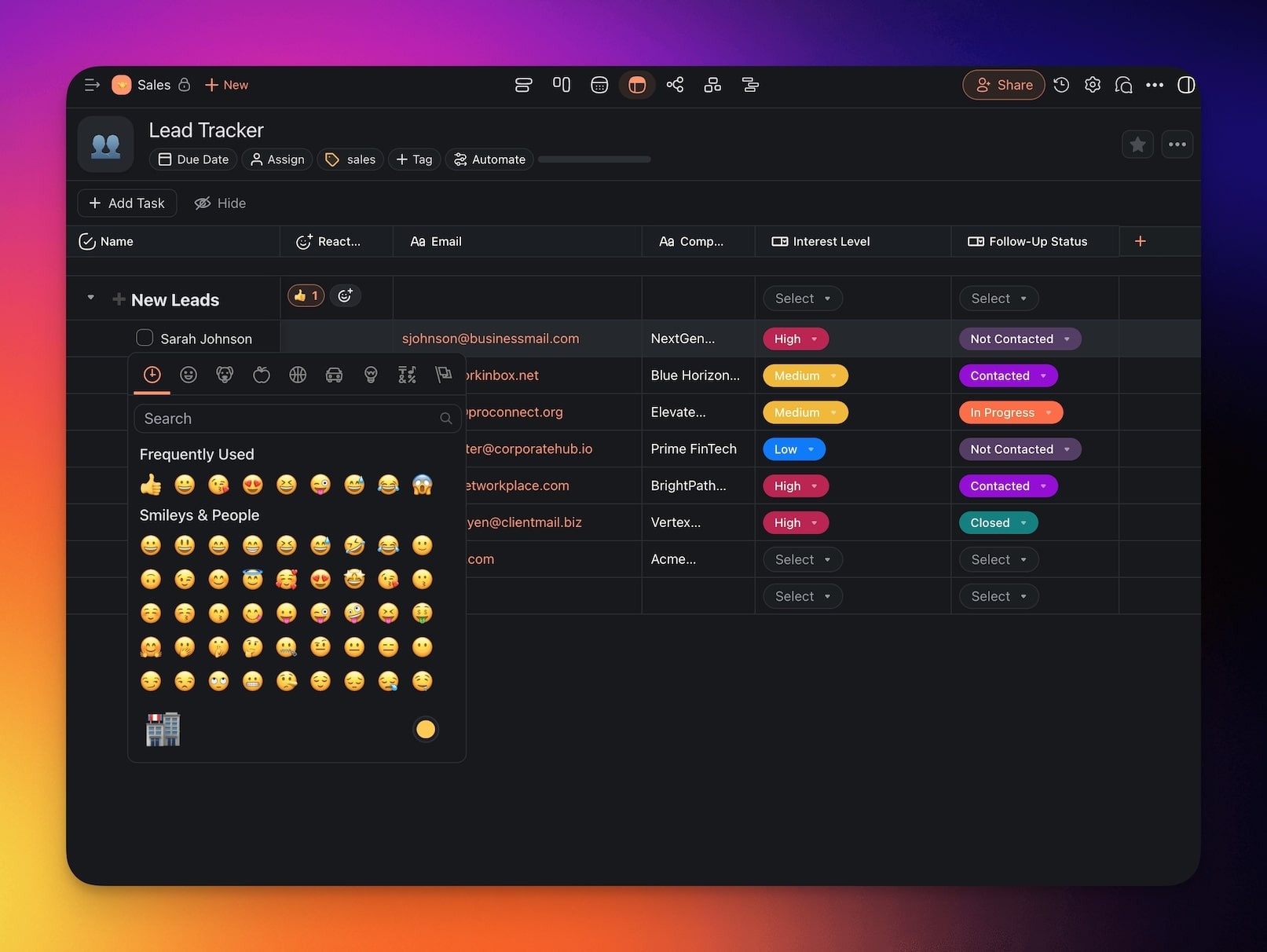
### Reactions
Use emoji-based reactions to provide quick feedback on tasks.
---
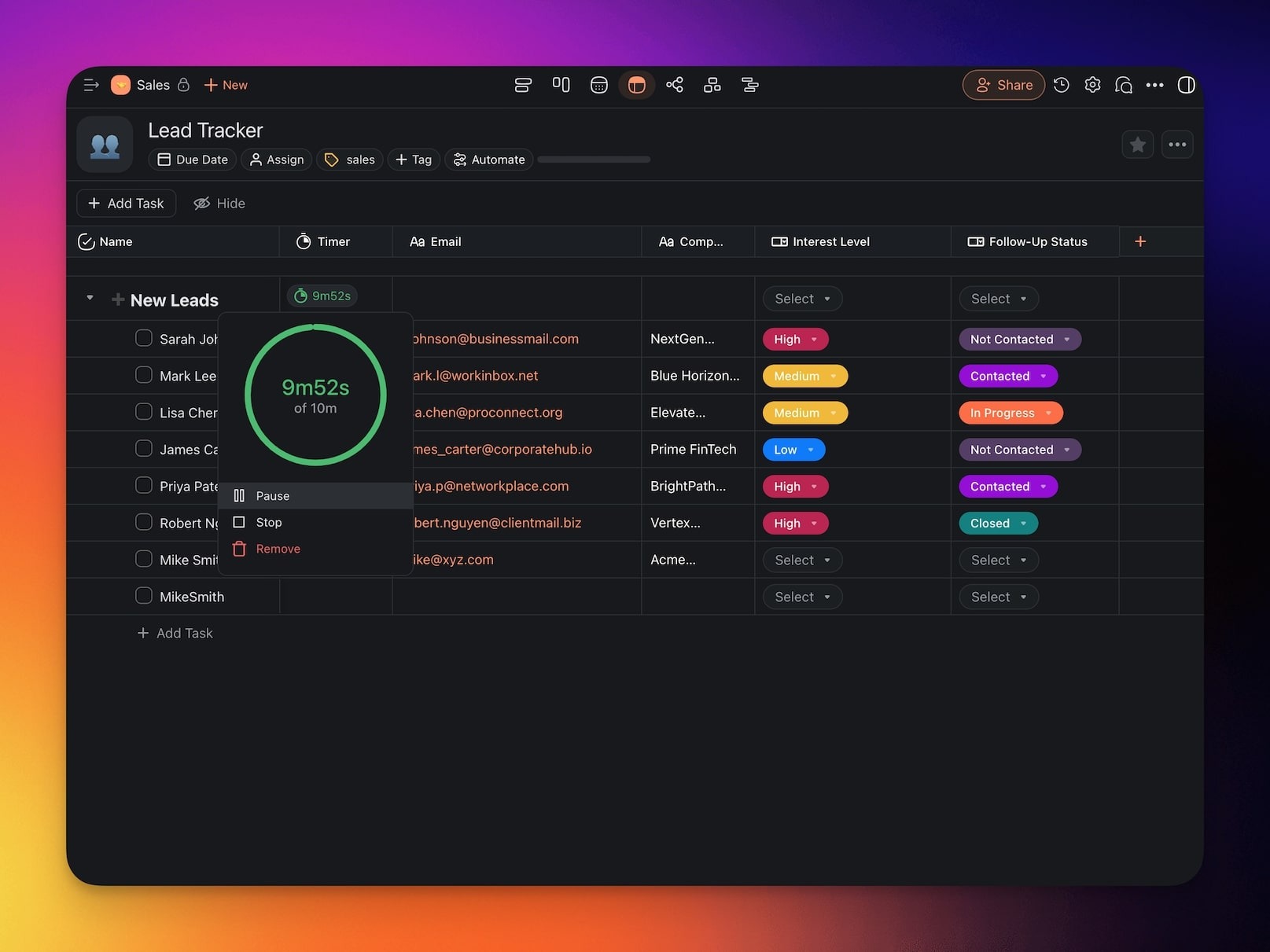
### Timer
Track the time spent on tasks.
---
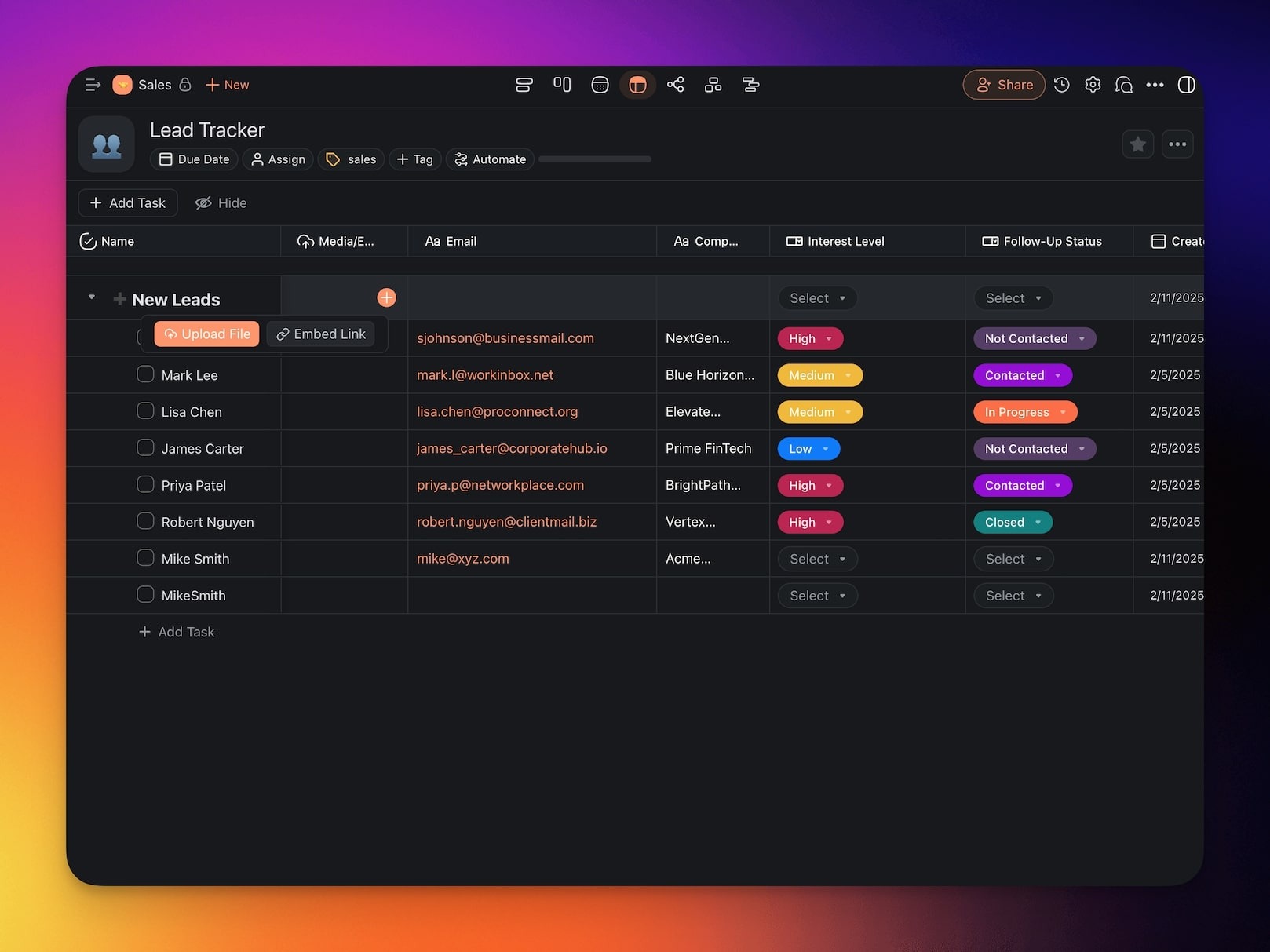
### Media/Embed
Attach images, videos, or other media files directly to tasks.
---
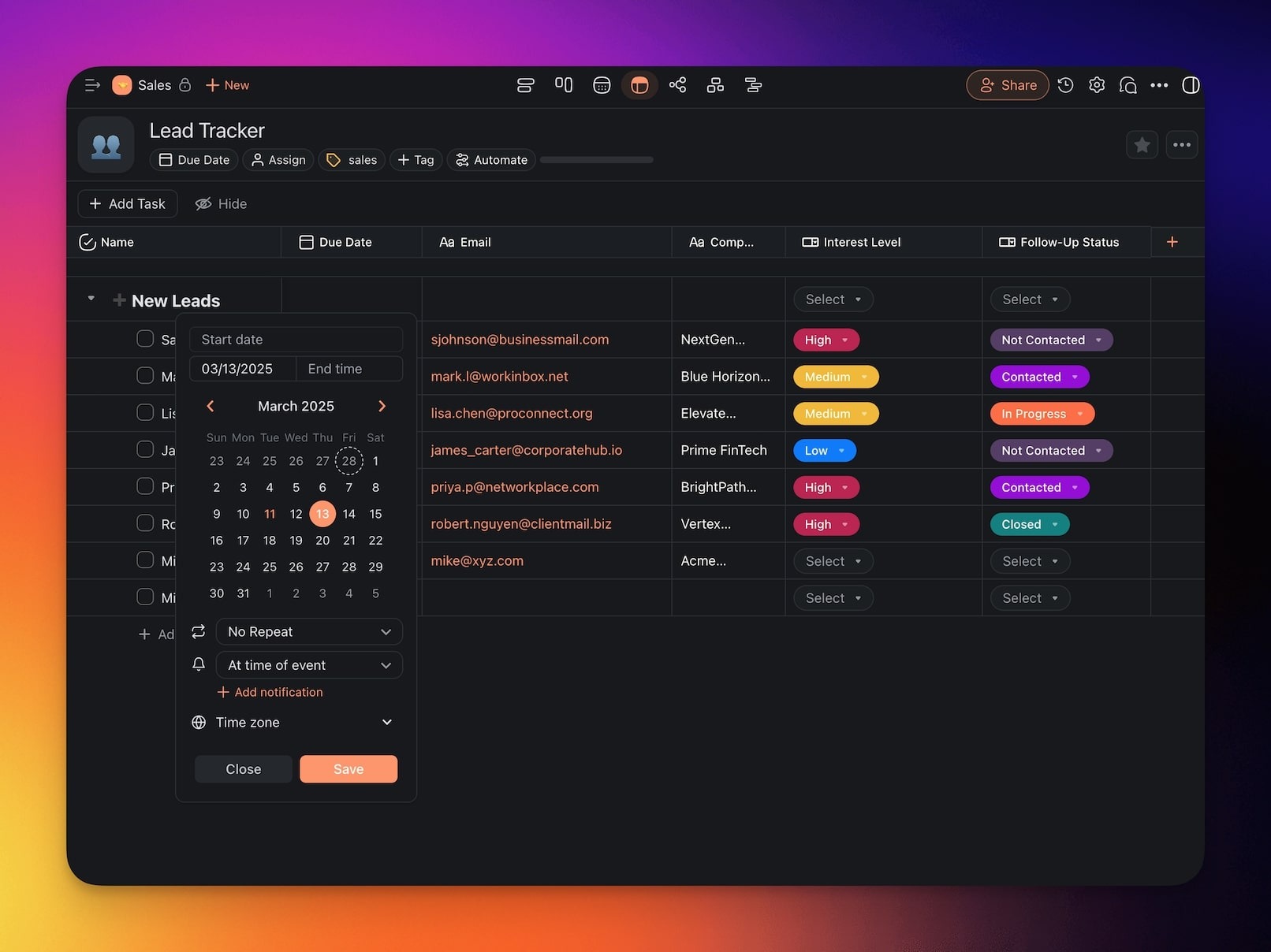
### Created Date
Automatically log the date a task was created.
---
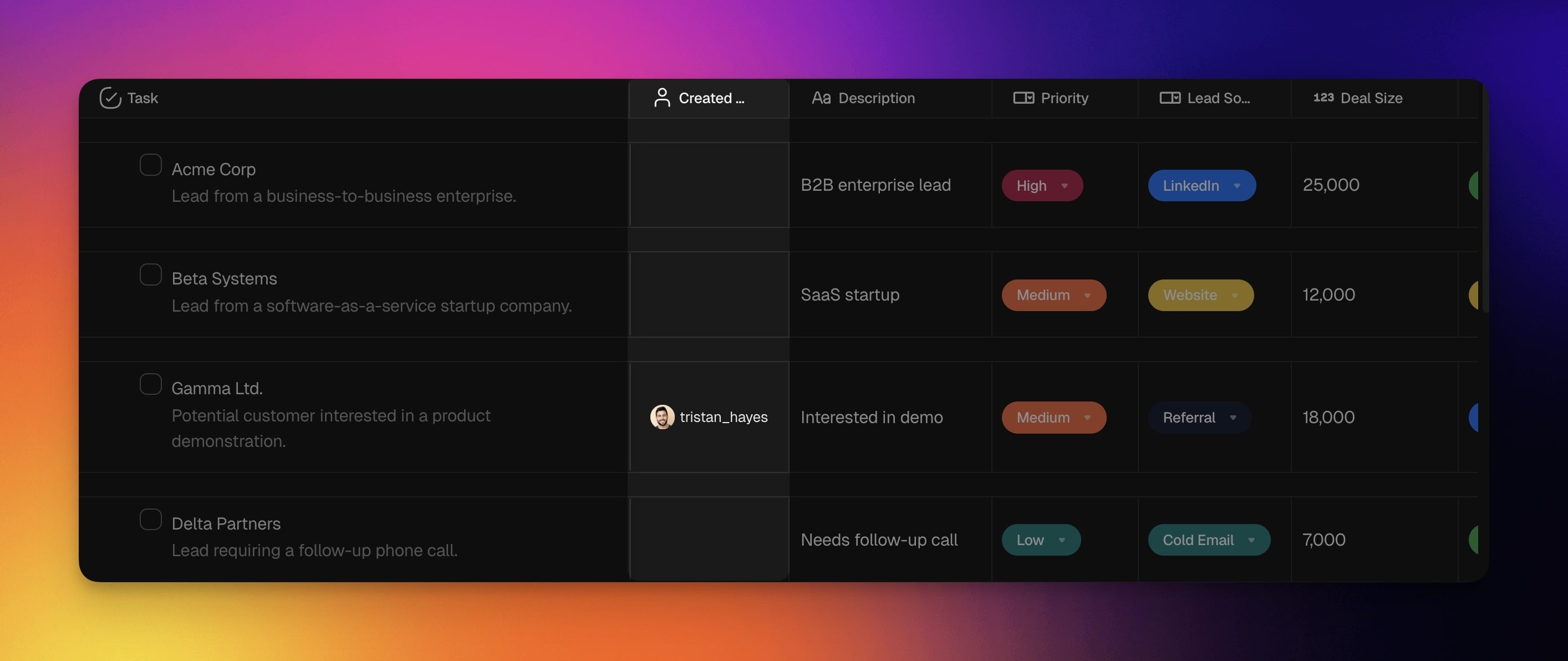
### Created By
See who added the item to a table.
---
### Completed By
Look up who completed individual tasks.
---
### Completed Date
Keep track of task completion dates.
---
### Modified By
See who made the last edit to the item.
---
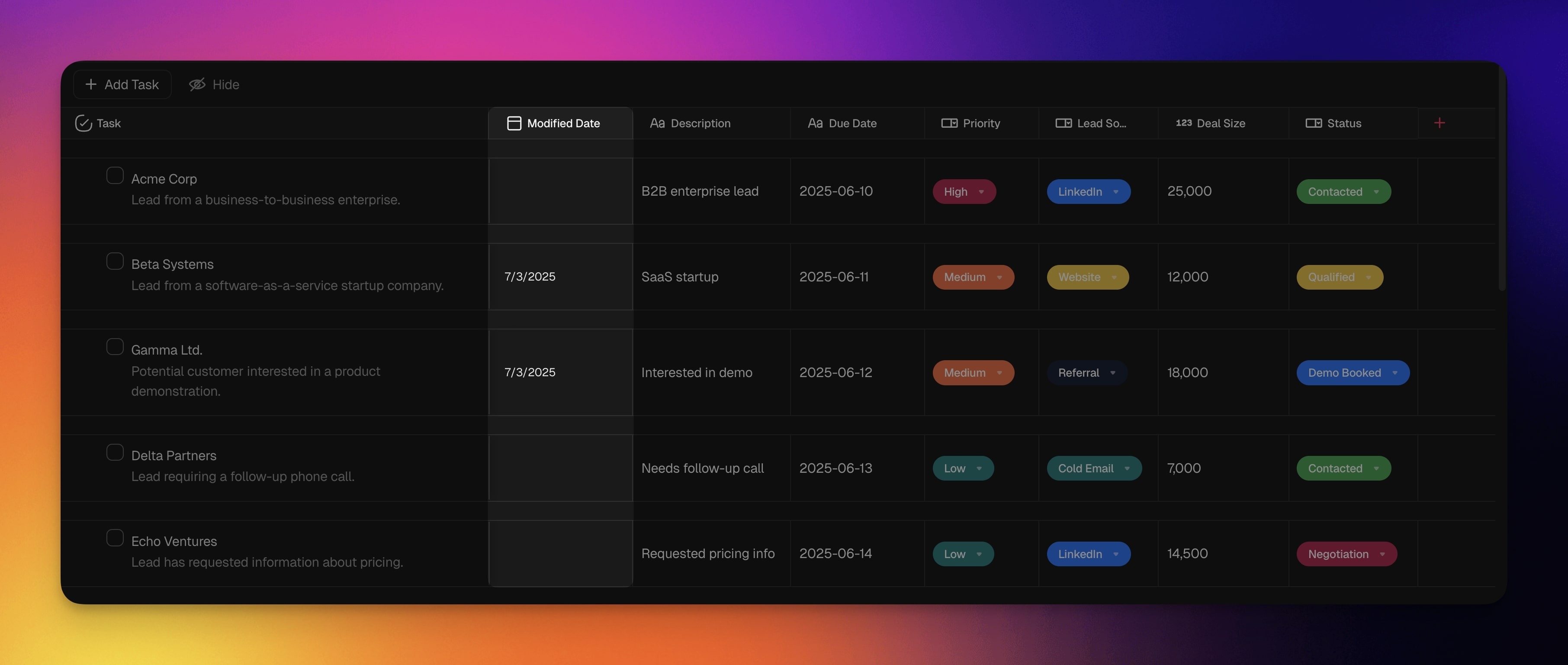
### Modified Date
Display the date of the latest edit.
---
---
### Related guides
- [Table View](https://www.taskade.com/learn/projects/table-view)
- [Project Views](https://www.taskade.com/learn/projects/project-views)
- [List View](https://www.taskade.com/learn/projects/list-view)
- [Custom Fields](https://www.taskade.com/learn/projects/custom-fields)