# Import PDF
> Drop a PDF into Taskade and turn it into a structured project, an AI summary, agent knowledge, or context for a new AI project.
- Source: https://www.taskade.com/learn/import/pdf
- Section: Import
- Updated: 2026-11-14
- Index of all pages: https://www.taskade.com/learn/llms.txt
## Overview
Turn a dense PDF into something you can work with. Drop in a report, manual, or whitepaper, then pick a mode. Taskade converts the file into a structured project, a bullet summary, searchable agent knowledge, or context for a new AI project.
> **TL;DR:** Drop a PDF into Taskade and pick a mode. PDF upload is available on paid plans. Convert it to a structured project, or summarize it with AI. You can also attach it as searchable [agent knowledge](https://www.taskade.com/learn/agents/knowledge), or use it as context for a new [AI project](https://www.taskade.com/learn/agents/project-studio). Every import joins your Workspace DNA so agents and automations can act on it.
## PDF Modes at a Glance
| Mode | What You Get | Best For |
| --- | --- | --- |
| Convert to Taskade | Structured project | Reports, manuals |
| Summarize with AI | Bullet summary | Long whitepapers |
| Agent Knowledge | Searchable memory | Reference docs |
| Project Context | Generation seed | New AI projects |
For background on AI-powered document processing, see [Custom AI Agents/GPTs](https://www.taskade.com/blog/custom-ai-agents-gpts).
## Convert PDF Into Projects
> 💡 **Note**: Visit [Convert to Taskade](https://www.taskade.com/learn/import/convert) & [Summarize with AI](https://www.taskade.com/learn/import/summarize) to learn more.
- Click the ➕ **Create new** button in your workspace/folder (top-right corner).
- Choose **Import** from the drop-down menu.
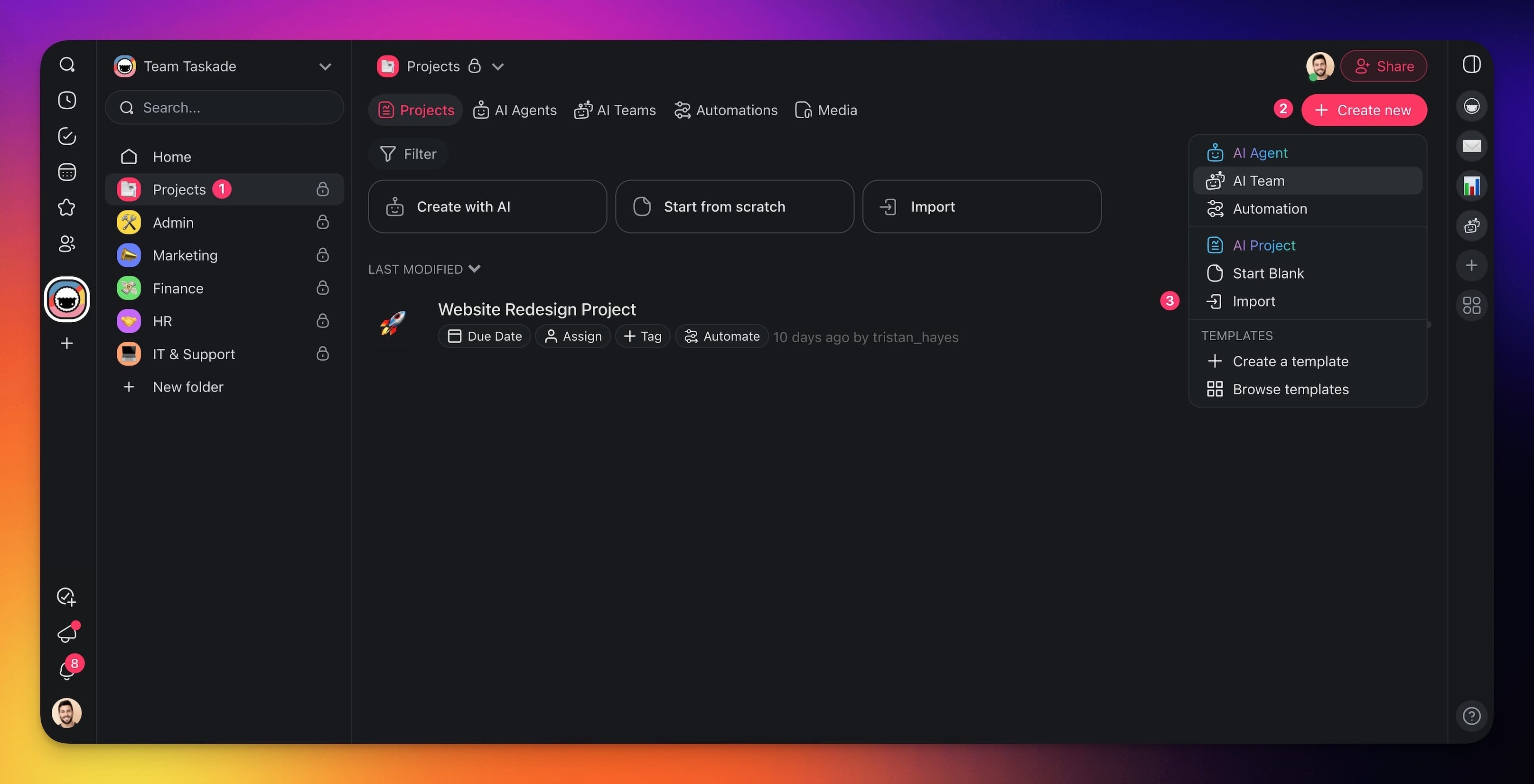
- Choose one of the available options:
- 1) **Convert to Taskade**: Convert the file into a structured project.
- 2) **Summarize with AI**: Summarize the file in a new project.
**Drag** your **files** into the box or **click to upload**. Uploading a PDF or other document is available on paid plans.
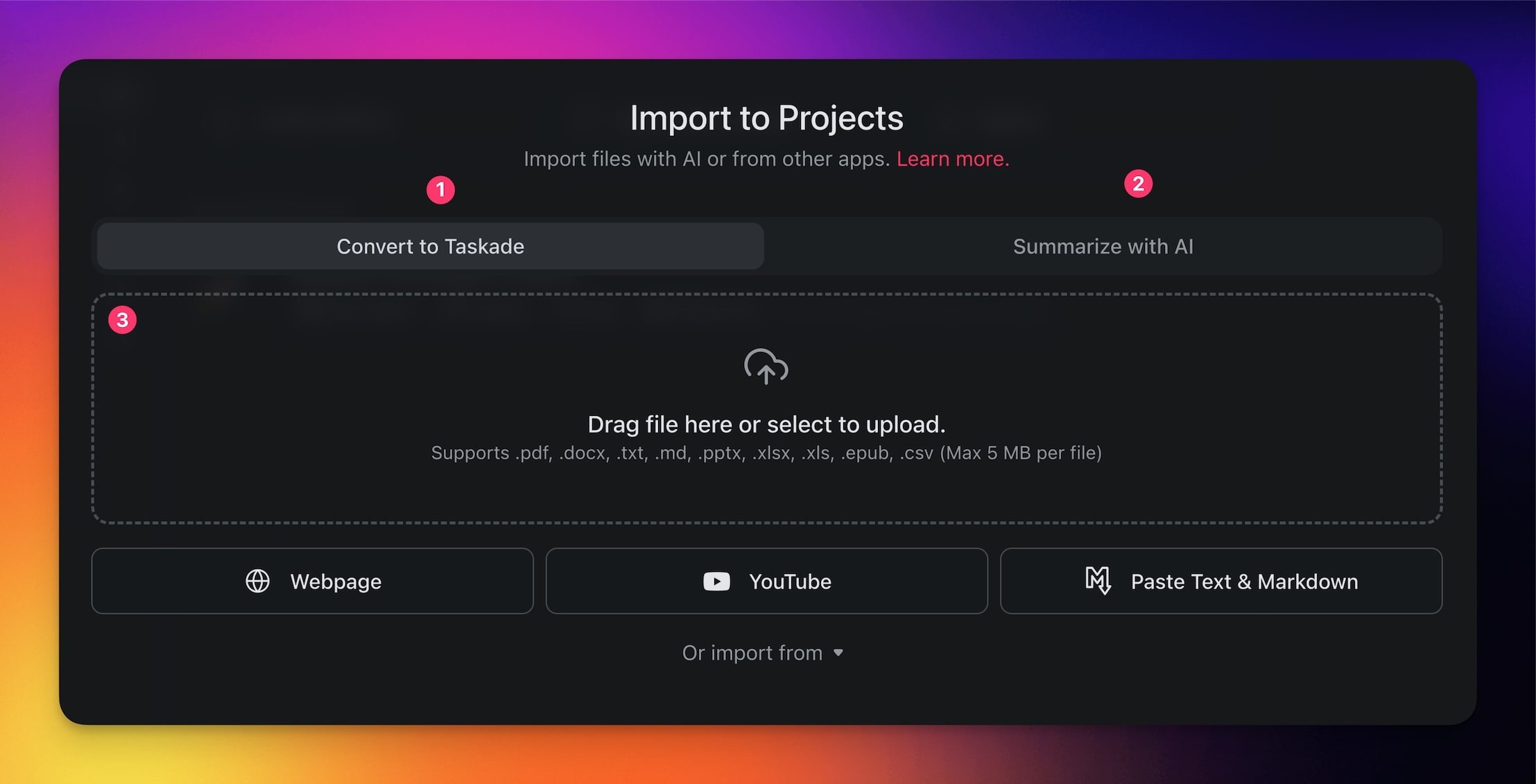
- Wait for the importer to finish.
- Click ➕ **Create Project** to create a new project.
A scanned PDF works too. When a page is a picture of text, Taskade reads the words off the image and builds the project from them. That read uses AI credits. See [Read Scanned Paperwork and Photos](https://www.taskade.com/learn/genesis/scanned-documents).
The dropzone prints your workspace upload limit at the top of the drop area. If your PDF is larger, Taskade names the limit and refuses the upload. Split the file, or export a smaller section. Then upload it again. A paid plan raises the limit.
---
## Add PDF as AI Agent Knowledge
> 💡 **Note**: Visit [Agent Knowledge & Data](https://www.taskade.com/learn/agents/knowledge) to learn more.
- Go to your workspace or folder.
- Open the **AI Agents** tab.
- **Select** the **agent** you want to fine-tune with your **file**.
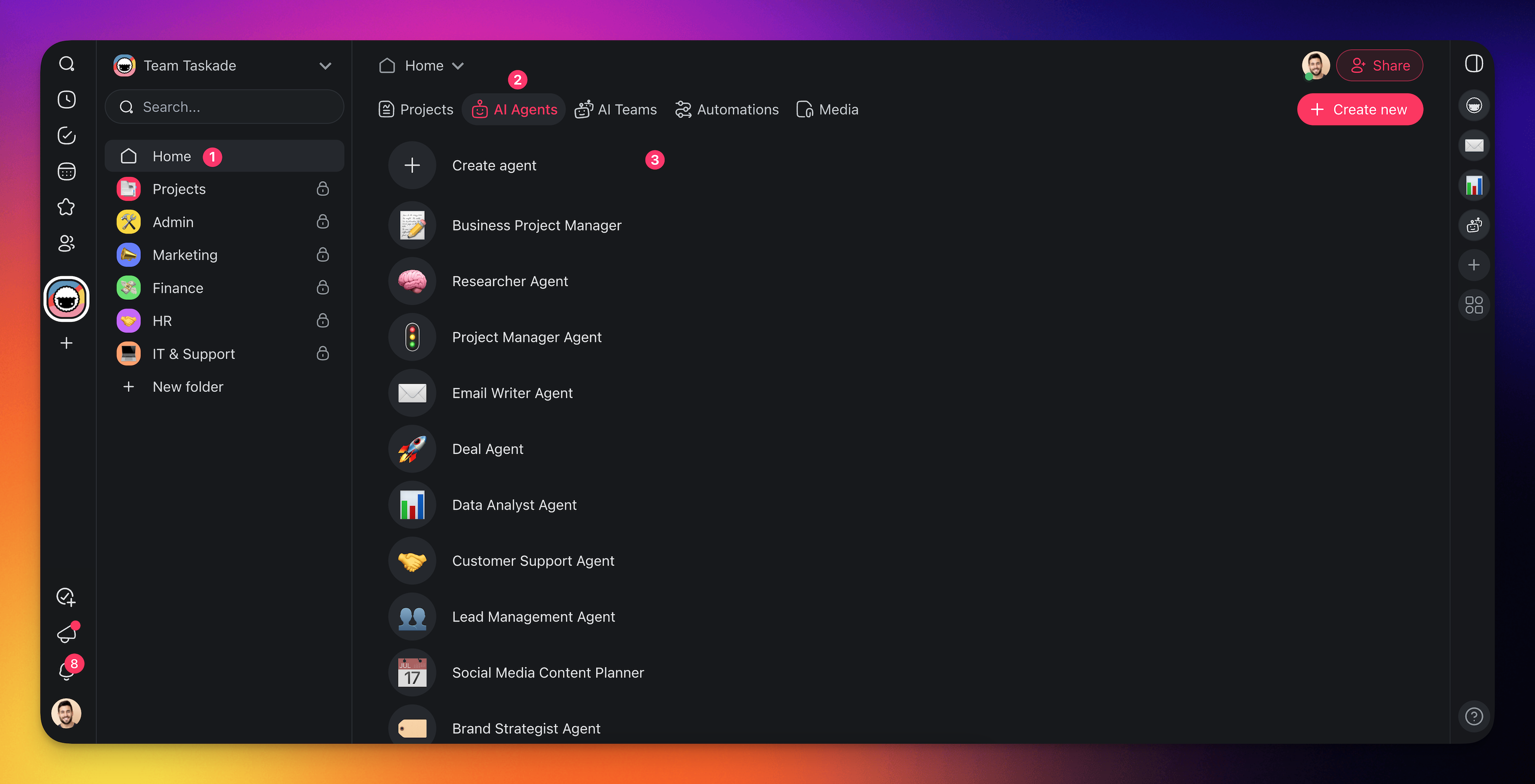
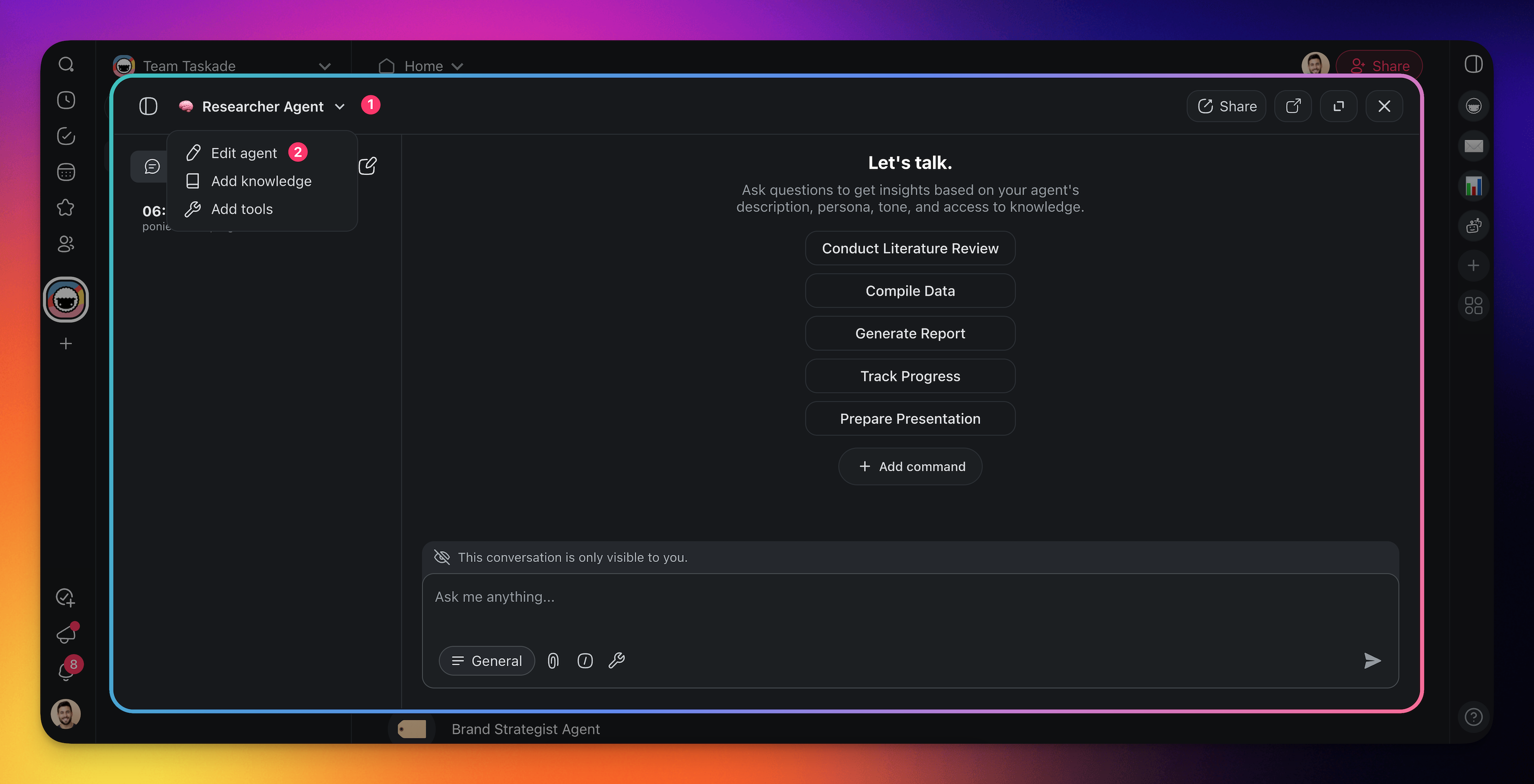
- **Click** the **arrow** next to the **name** of the **agent**.
- **Click Edit agent**.
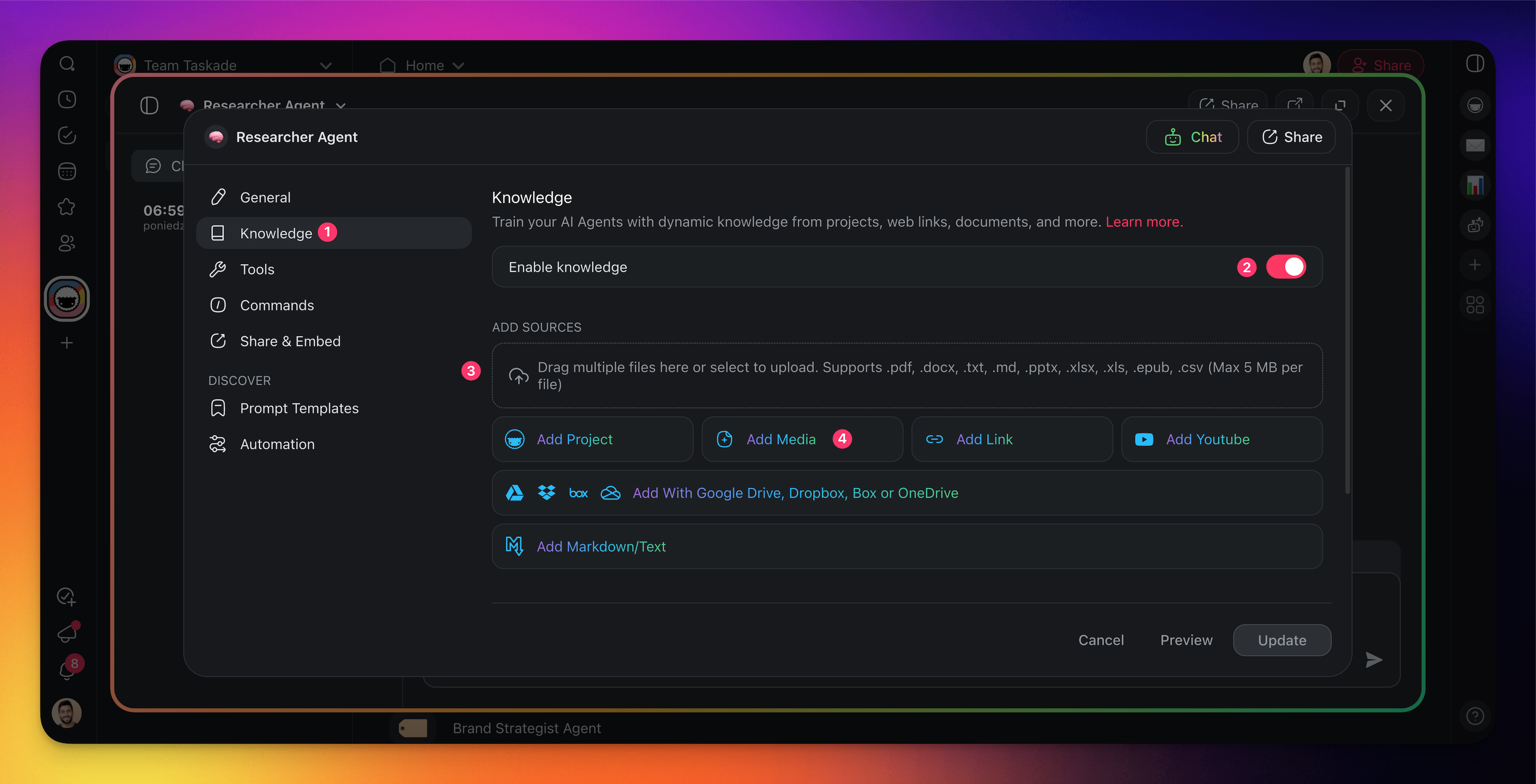
- **Select** the **Knowledge tab** from the **menu on the left**.
- **Use** the **toggle** to **enable agent knowledge**.
- 1) **Drag** your **files** into the box **or click** to **upload**. Uploading a PDF to agent knowledge is available on paid plans.
- 2) Click **Add Media** to add attachments from your folders/workspace.
---
## Use PDF as Project Context
> 💡 **Note**: Visit [AI Project Studio](https://www.taskade.com/learn/agents/project-studio) to learn more.
- **Go to** your **workspace**/ **folder**.
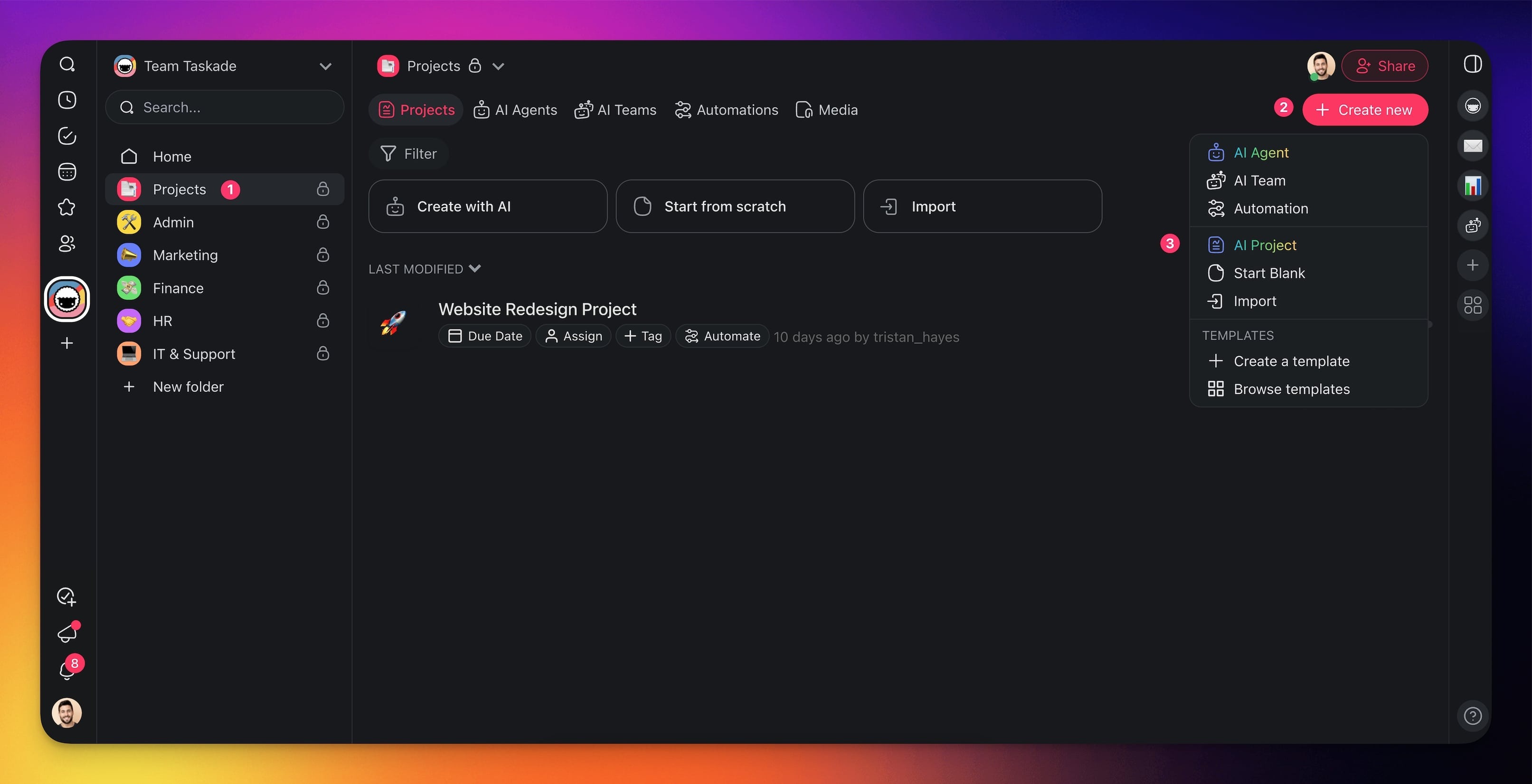
- **Click** ➕ **Create new** (top-right corner).
- Choose **AI Project** from the drop-down list.
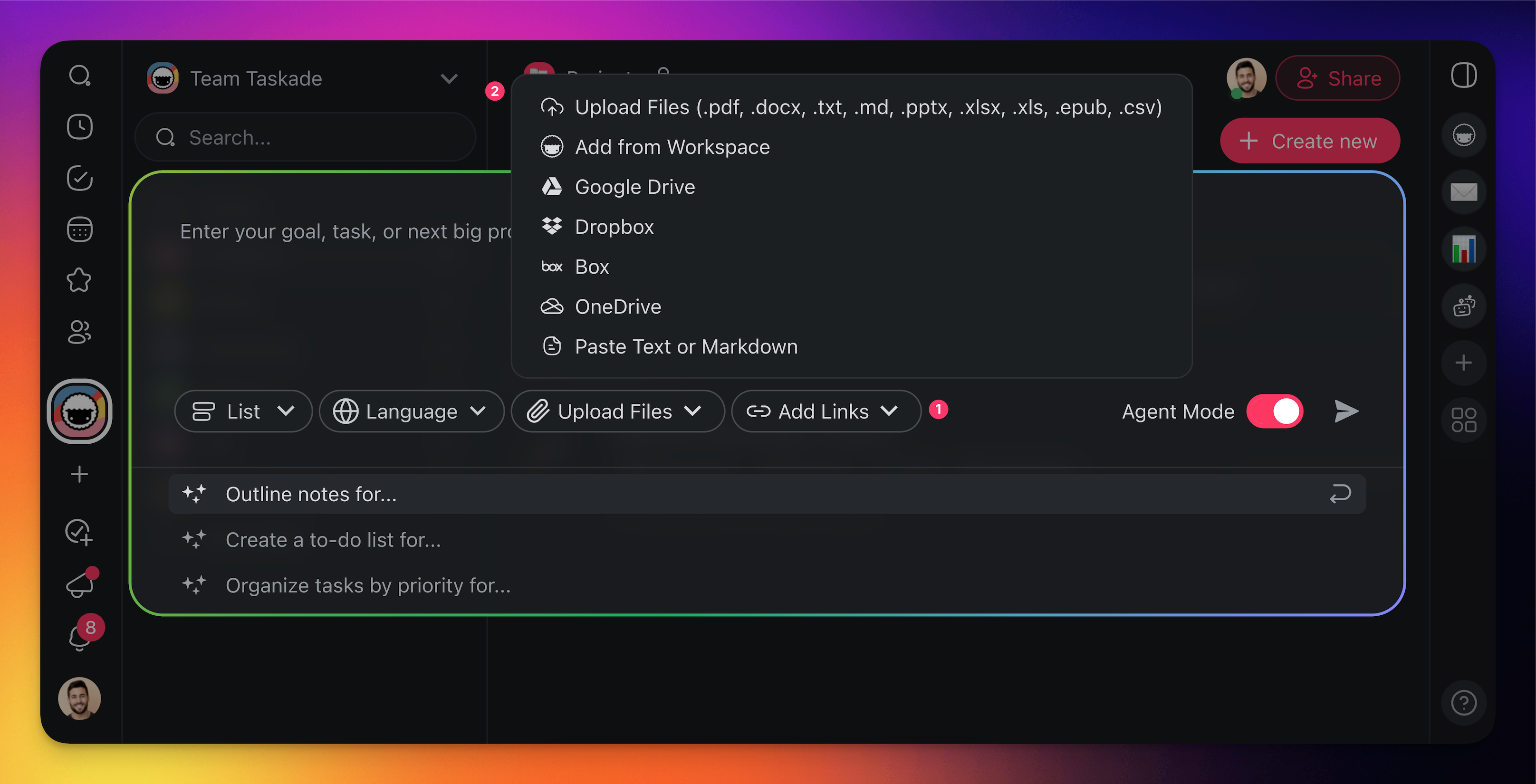
- Describe the project you want to generate, or use one of the templates.
- Click 📎 **Upload Files** and upload your .pdf files.
- Click ➤ or press ⌨️ **Enter** to generate the project.
---
## Read a PDF Inside Taskade
Open a PDF without leaving Taskade. A PDF that you attach to a task, keep in [Media Files](https://www.taskade.com/learn/agents/media-tab), or attach in a chat with Taskade EVE opens in a built-in viewer.
1. Click the PDF to open it.
2. Click **Previous page** or **Next page** (the up and down arrows), or type a page number, to move between pages.
3. Click the plus or minus button to zoom.
4. Click **Fit to width** to fit the page to the window.
5. Click **Open in new tab** to open the file in a browser tab.
If the built-in viewer cannot load a file, Taskade shows the PDF in the PDF viewer of your browser.
---
> **💡 Tip**: Imported content becomes part of your [Workspace DNA](https://www.taskade.com/learn/genesis/workspace-dna). Your AI agents can learn from it and your automations can act on it.
To bring in a web page or YouTube video instead of a file, see [Import a Web Page or Video Link](https://www.taskade.com/learn/import/website-url).
## How the Import Works
```mermaid
flowchart TD
A[PDF File] -->|Upload| B[Taskade Importer]
B --> C{Mode}
C -->|Convert| D[Structured
Project]
C -->|Summarize| E[AI Summary
Project]
C -->|Knowledge| F[Agent
Memory]
D --> G[Workspace DNA]
E --> G
F --> G
G --> H[Agents +
Automations]
style B fill:#2a1225,color:#ff8fa3,stroke:#ff2d60,stroke-width:2px
style G fill:#0d1a0e,color:#86efac,stroke:#22c55e,stroke-width:1.5px
style H fill:#1a0d24,color:#ce93d8,stroke:#6a1b9a,stroke-width:1.5px
```
### Related guides
- [Convert to Taskade](https://www.taskade.com/learn/import/convert)
- [Summarize with AI](https://www.taskade.com/learn/import/summarize)
- [Import CSV Spreadsheets](https://www.taskade.com/learn/import/csv-import)
- [Agent Knowledge & Data](https://www.taskade.com/learn/agents/knowledge)
- [AI Project Studio](https://www.taskade.com/learn/agents/project-studio)
- [Build an app from a prompt](https://www.taskade.com/create)
- [Explore AI agents](https://www.taskade.com/agents)