# Custom AI Agents for Legal Teams
> Legal teams can build contract review apps, compliance trackers, and AI agents that analyze documents with structured output for consistent legal analysis.
- Source: https://www.taskade.com/learn/genesis/legal-agents
- Section: Taskade Genesis
- Updated: 2026-11-09
- Index of all pages: https://www.taskade.com/learn/llms.txt
> **TL;DR:** Build a contract lifecycle in Taskade Genesis: case project (Memory) + drafting agent + review agent (Intelligence) + e-sign automation (Execution). Every matter has a complete audit trail, every draft, review annotation, and signature in one place. Replace 5 tools and a lot of version sprawl with one workspace. [Build a legal app →](https://www.taskade.com/create)
## What You Can Build
Contract work usually spans five disconnected tools: a Word doc, an email thread, track changes, an e-sign portal, and a file cabinet. Replace all five with one workspace, where every matter keeps a complete audit trail. Your [Custom AI Agents](https://www.taskade.com/learn/agents/custom-agents) can:
- 🔶 Assist with legal writing and case summarization.
- 🔶 Provide expertise on specific subject matters.
- 🔶 Suggest recommended document formatting.
- 🔶 Improve your reasoning and argumentation.
---
## What Are AI Agents?
AI Agents are smart tools that automate tasks such as research and content creation. They save you time by handling routine activities inside projects.
Check this video guide for a quick introduction. 👇
[Custom AI Agents for Legal Teams overview video](https://www.youtube.com/embed/7-EOl0lW_4c?rel=0)
---
## Create a Legal Advisor Agent
There are two ways to build AI agents in Taskade. You can start from scratch (advanced method), or choose from [dozens of AI agent templates](https://www.taskade.com/learn/agents/custom-agents).
This guide uses the 👩 **Legal Advisor** agent template.
- [Set up the agent](https://www.taskade.com/learn/agents/custom-agents):
- Go to the **Agents** tab in the workspace/folder.
- Click **➕ Create agent.**
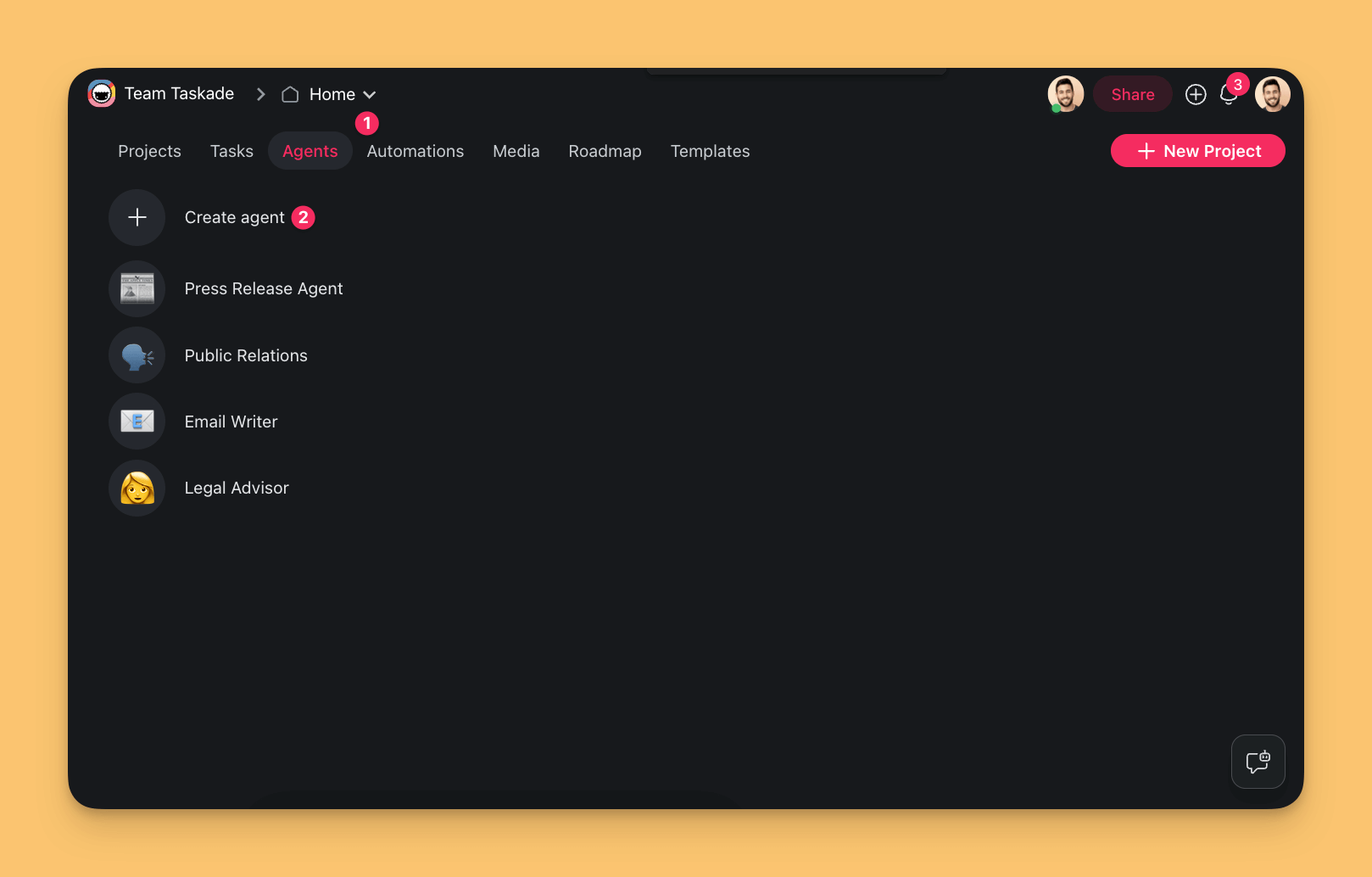
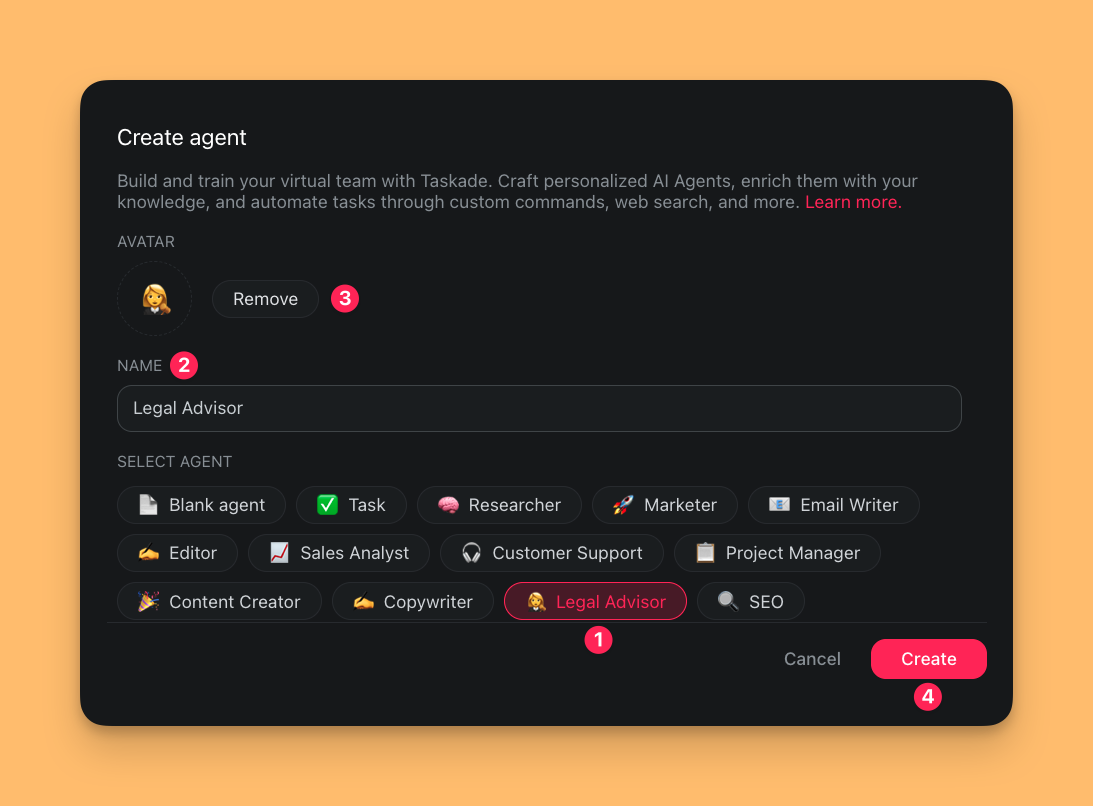
You are now in the **Agent Creator**:
- Choose the 👩 **Legal Advisor** agent template from the list.
- Create a **unique name** for your custom agent.
- Select an **avatar** or **upload** your own.
- Click **Create** to save the new agent.
---
### Train the New Agent
Our 👩 **Legal Advisor** agent starts with some basic knowledge, but it needs context to be more effective. You can train the agent on using anything from court filings to legal memos and briefs. The more varied the documents, the better equipped the agents will be to provide tailored assistance across a range of legal scenarios.
Here are a few document types you can use:
| Legal case documents | Legal research materials |
| --- | --- |
| Annotations or commentary on cases | Statutes, regulations, legislative history |
| Citation guidelines | Articles from legal journals |
| Argumentation and negotiation materials | Precedent-setting case laws |
| Historical legal documents | Legal textbooks and treatises |
| Subject-matter specific resources | Specialized legal databases |
- [Train the agent](https://www.taskade.com/learn/agents/custom-agents):
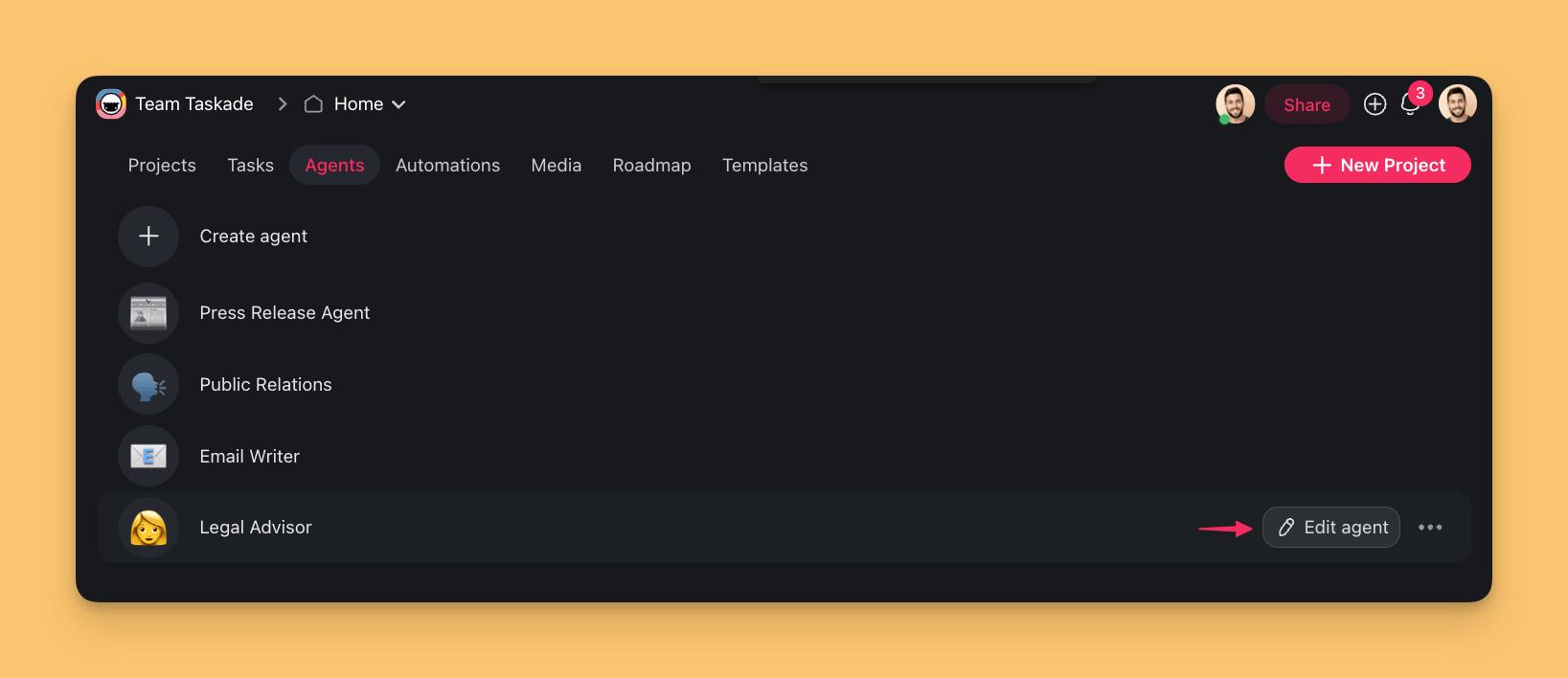
- Go to the **Agents** tab in your workspace.
- Hover the mouse cursor over the 👩 **Legal Advisor** agent.
- Click the ✏️ **Edit agent** button on the right.
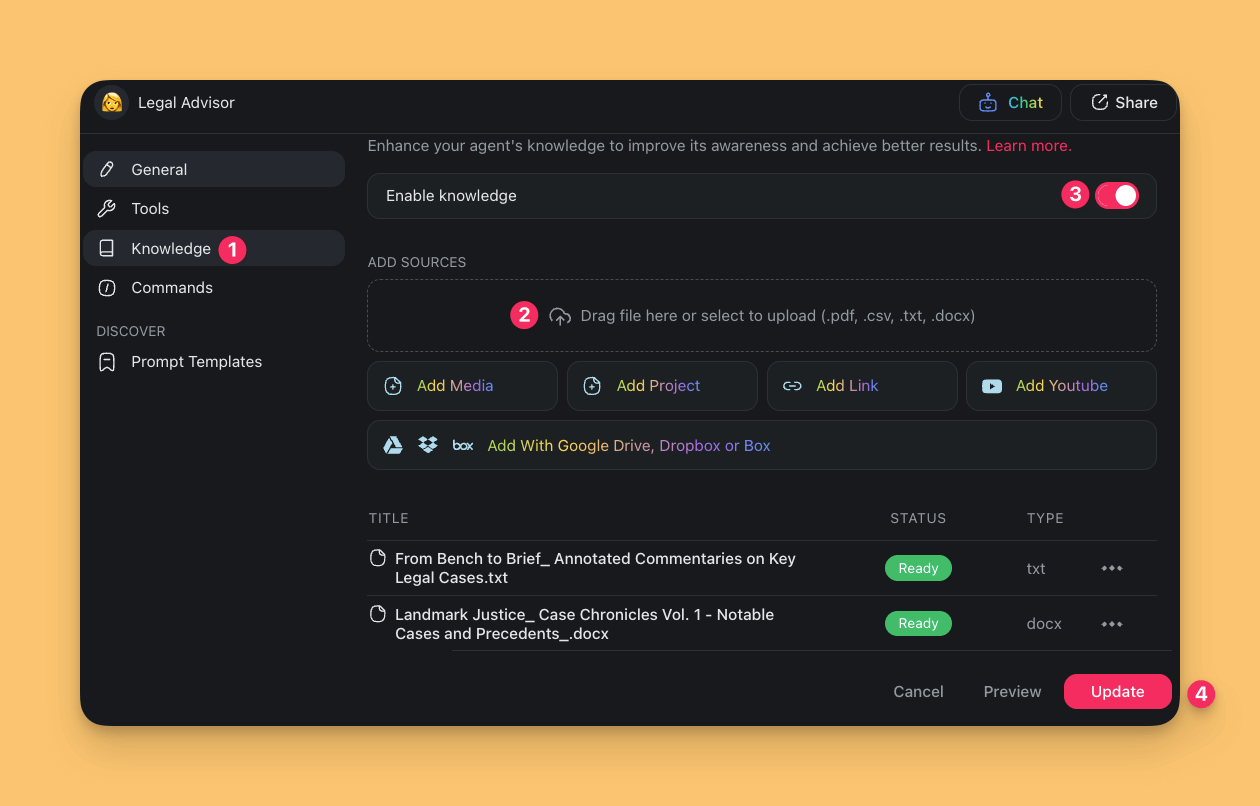
- Choose the **Knowledge** tab, then open **Sources**.
- Turn on **Enable knowledge**.
- Under **Local Upload**, click **Upload from Computer** and select the file.
> 💡 **Note**: The 👩 **Legal Advisor** agent works best with .txt, .pdf, or .docx files.
---
### Use the Agent in Your Practice
There are several ways you can interact with your agent:
- [Chat with the agent](https://www.taskade.com/learn/agents/custom-agents):
- Go back to the **Agents** tab.
- Select the 👩 **Legal Advisor** agent.
- Start a conversation and ask your agent questions.
> **🧩 Example:** Enhance your courtroom strategy by engaging with in an interactive rehearsal with the 👩 **Legal Advisor** agent. Upload your case files and notes as agent knowledge or describe the details, and ask the agent will adopt the role of opposing counsel. This exercise will help you to refine your arguments and uncover any potential weaknesses in your case.
- [Use custom agent commands](https://www.taskade.com/learn/agents/custom-agents):
- Open a project in the workspace/folder.
- **Select the text** and type **/name of a custom command**.
1. A partial command name is enough.
2. Press ⌨️ **Enter** to execute the command.
> **🧩 Example:** Type or paste your contracts or memos into the project editor and use an agent command to apply Bluebook standards to your citations. Read [Add Custom Commands](https://www.taskade.com/learn/agents/custom-agents) to learn how to create your own commands.
- [Use the agent in the project chat](https://www.taskade.com/learn/agents/custom-agents):
1. Open a project and click the **chat balloon** icon 💬 (bottom-right).
- Click the button at the top of the chat window.
- Choose the 👩 **Legal Advisor** agent from the list.
- Type your prompts to interact with the agent.
1. Type "/" to show the list of custom agent commands.
2. Click **Copy** to save the output, or **Add to Project** to paste it into the editor.
> **🧩 Example:** Describe a case in a project and ask the 👩 **Legal Advisor** agent to summarize the legal rules and reasoning used by the court.
---
---
### A Contract Flow with Agents
Traditional contract lifecycle = Word doc → email thread → track changes → e-sign portal → file cabinet. That is 5 tools, repeated re-keying, and heavy version sprawl. In Taskade, the same flow is a single project + agent + automation chain:
```mermaid
sequenceDiagram
participant L as Lawyer / Ops
participant PROJ as Case Project
(Memory)
participant DA as Drafting Agent
participant RA as Review Agent
participant AUT as Automation
participant SIGN as E-sign Integration
L->>PROJ: create matter, upload precedents
PROJ->>DA: "draft an NDA based on precedent A"
DA-->>PROJ: first draft with citations
PROJ->>RA: "flag risk clauses and missing sections"
RA-->>PROJ: annotated review
L->>PROJ: apply suggested edits
PROJ->>AUT: mark ready-for-signature
AUT->>SIGN: send via integration
SIGN-->>AUT: signed copy received
AUT->>PROJ: attach signed PDF, close matter
Note over PROJ,AUT: Every step is logged in the case project
Full history, no lost threads
```
Every matter has a complete audit trail: every draft, every review annotation, every signature, all in one Taskade project with the agents and automations that produced them.
### Related guides
- [Custom AI Agents](https://www.taskade.com/learn/agents/custom-agents). Train drafting and review agents on your firm's playbook.
- [Agent Knowledge & Memory](https://www.taskade.com/learn/agents/knowledge). Upload precedent contracts as knowledge sources.
- [Multi-Agent Teams](https://www.taskade.com/learn/agents/multi-agents). Drafting agent plus review agent working together.
- [Automation Actions](https://www.taskade.com/learn/automation/actions). E-sign integration via automation.
- [Version History](https://www.taskade.com/learn/genesis/version-history). Complete audit trail of every edit.
- [Workflow Generator](https://www.taskade.com/learn/automation/workflow-generator). Describe your contract lifecycle in plain English.