# YouTube Integration
> Use the YouTube connector to automate work around video uploads: transcribe new videos, summarize with AI agents, and notify your team on their own.
- Source: https://www.taskade.com/learn/connect/youtube-integration
- Section: Connect
- Updated: 2026-11-09
- Index of all pages: https://www.taskade.com/learn/llms.txt
## Overview
The YouTube connector turns every new upload into work that runs itself. Each new video can fire a Taskade [automation](https://www.taskade.com/learn/automation/automations-execution). The flow transcribes the audio, drafts a summary or social post with an [AI agent](https://www.taskade.com/learn/agents/custom-agents), and notifies your team. The busywork around publishing happens without anyone watching the channel.
> **TL;DR:** YouTube is one of 100+ integrations that work both ways inside Taskade [automations](https://www.taskade.com/learn/automation/automations-execution). A [trigger](https://www.taskade.com/learn/automation/triggers) pulls YouTube events in. Add one channel or many, and your workspace reacts the moment you publish. A built-in step such as **Transcribe a YouTube video** then turns the upload into text. [AI agents](https://www.taskade.com/learn/agents/custom-agents) do the writing in between.
> 💡 **Note**: YouTube is a premium integration. An automation that uses it needs a paid plan.
You probably do a version of this by hand. You copy the link, paste it into a transcript tool, rewrite the summary, then ping the team. A YouTube automation does that same loop on its own, every time you publish.
### A new video starts a pipeline
```mermaid
flowchart LR
V[New YouTube
video published]:::blue
T[Trigger:
New Video]:::orange
X[Step:
Transcribe a YouTube video]:::orange
A[AI agent:
draft summary + posts]:::pink
D[Distribute:
Slack, blog, socials]:::blue
M[Memory:
stored in your project]:::green
V --> T
T --> X
X --> A
A --> D
A --> M
classDef blue fill:#0d1b2a,color:#7dd3fc,stroke:#38bdf8,stroke-width:1.5px
classDef orange fill:#1a140a,color:#ffb74d,stroke:#e65100,stroke-width:1.5px
classDef pink fill:#2a1225,color:#ff8fa3,stroke:#ff2d60,stroke-width:2px
classDef green fill:#0d1a0e,color:#86efac,stroke:#22c55e,stroke-width:1.5px
```
One publish event flows left to right. The trigger catches the video. The transcribe action turns speech into text. An AI agent writes the summary and posts. The results land in your channels and your project. Nothing waits on a person.
---
## Build YouTube Automations
Use the YouTube connector inside your [automations](https://www.taskade.com/learn/automation/automations-execution) to keep video management and audience follow-up moving on their own. A trigger watches your channel, an action does the work, and your team sees the result without checking YouTube by hand.
> 💡 **Note:** Visit our [Automation Guide](https://www.taskade.com/learn/automation/automations-execution) to learn more.
---
### Add the Transcribe Step
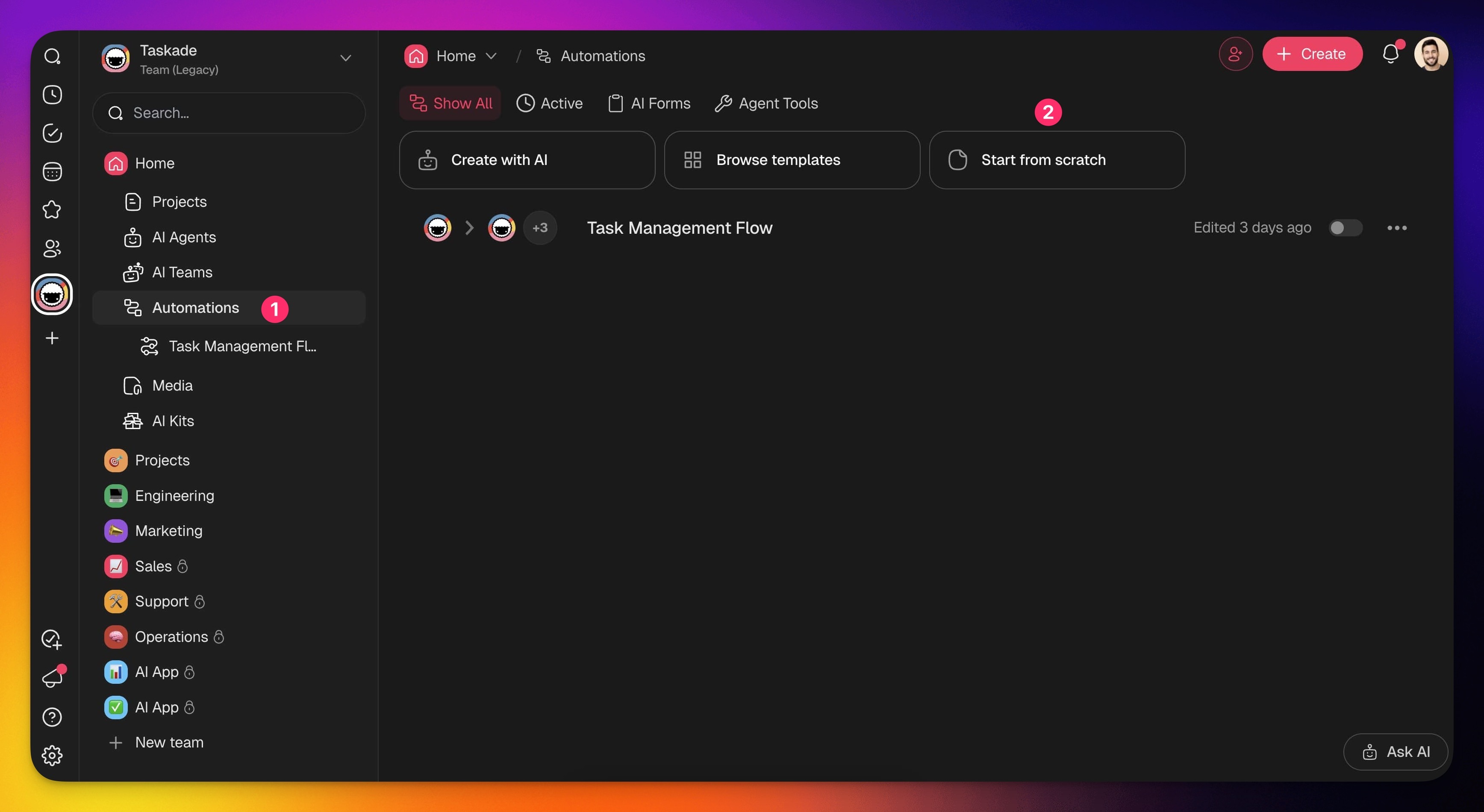
- **Go to the Automations tab** in your workspace or folder.
- Click **➕ Create automation**.
- **Select** the **Add from scratch** tile.
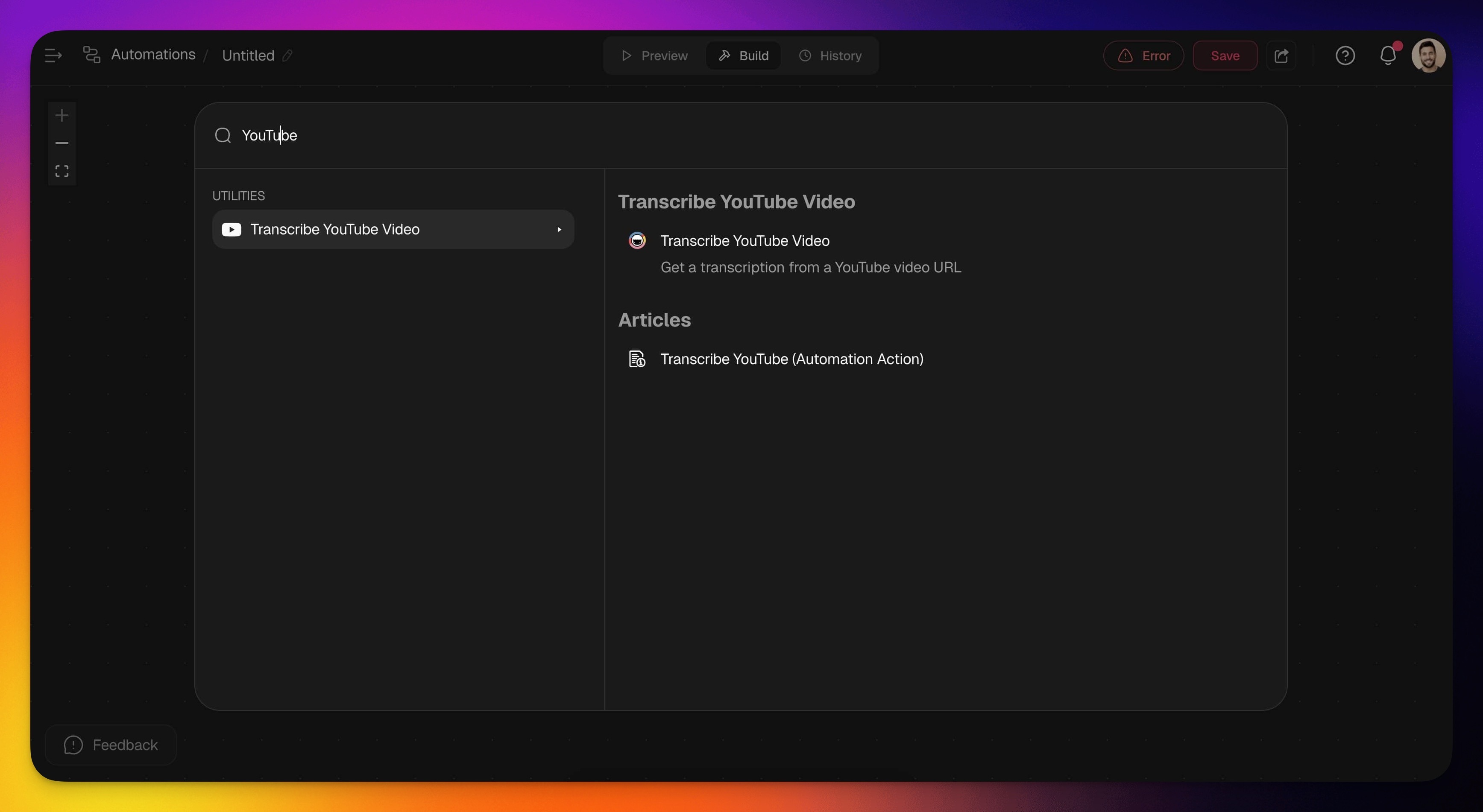
- Click **➕ Add step** and choose **Transcribe a YouTube video** from the list.
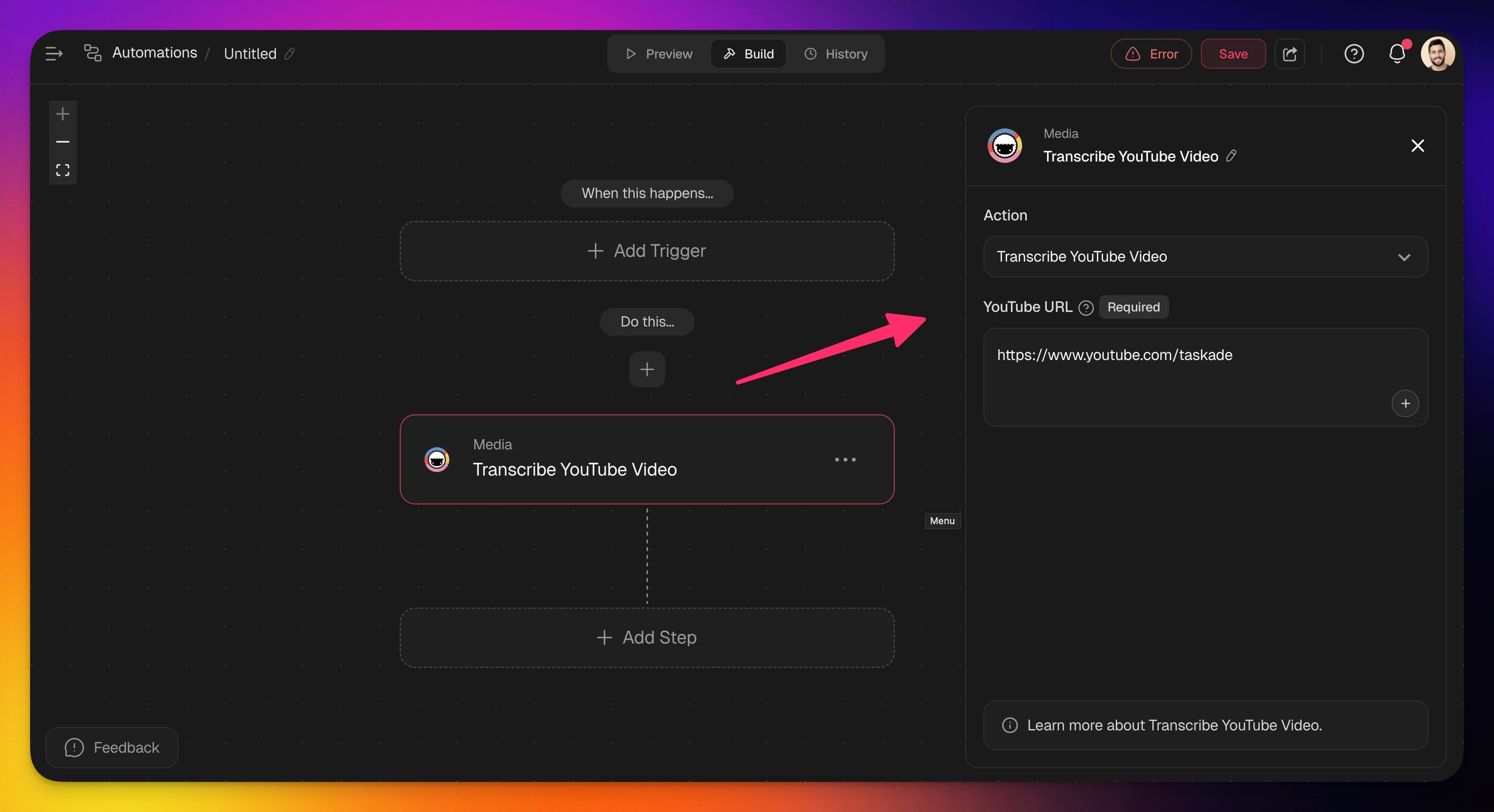
- Paste the YouTube URL you want to transcribe.
- (Optional) Add more steps to the automation.
- Click **Save changes** in the top-right corner.
- Toggle the automation on in the top-right corner.
---
### Add YouTube as a Trigger
- **Follow the steps from the first section to create an automation**.
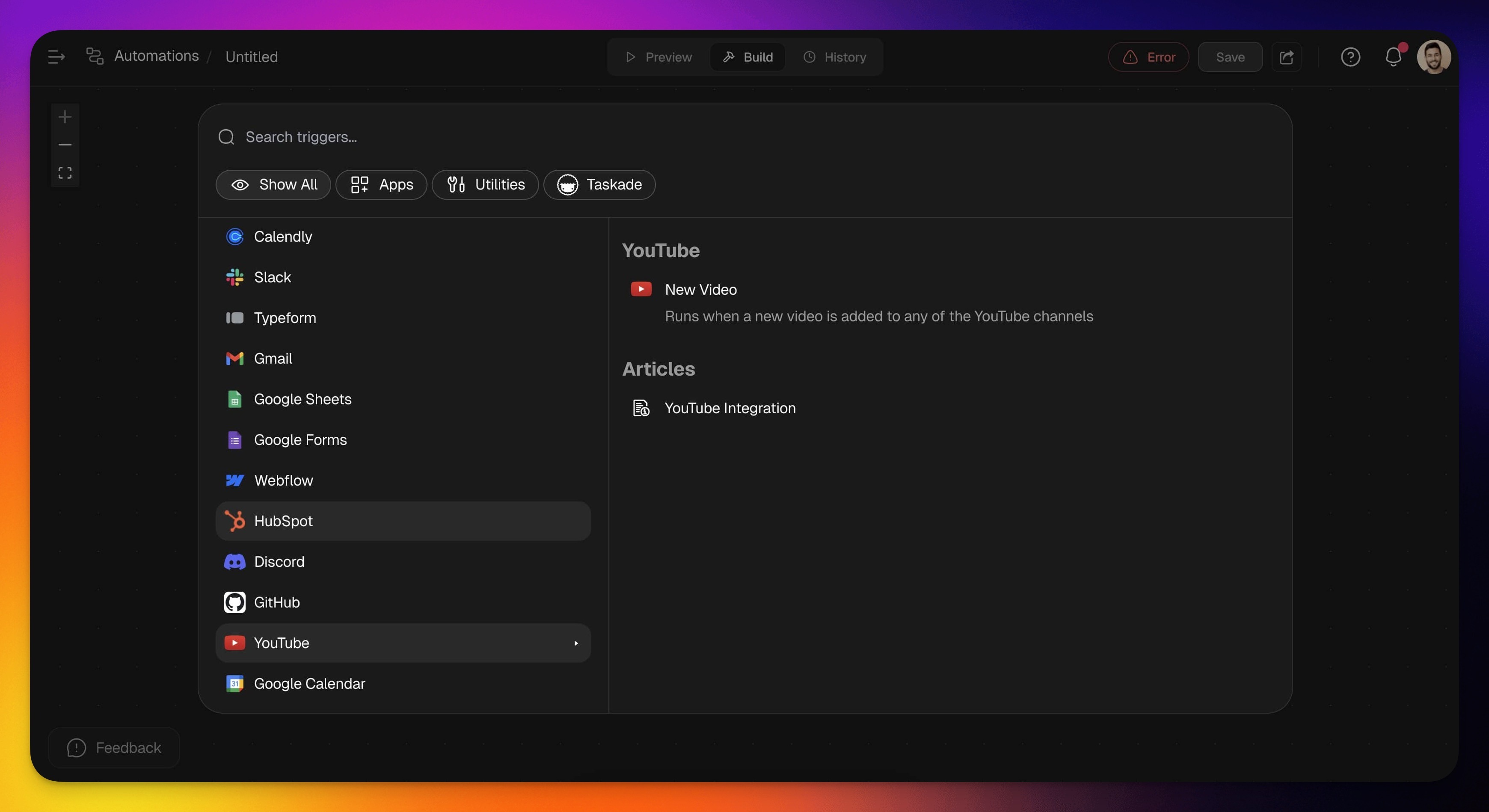
- Click **➕ Add Trigger** and choose one of the YouTube triggers from the list.
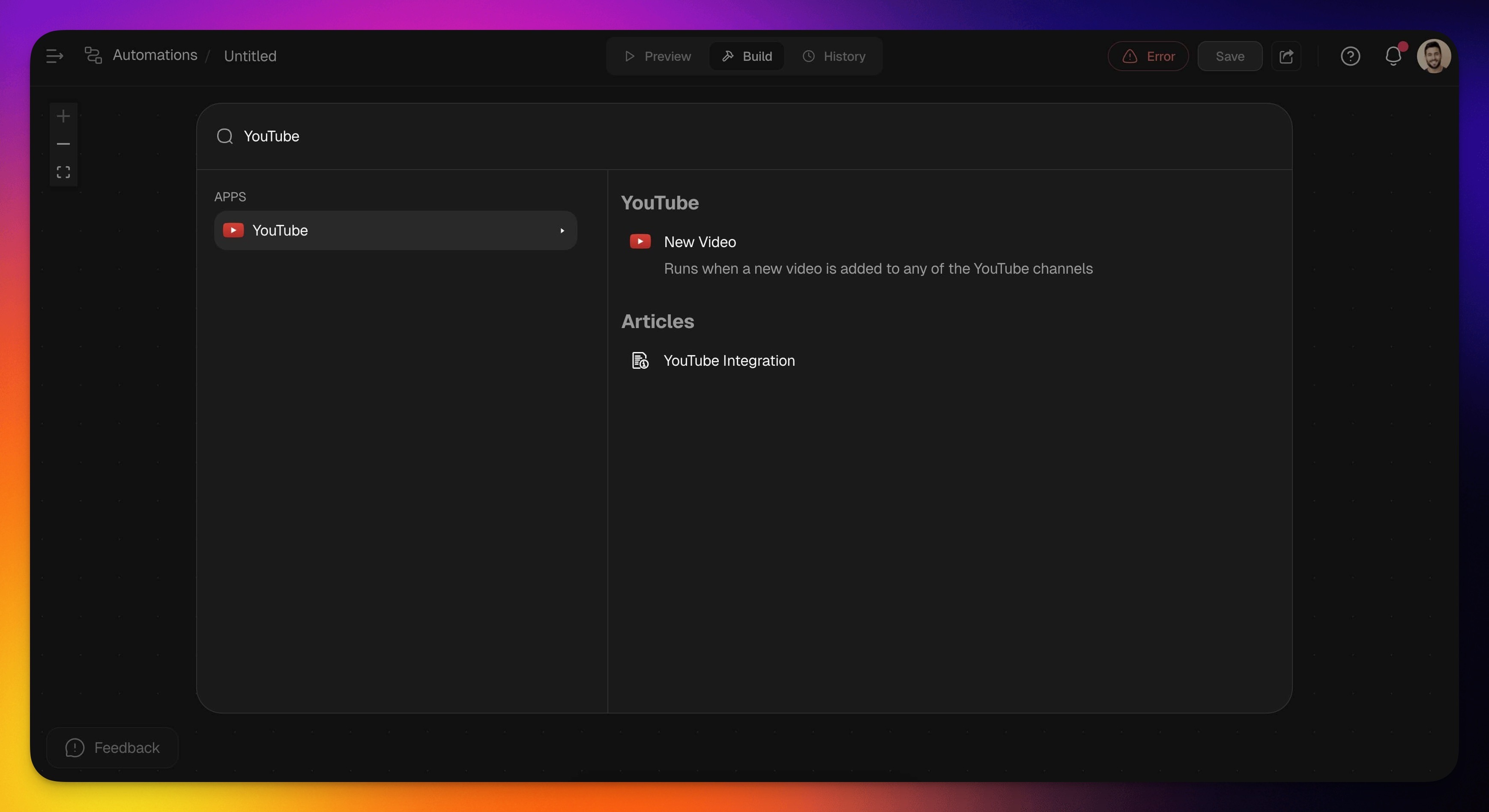
- Specify the conditions for the trigger (if applicable).
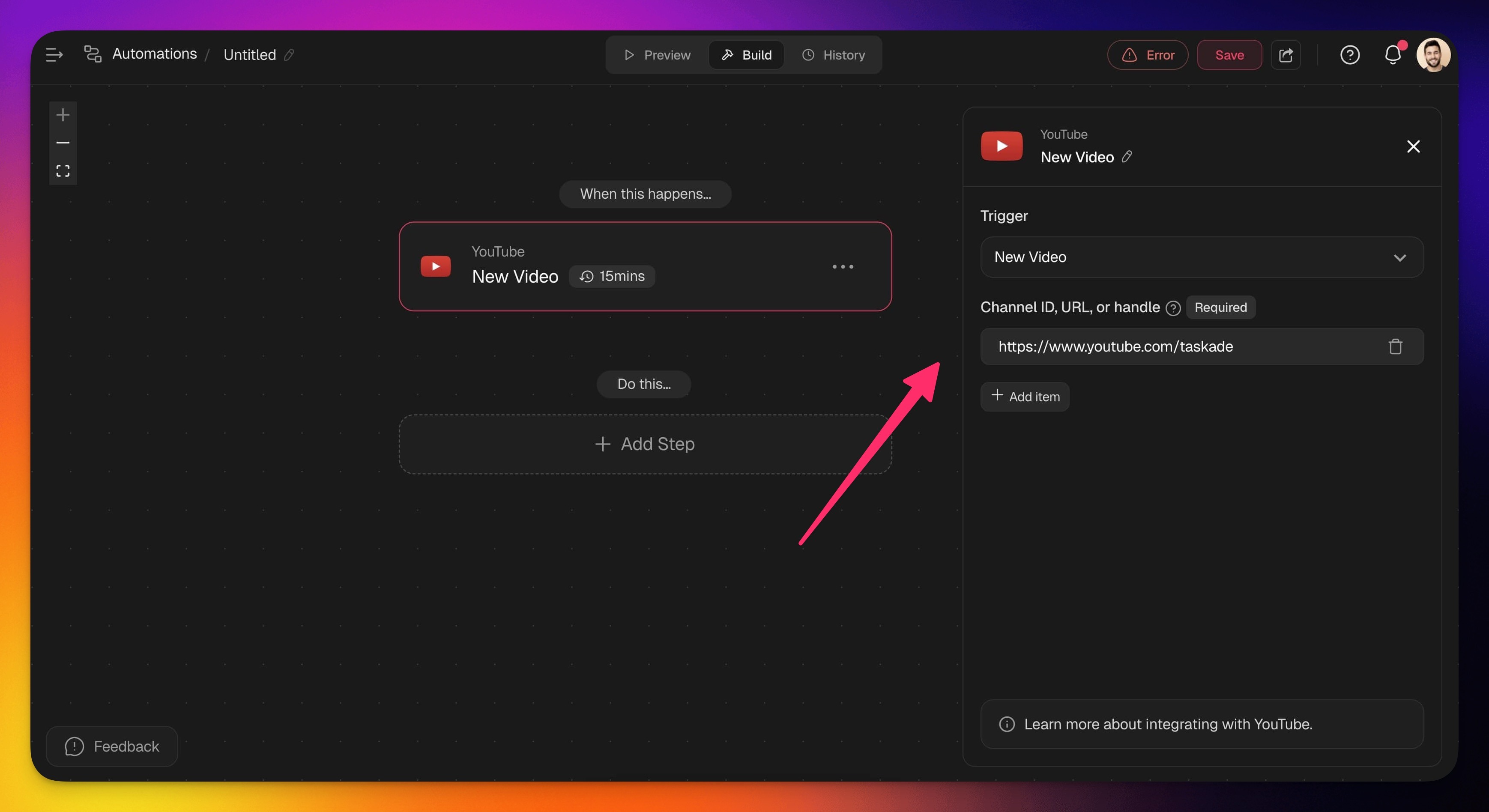
- (Optional) Add more steps to the automation.
- Click **Save changes** in the top-right corner.
- Toggle the automation on in the top-right corner.
---
## YouTube Triggers
YouTube triggers start an automation when a new video goes live on a channel, or when a video joins a playlist. Add one channel or many to a single trigger, and your workspace reacts on its own. Use this as the first step in a [content automation](https://www.taskade.com/learn/automation/triggers).
| Trigger | Description |
| --- | --- |
| **New Video** | Triggers when a new video is uploaded to any YouTube channel you track. Add one channel or many, by ID, URL, or handle, and a single trigger covers them all. |
| **New Video in Playlist** | Runs when a video is added to a public or unlisted YouTube playlist. Paste the playlist ID or URL. The trigger watches the first 500 entries of the playlist. |
---
## Pair the Trigger With a Video Step
The YouTube connector supplies the triggers and the **Get Video Details** action. Taskade's built-in media steps do the rest of the work. **Transcribe a YouTube video** turns a video into clean text that your [AI agents](https://www.taskade.com/learn/agents/custom-agents) and other [actions](https://www.taskade.com/learn/automation/actions) can read. A single upload becomes a summary, a blog draft, or social posts. See [Transcribe a YouTube video](https://www.taskade.com/learn/automation/transcribe-youtube) for the full setup.
| Step | Description |
| --- | --- |
| **Get Video Details** | Gets the title, description, statistics, and top comments of a public or unlisted video. Paste a video ID or URL. Shorts and youtu.be links also work. |
| **Transcribe a YouTube video** | Reads a YouTube URL and returns the transcript for content creation or analysis. |
---
### YouTube Automation Settings
Connector options give you full control over the YouTube automation:
| Field | Required? | Description |
| --- | --- | --- |
| Channel ID, URL, or Handle | Yes | Choose sources to monitor: channel IDs, URLs, or handles. |
| Playlist ID or URL | Yes, for New Video in Playlist | The public or unlisted playlist to watch. |
| Video ID or URL | Yes, for Get Video Details | The video to read. |
| Number of Top Comments | No | How many of the most relevant comments Get Video Details returns, from 0 to 100. The default is 10. Enter 0 to skip comments. |
| YouTube URL | Yes | The YouTube video URL to extract transcriptions. |
---
## Use Cases
Each use case starts with a New Video trigger and chains [actions](https://www.taskade.com/learn/automation/actions) to repurpose the upload. Pick a recipe below, swap in the channels you want to monitor, and the loop runs every time you publish. Most pair the connector with [Slack](https://www.taskade.com/learn/connect/slack-integration), [Gmail](https://www.taskade.com/learn/connect/gmail-integration), [Google Docs](https://www.taskade.com/learn/connect/google-docs), or [WordPress](https://www.taskade.com/learn/connect/wordpress-integration).
| Transcribe and analyze YouTube video | ✅ Trigger: New Video (YouTube)
➡️ Step: Transcribe a YouTube video
➡️ Action: Write with AI to extract key insights |
| --- | --- |
| Notify team on slack for new video upload | ✅ Trigger: New Video
➡️ Action: Create Task to review engagement
➡️ Action: Send Channel Message (Slack) |
| Create a Google Docs summary for new videos | ✅ Trigger: New Video (YouTube)
➡️ Step: Transcribe a YouTube video
➡️ Action: Create Document (Google Docs)
➡️ Action: Append Text to summarize video content |
| Post a video summary on WordPress | ✅ Trigger: New Video (YouTube)
➡️ Step: Transcribe a YouTube video
➡️ Action: Run an agent command (Copywriter Agent)
➡️ Action: Create Post (WordPress) |
| Send email notification for new video | ✅ Trigger: New Video (YouTube)
➡️ Action: Send Email (Gmail)
➡️ Action: Add Task to follow up on viewer comments |
| Create social media posts for new video | ✅ Trigger: New Video (YouTube)
➡️ Step: Transcribe a YouTube video
➡️ Action: Run an agent command (Copywriter Agent)
➡️ Action: Create Post (X/Twitter)
➡️ Action: Create Share Update (LinkedIn)
➡️ Action: Create Post (Facebook) |
Here is how the social-post recipe reads as a single flow, from one upload to four destinations:
```text
NEW VIDEO ---> TRANSCRIBE ---> AI AGENT (Copywriter)
|
+------------+----------+-----------+
v v v v
X / Twitter LinkedIn Facebook Project
(post) (update) (page post) (logged)
```
---
Use this integration as an AI agent tool. See [Tools for AI Agents](https://www.taskade.com/learn/agents/agent-tools).
---
## Frequently Asked Questions
**Does the New Video trigger work across more than one channel?**
Yes. The New Video trigger accepts one channel or many. Add the channel IDs, URLs, or handles you want to monitor, and the same trigger fires for any of them.
**Can I watch a playlist instead of a channel?**
Yes. Use the New Video in Playlist trigger with a public or unlisted playlist. The automation runs each time a video joins that playlist.
**Can I summarize a video automatically?**
Yes. Chain the **Transcribe a YouTube video** step into an [AI agent](https://www.taskade.com/learn/agents/custom-agents) or a **Write with AI** step. The transcript becomes the input, and the agent writes the summary, social copy, or blog draft in your voice.
**Where do the results go?**
Wherever you point the next action: a task, a Google Doc, a Slack channel, a WordPress post, or a project in your workspace. One upload can fan out to several destinations in the same automation.
**Do I need code to set this up?**
No. You build the automation visually by adding a [trigger](https://www.taskade.com/learn/automation/triggers) and one or more [actions](https://www.taskade.com/learn/automation/actions), then toggling it on. No code, no servers to manage.
**Can an AI agent use YouTube on its own?**
Yes. Add the connector to a [custom agent](https://www.taskade.com/learn/agents/custom-agents) so it can transcribe and pull video context as one of its built-in tools. See [Tools for AI Agents](https://www.taskade.com/learn/agents/agent-tools).
---
## Run your channel from one place
You are already tracking video performance somewhere: a spreadsheet of upload dates, a Slack thread of "did anyone post this yet," a folder of half-finished summaries. A YouTube automation removes the manual middle, but the bigger move is giving every video a home.
Describe it to [Taskade Genesis](https://www.taskade.com/create) in plain English and it builds a live **content operations dashboard**. Every new upload lands as a card the moment it publishes. The card carries the transcript, the AI summary, the queued social posts, and a status your whole team can see. Editors see what needs review, writers see what to repurpose, and the [automation](https://www.taskade.com/learn/automation/automations-execution) keeps the board current on its own. It runs on your Workspace DNA. The dashboard remembers your channels, reasons over each transcript with frontier models from top AI labs, and executes the follow-up without anyone refreshing YouTube.
[Build your content dashboard with Taskade Genesis →](https://www.taskade.com/create)
---
### Related guides
- [Transcribe a YouTube video](https://www.taskade.com/learn/automation/transcribe-youtube). Convert videos to text in automations.
- [RSS Integration](https://www.taskade.com/learn/connect/rss-integration). Another content trigger source.
- [Knowledge Kit](https://www.taskade.com/learn/genesis/knowledge-kit). Self-updating research base from feeds.
- [Agent Knowledge](https://www.taskade.com/learn/agents/knowledge). Train agents on YouTube transcripts.
- [Custom Agents](https://www.taskade.com/learn/agents/custom-agents). Give an agent the YouTube connector as a tool.