# GitHub Integration
> Enhance your development workflow with GitHub automation. By integrating GitHub with your projects, you can manage code repositories, track issues, and automate engineering workflows.
- Source: https://www.taskade.com/learn/connect/github-integration
- Section: Connect
- Updated: 2026-11-03
- Index of all pages: https://www.taskade.com/learn/llms.txt
## Overview
The GitHub integration brings repos, issues, and pull requests into Taskade with **6 triggers and 5 actions**. Watch for new issues, automate release notes, or hand the keys to a [Custom AI Agent](https://www.taskade.com/learn/agents/custom-agents) that triages bugs, opens PRs, and updates the team in [Slack](https://www.taskade.com/learn/connect/slack-integration).
> **TL;DR:** GitHub works both ways with Taskade. Triggers pull events in, so a New Issue or New Pull Request starts an [automation](https://www.taskade.com/learn/automation/automations-execution). Actions push work back out, so Taskade can Create Issue or Create Comment in your repo. Set it up once and your code and tasks stay in sync.
> 💡 **Note**: GitHub is a premium integration. An automation that uses its actions needs a paid plan. Its triggers receive events through a webhook, so they need Pro and up.
> 💡 **Note**: Be sure to explore other automation [actions & triggers](https://www.taskade.com/learn/automation).
---
### Connect & Configure GitHub
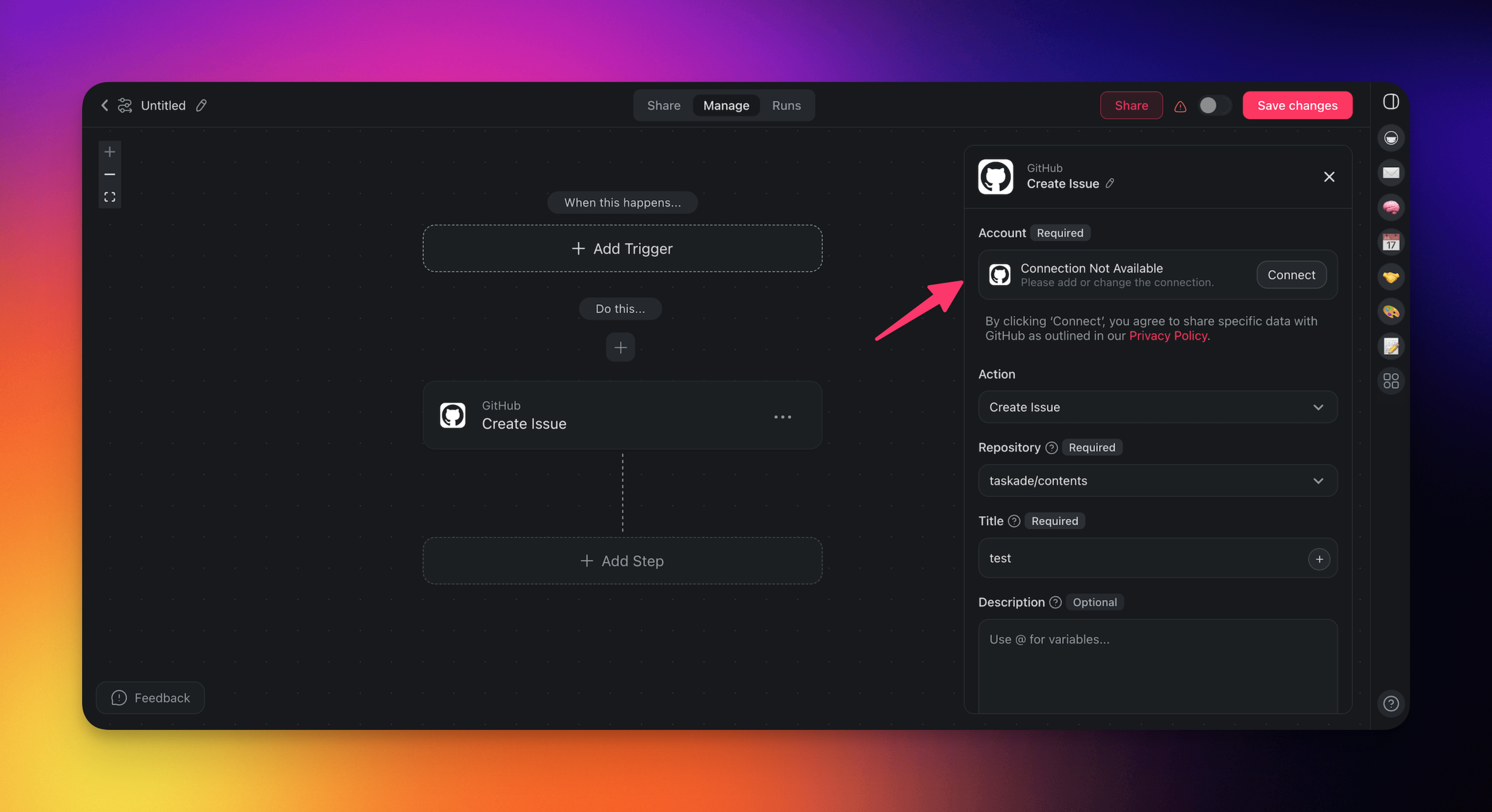
Before you use GitHub in Taskade, configure the integration:
- **Add GitHub** as an **action/trigger** (see the next section).
- Click **Connect** to connect your GitHub account to Taskade.
- Follow the instructions to finish the setup.
---
### Build GitHub Automations
Use the GitHub connector in your automation flows to optimize project management and improve collaboration.
> 💡 **Note**: Visit our [Automation Guide](https://www.taskade.com/learn/automation/automations-execution) to learn more.
---
### Add GitHub as an Action
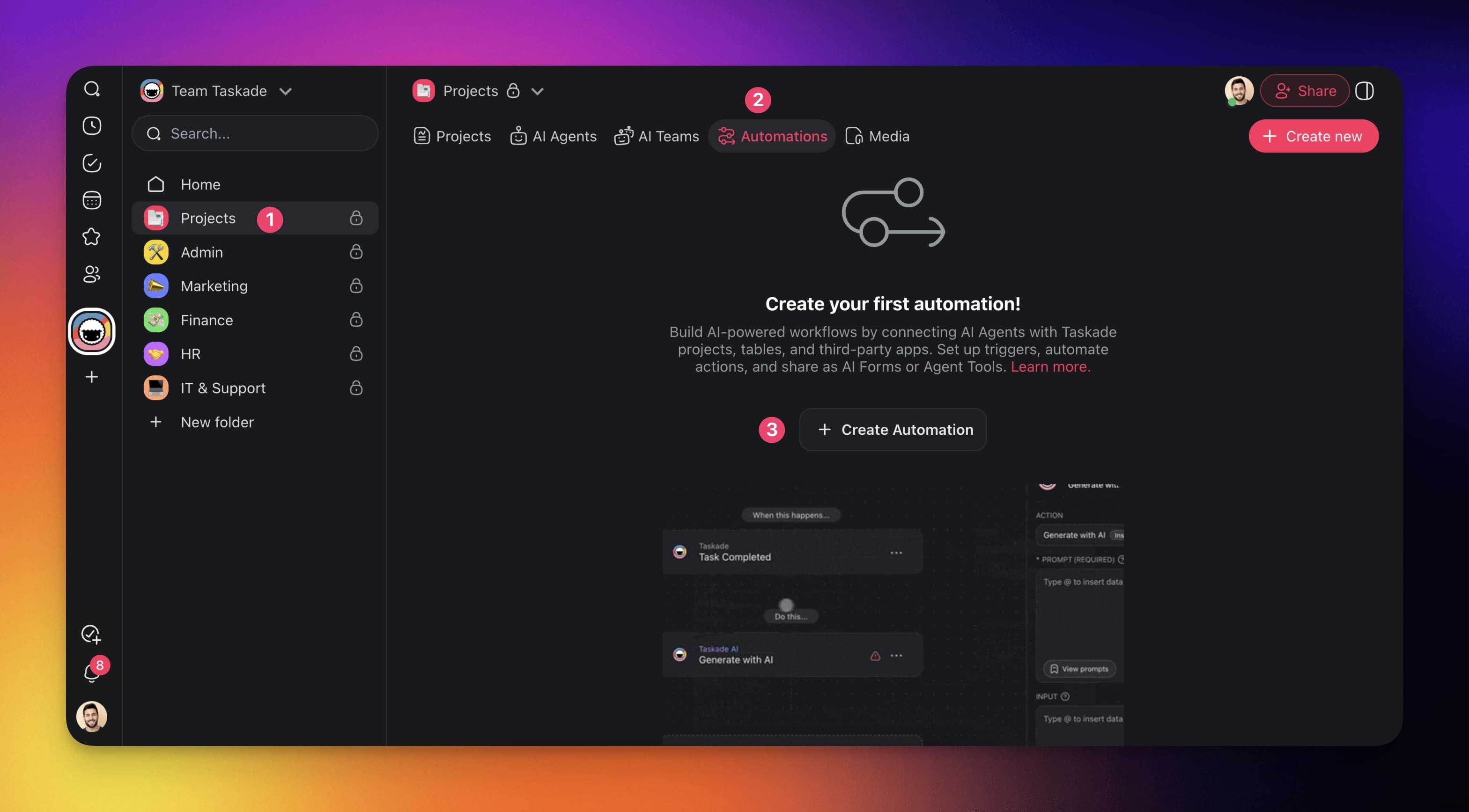
- Go to the **Automations** tab in your workspace or folder.
- Click ➕ **Create automation**.
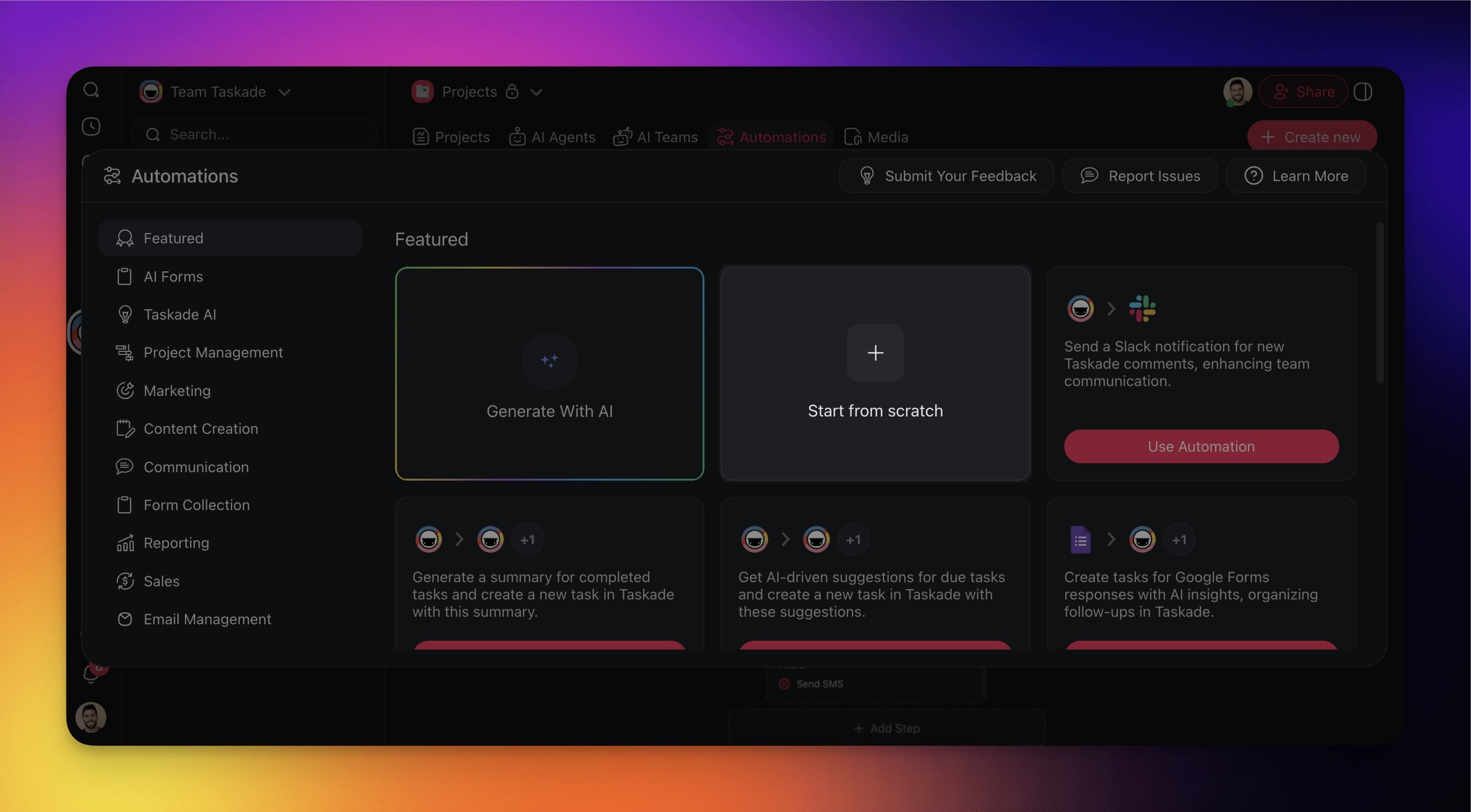
- Select the **Add from scratch** tile.
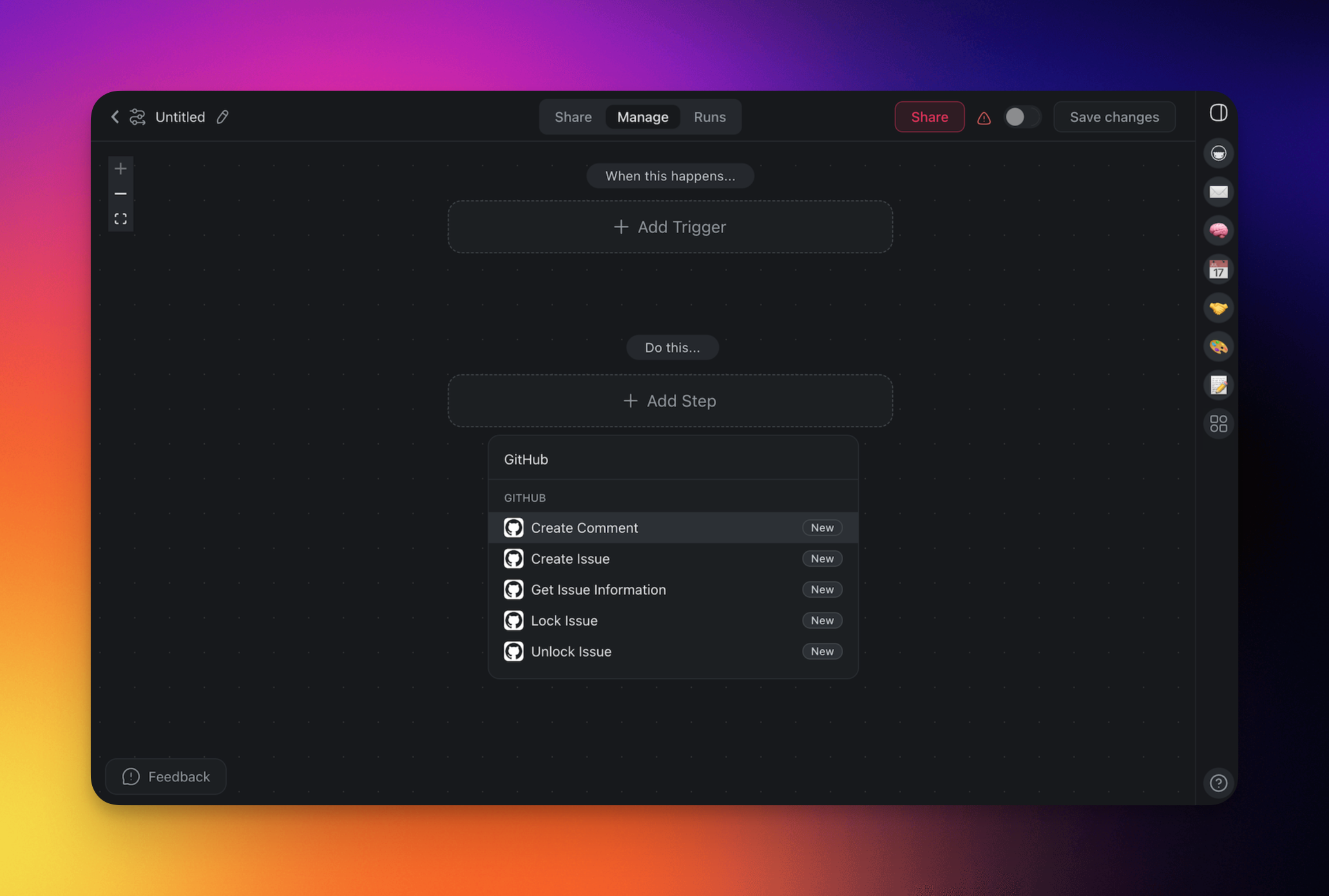
- Click ➕ **Add Action** and **choose** one of the **GitHub actions** from the list.
- **Connect** your GitHub account to Taskade (see the first section of this guide).
- **Specify** the **conditions** for the action (if applicable).
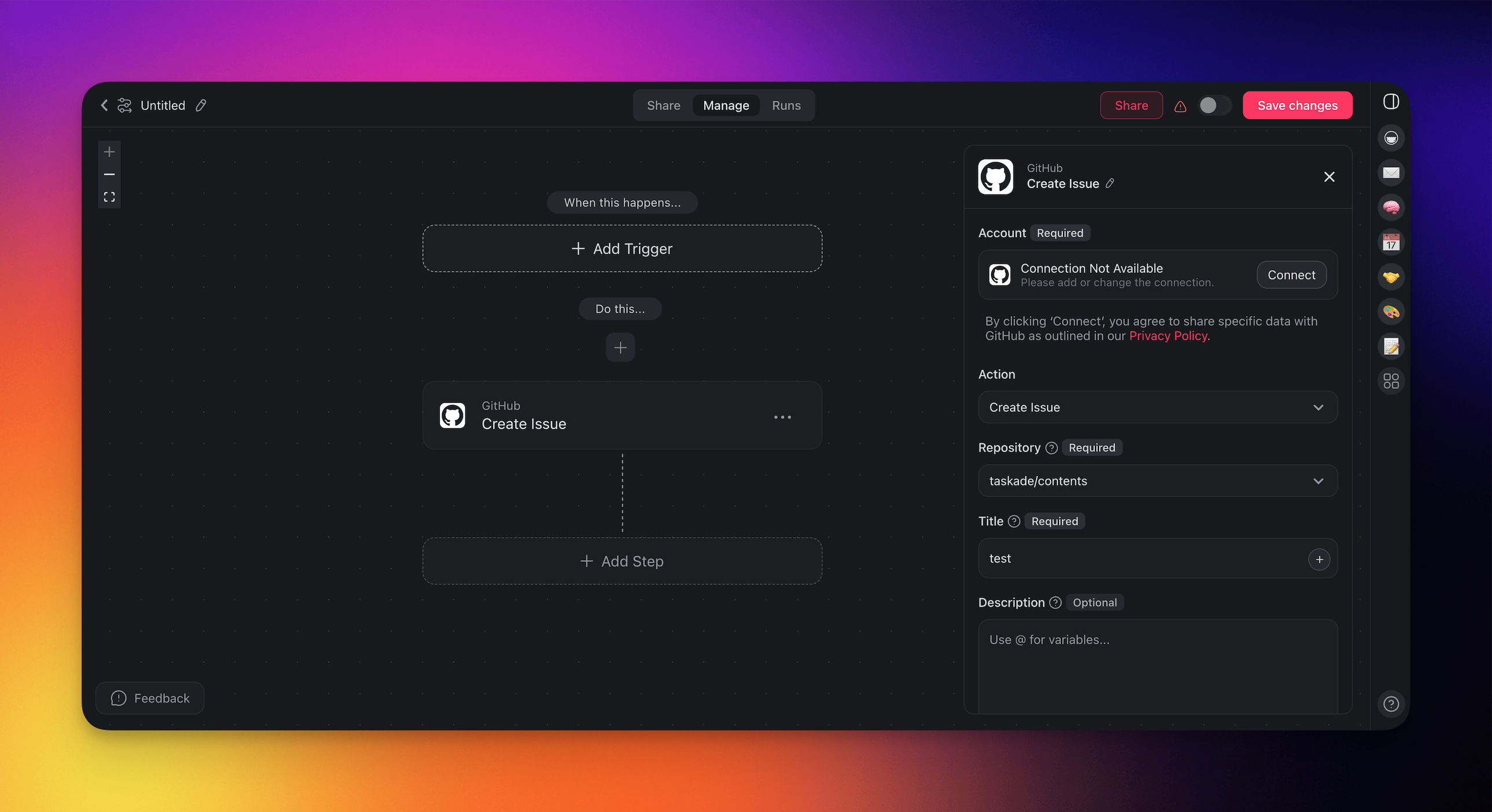
- (optional) Add more steps to the automation.
- Click **Save changes** in the top-right corner.
- **Toggle the automation on** in the top-right corner.
---
### Add GitHub as a Trigger
- Follow the steps from the first section to create an automation.
- Click ➕ **Add Trigger** and **choose** one of the **GitHub triggers** from the list.
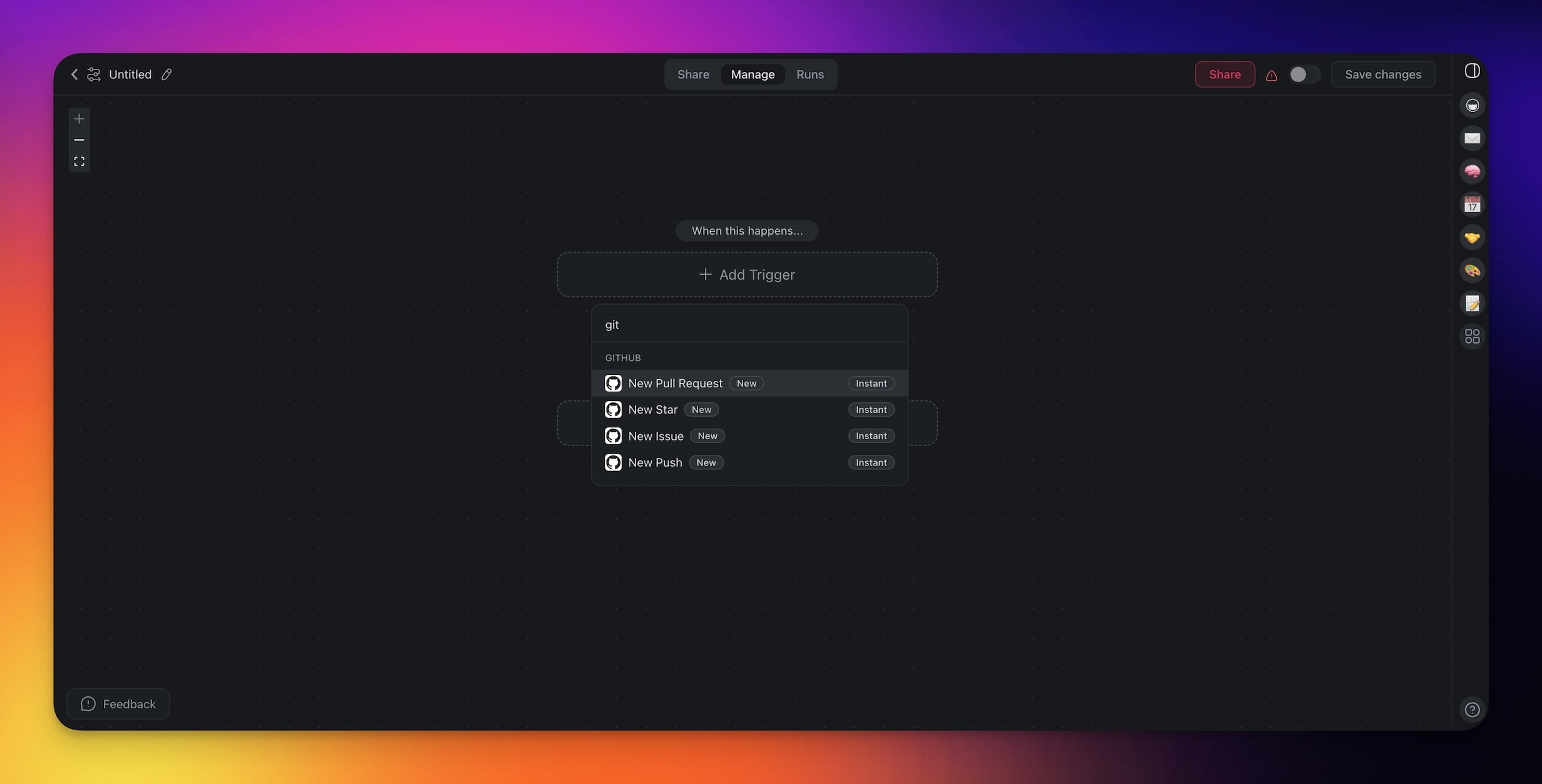
- **Connect** your GitHub account to Taskade (see the first section of this guide).
- **Specify** the **conditions** for the trigger (if applicable).
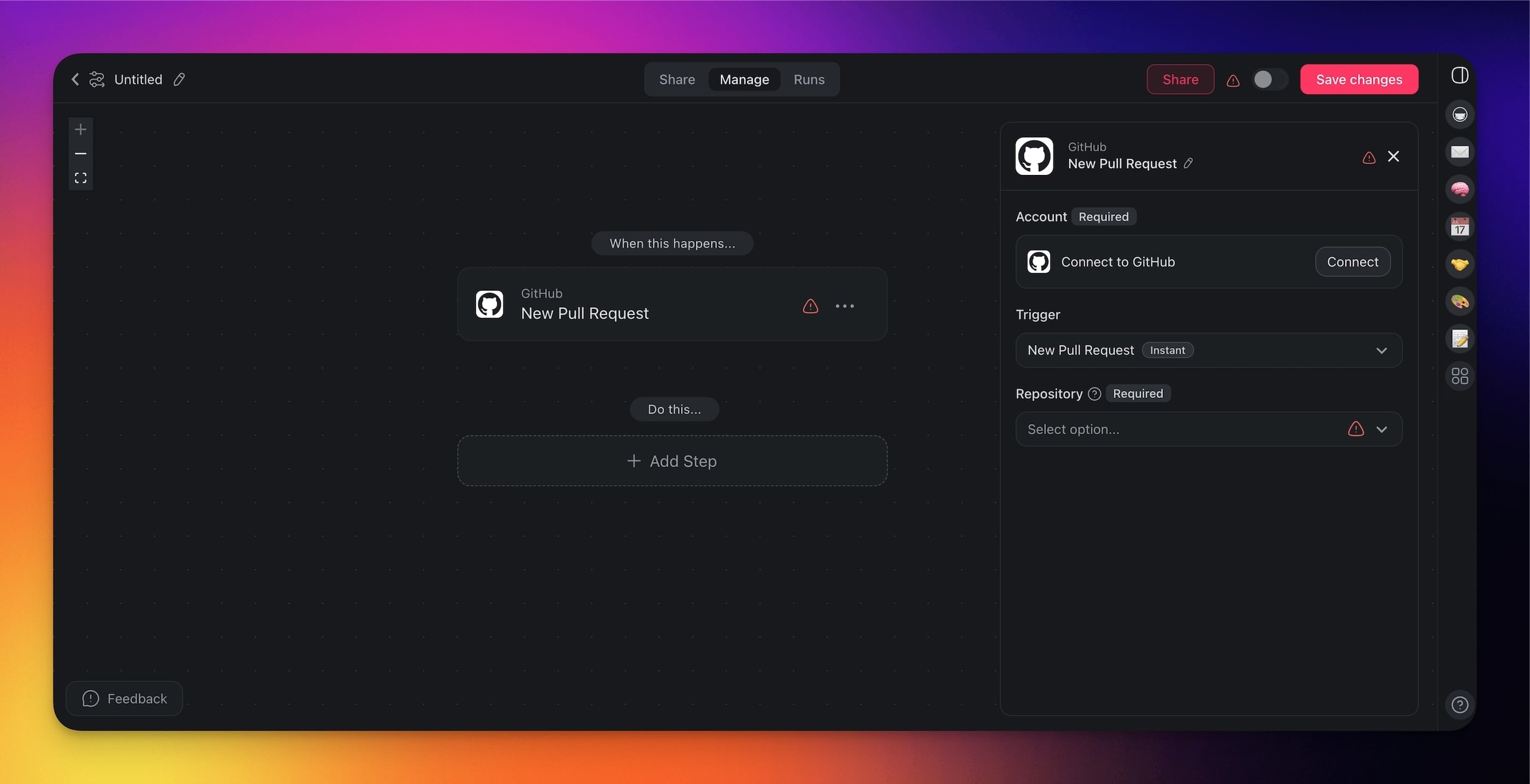
- (optional) Add more steps to the automation.
- Click **Save changes** in the top-right corner.
- **Toggle the automation on** in the top-right corner.
---
## GitHub Triggers
| Trigger | Description |
| --- | --- |
| New Pull Request | Triggers with a new pull request. |
| New Star | Triggers when a user stars a repository. |
| New Issue | Triggers when a new issue is opened. |
| New Push | Initiates when new commits are pushed. |
| New Issue Comment | Triggers when a new comment is added to an issue. |
| New Release | Triggers when a new release is published. |
## GitHub Actions
| Action | Description |
| --- | --- |
| Create Comment | Adds a comment to an issue/pull request. |
| Create Issue | Opens a new issue in a repository. |
| Get Issue Information | Retrieves details about an issue. |
| Lock Issue | Locks an issue to stop comments. |
| Unlock Issue | Unlocks a previously locked issue. |
---
### GitHub Automation Settings
Connector options give you full control over the GitHub automation:
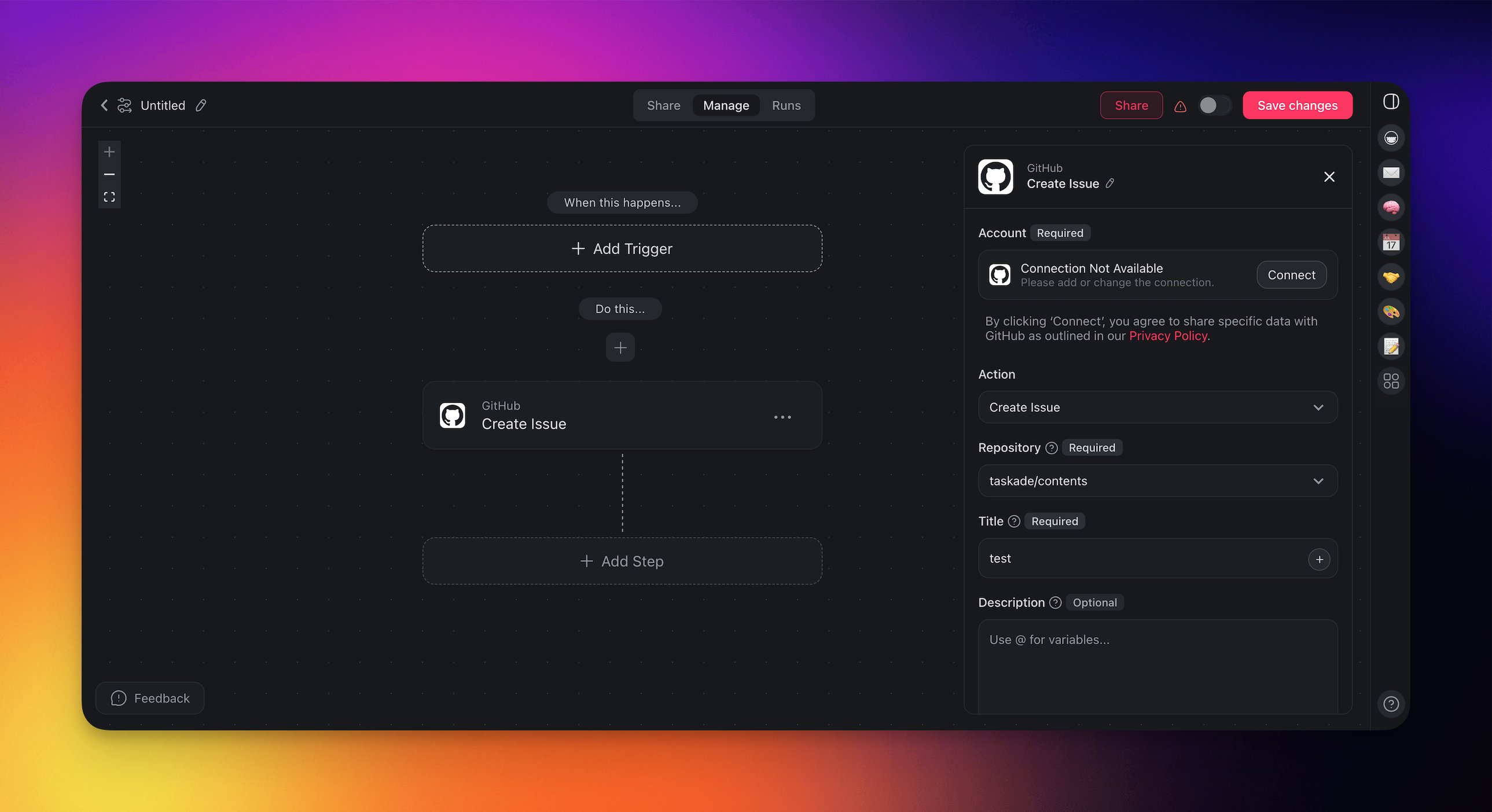
| Field | Description |
| --- | --- |
| (required) Repository | The GitHub repository for the action. |
| (required) Issue Number | The specific number identifying an issue. |
| (required) Comment | The content of the comment to add. |
| (required) Title | The title of a new issue. |
| (optional) Description | Additional details or context for an issue. |
| (optional) Lock Reason | The reason for locking an issue. |
---
### Disconnect GitHub
To disconnect the GitHub integration from your Taskade account:
- **From Automations**:
- Choose the GitHub action/trigger in your automation.
- Click **Change** in the configuration sidebar on the right.
- Click the **trash button** 🗑️ next to the active account.
---
## Use Cases
Here are a few ways to use the GitHub connector:
| Use Case | Action Flow |
| --- | --- |
| Automatic issue logging | ✅ Trigger: Form Trigger (e.g., bug or feedback)
➡️ Action: Create Issue in GitHub using form fields |
| Push comments to GitHub | ✅ Trigger: Task Added (e.g., QA feedback)
➡️ Action: Create Comment on issue/pull request |
| New GitHub comment to task | ✅ Trigger: New Issue Comment
➡️ Action: Check if content includes @yourhandle
➡️ Action: Create Task in your “Mentions Inbox” project with comment text and GitHub link |
| Create release notes issue | ✅ Trigger: Project Completed (e.g., a sprint)
➡️ Action: Find Task(s) tagged included-in-release
➡️ Action: Transform Array to String
➡️ Action: Create Issue in GitHub as release notes |
| Notify team on new PR | ✅ Trigger: New Pull Request
➡️ Action: Create Task in Taskade for code review |
| Feedback loop from GitHub | ✅ Trigger: New Issue Comment (from GitHub)
➡️ Action: Create Task in Taskade project (e.g., “Customer Feedback”) for review |
| Monitor new releases | ✅ Trigger: New Release
➡️ Action: Create Task in Taskade titled “Review GitHub Release {Tag}” with link to release page |
| Weekly AI summary | ✅ Trigger: New Issue Comment
➡️ Action: Categorize with AI to detect @yourhandle
➡️ If matched: Create Task in “Mentions Inbox”
✅ Trigger: Schedule (Fridays at 4PM)➡️ Action: Find Task(s) including @yourhandle➡️ Action: Transform Array to String➡️ Action: Summarize with AI (summarize comments)➡️ Action: Send Email |
---
Use this integration as an AI agent tool. See [Tools for AI Agents](https://www.taskade.com/learn/agents/agent-tools).
#### Available Capabilities
| Type | Capability | Description |
| --- | --- | --- |
| ⚡ Trigger | New Push | Fires when new commits are pushed |
| ⚡ Trigger | New Pull Request | Fires when a new pull request is opened |
| ⚡ Trigger | New Issue | Fires when a new issue is opened |
| ⚡ Trigger | New Star | Fires when a user stars a repository |
| ⚡ Trigger | New Release | Fires when a new release is published |
| ⚡ Trigger | New Issue Comment | Fires when a new comment is added to an issue |
| 🔧 Action | Create Issue | Opens a new issue in a repository |
| 🔧 Action | Create Comment | Adds a comment to an issue or pull request |
| 🔧 Action | Get Issue Information | Retrieves details about an issue |
| 🔧 Action | Lock Issue | Locks an issue to stop comments |
| 🔧 Action | Unlock Issue | Unlocks a previously locked issue |
---
## Example: Issue to Sprint Task
```mermaid
sequenceDiagram
autonumber
participant GH as GitHub
participant Auto as Taskade Automation
participant Agent as AI Agent
participant Project as Sprint Project
GH->>Auto: New issue opened
Auto->>Agent: Estimate effort + priority
Agent->>Project: Create task with labels
GH->>Auto: PR merged
Auto->>Project: Mark task complete
```
---
### Related guides
- [Developer API](https://www.taskade.com/learn/connect/developer-api) · [Public API](https://www.taskade.com/learn/connect/public-api) · [MCP Server](https://www.taskade.com/learn/connect/mcp-server). Other development integrations
- [GitHub Export & Import](https://www.taskade.com/learn/genesis/github-export-import). Push Taskade Genesis apps to GitHub
- [Custom AI Agents](https://www.taskade.com/learn/agents/custom-agents). Agents that triage issues and draft PRs
- [Webhooks](https://www.taskade.com/learn/automation/webhooks). Alternative GitHub → Taskade via webhooks