# Get Structured Output from an Agent
> Use the Structured Output type to extract specific information and use them as variables in your next actions in your automation workflow...
- Source: https://www.taskade.com/learn/automation/structured-output
- Section: Automation
- Updated: 2026-11-09
- Index of all pages: https://www.taskade.com/learn/llms.txt
## Overview
Turn messy AI replies into clean, typed data your app can act on. Use the Structured Output type when you want to extract specific information and use the results as variables in your next actions in your automation. This is commonly used with the [Insert Row](https://www.taskade.com/learn/connect/google-sheets) action or [Add Task](https://www.taskade.com/learn/automation/add-task) action to fill up columns in a table.
> **TL;DR:** Structured output is an option of the **Ask an agent** and **Run an agent command** steps. It asks an agent to return a defined schema, like a number, boolean, or email, instead of free text. The typed values become variables you can pipe into later steps like [Add Task](https://www.taskade.com/learn/automation/add-task) or Insert Row.
```mermaid
flowchart LR
A[Trigger fires] --> B[Ask an agent
with structured output]
B --> C[Typed variables]
C --> D[Next action
writes to project]
style A fill:#0d1b2a,color:#7dd3fc,stroke:#38bdf8,stroke-width:1.5px
style B fill:#2a1225,color:#ff8fa3,stroke:#ff2d60,stroke-width:2px
style C fill:#0d1a0e,color:#86efac,stroke:#22c55e,stroke-width:1.5px
style D fill:#1a140a,color:#ffb74d,stroke:#e65100,stroke-width:1.5px
```
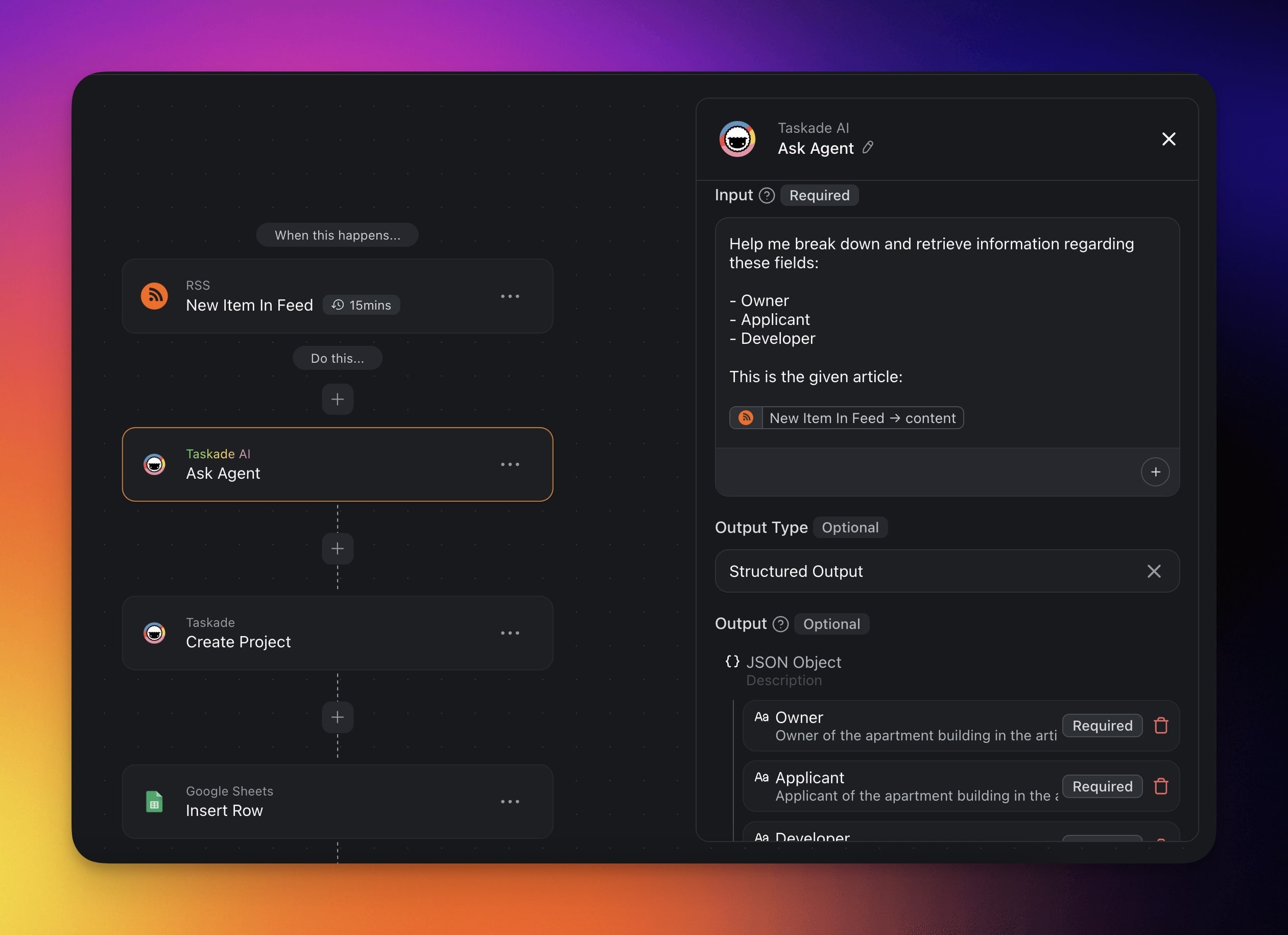
Structured output turns AI agents into **reliable data extractors**, not only prose generators. Define a JSON schema, ask the agent to fill it, and the values become first-class variables you can pipe into downstream actions.
---
### How to Use It
- Click ➕ **Add step** and choose the **Ask an agent** step.
- Select the agent you want to use.
- Enter the input you want the agent to process.
- In **Output Type**, choose **Structured Output**.
- Click ➕ **Add Field** and choose the type of the field.
- Available output types:
- Text
- Number
- JSON Array
- JSON Object
- Boolean
- Date
- Time
- Date and Time
- URL
- Email
- Single Select
- Add additional output fields to structure your agent's response.
- Finish the automation or add more steps for further processing.
Here is the output builder, where each field you add becomes a typed variable for later steps:
```
┌──────────────────────────────────────────────┐
│ Ask an agent │
├──────────────────────────────────────────────┤
│ Agent ▸ Lead Qualifier │
│ Input ▸ "Score this lead from 0 to 100" │
│ │
│ Output Type ▸ Structured Output │
│ Output │
│ • Name Text │
│ • Email Email ✉ │
│ • Lead Score Number # │
│ [ + Add Field ] │
└──────────────────────────────────────────────┘
```
---
### Action Settings
Connector options give you full control over structured output on the **Ask an agent** step:
| 🏷️ Field | 🔤 Description |
| --- | --- |
| Agent | The agent that will be used. |
| Input | The query you want the agent to process. |
| Output Type | Choose **Structured Output** to get typed fields back. |
| Output | The structure of the agent's reply. |
---
### Use Cases
Not sure how to make the most of this action? Start with these [starter prompts](https://www.taskade.com/learn/genesis/starter-prompts):
- [Automating Data Extraction from Insurance Agent Chatbot](https://www.taskade.com/learn/genesis/starter-prompts)
- Embed an insurance agent on your website to extract lead information.
- [Gather and Manage Partner Information](https://www.taskade.com/learn/genesis/starter-prompts)
- Automatically gather and sort details from potential partners.
- [Real Estate News Gathering](https://www.taskade.com/learn/genesis/starter-prompts)
- Automatically gather and extract information from news websites.
---
You can also build data-driven automation flows yourself:
| 🪄 Use Case | ⏩ Action Flow |
| --- | --- |
| AI cost difference calculation | ✅ Trigger: Task Added (Est Cost and Act Cost fields)
➡️ Action: Ask an agent with structured output. Input: “The estimated cost is $500, the actual cost is $650. What is the difference?” Output: Diff Cost (Number)
➡️ Action: Update Custom Field Diff Cost with result |
| Approval routing based on score | ✅ Trigger: Task Added (for example, budget approval request)
➡️ Action: Ask an agent with structured output. Input: “Rate feasibility from 0–100." Output: Approval Score (Number)
➡️ If Approval Score > 80 → Mark Task as Completed
➡️ Else → Assign Task to reviewer |
| Lead qualification | ✅ Trigger: Form Trigger (new lead)
➡️ Action: Ask an agent with structured output. Input: “Is this lead qualified for outreach?” Output: Is Qualified (Boolean)
➡️ If Is Qualified = true → Create Contact in HubSpot |
| Auto-update project KPIs(Dynamic Project Updates) | ✅ Trigger: Schedule (daily)
➡️ Action: Find Task(s) tagged metrics
➡️ Action: Transform Array to String
➡️ Action: Ask an agent with structured output. Input: “Calculate completion rate of tasks." Output: Completion % (Number)
➡️ Action: Update Custom Field → Progress Score |
| Scorecard automation with spreadsheet logic | ✅ Trigger: Task Completed
➡️ Action: Ask an agent with structured output. Input: “Evaluate task and add performance rating.” Output: Score (Number), Status (Single Select)
➡️ Action: Update custom fields → Score and Status |
| Sync qualified data to external tools | ✅ Trigger: Task Added
➡️ Action: Ask an agent with structured output. Input: "Extract name, email, lead score (0–100)." Output: Name (Text), Email (Email), Score (Number)
➡️ Action: Insert Row in Google Sheets |
### Related guides
- [Agent Action](https://www.taskade.com/learn/automation/agent-action). Free-form agent responses.
- [AI Categorize](https://www.taskade.com/learn/automation/ai-categorize). Preset-based classification.
- [Branch Action](https://www.taskade.com/learn/automation/branch-action). Route on typed output.
- [Custom Fields Action](https://www.taskade.com/learn/automation/custom-fields). Write structured values to projects.
- [Custom AI Agents](https://www.taskade.com/learn/agents/custom-agents). Build agents that return structured responses.
---