# Mailhook
> The Mailhook trigger gives your automation a unique email address. Send an email to start a run, and pass its text and attached files to the next steps.
- Source: https://www.taskade.com/learn/automation/mailhook
- Section: Automation
- Updated: 2026-10-27
- Index of all pages: https://www.taskade.com/learn/llms.txt
## Overview
The **Mailhook** trigger gives you a straightforward way to start automations using email. The trigger assigns a unique email address to your automation, so you can send various types of information to start specific automations. Mailhook is the **email-native cousin of [Webhooks](https://www.taskade.com/learn/automation/webhooks)**. Anything that can send mail can fire a Taskade automation.
> **TL;DR:** The Mailhook trigger gives your automation a unique email address. Send a message to that address and the automation starts. Taskade saves any attached files to [Media Files](https://www.taskade.com/learn/agents/media-tab) and passes them to the next steps. Run actions like task creation, AI triage, or team notifications. Available on all plans.
```mermaid
flowchart LR
A[Incoming email] --> B[Attached files saved
to Media Files]
B --> C[Mailhook trigger
starts the run]
C --> D[Actions use the email
and its files]
style A fill:#0d1b2a,color:#7dd3fc,stroke:#38bdf8,stroke-width:1.5px
style B fill:#1a140a,color:#ffb74d,stroke:#e65100,stroke-width:1.5px
style C fill:#2a1225,color:#ff8fa3,stroke:#ff2d60,stroke-width:2px
style D fill:#0d1a0e,color:#86efac,stroke:#22c55e,stroke-width:1.5px
```
Available on all plans.
> 💡 **Note**: Read our [Automation Guide](https://www.taskade.com/learn/automation/automations-execution) to learn more.
---
## How to Get Started
### Add the Trigger
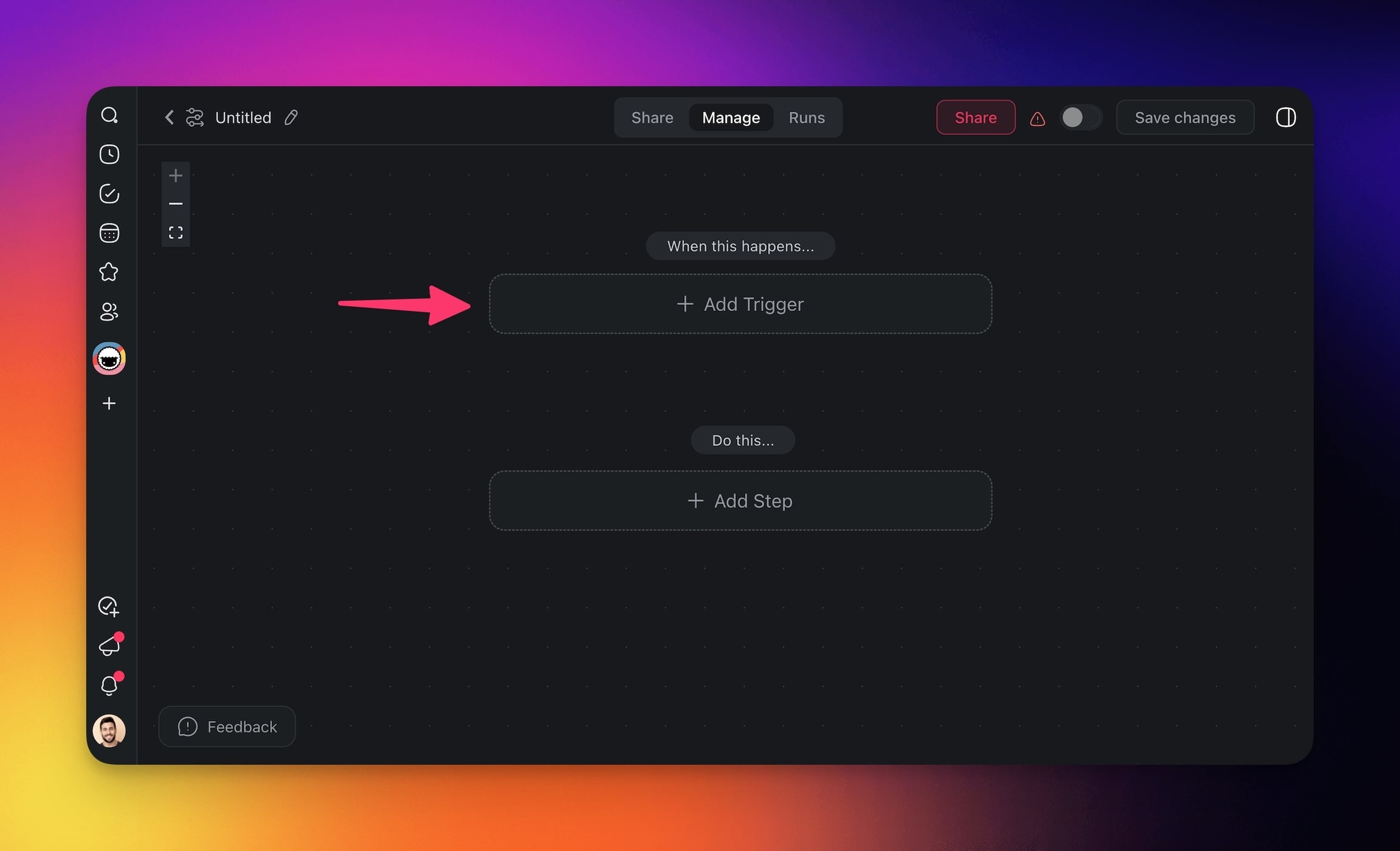
1. **Create** a new **automation flow** and **click ➕ Add Trigger**.
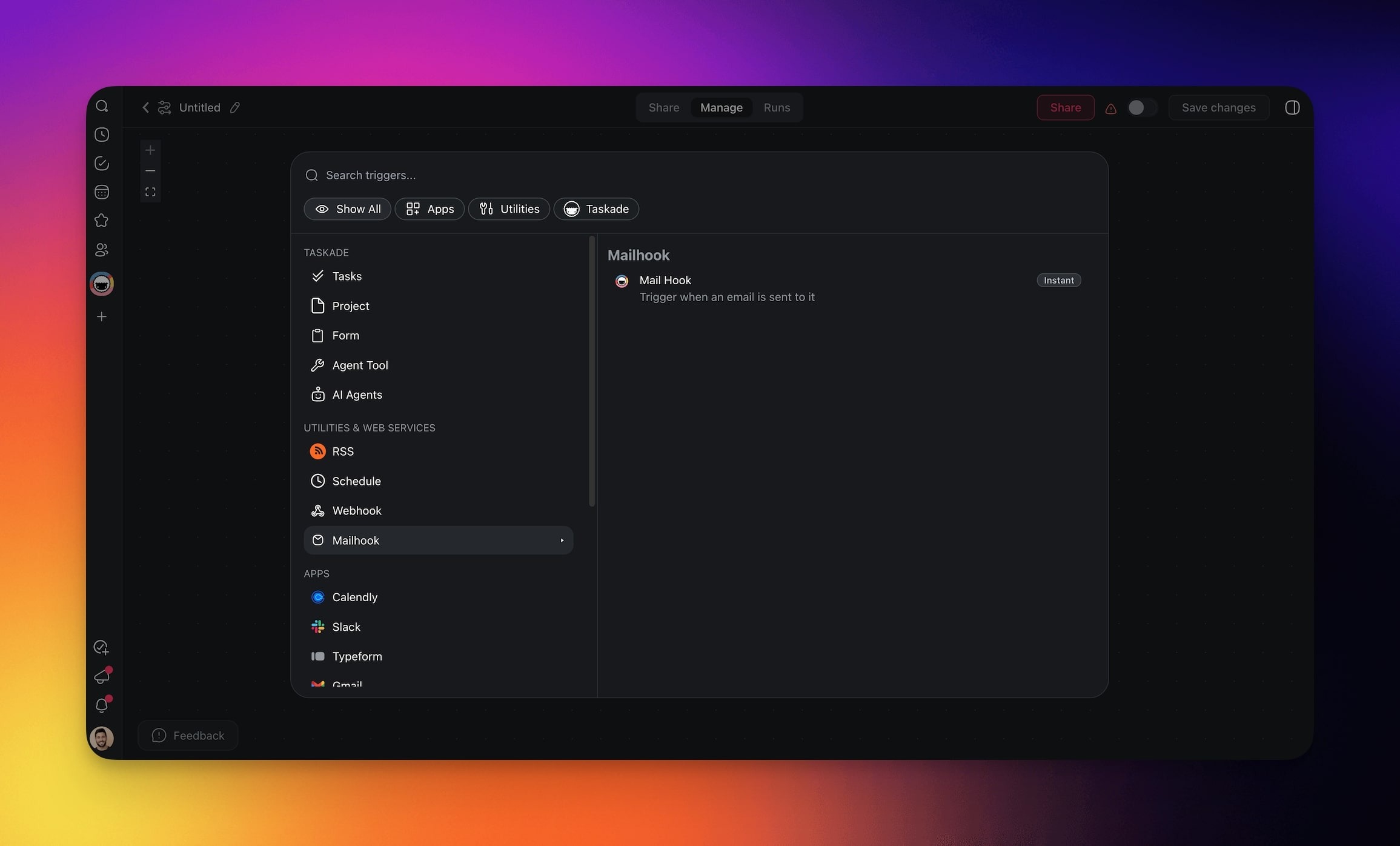
2. Choose the **Mailhook** trigger from the list.
---
### Configure the Trigger
1. Click **Copy Link** in the sidebar to **copy** the **email address.**
2. **Send tasks and data** to the **address** to **trigger** the **automation**.
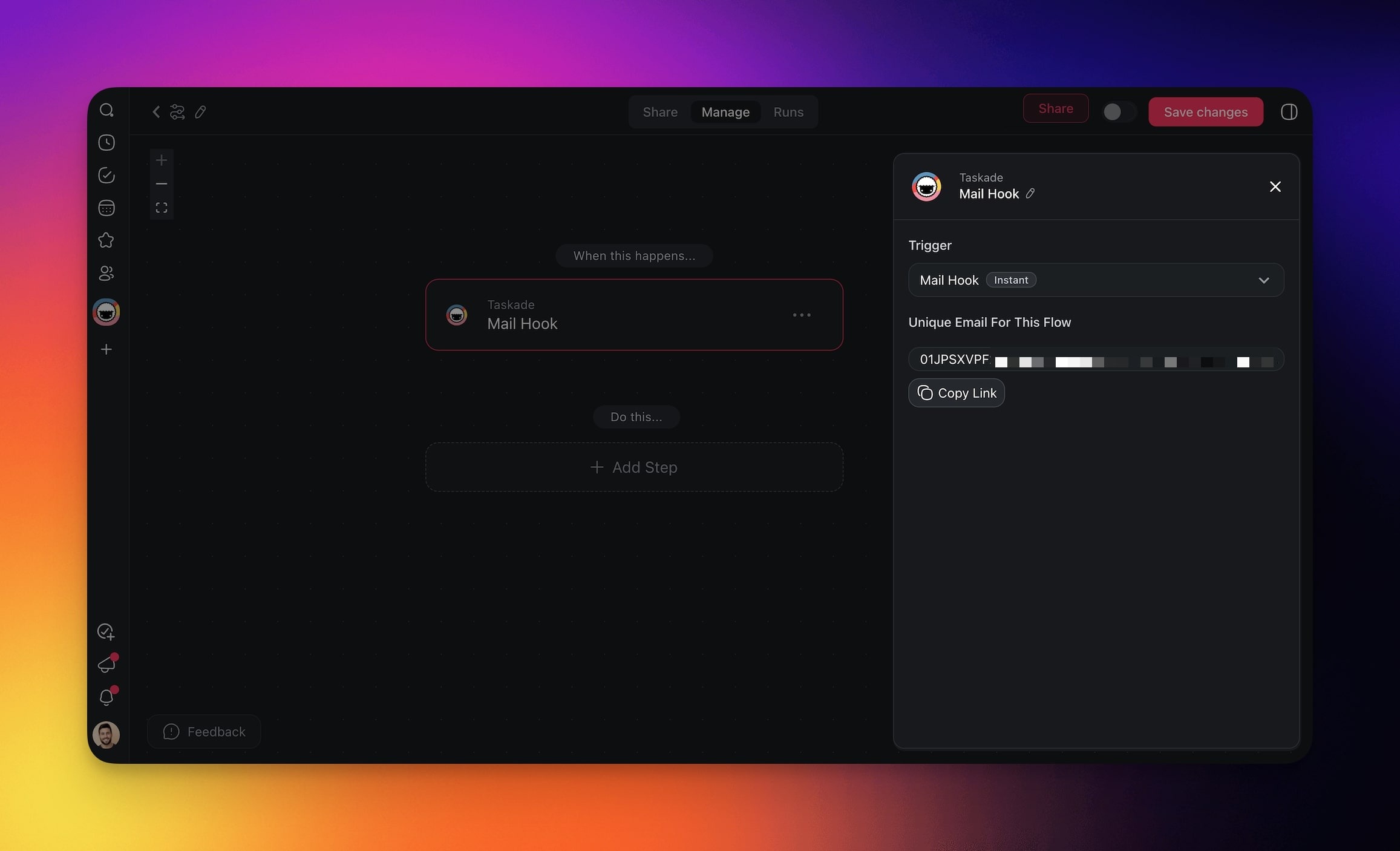
3. **Add** relevant **actions** and **enable** the **automation**.
### Filter Incoming Email
Two optional fields stop a run before it starts. An email that does not match starts no run, so it uses none of your automation runs.
| Field | What it does |
| --- | --- |
| **Only from (contains)** | Runs only when the sender address or sender name contains this text. Upper and lower case match. |
| **Only when subject contains** | Runs only when the subject contains this text. Upper and lower case match. |
Match on the sender address when the filter matters. A sender can type any display name.
---
## Receive Email Attachments
Mailhook saves the files attached to each email in your workspace [Media Files](https://www.taskade.com/learn/agents/media-tab) before the automation starts. The trigger then passes an **Attachments** list to the next steps.
| Attachment field | What it holds |
| --- | --- |
| `fileName` | The name of the saved file |
| `mimeType` | The file type, for example `application/pdf` |
| `size` | The file size in bytes |
| `url` | A link to the saved file that file and media steps can read |
| `isInline` | Whether the file was embedded in the email body |
Choose how Mailhook treats images inside the email body, such as signature logos and pasted screenshots:
1. Click the **Mailhook** trigger in the automation.
2. Open the **Inline images** menu.
3. Keep **Skip inline images** to leave those images out of the list. This is the default.
4. Pick **Include inline images** to add them to the list.
To put a file on a task:
1. Add an **Attach File to Task** step after the step that creates the task.
2. Pick the **Project**.
3. In **Task ID**, insert the task ID from the step that created the task.
4. In **File**, insert the attachment `url`.
For an email with several files, run these steps inside a [Loop](https://www.taskade.com/learn/automation/loop-action) over **Attachments**.
Mailhook saves up to 10 files from each email. A file that is larger than your plan's upload limit, or of a type that Taskade cannot identify, is left out. The email still starts the automation.
---
## Troubleshooting (SPF record)
If your domain's **SPF (Sender Policy Framework) record** is not set up correctly, the **Mailhook** trigger can fail to work. The automation then does not run, and the **Runs** tab shows no error.
To solve this:
1. Identify the **domain** of the email address you are using to send emails to the **Mailhook** trigger. This is the part after the @ symbol.
(for example, for [user@yourdomain.com](mailto:user@yourdomain.com), the domain is yourdomain.com)
2. Use the domain to find the email service provider.
3. For **public email domains**, the service provider is typically identifiable from the domain itself.
(for example, [user@gmail.com](mailto:user@gmail.com) - Google Workspace, [user@outlook.com](mailto:user@outlook.com) - Microsoft 365)
4. For **custom domains** (for example, [user@yourdomain.com](mailto:user@yourdomain.com)), use the domain's email service provider. If you are unsure, you can [search](https://www.google.com/search?q=how+to+find+email+address+domain+service+provider) for various [online tools](https://mxtoolbox.com/SuperTool) to identify the email service provider.
5. Follow the steps outlined in the [Google Support Article](https://support.google.com/a/answer/33786?hl=en&ref_topic=9061731&sjid=705322761075134958-NC) to set up your SPF record accordingly.
---
## Use Cases
Here are a few ideas on how you can use this trigger in your automations:
| 🪄 Use case | 🔤 Description |
| --- | --- |
| Automated project updates | Send emails with project details to update and notify your team automatically. |
| Customer inquiry processing | Forward customer inquiries via email to trigger automated responses or task assignments. |
| Daily report generation | Email daily reports or data inputs to automate the creation and distribution of detailed reports. |
| Task delegation | Use emails containing task information to automatically assign responsibilities to team members. |
| Event registration confirmation | Send event-related emails to trigger participant confirmations and manage event logistics. |
| Incident alerting and response | Email incident details to activate immediate alerts and response protocols. |
| Invoice and receipt intake | Forward invoices by email, create a task for each one, and attach the PDF to that task. |
### Related guides
- [Webhooks Trigger](https://www.taskade.com/learn/automation/webhooks). HTTP-based counterpart.
- [Forms Trigger](https://www.taskade.com/learn/automation/forms-trigger). Structured form submissions.
- [File Convert Action](https://www.taskade.com/learn/automation/file-convert). Process email attachments.
- [Automate Media Files](https://www.taskade.com/learn/automation/media-automations). Work on saved attachments and other media.
- [AI Categorize](https://www.taskade.com/learn/automation/ai-categorize). Triage incoming emails with AI.
---