# Image Generation Actions
> Generate images inside automations with your own OpenAI key, or create Taskade-managed images from chat and agents with no API key.
- Source: https://www.taskade.com/learn/automation/image-generation
- Section: Automation
- Updated: 2026-11-09
- Index of all pages: https://www.taskade.com/learn/llms.txt
## Overview
Taskade can turn a text prompt into an image in two places. In an automation, add OpenAI's **Generate Image** step and paste your own API key. OpenAI bills your account for the image, the step uses a fixed step fee in Taskade credits, and the next step gets a hosted link. The OpenAI step needs Pro and up. In chat and on agents, Taskade-managed image generation needs no key and saves the file to Media.
> **TL;DR:** For a picture inside an [automation](https://www.taskade.com/learn/automation/automations-execution), add OpenAI **Generate Image**, connect your key, and type a prompt. Leave the model blank to use the current default. For images with no API key, generate them from [Taskade EVE](https://www.taskade.com/learn/agents/eve-assistant) or an [agent](https://www.taskade.com/learn/agents/image-generation).
```mermaid
flowchart LR
A[Trigger fires] --> B[Automation writes
the prompt]
B --> C[OpenAI Generate Image
uses your key]
C --> D[Hosted image URL
goes to the next step]
style A fill:#0d1b2a,color:#7dd3fc,stroke:#38bdf8,stroke-width:1.5px
style B fill:#1a140a,color:#ffb74d,stroke:#e65100,stroke-width:1.5px
style C fill:#2a1225,color:#ff8fa3,stroke:#ff2d60,stroke-width:2px
style D fill:#0d1a0e,color:#86efac,stroke:#22c55e,stroke-width:1.5px
```
## Pick the right path
| Path | Where it lives | Who pays | Best for |
| --- | --- | --- | --- |
| OpenAI **Generate Image** | An automation step, on Pro and up | Your OpenAI account for the image, plus a fixed step fee in credits | High volume, a model you choose, a URL the next step can reuse |
| Taskade-managed images | [Taskade EVE](https://www.taskade.com/learn/agents/eve-assistant) chat and [agent image generation](https://www.taskade.com/learn/agents/image-generation) | Your Taskade AI credits. No API key | Fast visuals while you build, files that land in Media |
These are different surfaces. The built-in Taskade AI automation steps (**Ask AI**, **Write with AI**, and the rest) write text. They do not generate images. Image files from chat and agents are a separate built-in tool.
## Generate an image with your own OpenAI key
Connect OpenAI once, then reuse the connection on every OpenAI step in the workspace.
1. Open **Automations** and click **Create**, or edit an existing automation.
2. Add a trigger, then add a step and pick **OpenAI** → **Generate Image**.
3. Click **Connect** and paste an OpenAI API key from [platform.openai.com/api-keys](https://platform.openai.com/api-keys). Save. Taskade checks the key before it stores it.
4. Type a **Prompt**. Describe the picture in plain language. You can insert values from earlier steps.
5. Leave **Model** empty to use the current default image model. Optional **Size** examples include `1024x1024`, `1536x1024` (landscape), and `1024x1536` (portrait).
6. Save and turn the automation on.
The step always returns a hosted `url`. Later steps treat it like any other link. When OpenAI sends raw image data instead of a link, Taskade stores the picture for you and still returns that URL, so you never handle the raw bytes.
You will see two OpenAI entries in the step list. Built-in Taskade AI steps run on workspace credits and do not create images. The OpenAI connector on this page uses your key, includes **Generate Image**, bills your OpenAI account for the model, and uses the fixed step fee in credits. Full setup lives in [Bring Your Own AI Key](https://www.taskade.com/learn/connect/byok-ai-integration).
OpenAI retired its older DALL-E image models. If you type one of those names in, the step says so up front instead of letting the attempt fail on your account.
## Generate images with no API key
Ask [Taskade EVE](https://www.taskade.com/learn/agents/eve-assistant) or a custom agent to make the picture. That path uses Taskade-managed image generation, charges Taskade AI credits, and saves the file to [Media](https://www.taskade.com/learn/agents/media-tab) so you can reuse it in apps, projects, and records.
There is no separate no-key **Generate Image** row in the automation step list. If an automation needs a picture without an OpenAI key, generate it in chat first. You can also let an [agent](https://www.taskade.com/learn/automation/agent-action) with image generation tools do the work. Then [upload](https://www.taskade.com/learn/automation/media-upload) the file or pass it onward.
See [Image Generation](https://www.taskade.com/learn/agents/image-generation) for chat prompts and how files land in Media.
## What the OpenAI step gives you
| Field | What it holds |
| --- | --- |
| `url` | A hosted link to the image. Use this in later steps |
| `revisedPrompt` | The prompt OpenAI actually used, when the model returns one |
Pair **Generate Image** with [Ask an agent](https://www.taskade.com/learn/automation/agent-action) when you want the prompt written from a brief, then pass `url` into email, Slack, or [Save a file to Media](https://www.taskade.com/learn/automation/media-upload).
## Common patterns
| You want to | Build this |
| --- | --- |
| Illustrate each new blog title | Trigger on the title → OpenAI **Generate Image** → save or publish the `url` |
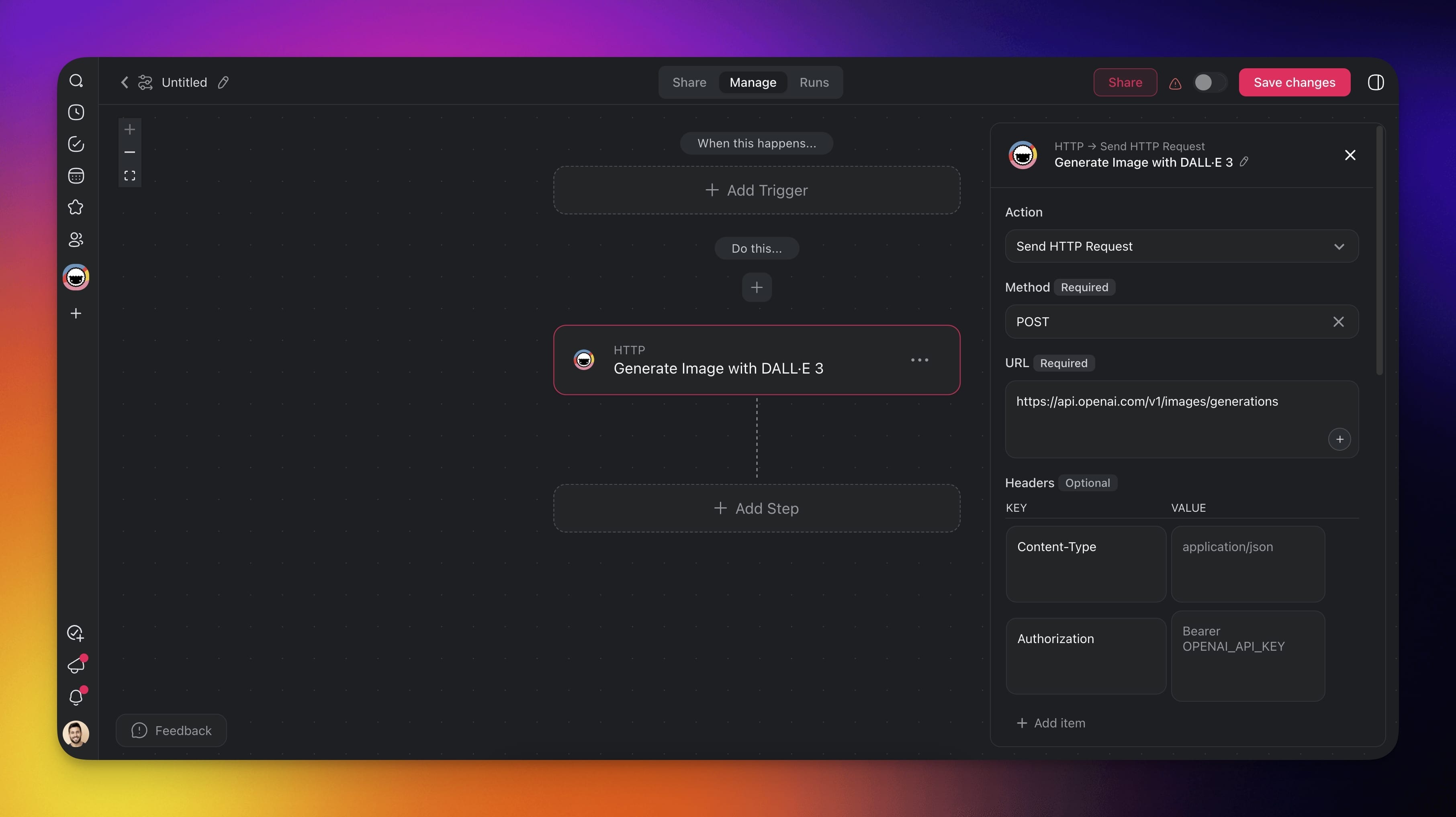
| High-volume images on your OpenAI bill | Swap any one-off HTTP image call for the OpenAI **Generate Image** step |
| A picture with no API key | Ask Taskade EVE or an agent, then reuse the file from Media |
| A prompt that reads the incoming data | **Ask an agent** writes the prompt → **Generate Image** uses it |
## Related guides
- [Bring Your Own AI Key](https://www.taskade.com/learn/connect/byok-ai-integration). Connect OpenAI and the other provider steps.
- [Image Generation](https://www.taskade.com/learn/agents/image-generation). Native images in chat and agents, saved to Media.
- [Ask an agent](https://www.taskade.com/learn/automation/agent-action). Draft the prompt from a brief.
- [Save a file to Media](https://www.taskade.com/learn/automation/media-upload). Store a generated file in the workspace.
- [HTTP Request](https://www.taskade.com/learn/automation/http-request). Custom calls to other image APIs.