# HTTP Request
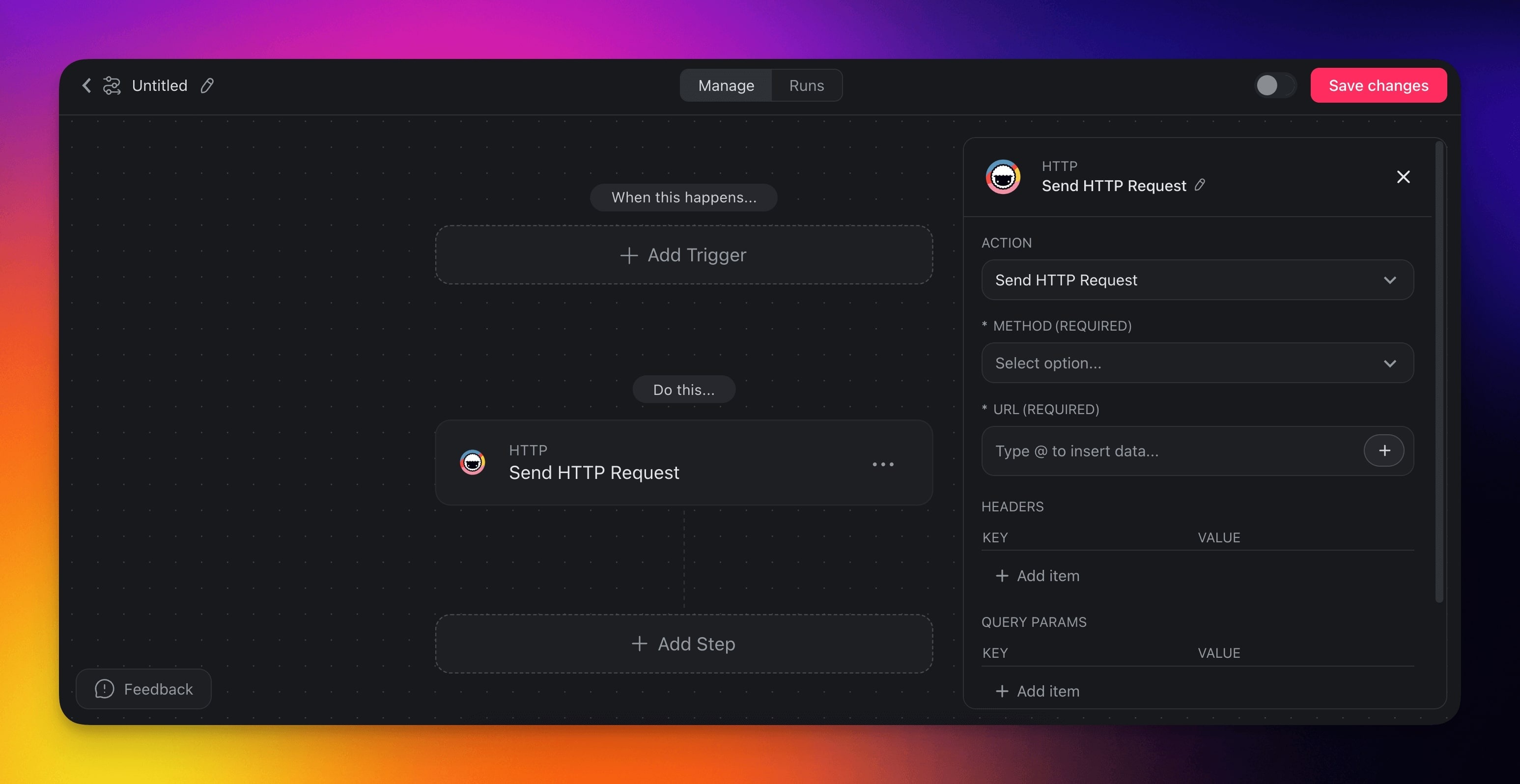
> Connect Taskade to any system that has no built-in integration. The HTTP Request action sends API calls out to any web service, straight from an automation.
- Source: https://www.taskade.com/learn/automation/http-request
- Section: Automation
- Updated: 2026-09-02
- Index of all pages: https://www.taskade.com/learn/llms.txt
## Overview
The HTTP Request action connects Taskade to any system that has no built-in integration. It sends an API call out to any web service as a step inside your automation. Read data from the apps across your stack, or push updates to them.
> **TL;DR:** The HTTP Request action runs as a step inside an automation. It pushes an API call out to any web service. Use it to connect Taskade to apps that have no built-in integration. Pair it with [Webhooks](https://www.taskade.com/learn/automation/webhooks) on the inbound side for a fully programmable backend.
```mermaid
flowchart LR
A[Trigger fires] --> B[Automation runs]
B --> C[Send HTTP Request]
C --> D[Response written back]
style A fill:#0d1b2a,color:#7dd3fc,stroke:#38bdf8,stroke-width:1.5px
style B fill:#2a1225,color:#ff8fa3,stroke:#ff2d60,stroke-width:2px
style C fill:#2a1225,color:#ff8fa3,stroke:#ff2d60,stroke-width:2px
style D fill:#0d1a0e,color:#86efac,stroke:#22c55e,stroke-width:1.5px
```
With the HTTP Request action, you can:
- **Access any API endpoint** that is not covered by built-in integrations.
- **Send and receive data** in real-time between Taskade and external systems.
- **Build enterprise-grade integrations** with your existing tech stack.
HTTP Request is the **universal escape hatch**. When none of Taskade's 100+ native integrations fit, you can call any API in the world. Pair it with [Webhooks](https://www.taskade.com/learn/automation/webhooks) on the inbound side and you have a fully programmable backend behind any [Taskade Genesis app](https://www.taskade.com/learn/genesis/vibe-workflows).
---
## HTTP Request Actions
Here are the [actions](https://www.taskade.com/learn/automation/actions) you can use in your automations:
| (ACTION) Send HTTP Request | Initiates the process of sending an HTTP request to a specified URL. |
| --- | --- |
---
### HTTP Automation Settings
Connector options give you full control over the HTTP Request automation:
**Trigger**: Send HTTP Request
| Parameter | Description | Example |
| --- | --- | --- |
| Method | Choose what you want the HTTP request to do: get information, create something new, update existing data, or delete something | GET (retrieve), POST (create), PUT (update), DELETE (remove), HEAD (check if exists), PATCH (update part) |
| URL | Enter the web address where you want to send your HTTP request | https://api.example.com/v1/users/123 |
| Headers | Add special instructions like passwords or API keys that the receiving system needs to process your request | Authorization: Bearer token123 |
| Query Params | Add extra options to your request URL to filter results or specify what you want back | ?limit=10&sort=date&status=active |
| Body Type | Tell the system how you want to package the data | JSON, Form Data, Raw, XML |
| Body Content | Write the actual information you want to request | {"name": "John", "email": "john@example.com"} |
| Response Body Type | Choose how you want to receive and process the information that comes back | JSON or None |
---
### Sending a HTTP Request
There are many platforms compatible with HTTP requests. In the example below, we will show you how to set up a webhook using Make to receive an HTTP request:
---
#### Set Up Webhooks
1. **Sign in** to your **Make account**.
2. **Click** the **Create a new scenario** button on the top left corner of the screen.
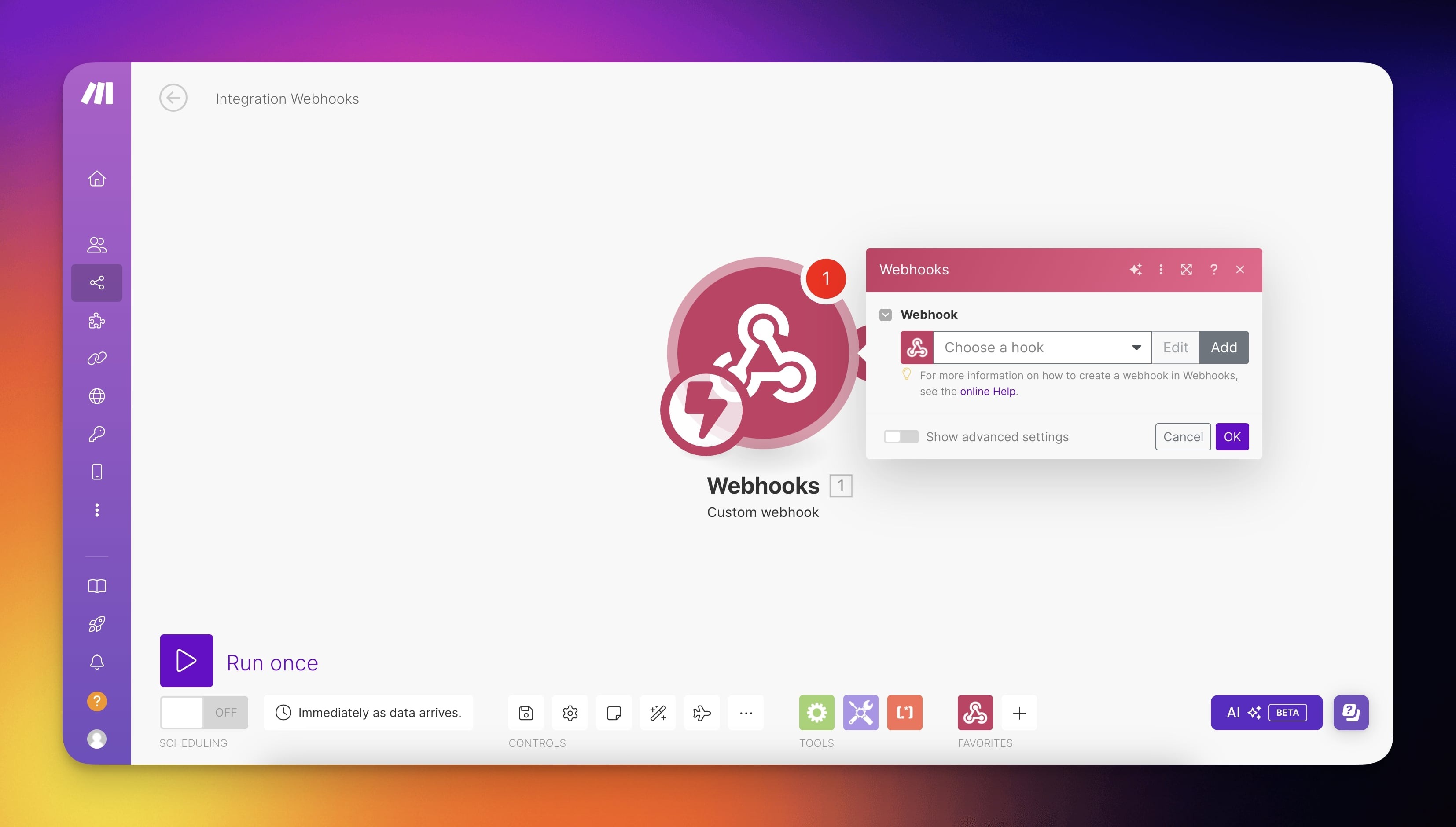
3. **Click** the **plus icon** and **choose Webhook** from the available modules.
4. **Select Custom Webhook**.
5. Click **Add** to generate a new webhook.
6. **Assign** a **descriptive name** to your webhook and **Click Save**.
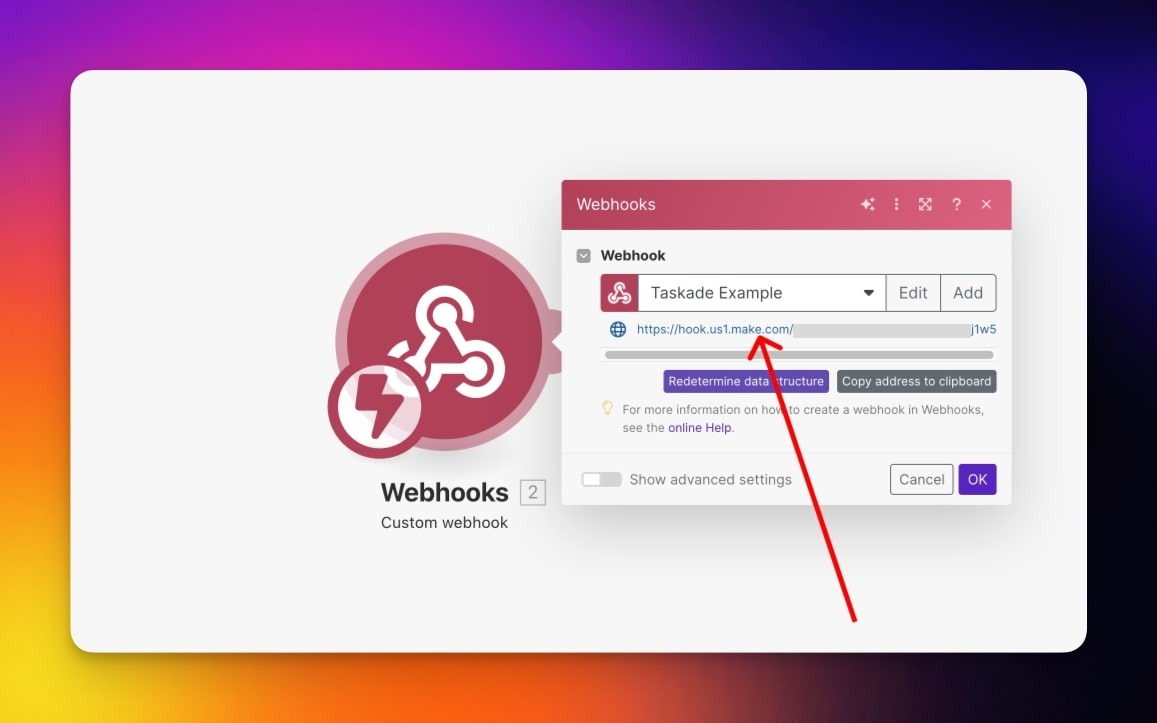
7. Make will provide a **unique URL** for your webhook.
8. **Copy this URL** to Taskade (see the next step).
---
#### Set Up HTTP Request
1. **Go** to your **Taskade workspace**.
2. Navigate to the **Automations** tab at the top.
3. Click ➕ **Add automation** ➡ **Start from scratch**.
4. **Create** any new **Trigger.**
5. **Create** a **Send HTTP Request Action**.
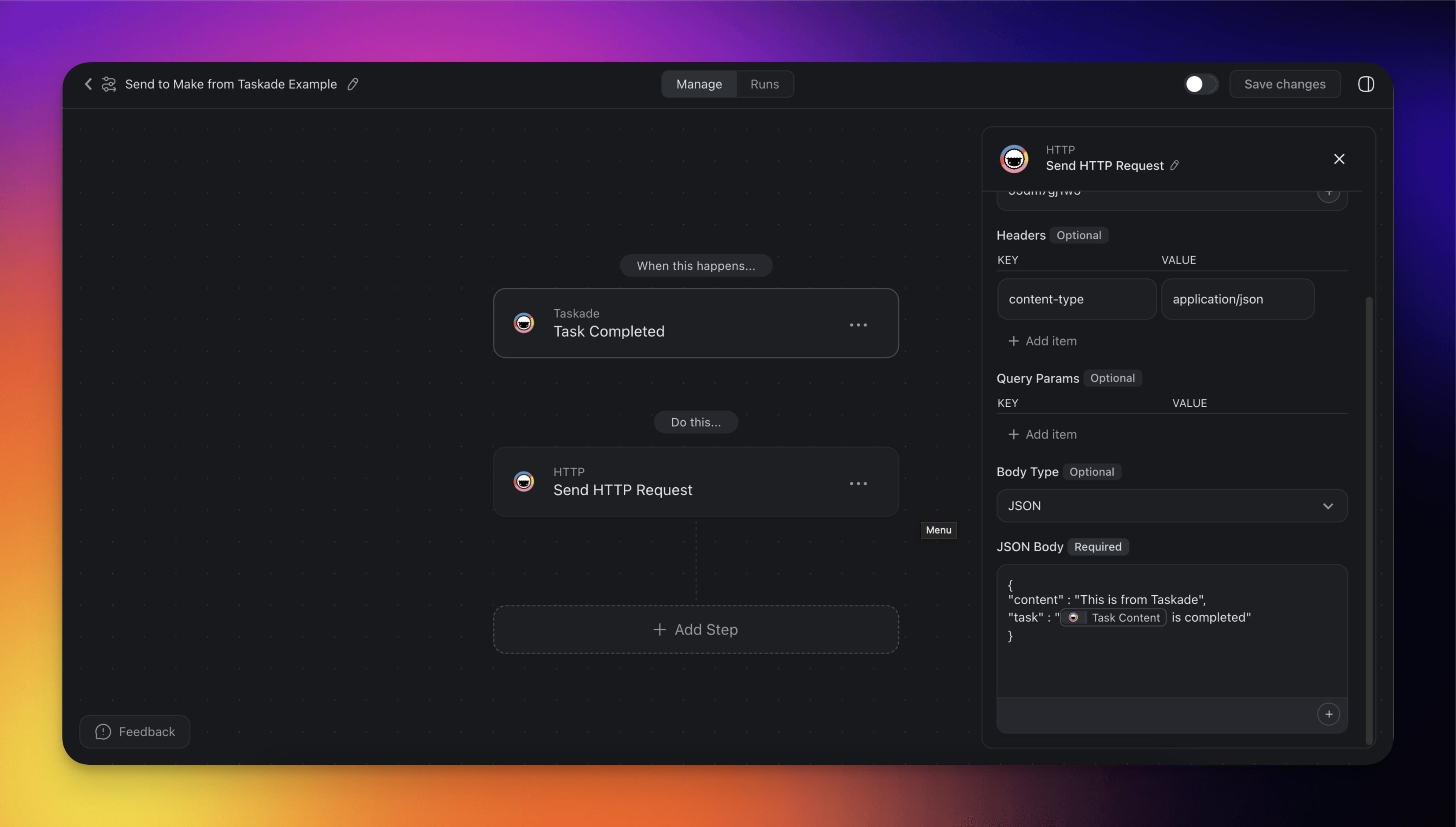
6. Configure the **Send HTTP Request Action** on Taskade to be a **POST** request.
7. Place the provided **URL** by Make into the **URL** field of the Taskade action.
8. Fill in the header as `content-type` and `application/json`.
9. Enter the desired content within the JSON body.
10. **Activate** the automation by toggling it in the top right corner of the screen.
11. **Trigger** your automation.
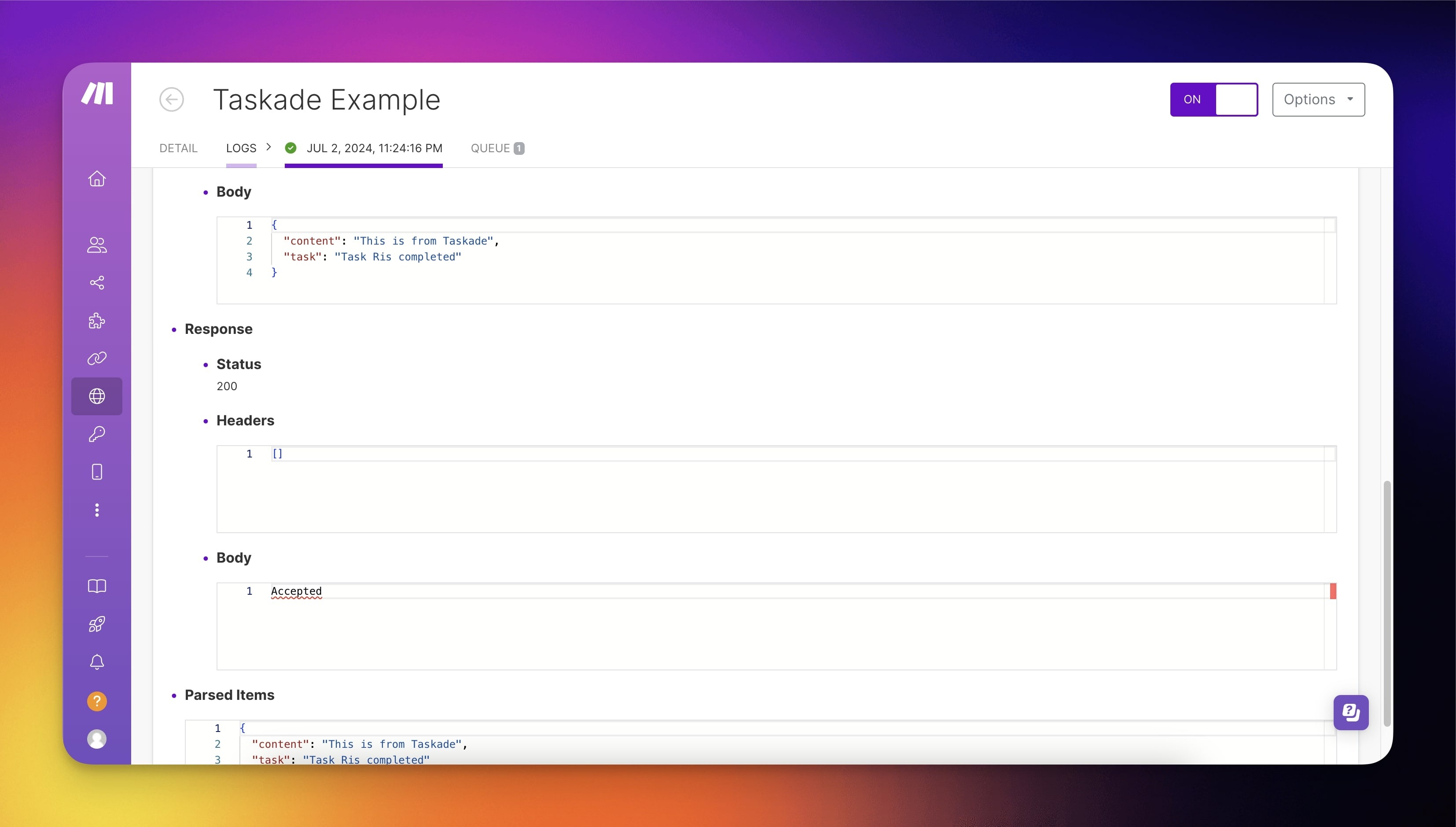
Make's Webhook logs show the received data. The output follows:
---
### Generate a Response
You can configure your HTTP Request action and extract specific data using a custom schema. Follow these steps to set things up:
- Set up your HTTP Request as usual.
- Under the Response Body Schema section, select JSON.
- This will display the Generate Automatically button.
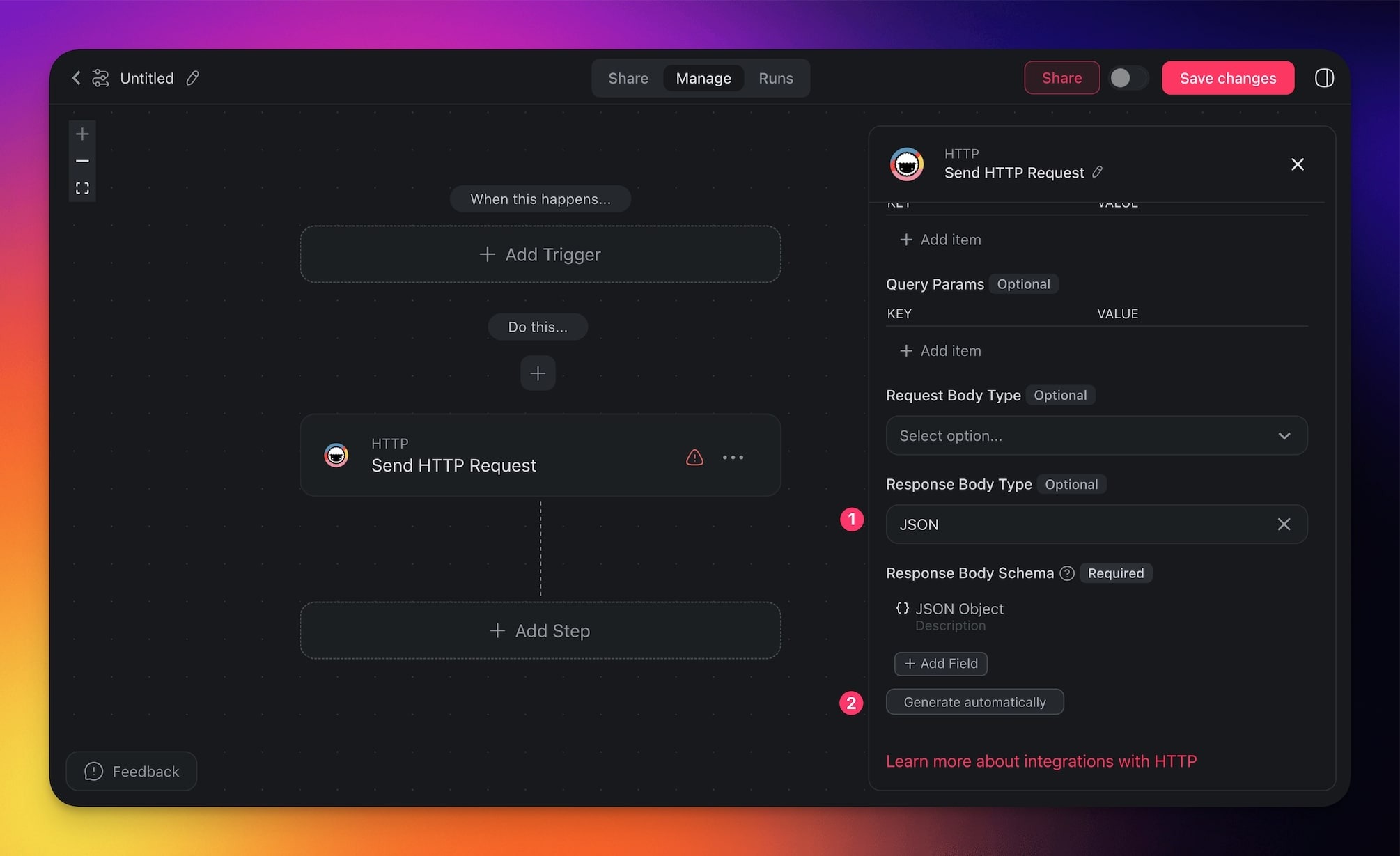
- Click **Generate Automatically** to open a **dialog** where you can **send** a **test request**.
- After sending, the system will extract available fields from the JSON response.
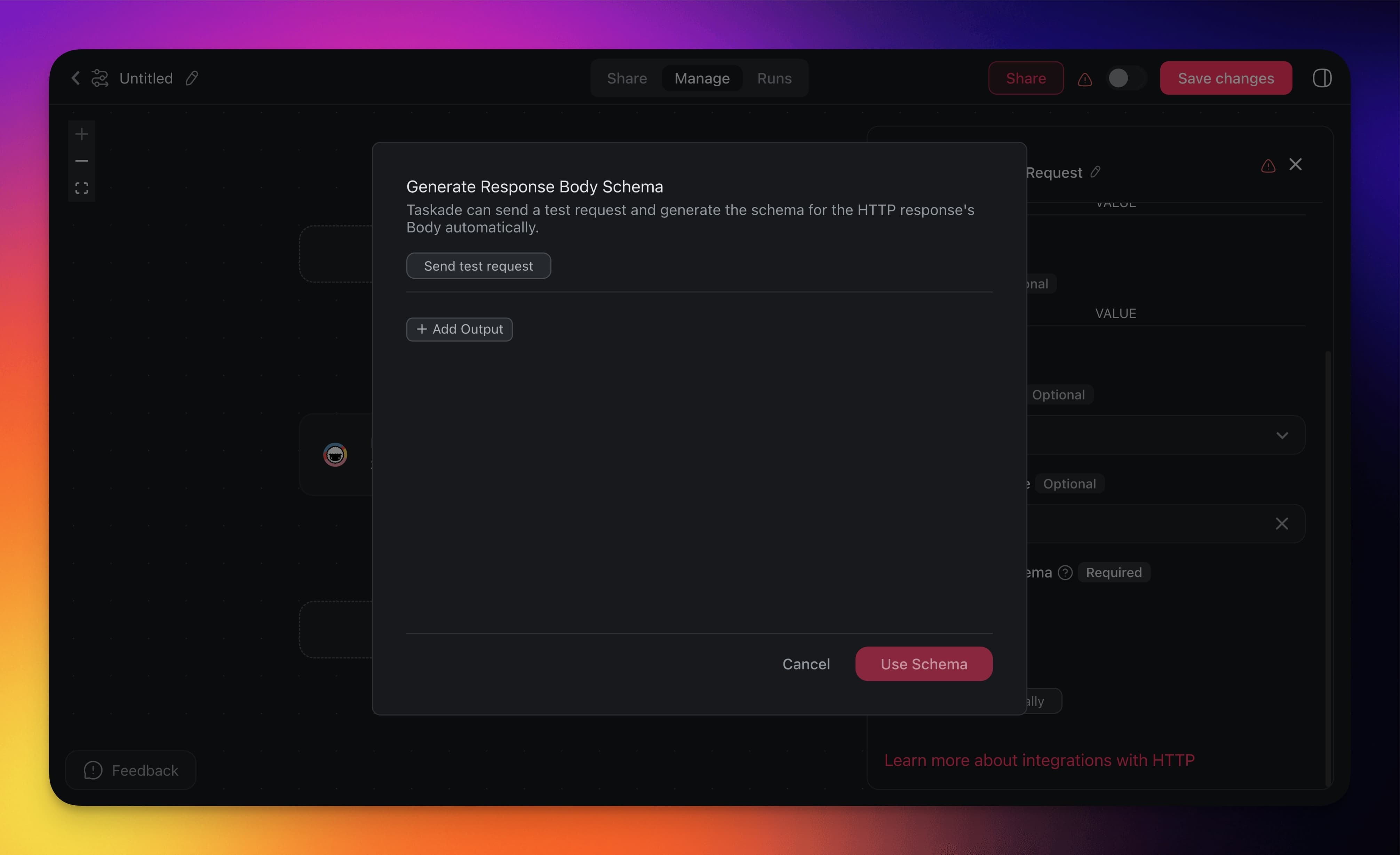
- **Review** the **extracted fields** and **select which ones you want to keep or remove**.
- Once done, **click Use Schema** to **apply** your **custom schema**.
- The selected fields will now be included in subsequent actions.
You can use these fields in various ways:
- Insert them to other actions.
- Pass them to AI Agents.
- Use them in follow-up HTTP requests to chain multiple requests.
---
## Use Cases
Not sure how to make the most of this action? Start with these automation flows:
| Use Case | Automation Flow |
| --- | --- |
| Get weather data for outdoor project scheduling | ✅ Trigger: Schedule (daily)
➡️ Action: Send HTTP Request to weather API
➡️ Action: Add Task with recommendations |
| Validate email addresses on contact creation | ✅ Trigger: Task Added (new contact)
➡️ Action: Send HTTP Request to email validation
➡️ Action: Update Custom Fields with status |
| Translate content for international teams | ✅ Trigger: Task Added (content task)
➡️ Action: Send HTTP Request to translation API
➡️ Action: Append Text (GDocs) with translation |
| Fetch stock prices for investment tracking | ✅ Trigger: Schedule (market open)
➡️ Action: Send HTTP Request to financial API
➡️ Action: Insert Row (Google Sheets) with data |
| Get public holidays for project planning | ✅ Trigger: Project Created
➡️ Action: Send HTTP Request to calendar API
➡️ Action: Create Event (Google Calendar) |
| Verify company information via business lookup | ✅ Trigger: Form Trigger (new contact)
➡️ Action: Send HTTP Request to CRM API
➡️ Action: Update Custom Fields with details |
---
Use this integration as an AI agent tool. See [Tools for AI Agents](https://www.taskade.com/learn/agents/agent-tools).
### Related guides
- [Webhooks Trigger](https://www.taskade.com/learn/automation/webhooks). Inbound counterpart (external into Taskade).
- [Agent Tool Trigger](https://www.taskade.com/learn/automation/agent-tool). Expose an HTTP call as an agent tool.
- [Structured Output](https://www.taskade.com/learn/automation/structured-output). Parse API responses with a schema.
- [MCP Connectors](https://www.taskade.com/learn/genesis/mcp-connectors). How external AI clients like Claude Desktop or Cursor reach into your workspace over MCP.
- [Taskade Public API](https://www.taskade.com/learn/connect/public-api). The API you can call FROM automations.
---