# New Due Date
> New Due Date trigger allows an automation to detect when a new due date is added to a task making it easy to initiate follow-up actions, update workf...
- Source: https://www.taskade.com/learn/automation/due-date
- Section: Automation
- Updated: 2026-10-17
- Index of all pages: https://www.taskade.com/learn/llms.txt
## Overview
The New Due Date trigger detects when a new due date is added to a task. Use it to start follow-up actions, update workflows, or trigger the next process. This trigger is the cousin of [Task Due](https://www.taskade.com/learn/automation/task-due): **New Due Date fires the moment a deadline is set**, while **Task Due fires when the deadline arrives**.
> **TL;DR:** The New Due Date trigger starts an automation the moment a deadline is set on a task. Use it to react instantly to new deadlines, like assigning the task to yourself or notifying a teammate in another project. See [Task Due](https://www.taskade.com/learn/automation/task-due) for the trigger that fires when the deadline arrives.
```mermaid
flowchart LR
A[Due date
added to task] --> B[New Due Date
trigger fires]
B --> C[Automation
runs steps]
C --> D[Task assigned
or teammate notified]
style A fill:#0d1b2a,color:#7dd3fc,stroke:#38bdf8,stroke-width:1.5px
style B fill:#2a1225,color:#ff8fa3,stroke:#ff2d60,stroke-width:2px
style C fill:#2a1225,color:#ff8fa3,stroke:#ff2d60,stroke-width:2px
style D fill:#0d1a0e,color:#86efac,stroke:#22c55e,stroke-width:1.5px
```
---
## How to Use It
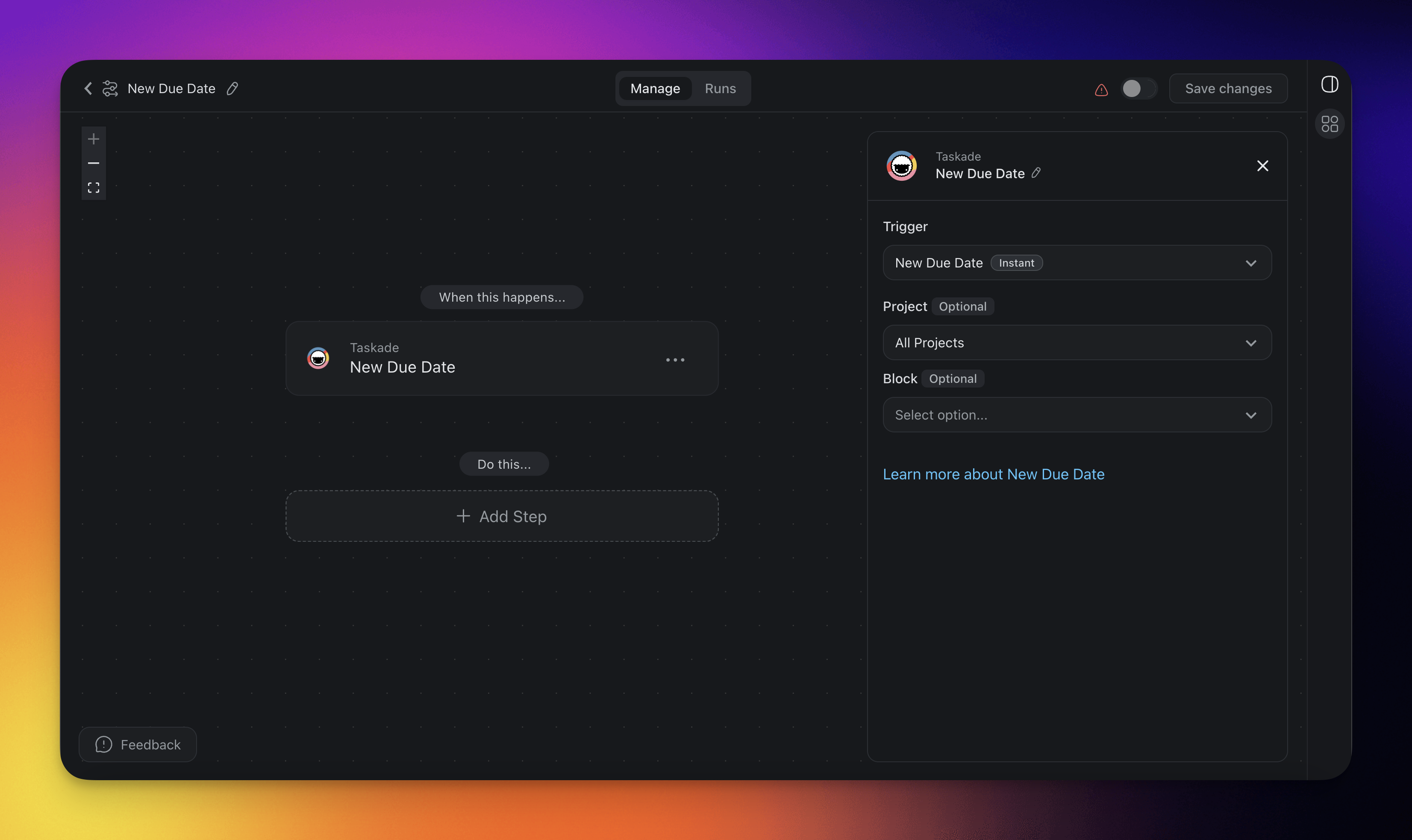
1. Click ➕ **Add Trigger** and choose the **New Due Date **trigger.
2. Select a **Project** for the automation to monitor. If you select no project, the automation monitors all projects.
3. Optionally, select a specific **Block** within the **Project** to monitor for changes.
4. Add more steps for further processing.
---
### New Due Date (Settings)
Connector options give you full control over the New Due Date trigger:
| 🏷️ Field | 🔤 Description |
| --- | --- |
| Project (Optional) | Select the Project you want this trigger to watch. If you leave the project field blank, all projects are selected by default. |
| Block (Optional) | Select the Block you want this trigger to watch. If you leave the block field blank, all tasks in the project are monitored. Only Blocks inside the selected Project are available to pick. |
The trigger output includes the task content, the project details, and the start and end of the due date. A task with a date range passes both dates to later steps.
### New Due Date Use Cases
Not sure how to use the New Due Date trigger? Here are a few ideas:
| 🪄 Use case | 🔤 Description |
| --- | --- |
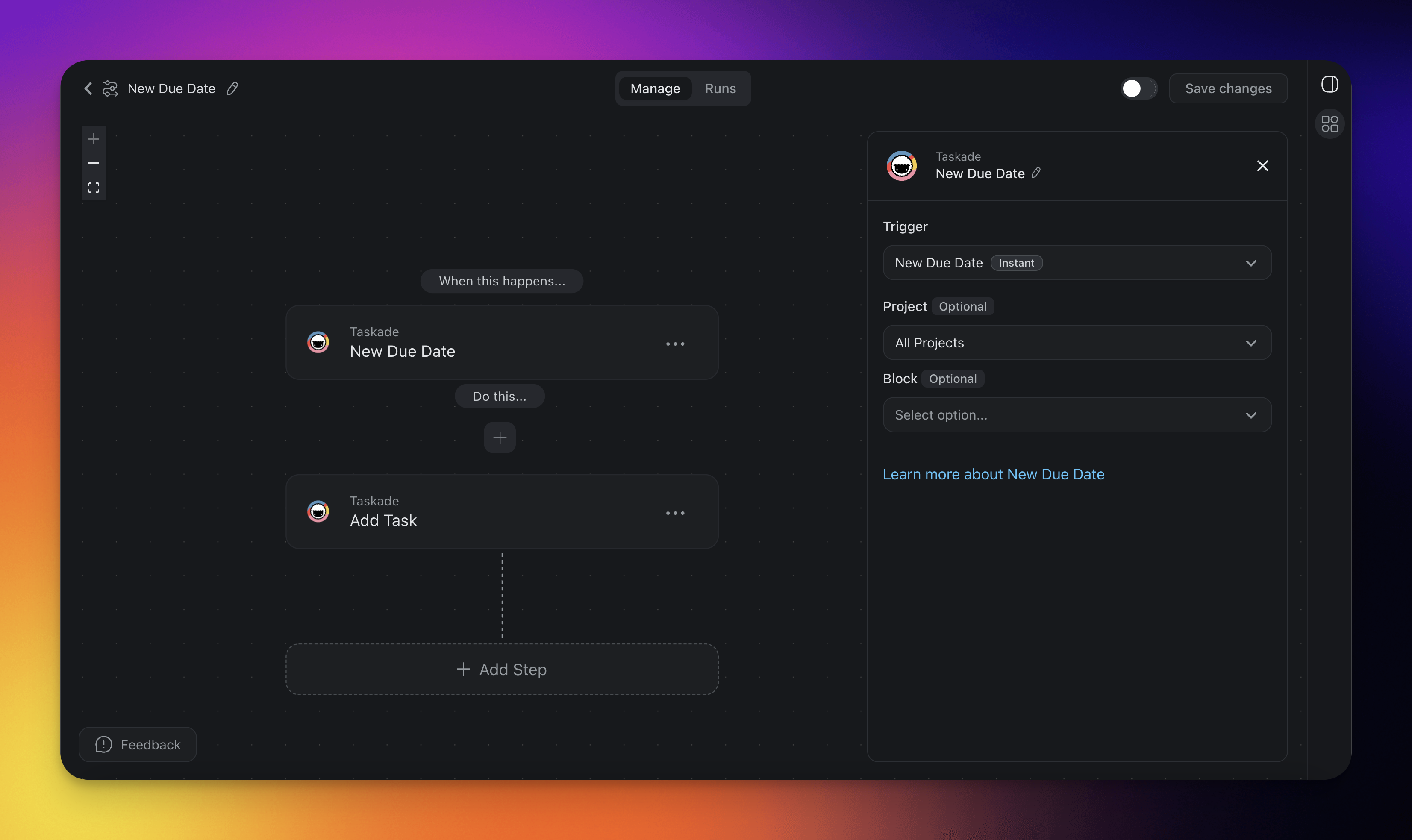
| Keep project collaborators up to date | Use this when stakeholders work in different projects. When a new due date is added to a task, the automation creates a matching task in another project. Everyone stays informed, even without access to the original project. |
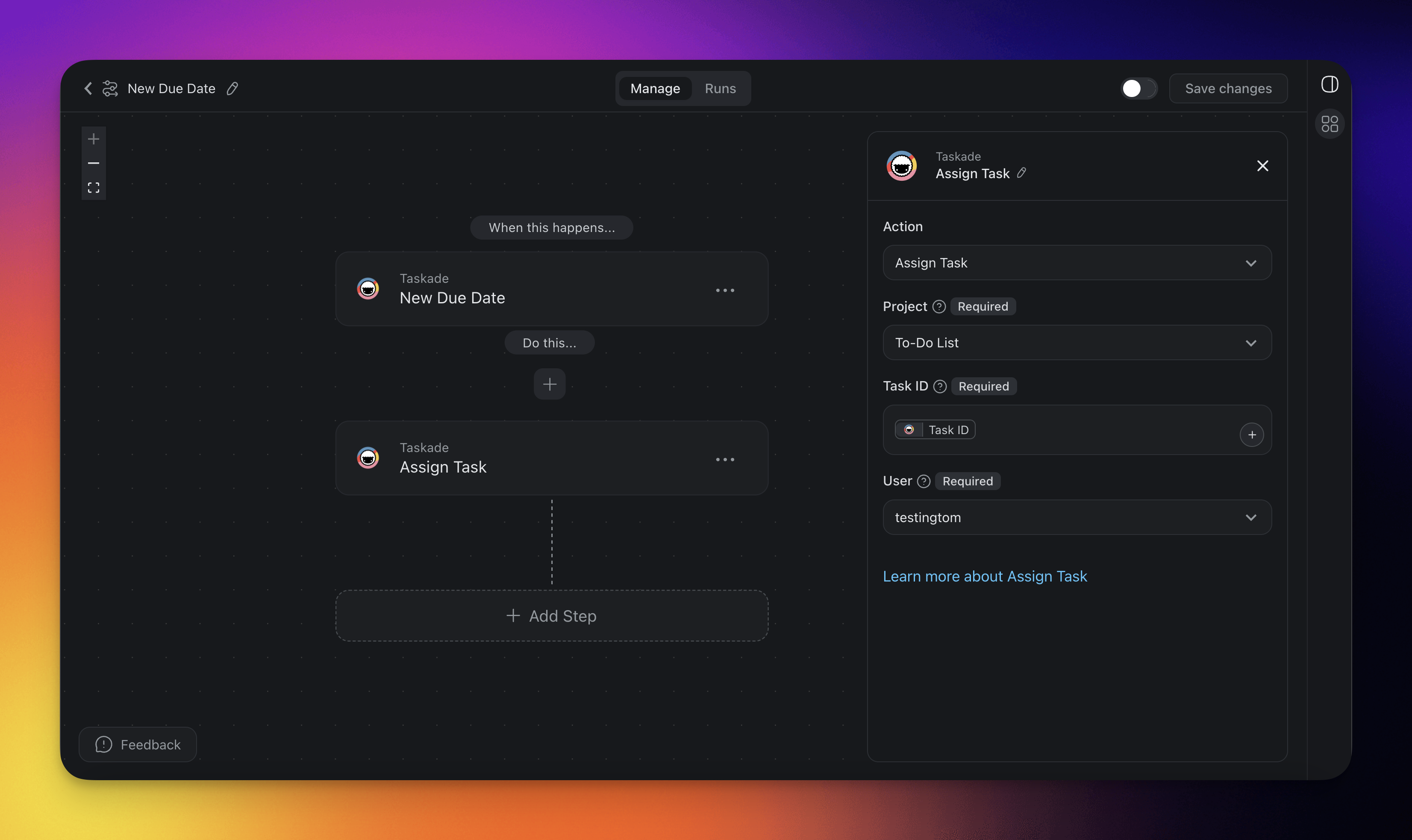
| Streamline task assignment | If you use Taskade solo, this saves you clicks. Every task that gets a due date is assigned to you automatically. |
### Keep collaborators up to date
### Streamline Task Assignment
### Related guides
- [Task Due Trigger](https://www.taskade.com/learn/automation/task-due): Fires when the deadline arrives
- [Task Added](https://www.taskade.com/learn/automation/task-added), [Task Assigned](https://www.taskade.com/learn/automation/task-assigned), [Task Completed](https://www.taskade.com/learn/automation/task-completed): Other task lifecycle triggers
- [Delay Action](https://www.taskade.com/learn/automation/delay-action): Wait N days before reminders
- [Gmail](https://www.taskade.com/learn/connect/gmail-integration) / [Slack](https://www.taskade.com/learn/connect/slack-integration): Common reminder destinations