# Transform Array Into String
> The Transform Array into String action converts the output of the Find Task(s) and Find Row(s) actions to a single, formatted string. This allows you...
- Source: https://www.taskade.com/learn/automation/array-transform
- Section: Automation
- Updated: 2026-11-09
- Index of all pages: https://www.taskade.com/learn/llms.txt
## Overview
The Transform Array into String action converts the output of the [Find Task(s)](https://www.taskade.com/learn/automation/find-tasks) and [Find Row(s)](https://www.taskade.com/learn/connect/google-sheets) actions to a single, formatted string. You can pass the list of items (array) directly to later actions or AI Agents.
> **TL;DR:** The Transform Array into String action runs as a step inside an automation. It flattens an array from Find Task(s) or [Find Row(s)](https://www.taskade.com/learn/connect/google-sheets) into one clean string your next step or [AI agent](https://www.taskade.com/learn/automation/agent-action) can read, with your chosen delimiter between items.
```mermaid
flowchart LR
A[Find Tasks
returns array] --> B[Transform Array
into String]
B --> C[Clean string
output]
C --> D[Next step or
AI agent]
style A fill:#0d1b2a,color:#7dd3fc,stroke:#38bdf8,stroke-width:1.5px
style B fill:#2a1225,color:#ff8fa3,stroke:#ff2d60,stroke-width:2px
style C fill:#0d1a0e,color:#86efac,stroke:#22c55e,stroke-width:1.5px
style D fill:#1a140a,color:#ffb74d,stroke:#e65100,stroke-width:1.5px
```
> 💡 **Note**: Be sure to explore other automation [actions & triggers](https://www.taskade.com/learn/automation).
Use it whenever you need to flatten the result of [Find Tasks](https://www.taskade.com/learn/automation/find-tasks) or Find Rows into a clean string that an [Ask an agent](https://www.taskade.com/learn/automation/agent-action) or [Ask AI](https://www.taskade.com/learn/automation/ai-action) step can reason about.
---
### How to Use the Action
- [Create a new automation](https://www.taskade.com/learn/automation/automations-execution) or edit an existing flow.
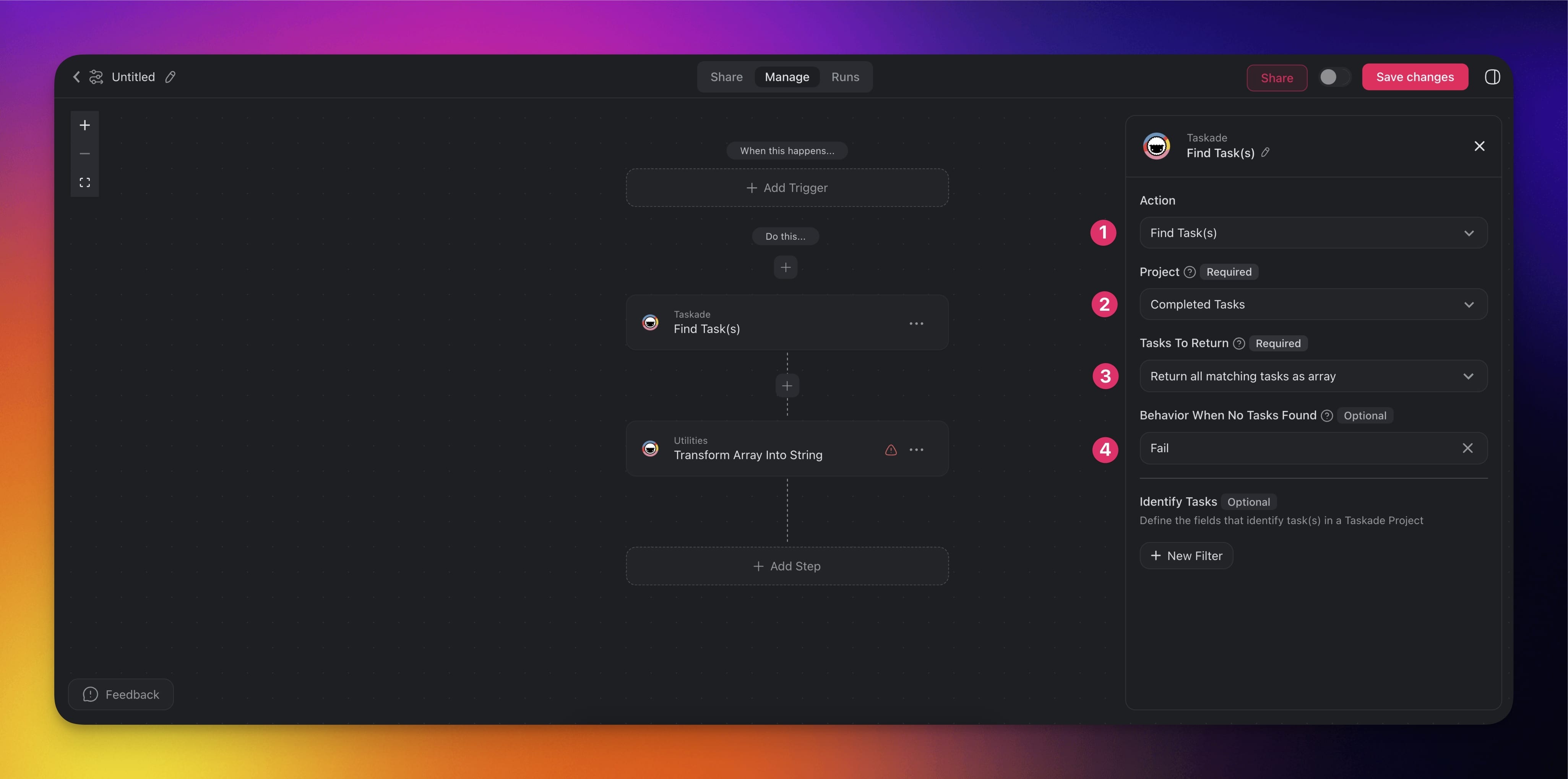
- Add the [Find Task(s)](https://www.taskade.com/learn/automation/find-tasks) or [Find Row(s)](https://www.taskade.com/learn/connect/google-sheets) action to your automation.
- **Configure** the **action** to **pull data** from an **existing project** or a Google Sheet doc.
- (2) **Choose** the **project** you want **to search for tasks**.
- (3) **Choose what to return**:
- **Return all matching tasks as array**: Retrieves every task that meets your criteria and outputs them as a complete array.
- Return the first matching task: Retrieves only the first task that meets your criteria, ignoring any subsequent matches.
- Decide what to do if no tasks are found:
- **Continue**: Proceeds with the automation.
- **Fail**: Stops the automation.
- (optional) Add more conditions under **Identify Tasks**.
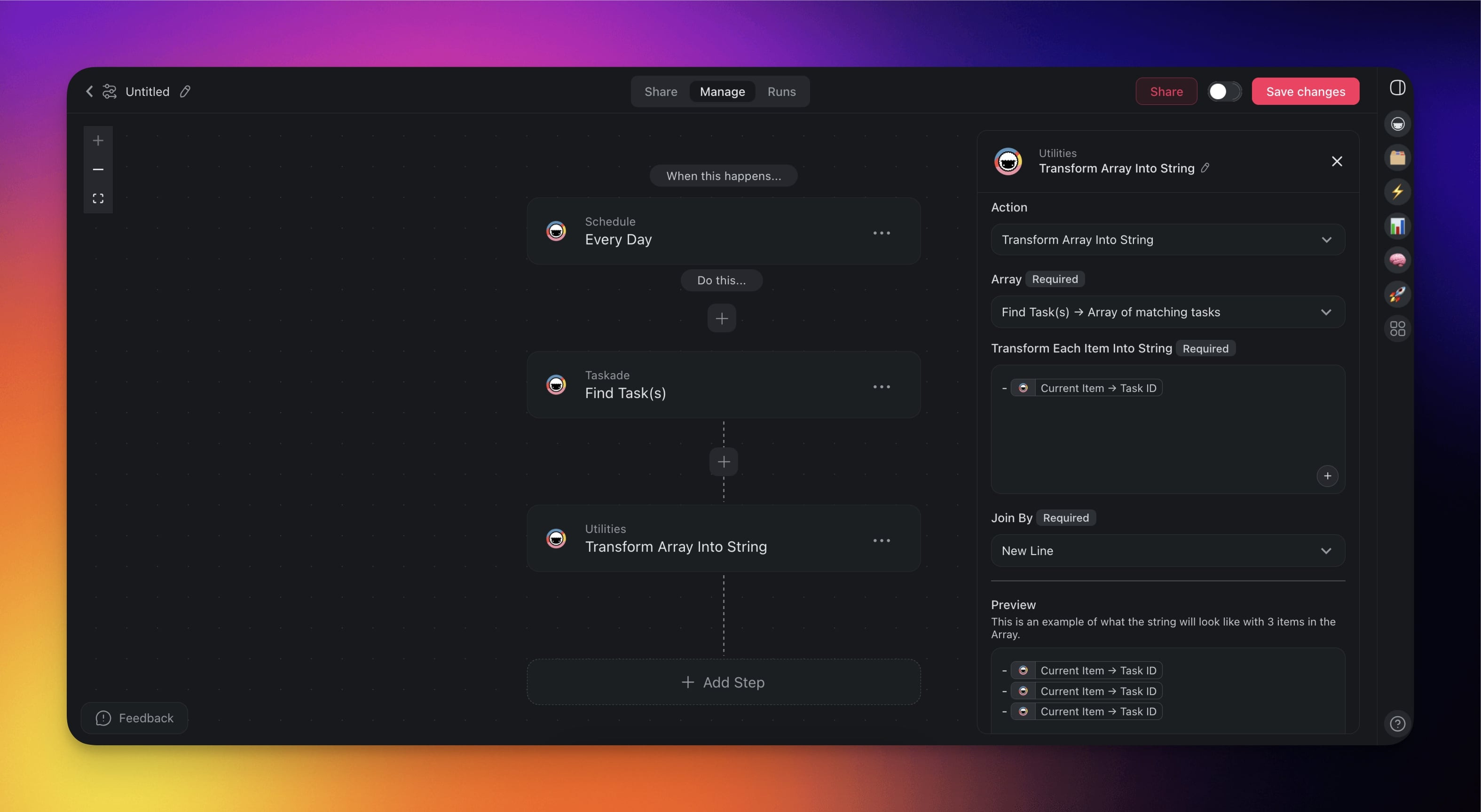
- **Add** the **Transform Array into String** action and configure it:
- **Choose** the **array** you want **to transform**.
- **Select** the **items** to **transform** and **structure** the **output**.
- **Choose New Line** under **Join By** to insert a new line between each item.
> 💡 **Note**: You can preview the output of the action in the **Preview** section.
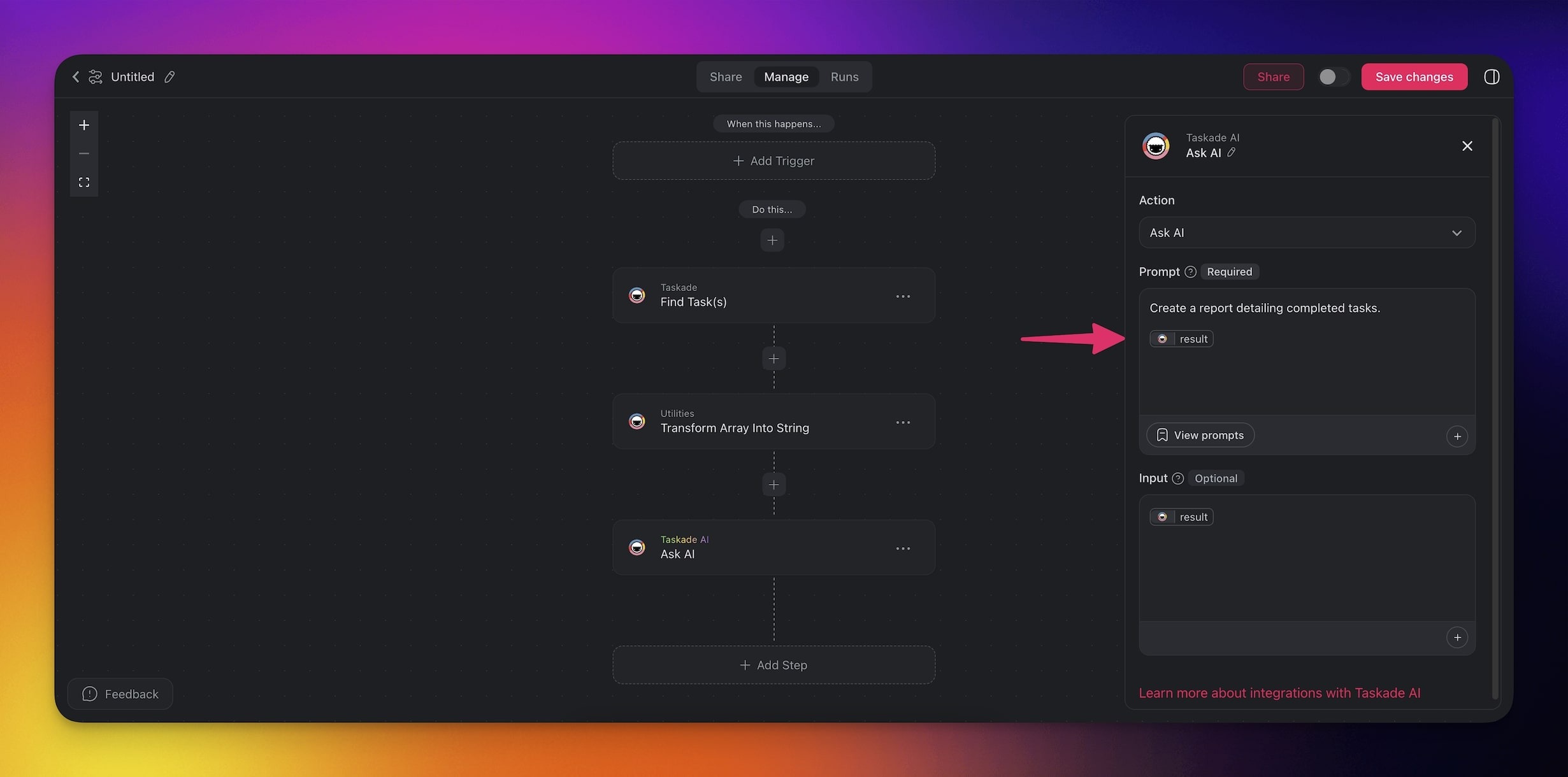
- Add more steps and reference the output of **Transform Array into String**.
- **Add** a **trigger** and **configure** it in the **sidebar on the right**.
---
### Action Settings
You can control the output of the **Transform Array into String** action:
| 🏷️ Field | 🔤 Purpose |
| --- | --- |
| Array | Select the input array that you want to transform to a string. This is the output from Find Task(s) or Find Row(s) actions. |
| Transform Each Item to String | Choose the elements of the array to transform and structure the output. |
| Join By | Specify the delimiter inserted between each item in the transformed array. |
---
## Use Cases
Not sure where to start? Here are a few ideas on how to use the action:
---
### Daily Task Summary
**Goal:** Automatically compile a list of tasks and send it to your team.
- **Trigger:** [Schedule](https://www.taskade.com/learn/automation/schedule)**(Run daily at 9 AM)**
- **Actions:**
- **Find Task(s):** Retrieve all tasks created in the last 24 hours.
- **Transform Array into String:** Convert the task list into a formatted message.
- [Send Channel Message (Slack)](https://www.taskade.com/learn/connect/slack-integration) or [Send Email (Gmail)](https://www.taskade.com/learn/connect/gmail-integration): Share the summary.
---
### Meeting Notes Summary
**Goal:** Generate a summary of notes added to a project during a meeting.
- **Trigger: Project Completed**
- **Actions:**
- **Find Task(s):** Retrieve all notes and action items from the completed project.
- **Transform Array into String:** Turn the output of Find Task(s) into a string.
- **Ask AI**: Generate a summary of the notes and highlight key takeaways.
- [Create Document (Google Docs)](https://www.taskade.com/learn/connect/google-docs): Save the summary to a new Google Doc.
### Related guides
- [Find Tasks](https://www.taskade.com/learn/automation/find-tasks). Upstream source of the arrays you transform.
- [Loop Action](https://www.taskade.com/learn/automation/loop-action). Iterate over each item instead of flattening to a string.
- [Agent Action](https://www.taskade.com/learn/automation/agent-action). Pass transformed strings to agents.
- [Structured Output](https://www.taskade.com/learn/automation/structured-output). The opposite direction: parse a string into structured output.
---