# Categorize Tickets and Emails with AI
> Use the Categorize with AI action to auto-tag tickets, route emails, and grade leads inside any Taskade automation. Pick a preset, point at a variable, ship.
- Source: https://www.taskade.com/learn/automation/ai-categorize
- Section: Automation
- Updated: 2026-11-09
- Index of all pages: https://www.taskade.com/learn/llms.txt
## Tag Tickets, Emails, and Feedback
The **Categorize with AI** action reads any piece of text in an automation and returns a clean label: severity, sentiment, lead grade, topic, urgency. Pick a preset, point at a variable, and the result feeds straight into a Branch step or a custom field. No prompt writing, no model picking.
> **TL;DR:** Drop the Categorize with AI action into any [Taskade automation](https://www.taskade.com/learn/automation/automations-execution) to tag tickets, emails, or form replies in one click. Choose a preset like *Sentiment*, *Urgency*, or *Lead Grade*, then point it at the trigger text. Route the label downstream with a [Branch](https://www.taskade.com/learn/automation/branch-action) step, or save it to a [custom field](https://www.taskade.com/learn/automation/custom-fields). Free plan included.
> 💡 **Note**: Read our [Automation Guide](https://www.taskade.com/learn/automation/automations-execution) to learn more.
```mermaid
flowchart LR
A[Trigger fires] --> B[Categorize with AI
returns a label]
B --> C[Branch routes
the label]
C --> D[Label saved to
your project]
style A fill:#0d1b2a,color:#7dd3fc,stroke:#38bdf8,stroke-width:1.5px
style B fill:#2a1225,color:#ff8fa3,stroke:#ff2d60,stroke-width:2px
style C fill:#2a1225,color:#ff8fa3,stroke:#ff2d60,stroke-width:2px
style D fill:#0d1a0e,color:#86efac,stroke:#22c55e,stroke-width:1.5px
```
Categorize with AI is the **cleanest way to inject classification into an automation without writing a prompt**. Pick a preset (sentiment, lead score, intent, urgency), and Taskade AI handles the rest with frontier models from top AI labs. Common pairings:
| Use Case | Trigger → Categorize → Action |
| --- | --- |
| Lead scoring | New form → Categorize (lead grade) → Branch to CRM stage |
| Support triage | New email → Categorize (urgency) → Slack #urgent or backlog |
| Content moderation | New comment → Categorize (sentiment) → Branch to flag/approve |
| Survey routing | Form trigger → Categorize (topic) → Loop notify each owner |
---
## How to Get Started
### Add the Action
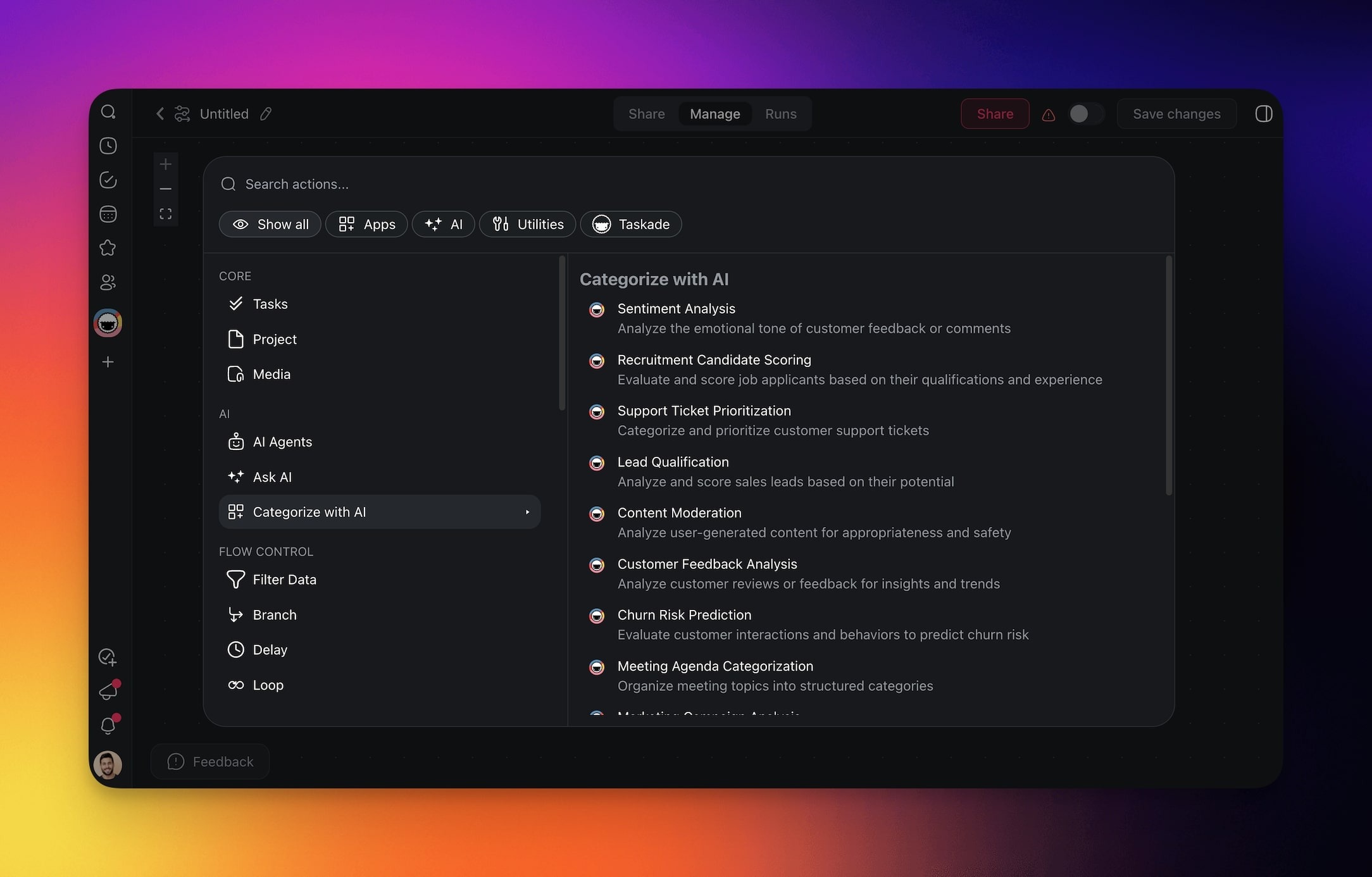
- Click **➕ Add step** and choose the **Categorize with AI** step.
- **Select** a **preset** from the list.
---
### Configure the Action
- **Configure** the **action** in the **sidebar** on the right.
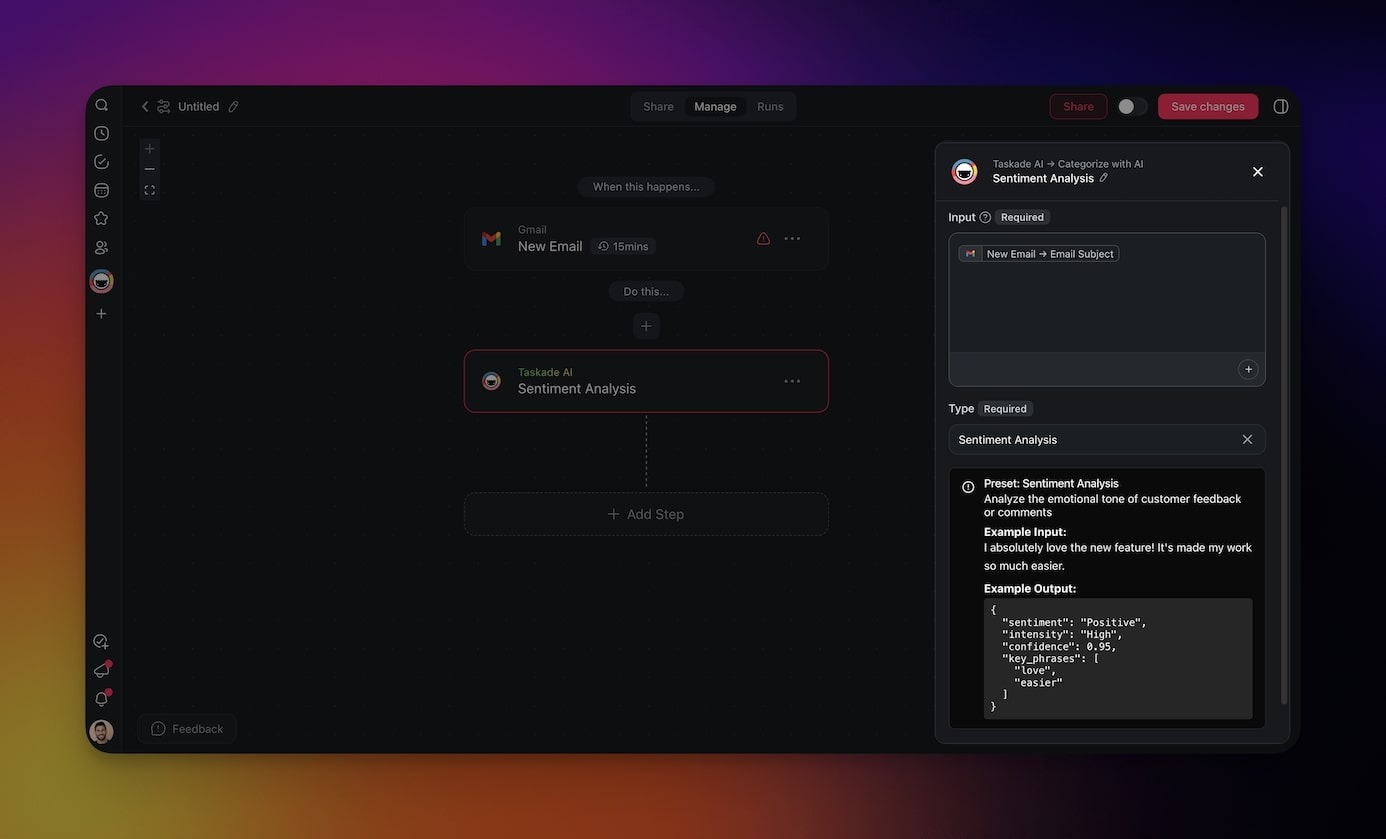
- [Add a trigger](https://www.taskade.com/learn/automation/triggers) that will set off the automation.
- **Add more steps** (optional) and **enable** the **automation**.
---
## Use Cases
Here are a few ideas how you can use this action in your automations:
| 🪄 Use case | 🔤 Description |
| --- | --- |
| Sentiment analysis | Analyze customer feedback to determine if the sentiment expressed is positive, neutral, or negative. |
| Recruitment candidate scoring | Evaluate job applicants based on their professional experience. |
| Support ticket prioritization | Categorize and prioritize customer support tickets to ensure timely and effective responses. |
| Lead qualification | Analyze and rank potential leads to identify the most promising opportunities for sales conversion. |
| Content moderation | Detect and filter inappropriate or sensitive content, maintaining a safe and compliant environment. |
| Customer feedback analysis | Extract actionable insights from customer reviews and surveys to understand customer needs. |
| Churn risk prediction | Identify customers who are likely to stop using a service to retain them and reduce churn rates. |
---
## Use case: auto-tag tickets
Most support inboxes drown in unsorted messages. A three-step automation fixes that without anyone touching a tag manually.
1. **Trigger**: pick **Gmail New Email** on a `support@` label, or the [AI Forms](https://www.taskade.com/learn/automation/forms-trigger) trigger for a public intake form.
2. **Categorize with AI**: choose the **Urgency** preset and point the input at the email body. The action returns one of *Low*, *Medium*, *High*, *Critical*.
3. **Route the label**: chain a [Branch](https://www.taskade.com/learn/automation/branch-action) step on the urgency value. Send *Critical* tickets to an on-call Slack channel. Drop the rest into a **Support Queue** Project, with the label written to a [custom field](https://www.taskade.com/learn/automation/custom-fields).
For richer routing, stack two Categorize steps. The first returns urgency, the second returns topic (*billing*, *bug*, *feature request*). Branch on both so each ticket lands in the right queue with the right priority. Every run is logged in the automation **Runs** tab, so a misrouted ticket is one click away from a retry.
---
## Tips
- **Use the output in branching logic**. The category label returned by this action can drive conditional steps. For example, route "Negative" sentiment tickets to a senior support agent and "Positive" ones to your testimonials project.
- **Combine with triggers**. Pair Categorize with AI with the [Agent Public Chat Ended](https://www.taskade.com/learn/automation/chat-ended) trigger to automatically score every public agent conversation as it wraps up.
- **Write results to custom fields**. Follow up with the [Update Custom Fields](https://www.taskade.com/learn/automation/custom-fields) action to store the AI-assigned category directly on the task for easy filtering and reporting.
### Related guides
- [Branch Action](https://www.taskade.com/learn/automation/branch-action). Route on the category label
- [Loop Action](https://www.taskade.com/learn/automation/loop-action). Classify each item in a list
- [Custom Fields Action](https://www.taskade.com/learn/automation/custom-fields). Write classification back to project
- [AI Action](https://www.taskade.com/learn/automation/ai-action). Free-form AI for custom classification
- [Structured Output](https://www.taskade.com/learn/automation/structured-output). Typed output for branching
---