# Agent
> Add an AI agent to any automation step. Ask it a question, run a command, and pass its response to the next action to add real judgment to your workflows.
- Source: https://www.taskade.com/learn/automation/agent-action
- Section: Automation
- Updated: 2026-11-09
- Index of all pages: https://www.taskade.com/learn/llms.txt
## Add an AI Agent to Any Step
Drop one of your [Custom AI Agents](https://www.taskade.com/learn/agents/custom-agents) into the middle of an automation and it reads the incoming data, decides what to do, and hands the result to the next step. Ask an agent a question, run a predefined command, and use the response in later steps. This is how you add real judgment, not only fixed rules, to an automation.
> **TL;DR:** The Agent action runs an AI agent as a step inside an [automation](https://www.taskade.com/learn/automation/actions). Ask the agent a question or run a command. Then pass its response to the next step. It taps frontier models from top AI labs, custom tools, and project knowledge to classify, draft, or decide mid-workflow.
This means your automations are no longer limited to simple if-then logic. An AI agent can analyze data, draft content, classify information, or make decisions, and then pass the result to the next action in the chain. Agents run on **frontier models from top AI labs**. They can also use [custom tools](https://www.taskade.com/learn/automation/agent-tool), tap [project knowledge](https://www.taskade.com/learn/automation/agent-knowledge), or coordinate with an [agent team](https://www.taskade.com/learn/automation/agent-team).
```mermaid
sequenceDiagram
participant T as Trigger
participant W as Workflow
participant A as AI Agent
participant TL as Agent Tools
(optional)
participant N as Next Step
T->>W: event payload
W->>A: Ask an agent / Run an agent command
A->>A: reason about payload
A->>TL: call tool if needed
TL-->>A: tool result
A-->>W: structured response
W->>N: pass result onward
(can branch on it)
```
---
## Custom Agent Actions
Here are the [actions](https://www.taskade.com/learn/automation/actions) you can use in your automations:
| 🏷️ Field | 🔤 Description |
| --- | --- |
| (ACTION) Ask an agent | Uses a custom AI agent to respond to a query. |
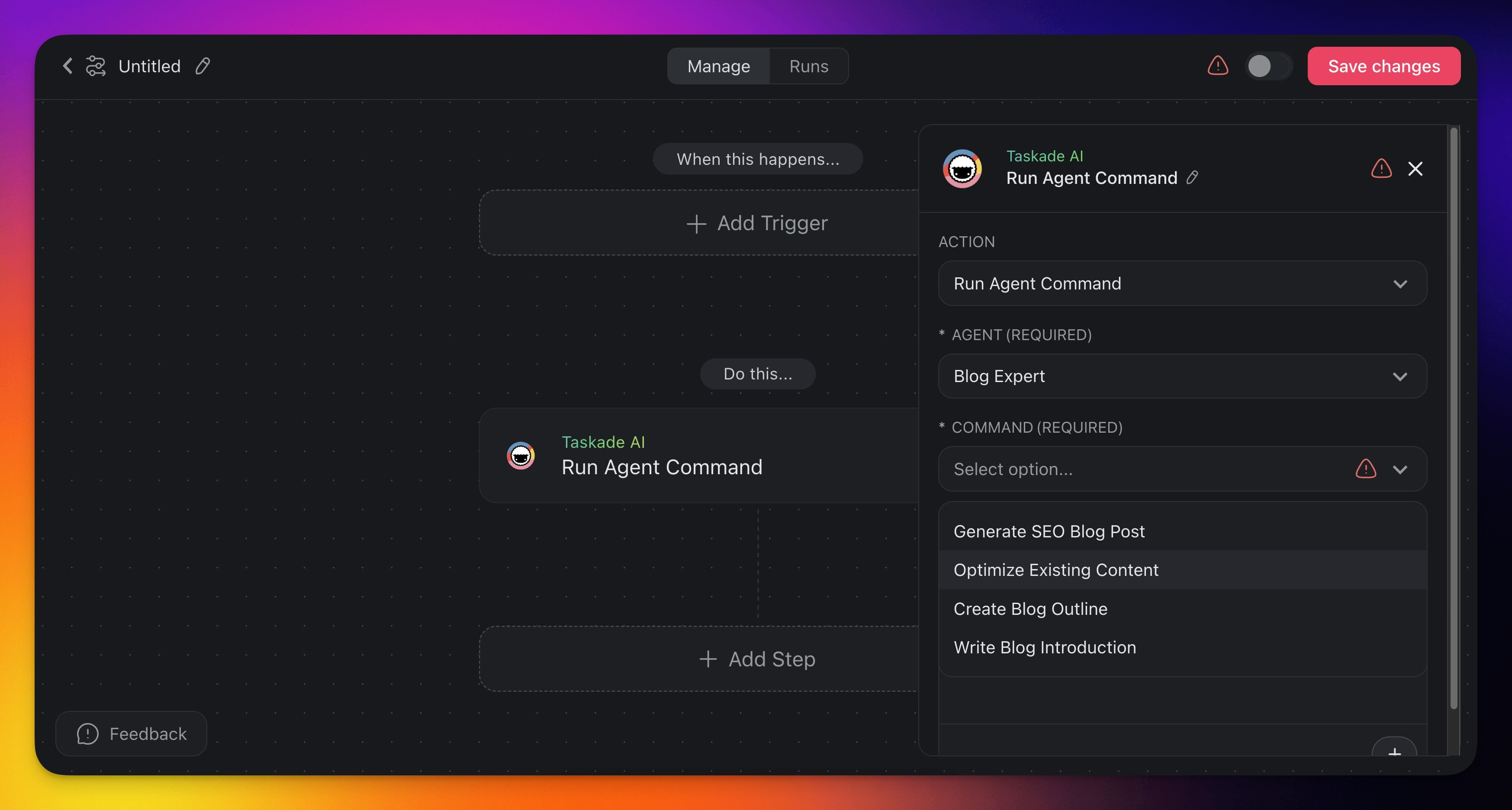
| (ACTION) Run an agent command | Uses a custom AI agent command. |
---
## Agent Automation Settings
Connector options give you full control over Agent automations:
**Action**: Ask an agent
| 🏷️ Field | 🔤 Description |
| --- | --- |
| AGENT | Choose the AI agent to ask. This field is required. |
| INPUT | Type your question or command for the AI agent. You can type "@" or click the ➕ plus button to insert data dynamically. |
| OUTPUT TYPE (optional) | Pick **Plain Text** or **Structured Output**. With **Structured Output**, click ➕ **Add Field** to define typed fields. Each field becomes a variable for later steps. See [Get Structured Output from an Agent](https://www.taskade.com/learn/automation/structured-output). |
**Action**: Run an agent command
| 🏷️ Field | 🔤 Description |
| --- | --- |
| AGENT | Select the AI agent that runs the command. This field is required. |
| COMMAND | Choose the specific command you want the AI agent to run. This field is required. |
| INPUT | If the command needs more input, add it here. You can type "@" or click the ➕ plus button to insert data. |
| OUTPUT TYPE (optional) | Pick **Plain Text** or **Structured Output**. With **Structured Output**, add typed fields the same way as [structured output on Ask an agent](https://www.taskade.com/learn/automation/structured-output). Each field becomes a variable for later steps. |
> **💡 Structured output works on Run an agent command too.** Set **Output Type** to **Structured Output**, then click ➕ **Add Field** to define typed fields (Text, Number, Boolean, Date, JSON Object, and more). The step then returns those fields instead of free-form text. Use it when a command feeds a Branch, Insert Row, or Update Custom Field step.
**Example**: A `/qualify-lead` command on a Sales Agent returns `score` (Number) + `tier` (Single Select). Wire `tier` into a Branch and `score` into an Update Custom Field. No prose parsing required.
---
## Use Cases
Here are a few ways to use the Agent action in your automations:
| 🪄 Use Case | 🔤 Description |
| --- | --- |
| Email triage | Feed incoming emails to an agent that classifies them by urgency and drafts suggested replies. |
| Content generation | After scraping a webpage, ask an agent to summarize the content or rewrite it for a specific audience. |
| Data enrichment | Pass lead information through an agent that researches the company and appends context before creating a CRM entry. |
| Code review assistance | Send code snippets to an agent that checks for common issues and returns improvement suggestions. |
> 💡 **Tip**: The Agent action works best when paired with data-gathering steps like [Read a web page](https://www.taskade.com/learn/automation/scrape-webpage) or [Search the web](https://www.taskade.com/learn/automation/search-web). Feed real-world data into your agent for more accurate, context-aware responses.
---
## Plan for Long Agent Steps
An **Ask an agent** or **Run an agent command** step runs once and has up to 15 minutes to finish. Taskade does not start the step again on its own.
An agent can write to your projects and send messages. A second copy of the same step can repeat that work, so give each agent step one clear job.
- Keep each request focused. A short, specific request finishes well inside the limit.
- Split a long research task into two or more agent steps. Pass the result of each step to the next one.
- If an agent step fails, open the **Runs** tab and read the error. Fix the cause, then retry the run. A retry runs the agent step again.
---
## The Agent Brings Its Own Model
The **Ask an agent** step runs the agent exactly as it is set up, so it uses the model you picked in the agent's own settings. There is no model dropdown on the step itself. To change which model answers, open the agent and change it there.
- Open the agent and go to **General → AI Model**.
- Pick from the full model menu: **Auto** at the top, then the speed and reasoning tiers, then **All Models** with the credit cost beside each name.
- Save. Every automation that calls this agent picks up the change.
If the agent runs on your own AI provider key, your provider bills the model call. Taskade then bills one fixed step fee in credits for each **Ask an agent** step, the same fee as every other automation step on your key. The fee applies from the first step, because the included agent steps of your plan do not cover automation steps. See [Bring Your Own AI Keys](https://www.taskade.com/learn/connect/byok-ai-integration).
Want to choose a model per step instead of per agent? Use the [Taskade AI step](https://www.taskade.com/learn/automation/ai-action). Each Taskade AI step, from **Ask AI** to **Categorize with AI**, carries its own **Model (optional)** menu with **TSK-Auto** and the TSK tiers. See [AI Models & Credit Costs](https://www.taskade.com/learn/genesis/model-credits) for which tier fits which job.
### Related guides
- [Agent Team Action](https://www.taskade.com/learn/automation/agent-team). Call an entire AI Team instead of one agent
- [Agent Tool Action](https://www.taskade.com/learn/automation/agent-tool). Use an automation as a tool inside an agent
- [Agent Knowledge Action](https://www.taskade.com/learn/automation/agent-knowledge). Write results back to agent memory
- [Structured Output](https://www.taskade.com/learn/automation/structured-output). Typed agent responses for branching
- [Custom AI Agents](https://www.taskade.com/learn/agents/custom-agents). Build the agents this action calls
- [Branch Action](https://www.taskade.com/learn/automation/branch-action). Route based on agent output
---