# Agent Knowledge & Memory
> Add files, projects, links, and videos to ground AI agent answers in your current workspace knowledge.
- Source: https://www.taskade.com/learn/agents/knowledge
- Section: AI Agents
- Updated: 2026-11-09
- Index of all pages: https://www.taskade.com/learn/llms.txt
## Overview
Agent knowledge gives your AI agent your own facts to answer from. Upload your price sheet and the agent quotes the right number. Connect your job-tracker project and it tells a customer where their order stands. Your [projects, files, and databases](https://www.taskade.com/learn/projects/databases) are the **Memory** pillar of [Workspace DNA](https://www.taskade.com/learn/genesis/workspace-dna). A [custom AI agent](https://www.taskade.com/learn/agents/custom-agents) (the **Intelligence** pillar) reads them as knowledge and answers from them instead of guessing from the open internet.
> **TL;DR:** Ground an AI agent in your own knowledge. Upload files, add links, or connect live projects. The agent answers from these sources, and connected projects stay current. This knowledge is the agent's persistent memory, and you can refresh or update it at any time. Learn how [projects and databases](https://www.taskade.com/learn/projects/databases) become shared memory, then [build a custom agent](https://www.taskade.com/agents).
## How Memory Feeds Intelligence
Knowledge is the bridge between two Workspace DNA pillars. Your projects and files are **Memory**. Your agent is **Intelligence**. Knowledge connects them, so the agent reasons over what you know.
Here is the full path, from your raw content to a grounded answer:
```text
┌────────────────────────────────────────────────────────────────────┐
│ │
│ YOUR CONTENT AGENT MEMORY GROUNDED REPLY │
│ (Memory pillar) (your sources) (Intelligence) │
│ │
│ ┌─────────────┐ │
│ │ Projects │──┐ │
│ ├─────────────┤ │ ┌──────────────┐ ┌──────────────┐ │
│ │ Files │──┼─────▶│ Knowledge │─────▶│ Custom AI │ │
│ ├─────────────┤ │ │ Tab │ read │ Agent │ │
│ │ Web pages │──┤ │ (your list) │ every│ reasons over │ │
│ ├─────────────┤ │ └──────────────┘ reply│ your data │ │
│ │ YouTube │──┘ └──────┬───────┘ │
│ └─────────────┘ │ │
│ ▼ │
│ ┌──────────────┐ │
│ │ Answer │ │
│ │ cites the │ │
│ │ sources used │ │
│ └──────────────┘ │
│ │
└────────────────────────────────────────────────────────────────────┘
```
You add the knowledge. The agent reads it on every message and shows you which sources it used. No retraining loop to manage.
## Knowledge vs. Chat History
Knowledge is what the agent **reads**, and it is the agent's persistent memory. It stays with the agent in every chat, and you can refresh or update it at any time. Chat history is the record of one chat.
```mermaid
flowchart LR
subgraph K[Knowledge Sources]
P[Projects
live workspace content]:::ks
W[Web pages
URL · blog · RSS · sitemap]:::ks
YT[YouTube
auto transcripts]:::ks
F[Files
PDF · DOCX · CSV · XLSX]:::ks
end
subgraph H[Chat History]
CH[This chat only
earlier messages]:::mem
end
K -->|read on every message| AG((Agent)):::a
H -->|same chat| AG
classDef ks fill:#0d1b2a,color:#7dd3fc,stroke:#38bdf8,stroke-width:1.5px
classDef mem fill:#1a0d24,color:#ce93d8,stroke:#6a1b9a,stroke-width:1.5px
classDef a fill:#2a1225,color:#ff8fa3,stroke:#ff2d60,stroke-width:2px
```
| | Knowledge | Chat history |
|---|---|---|
| **What it is** | Projects, files, and links the agent reads | The messages in one chat |
| **Who writes it** | You (upload, connect) | You and the agent, in that chat |
| **When it updates** | When you change the source | With each message |
| **How long it lasts** | Until you remove it. It is the agent's persistent memory | Inside that chat |
| **Example** | Your brand guidelines PDF | A correction you gave earlier in the same chat |
To give an agent a fact for every chat, add it to knowledge. Connect a project, or use **Write Markdown** or **Paste Text** on the **Knowledge** tab. To reopen an old chat, see [AI Agent Chat](https://www.taskade.com/learn/agents/agent-chat).
## What Each Source Unlocks
Pick the source that matches the job. Each one teaches your agent something different.
| Knowledge source | What the agent can do with it |
|---|---|
| **A connected project** | Answer from live workspace data and update itself when the project changes |
| **An uploaded file** (PDF, DOCX, spreadsheet) | Quote specific, structured facts like a pricing sheet or a contract |
| **A web page, blog post, RSS feed, or sitemap** | Answer from public information you link. Click **Retrain** to read the page again |
| **A YouTube video** | Use the auto-generated transcript as searchable text |
| **A Markdown or text note** | Hold quick rules and policies you type in directly |
Web sources and cloud imports need a paid plan. On Free, they show an upgrade badge. A Free workspace can add one knowledge source to each agent.
## Open the Knowledge Tab
Every agent has a **Knowledge** tab where you add, review, and edit its sources in one place. Start here.
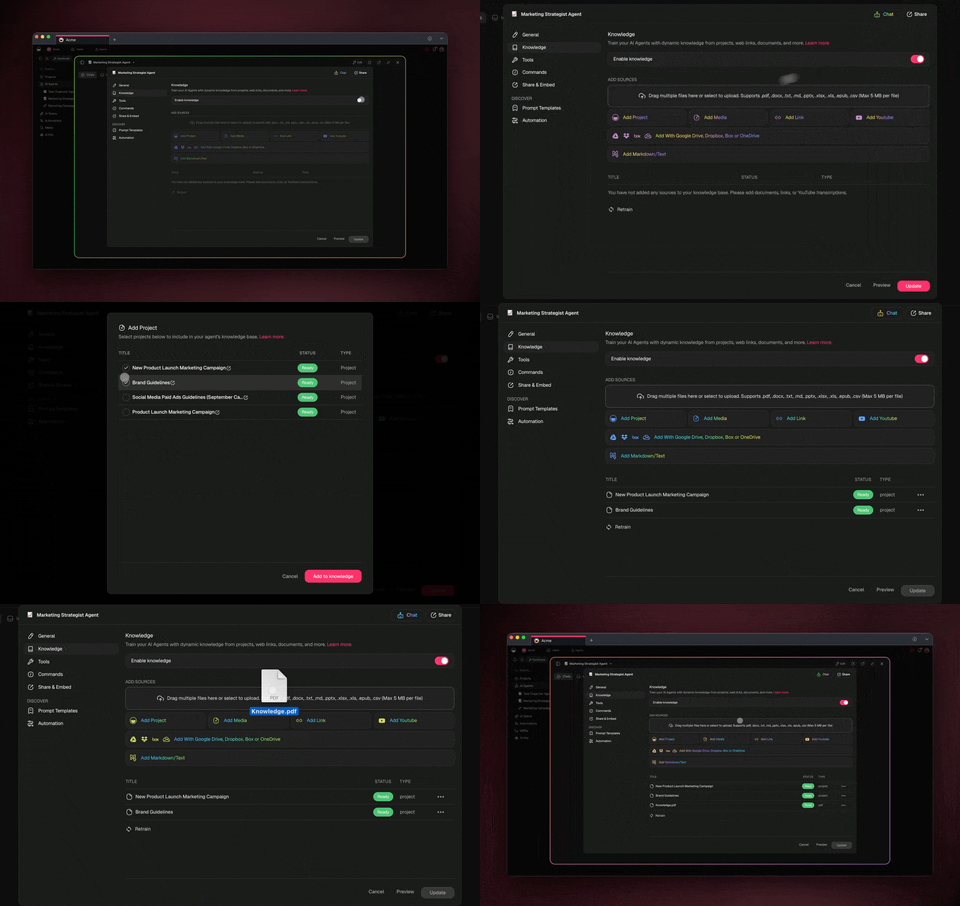
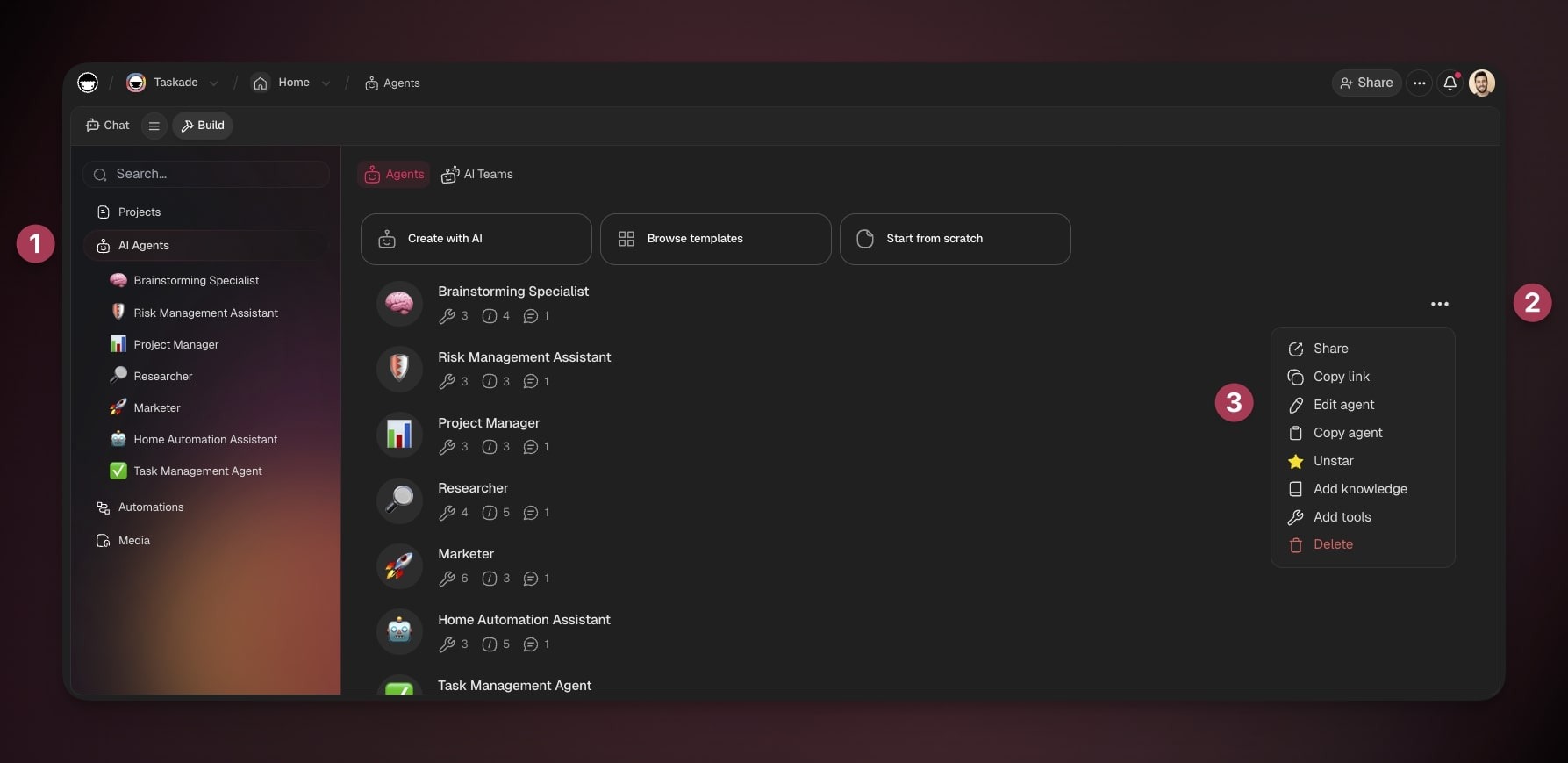
1. In your workspace sidebar, open **AI Agents**.
2. Click the agent. You can also click the **three dots ···** next to it and select **Add knowledge**.
3. Click the **Knowledge** tab, then the **Sources** sub-tab.
4. Make sure that the **Enable knowledge** switch is on.
The side panel groups the sources: **Taskade Workspace**, **Web Sources**, **Cloud Import**, **Local Upload**, and **Custom Text**. Your sources show under **Trained Sources**.
**Screenshots of the earlier Edit agent dialog**
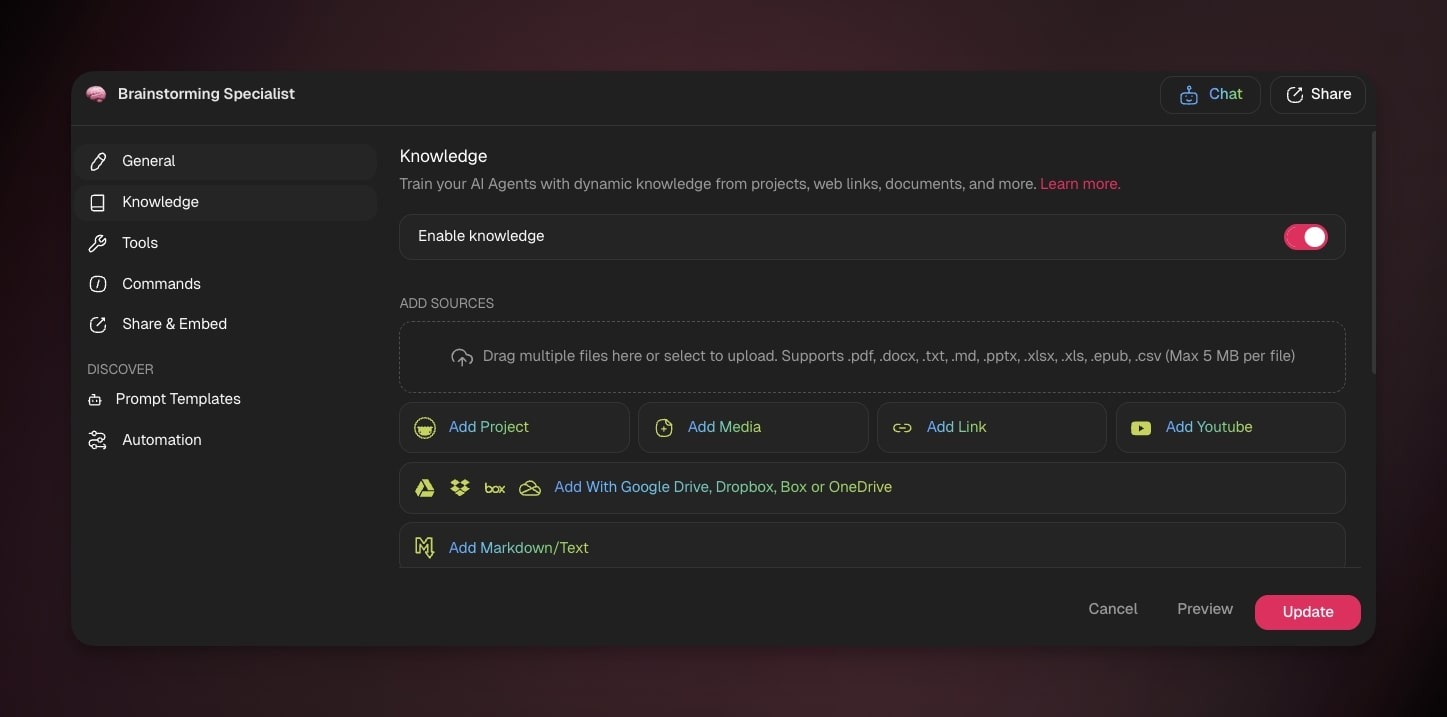
The agent reads a source after its status shows that it is trained. Only trained knowledge is available to the agent.
## Upload Documents
Uploading documents is the simplest way to hand your agent specific, structured information. Use it for anything you attach to an email: a price sheet, a contract, a deck, a spreadsheet.
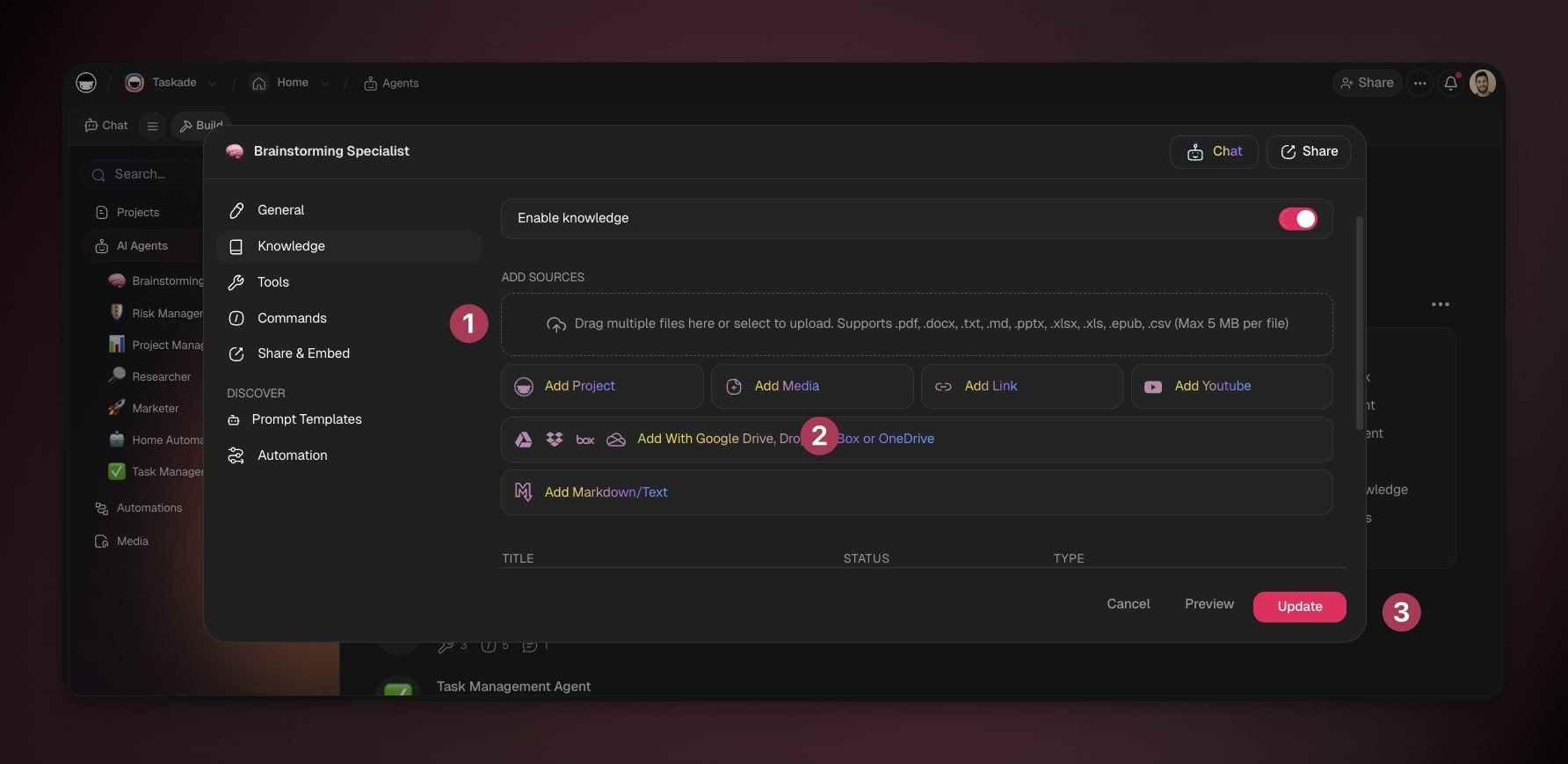
1. Open your agent's **Knowledge** tab.
2. Under **Local Upload**, click **Upload from Computer** to choose files from your device, or drag and drop them in.
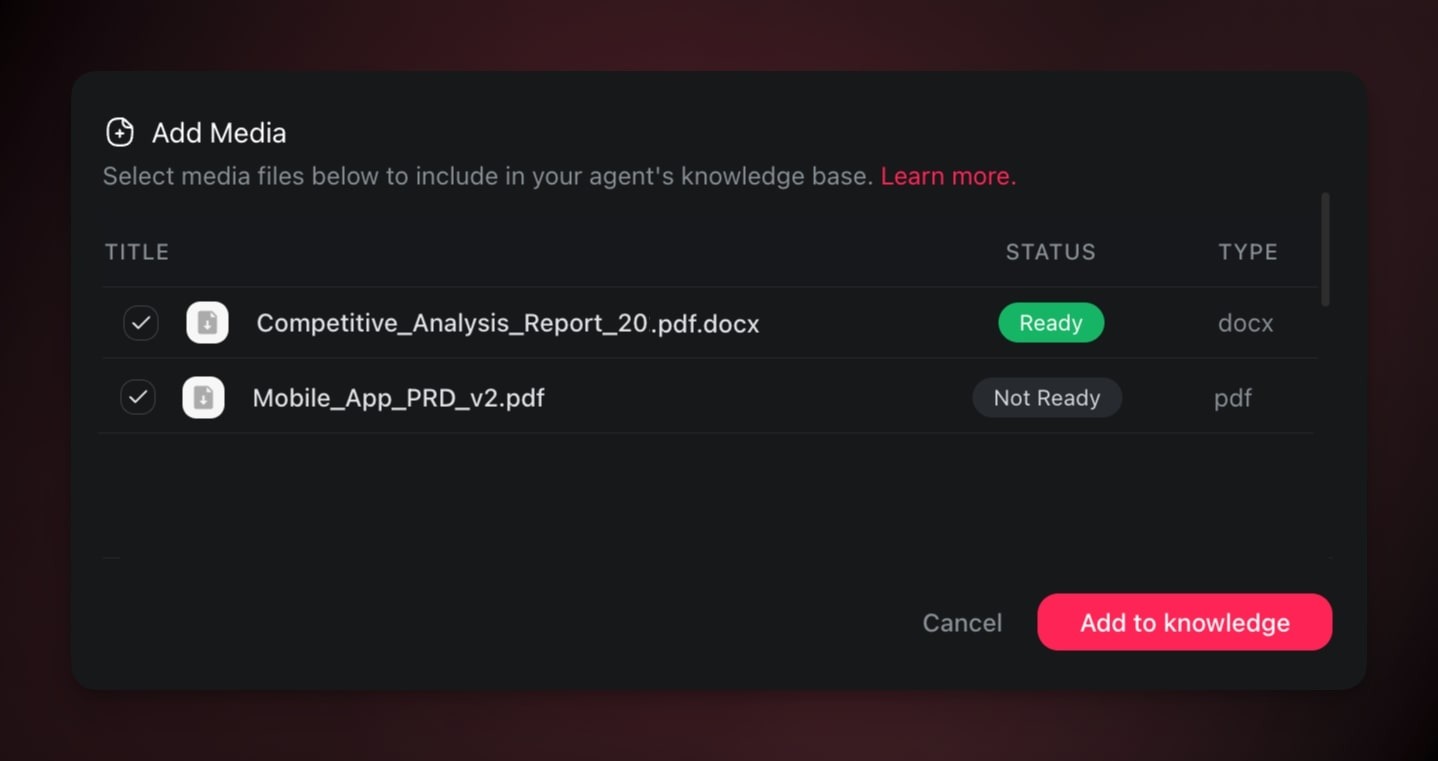
3. Or click 📄 **Add Media** under **Taskade Workspace** to pick a file already uploaded to your projects. See [Media Files](https://www.taskade.com/learn/agents/media-tab).
### Supported Knowledge Formats
| 📎 Files & Documents | 🌐 Web Sources |
| --- | --- |
| .pdf | Website URL |
| .csv | Blog / Article |
| .txt | YouTube Video |
| .docx | RSS / Atom Feed |
| .md | Sitemap XML |
| .pptx | |
| .xlsx, .xls | |
| .epub | |
The Knowledge tab does not accept image files, and it does not read text from scanned pages. To teach an agent from a scanned file, convert the file to text first. See [Read Scanned Paperwork and Photos](https://www.taskade.com/learn/genesis/scanned-documents).
If you drop a file Taskade cannot read, it is skipped and a notice names it. The notice lists the file it skipped and the formats the Knowledge tab accepts, so you can convert the file and drop it again. The rest of the batch still uploads.
### Add Many Sources at Once
You can build a knowledge base fast by adding several projects, links, and files in one go.
1. Open your agent's **Knowledge** tab.
2. Choose any upload method.
3. Use the checkboxes or click ➕ **Add another** to select multiple sources.
4. Confirm the selection. Each source then shows under **Trained Sources**.
## Use Web Resources
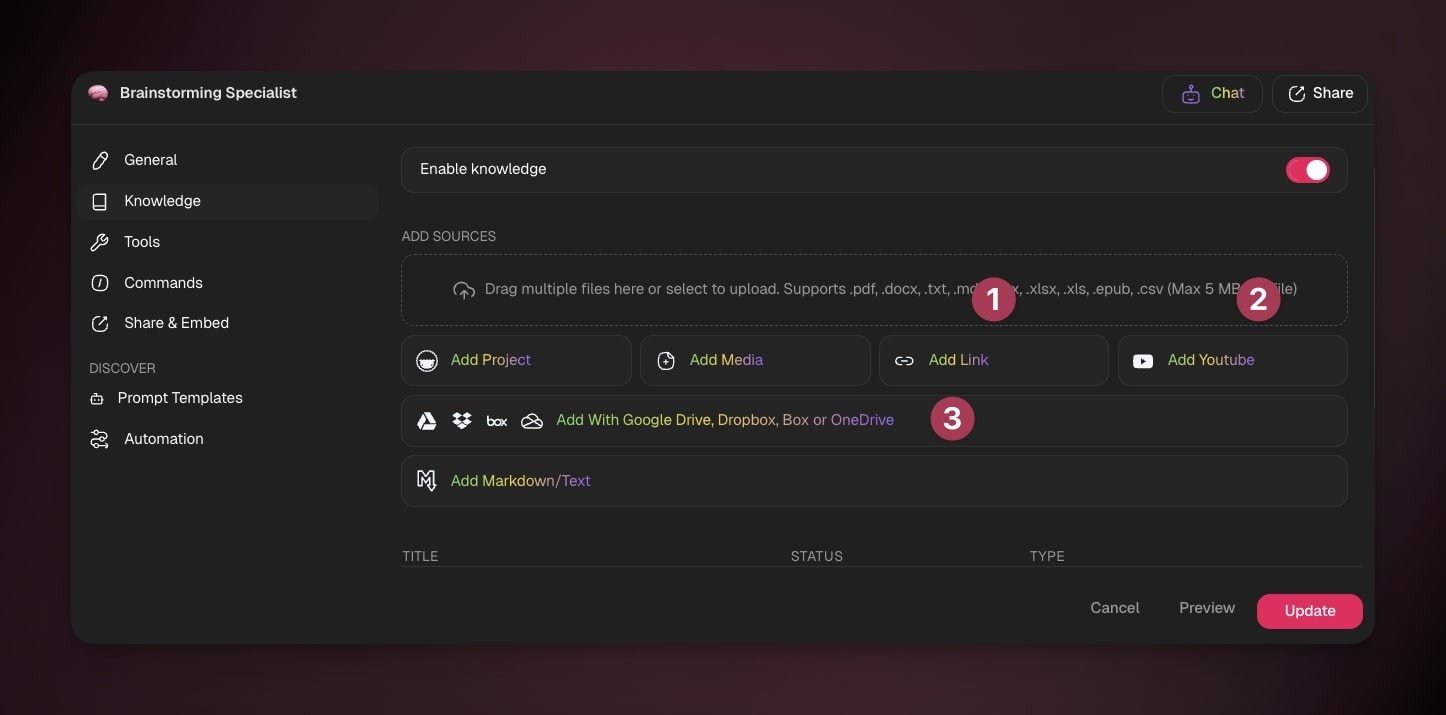
Web resources let your agent answer from information you point it at. Use them when a fact lives on a public page instead of in a file. Web sources and cloud imports need a paid plan.
1. Open your agent's **Knowledge** tab.
2. Pick a source:
- 🌐 Under **Web Sources**, pick **Website URL**, **Blog / Article**, **YouTube Video**, **RSS / Atom Feed**, or **Sitemap XML**.
- 📦 Under **Cloud Import**, pick **Google Drive**, **Dropbox**, **OneDrive**, or **Box**.
3. Paste the link, or pick the files, and confirm.
> **💡 Note:** A link or sitemap you add is read as one page. Taskade does not crawl the internal links inside it. Taskade reads a web source when you add it. Click **Retrain** to read the page again after it changes.
## Create a Note From Scratch
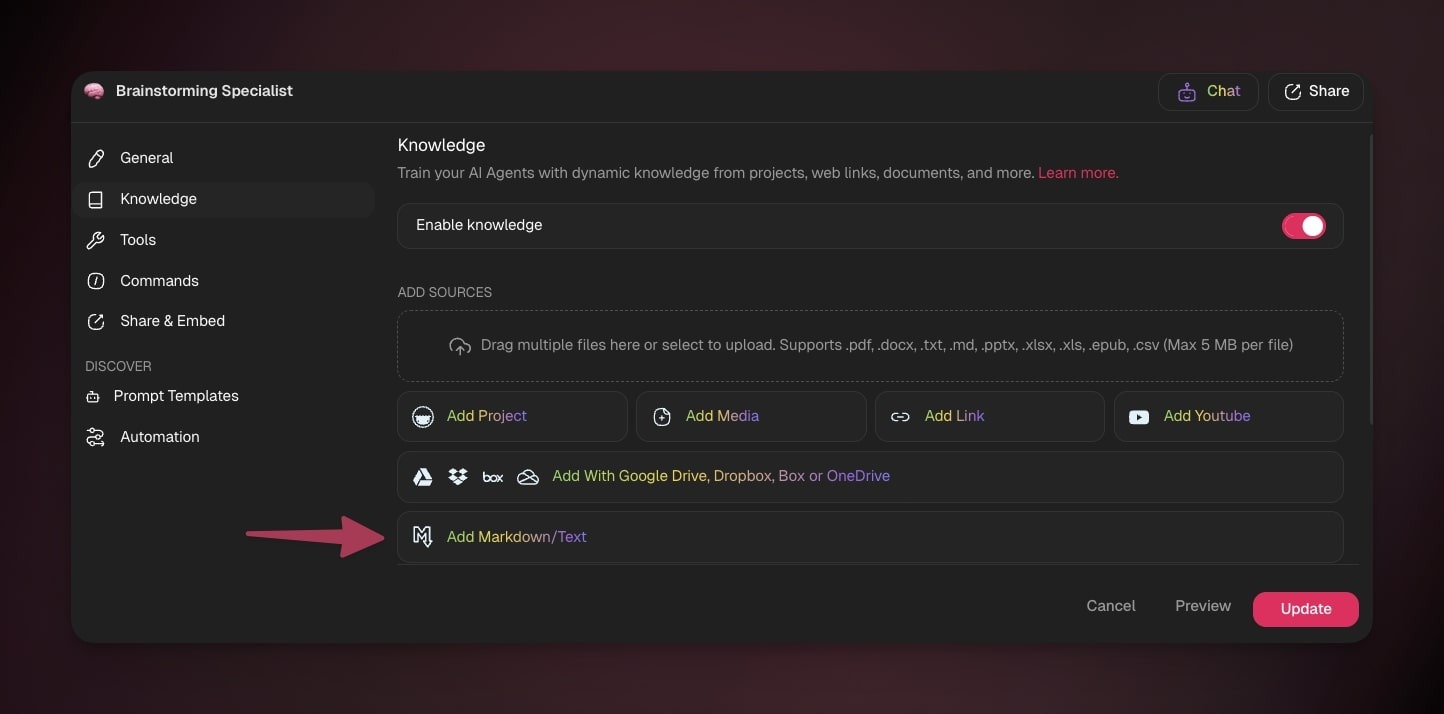
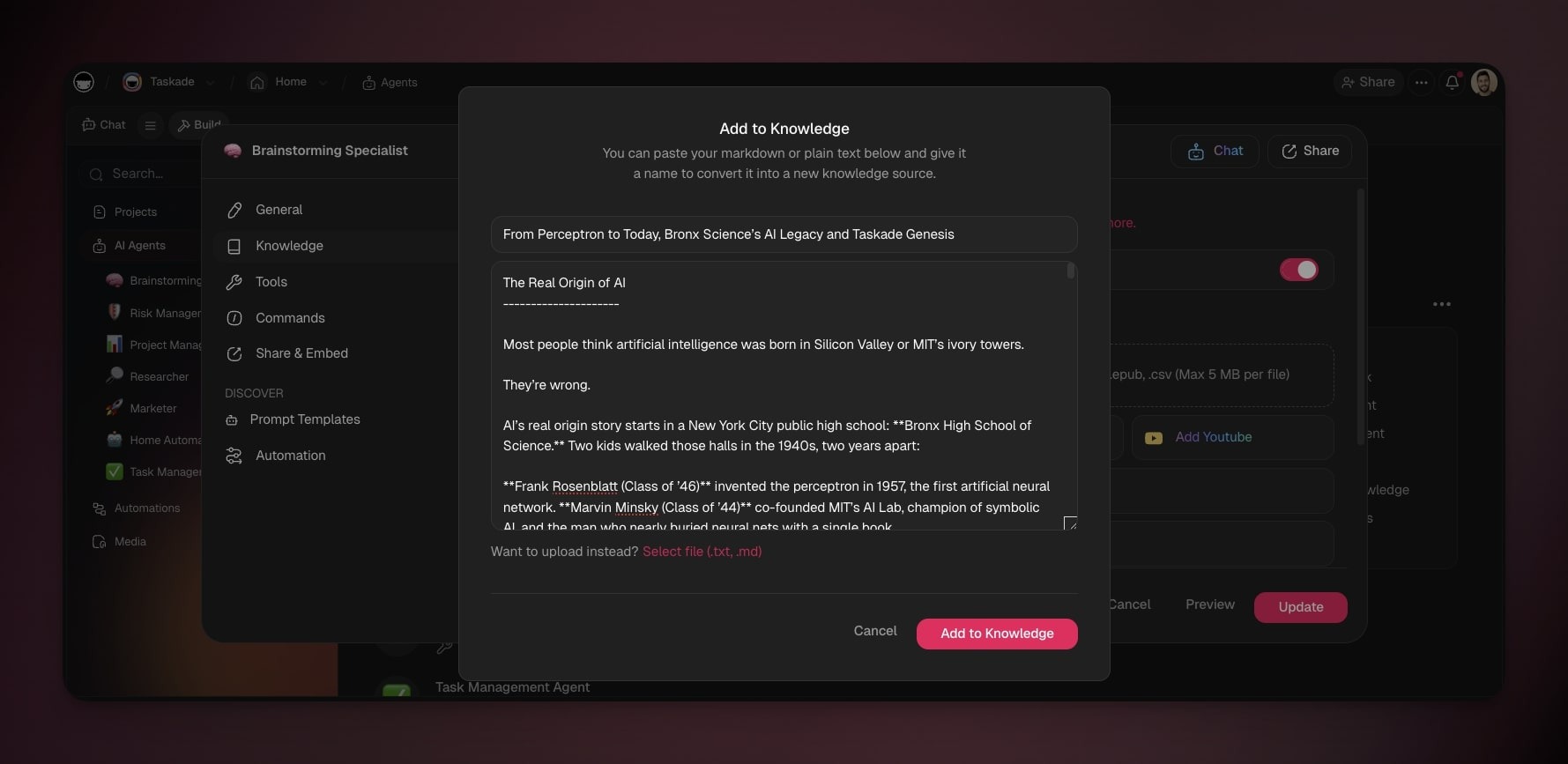
Type rules, policies, or quick facts straight into the Knowledge tab. No file needed.
1. In the **Knowledge** tab, under **Custom Text**, choose **Write Markdown** or **Paste Text**.
2. Type or paste Markdown or plain text into the pop-up. See [Markdown Support](https://www.taskade.com/learn/projects/markdown-support) for formatting.
3. Click **Add to Knowledge**.
## Connect Live Projects
Connecting a [project](https://www.taskade.com/learn/projects/databases) gives your agent live memory. Uploaded files are static. A connected project is dynamic: when the project changes, the agent inherits the update on its next reply, with no re-upload. This is the Memory pillar feeding the Intelligence pillar in real time.
For example, a solo realtor connects a live Listings project. When a property goes under contract and the status changes, the inbound CRM agent reflects that on its very next reply. No re-upload, no stale answers.
1. In **AI Agents**, click your agent.
2. Click the **Knowledge** tab.
3. Make sure that the **Enable knowledge** switch is on.
4. Under **Taskade Workspace**, click 📄 **Add Project** and pick projects from the current workspace or folder.
A connected project carries the **Auto** badge: it syncs when the project content changes.
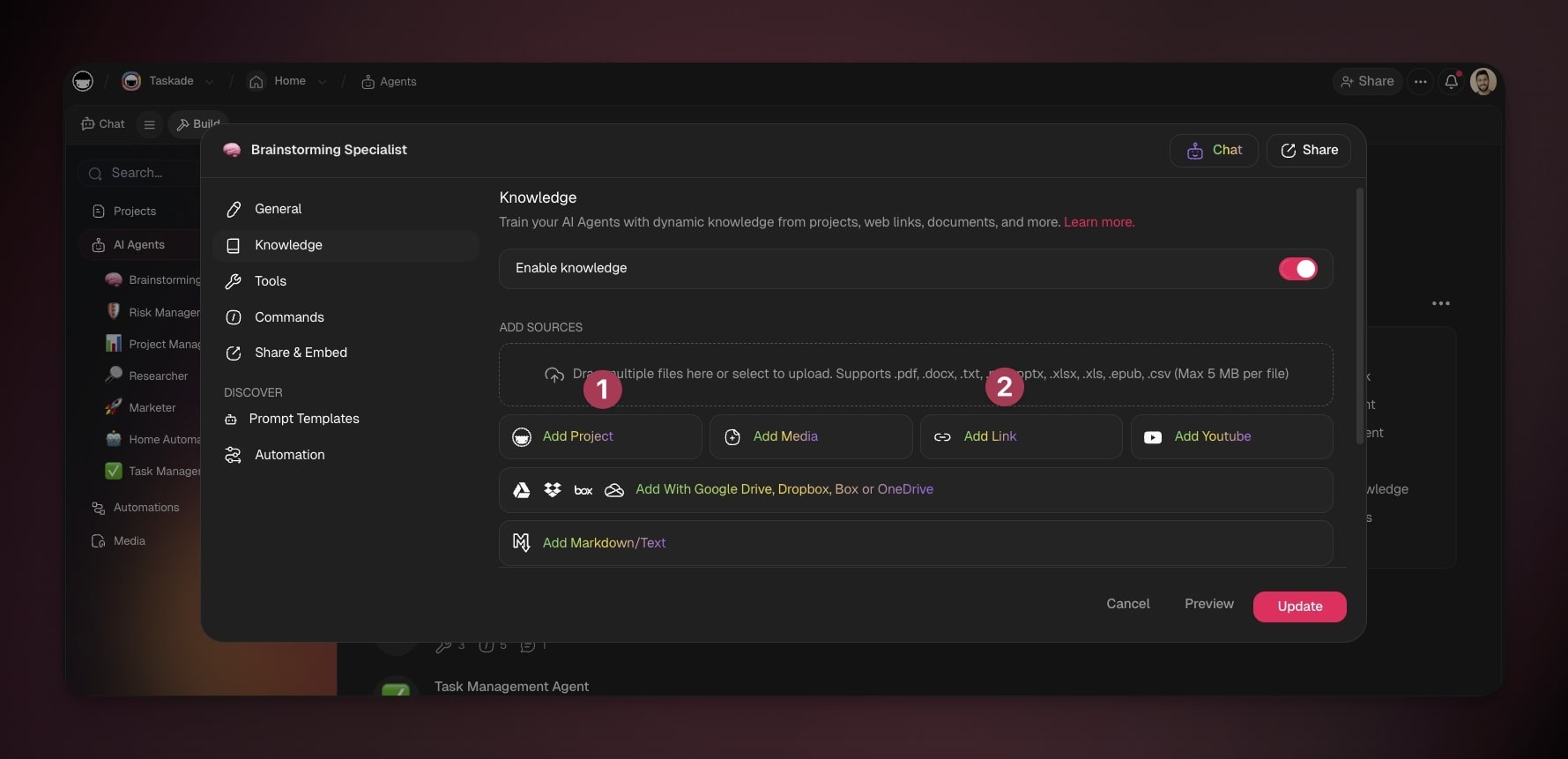
A connected project shares this content with your agent:
| ✅ Included | ❌ Not Included |
| --- | --- |
| Text, blocks, paragraphs | Uploaded files |
| Due dates | Comments |
| Assignees | Embedded links or files |
| Custom fields | Timers |
| | Reactions |
| | Chat messages |
## See Which Sources It Used
Every answer shows its receipts. When you chat with an agent, it tells you which knowledge it read, so you can trust the reply and trace it back to the source.
- Start a conversation with your agent.
- Look for the box that shows it accessed your sources.
- Click the drop-down arrow to preview the exact sources used.
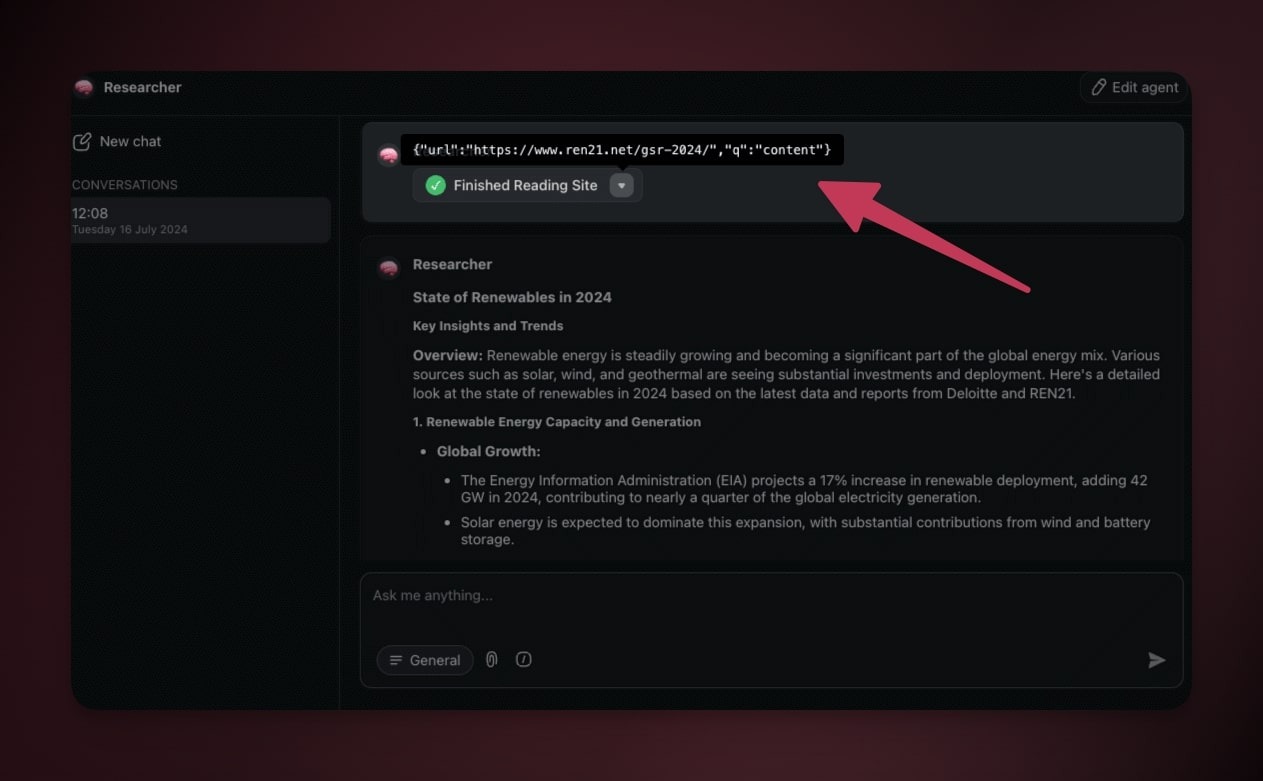
If the agent cannot retrieve one of your sources, it says so instead of answering around the gap. The reply names the sources it failed to read, so a stale link or a file still processing never reads as a confident answer built on nothing. Re-add or replace the source and ask again.
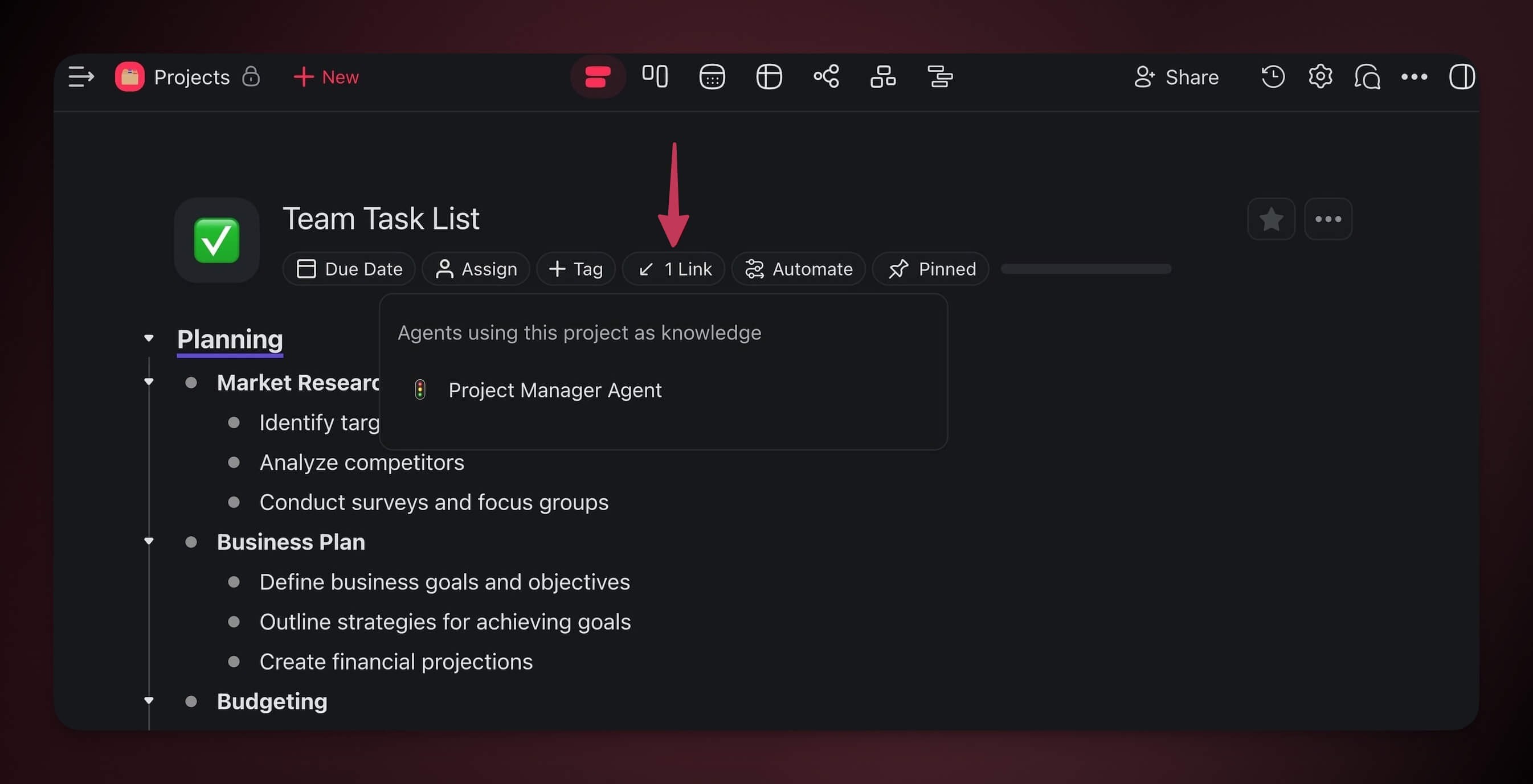
When an agent uses a project as knowledge, Taskade adds a **backlink** inside that project. Open the project and you can see which agents rely on it.
## Teach the Agent From Its Inbox
When your agent is [public](https://www.taskade.com/learn/agents/agent-inbox), visitors show you where its knowledge falls short. Two kinds of reply go to the agent's inbox:
- A question that the agent did not have an answer for.
- A reply that a visitor rated down with the thumbs-down button. The visitor can add a reason, and you see it under the question as **Rated down**. A reply that the visitor generated again counts too.
The **Inbox** sub-tab shows on the agent's **Knowledge** tab after the first question arrives, next to **Sources**, **Instructions**, and **Automation**.
1. Open the agent and choose the **Knowledge** tab, as in [Open the Knowledge Tab](#open-the-knowledge-tab).
2. Click the **Inbox** sub-tab. The list is called **Questions to review**.
3. Click **Answer & save** on a question.
4. Write the answer that the agent must give next time.
5. Click **Save as knowledge**.
The agent uses that answer for the next person who asks. Click **Dismiss** to remove a question that needs no answer. If the inbox gets full, it stops collecting until you answer or dismiss some questions.
## Keep Your Agent Sharp
A clean knowledge base is a reliable agent. Two small habits do most of the work.
**Describe each file as you add it.** A file in your workspace Media can carry a name and a short description. The agent reads that description when it searches its library, so a clear label surfaces the right file at the right moment.
- Add a one-line description with **Edit Media** right after you upload.
- Treat it like a cue that a teammate scans first ("Q2 pricing one-pager", "Sales call with Acme").
- Edit the description later if the agent keeps reaching for the wrong file.
**Sweep out stale sources.** Old contracts and last quarter's deck pull the agent off course. Trim them and it stays focused.
- Open the **Knowledge** tab on the agent.
- Click the select control next to **Trained Sources** (its tooltip reads **Select multiple sources**), then tick each item you no longer need.
- Click **Remove selected**. Counts refresh as the sweep finishes.
- For one-off cleanup, click a single row's **delete** control. The agent gets sharper on the next reply.
## Community Agent Templates
Explore AI agents built by the Taskade community. Clone one and study how it uses knowledge.
- [AI Prompt Evaluator](https://www.taskade.com/share/apps/kYOjWbv96wVzjTFn6G). Evaluate and improve AI prompts
- [Bluey Episode Chatbot](https://www.taskade.com/share/apps/VXN4cOHaFsUcvzan7o). Knowledge-grounded conversational agent
- [Cover Letter Generator](https://www.taskade.com/share/apps/TYz92gQnLUYNKbGjS0). Context-aware document generation
- [AI Study Buddy](https://www.taskade.com/share/apps/yXqvz4SqMXcCjTLHTu). Educational Q&A assistant
Build your own → [taskade.com/create](https://www.taskade.com/create)
## Frequently Asked Questions
**What is the difference between knowledge and chat history?**
Knowledge is what the agent **reads**, and it is the agent's persistent memory. You add it by uploading files or connecting projects, and you can refresh or update it at any time. Chat history is the record of one chat. Add lasting facts to knowledge so every chat can use them.
**How is agent knowledge the Memory pillar of Workspace DNA?**
[Workspace DNA](https://www.taskade.com/learn/genesis/workspace-dna) has three pillars: Memory (your projects and files), Intelligence (your agents), and Execution (your automations). Knowledge is how the Memory pillar feeds the Intelligence pillar. Your [projects and databases](https://www.taskade.com/learn/projects/databases) become searchable memory, and a [custom agent](https://www.taskade.com/learn/agents/custom-agents) reasons over it. The more your workspace grows, the smarter your agents get.
**What file types can I upload as knowledge?**
You can upload PDF, CSV, TXT, DOCX, MD, PPTX, XLSX, XLS, and EPUB files. Image files are not accepted. On a paid plan, you can also add website links, blog articles, RSS feeds, sitemaps, and YouTube videos (with the auto-generated transcript). A paid plan can also import files from Google Drive, Dropbox, Box, or OneDrive.
**How many knowledge sources can one agent hold?**
A Free workspace gives each agent one knowledge source, which is enough to try the feature on a single file or project. Every paid plan raises the ceiling to 50 sources per agent, so you can ground one agent in a whole document set. See [pricing](https://www.taskade.com/pricing) for the full plan matrix.
**What is the difference between uploading a file and connecting a project?**
An uploaded file is static. It holds whatever it said the day you added it. A connected project is dynamic, so when the project changes, the agent inherits the update on its next reply with no re-upload. Use files for fixed reference material like a contract. Use connected [projects](https://www.taskade.com/learn/projects/databases) for live data that keeps changing.
**Does the agent show which sources it used?**
Yes. When you chat with an agent, it shows a box indicating it accessed your sources. Click the drop-down arrow to preview the exact sources behind the answer. Taskade also adds a backlink inside any project an agent uses as knowledge, so you can open the project and see which agents rely on it.
**What does a connected project share with the agent?**
A connected project shares its text, blocks, paragraphs, due dates, assignees, and custom fields. It does not share uploaded files, comments, embedded links or files, timers, reactions, or chat messages. If you need the agent to read a file attached to a project, upload that file directly to the Knowledge tab instead.
## Related guides
- [Custom AI Agents: The Intelligence Pillar](https://www.taskade.com/learn/agents/custom-agents). Build and train the agent that reasons over your knowledge.
- [Projects & Databases: The Memory Pillar](https://www.taskade.com/learn/projects/databases). How project data becomes agent knowledge.
- [How Taskade Genesis Works: Workspace DNA](https://www.taskade.com/learn/genesis/workspace-dna). The three-pillar loop of Memory, Intelligence, and Execution.
- [Multi-Agents](https://www.taskade.com/learn/agents/multi-agents). Build teams where agents share knowledge.
- [Tools for AI Agents](https://www.taskade.com/learn/agents/agent-tools). The built-in tools an agent carries, plus custom tools you define.
- [MCP Connectors](https://www.taskade.com/learn/genesis/mcp-connectors). Let external AI clients read your workspace over the hosted MCP server.
- [Media Files](https://www.taskade.com/learn/agents/media-tab). Reuse files you already uploaded to your projects.
- [Keep Your Agent's Knowledge Up to Date](https://www.taskade.com/learn/agents/knowledge-updates). Refresh knowledge automatically from a web page, sheet, inbox, or form.
- [Build a Chatbot with Knowledge Base](https://www.taskade.com/learn/agents/build-knowledge-chatbot). Turn this knowledge into a published website chatbot.