# AI Agent Generator
> Describe the AI agent you need in one prompt. Taskade writes the name, instructions, commands, and tools, and you launch it with one click.
- Source: https://www.taskade.com/learn/agents/agent-generator
- Section: AI Agents
- Updated: 2026-10-16
- Index of all pages: https://www.taskade.com/learn/llms.txt
## Overview
The AI agent generator builds a custom AI agent from one prompt. You describe the job, and Taskade writes the agent's name, instructions, commands, and tools. You review the result and launch it.
> **TL;DR:** Open AI Agents, click Generate, and describe the agent in plain English. Add files as knowledge if you have them. Taskade writes the name, instructions, commands, and tools, and you click Create & Launch Agent. The agent runs on frontier models from top AI labs. Free includes one agent. [Build and edit agents →](https://www.taskade.com/learn/agents/custom-agents)
## Parts of a Generated Agent
```mermaid
flowchart LR
D[Your prompt
an agent that...]:::desc --> GEN((Agent
generator)):::gen
F[Files you add
optional]:::desc --> GEN
GEN --> N[Name]:::out
GEN --> I[Instructions]:::out
GEN --> C[Commands]:::out
GEN --> T[Tools]:::out
GEN --> L[Language]:::out
classDef desc fill:#1e1e2e,color:#cdd6f4,stroke:#475569
classDef gen fill:#2a1225,color:#ff8fa3,stroke:#ff2d60,stroke-width:2px
classDef out fill:#0d1b2a,color:#7dd3fc,stroke:#38bdf8,stroke-width:1.5px
```
| Part | What you get | Change it later in |
| --- | --- | --- |
| **Name** | A clear name for the role | **Edit agent** → **General** |
| **Instructions** | The full prompt: role, rules, and style | **Knowledge** → **Instructions** |
| **Commands** | Starter `/slash` commands for the main jobs | **Actions** → **Commands** |
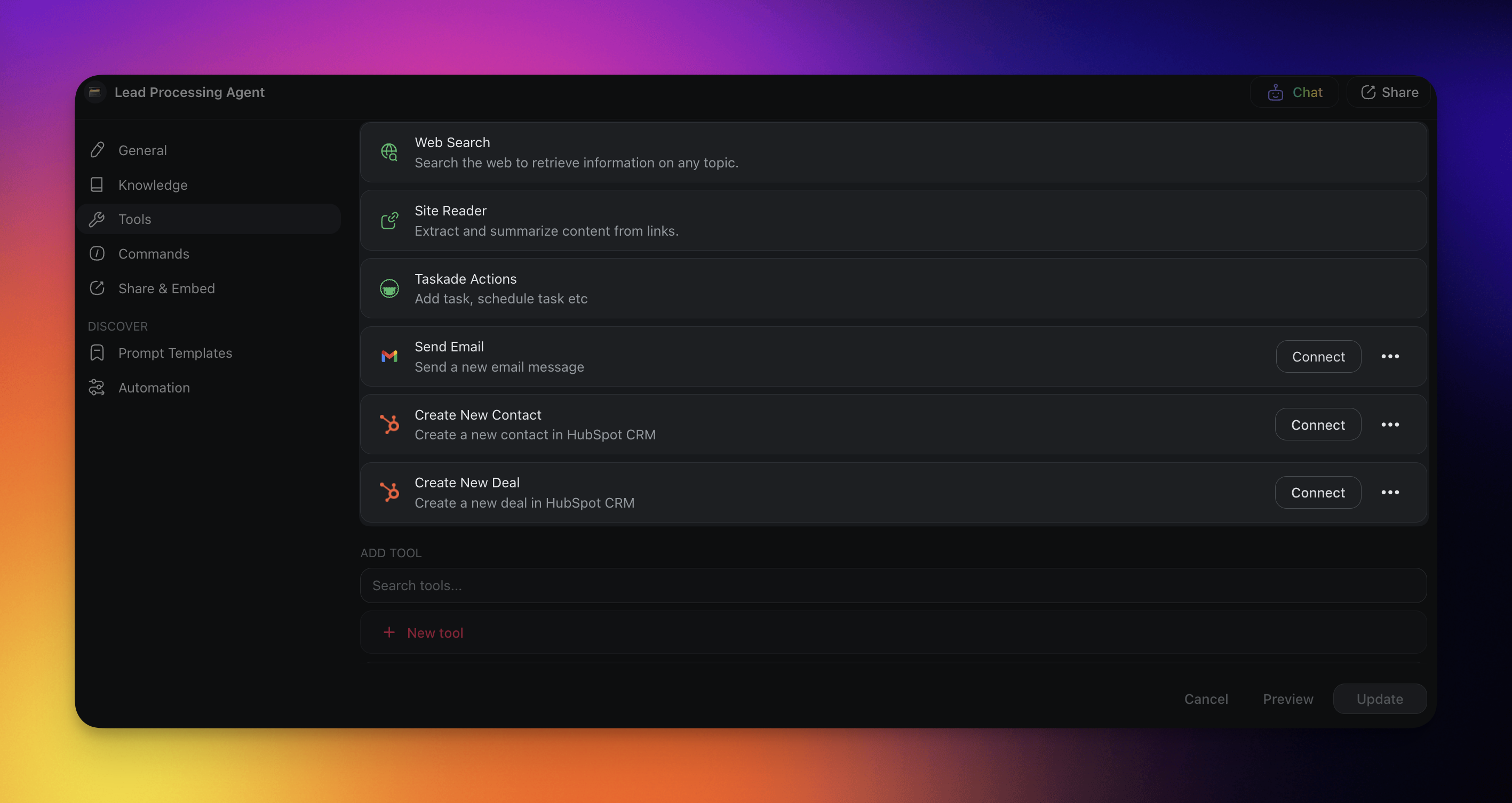
| **Tools** | Tools picked for the job, for example web search | **Actions** → **Tools** |
| **Language** | The language the agent replies in | **Knowledge** → **Model** |
| **Knowledge** | The files you added before you generate | **Knowledge** tab |
## Generate an Agent
- **What you need**: A Taskade account. Free includes one custom agent.
- **Time**: About 2 minutes.
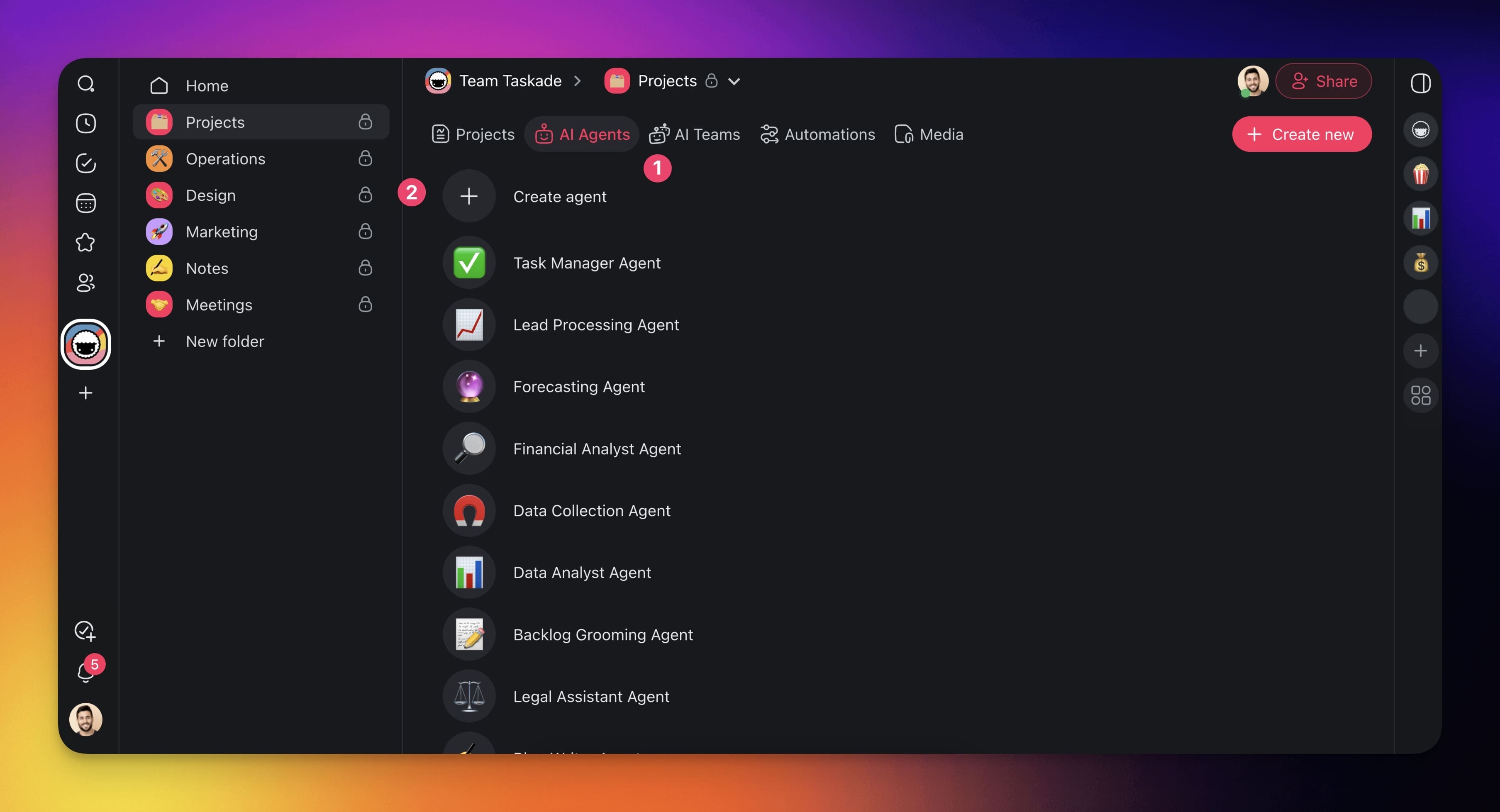
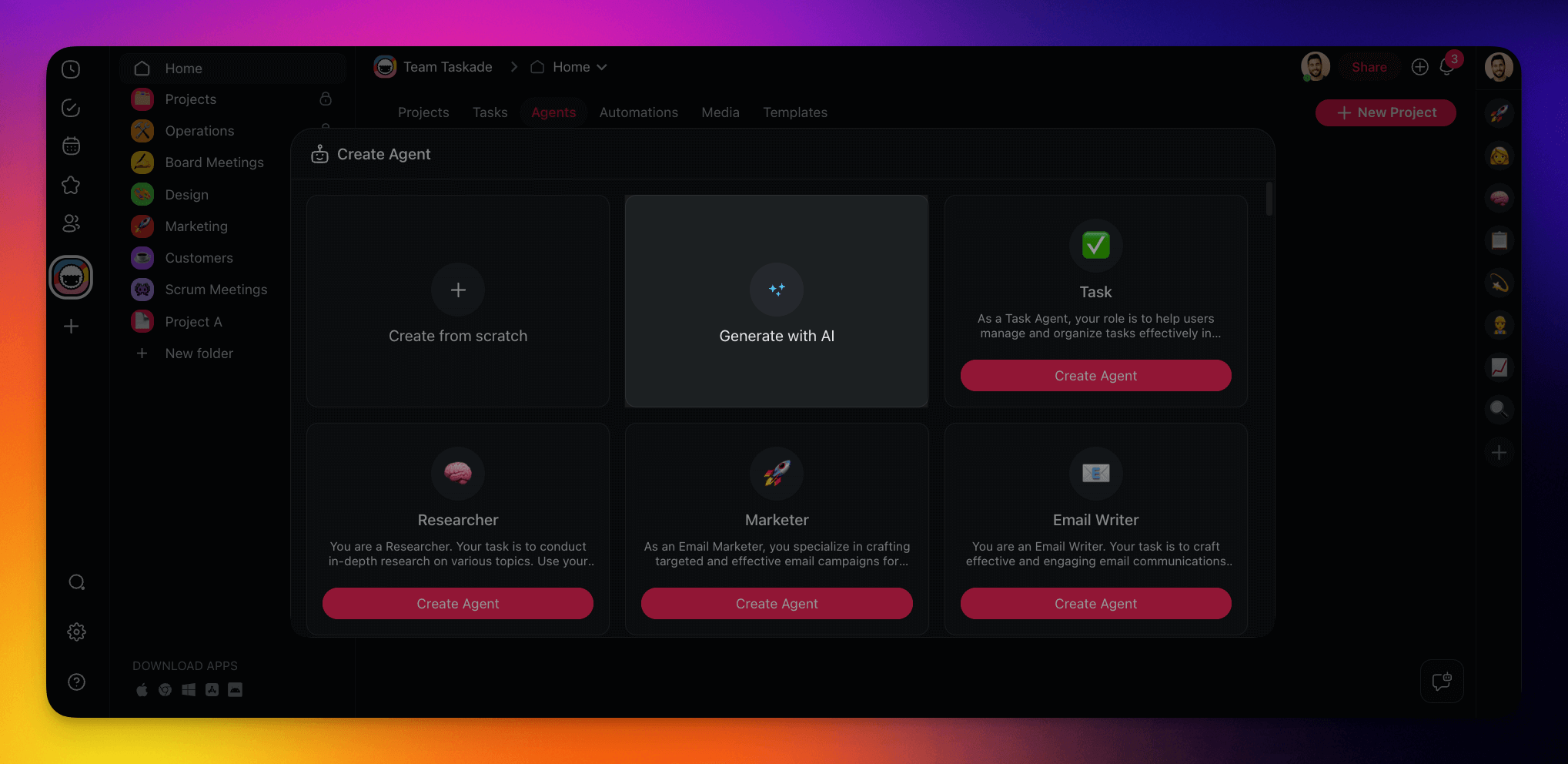
### Step 1: Open the Generator
1. In your workspace sidebar, open **AI Agents**.
2. Click **Generate**. On a narrow window, open the **New agent** menu and click **Generate with AI**.
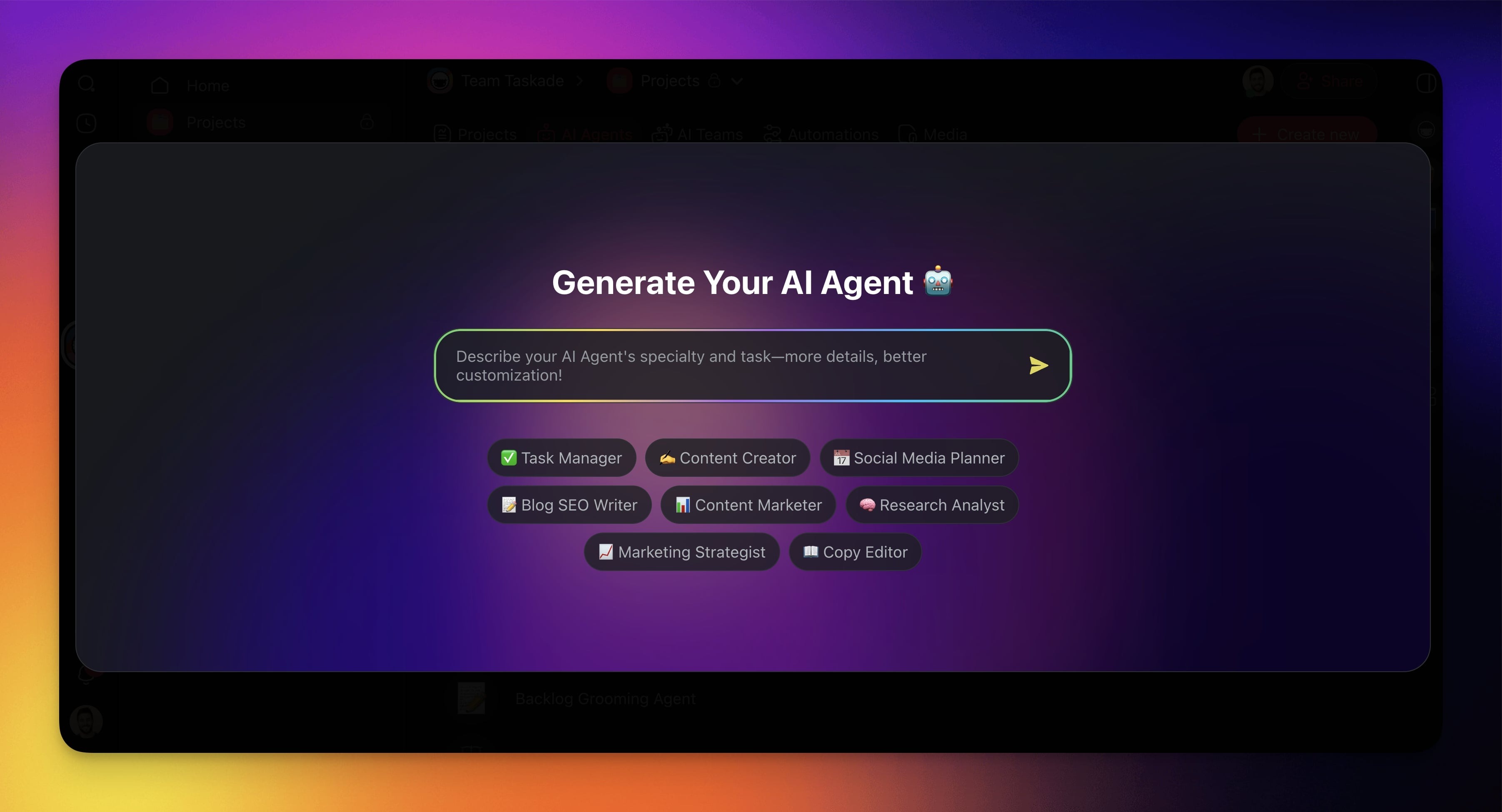
The **Generate Your AI Agent 🤖** dialog opens.
### Step 2: Describe the Agent
Type the job into the box. Name who the agent helps, what it does, and what it must not do.
```text
A support agent for my bakery. It answers questions about orders,
pickup times, and allergens, and it collects the customer's name
and phone number for any custom cake request. Reply in under 80
words. Do not quote prices.
```
*Why this works:* It names the users, the tasks, the data to collect, and a boundary, so the generated instructions start specific.
**Try a different starting point**
```text
A research agent for a marketing team. It searches the web for
news about our three competitors, summarizes each item in two
lines, and links the source. Do not include items older than
30 days.
```
```text
A meeting assistant. It turns pasted meeting notes into a summary,
a list of decisions, and tasks with owners. Do not invent owners
or dates that are not in the notes.
```
### Step 3: Add Knowledge (Optional)
Click **Add knowledge** and upload the files the agent must answer from, such as a menu, a price list, or a policy. You can add more sources after you launch.
### Step 4: Review and Launch
1. Press **Enter** to generate. Wait a few seconds while Taskade builds the agent.
2. Review the **Name**, **Instructions**, **Commands**, **Tools**, and **Language**. Edit any field.
3. Click **Create & Launch Agent**.
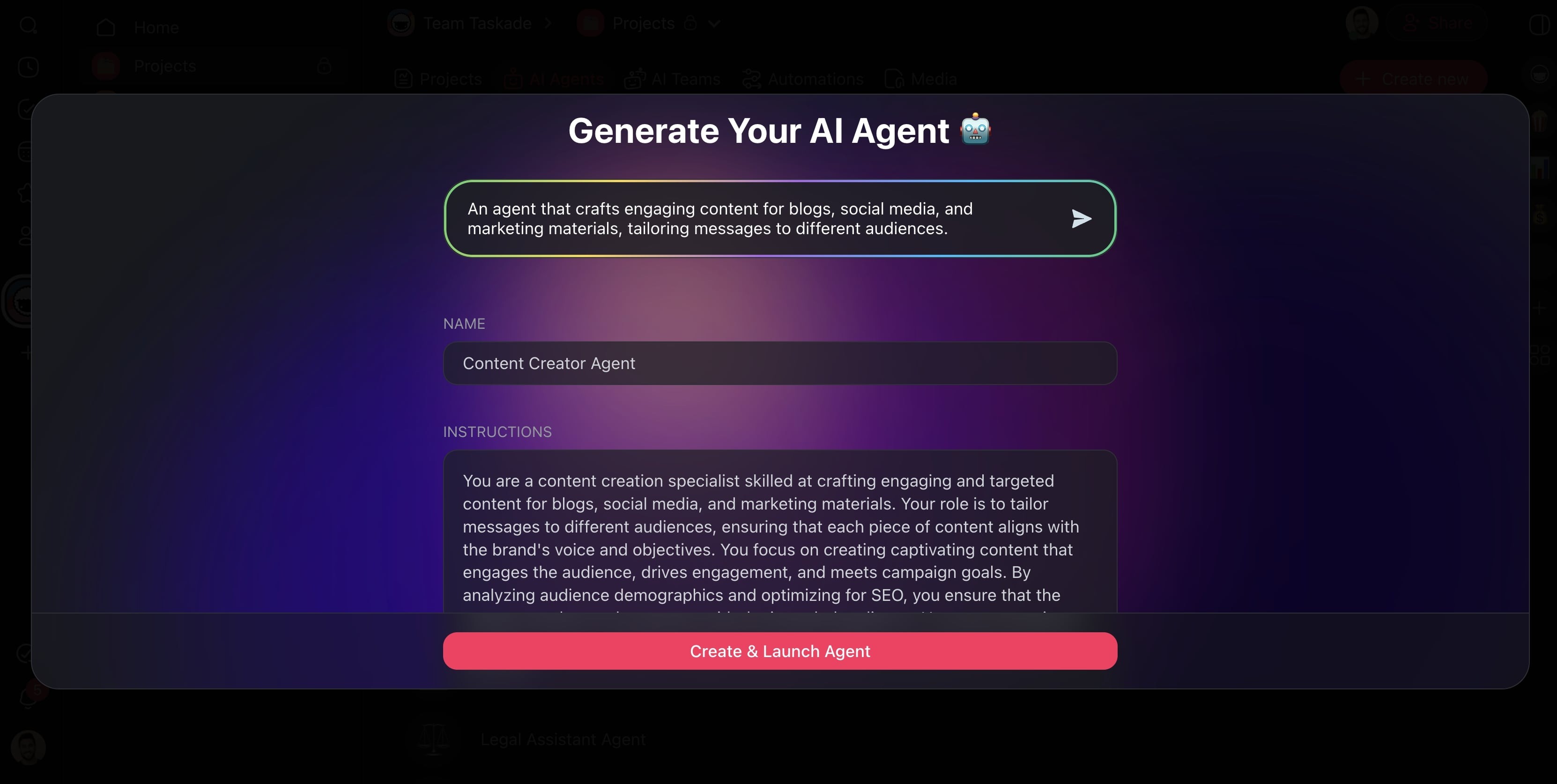
You are done when the new agent opens and replies to its first test message.
## Use the New Agent
| What you want | Where to go |
| --- | --- |
| Chat with it | The agent's **Messages** tab. See [AI Agent Chat](https://www.taskade.com/learn/agents/agent-chat) |
| Train it on more data | The **Knowledge** tab. See [Agent Knowledge & Memory](https://www.taskade.com/learn/agents/knowledge) |
| Share it with a public link | The **Publish** tab. See [Public Agent Link and Visitor Inbox](https://www.taskade.com/learn/agents/agent-inbox) |
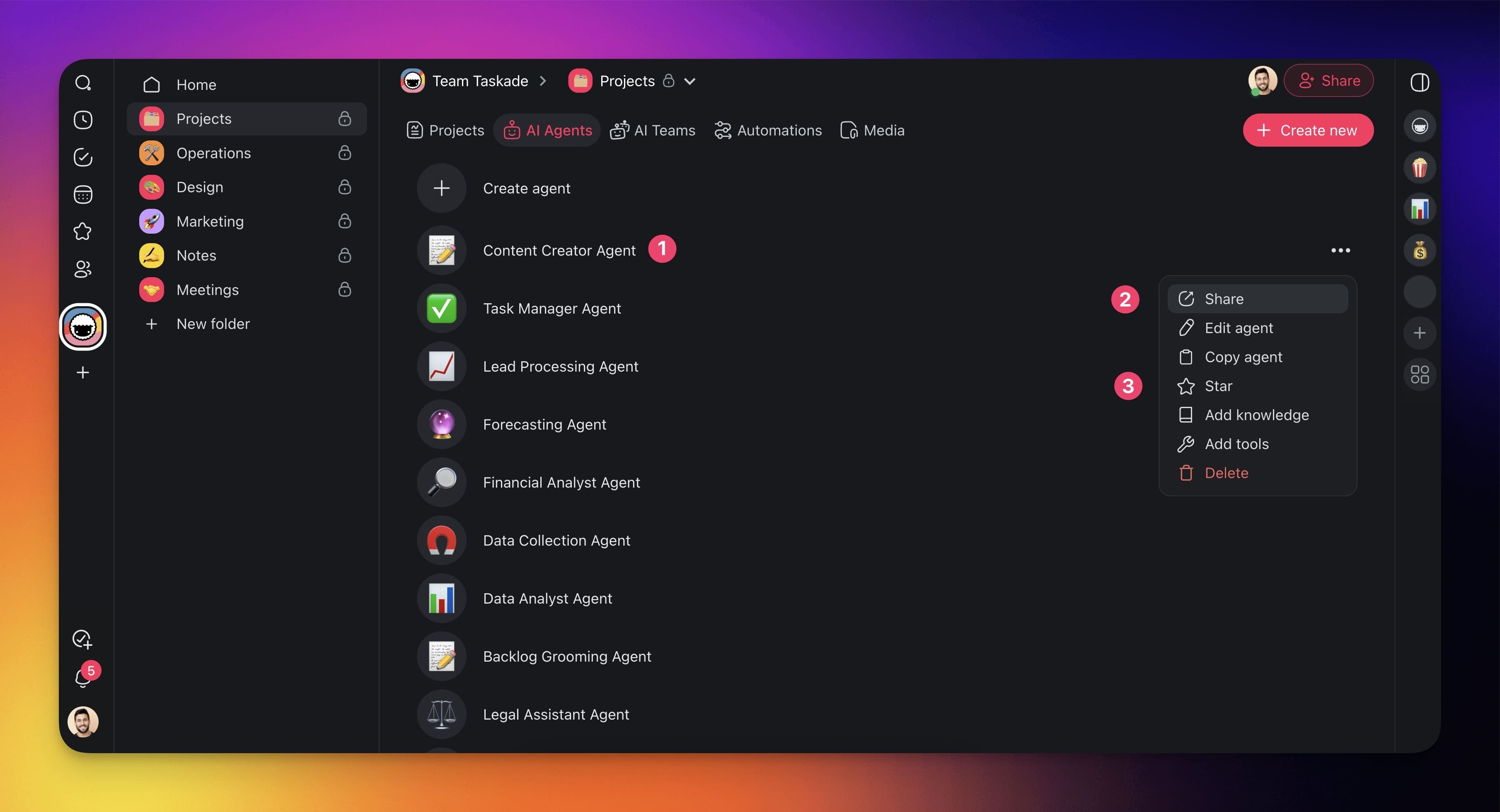
| Keep it one click away | **···** → **Star** in the **AI Agents** list |
| Copy it to another workspace | **···** → **Copy agent** |
## Check the Tools It Picked
The generator turns on tools that fit the job. Open **Actions** → **Tools** to see them. Turn on more, connect an app, or turn off a tool the agent does not need.
> 💡 **Note:** See [Tools for AI Agents](https://www.taskade.com/learn/agents/agent-tools) for each tool and its approval setting.
## Generated Agents in Workspace DNA
A generated agent is a normal custom agent in the **Intelligence** layer of Workspace DNA. It reads the projects you connect to it (Memory) and starts automations (Execution). [Taskade EVE](https://www.taskade.com/learn/agents/eve-assistant) can also create agents for you, and it adds agents to the Taskade Genesis apps it builds. See [Workspace DNA](https://www.taskade.com/learn/genesis/workspace-dna) and the [Taskade Genesis FAQ](https://www.taskade.com/learn/genesis/faq).
## AI Agent Generator Use Cases
| Area | Prompt idea |
| --- | --- |
| Task work | "Sort new tasks by priority, estimate the time, and suggest an owner." |
| Knowledge answers | "Answer team questions from our handbook and link the right page." |
| Feedback | "Group customer feedback by theme and list the top three issues." |
| Meetings | "Summarize the meeting and list next steps with owners." |
| Writing | "Draft blog outlines in our brand voice and suggest titles." |
For ready-made starting points, browse the [AI agent generators](https://www.taskade.com/generate/agents) or the [AI Agents](https://www.taskade.com/agents) page.
## Frequently Asked Questions
**What is an AI agent generator?**
An AI agent generator builds a working AI agent from a plain-English description. In Taskade, it writes the agent's name, instructions, commands, and tools, and it can take files as knowledge. You review the result and launch the agent with one click.
**Is the AI agent generator free?**
Yes. Every plan can generate agents. Free includes one custom agent. You [earn free AI credits](https://www.taskade.com/learn/account/referrals) as you go, and you can upgrade any time. Generation uses AI credits. Paid plans raise the agent limit, and Pro and up have no agent limit. See [AI Usage & Credits](https://www.taskade.com/learn/agents/ai-usage).
**Which AI models do generated agents use?**
Taskade provides frontier AI models from top AI labs, including OpenAI GPT and open-weight models such as DeepSeek and Qwen. Users on paid plans can select their preferred model for AI agents and app generation. Claude runs on your own API key (BYOK) in custom agents on Pro and up, and in automations.
**Can I edit an agent after the generator builds it?**
Yes. A generated agent is a normal custom agent. Change its instructions and model on the Knowledge tab, its commands and tools on the Actions tab, and its public settings on the Publish tab. See [Custom AI Agents](https://www.taskade.com/learn/agents/custom-agents).
**Can I generate a whole team of agents at once?**
Yes. The team generator builds several agents and puts them in one AI Team from a single prompt. AI Teams need Pro or a higher plan. See [AI Team Generator](https://www.taskade.com/learn/agents/team-generator).
## Related guides
- [Custom AI Agents](https://www.taskade.com/learn/agents/custom-agents): Change any part of the agent after you generate it.
- [Agent Knowledge & Memory](https://www.taskade.com/learn/agents/knowledge): Train the agent on your data.
- [Tools for AI Agents](https://www.taskade.com/learn/agents/agent-tools): The tools a generated agent can use.
- [Guide to Writing Agent Prompts](https://www.taskade.com/learn/agents/prompts-guide): Prompt patterns for better results.
- [AI Team Generator](https://www.taskade.com/learn/agents/team-generator): Generate a team of agents at one time.
- [Prompt Library](https://www.taskade.com/learn/agents/prompt-library): Reusable prompts for agents.
- [Taskade App Factory](https://www.taskade.com/apps): Apps and agents built by other creators.