# Keep Your Workspaces Private
> All Taskade Workspaces and Apps are private by default. Other users can only access your spaces if they are invited by you or another space member. C...
- Source: https://www.taskade.com/learn/account/workspace-privacy
- Section: Help & Account
- Updated: 2026-09-02
- Index of all pages: https://www.taskade.com/learn/llms.txt
## Overview
All Taskade [Workspaces](https://www.taskade.com/learn/projects/create-workspace) and [Apps](https://www.taskade.com/learn/account/invite-members) are private by default. Other people reach your spaces only after you or another space member invites them.
> **TL;DR:** Your Taskade workspaces and apps stay private by default. You decide who gets in with invite links and per-member access levels, from Invite Only for sensitive work to Full Edit for trusted teams. See [User Roles and Permissions](https://www.taskade.com/learn/projects/permissions) for what each level can do.
```mermaid
flowchart LR
A[Private
by default] --> B[Share an
invite link]
B --> C[Pick an
access level]
C --> D[Members
collaborate]
style A fill:#0d1b2a,color:#7dd3fc,stroke:#38bdf8,stroke-width:1.5px
style B fill:#2a1225,color:#ff8fa3,stroke:#ff2d60,stroke-width:2px
style C fill:#0d1a0e,color:#86efac,stroke:#22c55e,stroke-width:1.5px
style D fill:#1a140a,color:#ffb74d,stroke:#e65100,stroke-width:1.5px
```
---
### Collaborate on Apps
Add team members to your app so they can access and collaborate on its contents.
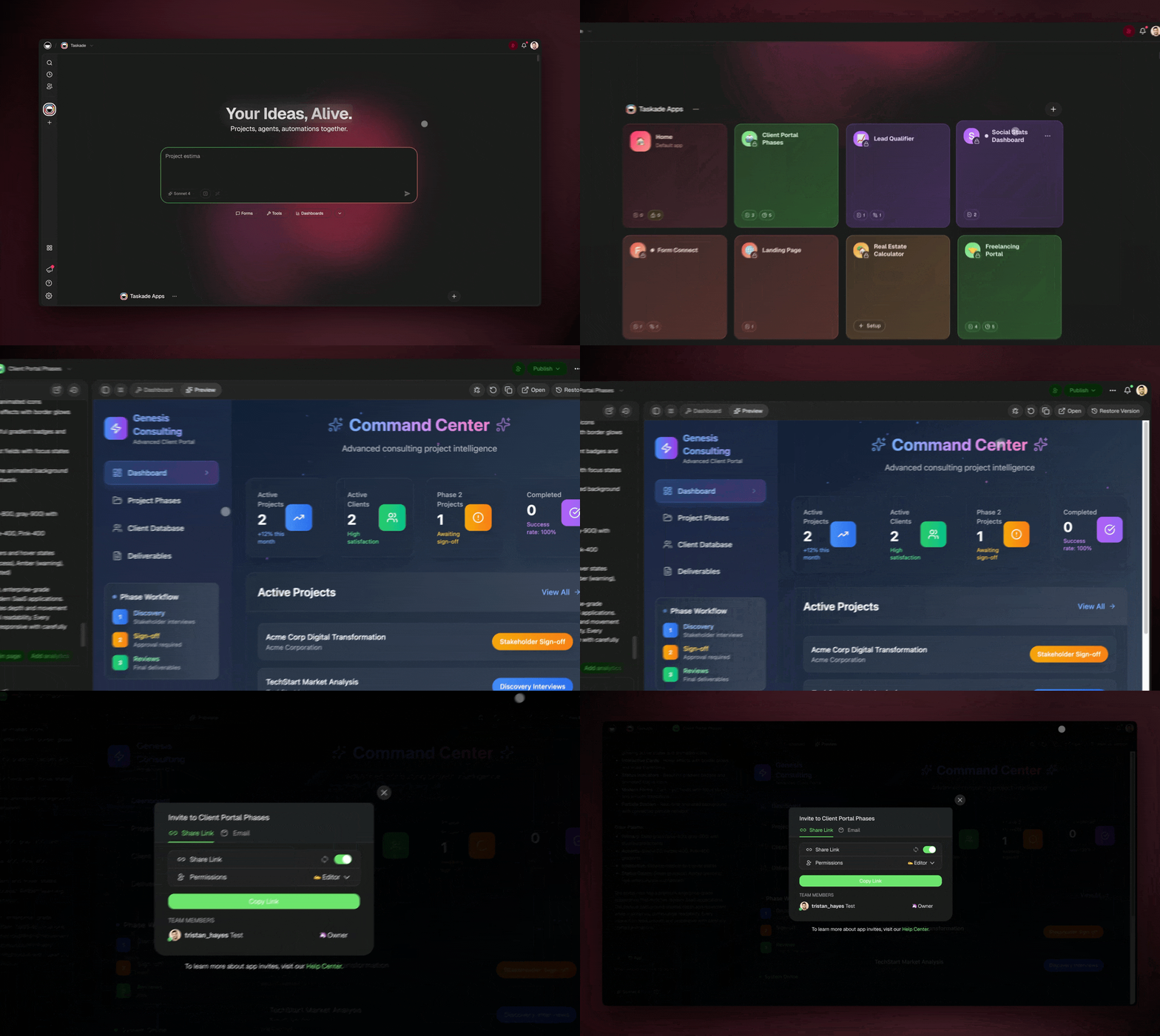
- **Go to** your **App Gallery** in the [main Taskade Genesis Dashboard](https://www.taskade.com/learn/projects/ui-guide).
- Open an app → Click the **Share** button in the top-right corner.
- Copy the invite link and share it via email, text, or any other way.
- (optional) Specify [the level of access](https://www.taskade.com/learn/account/workspaces) for users who join with the link.
---
### Set/Edit Permissions
Every time you [create a new app](https://www.taskade.com/learn/genesis/first-app) in a [shared workspace](https://www.taskade.com/learn/account/invite-members), you can define the level of access for other workspace members.
> **💡 Note**: Visit [User Roles & Permissions](https://www.taskade.com/learn/projects/permissions) to learn more.
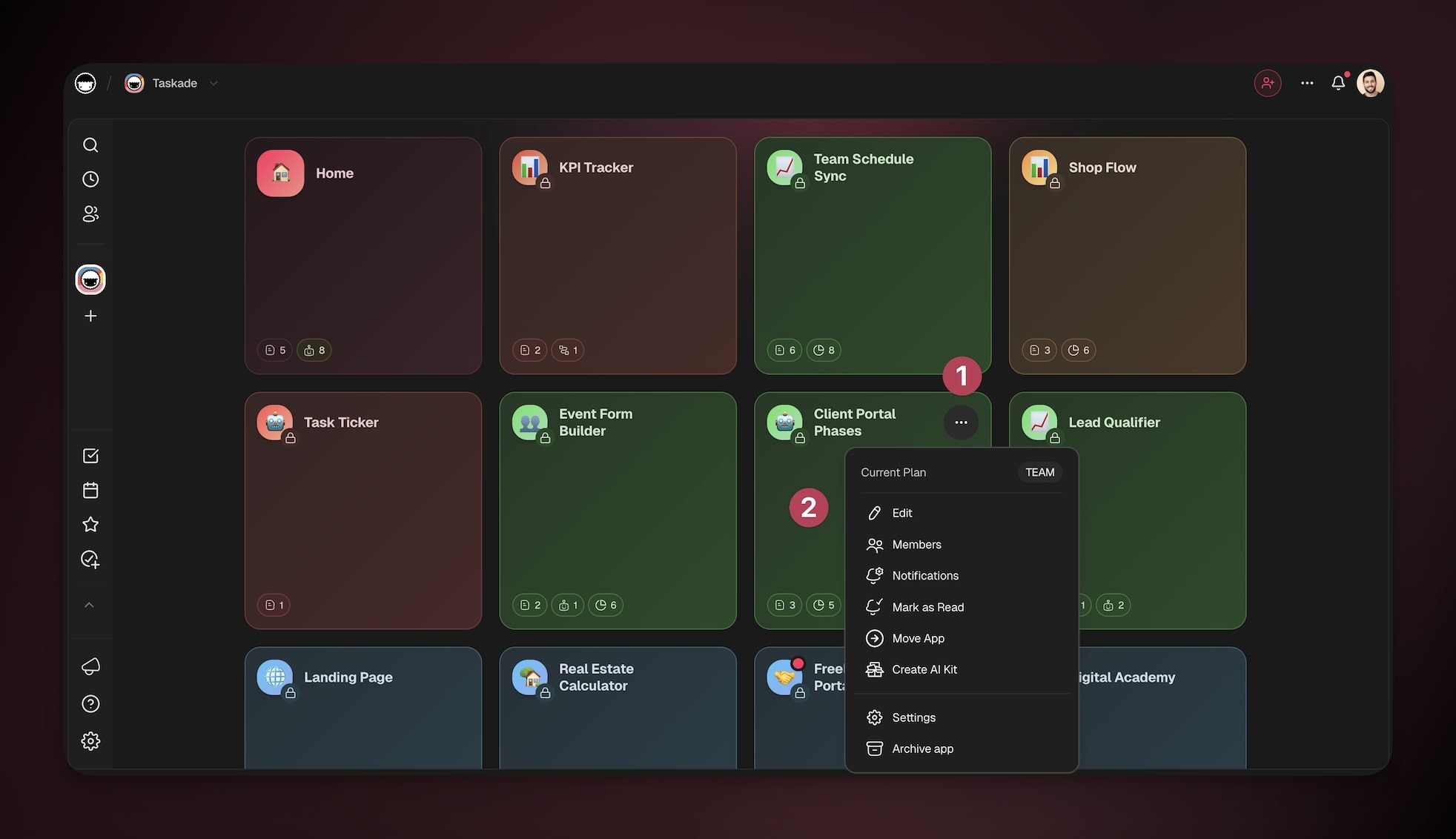
- Generate a new app inside a workspace.
- **Click** the **three dots ···** in the app space → **Edit**.
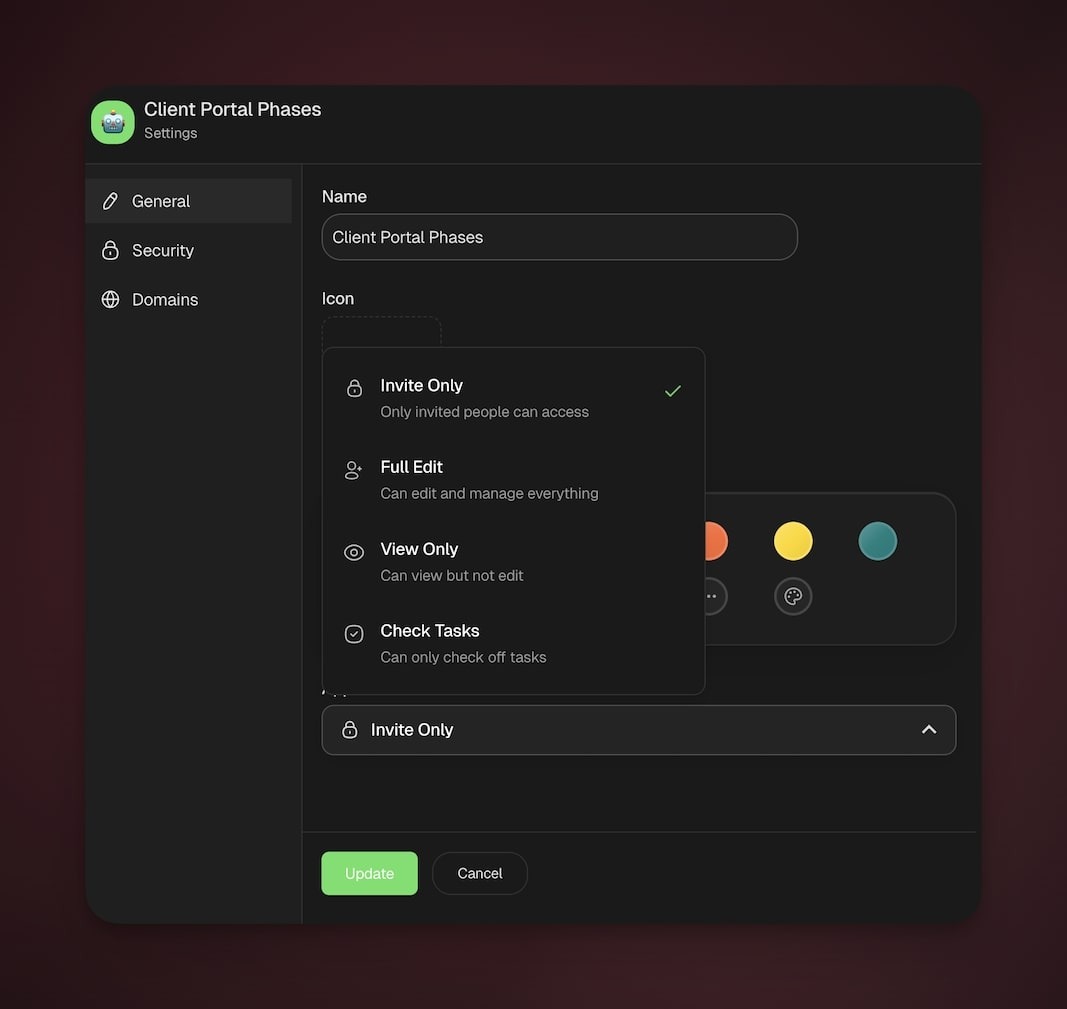
- Use the dropdown menu in the **General** tab to define access level:
| Access level | What workspace members can do | Typical use |
| --- | --- | --- |
| Invite Only | None until invited | Private builds, sensitive work, early drafts |
| Full Edit | Create/edit content, configure projects, agents, and automations | Small trusted teams building together |
| View Only | View content only | Broad visibility, reviews, leadership updates |
| Check Tasks | Mark tasks complete, no edits to content/settings | Light participation, QA checks, field teams |
---
## Tips
- **Default is private.** Every new workspace and app starts as private. No one outside your workspace sees your content until you share it.
- **Review sharing links regularly.** If you shared invite links in the past, check the access level each one still grants. You can revoke or regenerate a link at any time from the Share menu.
- **Use "Invite Only" for sensitive work.** When an app holds confidential data or early-stage ideas, set the access level to **Invite Only**. Then only the members you pick can see the content.
- **Audit member roles periodically.** As teams grow or change, review who holds Owner, Maintainer, or Editor access. Keep the permissions matched to the people who need them.
---
### Related guides
- [Taskade Genesis FAQ](https://www.taskade.com/learn/genesis/faq). Common questions about Taskade Genesis apps, pricing, and features.
- [User Roles and Permissions](https://www.taskade.com/learn/projects/permissions). Full breakdown of what each role can do.
- [Transfer Workspace Ownership](https://www.taskade.com/learn/account/transfer-ownership). Change who controls the workspace.
- [Invite Members](https://www.taskade.com/learn/account/invite-members). Add teammates and guests.
---