# How to Upgrade to a Higher Plan
> Need access to more advanced Taskade features? You can upgrade your account at any time in a few simple steps.
- Source: https://www.taskade.com/learn/account/upgrade-plan
- Section: Help & Account
- Updated: 2026-11-15
- Index of all pages: https://www.taskade.com/learn/llms.txt
## Overview
Need access to more advanced Taskade features? You can upgrade your account at any time in a few steps. An upgrade raises your AI credit limits and lifts the cap on how many Taskade Genesis apps you keep live. Depending on the plan you choose, it also adds advanced agents, automations, and integrations. The Taskade Genesis app builder itself is included on every plan, including Free.
> **TL;DR:** Upgrade anytime from the Billing tab in Settings for higher AI credit limits, unlimited Taskade Genesis apps, advanced agents, and automations. Paid plans run from Starter to Enterprise. Activate the plan on each workspace you want covered. See the [pricing page](https://www.taskade.com/pricing) for current prices and a full comparison.
```mermaid
flowchart LR
A[Open Billing
in Settings] --> B[Pick a Plan
and confirm]
B --> C[Finish Payment]
C --> D[Activate Each
Workspace]
style A fill:#0d1b2a,color:#7dd3fc,stroke:#38bdf8,stroke-width:1.5px
style B fill:#2a1225,color:#ff8fa3,stroke:#ff2d60,stroke-width:2px
style C fill:#1a140a,color:#ffb74d,stroke:#e65100,stroke-width:1.5px
style D fill:#0d1a0e,color:#86efac,stroke:#22c55e,stroke-width:1.5px
```
---
## How to Upgrade Your Plan
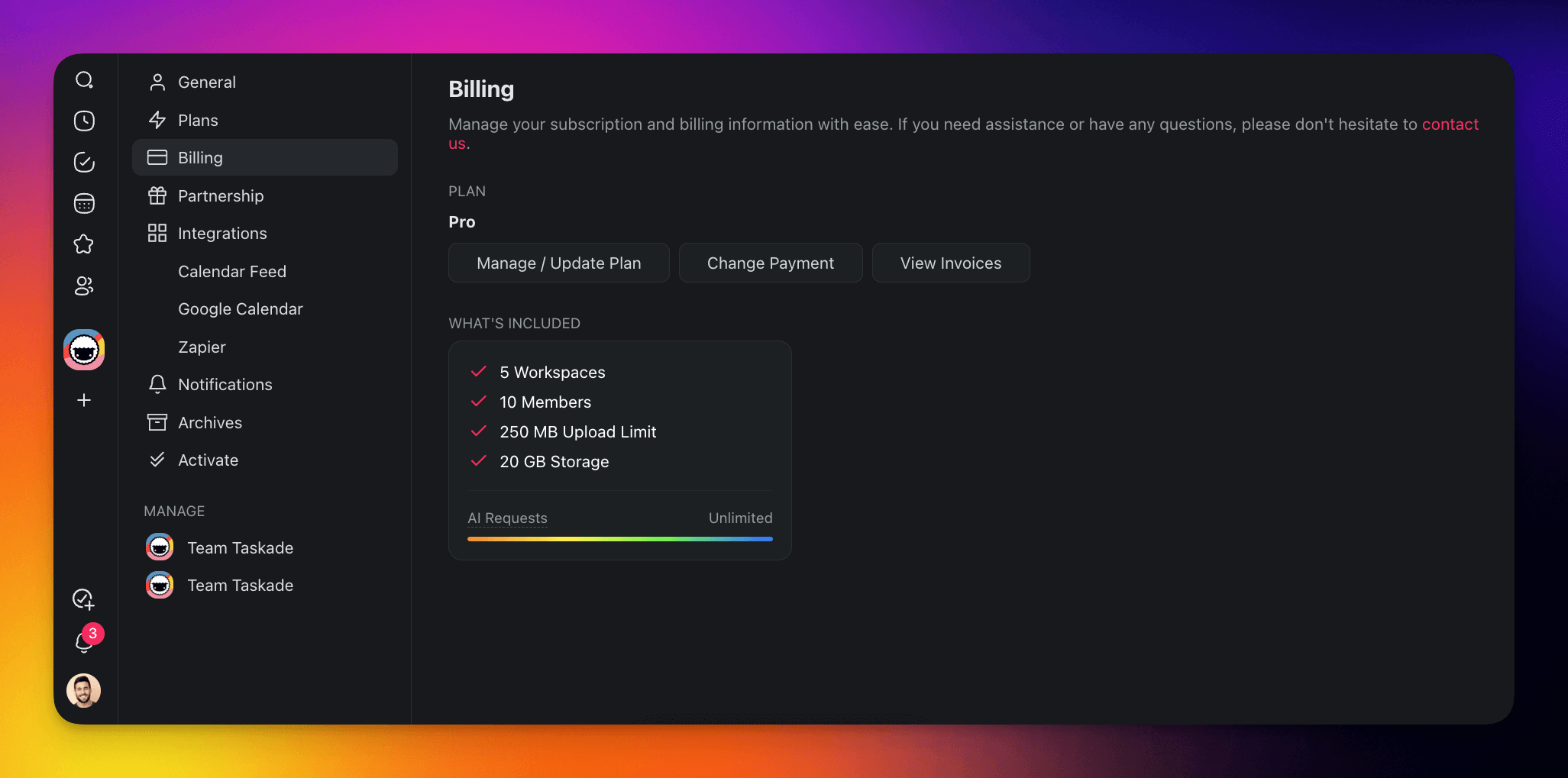
1. Open Taskade and click your avatar in the bottom-left corner.
2. Choose **Settings** and select the 💳 **Billing** tab from the list on the left.
- You can also visit [https://www.taskade.com/settings/billing](https://www.taskade.com/settings/billing).
3. Click the **Upgrade to** button under **Current plan**. It names the next plan and its yearly price.
- On Free, the button opens Stripe Checkout for a new subscription.
- On a paid plan, the button opens the Stripe confirm page. It shows the prorated amount before it charges.
4. To pick a different plan, click **Compare plans** at the bottom of the **Billing** page. On a paid plan, you can also click **Manage billing and invoices**.
5. Follow the payment steps to finalize.
On the Free plan, an **Upgrade** button also shows in the top bar, the Create page included. The account menu holds **Upgrade** and **Buy credits** too.
---
## Activate Your Workspaces
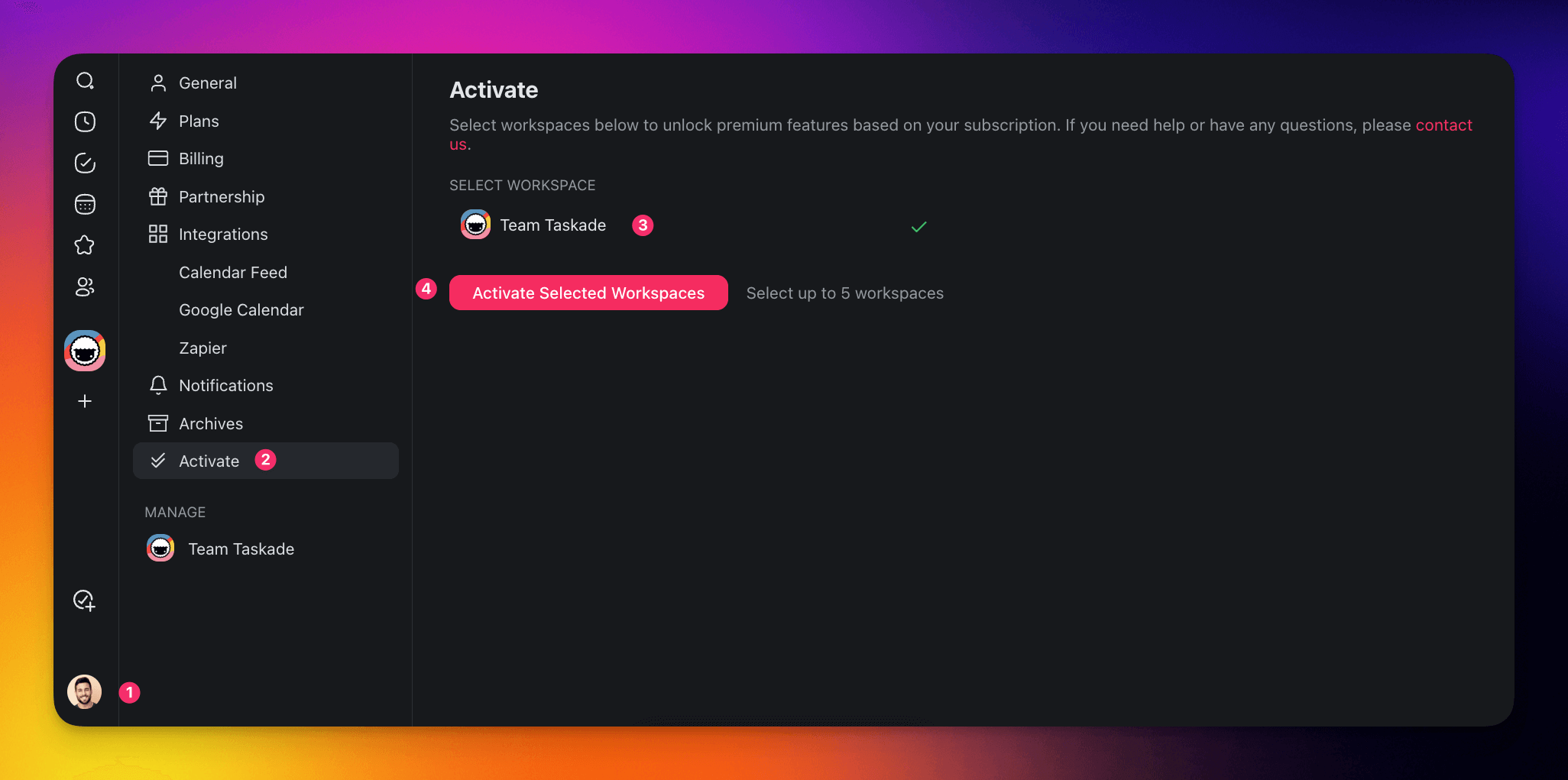
After you upgrade, activate your paid plan on each workspace you want to cover. A workspace that you do not activate does not get the features of your paid plan.
1. Open Taskade and click your avatar in the bottom-left corner.
2. Choose **Settings** and select the ✔️✔️ **Activate** tab from the list on the left.
- You can also visit [https://www.taskade.com/settings/activate](https://www.taskade.com/settings/activate).
3. Select the workspace you want to upgrade.
4. Click **Activate Selected Workspaces**.
If you pay for a plan, a workspace that you own and did not activate shows **Not activated**, not **Free**. The label shows in the workspace switcher and on the workspace **Overview**. In the workspace switcher, click the label to open the **Activate** page.
---
## Available Plans
| Plan | Highlights |
| --- | --- |
| Free | Taskade Genesis app builder, unlimited projects, and free AI credits that you earn as you go |
| Starter | Lowest-priced paid plan, billed yearly only, up to 3 users |
| Pro | Unlimited Taskade Genesis apps, up to 10 custom domains, advanced agents, 10 users included |
| Business | SAML single sign-on, priority support |
| Max | Maximum AI credit capacity, unlimited users |
| Enterprise | Dedicated infrastructure, SCIM user provisioning, SLA |
Visit the [pricing page](https://www.taskade.com/pricing) for current prices and a full feature comparison.
---
## Tips
- **Annual billing saves money.** Annual billing costs less than monthly billing on Pro, Business, and Max. On a monthly plan, click the **Switch to yearly** line under **Current plan**. It shows the yearly price and the saving before you confirm.
- **One subscription, multiple workspaces.** A single paid plan can be activated on the workspaces you choose. You do not need a separate subscription for each workspace.
- **Downgrade anytime.** If you decide a lower plan suits your needs, you can switch plans from the same billing page. The change takes effect at the next billing cycle, and you keep the current plan until then. To undo it, click **Keep my current plan**.
---
## Frequently Asked Questions
**What do I get when I upgrade my plan?**
Upgrading raises your AI credit limits and app capacity, and adds advanced AI agents with a large built-in toolkit, automations, and integrations. Pro and up add more users, unlimited Taskade Genesis apps, and up to 10 custom domains. Two things need no upgrade at all: the Taskade Genesis app builder and GenesisAuth sign-in for visitors to your published apps are both on every plan, including Free.
**Can I switch plans anytime?**
Yes. You can upgrade or downgrade at any time from the Billing tab in your settings. Upgrades apply right away. Downgrades take effect at the next billing cycle, and you keep the current plan until then.
**How does one subscription cover multiple workspaces?**
A single paid plan can be activated on the workspaces you choose, so you do not need a separate subscription for each one. Visit the Activate tab to turn on your plan for each workspace. A workspace that is not activated does not get the features of your paid plan, and it shows **Not activated** to you as its owner.
**How much do the paid plans cost?**
The [pricing page](https://www.taskade.com/pricing) shows the current price of every plan and billing cycle. Paid plans run from Starter, which is sold yearly only, through Pro, Business, Max, and Enterprise. Pro includes up to 10 users. The Free plan has no time limit.
**How do I save money on my plan?**
Switch from monthly to annual billing. The annual rate is lower than the monthly rate on Pro, Business, and Max. On a monthly plan, click the **Switch to yearly** line on the [Billing tab](https://www.taskade.com/learn/account/billing-faq). The switch applies at once, and Stripe bills the yearly price less the unused part of the month.
**Which plan includes custom domains and single sign-on?**
Custom Domains are available on Pro and up. SAML single sign-on (SSO) for your own team members is available on Business and up. GenesisAuth, the email sign-in for visitors to your published apps, is included on every plan, so no upgrade is needed for client logins. SCIM user provisioning is included with Enterprise. The hosted MCP server, which connects Taskade to any MCP client so it can read your agents, projects, and automations, is available on every paid plan.
**What AI models and agents come with a paid plan?**
Taskade provides frontier AI models from top AI labs, including OpenAI GPT and open-weight models such as DeepSeek and Qwen. Users on paid plans can select their preferred model for AI agents and app generation. Claude runs on your own API key (BYOK) in custom agents on Pro and up, and in automations. Paid plans also give you advanced AI agents with persistent memory, custom tools, and slash commands. Learn more about [custom agents](https://www.taskade.com/learn/agents/custom-agents).
### Related guides
- [Is Taskade Free?](https://www.taskade.com/learn/account/free-plan). Details on the Free plan.
- [Premium Plans](https://www.taskade.com/learn/account/premium-plans). Compare every paid tier at a glance.
- [Plan Matrix](https://www.taskade.com/learn/account/plan-matrix). See the full feature-by-feature comparison.
- [Billing FAQ](https://www.taskade.com/learn/account/billing-faq). Pricing, AI credits, and refunds.
- [What is a Workspace?](https://www.taskade.com/learn/account/workspaces). Understand workspace structure.
---