# Manage Paid Subscription
> What Is The Billing Center? The Billing Center aggregates all your payment information and settings in one place. To access it, go to https://www.taskade.com/...
- Source: https://www.taskade.com/learn/account/subscription
- Section: Help & Account
- Updated: 2026-11-09
- Index of all pages: https://www.taskade.com/learn/llms.txt
## Overview
Check your plan, update your card, and download invoices from one screen. Billing is your home for everything about a paid plan: the current plan, the payment method, and the invoice history. Open it at [taskade.com/settings/billing](https://www.taskade.com/settings/billing), or click your profile picture, then **Settings → Billing**.
> **TL;DR:** Open [Settings → Billing](https://www.taskade.com/settings/billing) to read your current plan, your card, and your invoices. Click **Manage billing and invoices** to open the secure Stripe portal, where you change your plan or credits level, or update the card. Manage an App Store or Google Play subscription inside that store instead.
```mermaid
flowchart LR
A[Open Settings
then Billing] --> B[Read current plan
card and invoices]
A --> C[Manage billing
and invoices]
C --> D[Stripe portal
plan card credits]
style A fill:#0d1b2a,color:#7dd3fc,stroke:#38bdf8,stroke-width:1.5px
style B fill:#2a1225,color:#ff8fa3,stroke:#ff2d60,stroke-width:2px
style C fill:#0d1a0e,color:#86efac,stroke:#22c55e,stroke-width:1.5px
style D fill:#1a140a,color:#ffb74d,stroke:#e65100,stroke-width:1.5px
```
---
## Manage Subscription (Desktop)
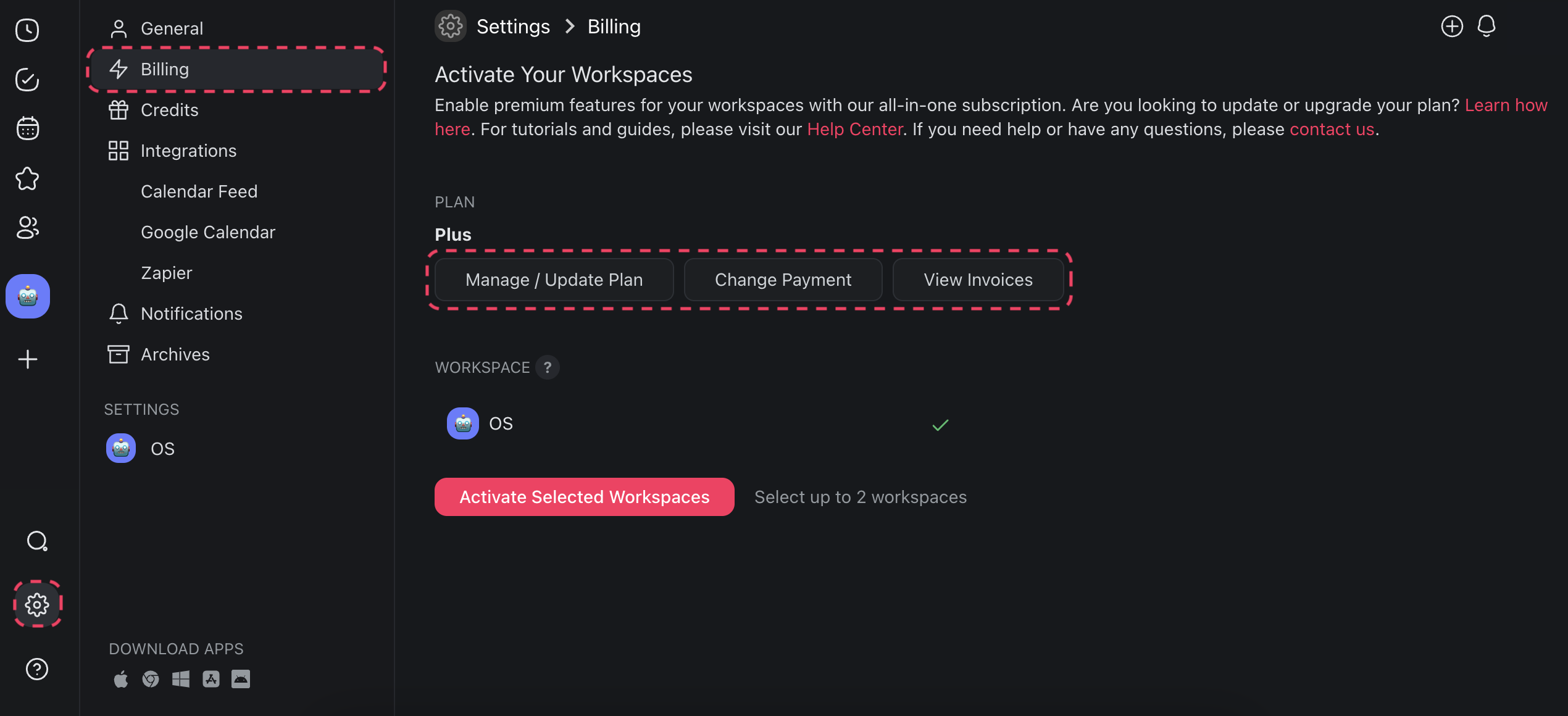
1. Go to ⚙️ **Settings ➡ 💳 Billing**.
2. Read the **Current plan** card. It shows your plan, your billing period, your credits level, the next renewal, and any scheduled cancellation or plan change.
3. Click **Manage billing and invoices** to open the secure Stripe portal. Change your plan or your credits level, or replace the card there. To compare plans first, click **Change plan**.
4. If you pay monthly, look for the **Switch to yearly** line under the plan. It shows the yearly price and the saving, and opens the Stripe page to confirm.
5. To swap the card without leaving Taskade, click **Update** in the **Payment method** section.
6. Scroll to **Invoices** to open or download any past invoice.
7. To stop the subscription, click **Cancel subscription** under the plan card. The Stripe page opens at its cancel step. See [Manage, Pause, or Cancel Your Plan](https://www.taskade.com/learn/account/cancel-subscription).
If your subscription is billed per workspace, open **Workspace subscriptions** from the same page and manage it there.
> **💡Note**: Visit [Upgrade to Premium Plans](https://www.taskade.com/learn/account/upgrade-premium) and [Taskade Pricing](https://www.taskade.com/pricing) to learn more.
---
## Manage Subscription (iOS)
- Subscribe to a paid plan:
1. Tap

to unfold the navigation pane.
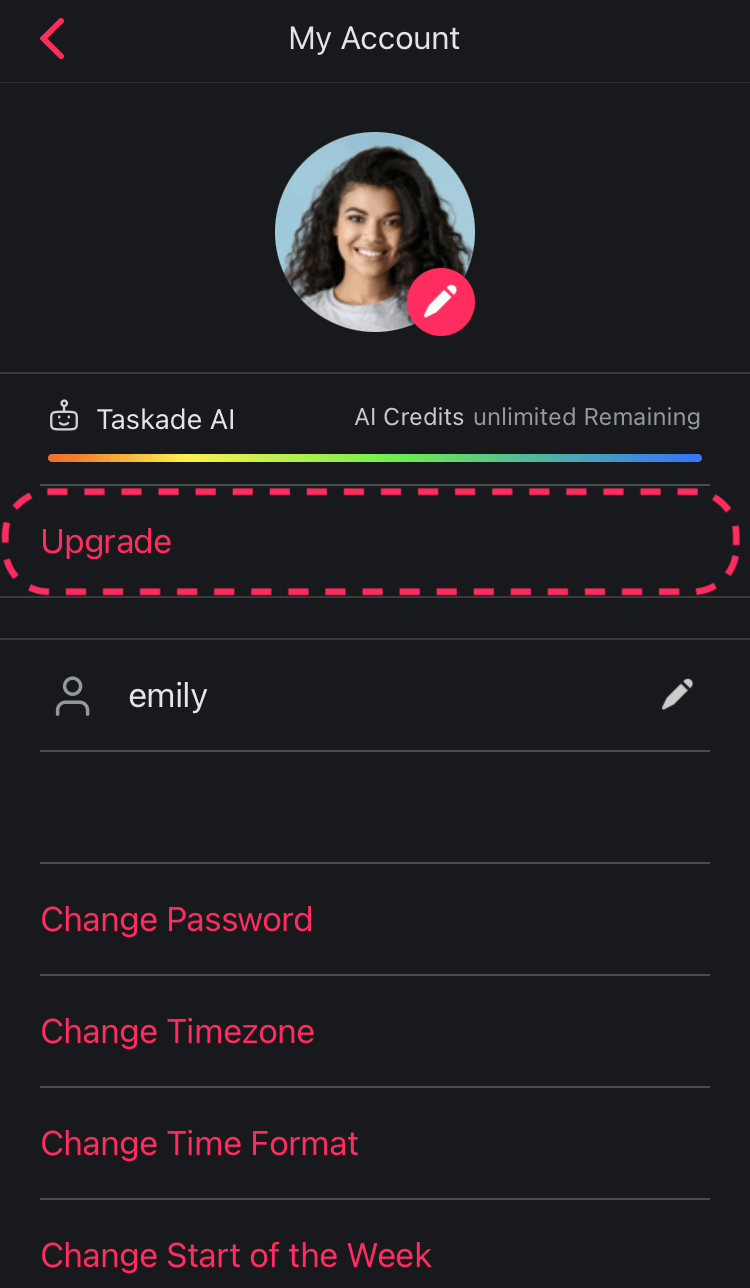
- **Tap** ⚙️ to **open settings**.
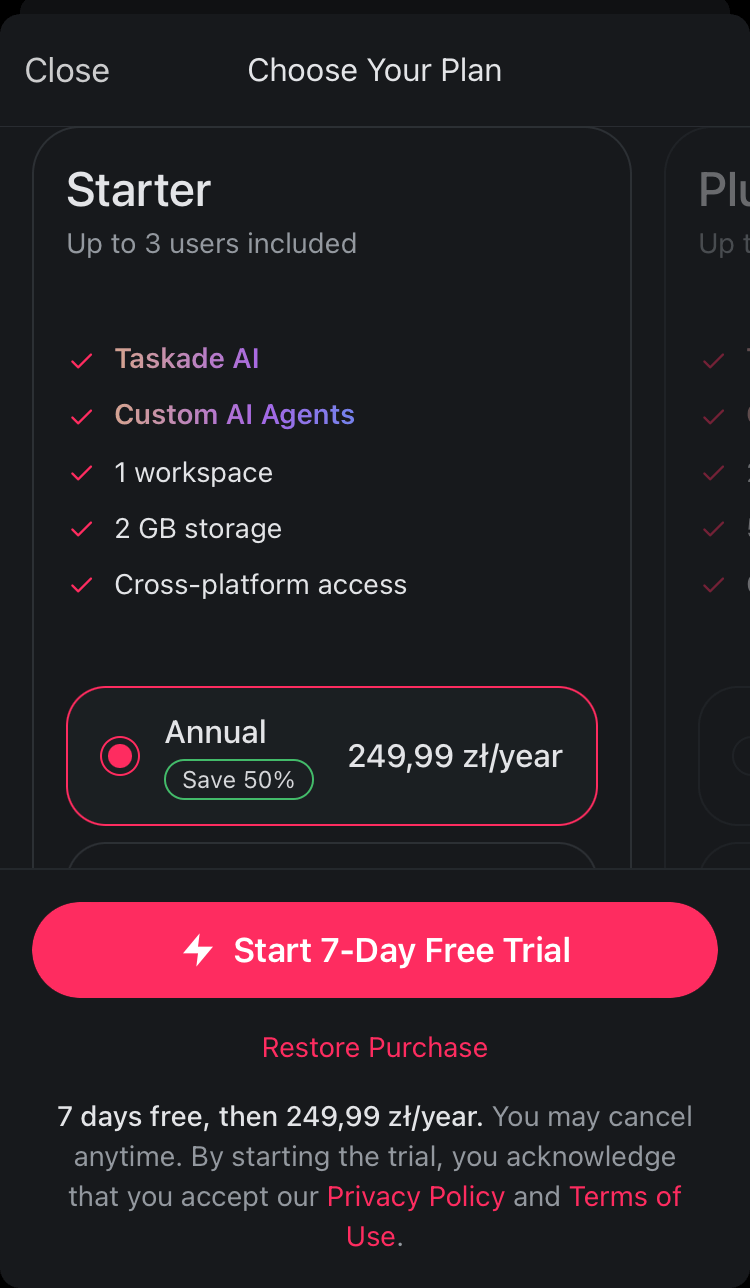
- **Tap Upgrade** and **choose your plan**.
- **Tap** ⚡️ **Start 7-Day Free Trial** to subscribe.
- (optional) **Activate** your workspaces.
- Activate workspaces manually:
- After you subscribe to a paid plan:
- Tap

to unfold the navigation pane.
- **Tap** ⚙️ to **open settings**.
- Tap **Activate Workspaces**.
1. Choose a workspace and tap ⚡️ **Activate**.
2. Go to the ⚙️ **Settings** app on your device.
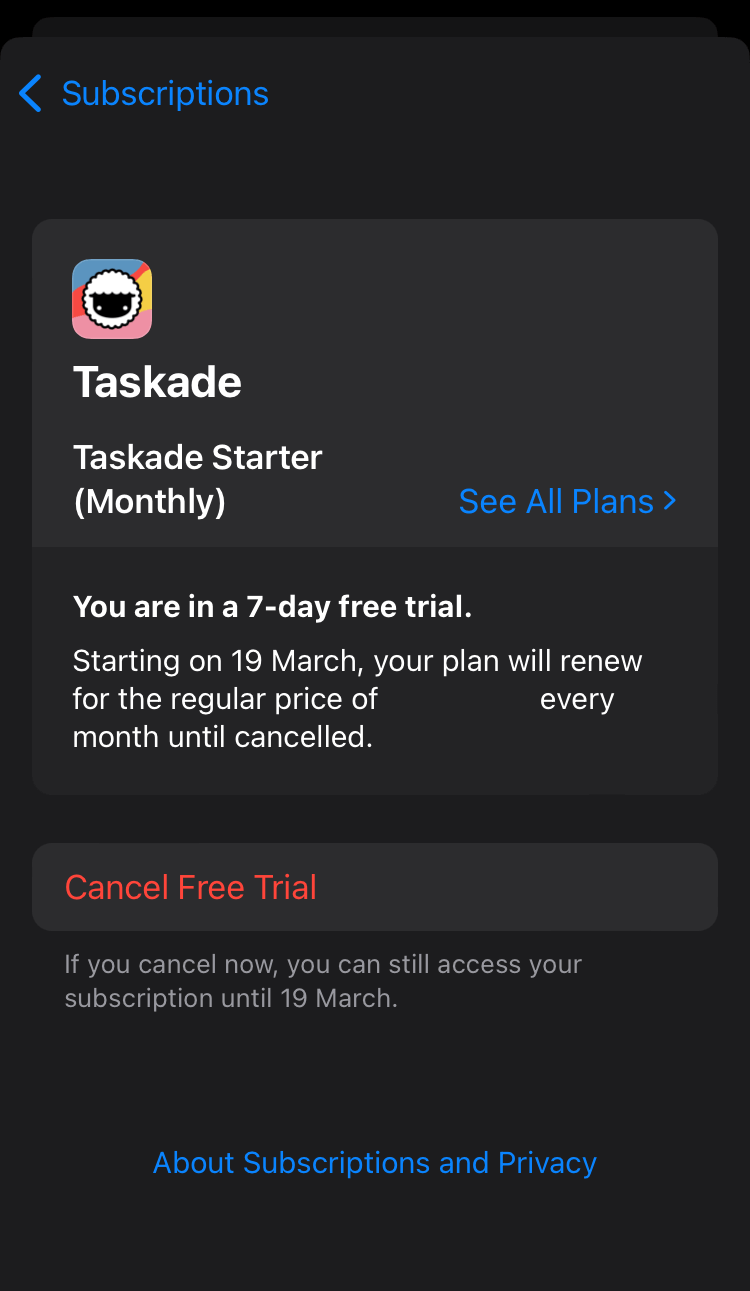
- Tap your name at the top ➡ **Subscriptions**.
- Select **Taskade** from the list.
- Tap **See All Plans** to change your plan.
- Tap **Cancel Subscription** or **Cancel Free Trial** to unsubscribe.
---
## Manage Subscription (Android)
1. Subscribe to a paid plan:
- Tap

to unfold the navigation pane.
2. **Tap** ⚙️ to **open settings**.
3. **Tap Upgrade** and **choose your plan**.
4. **Tap** ⚡️ **Start 7-Day Free Trial** to subscribe.
5. Tap **Subscribe** on the next screen.
6. (optional) **Activate** your workspaces.

- Activate workspaces manually:
- After you subscribe to a paid plan:
- Tap

to unfold the navigation pane.
- **Tap** ⚙️ to **open settings**.
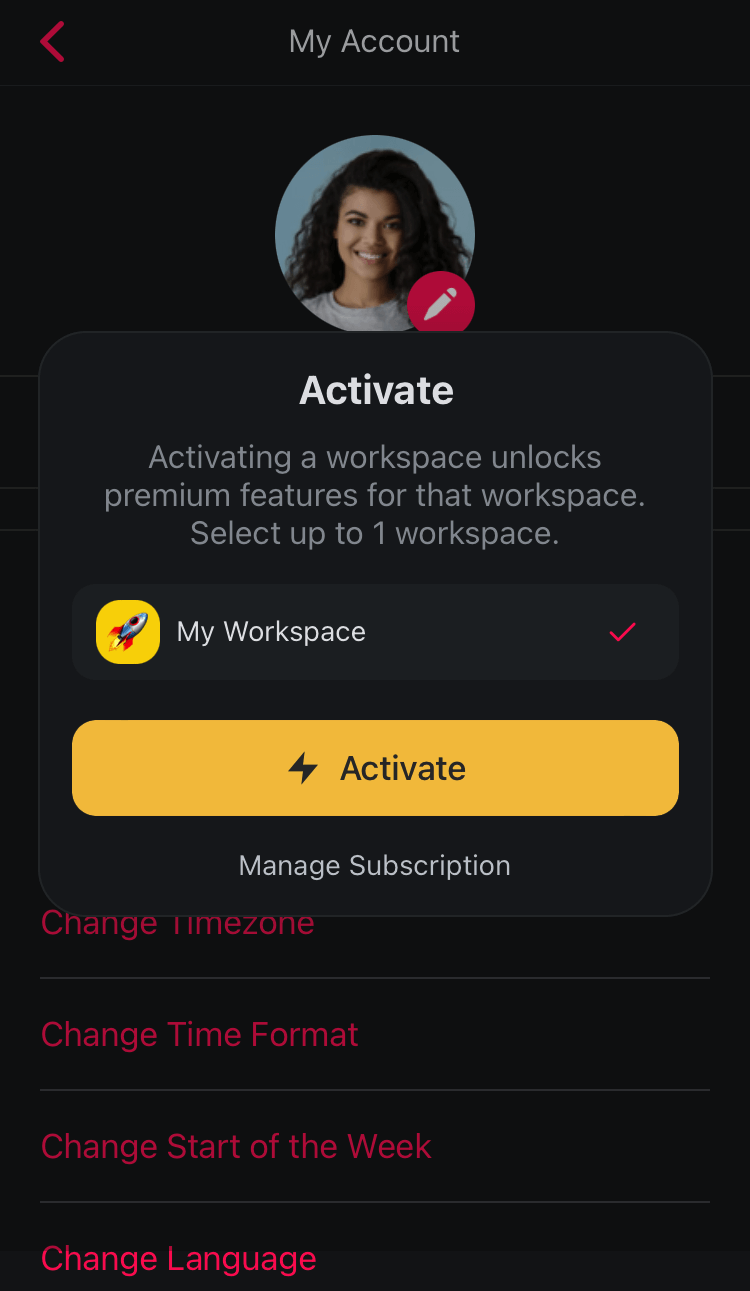
- Tap **Activate Workspaces**.
- Choose a workspace and tap ⚡️ **Activate**.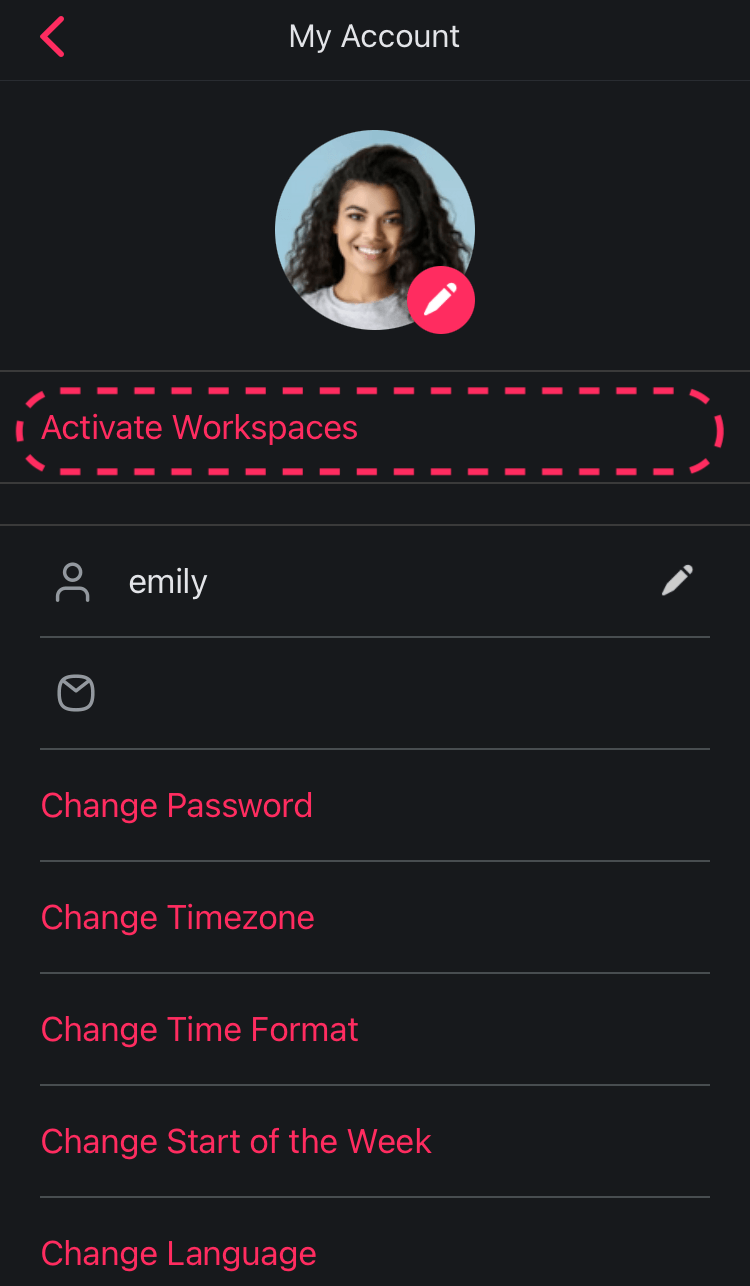
- Manage subscription in the Google Play store:
- On your Android device, open the **Play Store** app.
- Tap your profile icon (top-right).
- Tap 💳 **Payments & subscriptions** ➡ 🔄 **Subscriptions**.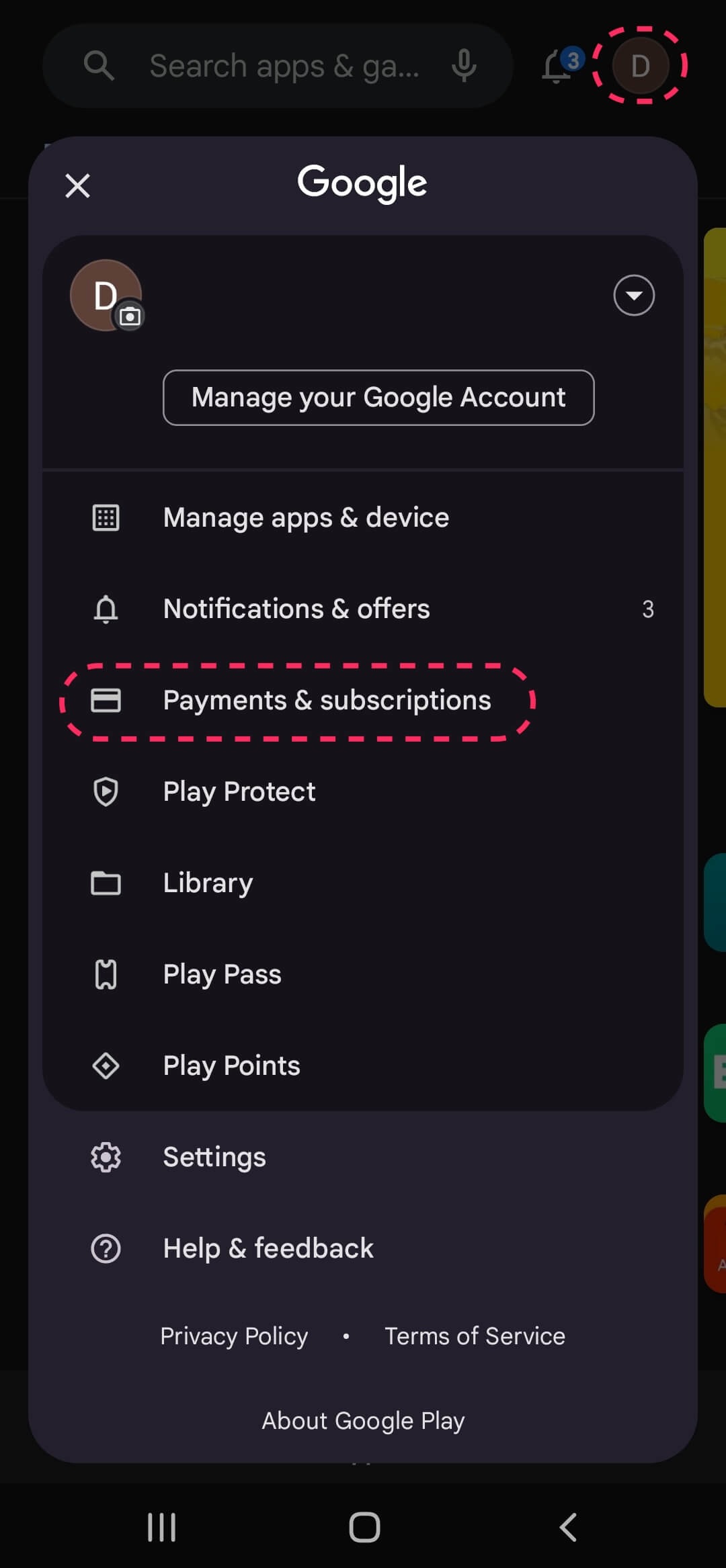
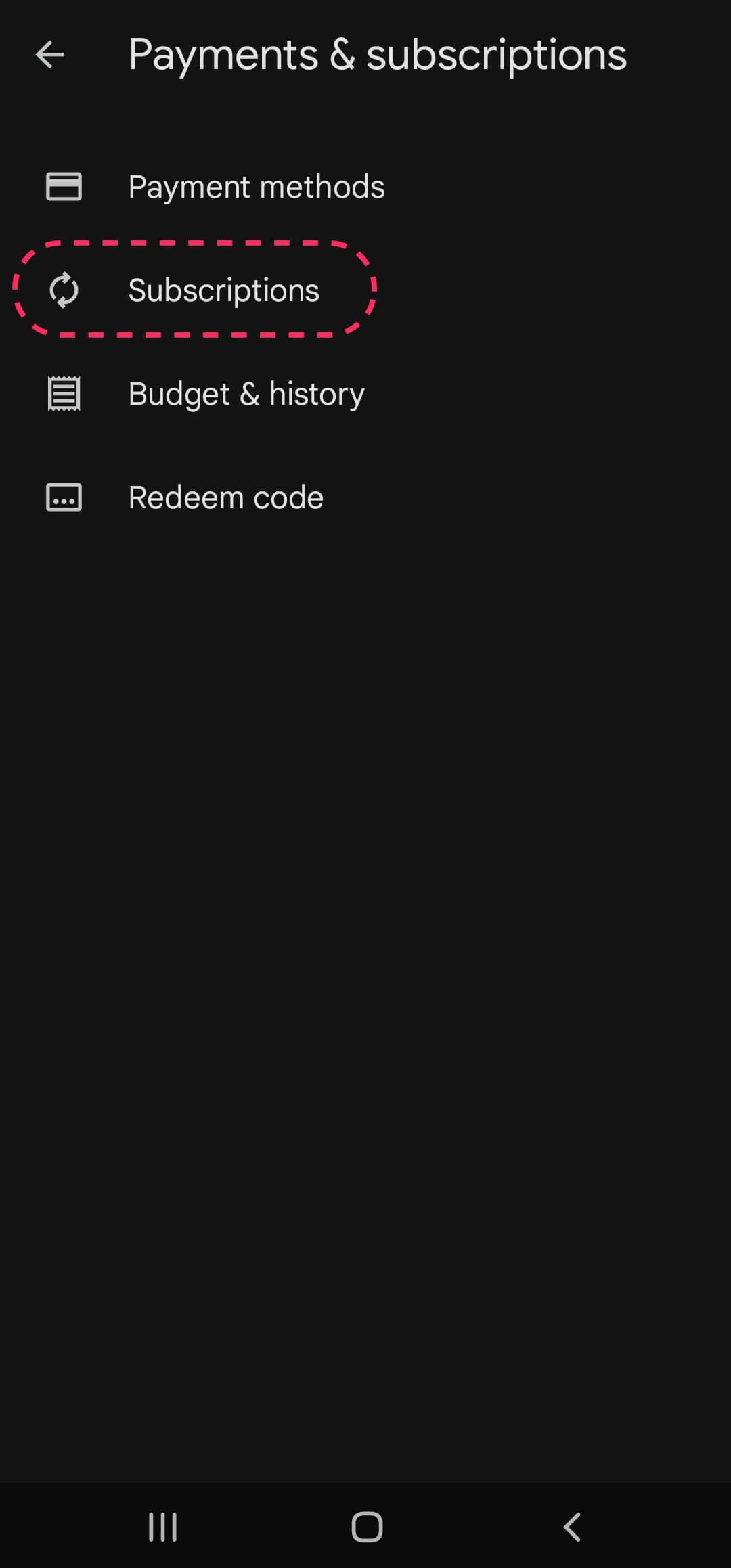
- Choose **Taskade** from the list.
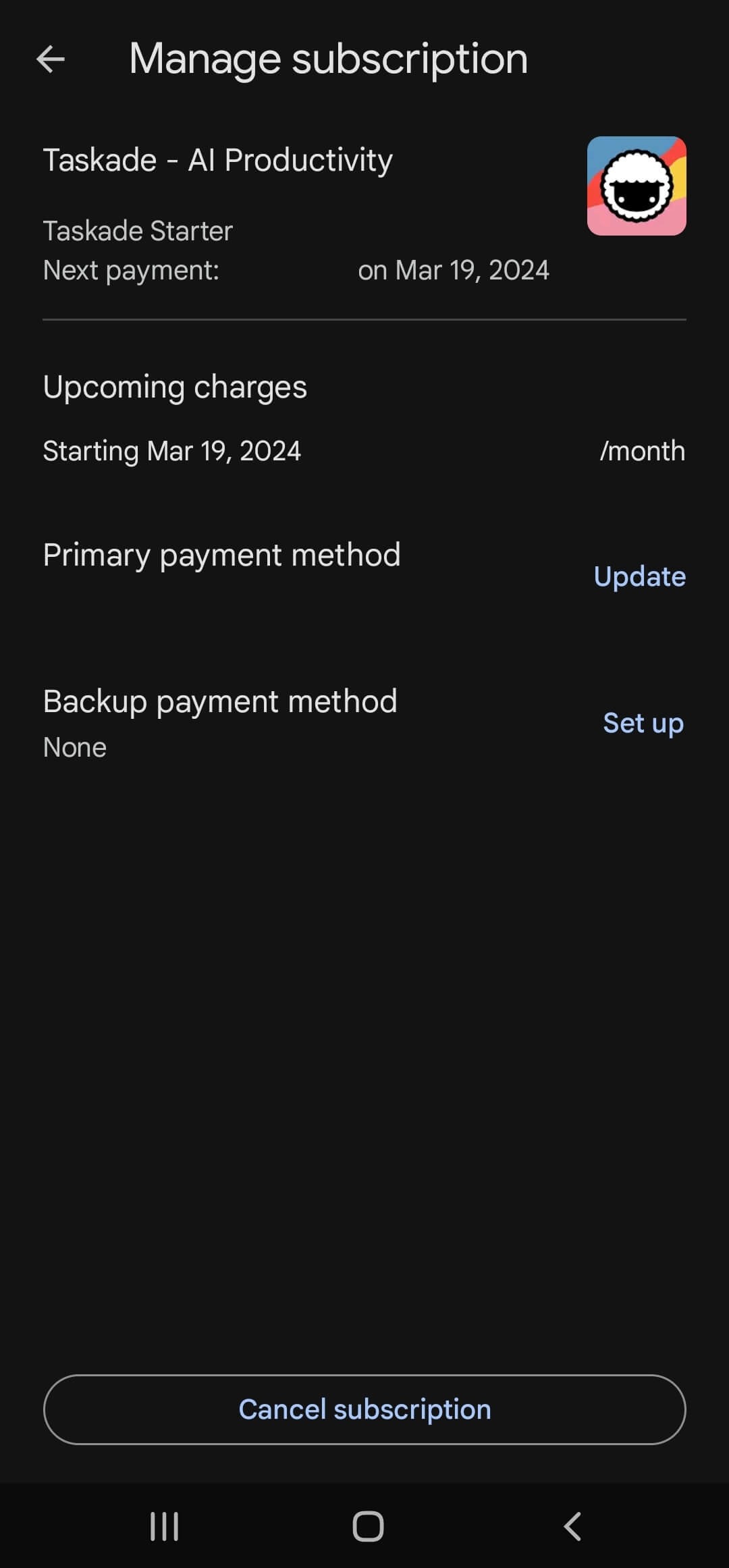
- Tap **Update** to update your payment method.
- Tap **Set up** to add a backup payment method.
- Tap **Cancel Subscription** to unsubscribe.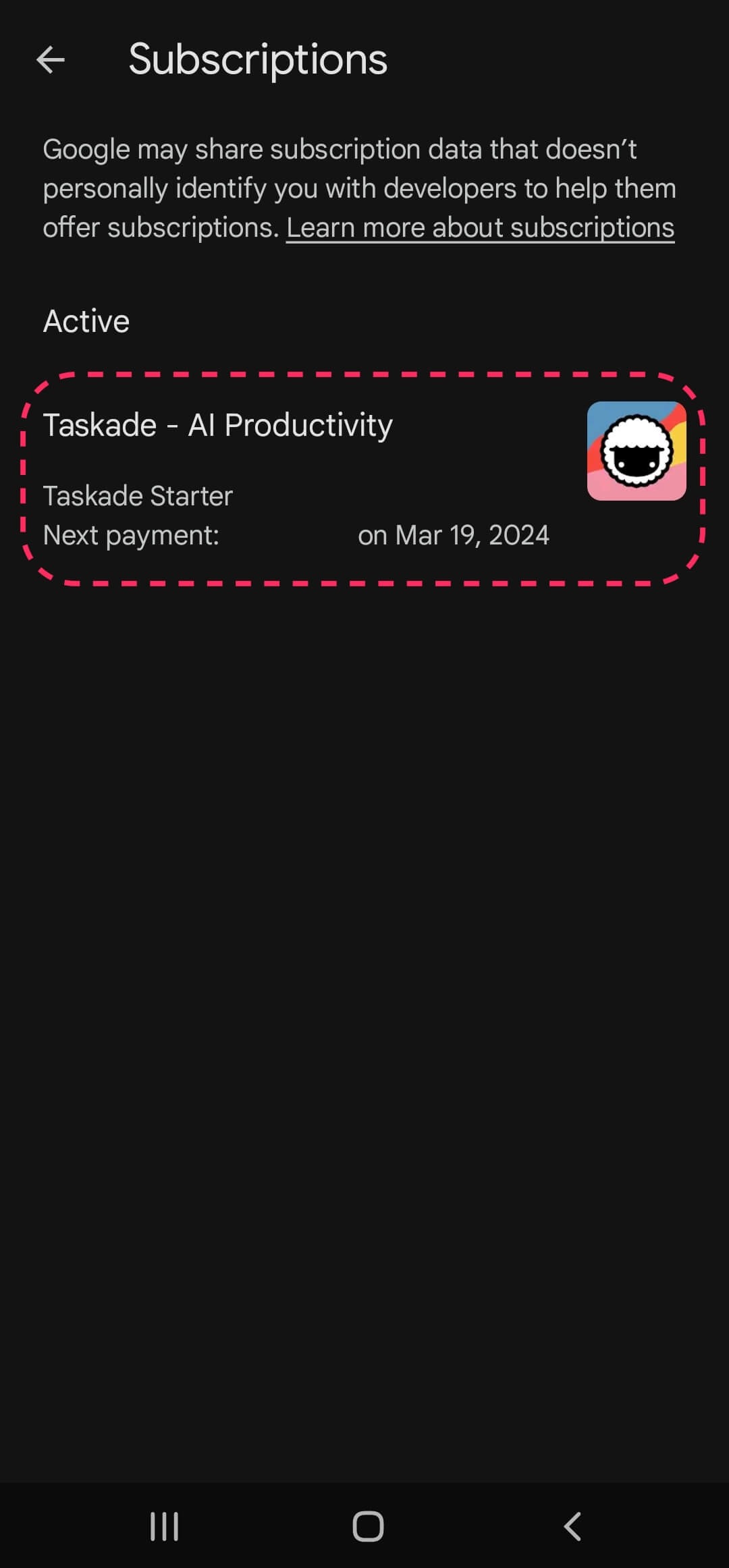
---
## Frequently Asked Questions
**Where do I manage everything about my paid plan?**
Billing is your one place for it all. Open **Settings → Billing** to read your plan, update your card, and download invoices. Click **Manage billing and invoices** to change your plan or credits level in the secure Stripe portal. See [Upgrade Plan](https://www.taskade.com/learn/account/upgrade-plan) for the steps.
**What do the paid plans include?**
Paid plans unlock more workspaces, larger teams, and advanced features. Pro is the popular choice and covers a team of up to 10. Compare every tier on [Premium Plans](https://www.taskade.com/learn/account/premium-plans) or the [pricing page](https://www.taskade.com/pricing).
**Can I add more team members to my plan?**
Yes. Current plans include a set number of members, so you do not buy seats. Pro includes up to 10 members, and Business, Max, and Enterprise include unlimited members. To add an 11th member, move to Business with **Change plan** on the Billing page. On an older seat-based plan, set the seat count in the Stripe portal behind **Manage billing and invoices**.
**Can I switch plans anytime?**
Yes. Click **Manage billing and invoices** on the Billing page to move between tiers whenever your needs change. An upgrade applies at once. A downgrade, a lower credits level, or a move from yearly to monthly applies at your next renewal. You keep the current plan until then. To undo a scheduled downgrade, click **Keep my current plan** on the **Current plan** card.
**Will Taskade remind me before a yearly renewal?**
Yes. Taskade emails you about a week before each yearly renewal, with the plan, the date, the amount, and the last digits of the card. The email can also offer **Switch to monthly**, so you keep the plan and pay each month from that day. To change or cancel the plan before the date, open your billing settings. On a monthly plan, the first renewal reminder can show a line to switch to yearly billing.
**Which plans include AI agents and integrations?**
Every plan gives you AI agents with built-in tools and persistent memory. The Free plan includes 1 agent, and Pro and up include unlimited agents. Taskade connects to 100+ bidirectional integrations, where triggers pull events in and actions push data out. Premium integrations need a paid plan, and some integrations need Pro and up. Taskade provides frontier AI models from top AI labs, including OpenAI GPT and open-weight models such as DeepSeek and Qwen. Users on paid plans can select their preferred model for AI agents and app generation. Claude runs on your own API key (BYOK) in custom agents on Pro and up, and in automations.
**How do I manage a mobile subscription?**
Subscriptions purchased through the App Store or Google Play are managed inside those stores, not in Taskade. On iOS, open the Settings app, tap your name, then **Subscriptions**. On Android, open the Play Store, then **Payments & subscriptions → Subscriptions**.
**How do I view and download my invoices?**
Open **Settings → Billing** and scroll to **Invoices**. Each row links to the hosted invoice and to a PDF. Your full payment history also stays in the Stripe portal behind **Manage billing and invoices**.
**What happens if a payment fails?**
Your plan stays active and Taskade shows a past-due recovery banner at the top of your workspace with a link to fix it. New AI requests pause until the payment goes through. The Taskade EVE chat box shows "Your plan payment failed, so AI is paused. Your work stays open." with a **Pay outstanding invoice** button. You can still read, edit, share, and export your work. To fix the payment, open **Settings → Billing**, click **Update** in the **Payment method** section, and add a working card. The banner clears and AI resumes once the charge goes through.
---
### Related guides
- [Upgrade Plan](https://www.taskade.com/learn/account/upgrade-plan). Step-by-step upgrade instructions.
- [Premium Plans](https://www.taskade.com/learn/account/premium-plans). Compare every paid tier.
- [Cancel Subscription](https://www.taskade.com/learn/account/cancel-subscription). Pause or end your plan.
- [Billing FAQ](https://www.taskade.com/learn/account/billing-faq). Pricing, AI credits, and billing questions.
- [Upgrade Premium](https://www.taskade.com/learn/account/upgrade-premium). Activate paid features per workspace.
---