# Restore the New Tab Page
> Would you like to bring back your web browser's default New Tab settings while also keeping the Taskade extension? Here are two methods that'll help...
- Source: https://www.taskade.com/learn/account/restore-tab
- Section: Help & Account
- Updated: 2026-09-02
- Index of all pages: https://www.taskade.com/learn/llms.txt
## Overview
The Taskade browser extension replaces your default New Tab page with a Taskade dashboard. You can manage tasks the moment you open a new tab. To bring back your browser's original New Tab and keep the extension installed, use one of the two methods on this page.
> **TL;DR:** You stay in full control of your New Tab page in Chrome, Firefox, and Edge. Open the Taskade extension options and pick the Default setting to bring back your browser's original New Tab, and the extension keeps running for quick task creation. If the setting is missing, reinstall from the [downloads page](https://www.taskade.com/downloads) and choose your preferred New Tab.
```mermaid
flowchart TD
A[Right click
Taskade logo] --> B[Open extension
Options]
B --> C[Pick Default
and Save]
B --> D[Reinstall and
choose New Tab]
style A fill:#0d1b2a,color:#7dd3fc,stroke:#38bdf8,stroke-width:1.5px
style B fill:#2a1225,color:#ff8fa3,stroke:#ff2d60,stroke-width:2px
style C fill:#0d1a0e,color:#86efac,stroke:#22c55e,stroke-width:1.5px
style D fill:#1a140a,color:#ffb74d,stroke:#e65100,stroke-width:1.5px
```
---
## Method 1: Extension Settings
The quickest approach is to change the New Tab behavior inside the extension itself. Here is the setting you are looking for:
```
┌────────────────────────────────────────────┐
│ Taskade extension › Options │
├────────────────────────────────────────────┤
│ New Tab page │
│ ( ) Taskade dashboard │
│ (•) ⭐️ Default · your browser's page │
│ │
│ [ Save ] │
└────────────────────────────────────────────┘
```
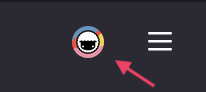
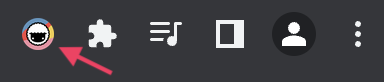
1. **Right-click** the Taskade logo in your browser's toolbar.
- **Firefox**:
- **Chrome**:
2. Click **Options** to manage the extension.
3. Select **⭐️ Default**, then click **Save**.
Your browser's original New Tab page comes back right away. The Taskade extension stays active for its other features, such as quick task creation and project access from the toolbar.
---
## Method 2: Reinstall the Extension
If the settings option does not appear or the change does not take effect, reinstall the extension:
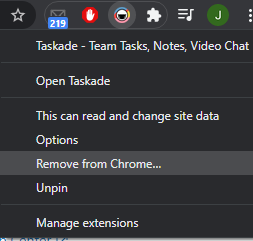
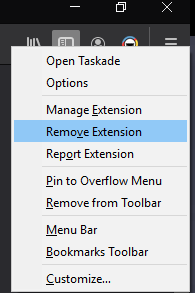
1. Right-click the Taskade logo in your browser's toolbar.
- 🤖 **(Chrome)** ➡ **Remove from Chrome...**
- **🦊 (Firefox)** ➡ **Remove Extension**
- **🌐 (Edge)** ➡ **Remove from Microsoft Edge**
2. Visit our [downloads page](https://www.taskade.com/downloads) and follow the links to reinstall the extension.
3. During reinstallation, choose whether you want Taskade to manage your New Tab or keep the browser default.
4. (optional) If you use a different New Tab extension, install your preferred one.
---
## Tips
- **Chrome users**: If neither method works, go to `chrome://extensions`, find Taskade, and toggle off **Allow in Incognito** then back on. This forces the extension to reload its settings.
- **Firefox users**: Open `about:addons`. The extension has to be enabled, and no other extension can be overriding your New Tab page.
- **Edge users**: Edge uses the same extension format as Chrome, so the Chrome steps apply.
- The New Tab setting does **not** affect your Taskade account, projects, or data. Everything stays intact in your workspace.
---
### Related guides
- [Taskade is blocked by my ISP](https://www.taskade.com/learn/account/isp-blocked). Resolve access issues
- [No Internet Connection](https://www.taskade.com/learn/account/offline). Troubleshoot connectivity problems
- [Downloads](https://www.taskade.com/downloads). Get the latest Taskade extensions and apps
---